> ## Documentation Index
> Fetch the complete documentation index at: https://help.fieldpulse.com/llms.txt
> Use this file to discover all available pages before exploring further.
# Alternative Company Profiles
> Set up extra company profiles with their own logo and branding and switch between them when sending estimates and invoices.
In FieldPulse, you can create multiple company profiles that can be easily switched when sending estimates and invoices. For instance, you might have a separate HVAC business with a distinct logo that you want to show to customers, or you may want to represent a different location of the same business.
***
# Creating an Alternative Company Profile
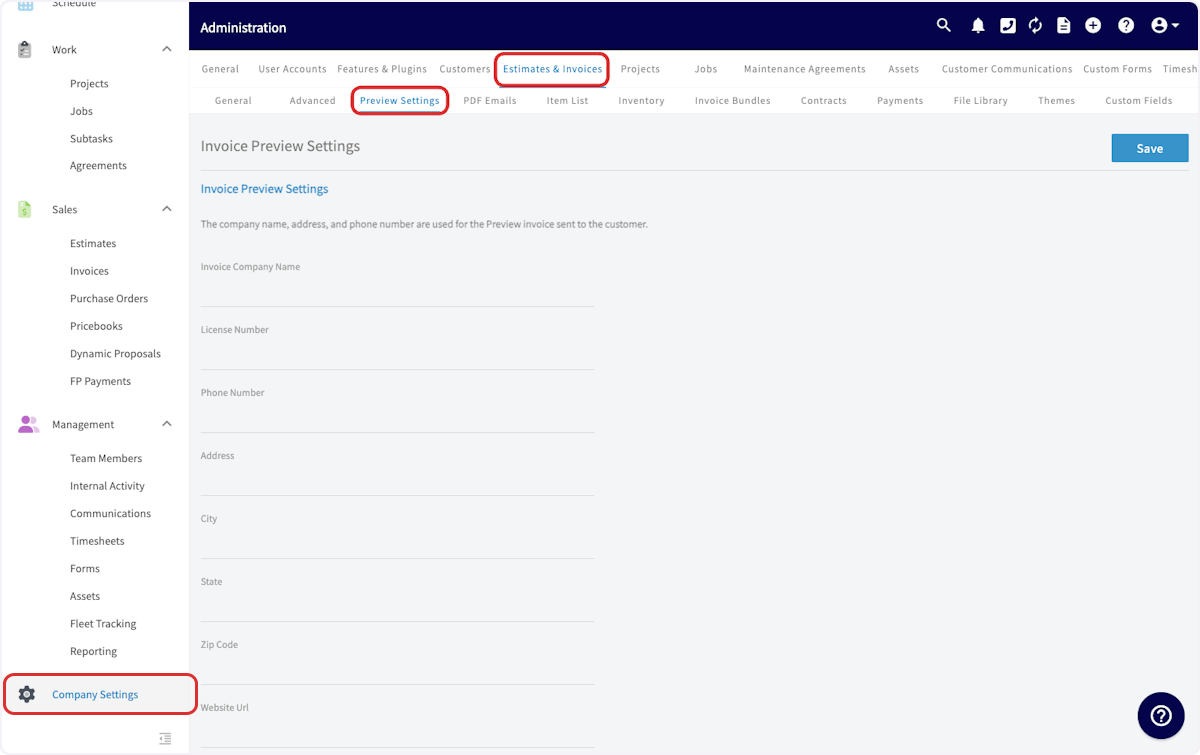
To create an alternative company profile, navigate to *Company Settings*. Select *Estimates & Invoices*, then *Preview Settings*.
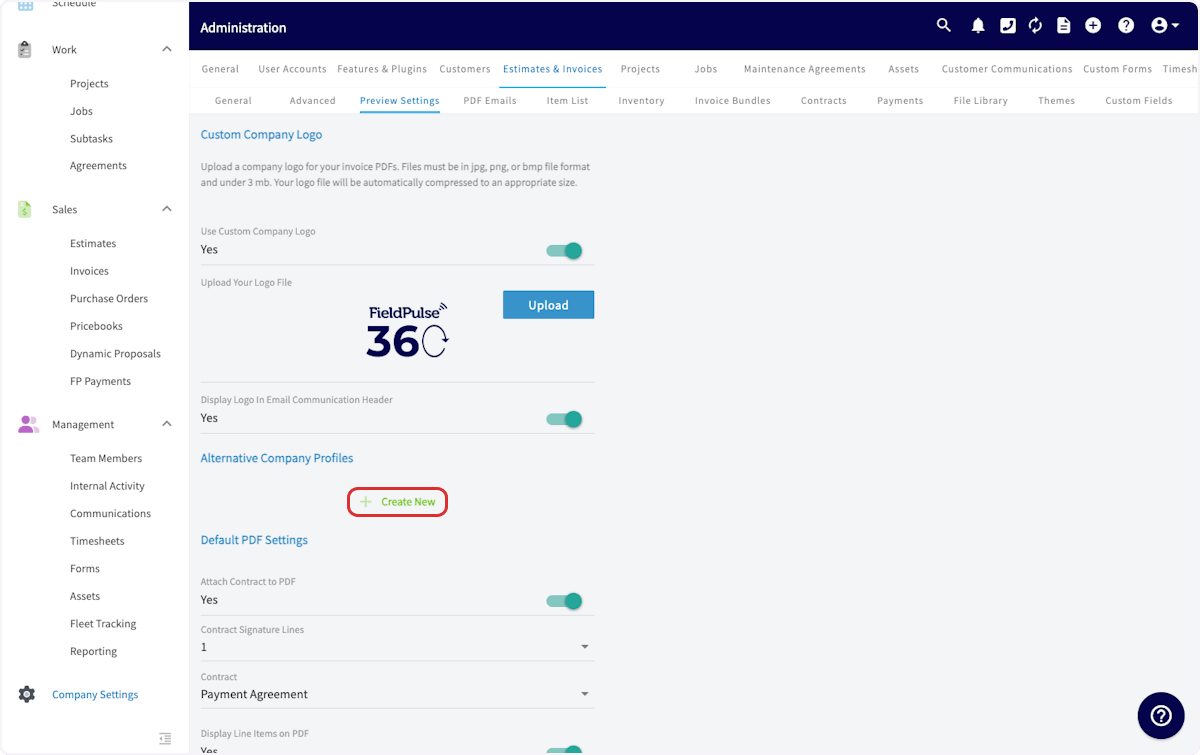
 Once here, scroll toward to *Alternative Company Profile* and select *Create New*.
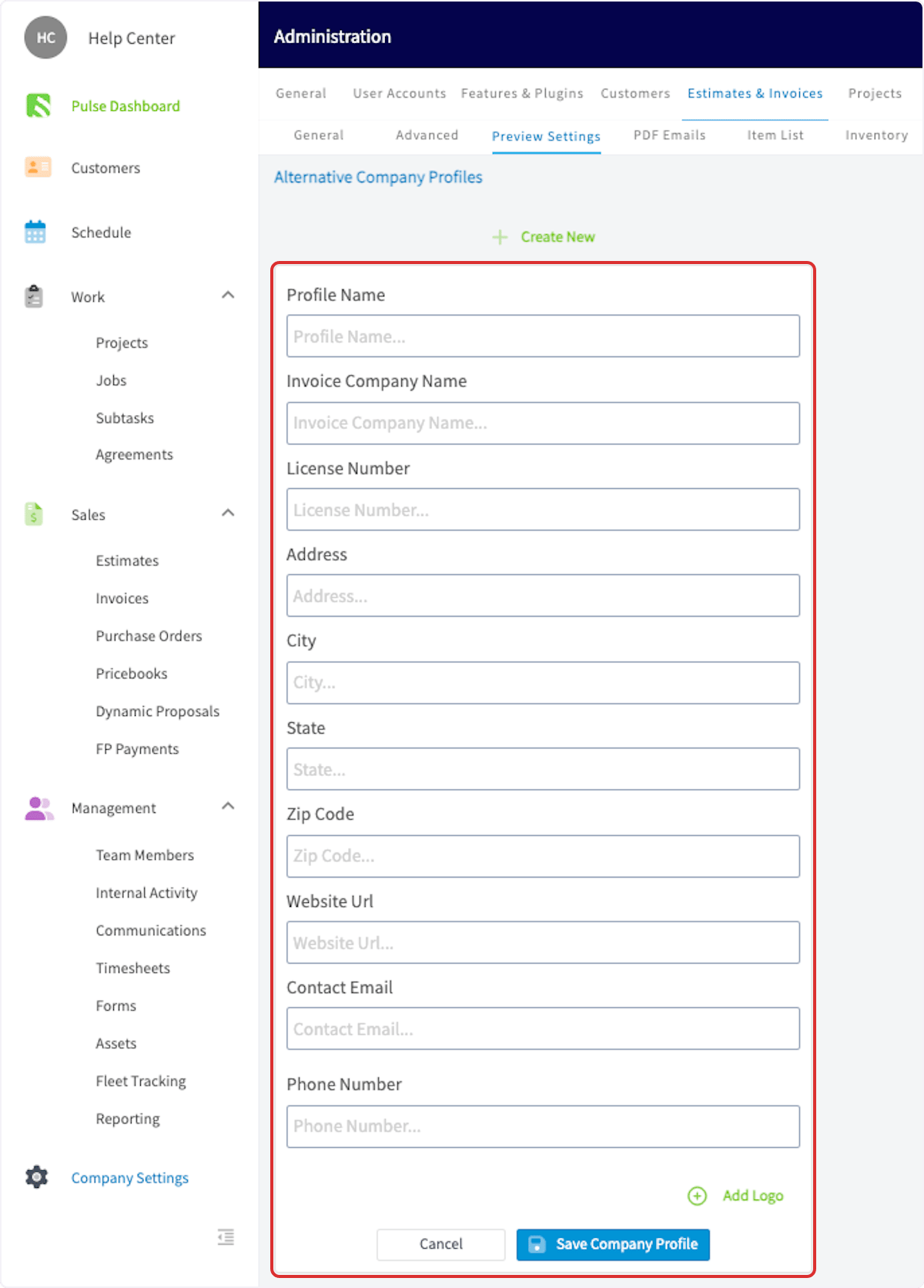
 Add all applicable details for your alternative profile here, including a logo. Press *Save* *Company Profile* when complete.
 ***
# Using an Alternative Company Profile
To use an alternative company profile on an estimate or invoice, begin by navigating to the estimate/invoice record and selecting *View Estimate*.
***
# Using an Alternative Company Profile
To use an alternative company profile on an estimate or invoice, begin by navigating to the estimate/invoice record and selecting *View Estimate*.
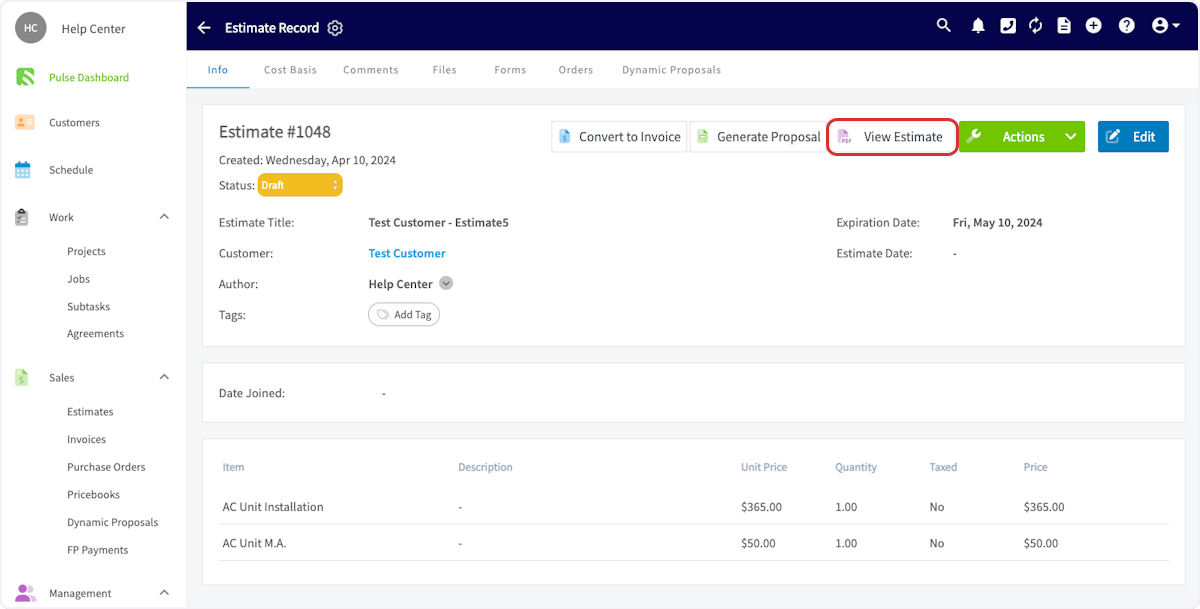 Scroll down in the right side menu to select a different company profile.
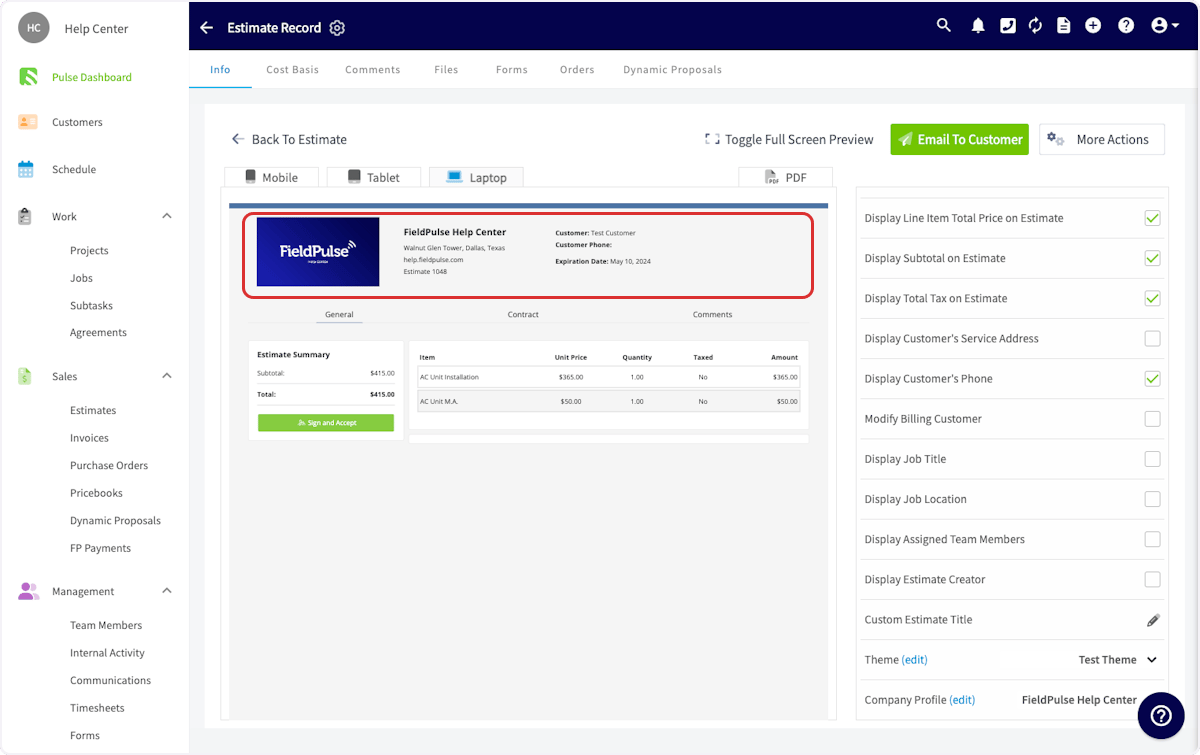
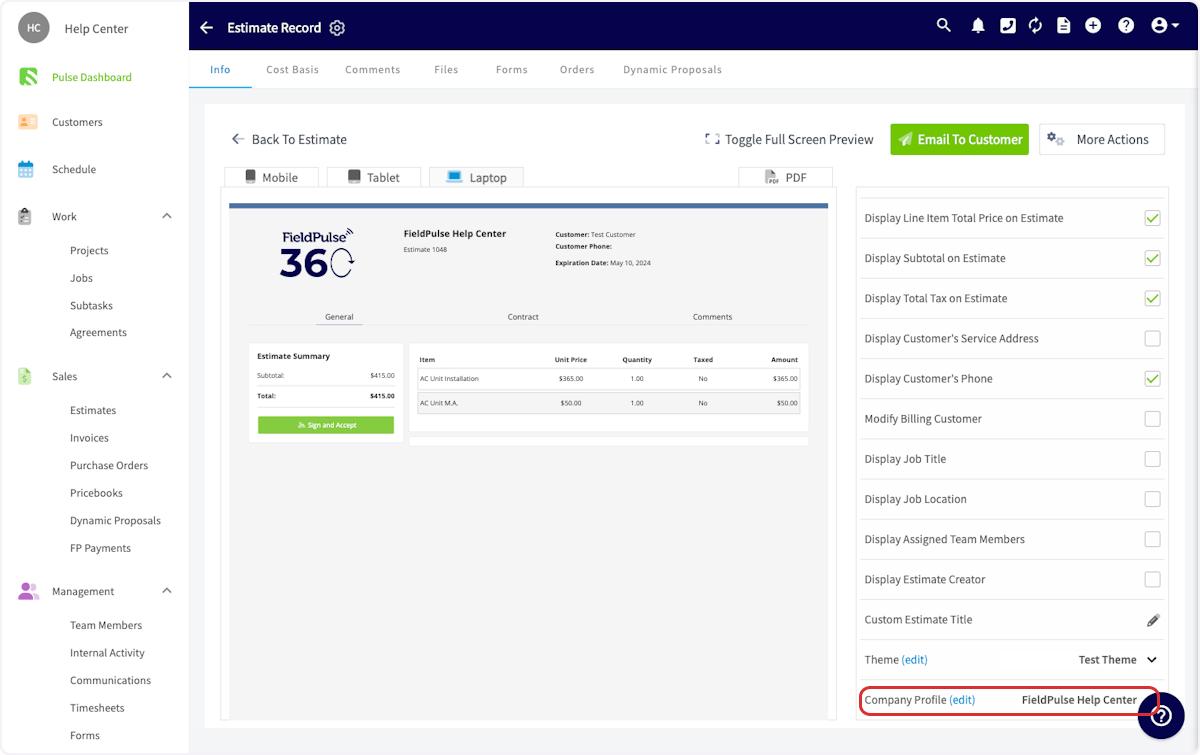 You'll now notice that the logo and business details have changed to reflect the new company profile. Your estimate or invoice is now ready to send to your customer!
 ***
**Have additional questions?**
*Contact us at [support@fieldpulse.com](mailto:support@fieldpulse.com) or use the chat feature in the bottom right corner of your screen.*
***
**Have additional questions?**
*Contact us at [support@fieldpulse.com](mailto:support@fieldpulse.com) or use the chat feature in the bottom right corner of your screen.*