> ## Documentation Index
> Fetch the complete documentation index at: https://help.fieldpulse.com/llms.txt
> Use this file to discover all available pages before exploring further.
# Attaching Photos and Files to Estimates and Invoices
> Attach job photos and files to an estimate or invoice email so customers see the supporting documents.
If you're sending an estimate or invoice to a customer and want to attach photos or files, you can do so with just a few clicks.
***
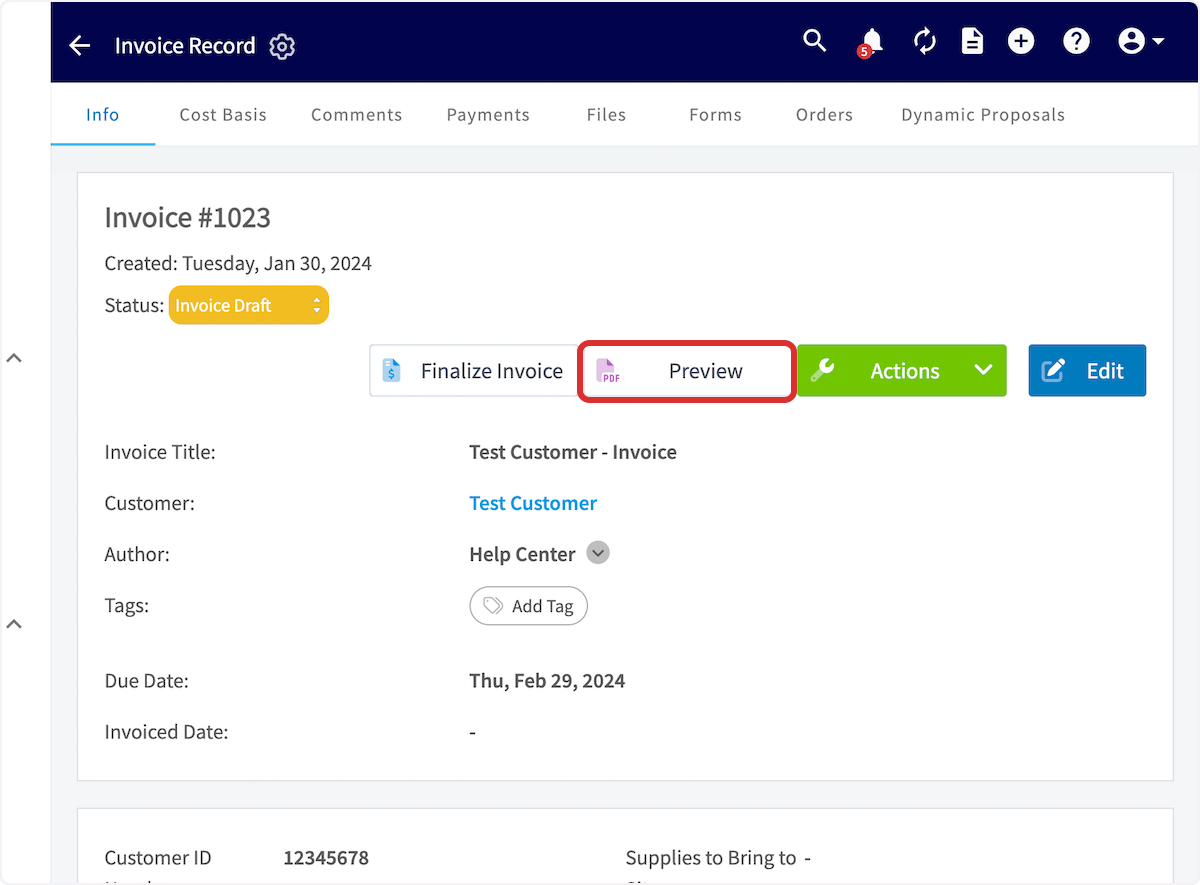
First, create the estimate or invoice and then select *Preview*.
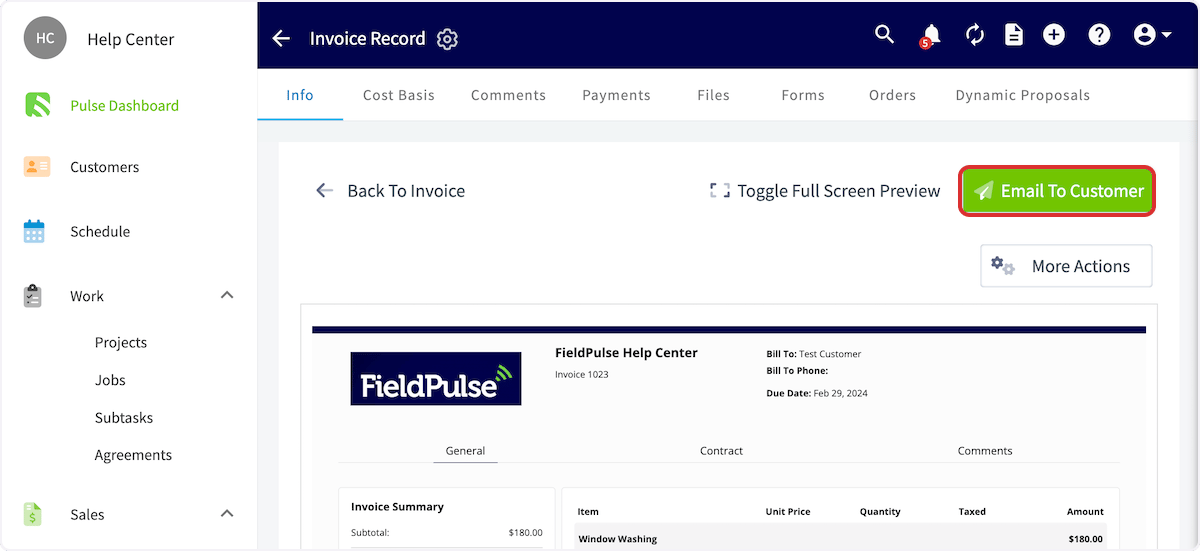
 On the estimate or invoice preview, click *Email to Customer*.
 This will pop up a new window to generate the email. In this window, click *Visible Files* to pull up a list of all of the files associated with the job referenced on the estimate or invoice. Select all of the files you want attached to the email.
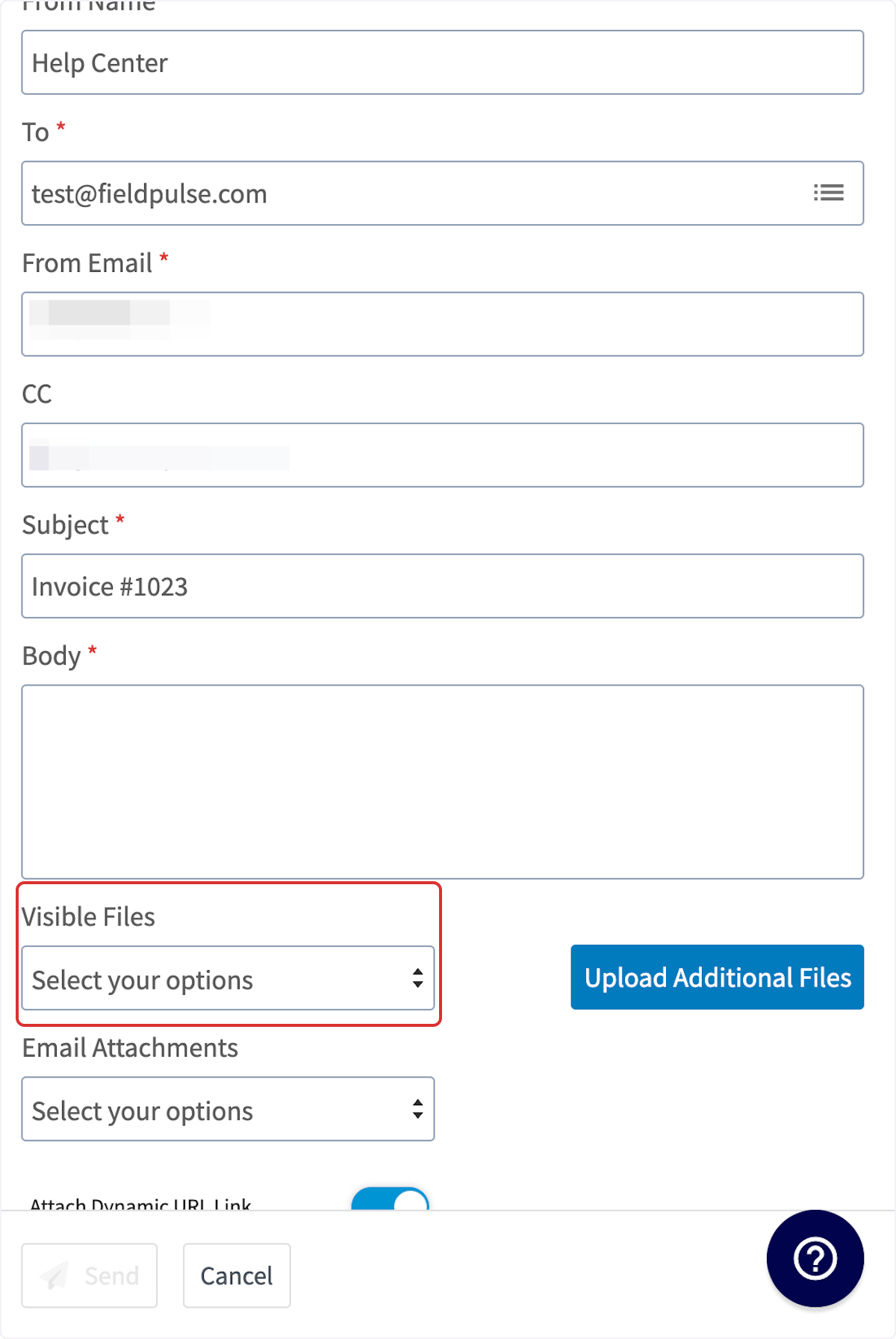 The benefit of using visible files is that there's no cap on how many you can add — recipients can view them all on the dynamic record, or via the QR code and URL link displayed at the bottom of the PDF.
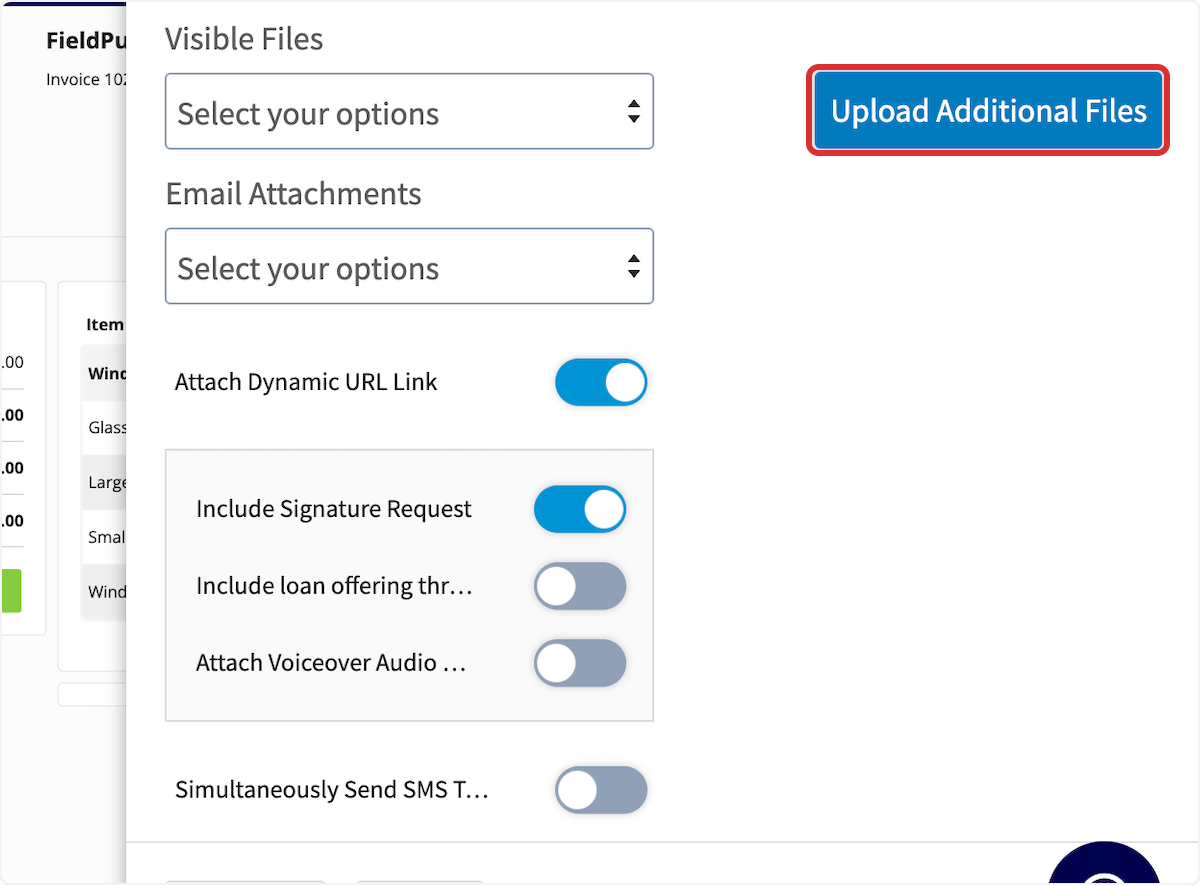
If you want to include files not stored in the *Files* section of the job, you can click *Upload Additional Files* to attach them directly from your computer.
The benefit of using visible files is that there's no cap on how many you can add — recipients can view them all on the dynamic record, or via the QR code and URL link displayed at the bottom of the PDF.
If you want to include files not stored in the *Files* section of the job, you can click *Upload Additional Files* to attach them directly from your computer.
 Once you have attached all the files you want to include, click *Send* to email the invoice and all of the attached pictures and files.
***
**Have additional questions?**
*Contact us at [support@fieldpulse.com](mailto:support@fieldpulse.com) or use the chat feature in the bottom right corner of your screen.*
Once you have attached all the files you want to include, click *Send* to email the invoice and all of the attached pictures and files.
***
**Have additional questions?**
*Contact us at [support@fieldpulse.com](mailto:support@fieldpulse.com) or use the chat feature in the bottom right corner of your screen.*