> ## Documentation Index
> Fetch the complete documentation index at: https://help.fieldpulse.com/llms.txt
> Use this file to discover all available pages before exploring further.
# Custom Estimate & Invoice Themes
> Set brand colors and styling for a reusable estimate and invoice theme under Company Settings, so every document matches your business.
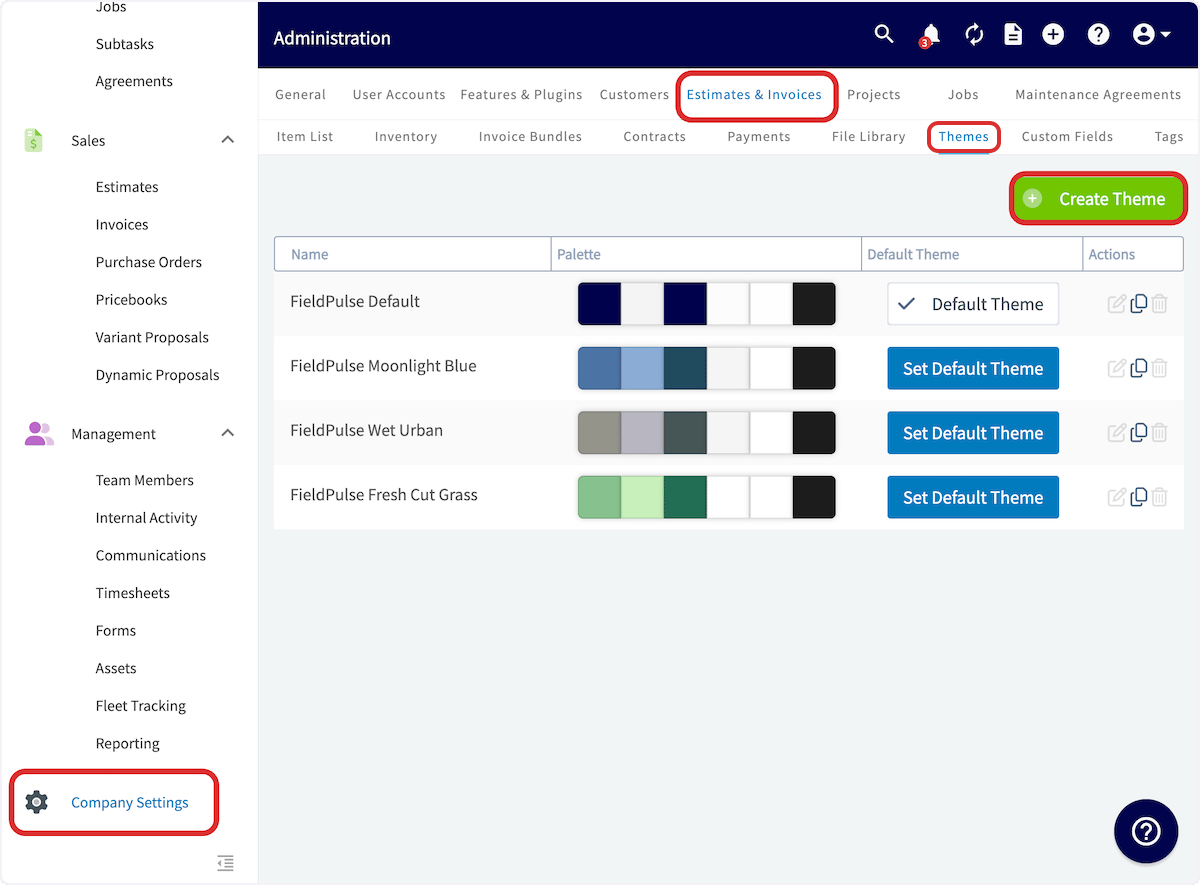
To create a custom theme, navigate to *Company Settings*, then select *Estimates & Invoices*. Click on *Themes* in the sub-header. To create a new theme, select *Create Theme*.
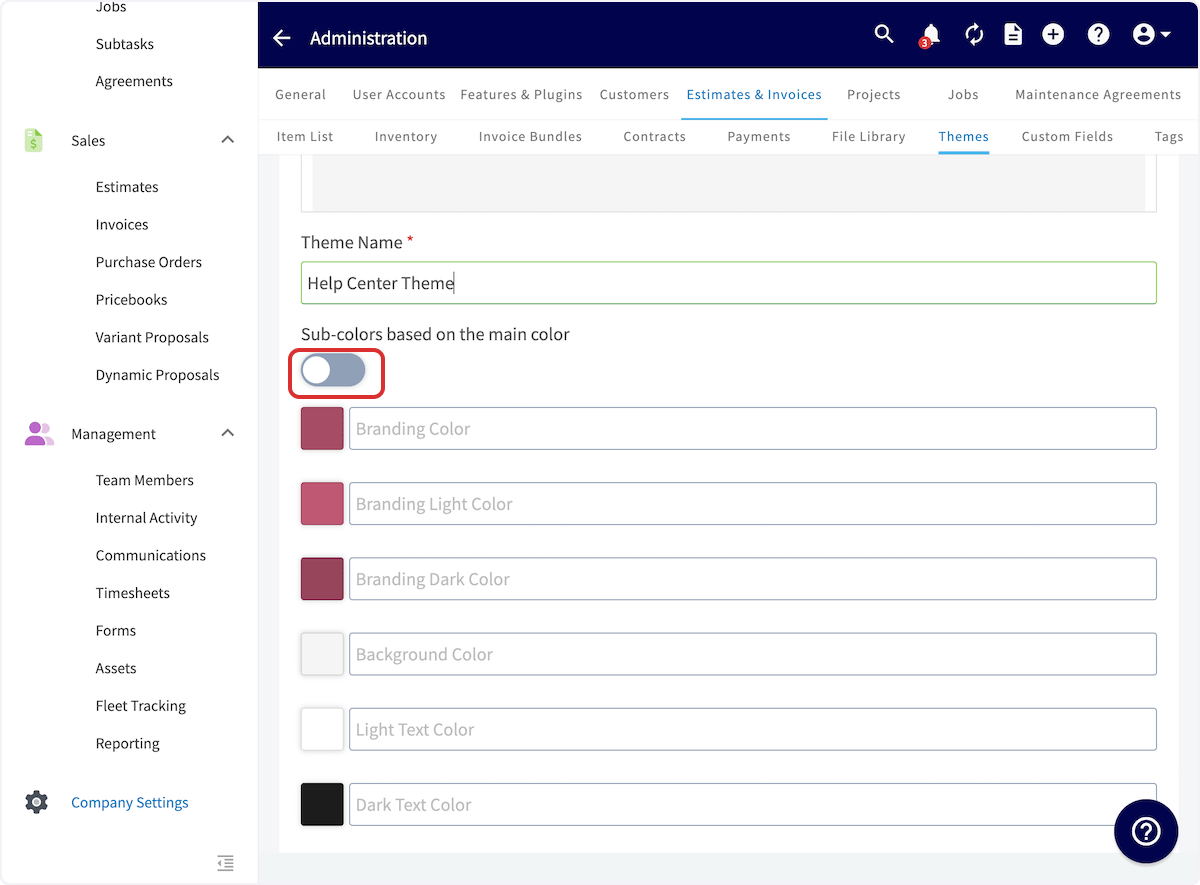
 You will need to give your new theme a name and select a main branding color. You can toggle on/off *Sub-colors based on the main color*, which will automatically generate sub-colors (*ON*) or you can individually select your sub-colors (*OFF*). Click on each color box to adjust the color or enter a color code.
Scroll up to preview your new theme on an estimate/invoice. Once your theme is complete, be sure to press *Save*.
You will need to give your new theme a name and select a main branding color. You can toggle on/off *Sub-colors based on the main color*, which will automatically generate sub-colors (*ON*) or you can individually select your sub-colors (*OFF*). Click on each color box to adjust the color or enter a color code.
Scroll up to preview your new theme on an estimate/invoice. Once your theme is complete, be sure to press *Save*.
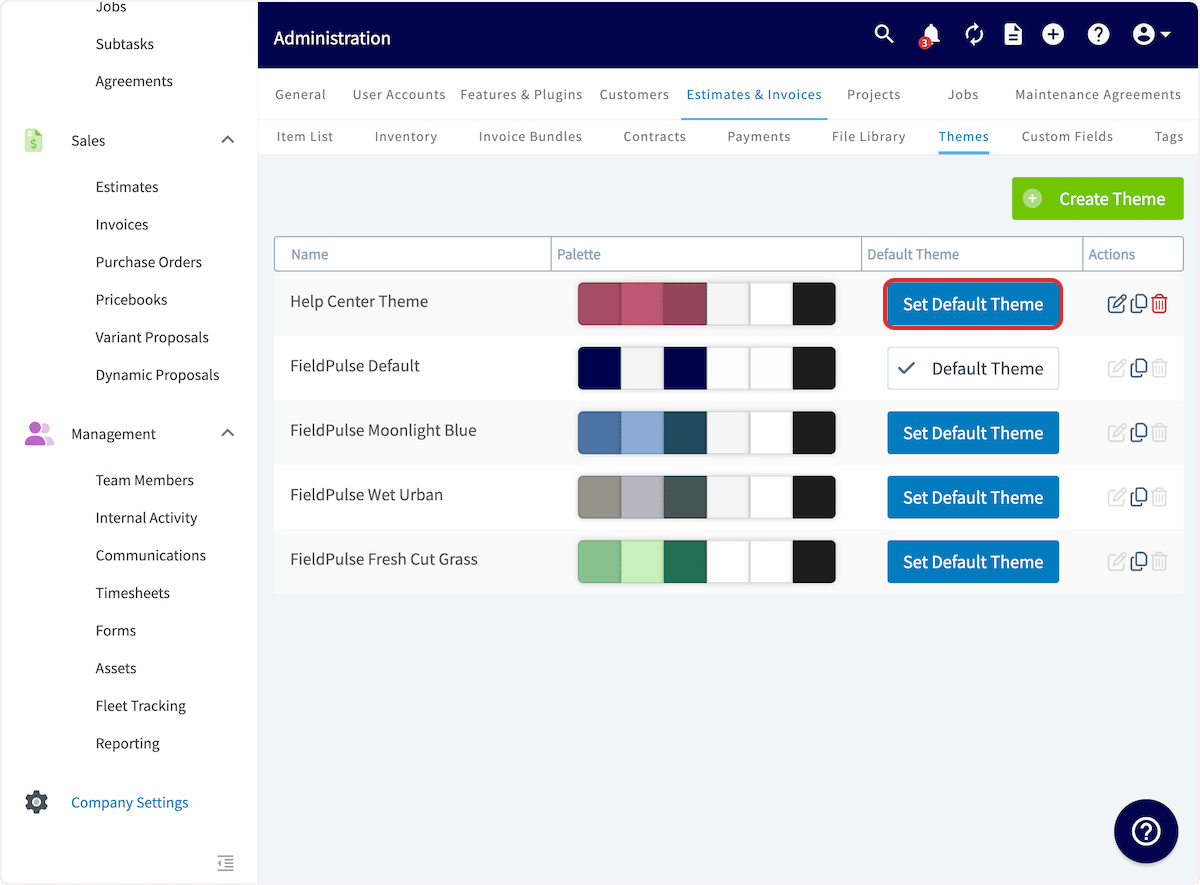
 To change your default theme, select *Set Default Theme*.
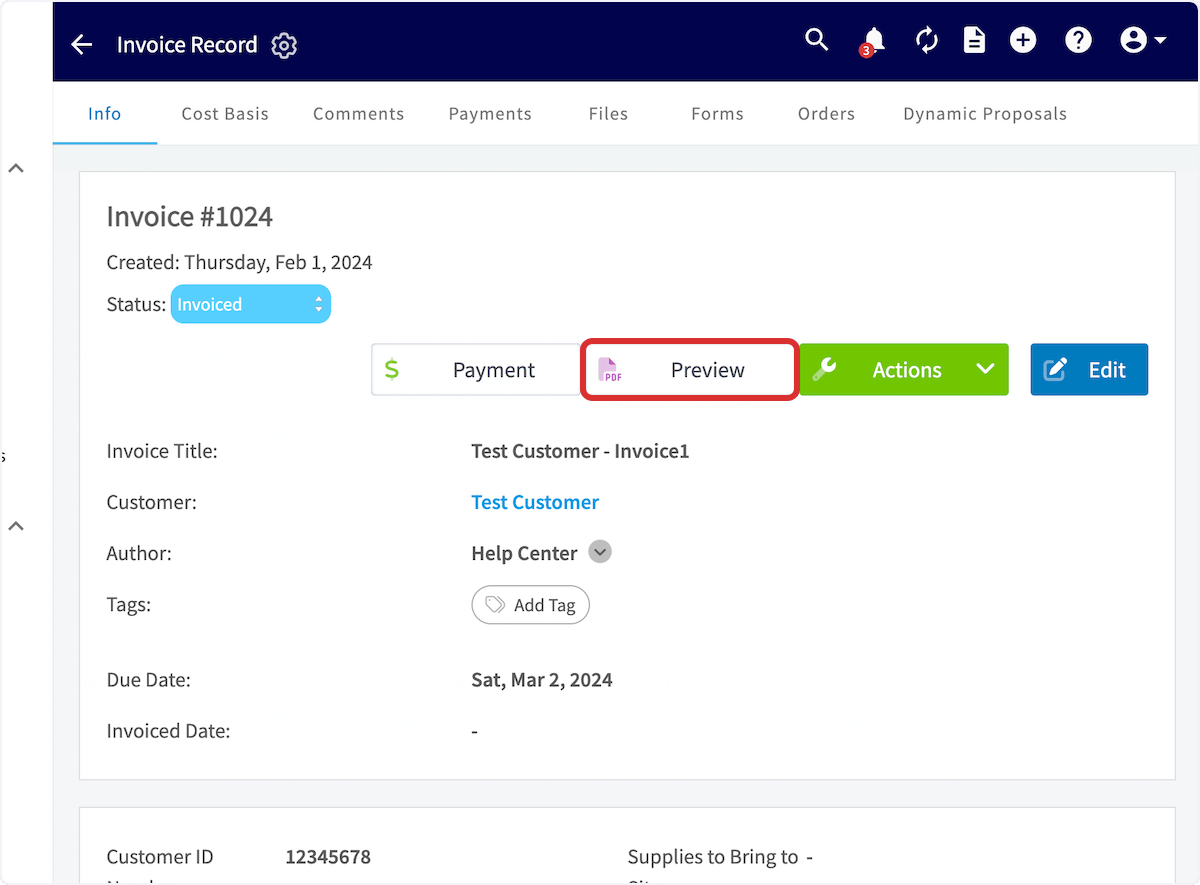
 If you want to change the theme of a specific estimate/invoice from the default theme for any reason, navigate to the estimate/invoice record and click *Preview*.
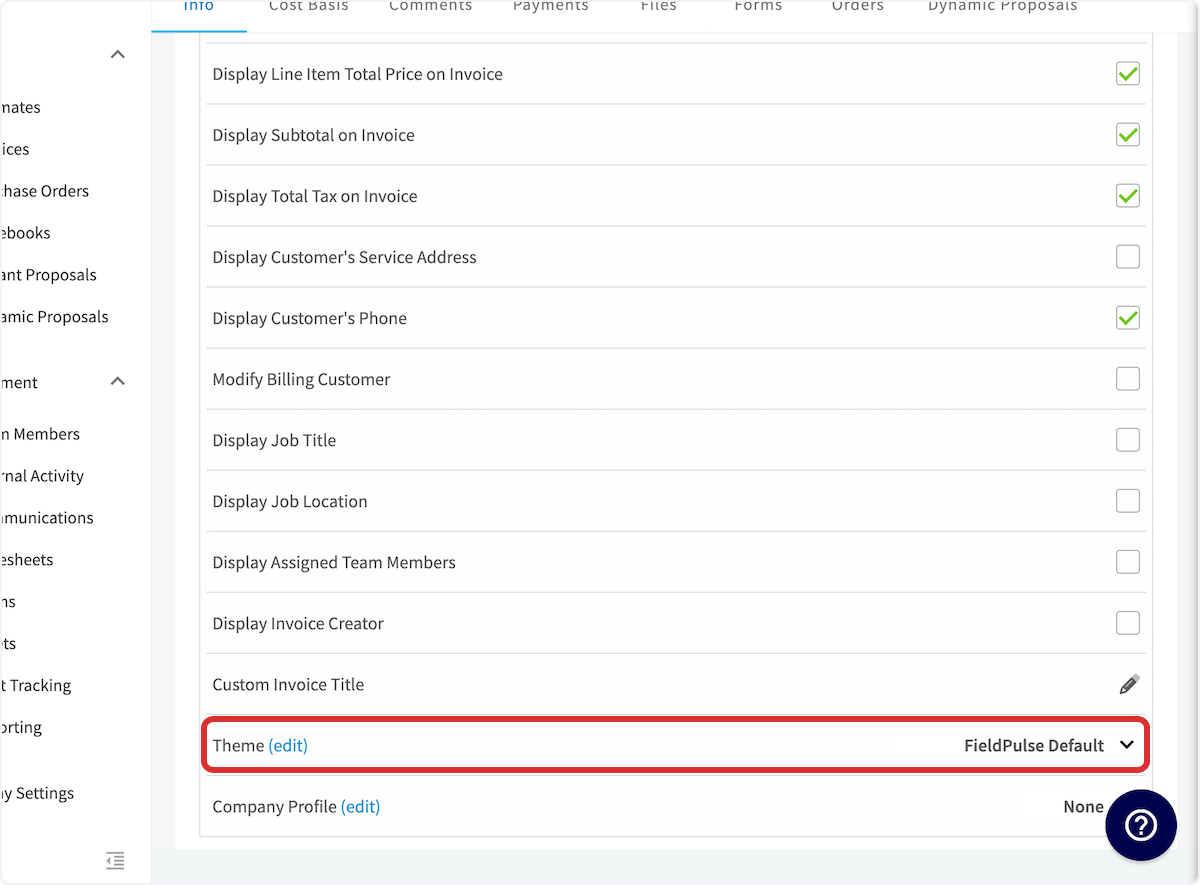
 Scroll down on the settings on the right-side of the preview until you see *Theme*. Here you can select a different theme to use for this estimate/invoice. If you want to change the default theme, press *Edit* or navigate back to *Company Settings* and change your default theme.
 ***
# Video Tutorial
***
**Have additional questions?**
*Contact us at [support@fieldpulse.com](mailto:support@fieldpulse.com) or use the chat feature in the bottom right corner of your screen.*
***
# Video Tutorial
***
**Have additional questions?**
*Contact us at [support@fieldpulse.com](mailto:support@fieldpulse.com) or use the chat feature in the bottom right corner of your screen.*