> ## Documentation Index
> Fetch the complete documentation index at: https://help.fieldpulse.com/llms.txt
> Use this file to discover all available pages before exploring further.
# Estimate & Invoice Templates
> Save reusable line-item templates and drop them into any estimate or invoice, then tweak quantities, prices, and notes per job.
When creating a new estimate or invoice, users can effortlessly insert pre-built templates into the record. These templates act as a solid foundation, which can then be adjusted to include project-specific details. Users can easily modify line items, quantities, prices, and add specific customer notes to ensure accuracy and relevance.
***
# Creating a Template
*(**Note:** While the following steps outline the invoice template process, the estimate template process is identical, but takes place under the Estimates tab.)*
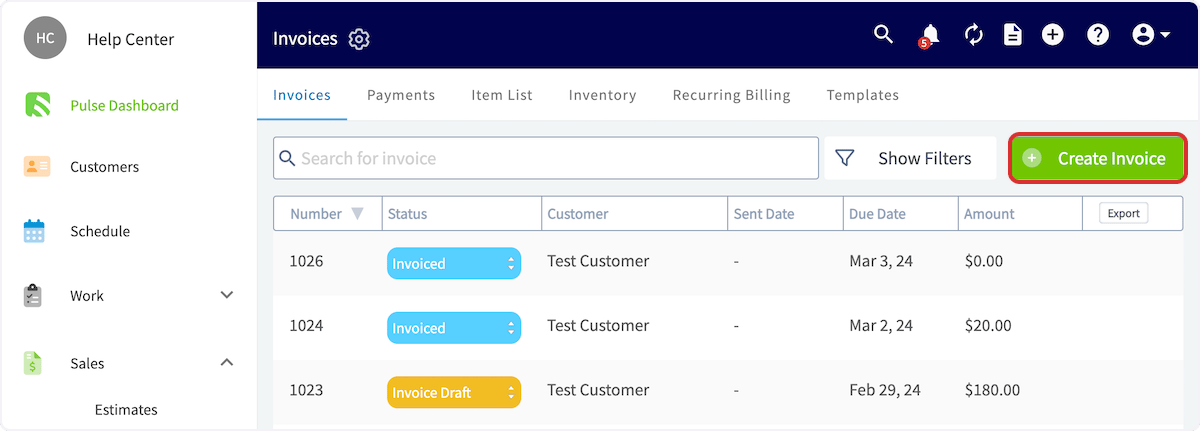
To create an invoice template, begin by navigating to *Invoices* in the left-side menu then clicking *Create Invoice*.
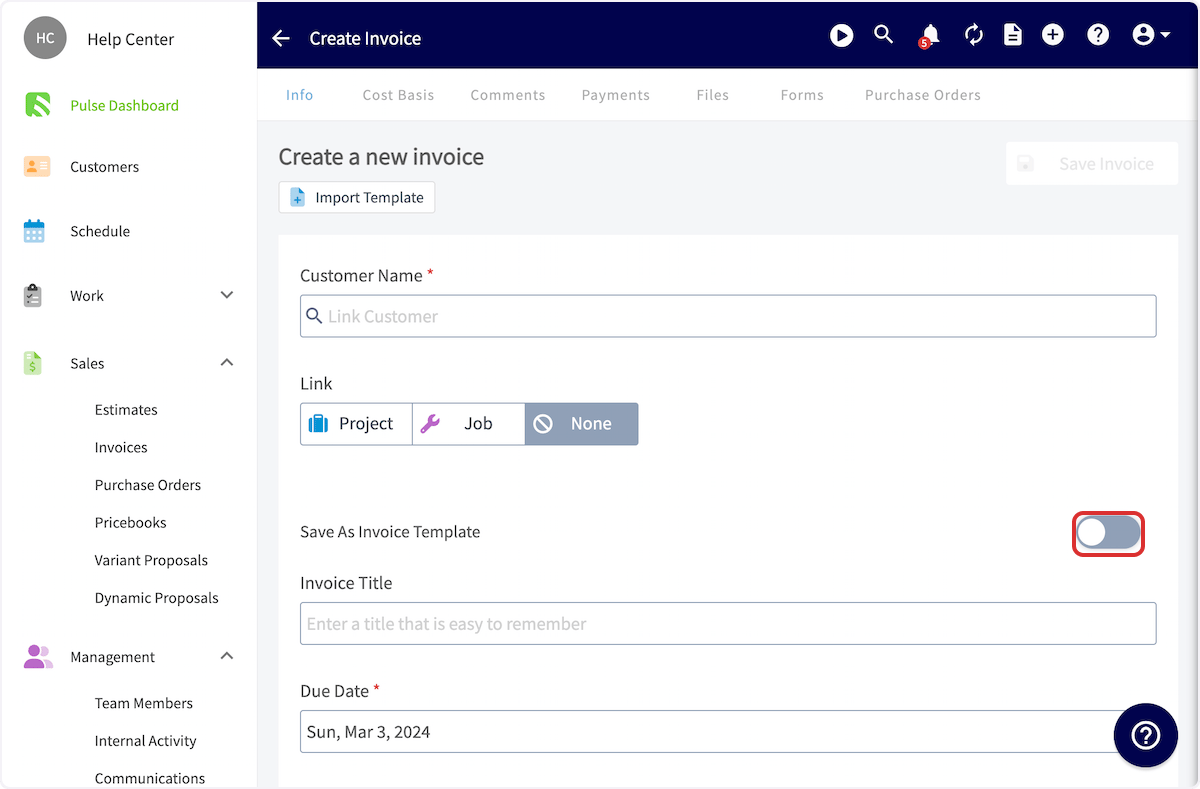
 Before adding any information, toggle on *Save As Invoice Template*.
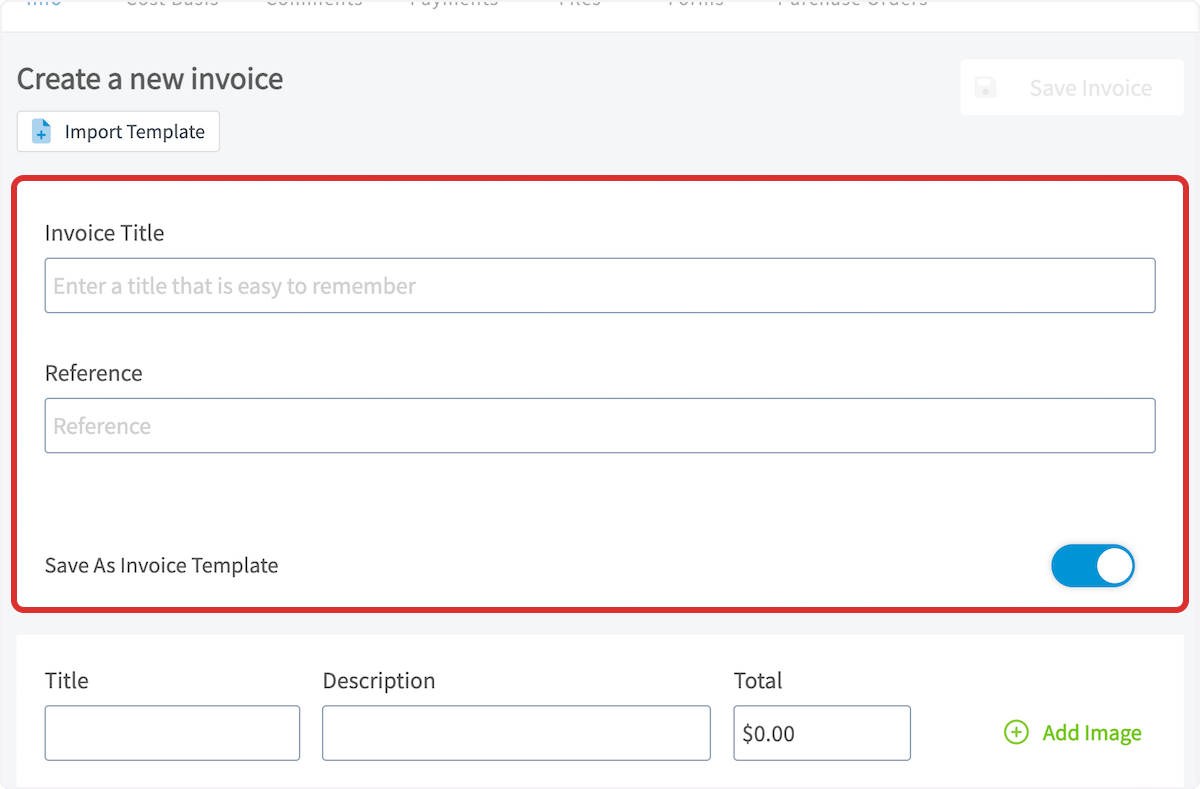
 You can now title your template.
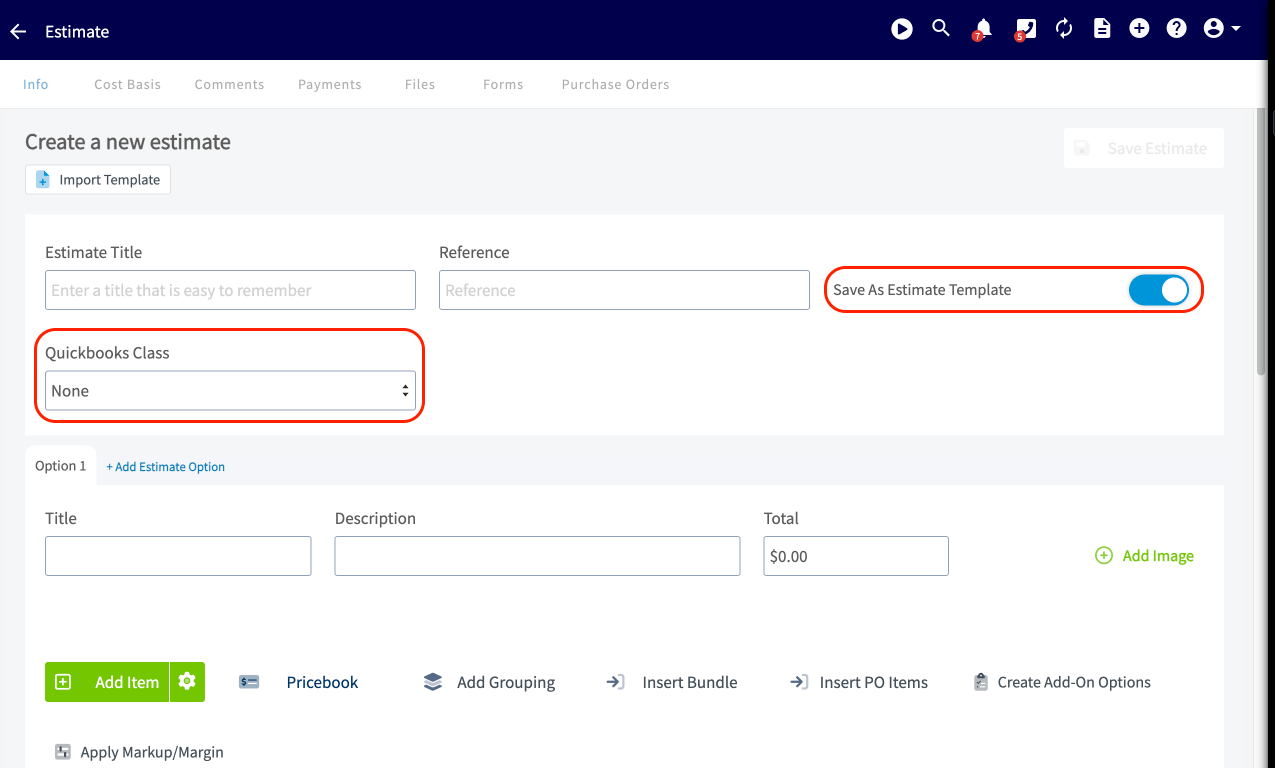
 Enter all applicable line items and organize as you wish using [groupings and bundles](/using-fieldpulse/estimates-invoices/line-item-bundles-groupings). If you are using QuickBooks, you can also select and save the *QuickBooks Class* on your template to automatically populate it later.
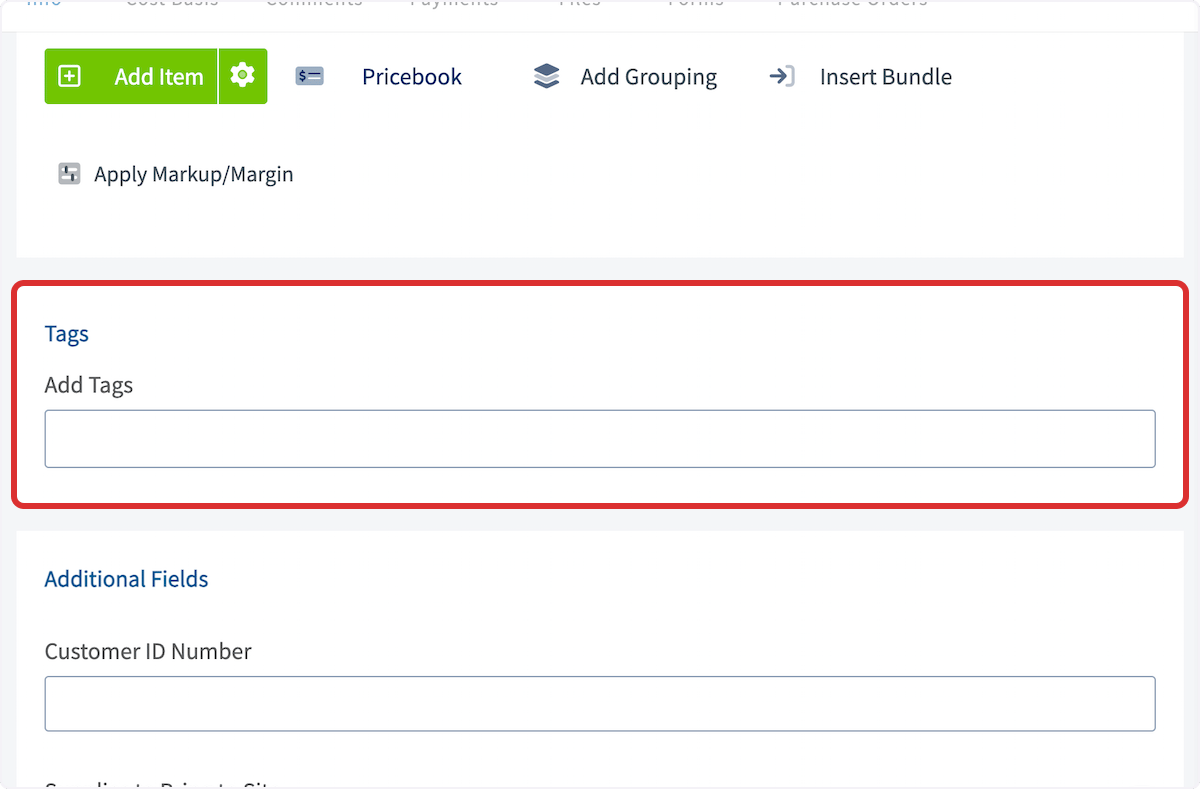
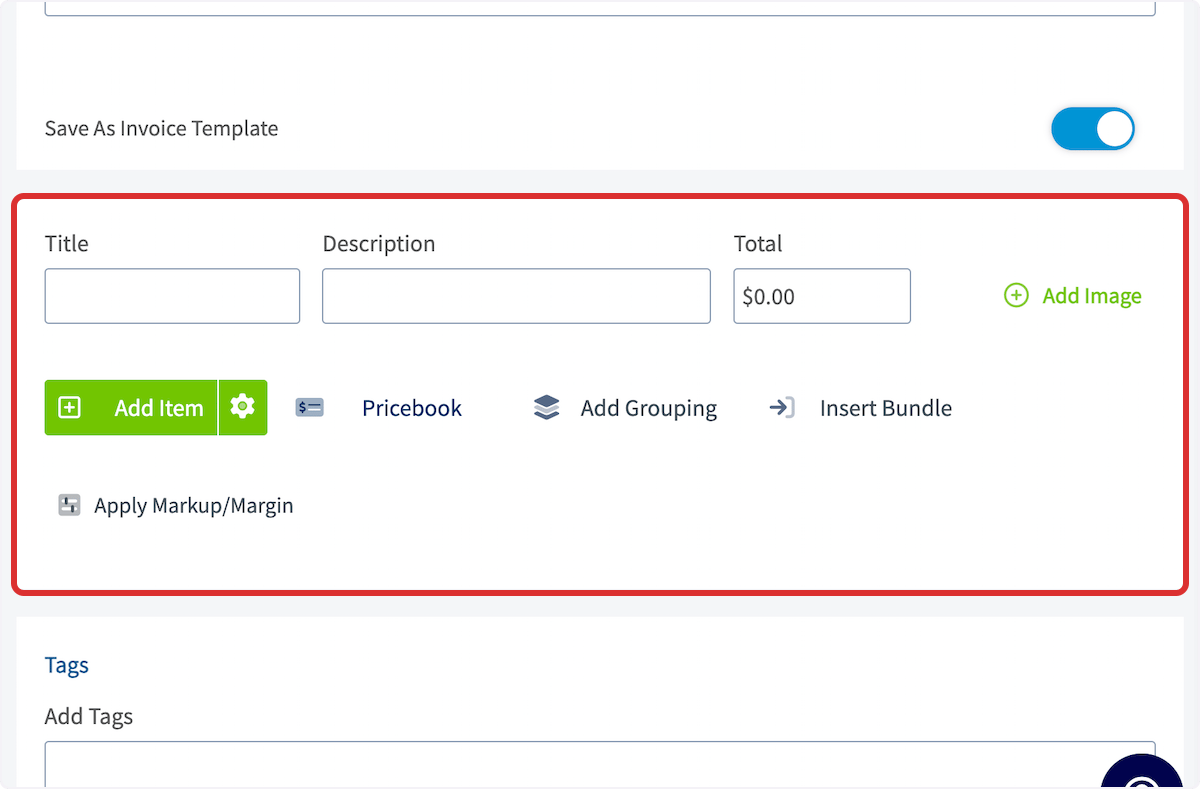 You can also complete the tags and custom fields.
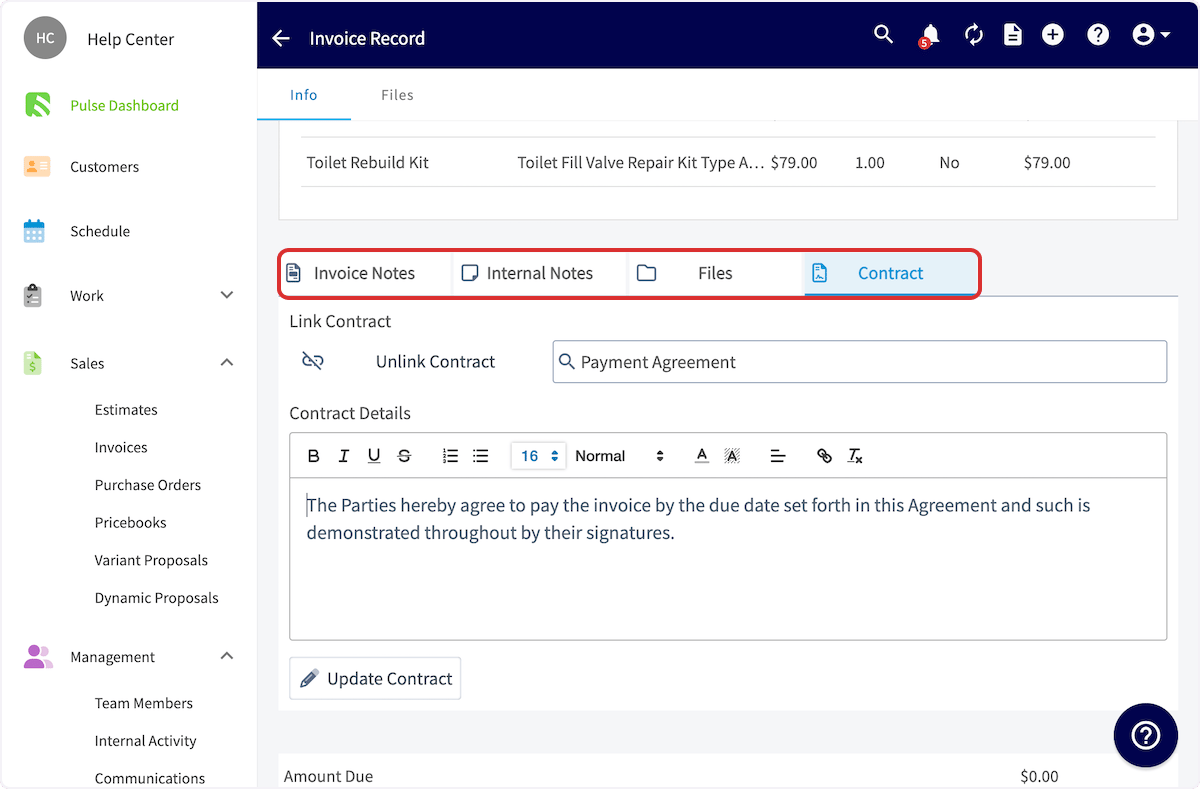
 Lastly, include notes and attach files and/or a contract. When you've customized your template, press *Save*.
 ***
# Inserting a Template
*(**Note:** While the following steps outline the invoice process, the estimate process is identical, but takes place under the Estimates tab.)*
To insert an invoice template, begin by navigating to *Invoices* in the left-side menu then clicking *Create Invoice*.
***
# Inserting a Template
*(**Note:** While the following steps outline the invoice process, the estimate process is identical, but takes place under the Estimates tab.)*
To insert an invoice template, begin by navigating to *Invoices* in the left-side menu then clicking *Create Invoice*.
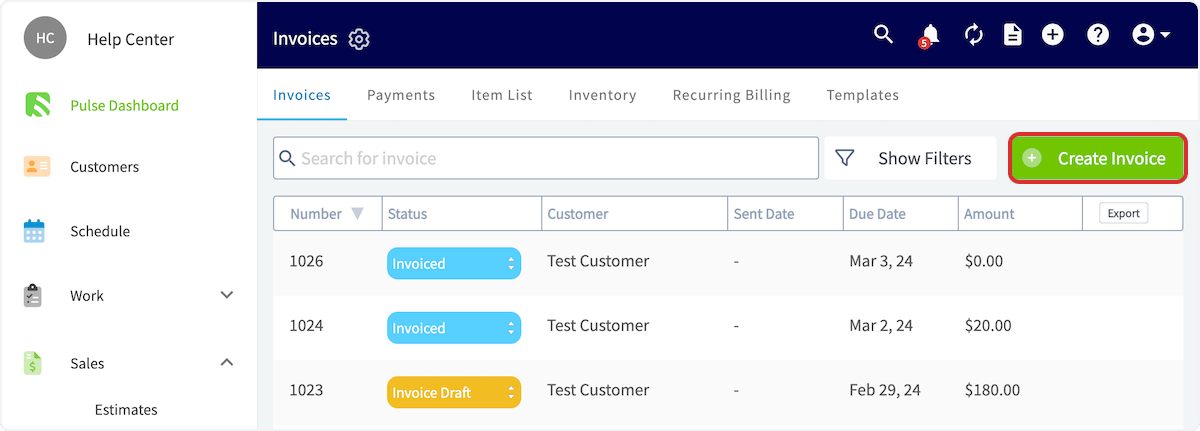 Before entering any details, click *Import Template* then select the applicable template.
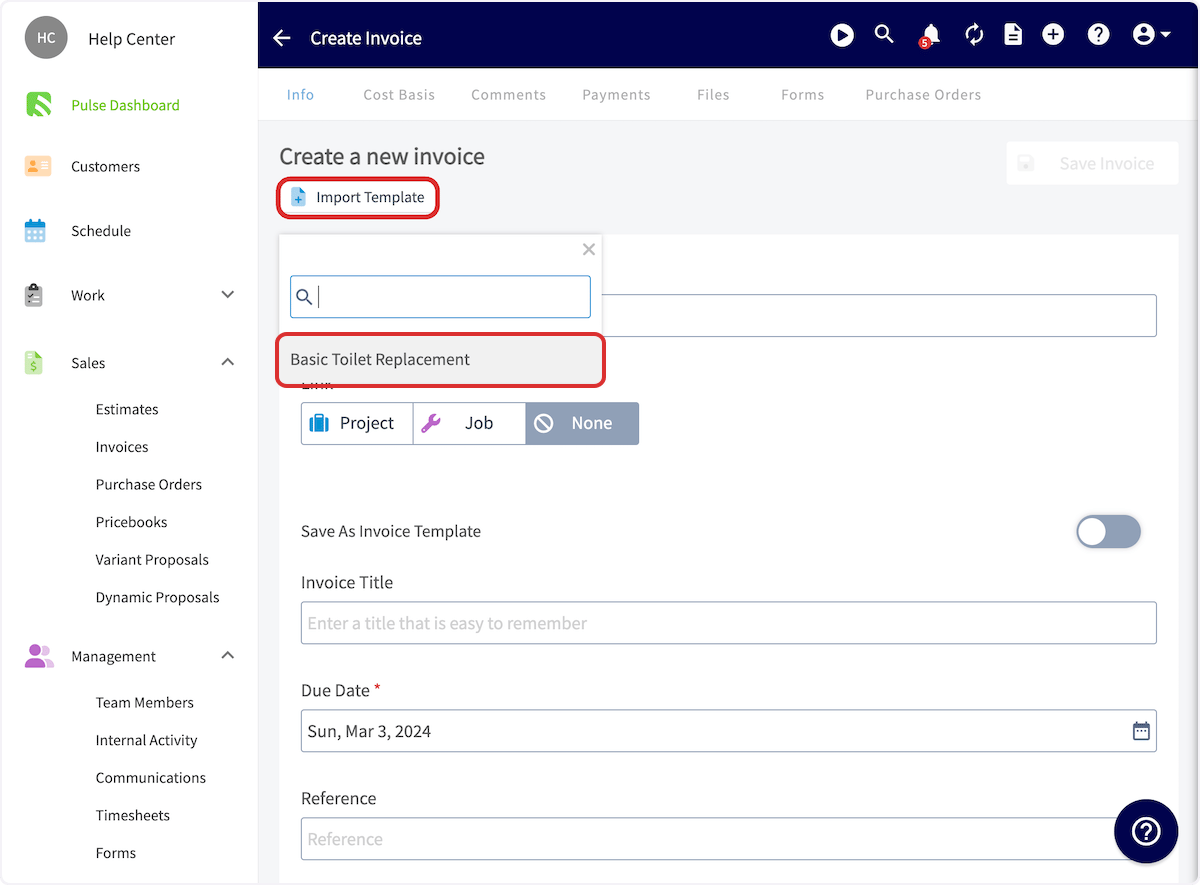 All of the details you entered in the template, including the **QuickBooks Class**, will now auto-populate. You can easily modify line items, quantities, prices, and add specific customer notes as needed. Be sure to press *Save* after fine-tuning your invoice.
***
# Default Your Template Updates
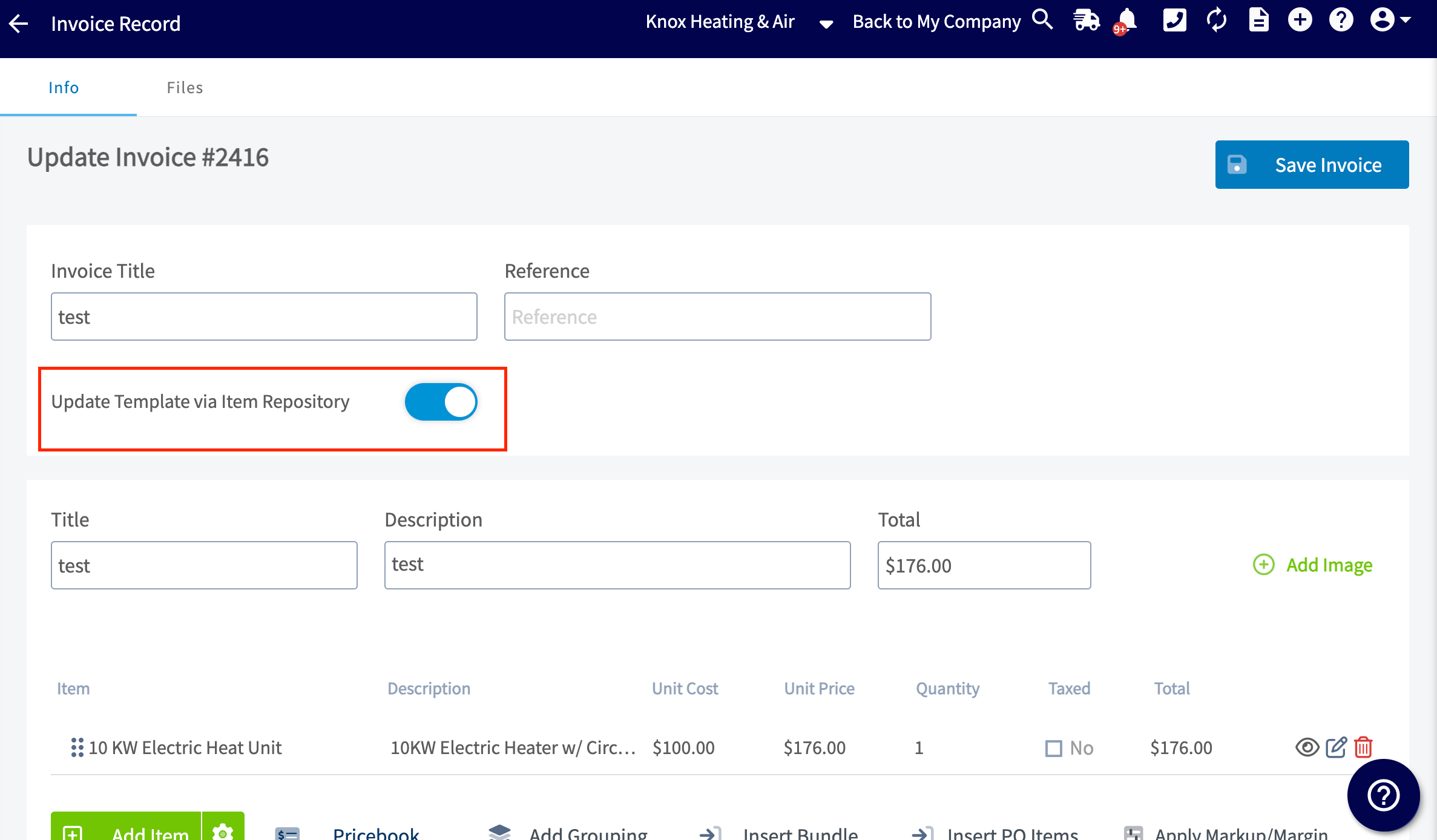
A feature has been added to individual Estimate and Invoice Templates, allowing you to keep line items automatically updated with changes made in the Item List/Repository.
All of the details you entered in the template, including the **QuickBooks Class**, will now auto-populate. You can easily modify line items, quantities, prices, and add specific customer notes as needed. Be sure to press *Save* after fine-tuning your invoice.
***
# Default Your Template Updates
A feature has been added to individual Estimate and Invoice Templates, allowing you to keep line items automatically updated with changes made in the Item List/Repository.
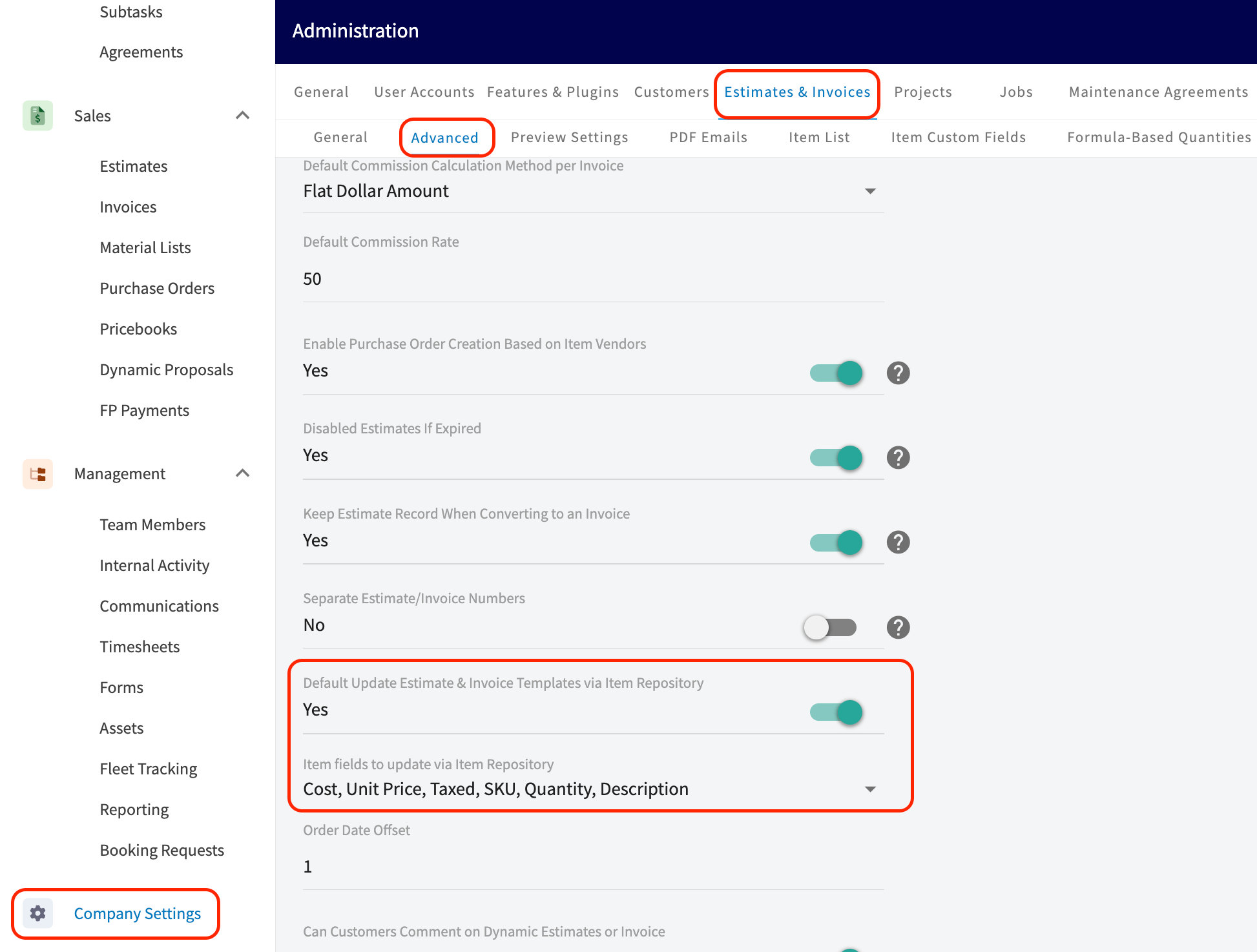
 In *Company Settings* > *Estimates & Invoices* > *Advanced*, you will see two settings:
* **Default Update Estimate & Invoice Templates via Item List/Repository**
* This defaults the toggle on or off on new Estimates and Invoice Templates moving forward (does not adjust existing Templates).
* **Item fields to update via Item List/Repository**
* Select which fields on your Line Items in your Estimate/Invoice templates update based on the Item List/Repository.
* Examples: Unit Cost, Unit Price, Taxed, SKU number, Quantity.
In *Company Settings* > *Estimates & Invoices* > *Advanced*, you will see two settings:
* **Default Update Estimate & Invoice Templates via Item List/Repository**
* This defaults the toggle on or off on new Estimates and Invoice Templates moving forward (does not adjust existing Templates).
* **Item fields to update via Item List/Repository**
* Select which fields on your Line Items in your Estimate/Invoice templates update based on the Item List/Repository.
* Examples: Unit Cost, Unit Price, Taxed, SKU number, Quantity.
 ***
# Video Tutorial
***
**Have additional questions?**
*Contact us at [support@fieldpulse.com](mailto:support@fieldpulse.com) or use the chat feature in the bottom right corner of your screen.*
***
# Video Tutorial
***
**Have additional questions?**
*Contact us at [support@fieldpulse.com](mailto:support@fieldpulse.com) or use the chat feature in the bottom right corner of your screen.*