> ## Documentation Index
> Fetch the complete documentation index at: https://help.fieldpulse.com/llms.txt
> Use this file to discover all available pages before exploring further.
# Estimate Options & Add-Ons
> When creating an estimate, many businesses want to offer customers multiple options. Some use a Good, Better, Best model, while others focus on Repair,…
When creating an estimate, many businesses want to offer customers multiple options. Some use a Good, Better, Best model, while others focus on Repair, Replace, Upgrade. Whatever your method, FieldPulse offers an easy way to give your customers the choice as well as offer add-ons for additional revenue-generating opportunities.
***
# Estimate Options
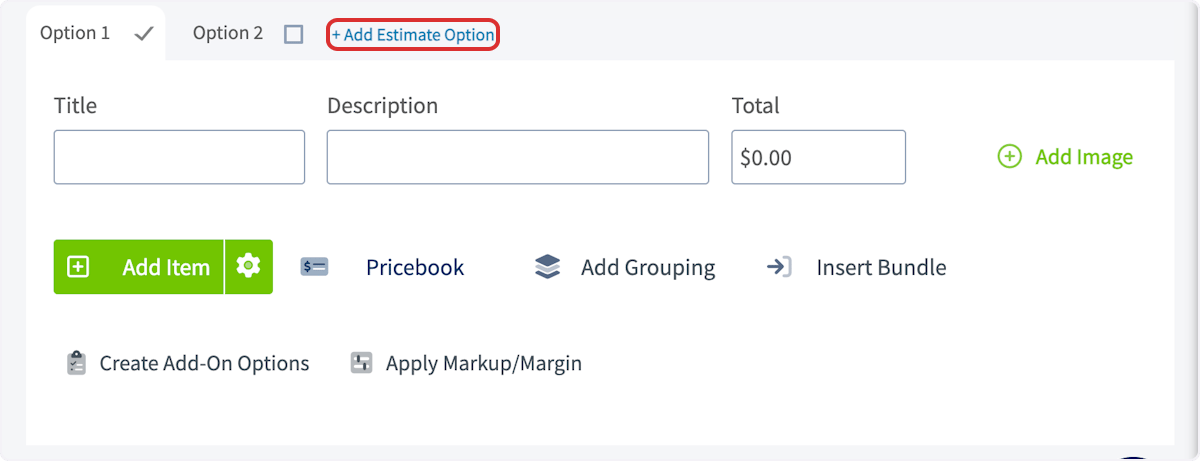
To begin, create a new estimate. Scroll down to the line item area, where Option 1 will always appear as a default. To add additional estimate options, click *Add Estimate Option*. You can then enter the line items under each option as you see fit.
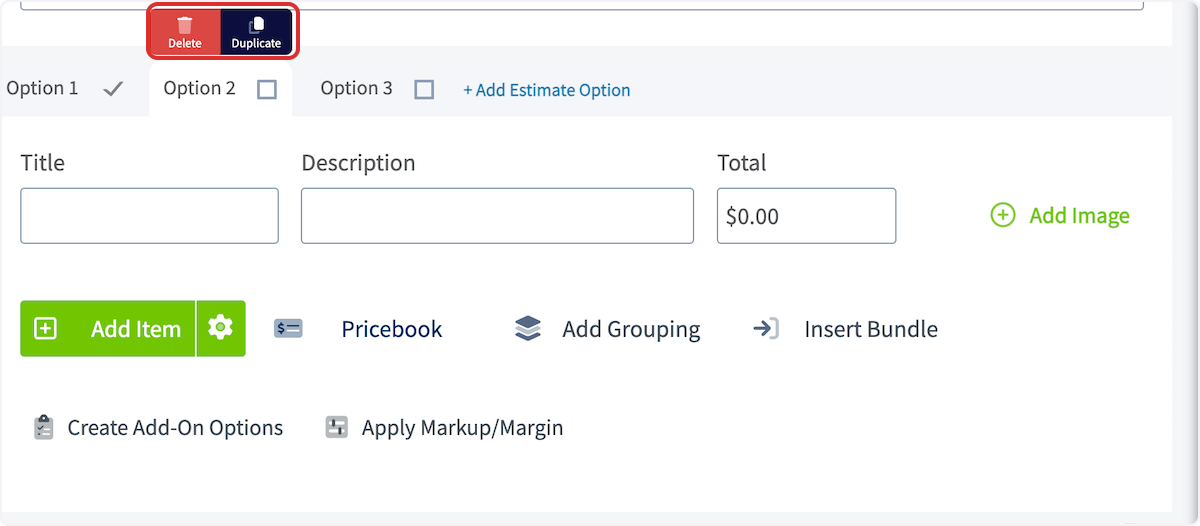
 To delete or duplicate an option, hover over the option title. You can then select your desired action.
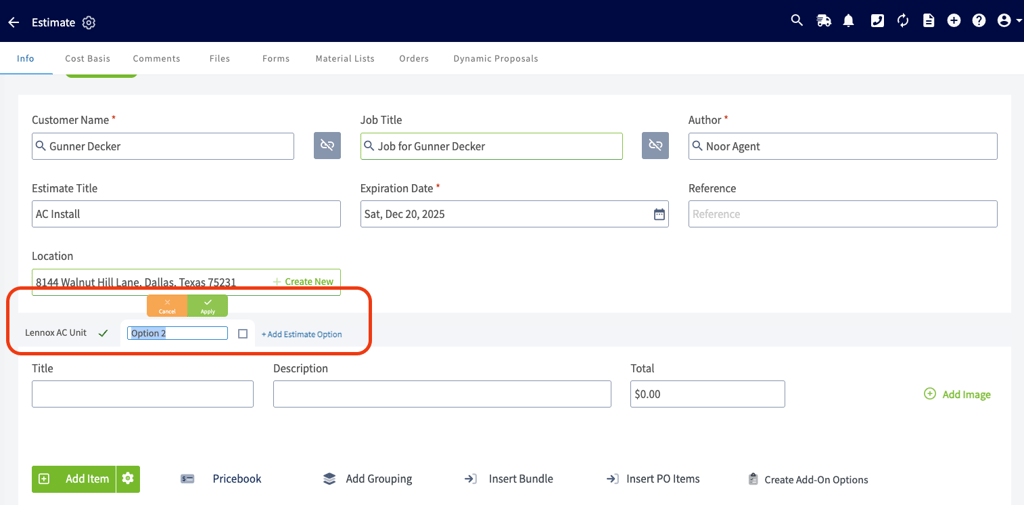
 You can edit option tab names directly in this Estimate edit mode. This enhancement enables more personalized and professional presentation of options to your customers. These estimate option titles will appear consistently across the following:
* Estimate View
* Estimate Preview
* Dynamic Estimate (Web & Mobile)
* PDF Exports
**Character Limit:** 30 characters. The text will wrap as needed to ensure full visibility.
You can edit option tab names directly in this Estimate edit mode. This enhancement enables more personalized and professional presentation of options to your customers. These estimate option titles will appear consistently across the following:
* Estimate View
* Estimate Preview
* Dynamic Estimate (Web & Mobile)
* PDF Exports
**Character Limit:** 30 characters. The text will wrap as needed to ensure full visibility.
 ***
# Add-On Options
To offer add-on options on your estimate, select the *Create Add-On Options* button.
***
# Add-On Options
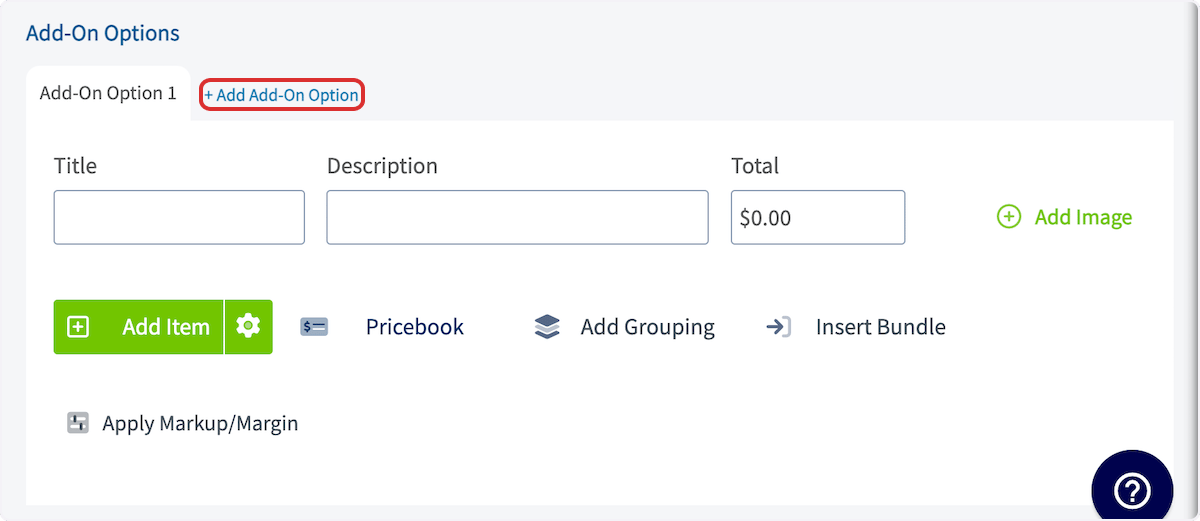
To offer add-on options on your estimate, select the *Create Add-On Options* button.
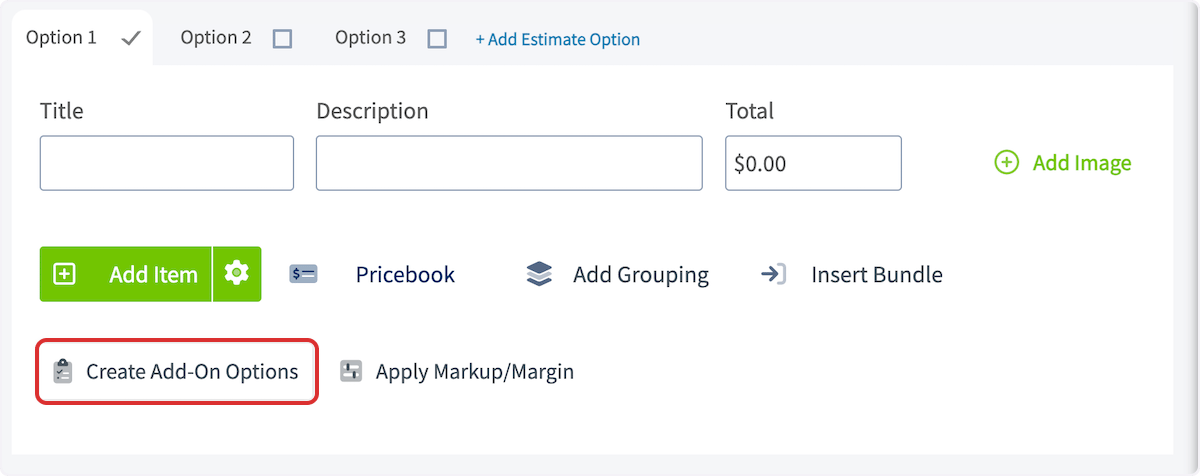 You can now add line items to each add-on option, and create additional options by selecting *Add Add-On Option*. Like with estimate options, hover over the option title to delete or duplicate an option. You can then select your desired action.
 ***
# Customer View
When you send an estimate to a customer with multiple options and add-on options, it will look something like this:
***
# Customer View
When you send an estimate to a customer with multiple options and add-on options, it will look something like this:
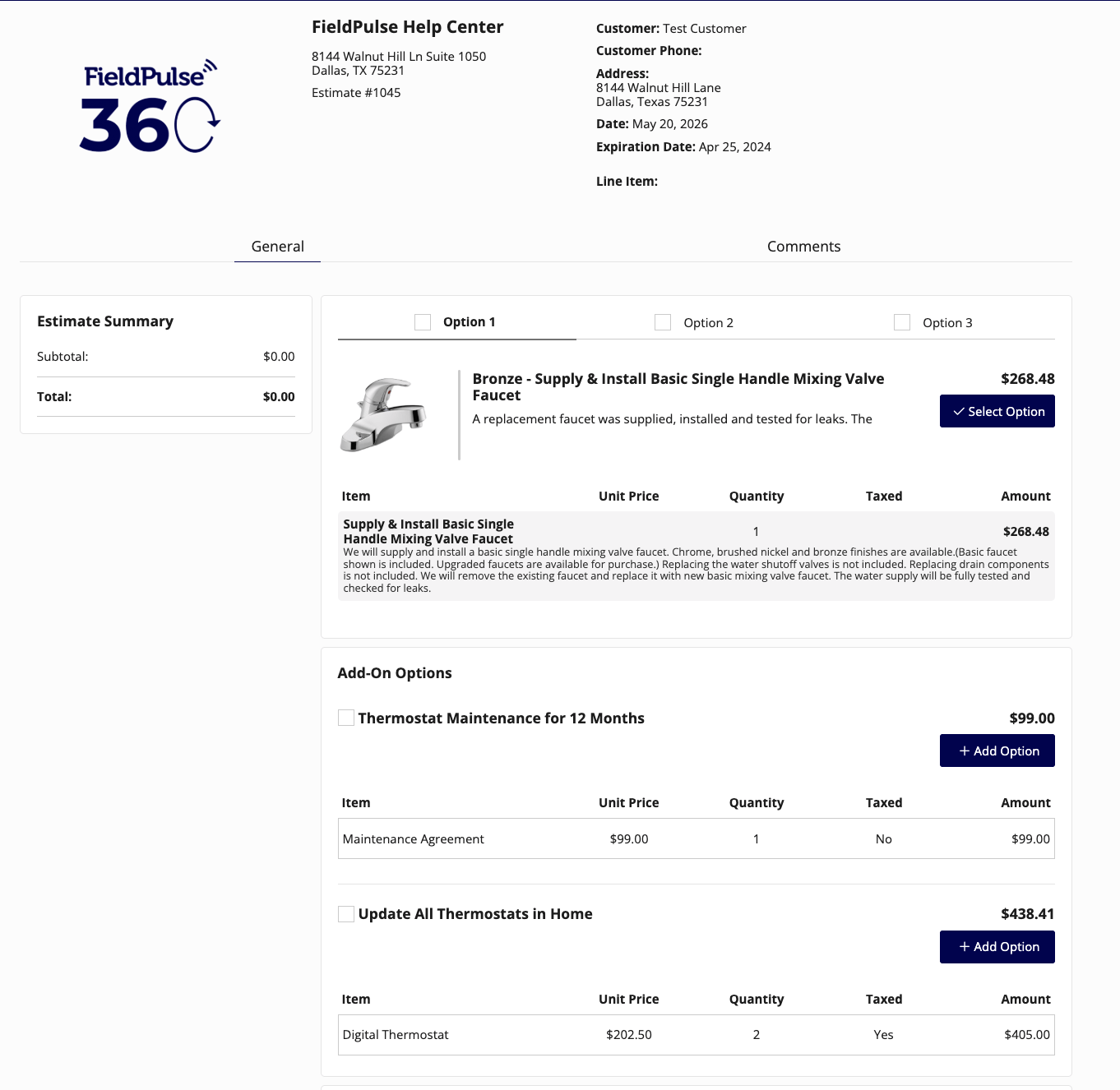 Prior to selecting their preferred option and add-on options, the customer will see a Total price of \$0.
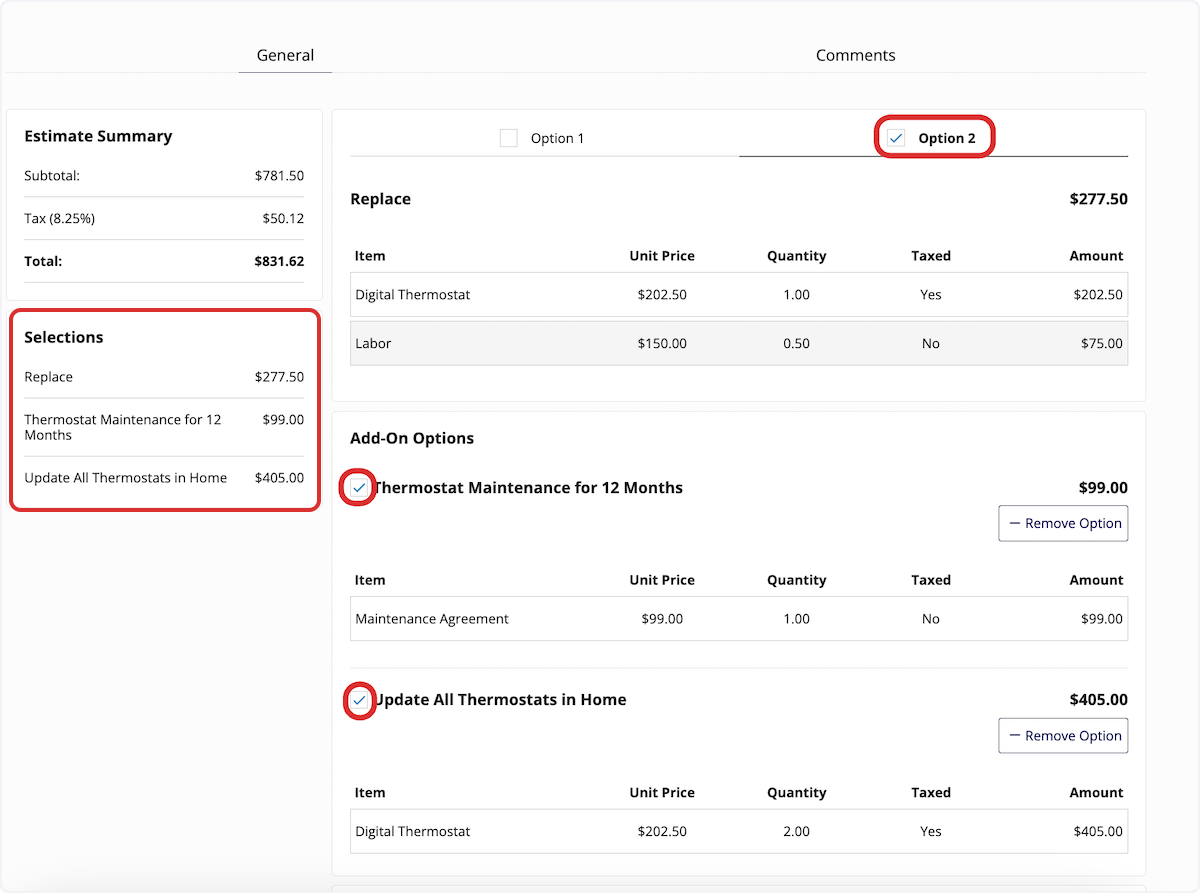
Your customer can now select their preferred option, as well as any add-on options. Their total and list of selections will appear on the left-side of the estimate.
Prior to selecting their preferred option and add-on options, the customer will see a Total price of \$0.
Your customer can now select their preferred option, as well as any add-on options. Their total and list of selections will appear on the left-side of the estimate.
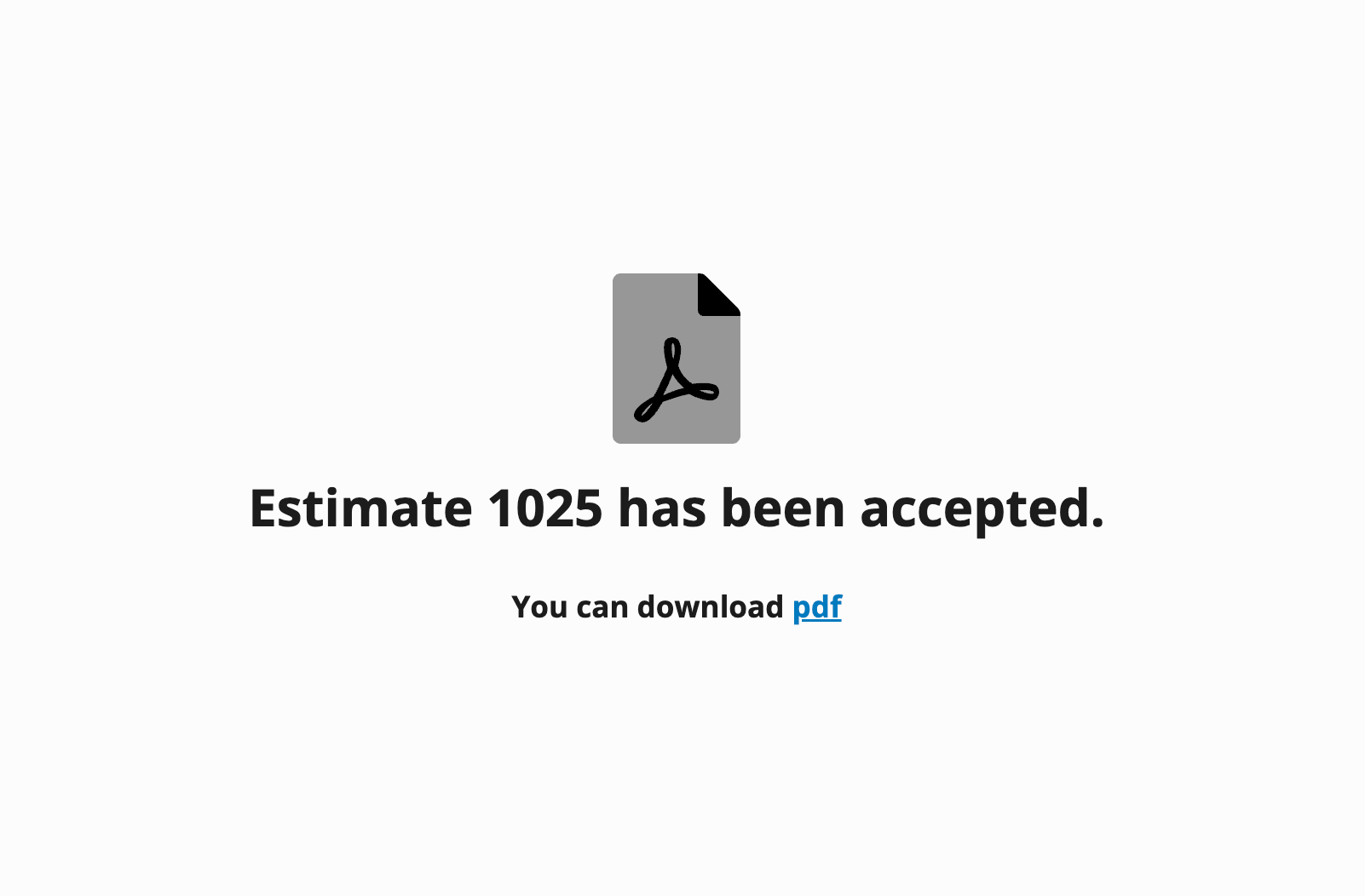
 After confirming their selections, your customer will see this message:
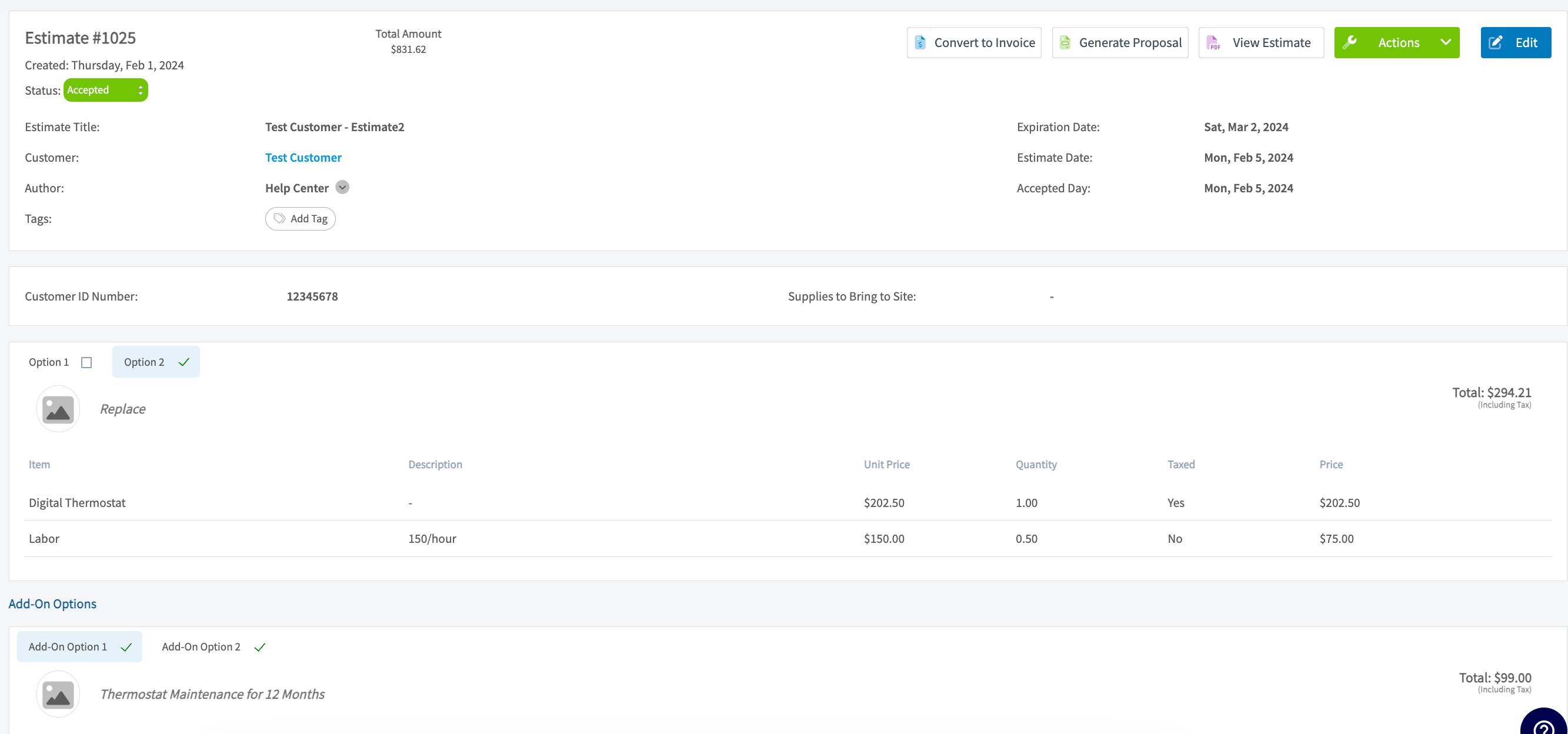
 In FieldPulse, the status will now read *Accepted*. Additionally, the options and add-ons selected by the customer will be checked off.
 ***
# FAQs
**If I send my customer an Estimate with options via email and they do not select an option, what happens?**
An error message will pop up for your customer letting them know that they must select an option before they can sign and accept the estimate.
***
# Video Tutorial
***
**Have additional questions?**
*Contact us at [support@fieldpulse.com](mailto:support@fieldpulse.com) or use the chat feature in the bottom right corner of your screen.*
***
# FAQs
**If I send my customer an Estimate with options via email and they do not select an option, what happens?**
An error message will pop up for your customer letting them know that they must select an option before they can sign and accept the estimate.
***
# Video Tutorial
***
**Have additional questions?**
*Contact us at [support@fieldpulse.com](mailto:support@fieldpulse.com) or use the chat feature in the bottom right corner of your screen.*