> ## Documentation Index
> Fetch the complete documentation index at: https://help.fieldpulse.com/llms.txt
> Use this file to discover all available pages before exploring further.
# Requesting a Customer Signature
> Collect a customer's electronic signature on an estimate or invoice by email or in person, with an option to attach a contract.
If you want to collect a customer's electronic signature on an estimate or invoice via email, you can do so directly in FieldPulse. If you'd like to collect a signature and **attach a contract**, visit the [Contracts article](/getting-started/account-setup-access/contracts) to learn more.
***
# Default Signature Request
If you plan to collect a signature on every estimate/invoice, you can set your default settings to request a signature. As with other default settings, you can always make changes for individual estimates/invoices.
To turn on default signature requests, navigate to *Company Settings* in the left-side menu, and then click *Estimates & Invoices* in the header. Then select the *Preview Settings* tab.
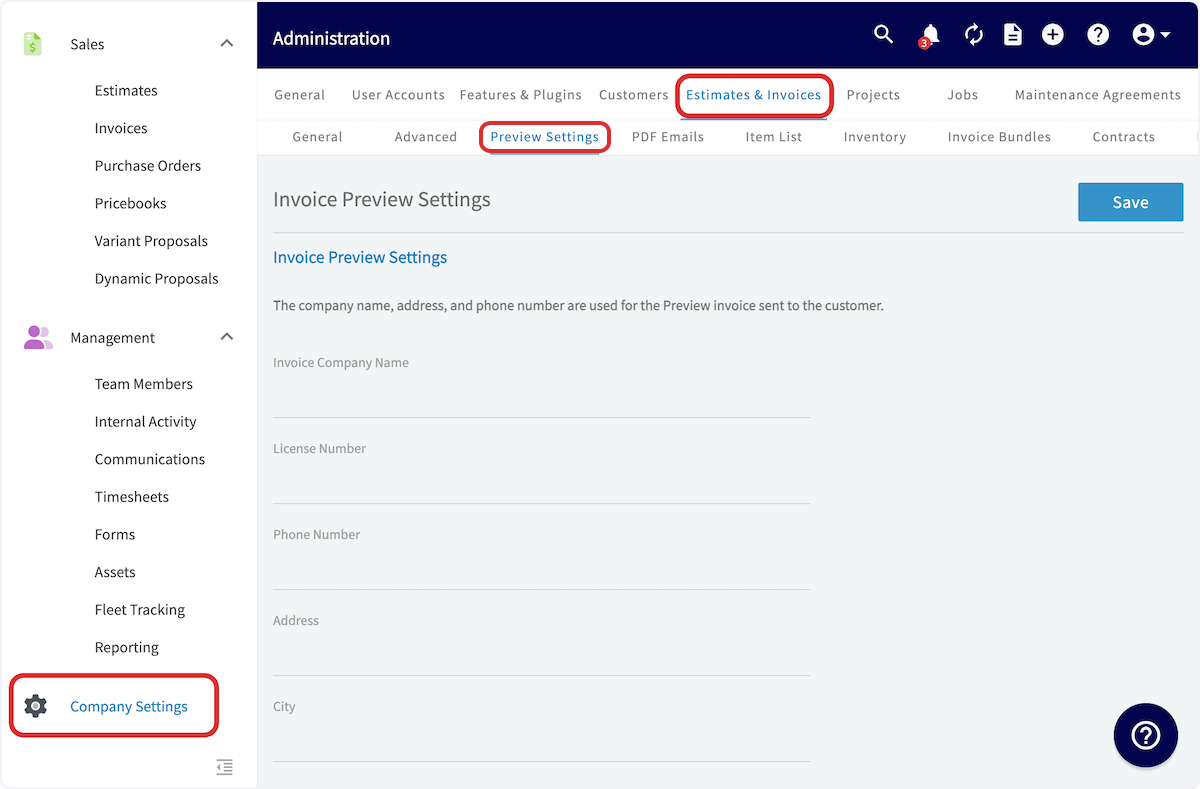 Scroll down and toggle on *Default Display Signature Button*. Back at the top of the screen, press *Save*.
 Every estimate/invoice you create from now on will include a signature field as a default.
***
# Collecting a Signature Without a Contract
Begin by previewing your estimate/invoice and selecting *Email to Customer*.
Every estimate/invoice you create from now on will include a signature field as a default.
***
# Collecting a Signature Without a Contract
Begin by previewing your estimate/invoice and selecting *Email to Customer*.
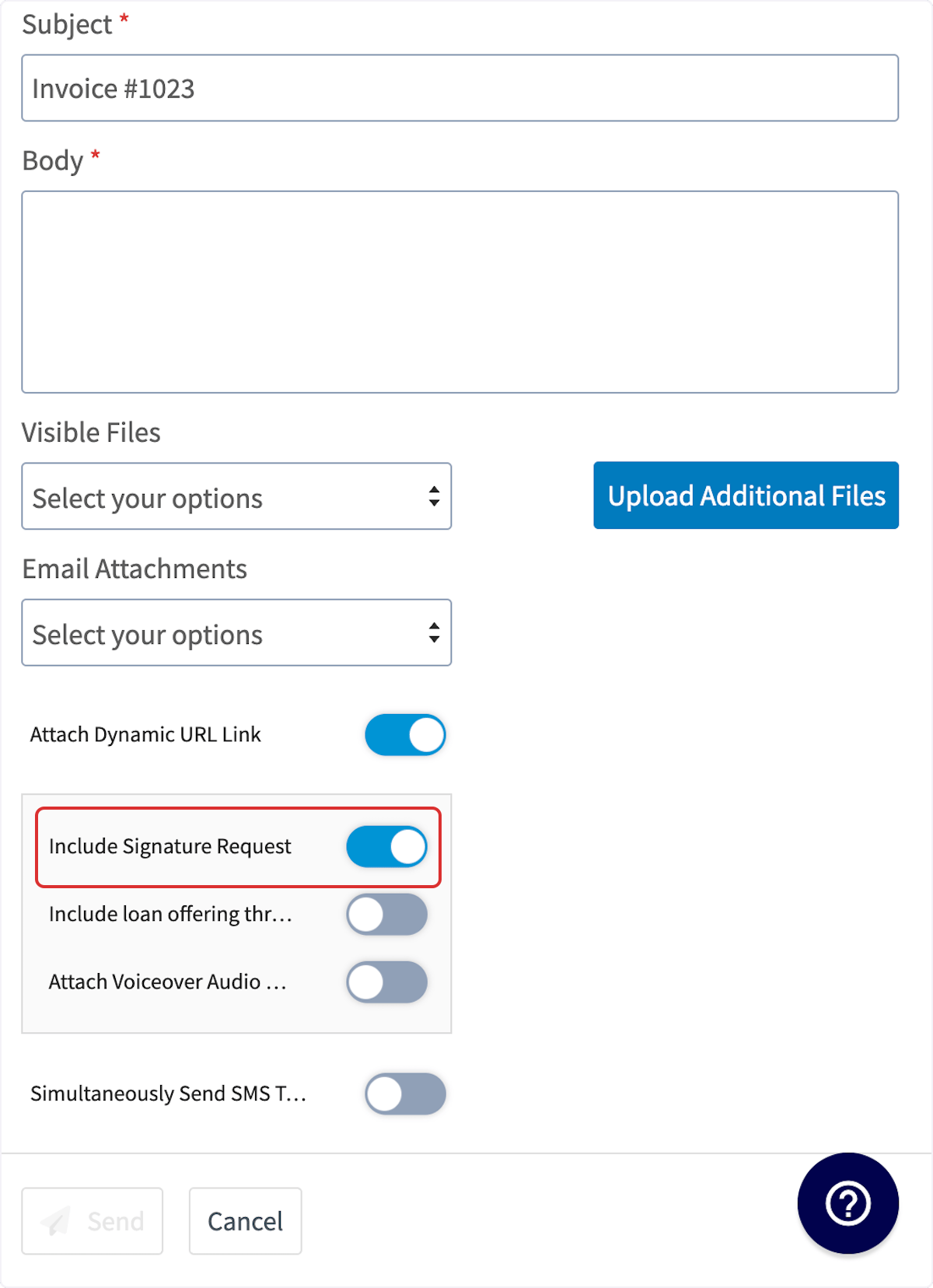
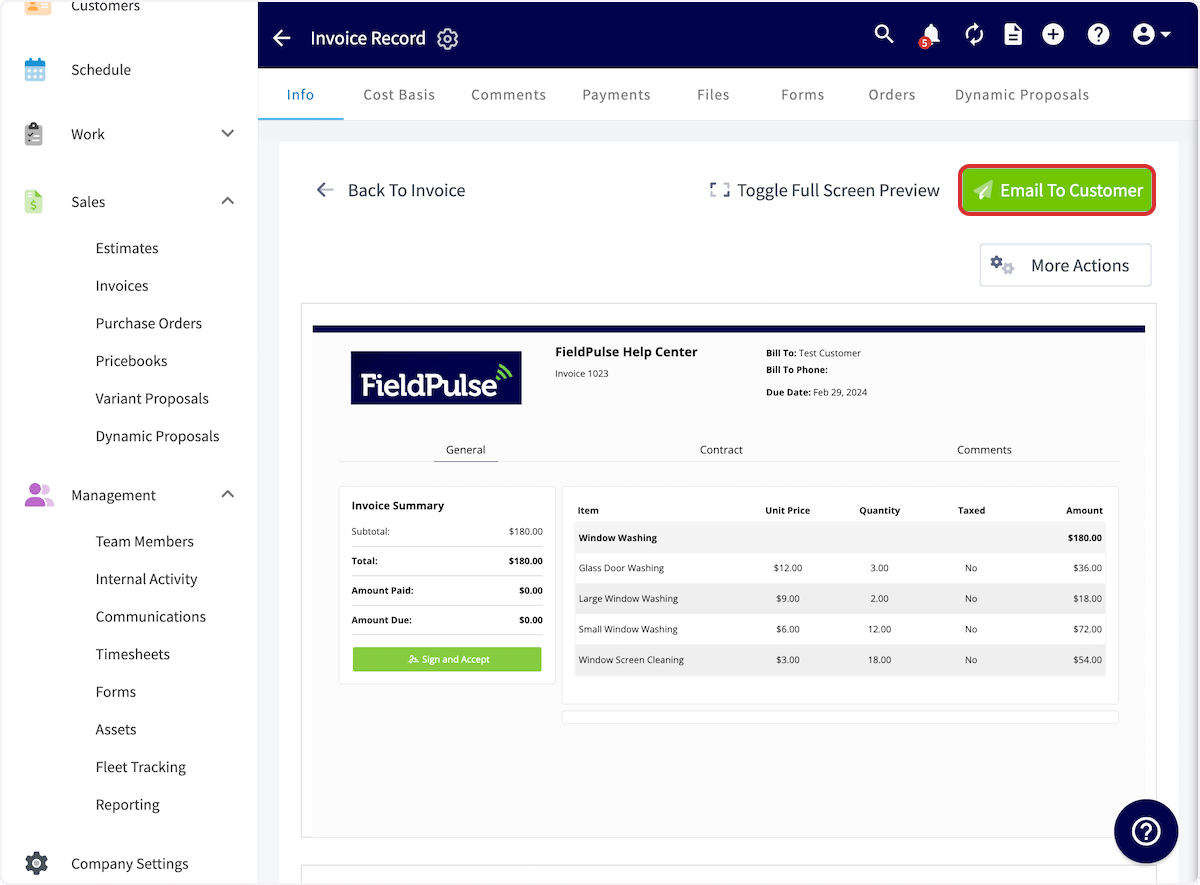 You will then scroll down and toggle on *Include Signature Request*.
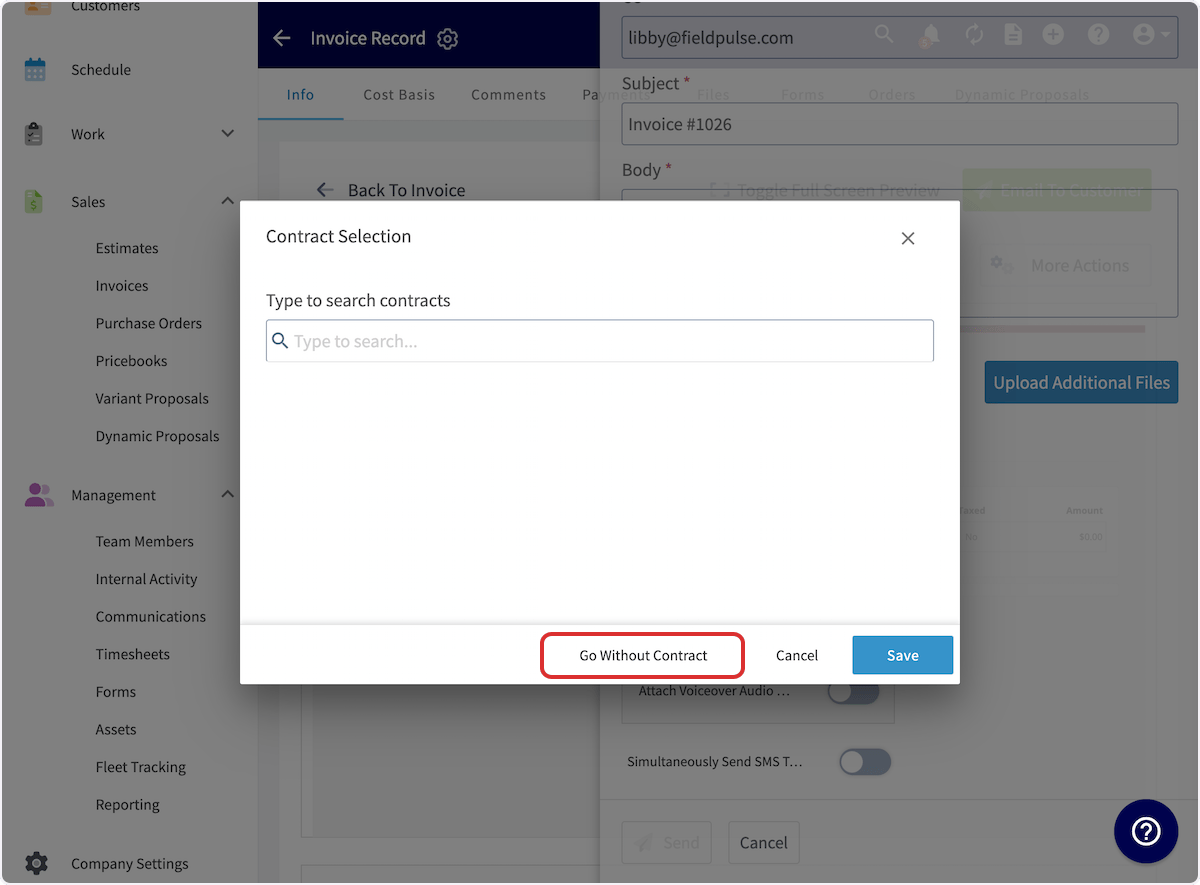
 If you do not have a contract attached to your invoice, you will receive a pop-up to select a contract. You can use the search bar to search and attach a contract, or select *Go Without Contract*. Be sure to press *Save*. You can now send the invoice to your customer.
 ***
# Signing Process
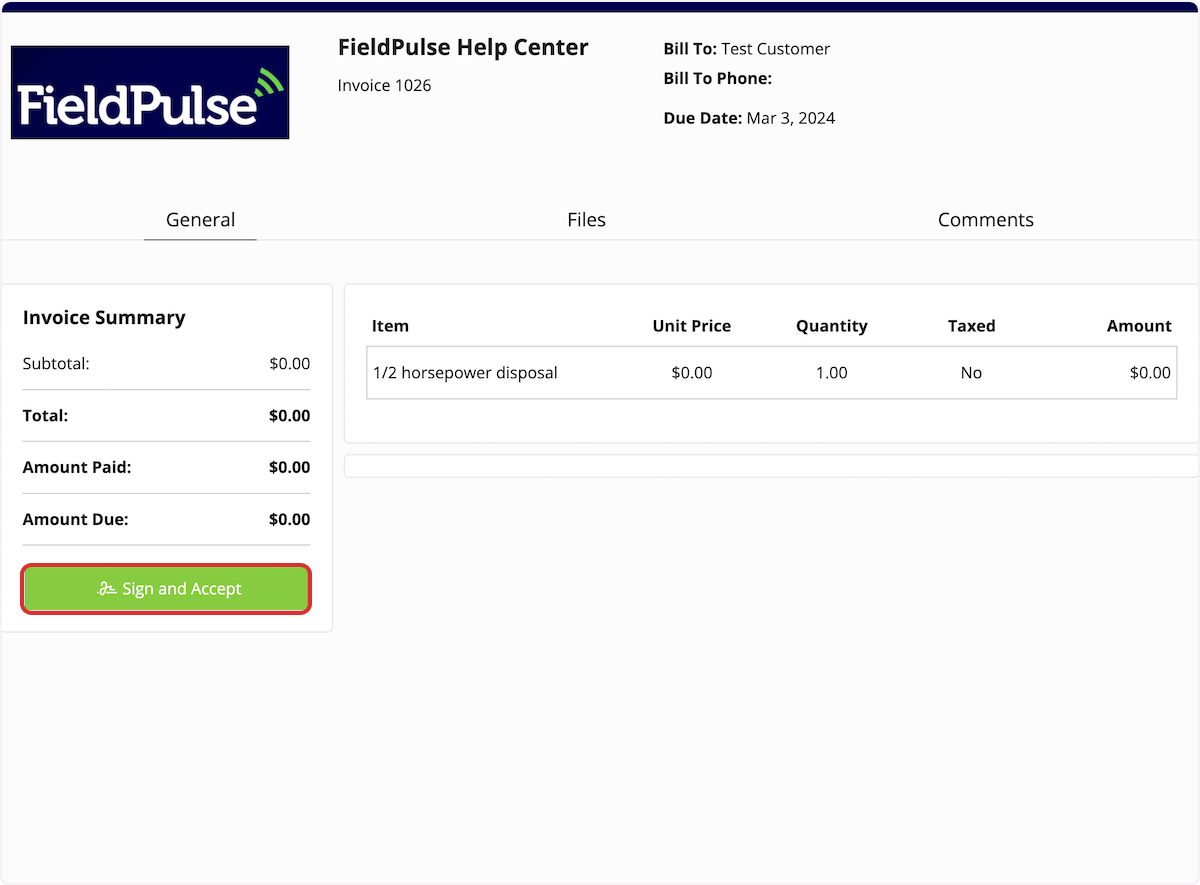
When the estimate/invoice is emailed to your customer, they can click to open it. They will then select *Sign and Accept*.
***
# Signing Process
When the estimate/invoice is emailed to your customer, they can click to open it. They will then select *Sign and Accept*.
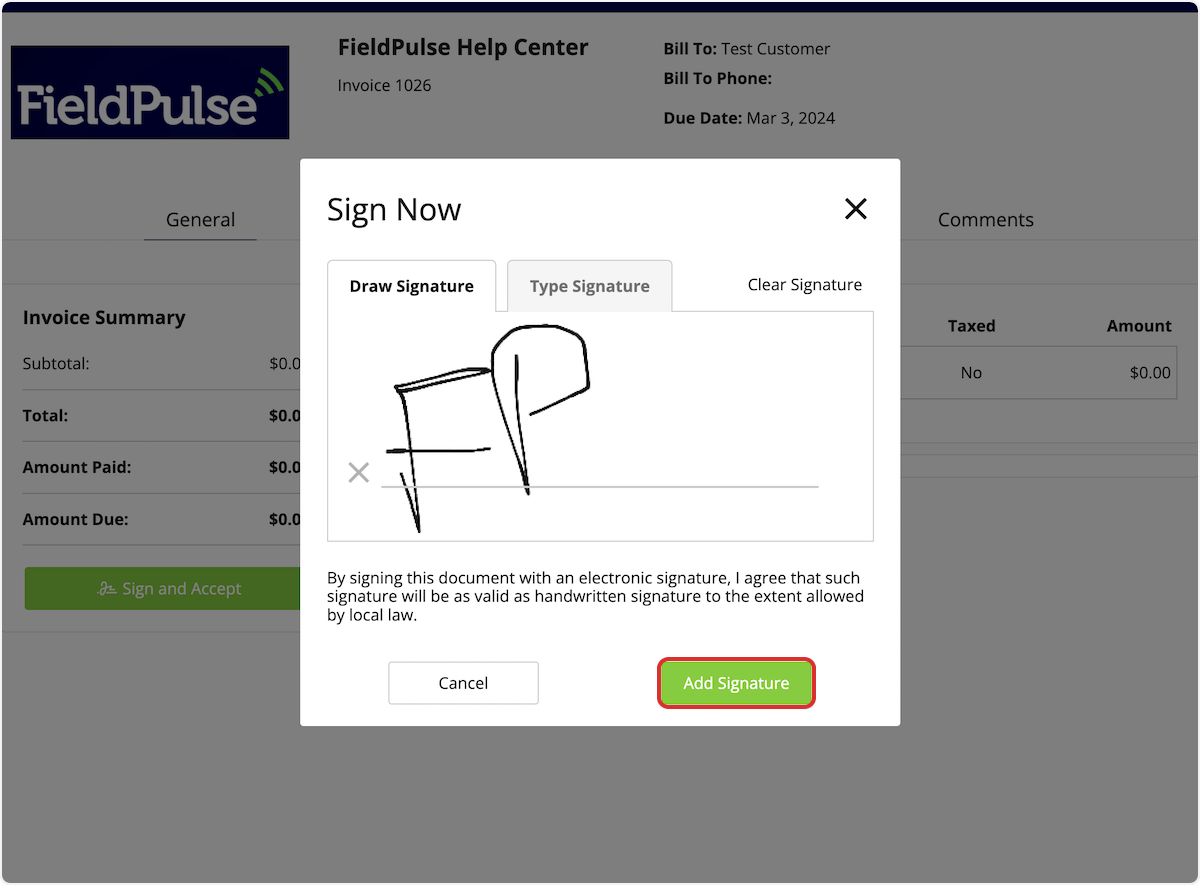
 Your customer can draw or type their signature, then click *Add Signature*.
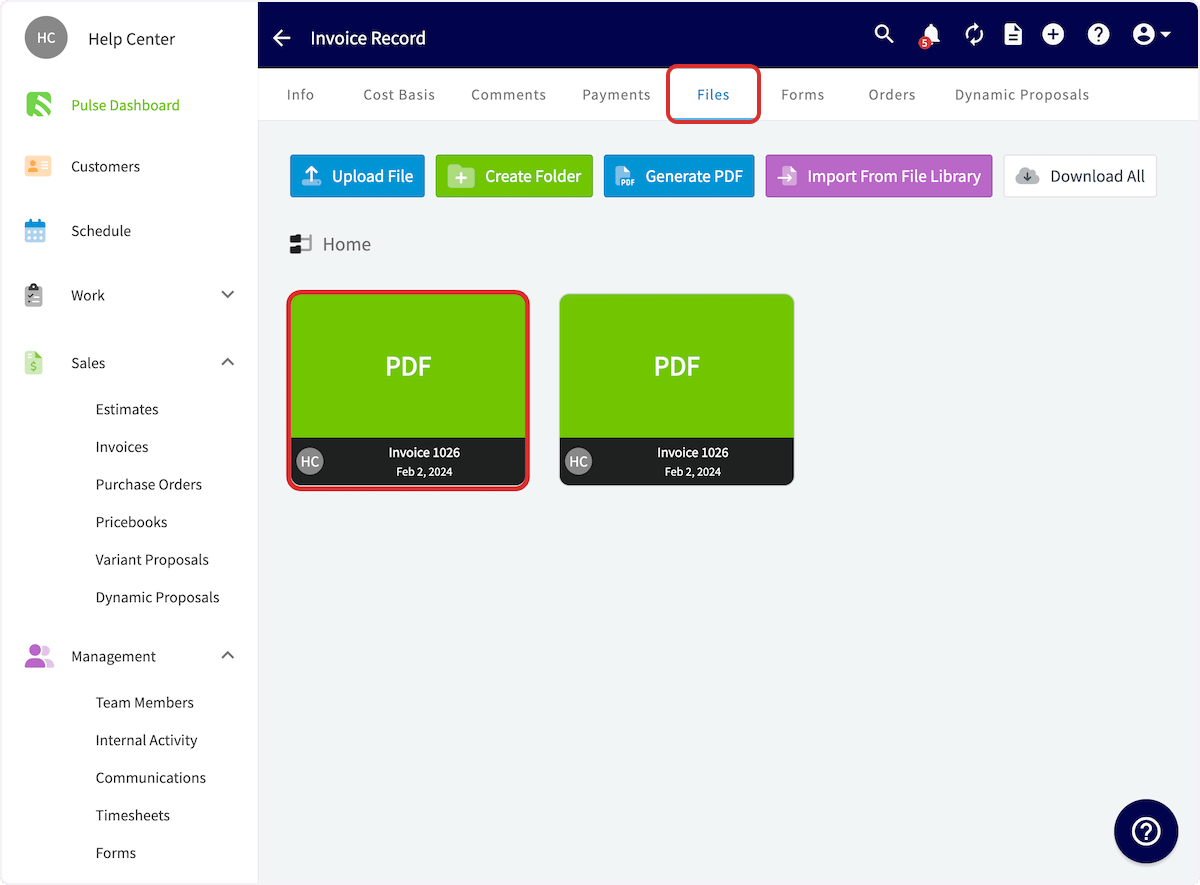
 Once your customer has signed, you can view the signed estimate/invoice PDF under files on the Estimate/Invoice Record.
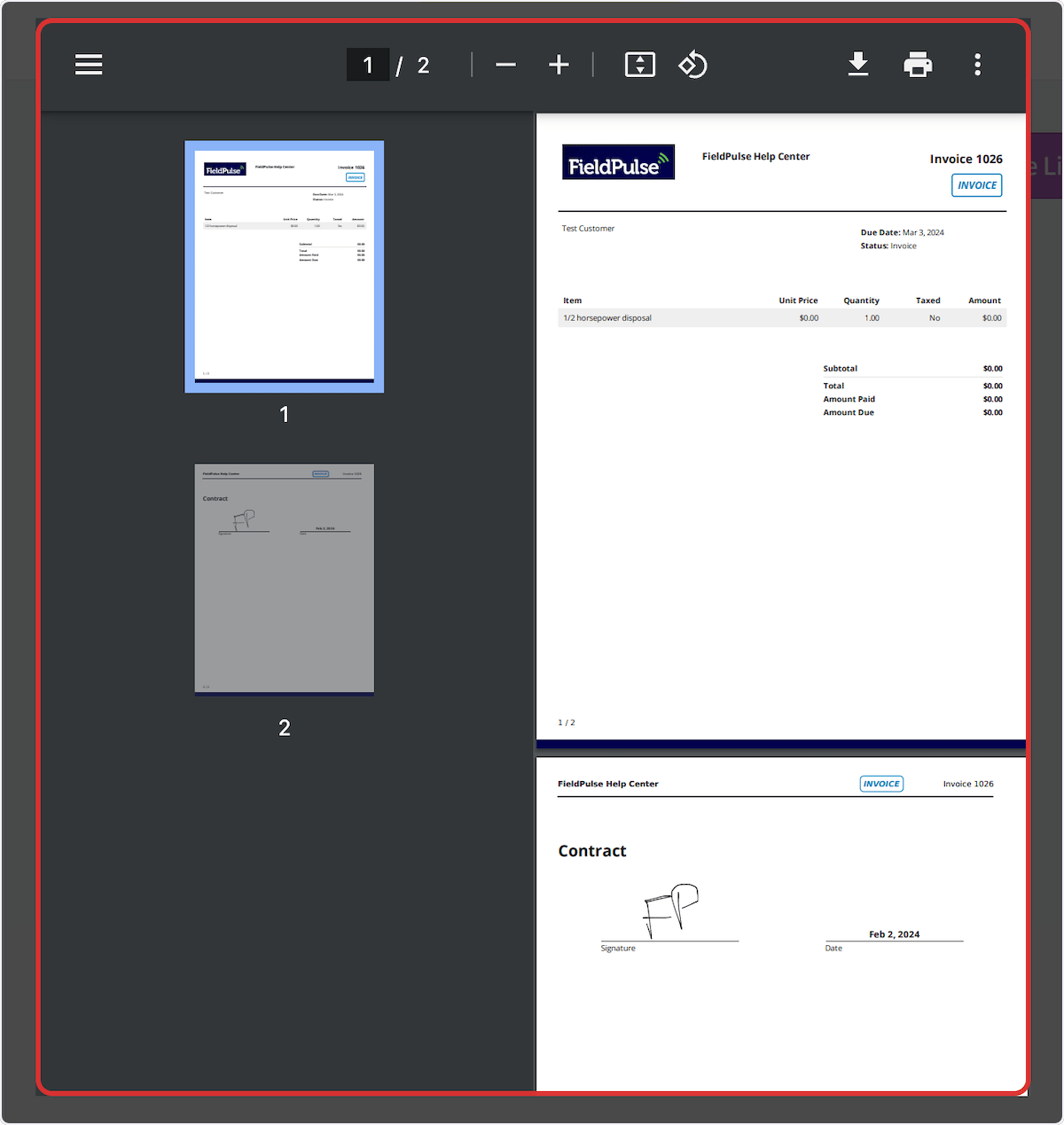
 Example signed invoice PDF:
 ***
# Video Tutorial
***
**Have additional questions?**
*Contact us at [support@fieldpulse.com](mailto:support@fieldpulse.com) or use the chat feature in the bottom right corner of your screen.*
***
# Video Tutorial
***
**Have additional questions?**
*Contact us at [support@fieldpulse.com](mailto:support@fieldpulse.com) or use the chat feature in the bottom right corner of your screen.*