> ## Documentation Index
> Fetch the complete documentation index at: https://help.fieldpulse.com/llms.txt
> Use this file to discover all available pages before exploring further.
# Tax Override (QuickBooks Online)
> Force a set tax rate on estimates and invoices and sync it straight to QuickBooks Online instead of QBO's own tax math.
## What is the Override Tax Feature?
The "Override Tax" feature allows FieldPulse to handle all tax calculations, bypassing QuickBooks Online (QBO)'s methods entirely. When the tax override is in place, the selected tax rate will apply to invoices and sync directly to QBO.
# **Functionality Update — As of May 13, 2025**
Previously, users could enable the Tax Override feature on an estimate or invoice, but now the override behavior depends on the selected tax account.
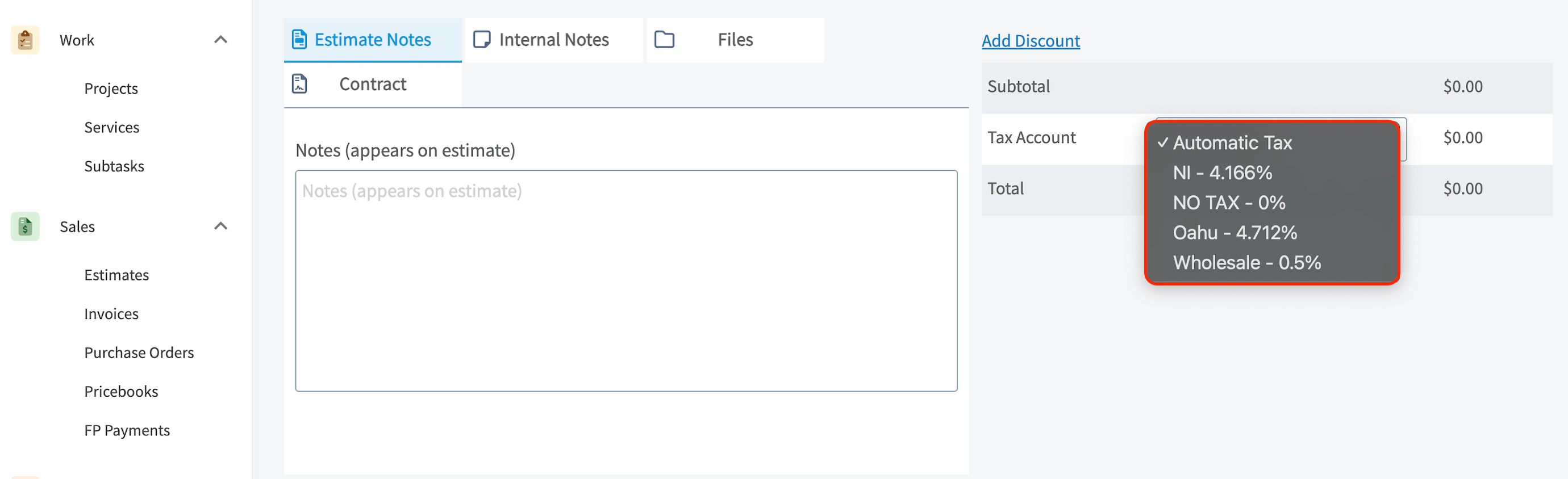
* **Automatic Tax** → Tax Override = **Off**
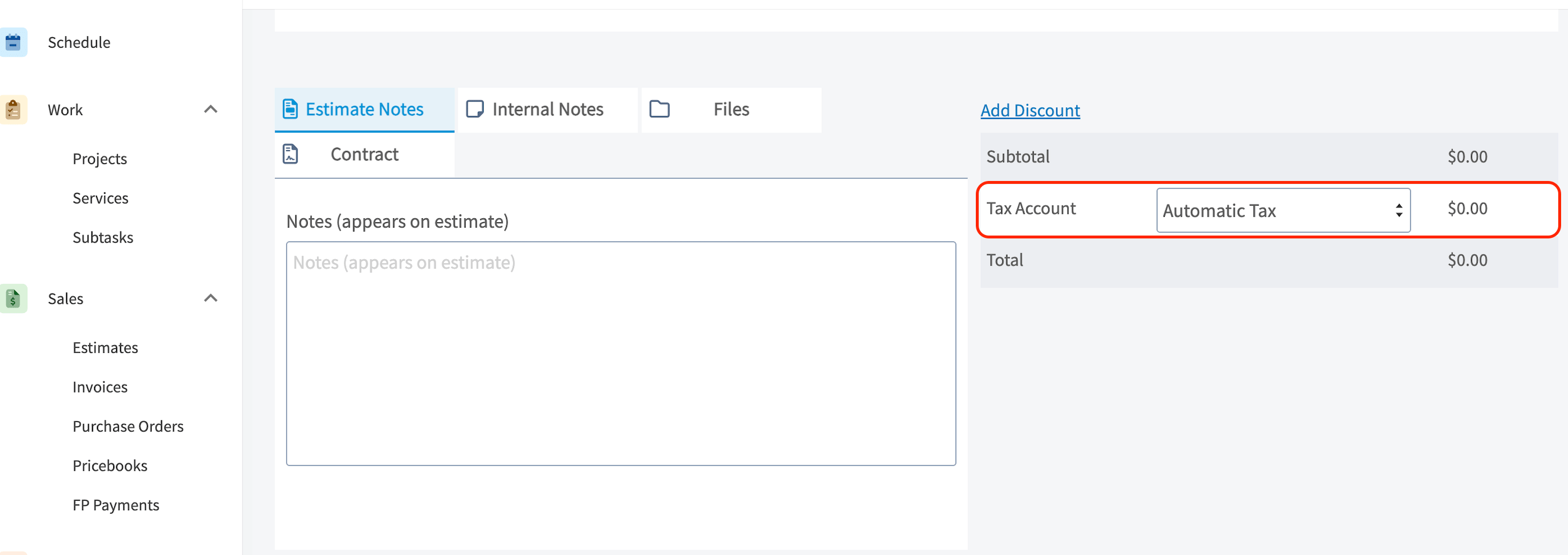 * **Selecting any other tax account (aka Custom Rate you've created in QBO)** → Tax Override = **On**
 ***
# Why Would I Need This?
This feature is designed for users who need their estimate or invoice tax to be calculated based on a **specific** tax rate, rather than QBO's calculations.
There are scenarios where the **business location must be used as the point of sale for tax calculation instead of the customer's address**. The tax override feature allows users to customize how tax rates are assigned on estimates and invoices, syncing seamlessly with QBO’s automatic tax rates. This flexibility ensures your business can apply the correct tax **without** altering the customer’s address on the estimate or invoice.
For further clarification on whether this feature is right for your business, consult with our team, review your local tax requirements, or reach out to your accountant. Texas-based businesses can refer to this helpful link: [Texas Comptroller Tax Guide](https://comptroller.texas.gov/taxes/publications/94-105.php).
***
# How to Enable the Override Tax Feature
## 1. Turn on the Override Tax Option
* Navigate to *Company Settings > Estimates & Invoices > QuickBooks*.
* From this page, toggle on the setting labeled "*Ability to Override Tax Functionality*".
### 2. After Enabling
Once "*Tax Override*" is enabled, the behavior is based on the selected tax account:
* **Automatic Tax** → Tax Override = **Off**
***
# Why Would I Need This?
This feature is designed for users who need their estimate or invoice tax to be calculated based on a **specific** tax rate, rather than QBO's calculations.
There are scenarios where the **business location must be used as the point of sale for tax calculation instead of the customer's address**. The tax override feature allows users to customize how tax rates are assigned on estimates and invoices, syncing seamlessly with QBO’s automatic tax rates. This flexibility ensures your business can apply the correct tax **without** altering the customer’s address on the estimate or invoice.
For further clarification on whether this feature is right for your business, consult with our team, review your local tax requirements, or reach out to your accountant. Texas-based businesses can refer to this helpful link: [Texas Comptroller Tax Guide](https://comptroller.texas.gov/taxes/publications/94-105.php).
***
# How to Enable the Override Tax Feature
## 1. Turn on the Override Tax Option
* Navigate to *Company Settings > Estimates & Invoices > QuickBooks*.
* From this page, toggle on the setting labeled "*Ability to Override Tax Functionality*".
### 2. After Enabling
Once "*Tax Override*" is enabled, the behavior is based on the selected tax account:
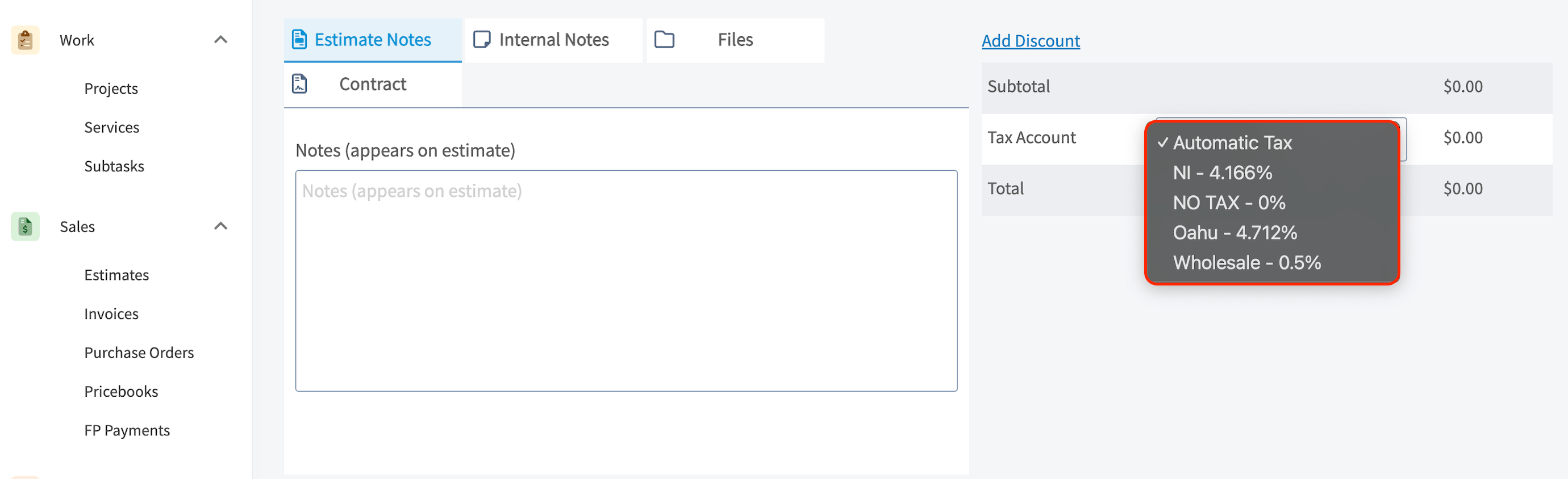
* **Automatic Tax** → Tax Override = **Off**
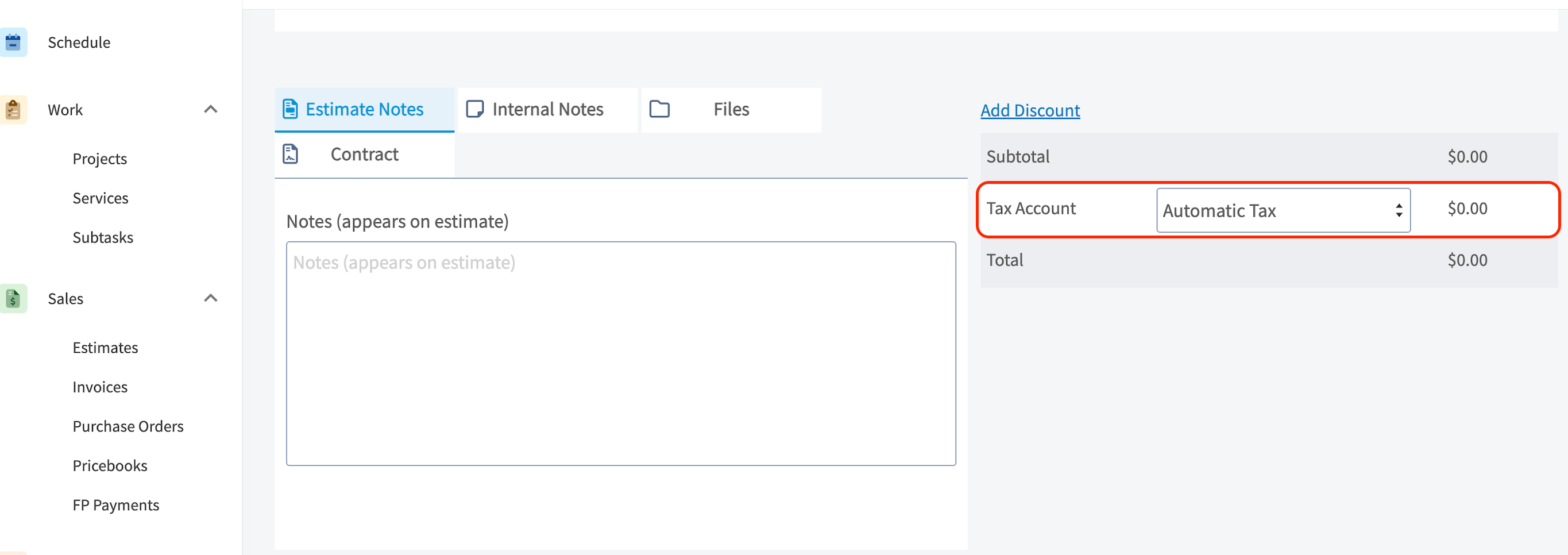 * **Selecting any other tax account (aka Custom Rate you've created in QBO)** → Tax Override = **On**
 ***
# Important Notes
## Editing with the Tax Override Enabled
* Make any changes to estimates or invoices with the tax override **directly in FieldPulse**. Editing these records in QBO can result in an adjusted tax rate, potentially causing discrepancies.
### Resolving Discrepancies
* If a record’s totals appear incorrect after editing in QBO, you can correct them by editing the record in FieldPulse. This will force the record to sync back to QBO with the correct tax rate.
### Best Practices
* To avoid errors, **always** make amendments to records with the tax override enabled in FieldPulse.
***
**Have additional questions?**
*Contact us at [support@fieldpulse.com](mailto:support@fieldpulse.com) or use the chat feature in the bottom right corner of your screen.*
## Related topics
- [Automatic Tax Rates & Tax Override](/using-fieldpulse/estimates-invoices/automatic-tax-rates-tax-override.md)
- [Post-Sync: QuickBooks Online](/integrations-partners/accounting/quickbooks-online/post-sync-quickbooks-online.md)
- [Canadian Dual Tax Rates in QuickBooks Online](/integrations-partners/accounting/quickbooks-online/canadian-dual-tax-rates-in-quickbooks-online.md)
- [QuickBooks Online](/integrations-partners/accounting/quickbooks-online/index.md)
- [Pre-Sync: QuickBooks Online](/integrations-partners/accounting/quickbooks-online/pre-sync-quickbooks-online.md)
***
# Important Notes
## Editing with the Tax Override Enabled
* Make any changes to estimates or invoices with the tax override **directly in FieldPulse**. Editing these records in QBO can result in an adjusted tax rate, potentially causing discrepancies.
### Resolving Discrepancies
* If a record’s totals appear incorrect after editing in QBO, you can correct them by editing the record in FieldPulse. This will force the record to sync back to QBO with the correct tax rate.
### Best Practices
* To avoid errors, **always** make amendments to records with the tax override enabled in FieldPulse.
***
**Have additional questions?**
*Contact us at [support@fieldpulse.com](mailto:support@fieldpulse.com) or use the chat feature in the bottom right corner of your screen.*
## Related topics
- [Automatic Tax Rates & Tax Override](/using-fieldpulse/estimates-invoices/automatic-tax-rates-tax-override.md)
- [Post-Sync: QuickBooks Online](/integrations-partners/accounting/quickbooks-online/post-sync-quickbooks-online.md)
- [Canadian Dual Tax Rates in QuickBooks Online](/integrations-partners/accounting/quickbooks-online/canadian-dual-tax-rates-in-quickbooks-online.md)
- [QuickBooks Online](/integrations-partners/accounting/quickbooks-online/index.md)
- [Pre-Sync: QuickBooks Online](/integrations-partners/accounting/quickbooks-online/pre-sync-quickbooks-online.md)