> ## Documentation Index
> Fetch the complete documentation index at: https://help.fieldpulse.com/llms.txt
> Use this file to discover all available pages before exploring further.
# Franchise Overview
> See every franchisee location in one list, then edit or log into any franchisee account from the franchisor view.
# View Your Franchisees
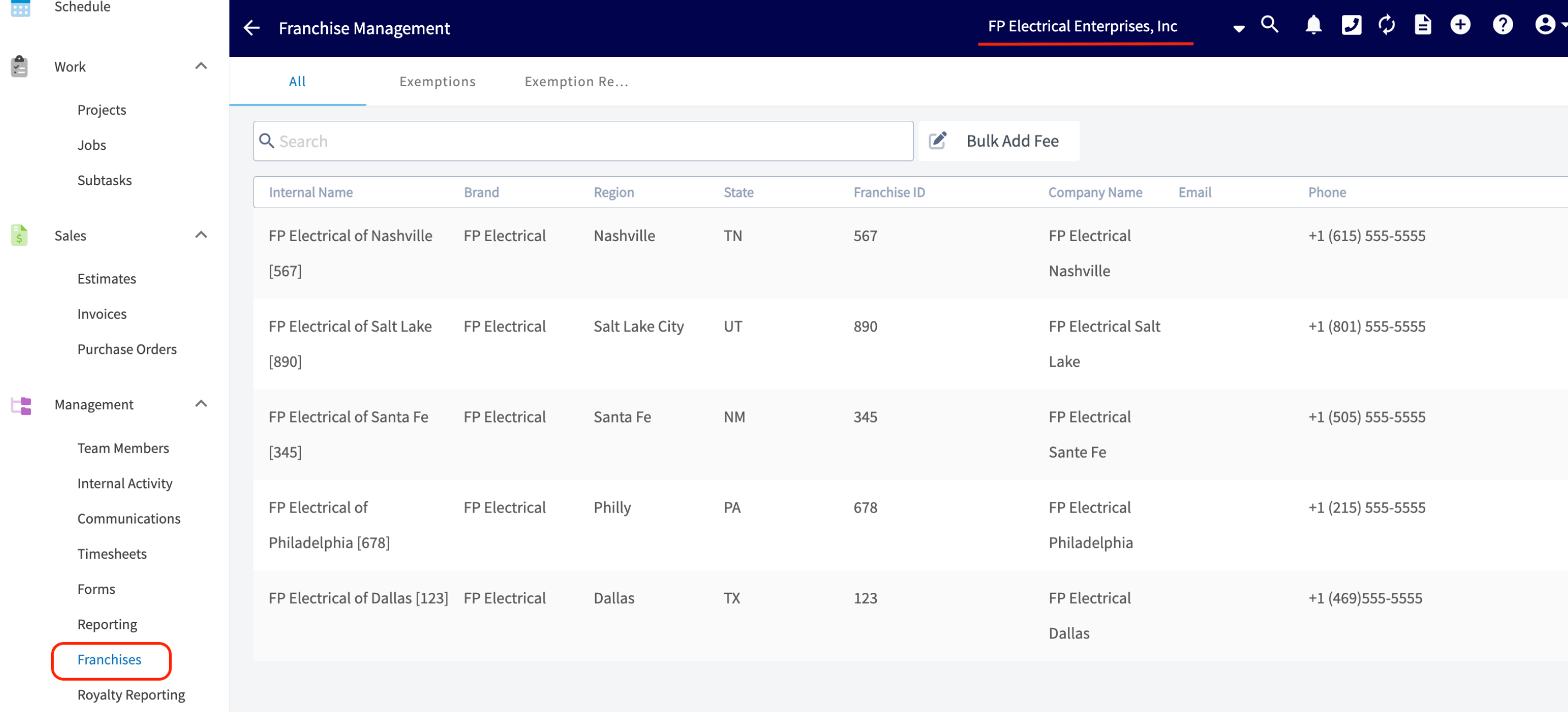
As the franchisor, you have access to the *Franchises* tab from the menu on the left hand side of the screen. Here you can see at a glance a list of all of the franchisees. In the example below you can see there is a franchisee in the following locations: Nashville, Salt Lake, Santa Fe, Philadelphia, Dallas.
 ***
# Edit/Login to Your Franchisees
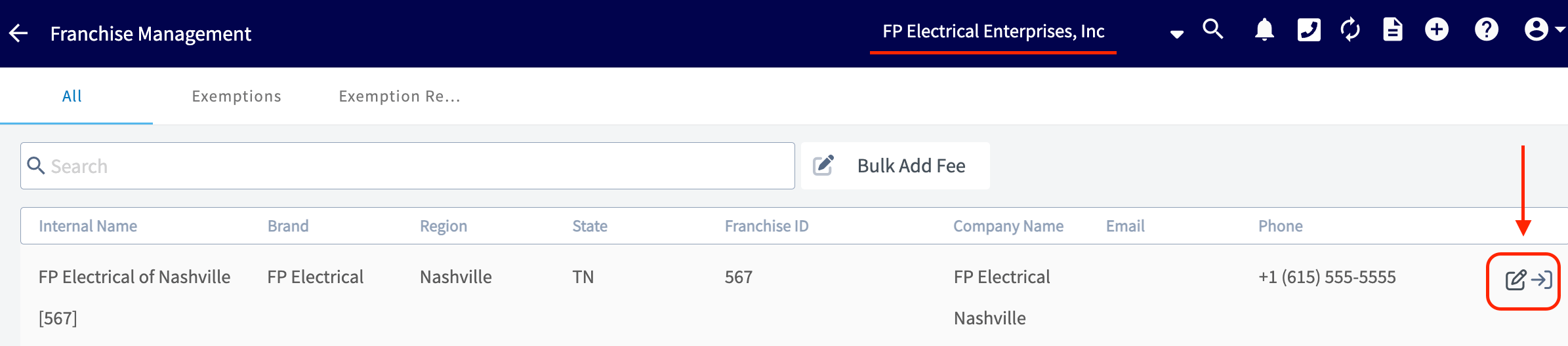
The franchisor has the ability to make edits or login to any of the franchisee accounts at any time. To make edits/changes the franchisor would click on the paper/pencil icon. To login to the franchisee account the franchisor would click on the arrow/door icon.
***
# Edit/Login to Your Franchisees
The franchisor has the ability to make edits or login to any of the franchisee accounts at any time. To make edits/changes the franchisor would click on the paper/pencil icon. To login to the franchisee account the franchisor would click on the arrow/door icon.
 # Franchisee Information
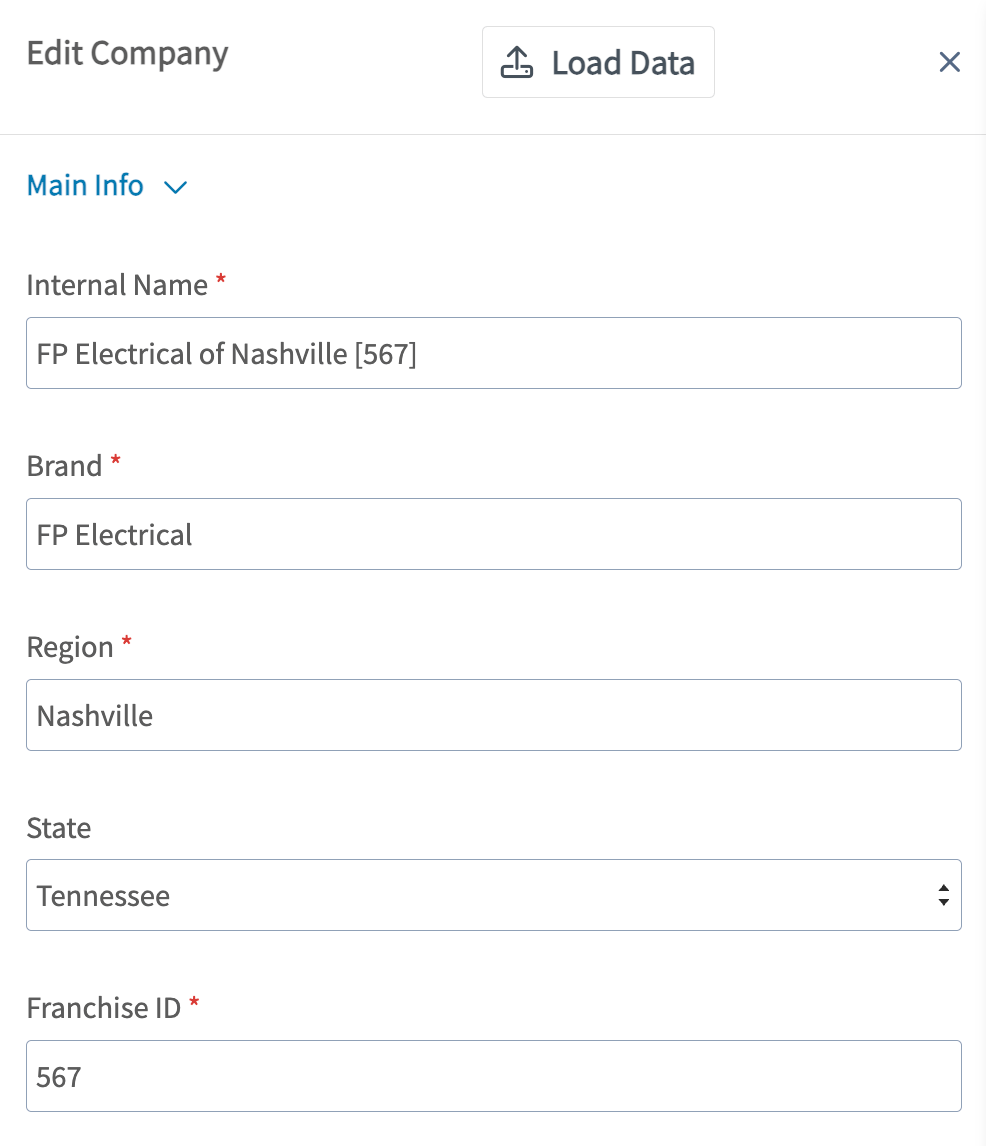
By clicking on the arrow/door icon mentioned above, a tab will pop up with various fields you can edit for your selected franchisee. See these fields pictured below.
# Franchisee Information
By clicking on the arrow/door icon mentioned above, a tab will pop up with various fields you can edit for your selected franchisee. See these fields pictured below.
 # Setting Up/Adjusting Fees
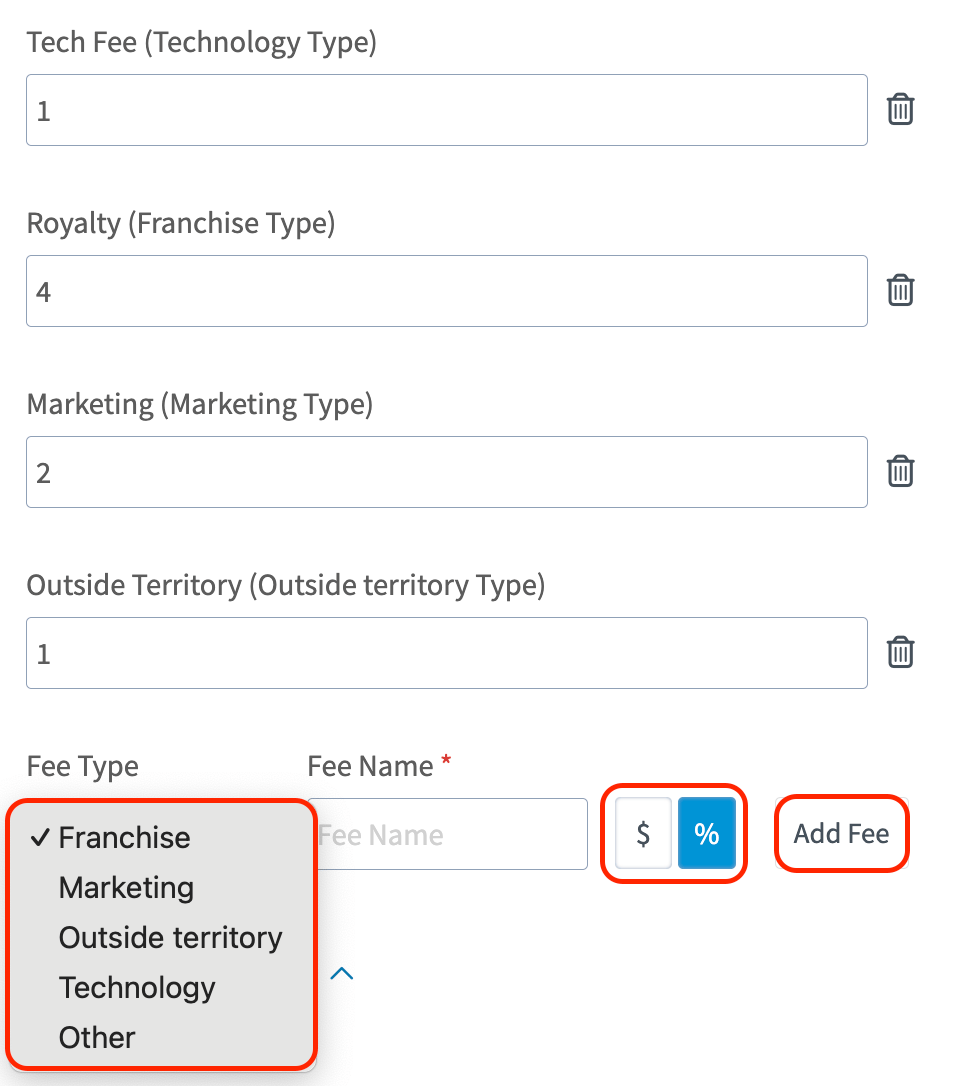
When you scroll down after the fields pictured above, you will see the fields where you can create, and, and/or edit the fees you wish to charge your franchisees. As the franchisor you will need to name the fee, associate the type, and enter in a flat dollar amount or a percentage. Once those detail are sorted out, you will simply select the *Add Fee* button to apply it to this franchisee.
# Setting Up/Adjusting Fees
When you scroll down after the fields pictured above, you will see the fields where you can create, and, and/or edit the fees you wish to charge your franchisees. As the franchisor you will need to name the fee, associate the type, and enter in a flat dollar amount or a percentage. Once those detail are sorted out, you will simply select the *Add Fee* button to apply it to this franchisee.
 # Territory Management
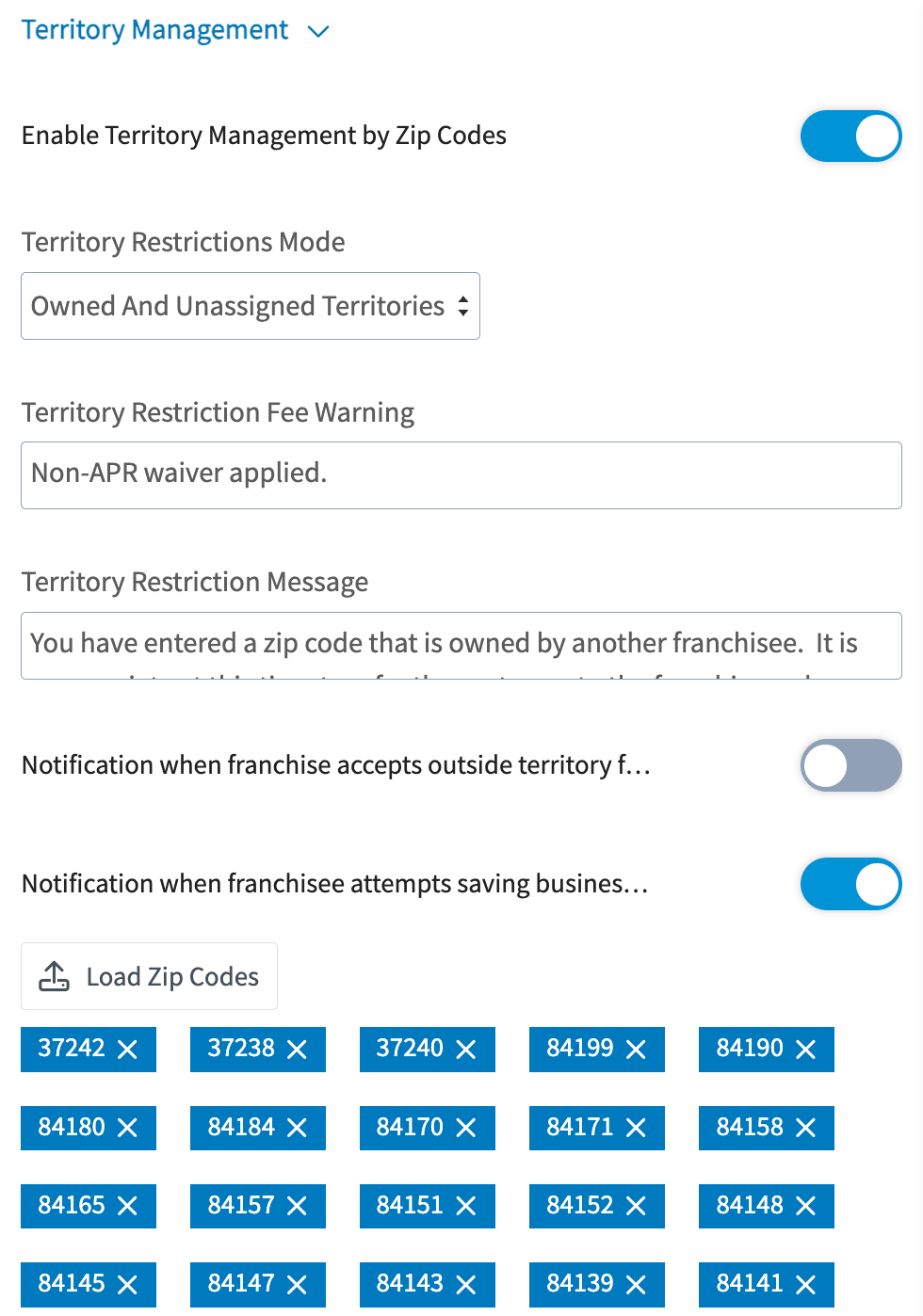
We understand that territory management is essential for franchises as it ensures strategic market coverage and minimizes competition among franchisees - fostering a cohesive & positive brand environment. Within FieldPulse, the franchisor can customize the *Territory Restriction Fee Warning* as well as the *Territory Restriction Message*.
**You can set notifications to be sent in two instances:**
* *Notification when the franchise accepts outside of territory fees*
* *Notification when the franchisee attempts saving business outside of their territory*
By default, all franchisor admins will get the notifications mentioned above, but each admin can turn them off just for themselves by going into their profile settings.
To keep track of each franchisee's territories, we utilize zip codes. As the franchisor, you can load/add or delete zip codes at any time. The file format when loading these into FieldPulse is a single column where you will enter in the desired zip codes.
# Territory Management
We understand that territory management is essential for franchises as it ensures strategic market coverage and minimizes competition among franchisees - fostering a cohesive & positive brand environment. Within FieldPulse, the franchisor can customize the *Territory Restriction Fee Warning* as well as the *Territory Restriction Message*.
**You can set notifications to be sent in two instances:**
* *Notification when the franchise accepts outside of territory fees*
* *Notification when the franchisee attempts saving business outside of their territory*
By default, all franchisor admins will get the notifications mentioned above, but each admin can turn them off just for themselves by going into their profile settings.
To keep track of each franchisee's territories, we utilize zip codes. As the franchisor, you can load/add or delete zip codes at any time. The file format when loading these into FieldPulse is a single column where you will enter in the desired zip codes.
 # Adding a Disclaimer
The last field you as the franchisor can edit is the disclaimer message. This disclaimer message can be added here and will display on all of the estimates and invoices created by the franchisee's account that you are editing.
# Adding a Disclaimer
The last field you as the franchisor can edit is the disclaimer message. This disclaimer message can be added here and will display on all of the estimates and invoices created by the franchisee's account that you are editing.
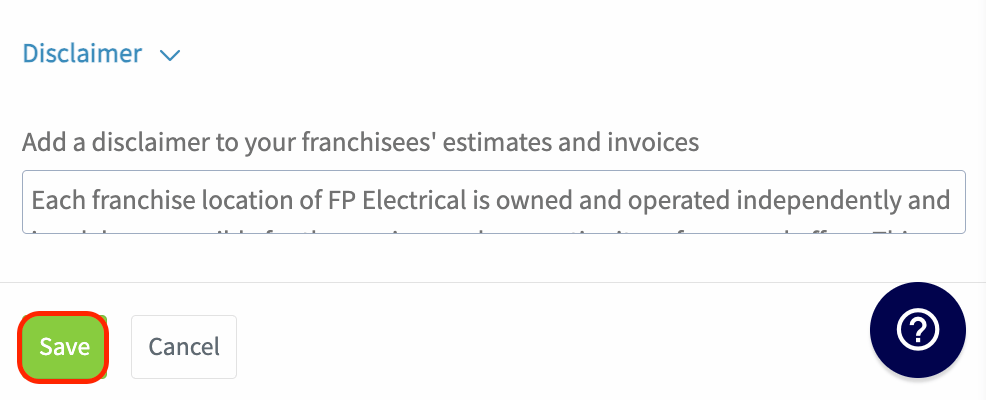 Once done editing all of the fields mentioned above, you will need to press the green *Save* button to ensure that all edits apply to this franchisee moving forward.
***
**Have additional questions?**
*Contact us at [support@fieldpulse.com](mailto:support@fieldpulse.com) or use the chat feature in the bottom right corner of your screen.*
Once done editing all of the fields mentioned above, you will need to press the green *Save* button to ensure that all edits apply to this franchisee moving forward.
***
**Have additional questions?**
*Contact us at [support@fieldpulse.com](mailto:support@fieldpulse.com) or use the chat feature in the bottom right corner of your screen.*