> ## Documentation Index
> Fetch the complete documentation index at: https://help.fieldpulse.com/llms.txt
> Use this file to discover all available pages before exploring further.
# Franchise: Roll-Up Reporting
> Pull consolidated reports across all franchisee locations to spot trends and compare performance side by side.
Roll-up reporting allows the franchisor to access and analyze consolidated data from every franchisee location. With access to accurate and up-to-date data, franchisors can make informed, data-driven decisions such as: identifying trends, understanding market dynamics, and determining the effectiveness of marketing strategies or operational changes.
# How to Access Roll-Up Reporting
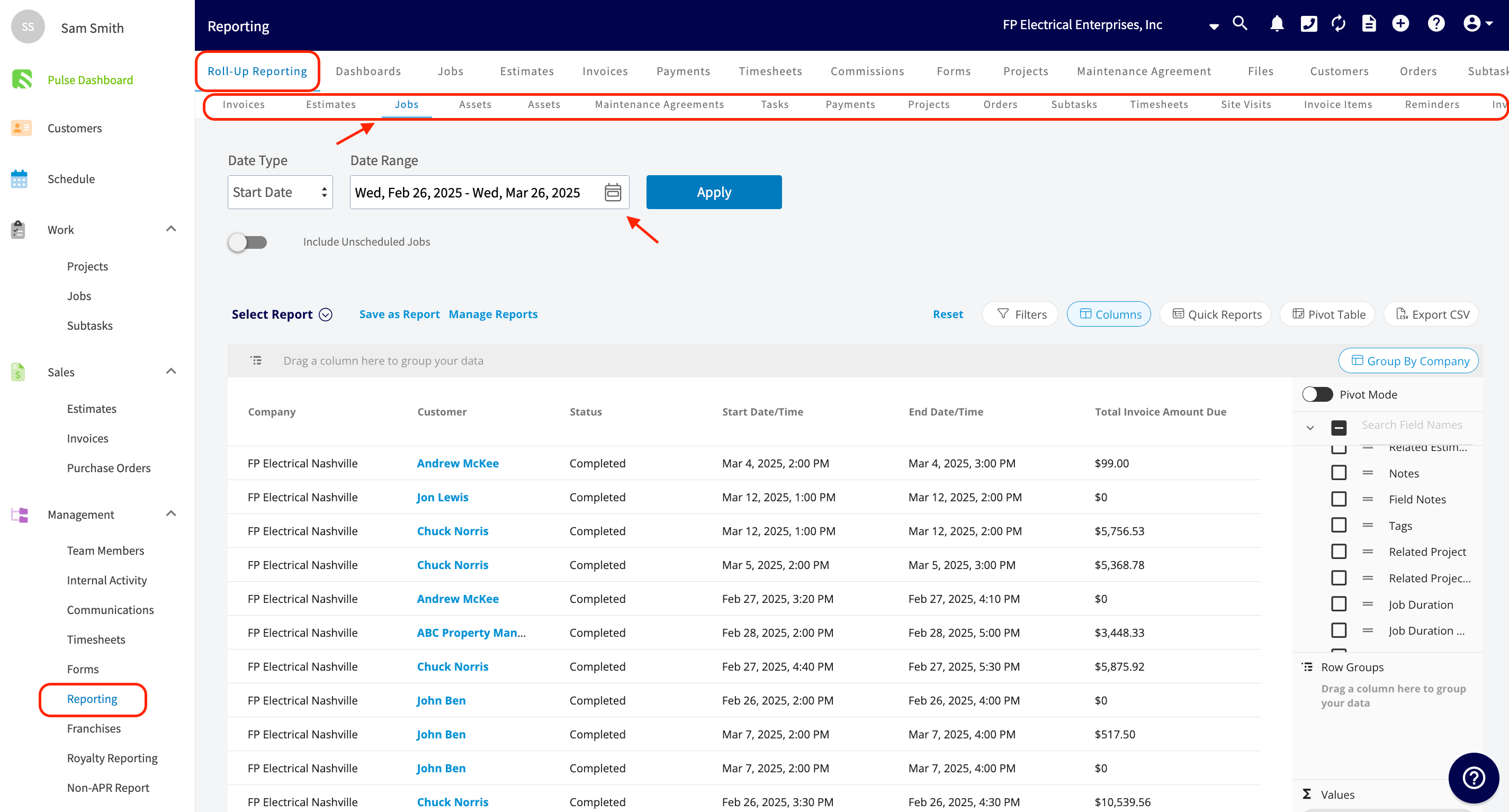
The franchisor will first navigate to the *Reporting* tab in the menu on the left-hand side of their screen. Next, the franchisor will click on the *Roll-Up Reporting* in the top menu and select the specific criteria for the report. In the example pictured below, the report is for all jobs created by each franchisee. The franchisor will then need to select their desired date range before clicking the blue *Apply* button. [Like other reporting done within FieldPulse,](/using-fieldpulse/reporting/raw-data-reporting#h_ebfe3bd63f) you can utilize filters and columns to further customize any report.
 ***
# Saving & Exporting Reports
* **Saving Options:**
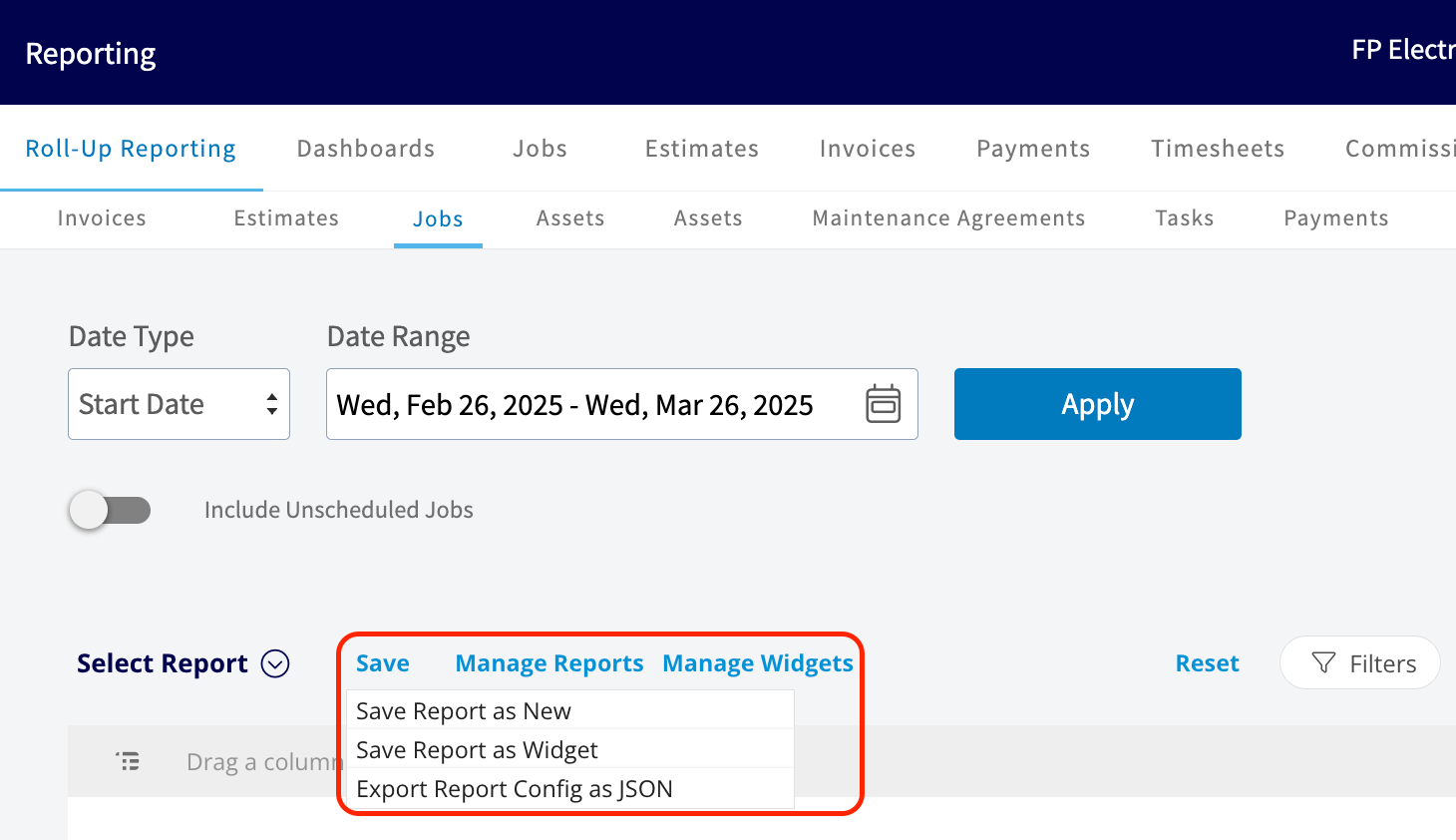
* **Save as New:** This will save your report under *Select Report* for easy access in the future. You will need to title and save your report.
* **Save as Widget:** This will save your report as a widget which can be added to your customized *Pulse Dashboard* in the future. You will need to title and save your widget.
***
# Saving & Exporting Reports
* **Saving Options:**
* **Save as New:** This will save your report under *Select Report* for easy access in the future. You will need to title and save your report.
* **Save as Widget:** This will save your report as a widget which can be added to your customized *Pulse Dashboard* in the future. You will need to title and save your widget.
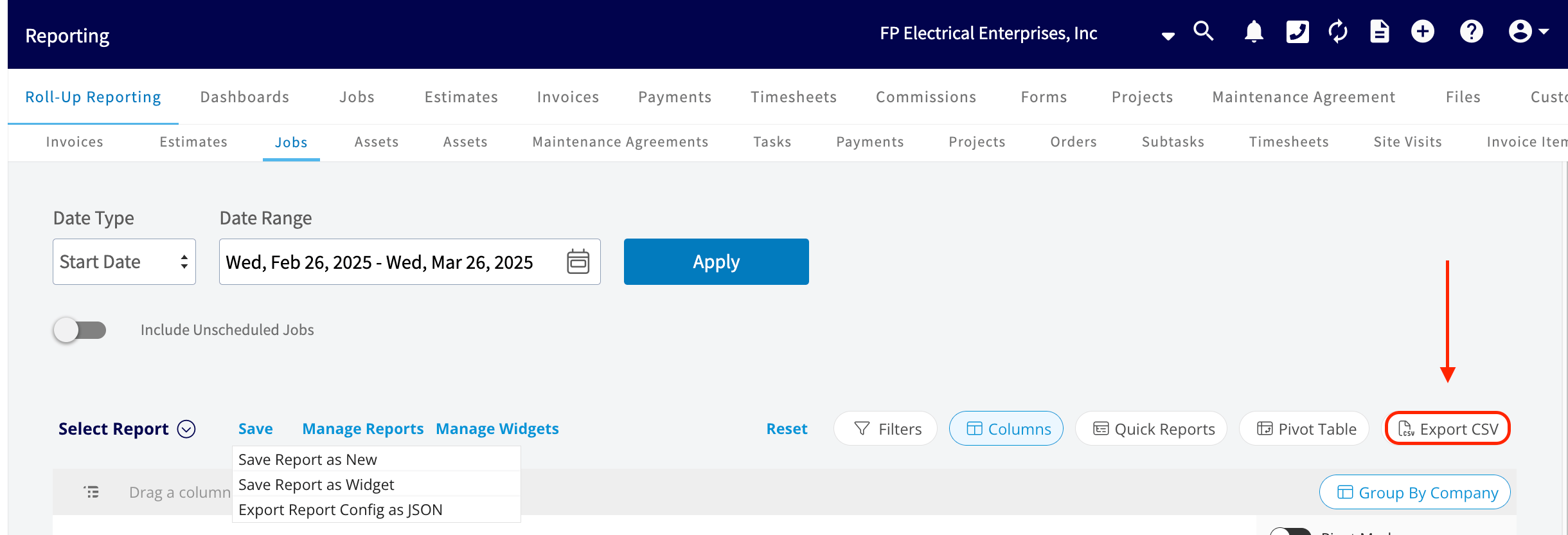
 * **Export Options**: Once the report is generated, franchisors can export the data in a CSV format for further analysis or when sharing with stakeholders.
 ***
**Have additional questions?**
*Contact us at [support@fieldpulse.com](mailto:support@fieldpulse.com) or use the chat feature in the bottom right corner of your screen.*
***
**Have additional questions?**
*Contact us at [support@fieldpulse.com](mailto:support@fieldpulse.com) or use the chat feature in the bottom right corner of your screen.*