> ## Documentation Index
> Fetch the complete documentation index at: https://help.fieldpulse.com/llms.txt
> Use this file to discover all available pages before exploring further.
# Capturing Line Item Images for Estimates and Invoices - Mobile App
> Capture photos directly within Estimate and Invoice line items in the FieldPulse mobile app, with no switching between screens.
# Why We've Released This Feature
Capturing images directly within the Estimate and Invoice Drafts has been a long-standing challenge for users. The traditional method of navigating back and forth between different sections to take photos has proven inefficient and time-consuming. By introducing this feature, we aim to streamline the process, allowing you to:
* **Reduce Clicks**: Eliminate the need to switch between screens, making it easier to build estimates and invoices quickly.
* **Enhance Professionalism**: Provide more comprehensive and visually appealing estimates by associating images directly with your line items.
***
# See it in Action
To take advantage of the new image capture feature, follow these simple steps:
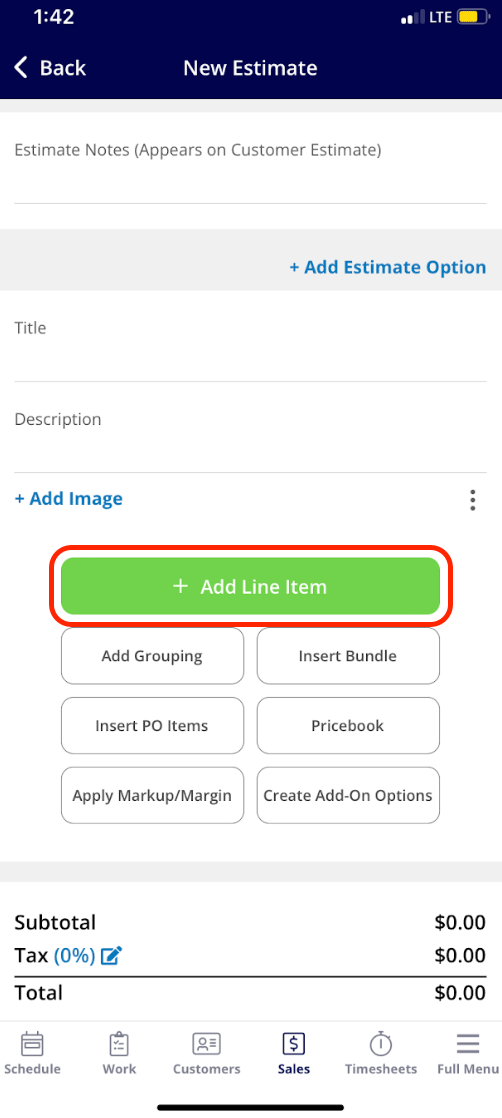
**Step 1: Access the Estimate or Invoice Draft**:
Open the relevant record where you want to add your line items and images. Begin by clicking the green *Add Line Item* button.
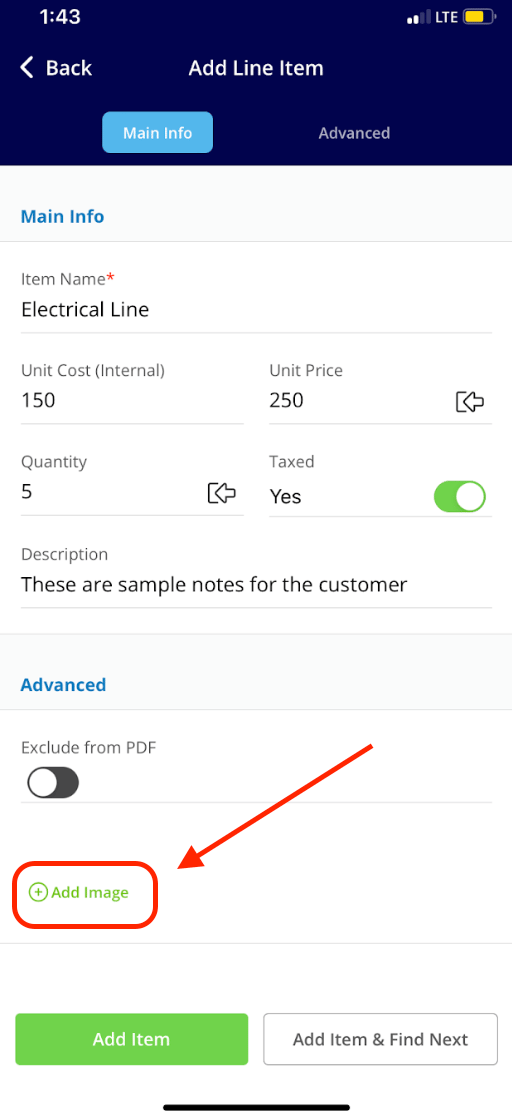
 **Step 2: Locate the “Add Image” Button**:
Once you've clicked on the line item you'd like to add to your estimate or invoice record, click the *Add Image* button before choosing to either *Add Item* or *Add Item & Find Next*.
**Step 2: Locate the “Add Image” Button**:
Once you've clicked on the line item you'd like to add to your estimate or invoice record, click the *Add Image* button before choosing to either *Add Item* or *Add Item & Find Next*.
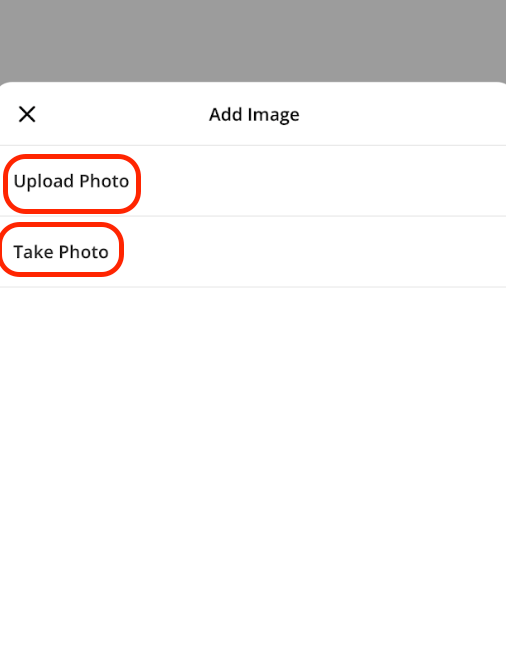
 **Step 3: Choose Your Option**:
After clicking the *Add Image* button you will be prompted to select one of the following options:
* **Upload Photo**: Select this option to choose an existing image from your device.
* **Take Photo**: Choose this option to open your camera and capture a new image directly related to the line item.
**Step 3: Choose Your Option**:
After clicking the *Add Image* button you will be prompted to select one of the following options:
* **Upload Photo**: Select this option to choose an existing image from your device.
* **Take Photo**: Choose this option to open your camera and capture a new image directly related to the line item.
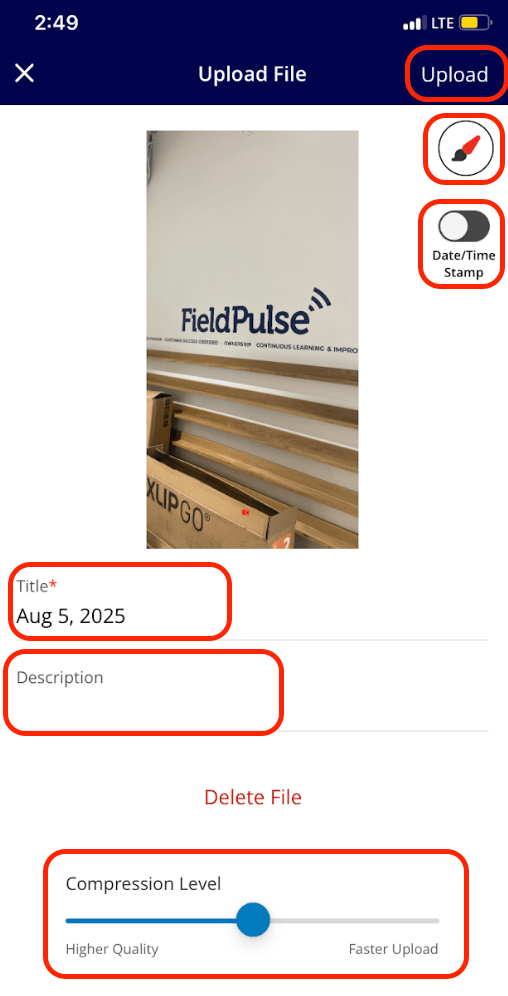
 **Step 4: Add Details**:
After taking or uploading a photo, you can title it, mark it up, add a description, and adjust settings like compression and date/time stamps. Press the *Upload* button in the top right corner of your screen when you are done making edits.
**Step 4: Add Details**:
After taking or uploading a photo, you can title it, mark it up, add a description, and adjust settings like compression and date/time stamps. Press the *Upload* button in the top right corner of your screen when you are done making edits.
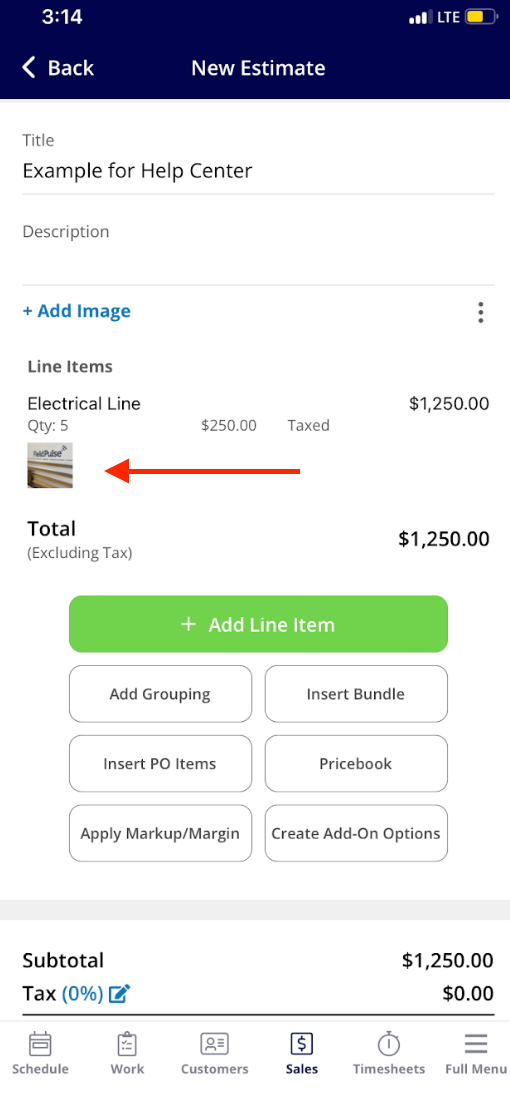
 Your image is now viewable for this line item.
 ***
# FAQs
**Is this feature accessible on all devices?**
The image capture feature is specifically designed to function exclusively within the FieldPulse mobile app.
**Can I upload multiple images for a line item?**
Yes, you can add more than one image if needed.
**Will the images automatically sync to other sections?**
Absolutely! Once you save the estimate or invoice, the images will automatically cascade to the related Estimate and Service Record Files sections.
**Can I edit or remove images after they’ve been added?**
Yes, you can edit or remove images from the Estimate or Invoice Draft at any time before saving the document.
***
**Have additional questions?**
*Contact us at [support@fieldpulse.com](mailto:support@fieldpulse.com) or use the chat feature in the bottom right corner of your screen.*
## Related topics
- [Creating an Estimate](/using-fieldpulse/estimates-invoices/creating-an-estimate.md)
- [Creating an Invoice](/using-fieldpulse/estimates-invoices/creating-an-invoice.md)
- [Item List & Inventory](/using-fieldpulse/item-list-inventory/index.md)
- [Automatic Deposit Invoices](/integrations-partners/accounting/quickbooks-applies-to-both-quickbooks-desktop-quickbooks-online/automatic-deposit-invoices.md)
- [What's New](/changelog/index.md)
***
# FAQs
**Is this feature accessible on all devices?**
The image capture feature is specifically designed to function exclusively within the FieldPulse mobile app.
**Can I upload multiple images for a line item?**
Yes, you can add more than one image if needed.
**Will the images automatically sync to other sections?**
Absolutely! Once you save the estimate or invoice, the images will automatically cascade to the related Estimate and Service Record Files sections.
**Can I edit or remove images after they’ve been added?**
Yes, you can edit or remove images from the Estimate or Invoice Draft at any time before saving the document.
***
**Have additional questions?**
*Contact us at [support@fieldpulse.com](mailto:support@fieldpulse.com) or use the chat feature in the bottom right corner of your screen.*
## Related topics
- [Creating an Estimate](/using-fieldpulse/estimates-invoices/creating-an-estimate.md)
- [Creating an Invoice](/using-fieldpulse/estimates-invoices/creating-an-invoice.md)
- [Item List & Inventory](/using-fieldpulse/item-list-inventory/index.md)
- [Automatic Deposit Invoices](/integrations-partners/accounting/quickbooks-applies-to-both-quickbooks-desktop-quickbooks-online/automatic-deposit-invoices.md)
- [What's New](/changelog/index.md)