> ## Documentation Index
> Fetch the complete documentation index at: https://help.fieldpulse.com/llms.txt
> Use this file to discover all available pages before exploring further.
# Deducting Inventory & Inventory Count
> To keep your stock counts accurate, FieldPulse lets you choose when inventory is deducted from your hubs: when a Material List is completed or when an…
# Overview
To keep your stock counts accurate, FieldPulse lets you choose when inventory is deducted from your hubs: when a *Material List* is completed or when an *Invoice* is finalized. You can set a default for your company, configure templates, and override the setting on individual records as needed.
***
# Prerequisites
Before setting up inventory deduction, make sure the following are in place:
* Inventory is set up in your account, including hubs and any serialized items
* The **Deduct Inventory** toggle on a record is available to *Admins* and *Team Managers*
* To learn more about Inventory permissions, [click here](/using-fieldpulse/item-list-inventory/inventory-permissions)
***
# On Web: Admin Experience
## Set Up Your Default Deduction Method
You can specify which record should be used by default for inventory deductions. **Here's how to set it up:**
1. Navigate to *Company Settings* > *Estimates & Invoices* tab > *Inventory* subtab > and click the *Inventory Settings* button in the top right corner.
2. Select your record deduction preference:
* Material List - inventory will be deducted when the *Material List* reaches a *Completed*-type status.
* Invoice - inventory will be deducted when the *Invoice* reaches the *Invoiced / Finalized* status.
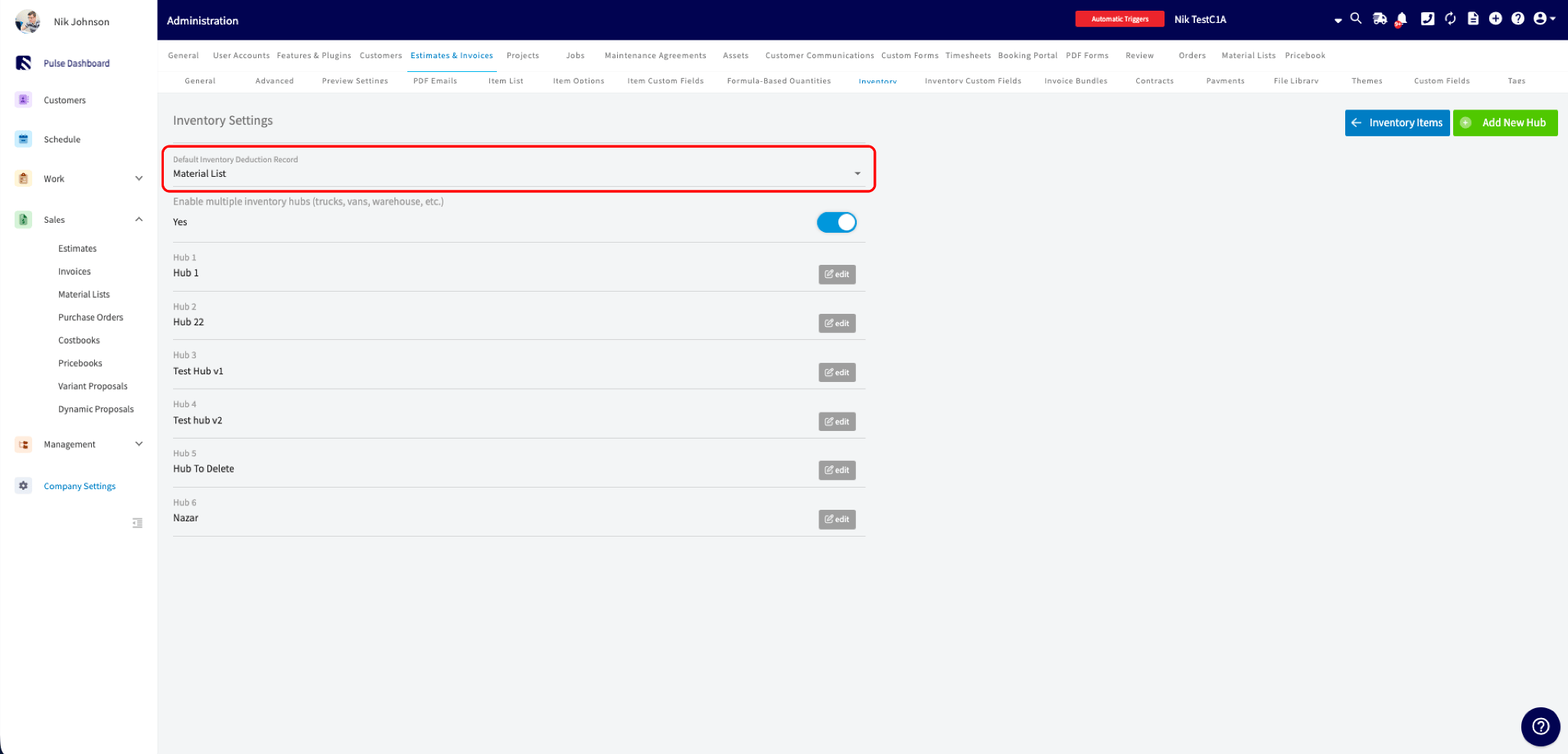 The default you select will apply to every new record of that type going forward. The toggle on the other record type will be off by default, and existing records aren't changed.
## Set Up Toggle Defaults on Templates
If you build *Material Lists* or *Invoices* from templates, you can set the toggle on the template itself so every record built from it inherits the right behavior.
**Here's how:**
1. Open a *Material List* or *Invoice* template.
2. Switch on **Deduct Inventory from Material List** or **Deduct Inventory from Invoice**.
3. Save the template.
You or a *Team Manager* can still toggle the setting on individual records when a job calls for something different.
## Flexible Deduction Options
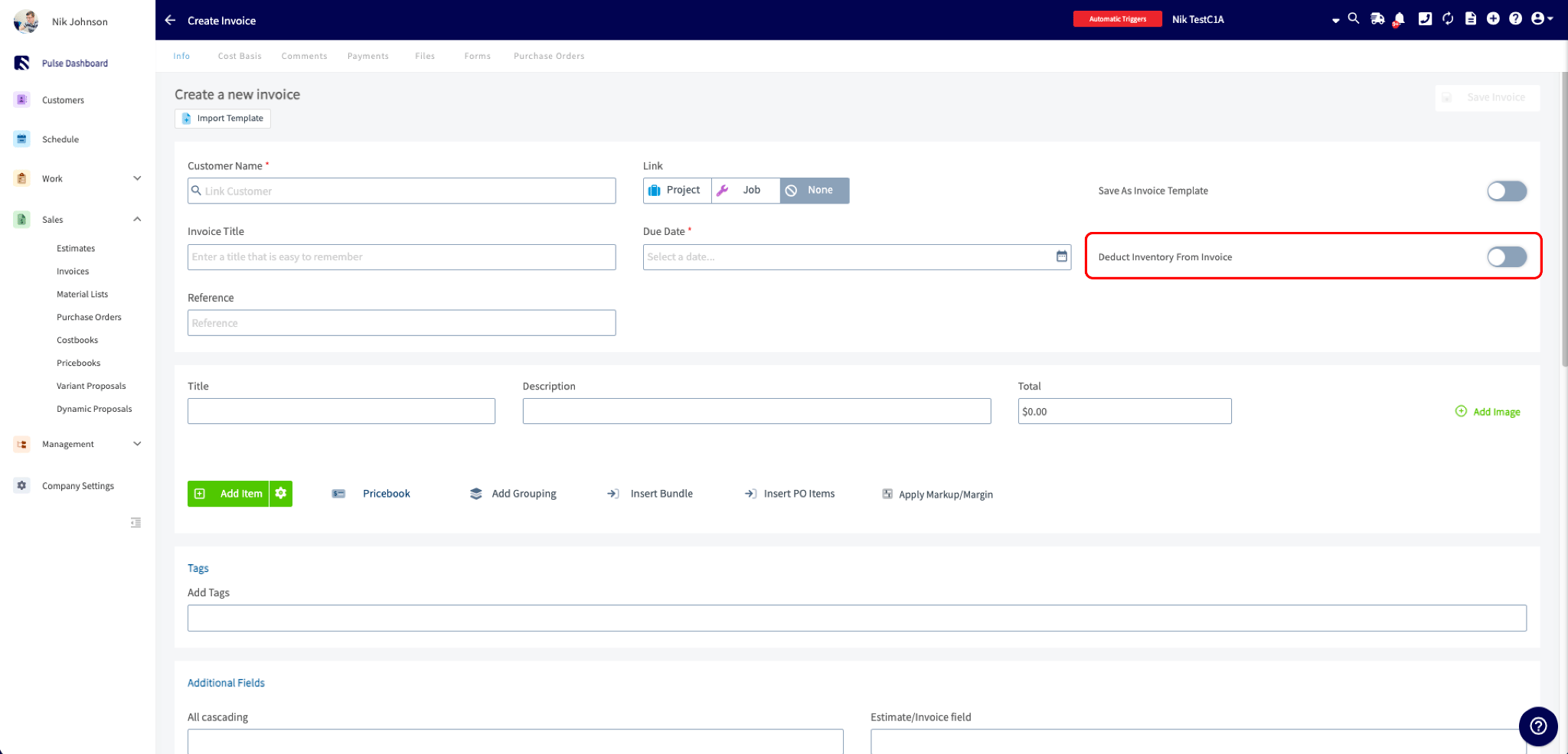
When creating or editing a *Material List* or *Invoice* record, you will encounter a toggle labeled **Deduct Inventory from Material List** or **Deduct Inventory from Invoice**. This feature is designed to support your flexible workflows.
**Why This Matters:**
In most cases, for example, you may prefer to deduct inventory from *Material Lists*, which you've set as your default method. However, there may be instances where a job is straightforward and quick, allowing you to skip the material list and proceed directly to invoicing.
The toggle allows you to override your default setting for that specific record, ensuring you can deduct inventory according to the job's needs.
The default you select will apply to every new record of that type going forward. The toggle on the other record type will be off by default, and existing records aren't changed.
## Set Up Toggle Defaults on Templates
If you build *Material Lists* or *Invoices* from templates, you can set the toggle on the template itself so every record built from it inherits the right behavior.
**Here's how:**
1. Open a *Material List* or *Invoice* template.
2. Switch on **Deduct Inventory from Material List** or **Deduct Inventory from Invoice**.
3. Save the template.
You or a *Team Manager* can still toggle the setting on individual records when a job calls for something different.
## Flexible Deduction Options
When creating or editing a *Material List* or *Invoice* record, you will encounter a toggle labeled **Deduct Inventory from Material List** or **Deduct Inventory from Invoice**. This feature is designed to support your flexible workflows.
**Why This Matters:**
In most cases, for example, you may prefer to deduct inventory from *Material Lists*, which you've set as your default method. However, there may be instances where a job is straightforward and quick, allowing you to skip the material list and proceed directly to invoicing.
The toggle allows you to override your default setting for that specific record, ensuring you can deduct inventory according to the job's needs.
 ## How the Toggles Behave Together
A few rules to be aware of when working with related *Material List* and *Invoice* records:
* The toggle is editable only while inventory hasn't been deducted yet. Once a record reaches a *Completed*-type status (*Material List*) or *Invoiced / Finalized* status (*Invoice*), the toggle will lock.
* If a record is moved back to *Draft*, inventory is returned and the toggle will re-enable.
* When a *Material List* and *Invoice* are linked, FieldPulse keeps them in sync so inventory is never deducted twice. Turning on **Deduct Inventory from Invoice** automatically turns off **Deduct Inventory from Material List** on the linked *Material List*.
* Items added to a completed record (a change order) will be deducted when the record is re-completed.
## Serialized Inventory Behavior
Serialized items follow the same trigger rules as regular inventory, with two additional safeguards to prevent the same serial number from being deducted twice:
* When a record is completed, the serial numbers on it are locked and can't be edited.
* If a serial number that's already been deducted on another record is added to a new record, an error icon will appear next to that line item.
* If a user attempts to complete a record that still contains an already-deducted serial number, the *Serial Number No Longer Exists* pop-up will appear with two options:
* *Continue Editing*: keeps the record in *Draft* so you can swap in a valid serial number.
* *Proceed Without Deducting This Item*: completes the record and deducts everything else.
## Counting Inventory
The inventory count tool helps you track and manage inventory levels across multiple inventory hubs efficiently. Follow the steps below to stay on top of your inventory levels.
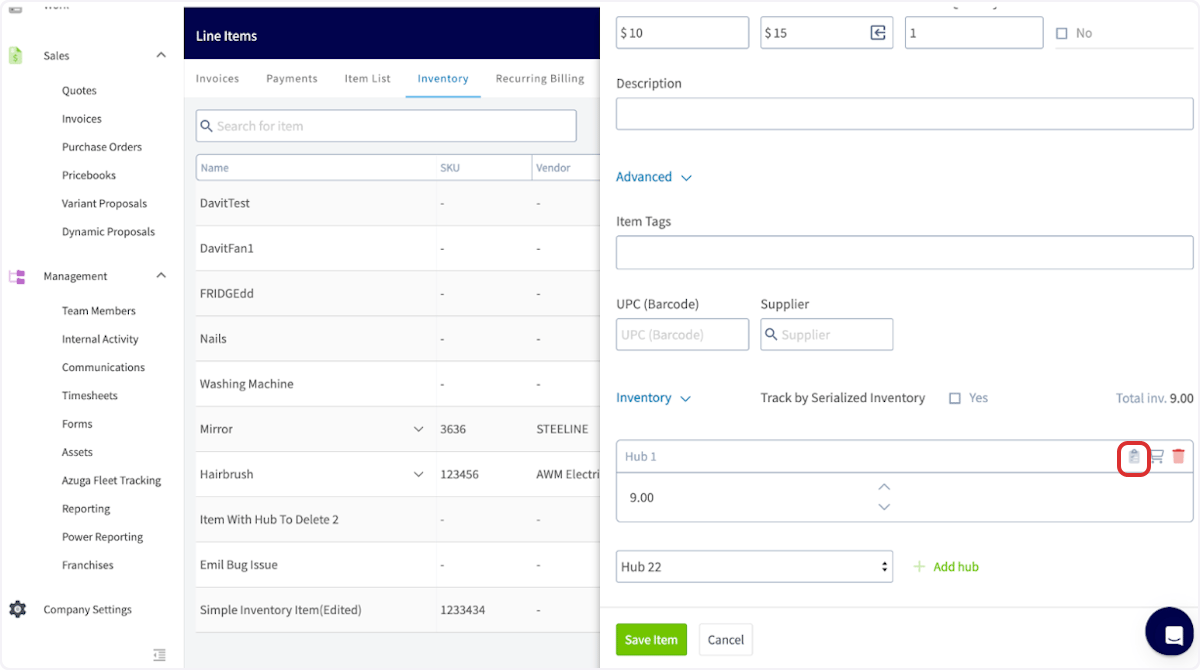
To use this tool from the web app, begin by navigating to the inventory item you'd like to count and select the clipboard icon.
## How the Toggles Behave Together
A few rules to be aware of when working with related *Material List* and *Invoice* records:
* The toggle is editable only while inventory hasn't been deducted yet. Once a record reaches a *Completed*-type status (*Material List*) or *Invoiced / Finalized* status (*Invoice*), the toggle will lock.
* If a record is moved back to *Draft*, inventory is returned and the toggle will re-enable.
* When a *Material List* and *Invoice* are linked, FieldPulse keeps them in sync so inventory is never deducted twice. Turning on **Deduct Inventory from Invoice** automatically turns off **Deduct Inventory from Material List** on the linked *Material List*.
* Items added to a completed record (a change order) will be deducted when the record is re-completed.
## Serialized Inventory Behavior
Serialized items follow the same trigger rules as regular inventory, with two additional safeguards to prevent the same serial number from being deducted twice:
* When a record is completed, the serial numbers on it are locked and can't be edited.
* If a serial number that's already been deducted on another record is added to a new record, an error icon will appear next to that line item.
* If a user attempts to complete a record that still contains an already-deducted serial number, the *Serial Number No Longer Exists* pop-up will appear with two options:
* *Continue Editing*: keeps the record in *Draft* so you can swap in a valid serial number.
* *Proceed Without Deducting This Item*: completes the record and deducts everything else.
## Counting Inventory
The inventory count tool helps you track and manage inventory levels across multiple inventory hubs efficiently. Follow the steps below to stay on top of your inventory levels.
To use this tool from the web app, begin by navigating to the inventory item you'd like to count and select the clipboard icon.
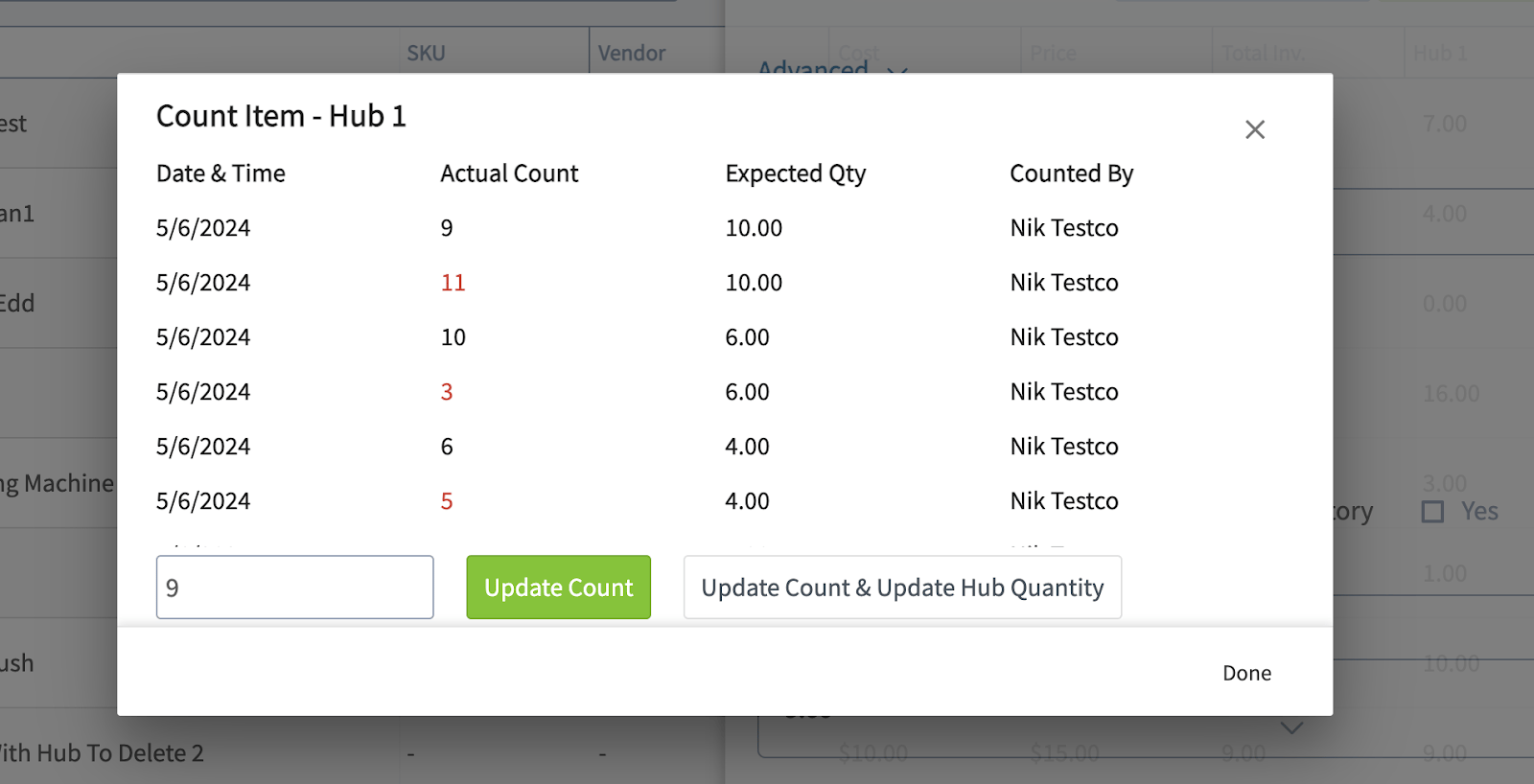
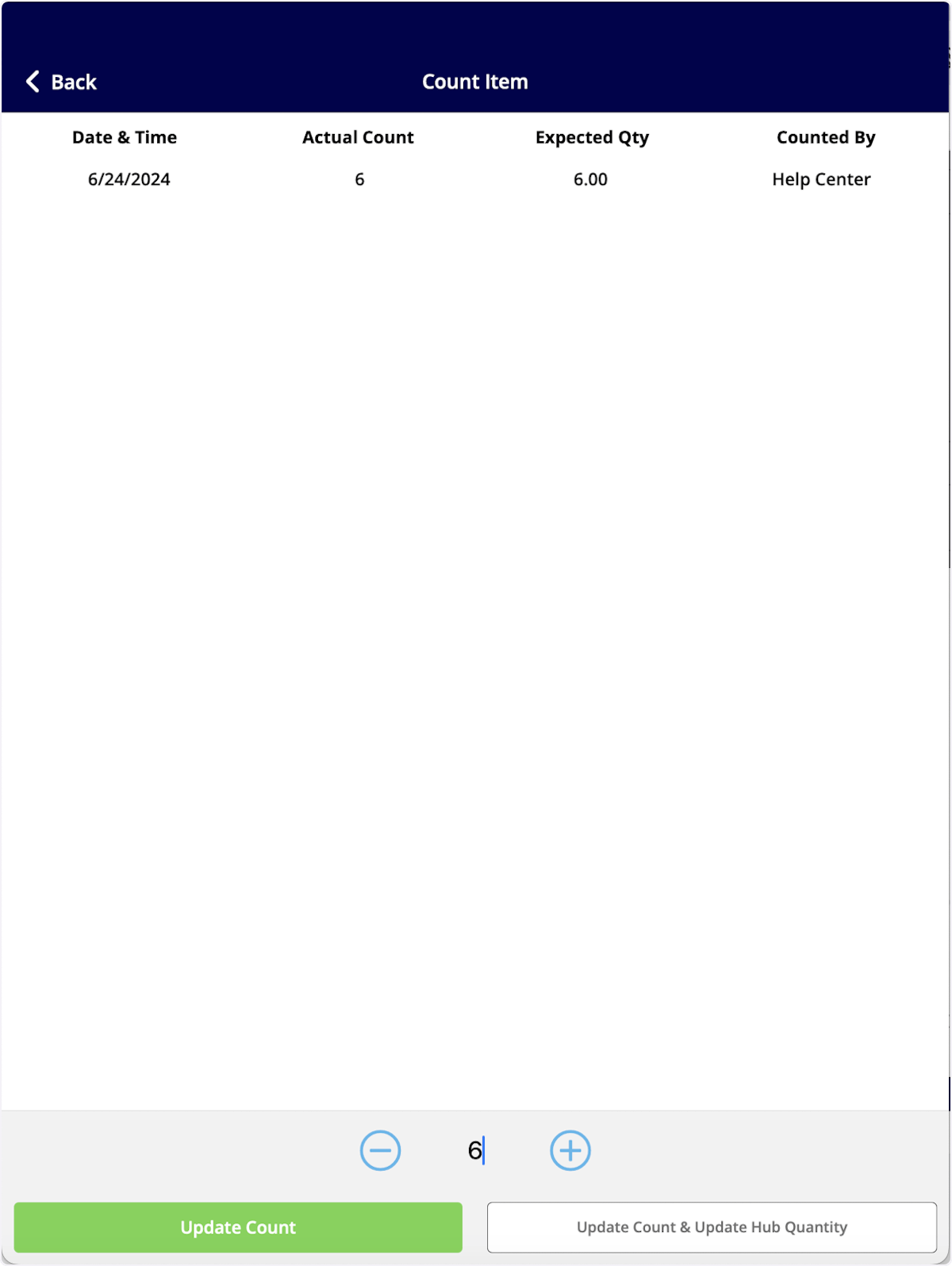
 Here, you can view historical inventory counts, including who made the count and when. You will see two columns:
* **Actual Count:** The number of items currently present.
* **Expected Quantity:** The expected number of items.
To update the count, use the *Update Count* button. To update both the count and the actual number of items in the inventory hub simultaneously, click *Update Count & Update Hub Quantity*.
Here, you can view historical inventory counts, including who made the count and when. You will see two columns:
* **Actual Count:** The number of items currently present.
* **Expected Quantity:** The expected number of items.
To update the count, use the *Update Count* button. To update both the count and the actual number of items in the inventory hub simultaneously, click *Update Count & Update Hub Quantity*.
 ## Inventory Count Reporting
To access Inventory Count Reporting, navigate to *Reporting* in the left-side menu. Select *Invoices*, then *Inventory Count*.
## Inventory Count Reporting
To access Inventory Count Reporting, navigate to *Reporting* in the left-side menu. Select *Invoices*, then *Inventory Count*.
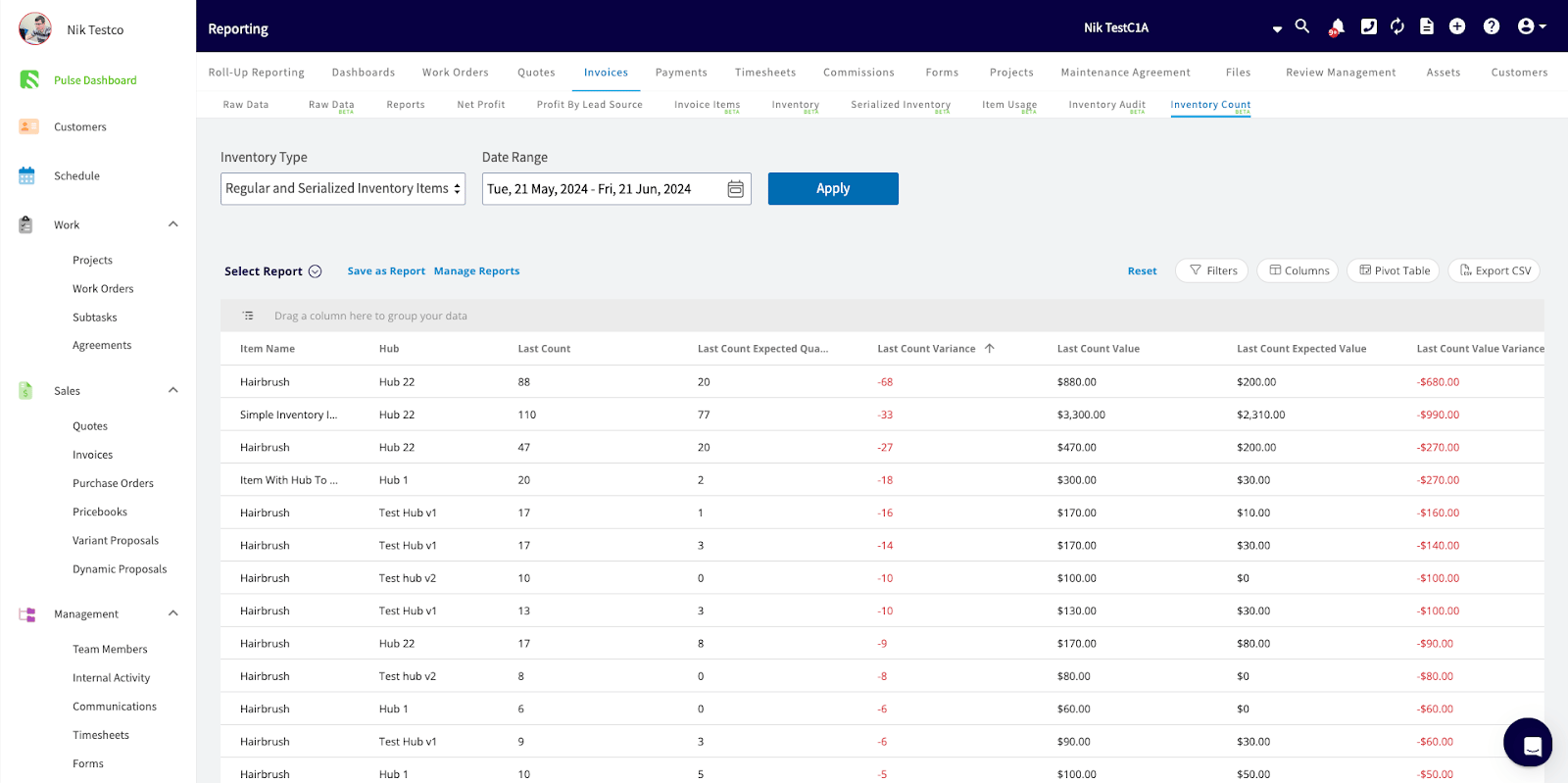 You can report on both regular and serialized inventory. This report shows an item-by-item comparison of actual vs. expected inventory levels, including the dollar value difference. To learn more, visit the [Inventory Count Reports article](/using-fieldpulse/reporting/raw-data-reporting-tutorials/inventory-count-reports).
***
# On Mobile: Field Experience
The toggle and inventory count tool are both available in the mobile app. Note that *Inventory Settings* and template configuration live in the web app only, so plan to do your initial setup there.
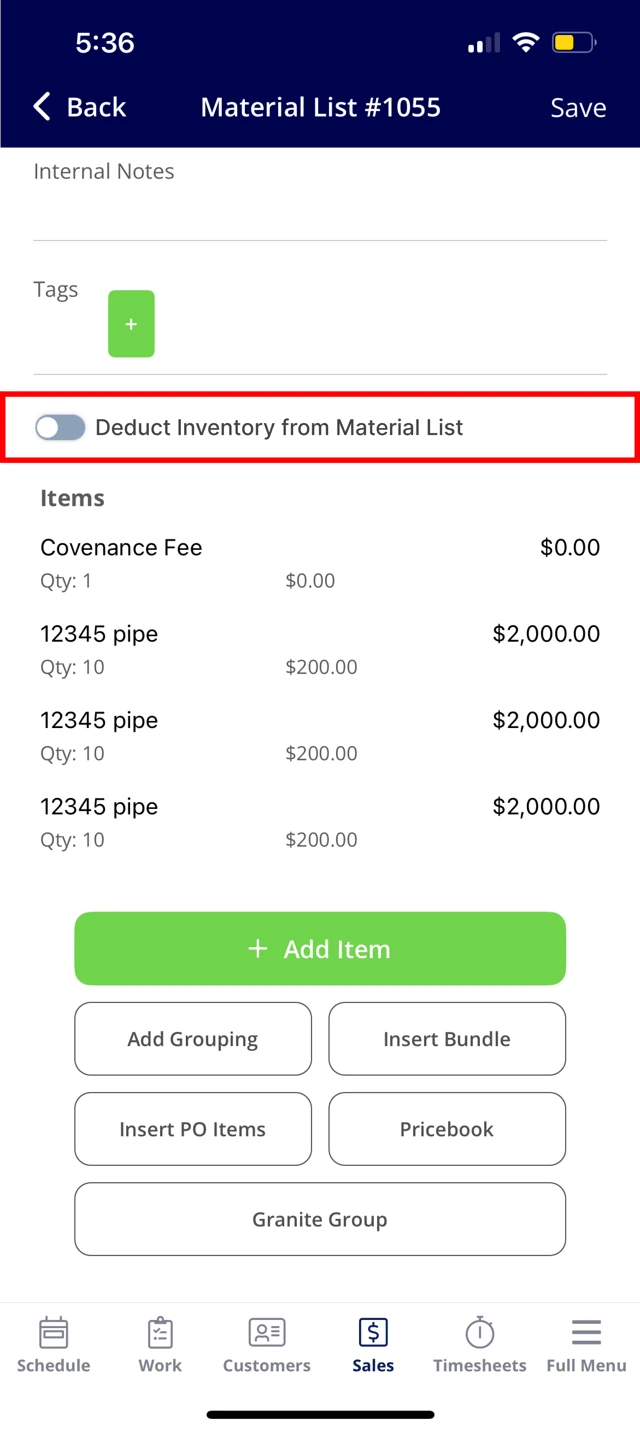
**Toggle deduction on a record:**
1. Open the *Material List* or *Invoice* in *Draft* status.
2. Tap the **Deduct Inventory from Material List** or **Deduct Inventory from Invoice** toggle.
3. Save.
You can report on both regular and serialized inventory. This report shows an item-by-item comparison of actual vs. expected inventory levels, including the dollar value difference. To learn more, visit the [Inventory Count Reports article](/using-fieldpulse/reporting/raw-data-reporting-tutorials/inventory-count-reports).
***
# On Mobile: Field Experience
The toggle and inventory count tool are both available in the mobile app. Note that *Inventory Settings* and template configuration live in the web app only, so plan to do your initial setup there.
**Toggle deduction on a record:**
1. Open the *Material List* or *Invoice* in *Draft* status.
2. Tap the **Deduct Inventory from Material List** or **Deduct Inventory from Invoice** toggle.
3. Save.
 ## Count an item with the barcode scanner:
In the mobile app, you can use the barcode scanner to quickly pull up the item, enter the count, and update it. Visit the [Barcode Scanning article](/using-fieldpulse/estimates-invoices/creating-an-estimate) to learn more about this feature.
Scan the barcode of your inventory item, then select the clipboard icon to open the inventory count feature.
## Count an item with the barcode scanner:
In the mobile app, you can use the barcode scanner to quickly pull up the item, enter the count, and update it. Visit the [Barcode Scanning article](/using-fieldpulse/estimates-invoices/creating-an-estimate) to learn more about this feature.
Scan the barcode of your inventory item, then select the clipboard icon to open the inventory count feature.
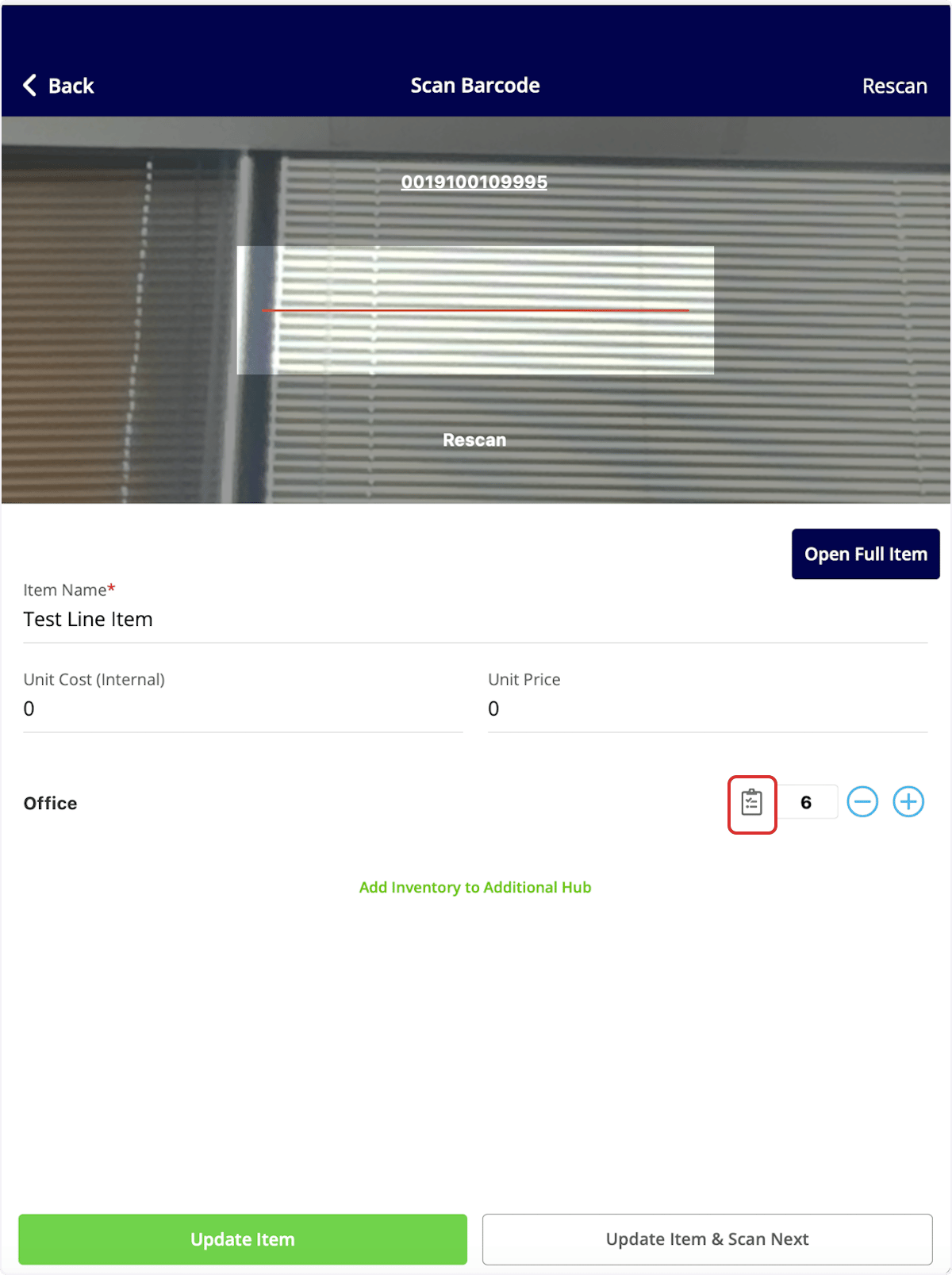 To update the count, use the *Update Count* button. To update both the count and the actual number of items in the inventory hub simultaneously, click *Update Count & Update Hub Quantity*.
 ***
# Troubleshooting
| **Issue** | **Likely cause** | **Fix** |
| -------------------------------------------------------------- | -------------------------------------------------------------------------- | -------------------------------------------------------------------------------------------------------------------------------------------------------- |
| The **Deduct Inventory** toggle doesn't appear on a record | The user isn't an *Admin* or *Team Manager* | Update the user's role, or have an *Admin* or *Team Manager* edit the record. |
| Inventory didn't deduct when the *Material List* was completed | The toggle was off, or the linked *Invoice* is set as the deduction record | Open the *Material List* in *Draft*, switch the toggle on, and re-complete. Or confirm the linked *Invoice* will be the deduction record when finalized. |
| New records aren't using the right default | *Default Inventory Deduction Record* isn't set or was changed recently | Confirm the setting in *Company Settings* > *Estimates & Invoices* > *Inventory* > *Inventory Settings*. |
# FAQs
**Can technicians or service agents flip the toggle?**
No. Only Admins and Team Managers can use the *Deduct Inventory* toggle on a record. Other roles can still build Material Lists and Invoices; they just won't see the toggle.
**Can I count inventory across multiple hubs at once?**
Counts are tracked per item, per hub. Work through each hub for that item, or open [Inventory Audit Reports](/using-fieldpulse/reporting/raw-data-reporting-tutorials/inventory-audit-reports) for a higher-level view.
***
**Have additional questions?**
*Contact us at [support@fieldpulse.com](mailto:support@fieldpulse.com) or use the chat feature in the bottom right corner of your screen.*
***
# Troubleshooting
| **Issue** | **Likely cause** | **Fix** |
| -------------------------------------------------------------- | -------------------------------------------------------------------------- | -------------------------------------------------------------------------------------------------------------------------------------------------------- |
| The **Deduct Inventory** toggle doesn't appear on a record | The user isn't an *Admin* or *Team Manager* | Update the user's role, or have an *Admin* or *Team Manager* edit the record. |
| Inventory didn't deduct when the *Material List* was completed | The toggle was off, or the linked *Invoice* is set as the deduction record | Open the *Material List* in *Draft*, switch the toggle on, and re-complete. Or confirm the linked *Invoice* will be the deduction record when finalized. |
| New records aren't using the right default | *Default Inventory Deduction Record* isn't set or was changed recently | Confirm the setting in *Company Settings* > *Estimates & Invoices* > *Inventory* > *Inventory Settings*. |
# FAQs
**Can technicians or service agents flip the toggle?**
No. Only Admins and Team Managers can use the *Deduct Inventory* toggle on a record. Other roles can still build Material Lists and Invoices; they just won't see the toggle.
**Can I count inventory across multiple hubs at once?**
Counts are tracked per item, per hub. Work through each hub for that item, or open [Inventory Audit Reports](/using-fieldpulse/reporting/raw-data-reporting-tutorials/inventory-audit-reports) for a higher-level view.
***
**Have additional questions?**
*Contact us at [support@fieldpulse.com](mailto:support@fieldpulse.com) or use the chat feature in the bottom right corner of your screen.*