> ## Documentation Index
> Fetch the complete documentation index at: https://help.fieldpulse.com/llms.txt
> Use this file to discover all available pages before exploring further.
# Inventory Permissions
> Set per-user inventory access by location so techs see only the vans or warehouses they work from.
FieldPulse allows you to customize and adjust inventory permissions for each user. This feature is valuable for teams that work out of multiple inventory locations such as vans or warehouses. For example, a technician might have parts on-hand but need to view inventory for another part which could only be available elsewhere.
***
# Adjusting Inventory Permissions
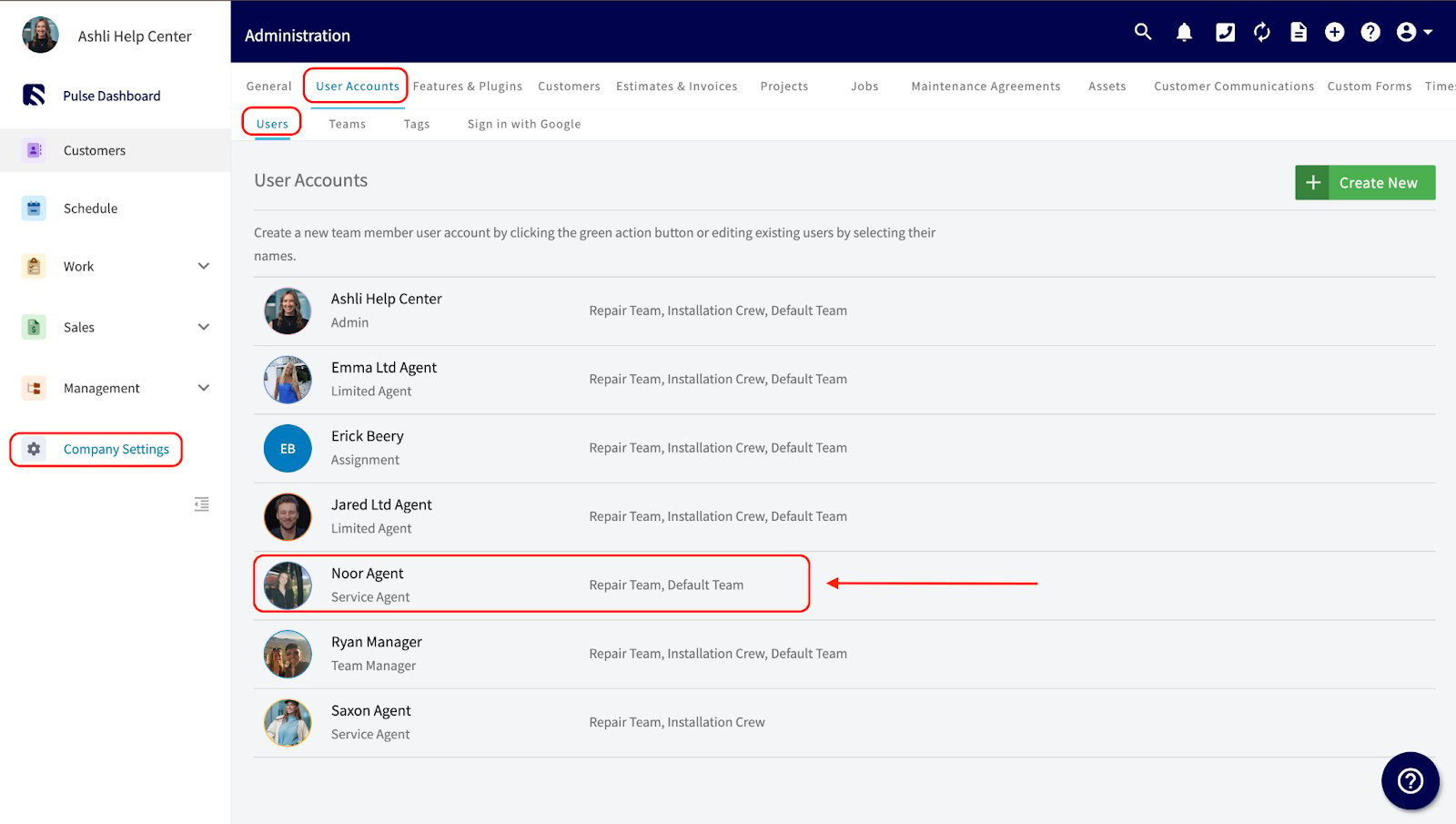
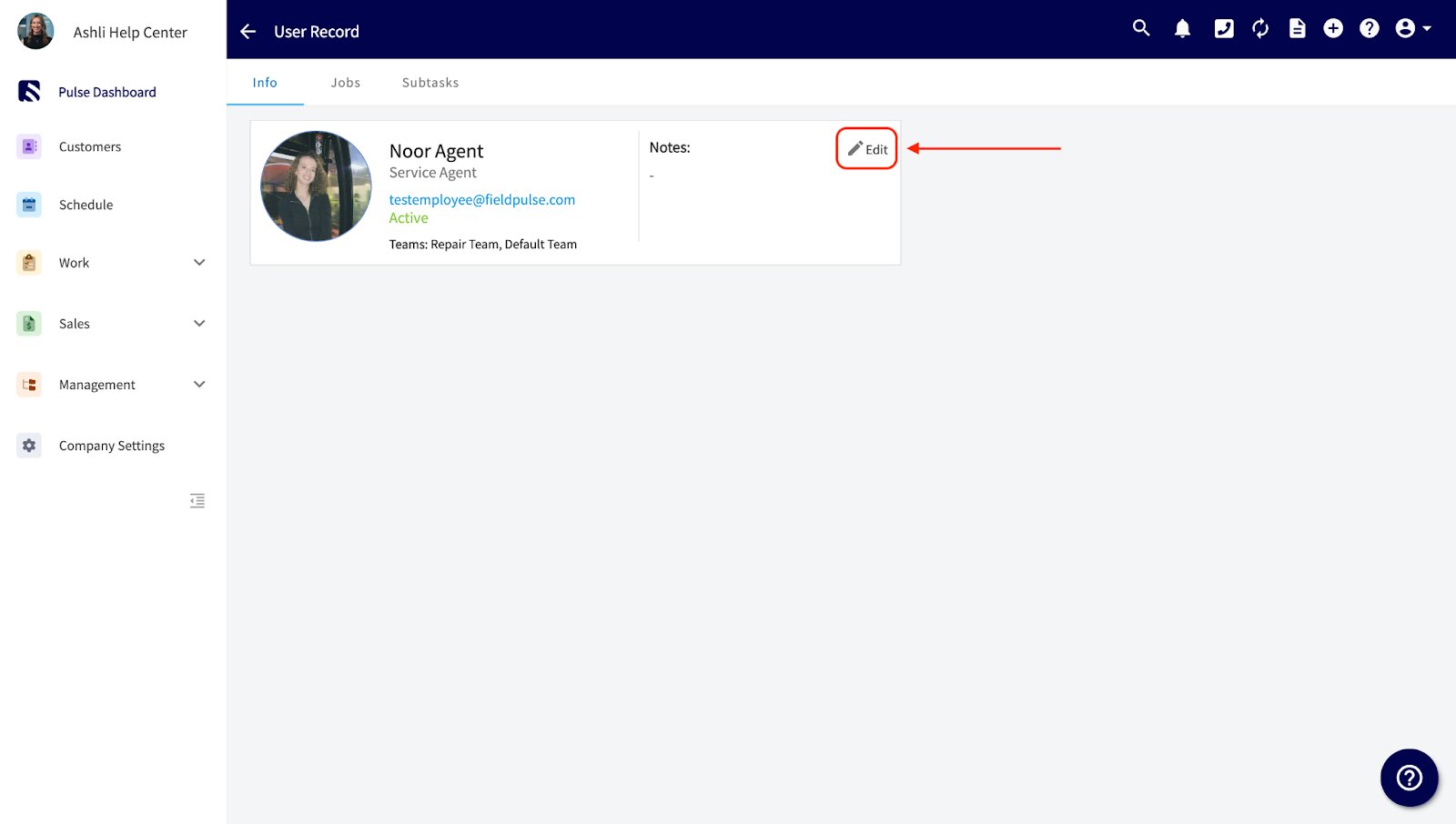
Navigate to *Company Settings*, then select *User Accounts*. Click directly on a user, then click *Edit*.
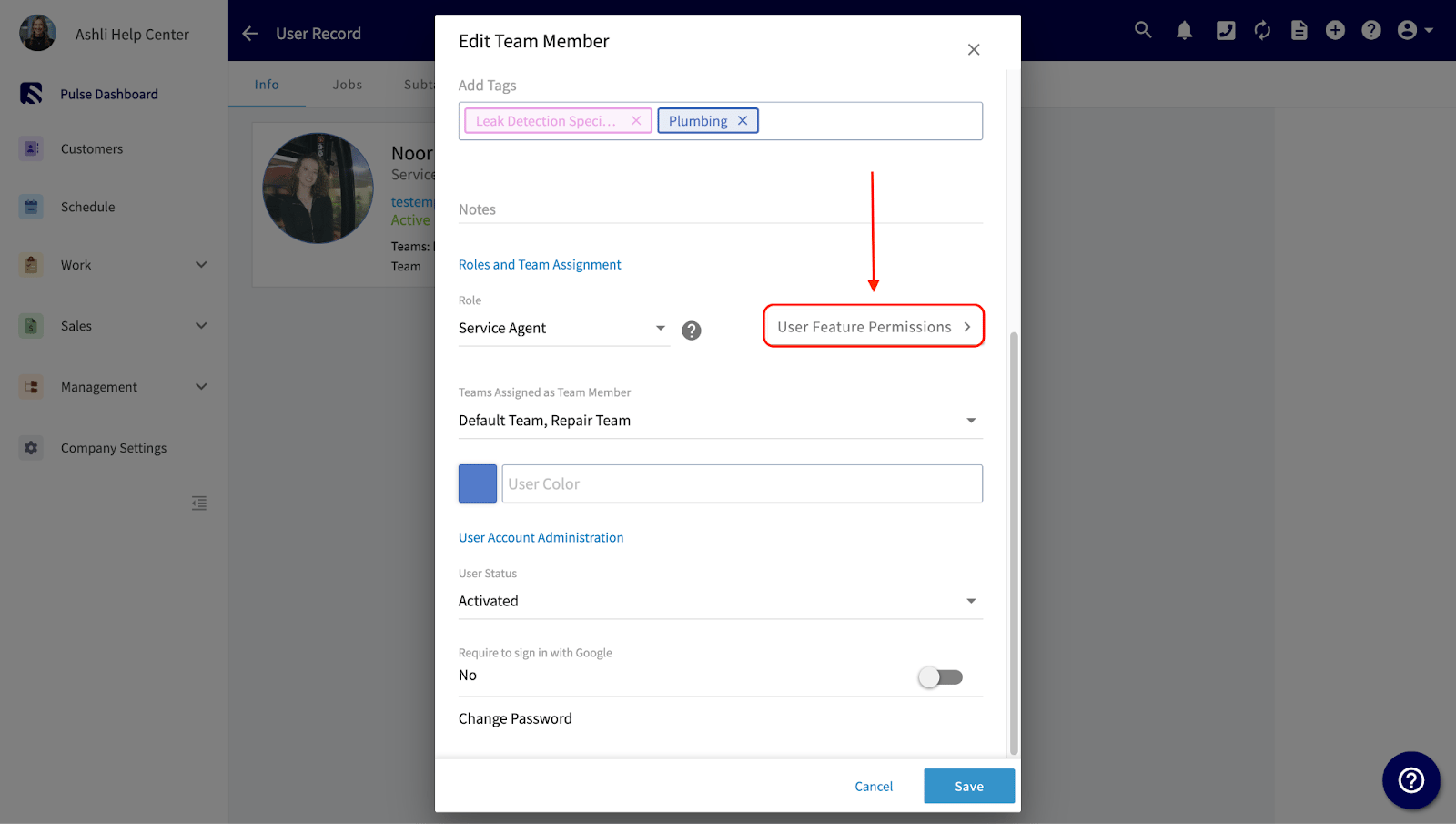
 Select *Feature Permissions*, then scroll down to locate the *Advanced Features and Functionality* heading. Toggle on the field for *Ability to View Item List*.
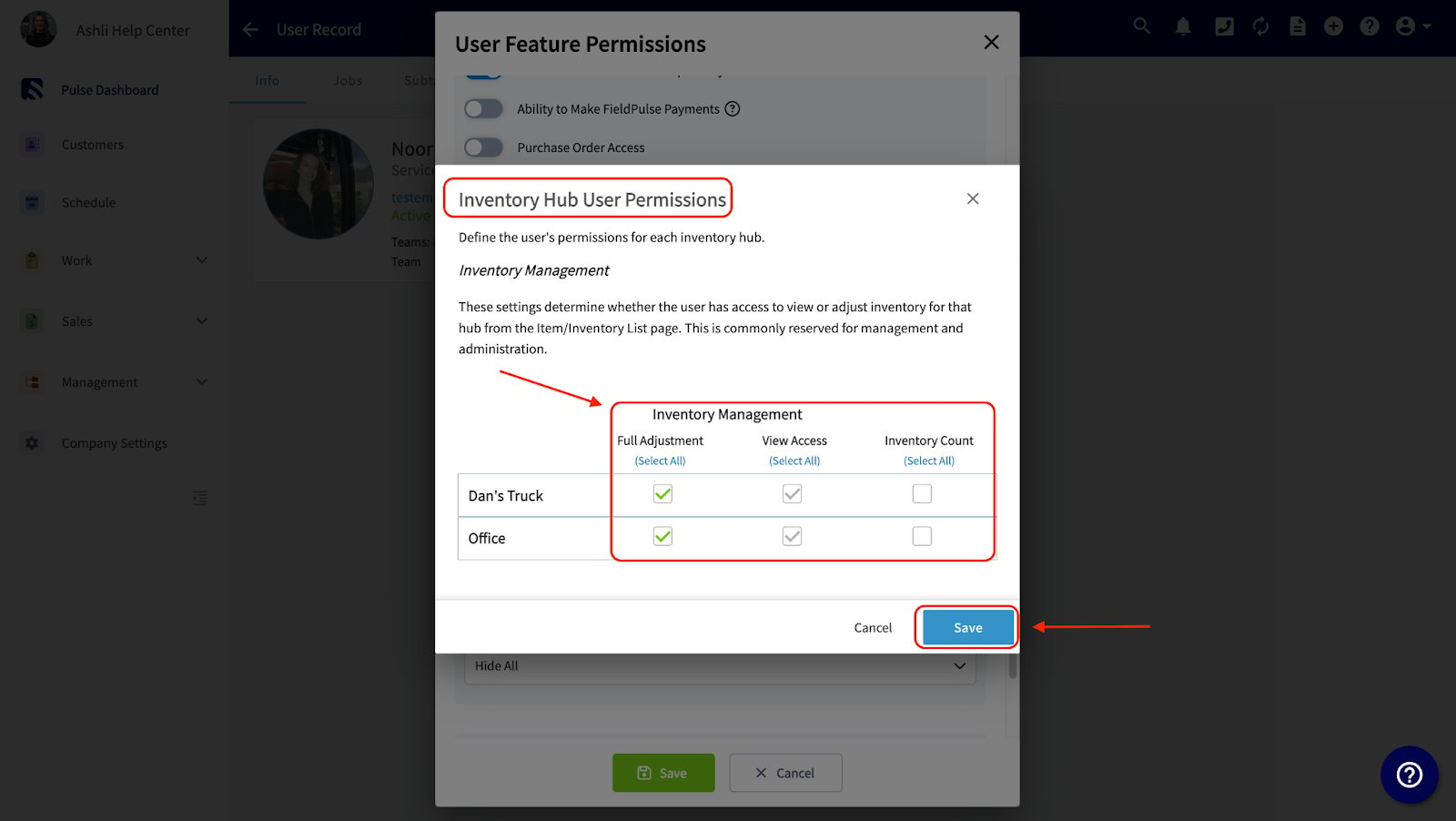
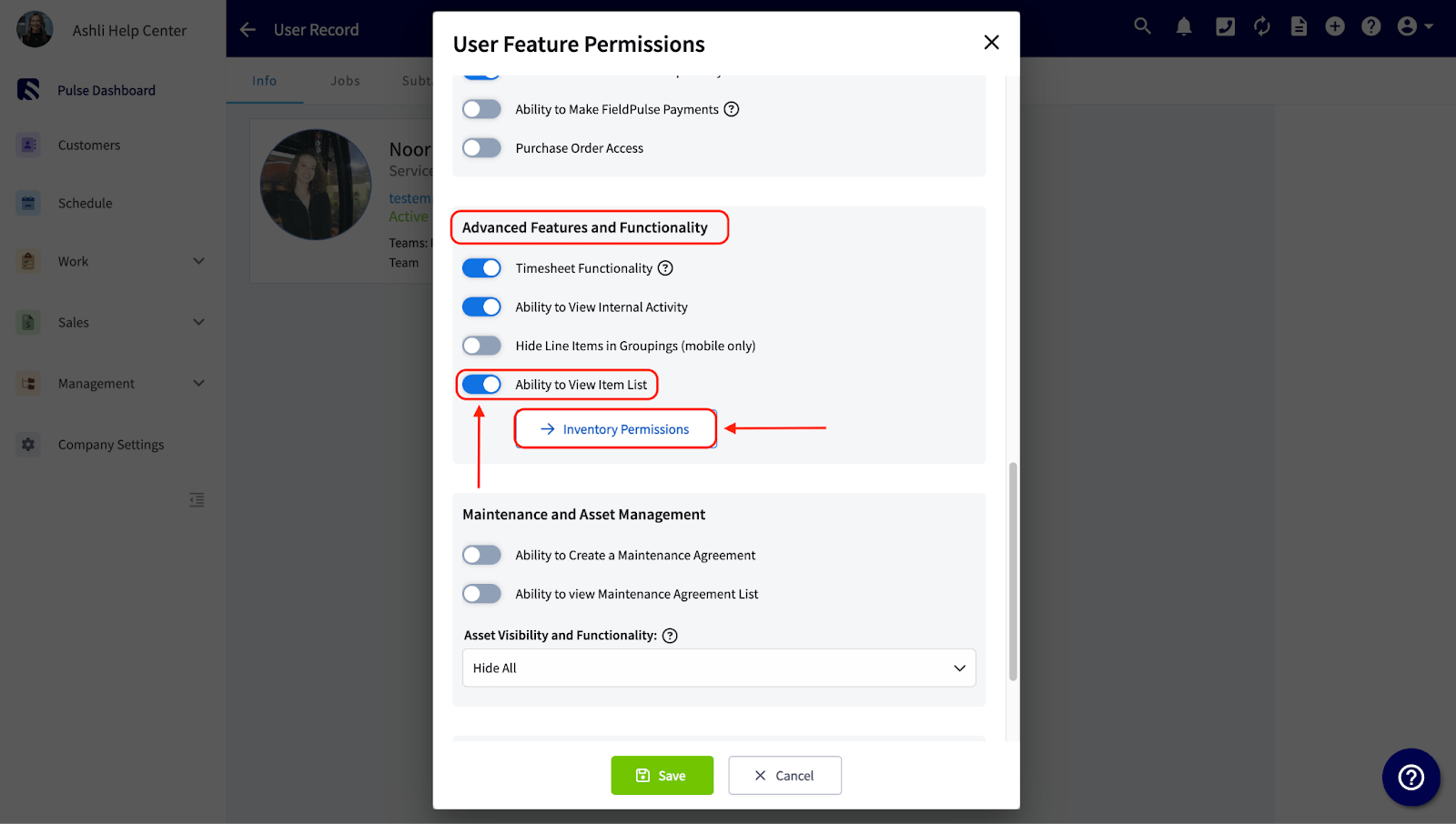 By toggling on the *Ability to View Item List*, you will now see the *Inventory Permissions*. From here, you can grant access to specific inventory hubs by checking the corresponding boxes to edit a user's ability to make full inventory adjustments, only have viewing access, and/or be able to adjust the inventory count. Remember to click *Save* once you've made your selections.
 **Please Note: Inventory permissions may vary based on user type (e.g., Team Manager, Service Agent, etc.).**
Here's a quick reference guide for FieldPulse inventory permissions:
* **Admin or Founding User:** Permissions **cannot be edited** as they have full system access.
* **Team Manager:** Permissions **can be edited**.
* **Service Agent:** Permissions **can be edited**.
* **Limited Agent:** Permissions **not available**.
* **Assignment User:** Permissions **not available** as they cannot access the FieldPulse app.
To learn more about user roles within FieldPulse, [the user roles guide](/using-fieldpulse/users-teams/user-roles).
***
# See it in Action
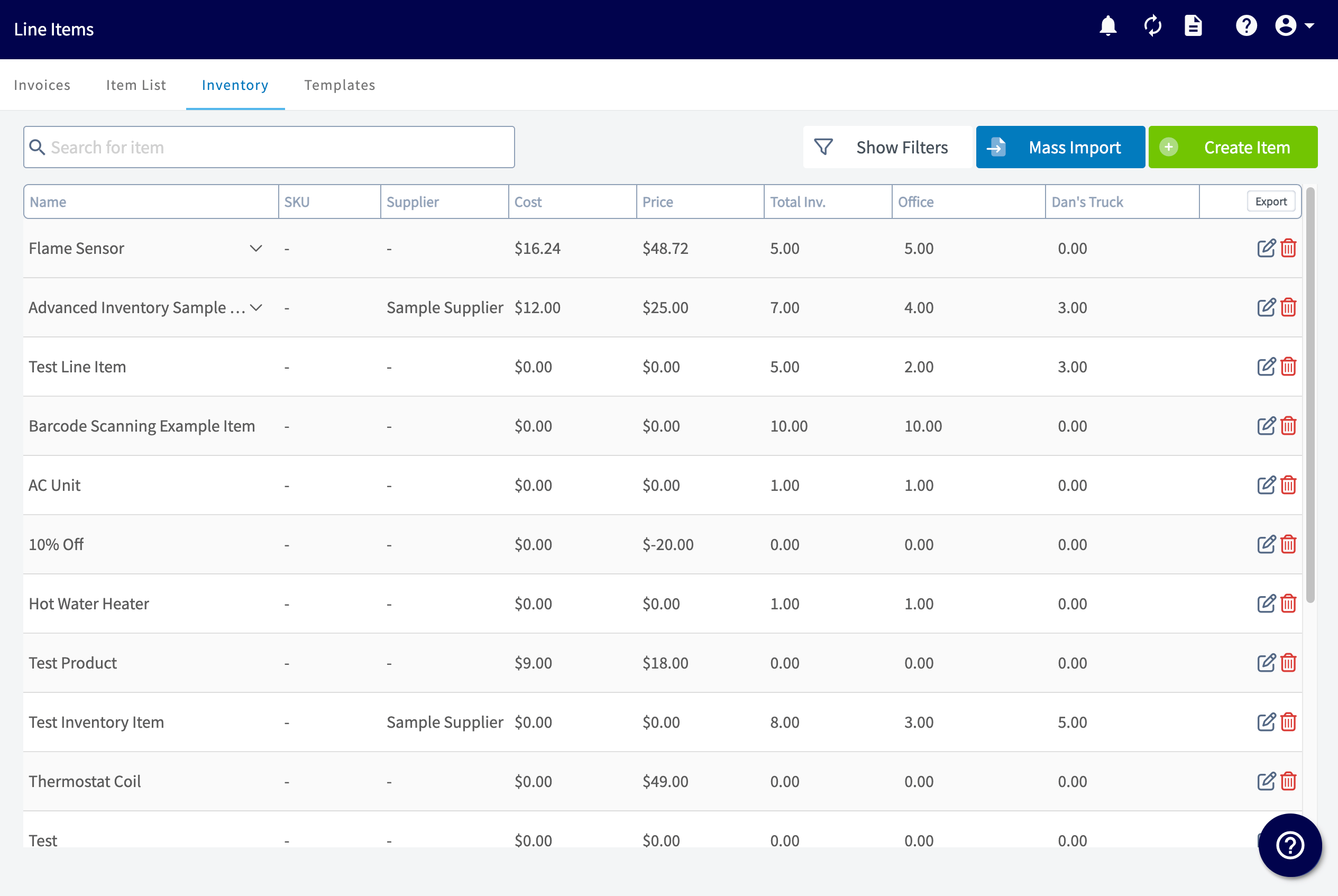
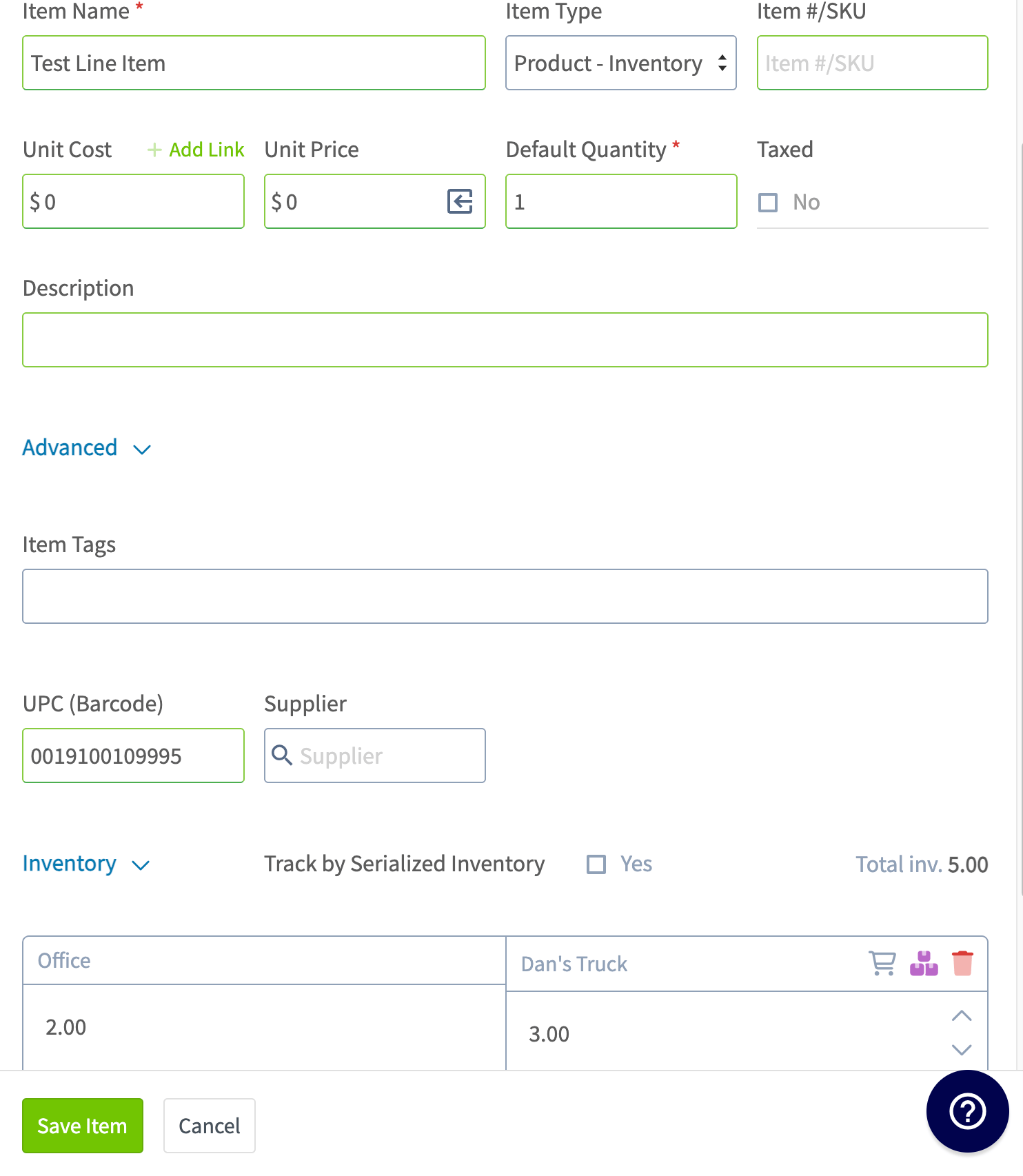
These images show a user with **Full Adjustment** for “Dan’s Truck” and **View Access** for “Office”.
**Please Note: Inventory permissions may vary based on user type (e.g., Team Manager, Service Agent, etc.).**
Here's a quick reference guide for FieldPulse inventory permissions:
* **Admin or Founding User:** Permissions **cannot be edited** as they have full system access.
* **Team Manager:** Permissions **can be edited**.
* **Service Agent:** Permissions **can be edited**.
* **Limited Agent:** Permissions **not available**.
* **Assignment User:** Permissions **not available** as they cannot access the FieldPulse app.
To learn more about user roles within FieldPulse, [the user roles guide](/using-fieldpulse/users-teams/user-roles).
***
# See it in Action
These images show a user with **Full Adjustment** for “Dan’s Truck” and **View Access** for “Office”.
 ***
# Video Tutorial
***
**Have additional questions?**
*Contact us at [support@fieldpulse.com](mailto:support@fieldpulse.com) or use the chat feature in the bottom right corner of your screen.*
***
# Video Tutorial
***
**Have additional questions?**
*Contact us at [support@fieldpulse.com](mailto:support@fieldpulse.com) or use the chat feature in the bottom right corner of your screen.*