> ## Documentation Index
> Fetch the complete documentation index at: https://help.fieldpulse.com/llms.txt
> Use this file to discover all available pages before exploring further.
# Setting Up Item List & Inventory
> Build your catalog of services, products, and inventory items, then add them to estimates and invoices as line items.
# Item List vs. Inventory
When creating an estimate or invoice, line items are added from your **Item List**. Therefore, your **Item List** will include all of the products and services you offer, including *services*, *products - inventory*, and *products - non inventory*, along with relevant information such as quantity, value, and other attributes.
In contrast, your **Inventory** is a catalog of only the line items you have designated as *product - inventory* along with relevant information such as quantity, value, location, and other attributes.
***
# Adding Line Items
**Option 1: Mass Import**
* To learn more about mass importing your line items, [the item list import guide](/using-fieldpulse/data-imports-exports/importing-your-item-list).
**Option 2: Accounting Integration**
* Integrate your QuickBooks Online, QuickBooks Desktop, or Xero and to sync your line items. To learn more, [the accounting integrations guide](/integrations-partners/accounting).
**Option 3: Manual Add**
* Utilize the *Add New Item* button in FieldPulse to create new line items.
***
# Manually Adding Line Items
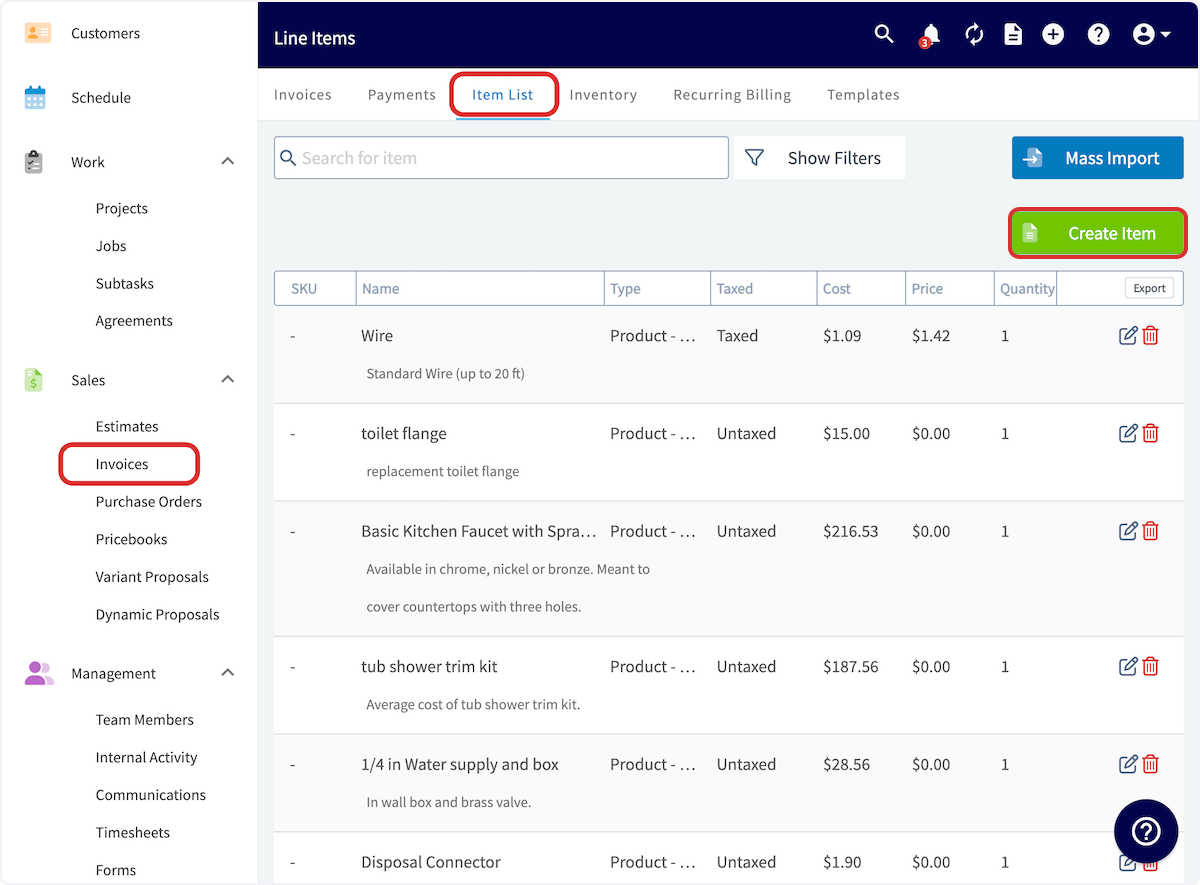
Select *Invoices* in the left-side menu, then click the *Item List* tab in the header, and then select *Create Item*.
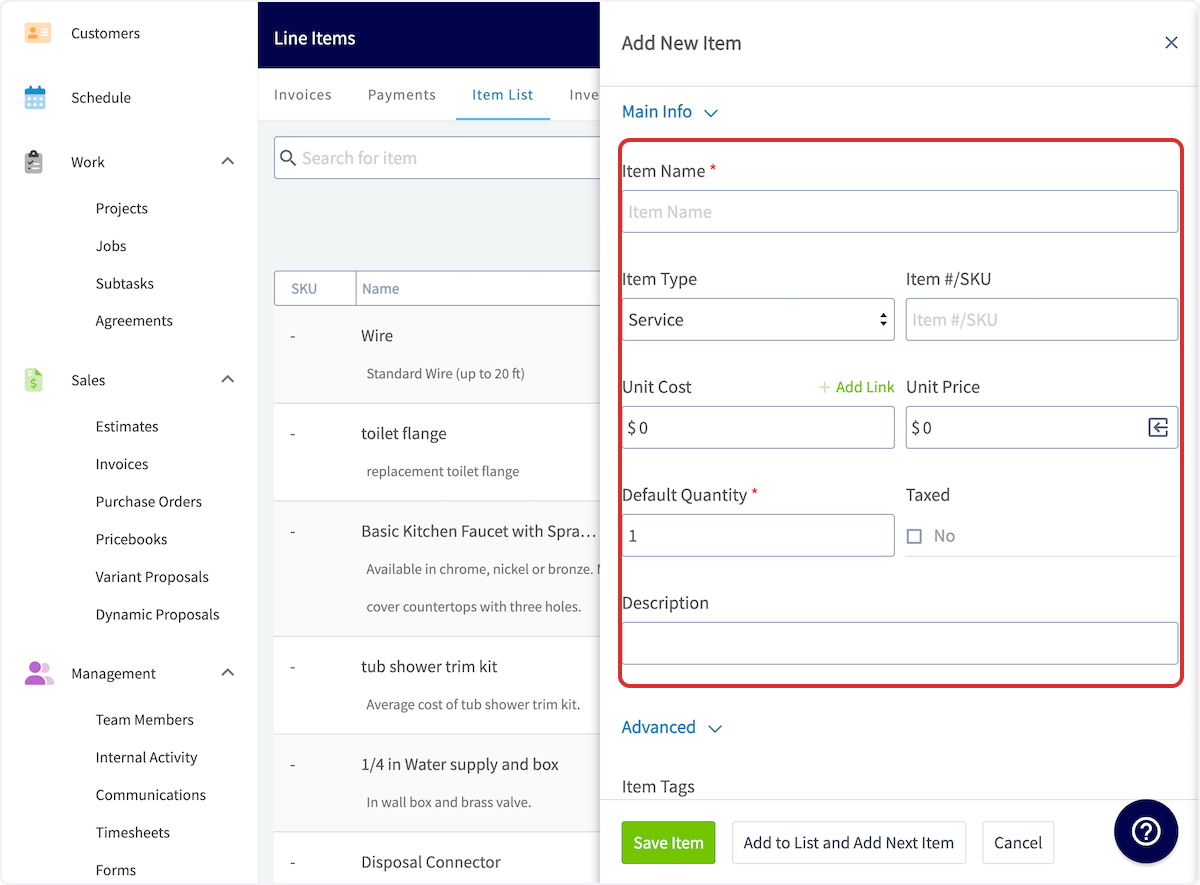
 Begin by entering a name for your new line item. You can then select whether your item is a service, a product you will track in inventory, or a product you will not track in inventory. Enter an Item # or SKU if applicable.
The price, quantity, and taxation for line items can be modified after it is inserted into an invoice. Therefore, the price, quantity, taxation, and description are not required when you create an item. If you do fill them out, they will automatically populate the line item with default values in all of your invoices, which can be modified after they are added.
You also have the option to add your unit cost, markup percentage, and a description. To learn more about **Markups**, [the markups and margins guide](/using-fieldpulse/commission-markups-profitability/markups-margins).
Begin by entering a name for your new line item. You can then select whether your item is a service, a product you will track in inventory, or a product you will not track in inventory. Enter an Item # or SKU if applicable.
The price, quantity, and taxation for line items can be modified after it is inserted into an invoice. Therefore, the price, quantity, taxation, and description are not required when you create an item. If you do fill them out, they will automatically populate the line item with default values in all of your invoices, which can be modified after they are added.
You also have the option to add your unit cost, markup percentage, and a description. To learn more about **Markups**, [the markups and margins guide](/using-fieldpulse/commission-markups-profitability/markups-margins).
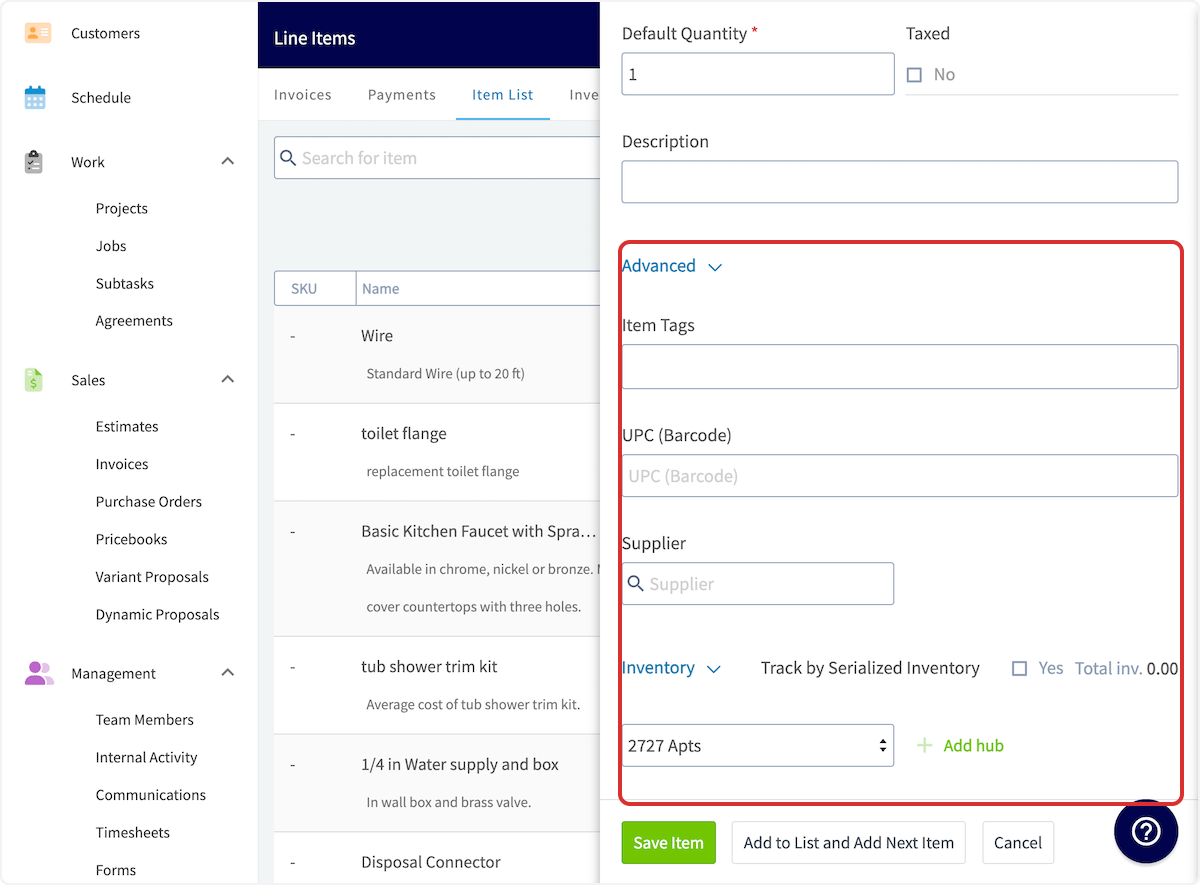
 You can also add item tags and a barcode for any item. If you have set your item type as *product - non inventory*, you can select and link a supplier.
If you have set your item type as *product - inventory*, you can select and link a supplier, as well as track the line item by serialized inventory. To learn about **Serialized Inventory**, [the serialized inventory guide](/using-fieldpulse/item-list-inventory/serialized-inventory).
Additionally, you can add inventory to different hubs and set up auto-replenishment. To learn about **Inventory Hubs**, [the inventory hubs guide](/using-fieldpulse/item-list-inventory/inventory-hubs). To learn about **Auto-Replenishment**, [the auto-replenishment guide](/using-fieldpulse/purchase-orders/purchase-orders#h_76bf7c5ec7).
You can also add item tags and a barcode for any item. If you have set your item type as *product - non inventory*, you can select and link a supplier.
If you have set your item type as *product - inventory*, you can select and link a supplier, as well as track the line item by serialized inventory. To learn about **Serialized Inventory**, [the serialized inventory guide](/using-fieldpulse/item-list-inventory/serialized-inventory).
Additionally, you can add inventory to different hubs and set up auto-replenishment. To learn about **Inventory Hubs**, [the inventory hubs guide](/using-fieldpulse/item-list-inventory/inventory-hubs). To learn about **Auto-Replenishment**, [the auto-replenishment guide](/using-fieldpulse/purchase-orders/purchase-orders#h_76bf7c5ec7).
 Once you have completed these steps, make sure to press *Save*. Your new line item will be saved in the **Item List** and you can now use it on estimates and invoices.
***
# Item List & Inventory Glossary
| **Field Title** | **Explanation** | **Example** |
| --------------------------------- | ---------------------------------------------------------------------------------------------------------------------------------------------------------------------------------------------------- | --------------------------------------------------------------------------------------------------------------------------------------------------- |
| **Item Name** | A descriptive name for the inventory item | Copper Pipe - 1/2 inch x 10 feet |
| **Item Type** | **Service**: A non-physical item
Once you have completed these steps, make sure to press *Save*. Your new line item will be saved in the **Item List** and you can now use it on estimates and invoices.
***
# Item List & Inventory Glossary
| **Field Title** | **Explanation** | **Example** |
| --------------------------------- | ---------------------------------------------------------------------------------------------------------------------------------------------------------------------------------------------------- | --------------------------------------------------------------------------------------------------------------------------------------------------- |
| **Item Name** | A descriptive name for the inventory item | Copper Pipe - 1/2 inch x 10 feet |
| **Item Type** | **Service**: A non-physical item
**Product Inventory:** Materials which you track
**Product Non-Inventory:** Materials you don't track- materials you will order from a supplier as needed | **Service**: Labor, Equipment Hire, Overhead
**Product Inventory:** Pipe, Hot Water Unit
**Product Non-Inventory:** Water Softener System |
| **Item #/ SKU** | A unique identifier or stock-keeping unit for tracking the item | CP125-10FT |
| **Unit Cost** | The cost incurred per unit for the item | \$5.00 per unit |
| **Unit Price** | The price at which the item is sold per unit | \$10.00 per unit |
| **Default Quantity** | The default quantity on hand for the item | 100 units |
| **Taxed** | Indicates whether the item is subject to taxes | Select Yes or No |
| **Item Tag** | A label or tag for additional categorization or grouping | "High-Demand"
"Special Order" |
| **UPC (Barcode)** | The Universal Product Code or barcode for the item | 012345678912 |
| **Supplier** | The company or entity from which the item is sourced | Plumbing Supply Co. |
| **Track by Serialized Inventory** | Indicates whether each item has a unique serial number for tracking | Select Yes or No |
| **Hub Selection** | A button to select from current hubs and add inventory levels to specific hub | "Office"
"Brice's Truck" |
***
# Barcode Scanning for Item List Management
To easily update or add line items, use the barcode scanner. Our barcode scanner feature makes finding line items efficient and allows you to update your costs, pricing, inventory, and inventory location quickly.
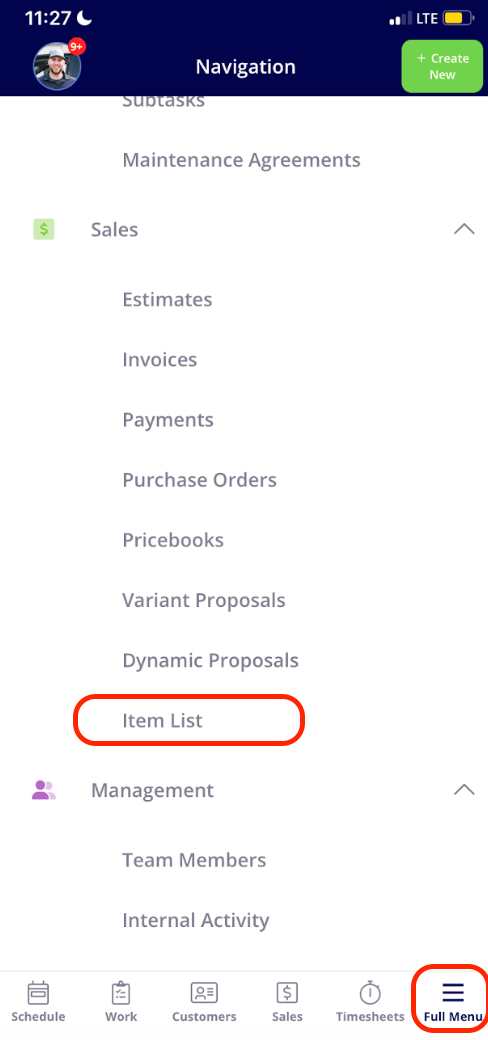
To get started, select *Full Menu* then navigate to your *Item List* in the mobile app. From here, select the *Scan Barcode* icon.
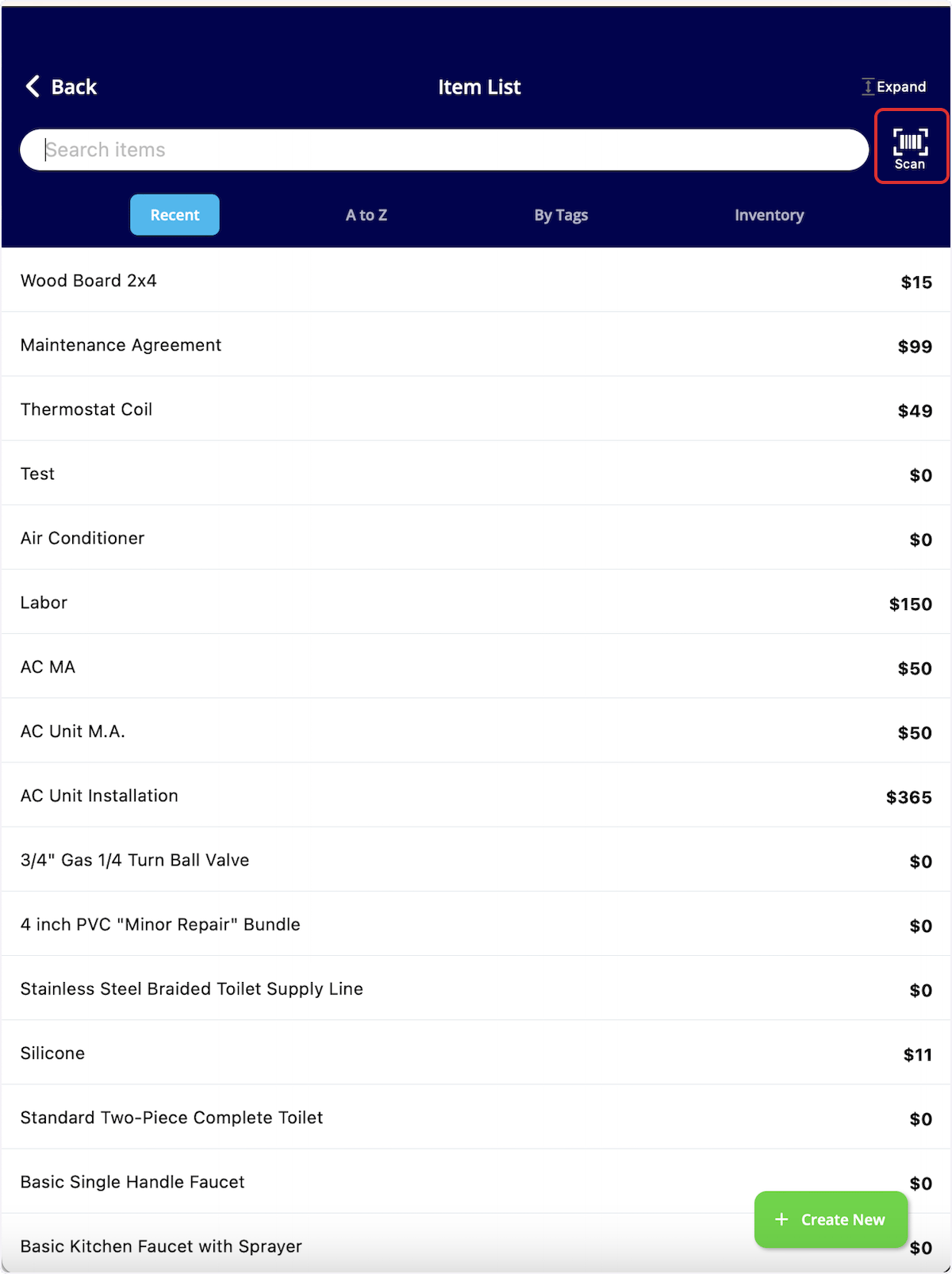 Your device camera will now be used to scan the barcode. If the barcode does not exist in your system, it will read *No Results Found*. You can then select *Create New Item*.
If you search a barcode that is already in your system, you can easily adjust the item name, cost, and price, as well as easily select the *Open Full Item* button to update other details of this item such as inventory.
Your device camera will now be used to scan the barcode. If the barcode does not exist in your system, it will read *No Results Found*. You can then select *Create New Item*.
If you search a barcode that is already in your system, you can easily adjust the item name, cost, and price, as well as easily select the *Open Full Item* button to update other details of this item such as inventory.
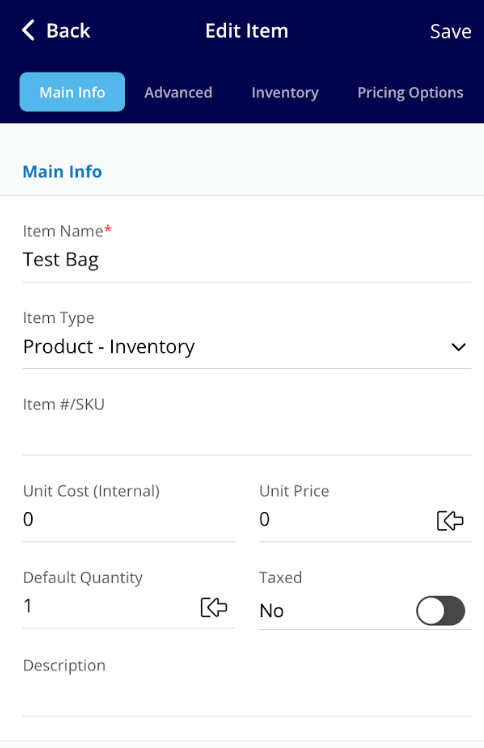
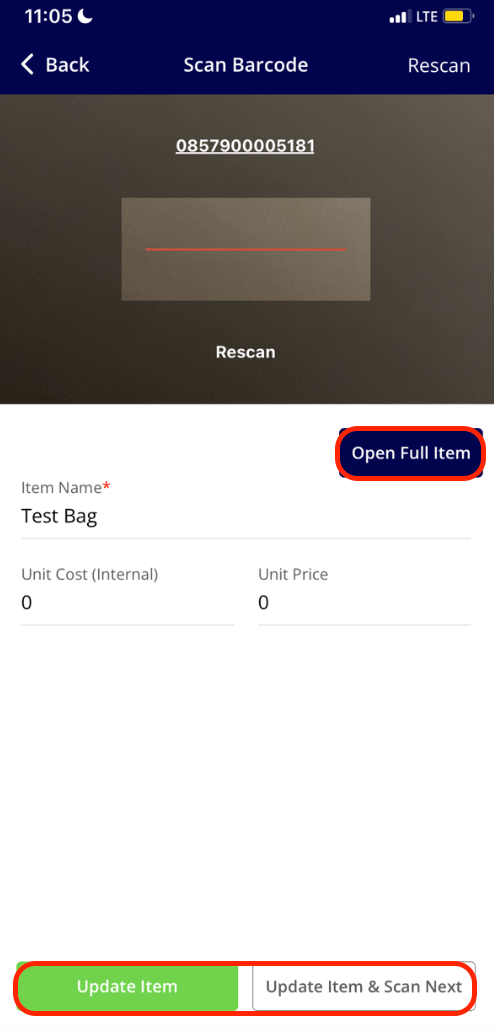 When clicking on *Open Full Item*, you can make edits to the *Main Info*, *Advanced*, and *Pricing Options* tabs.
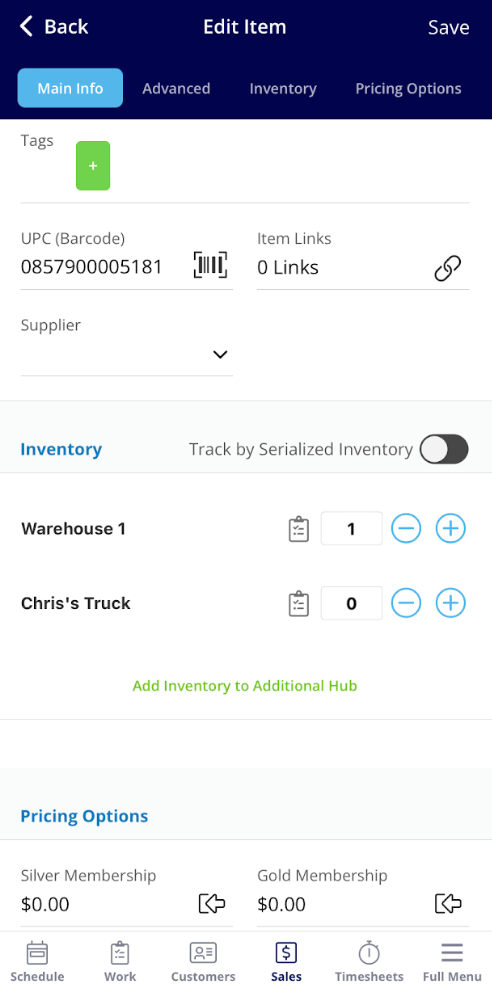
 In the *Inventory* section below, you can adjust the counts of each inventory hub.
 ***
# Video Tutorial
***
**Have additional questions?**
*Contact us at [support@fieldpulse.com](mailto:support@fieldpulse.com) or use the chat feature in the bottom right corner of your screen.*
***
# Video Tutorial
***
**Have additional questions?**
*Contact us at [support@fieldpulse.com](mailto:support@fieldpulse.com) or use the chat feature in the bottom right corner of your screen.*