> ## Documentation Index
> Fetch the complete documentation index at: https://help.fieldpulse.com/llms.txt
> Use this file to discover all available pages before exploring further.
# Material Lists
> Track the materials a job needs versus what your crew actually used so you show up prepared and nothing gets missed.
# **What are Material Lists?**
Material lists are a way to keep track of what materials you need for a job and what you actually used. Material lists help you **stay organized** and **ensure you are prepared** to complete jobs and projects of all sizes.
Material lists can vary in detail depending on your needs. They can include items that will be directly incorporated into the estimate or invoice, or you can choose to create a more comprehensive list that details every aspect of the job/project. For example, you might list primary materials such as pipes, fittings, and fixtures, but you can also include tools like wrenches, pipe cutters, and plungers. Additionally, consider adding consumables such as Teflon tape, sealants, and joint compounds, as well as any specialized equipment needed for the installation, like pipe inspection cameras or drain snakes. The level of detail is entirely up to you!
## Here’s how they work
* When you visit a job site, you can make a list of all the materials you’ll need to get the work done. This helps you know exactly what to buy. Or an alternative to this is your company creating an estimate first. The technician can then fill out the material list based on the materials needed to complete the work or for what they actually used during the job.
* After you create the list, a colleague can check it. This list can then be used to create an estimate (a rough cost of the job) or an invoice (the final bill).
* You can choose to include some or all of the materials from your list in the estimate or invoice so the customer knows exactly what they’re paying for.
***
# How to Enable Material Lists
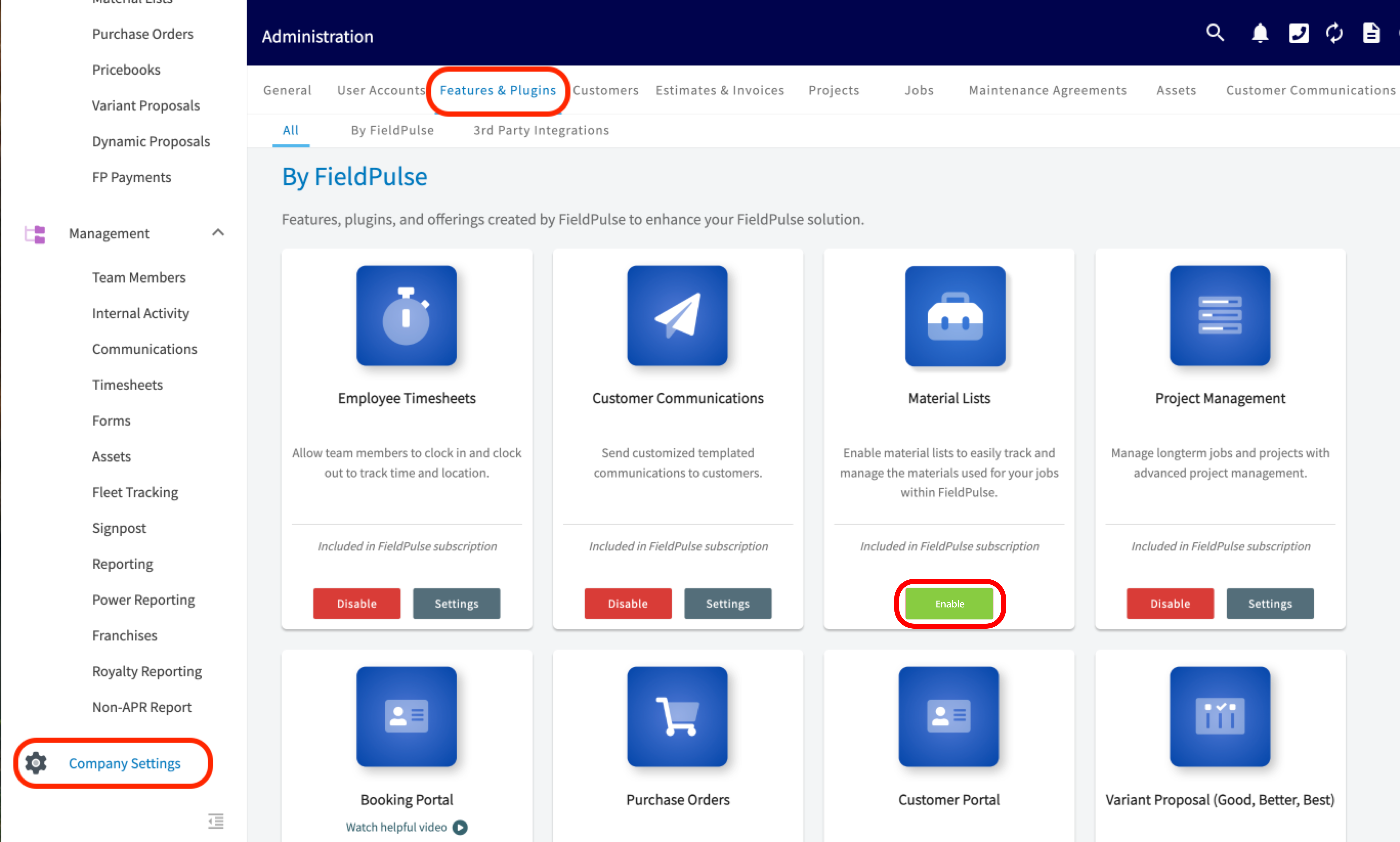
Start by clicking on *Company Settings* from the menu on the left hand side of your screen and selecting *Features & Plugins.* Navigate to *Material Lists* and select *Enable*.
 ***
# Material List Templates
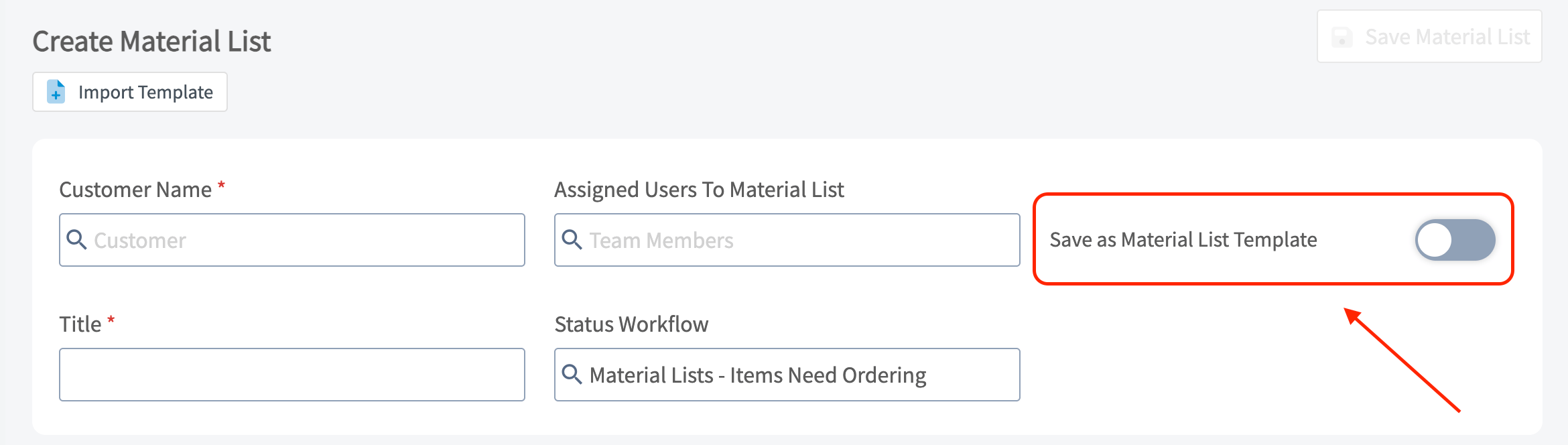
When creating a material list, you can always save it as a template by toggling on the button that says *Save as Material List Template*. By doing this, it will save you time and allow you to **insert these templates on to any job, project, purchase order, estimate, or invoice record**.
***
# Material List Templates
When creating a material list, you can always save it as a template by toggling on the button that says *Save as Material List Template*. By doing this, it will save you time and allow you to **insert these templates on to any job, project, purchase order, estimate, or invoice record**.
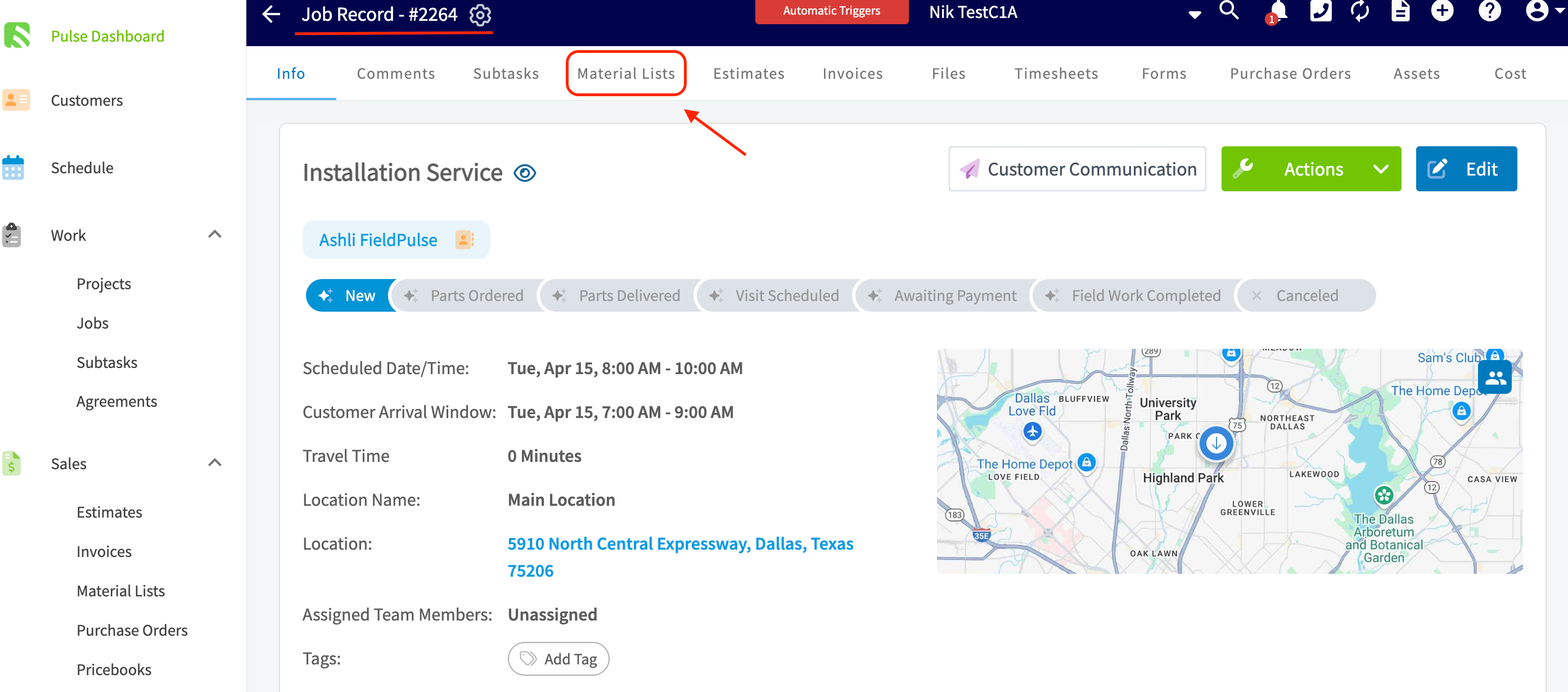
 To add a material list template to a job record for example, you would first navigate to the job record you wish to attach the material list to. Once on this job record, for this example it is *Job Record #2264*, you would then click into the subtab at the top for *Material Lists.*
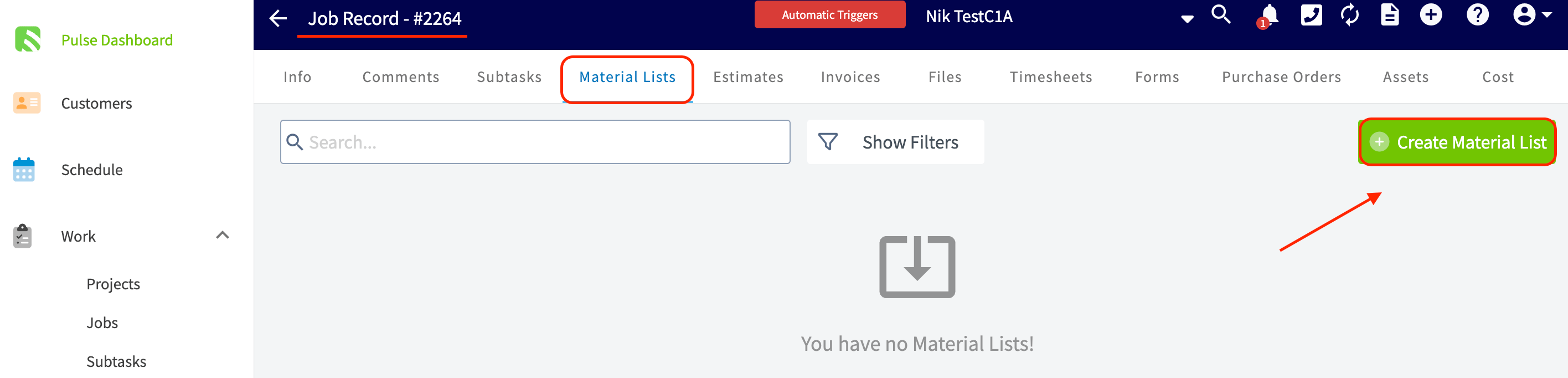
 When on the *Material Lists* tab, proceed to click the green *Create Material List* button to attach one of your material list templates to this specific job record.
 After selecting the *Create Material List* button, click on the *Import Template* button near the top left of the screen.
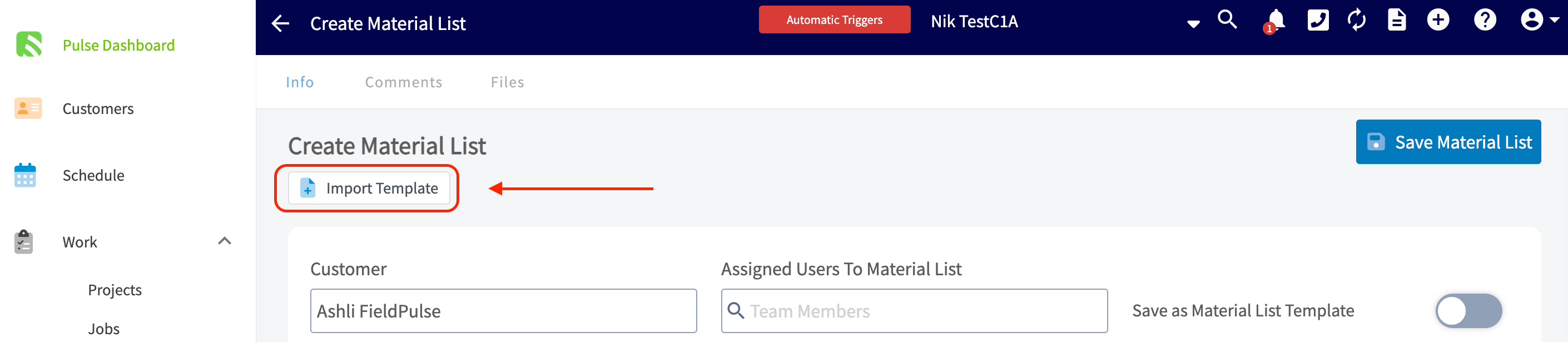 Choose the material list template you wish to add to this job record from the drop down menu, make any changes/additions, then ensure you press the blue *Save* button.
***
# Creating a Material List
To get started, click on the *Material Lists* tab in the left side menu. Once on the *Material Lists* page, click the green *Create Material List* button.
Choose the material list template you wish to add to this job record from the drop down menu, make any changes/additions, then ensure you press the blue *Save* button.
***
# Creating a Material List
To get started, click on the *Material Lists* tab in the left side menu. Once on the *Material Lists* page, click the green *Create Material List* button.
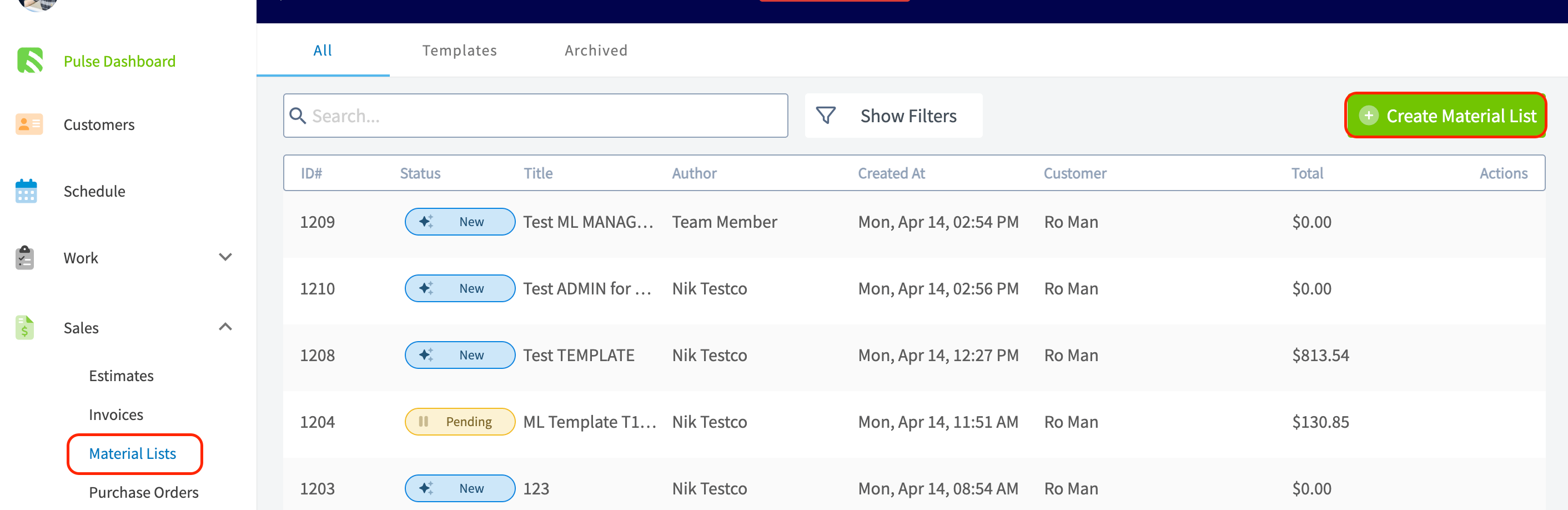 If you have created Material List Templates, you can quickly insert them by selecting *Import Template* (see info above).
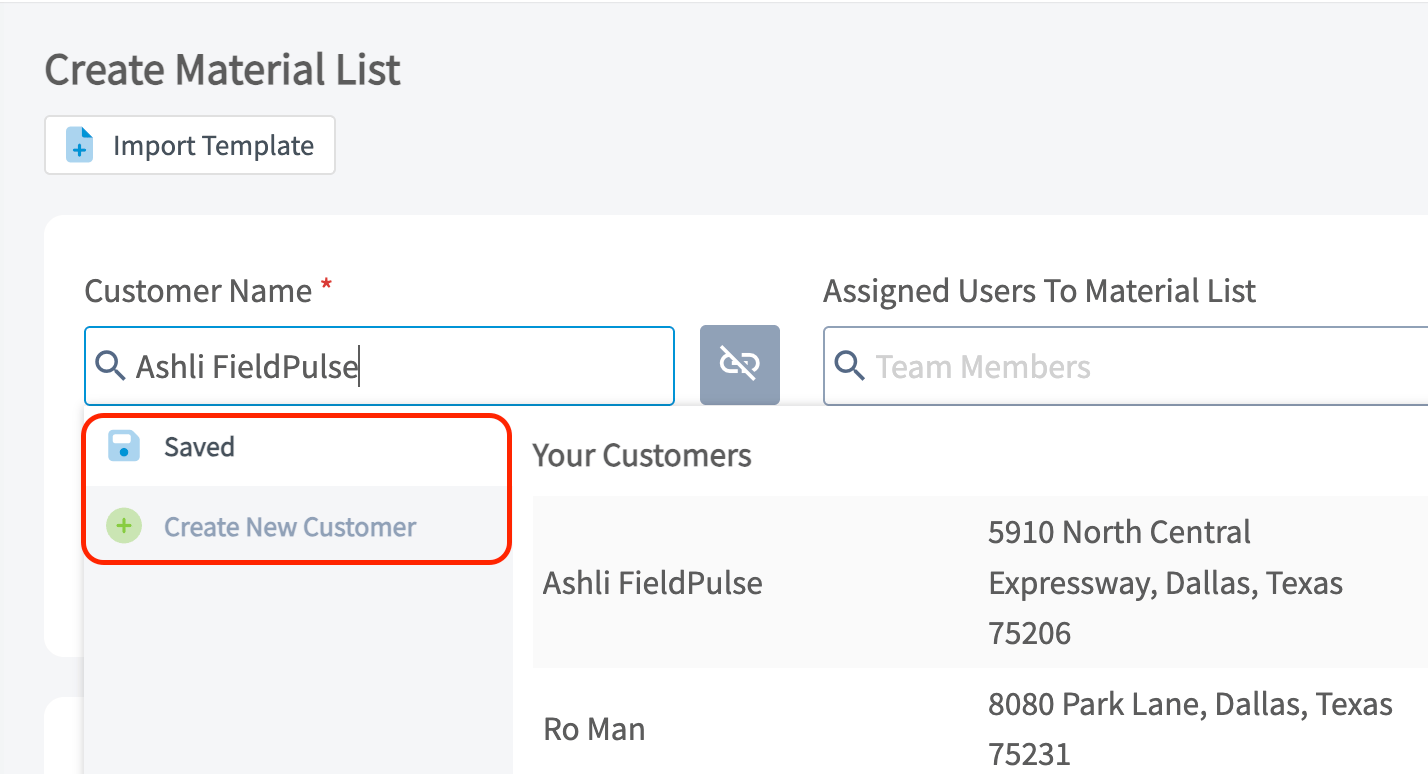
Now, you'll need to link a customer to the material list. You can select an existing customer, or create a new customer.
If you have created Material List Templates, you can quickly insert them by selecting *Import Template* (see info above).
Now, you'll need to link a customer to the material list. You can select an existing customer, or create a new customer.
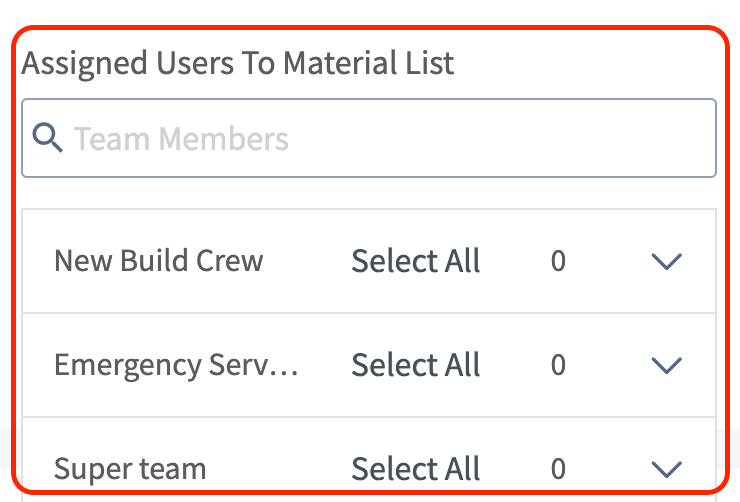
 You can assign individual users **or** teams to your material list by clicking into the field and choosing from the drop down menu.
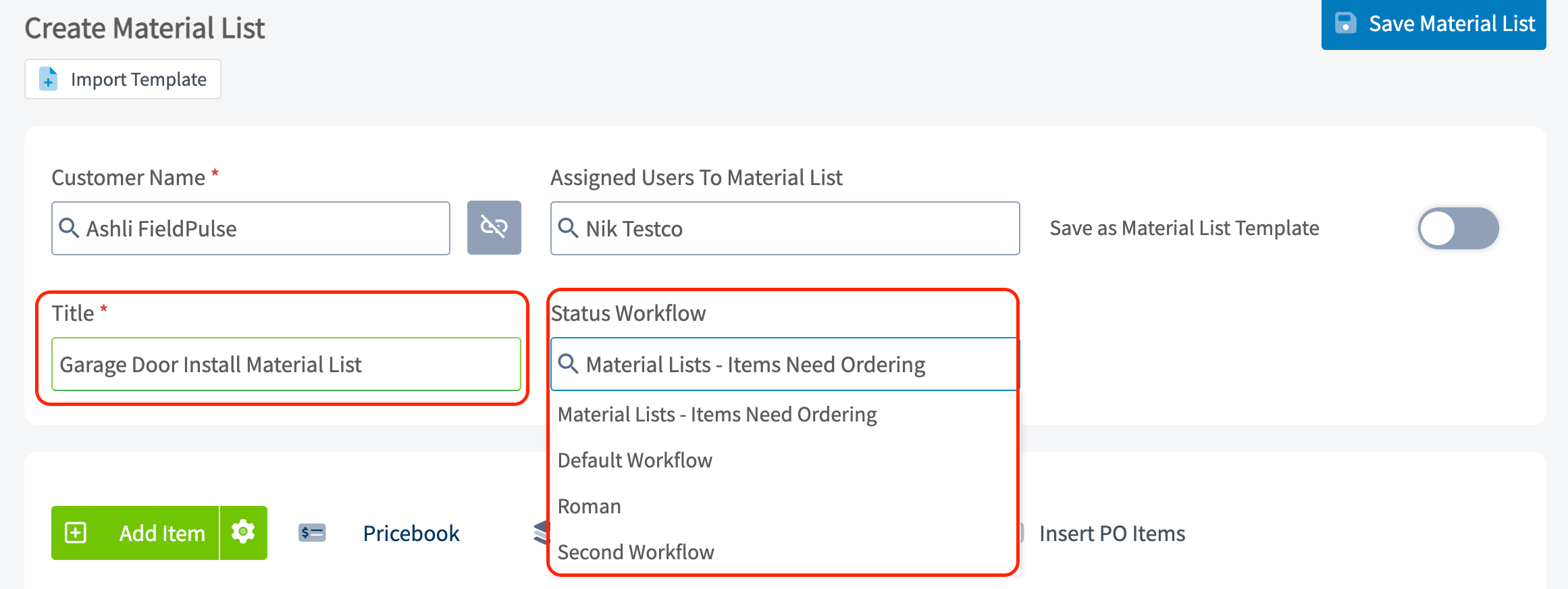
 Give your material list a unique title. You can then select a specific status workflow that will apply to this material list. If you have many workflows created, once you click into that field you will see a drop down menu of options (as shown below). To learn more about custom status workflows, [the custom status workflows guide](/using-fieldpulse/work/custom-status-workflows).
 ## Adding Existing Line Items
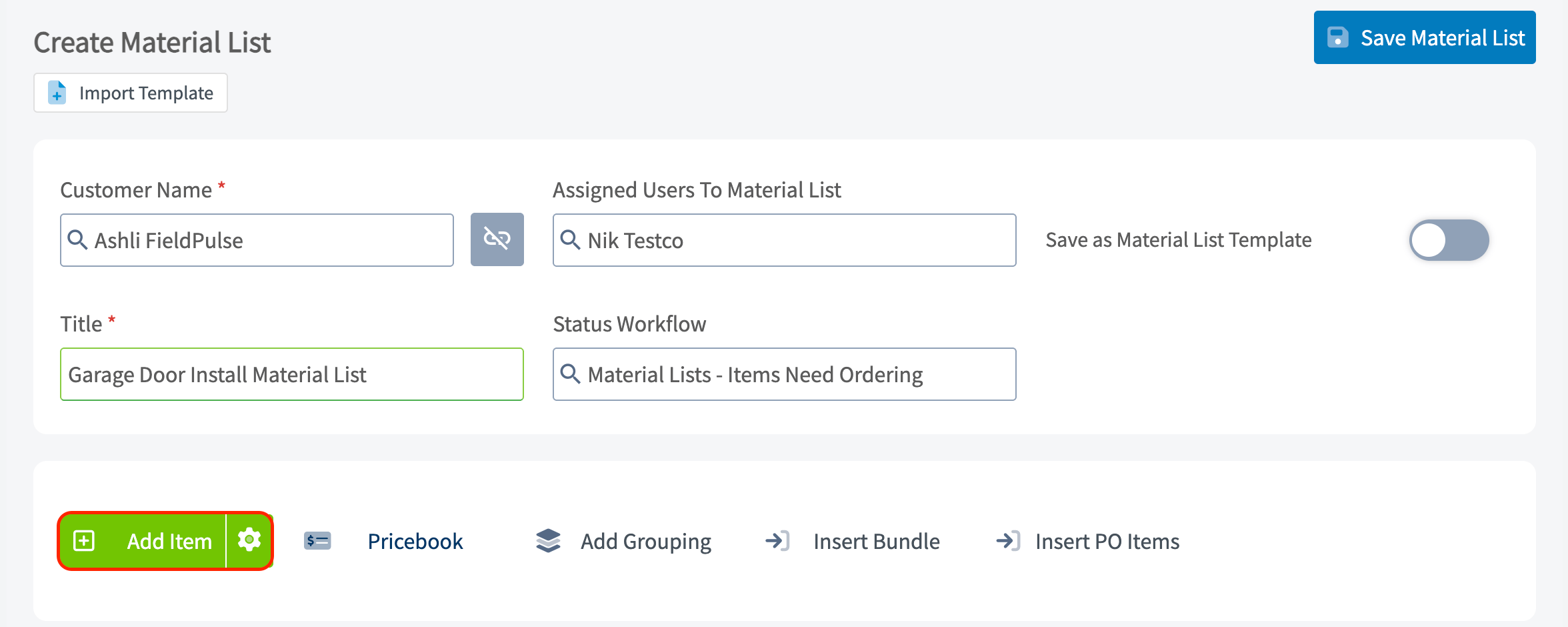
The magic begins when you add your line items! Here you will add all of the items that will make up your material list. Our material lists do support groupings. You can also select the green *Add Item* button and an additional tab will automatically open towards the right hand side of your screen.
## Adding Existing Line Items
The magic begins when you add your line items! Here you will add all of the items that will make up your material list. Our material lists do support groupings. You can also select the green *Add Item* button and an additional tab will automatically open towards the right hand side of your screen.
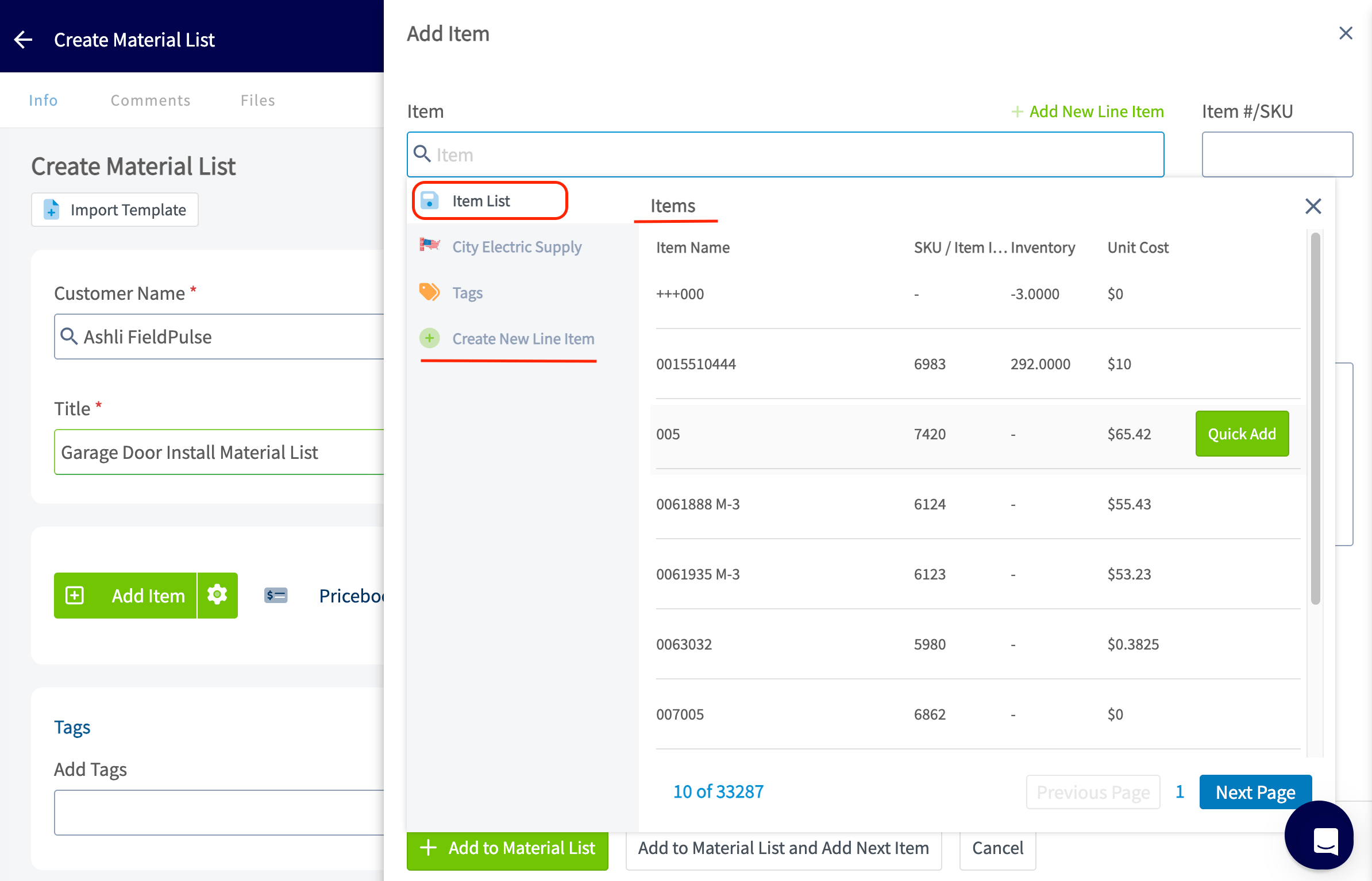
 If you have already spent the time to add all of your potential line items in *Company Settings* you can easily search for them here.
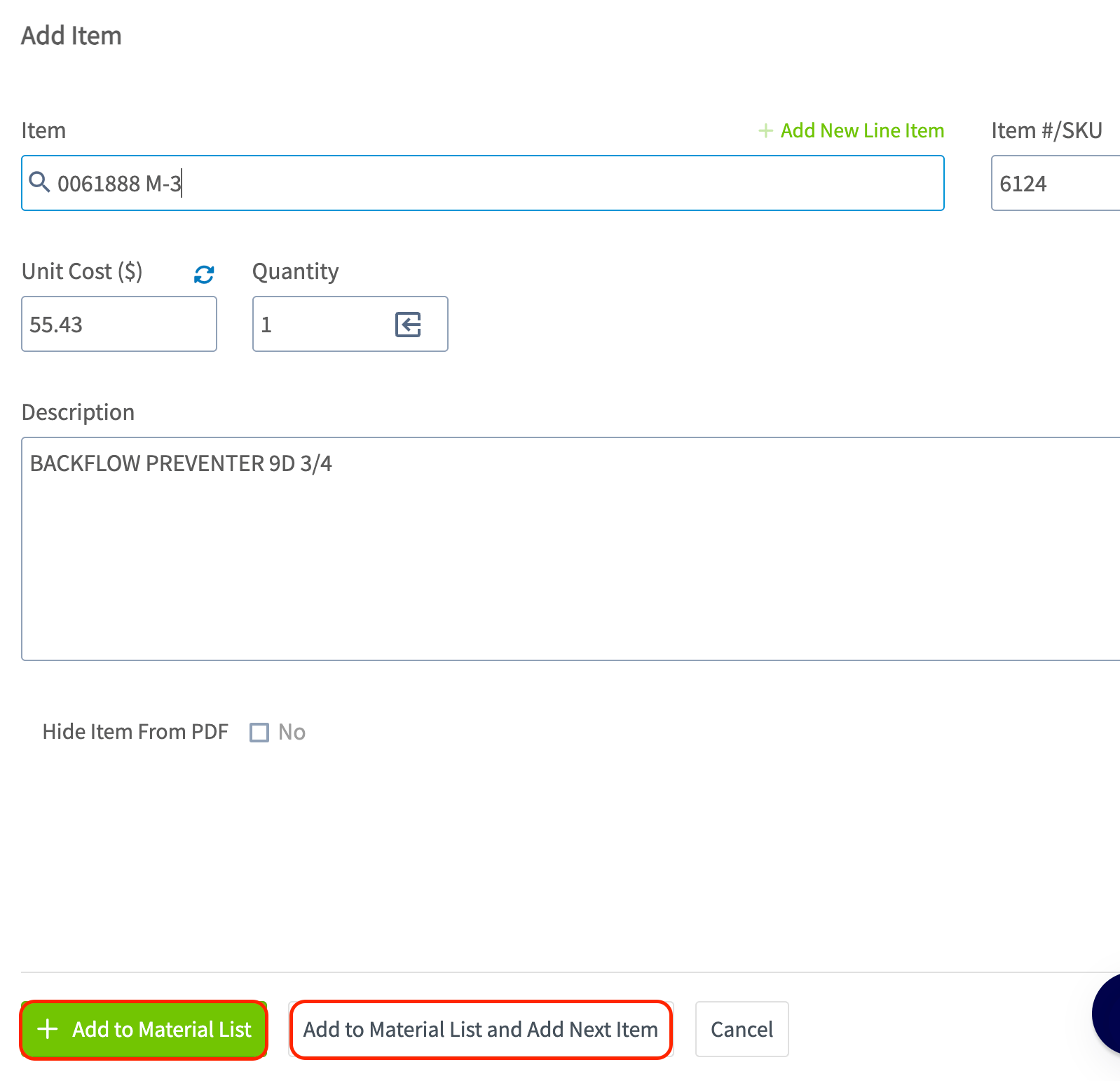
 Click on the line item you want to add and you will then need to select *Add to Material List and Add Next Item* if you have additional line items to include or *Add to Material List* if this is your last line item.
 ### Creating/Adding a New Line Item
To learn how to create or add a new line item, [the line item creation guide](/using-fieldpulse/estimates-invoices/creating-an-estimate#h_edc516a8a9).
### Adding Tags
Now, you can add tags if needed. Tags can be used to filter or run a specific report by the tag you have created.You can use this field to search for existing tags or create a new one, just be sure to press *Enter* after typing a new tag.
### Creating/Adding a New Line Item
To learn how to create or add a new line item, [the line item creation guide](/using-fieldpulse/estimates-invoices/creating-an-estimate#h_edc516a8a9).
### Adding Tags
Now, you can add tags if needed. Tags can be used to filter or run a specific report by the tag you have created.You can use this field to search for existing tags or create a new one, just be sure to press *Enter* after typing a new tag.
 ### Adding Notes
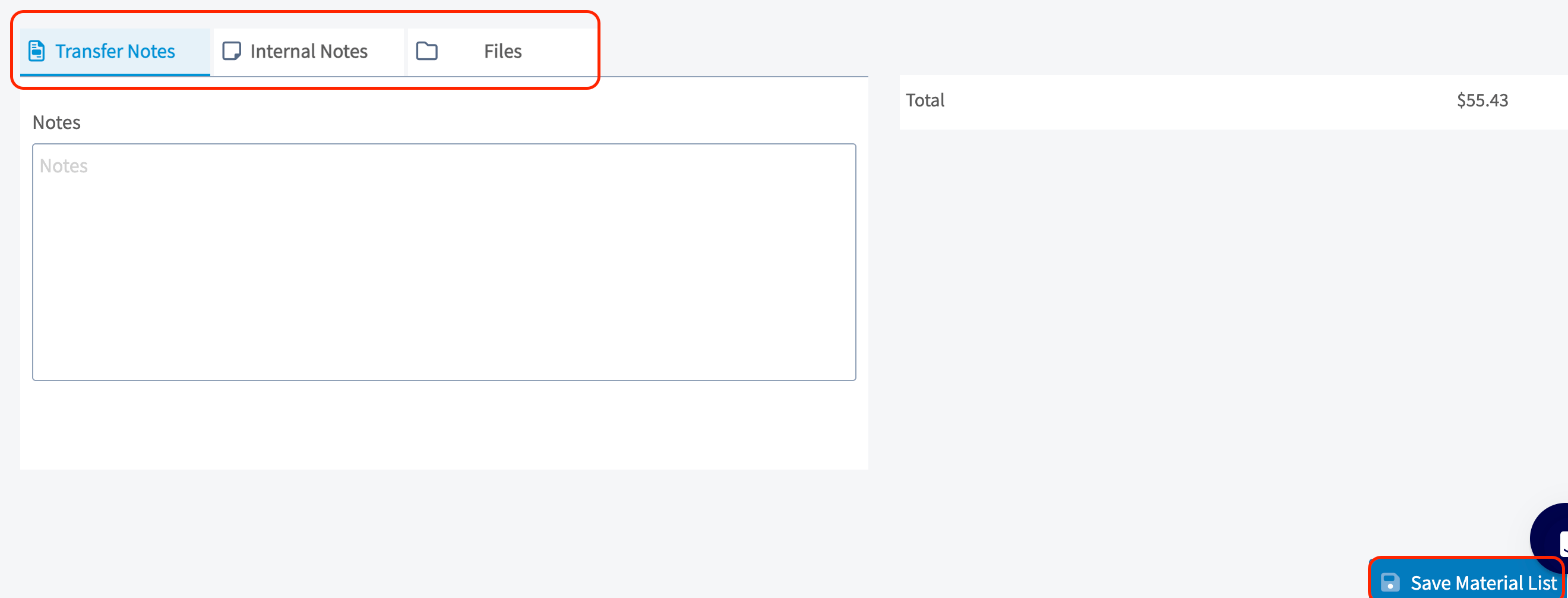
Enter any notes relevant to the material list in the *Internal Notes* or *Transfer Notes* field. Any notes entered in the *Transfer Notes* field will carry over to any other related records that this material list is attached/linked to. You can also attach any important files as well. Be sure to press the blue *Save Material List* button when you are finished.
### Adding Notes
Enter any notes relevant to the material list in the *Internal Notes* or *Transfer Notes* field. Any notes entered in the *Transfer Notes* field will carry over to any other related records that this material list is attached/linked to. You can also attach any important files as well. Be sure to press the blue *Save Material List* button when you are finished.
 ***
# Viewing a Material List
## Adding Material List Items to a New Record
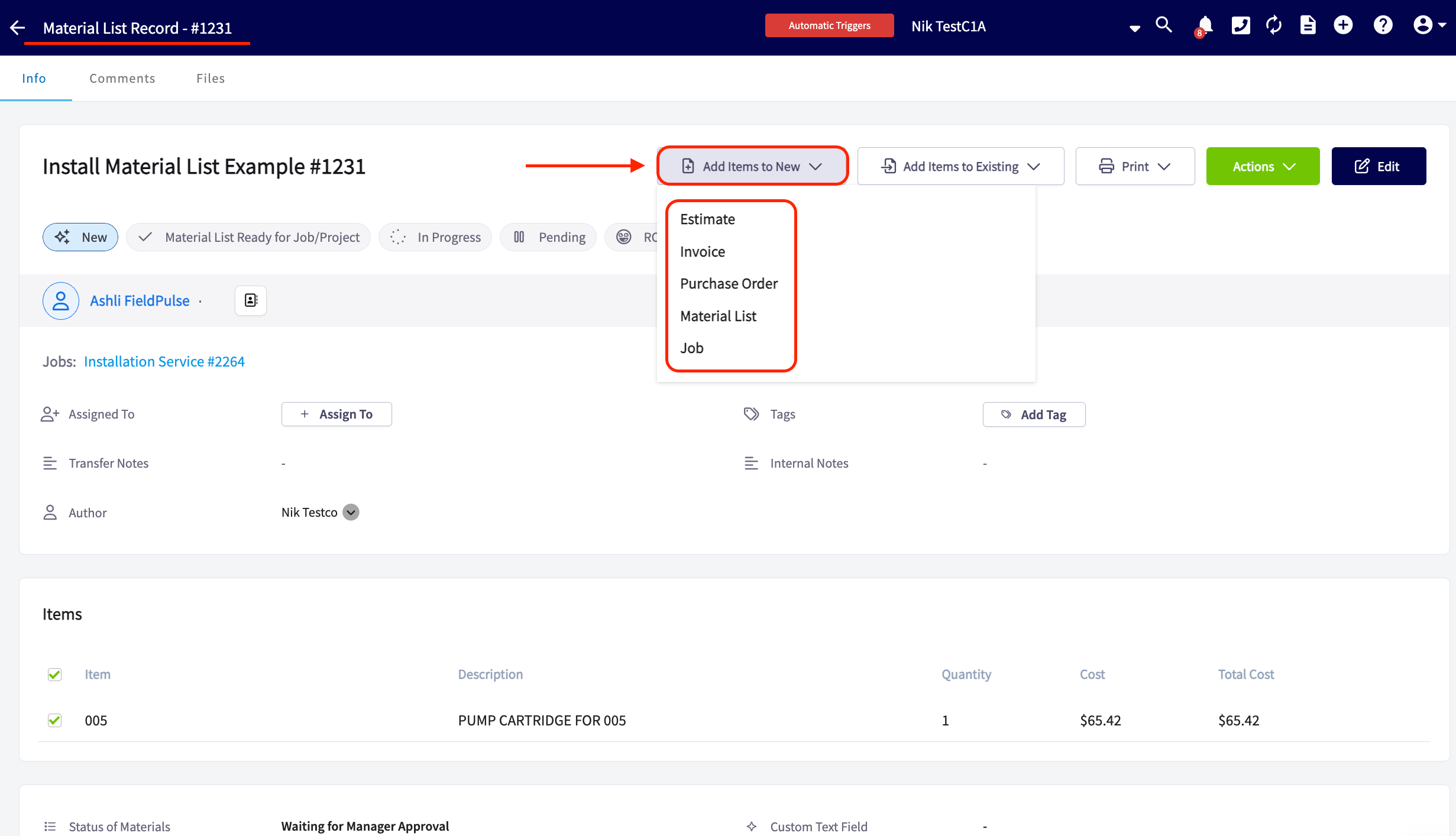
When on the material list, you have the option to quickly add items from your material list to a **new record**. You can choose from one of the one of the following records for these materials to be added to: *Estimate, Invoice, Purchase Order, Material List, Job*.
***
# Viewing a Material List
## Adding Material List Items to a New Record
When on the material list, you have the option to quickly add items from your material list to a **new record**. You can choose from one of the one of the following records for these materials to be added to: *Estimate, Invoice, Purchase Order, Material List, Job*.
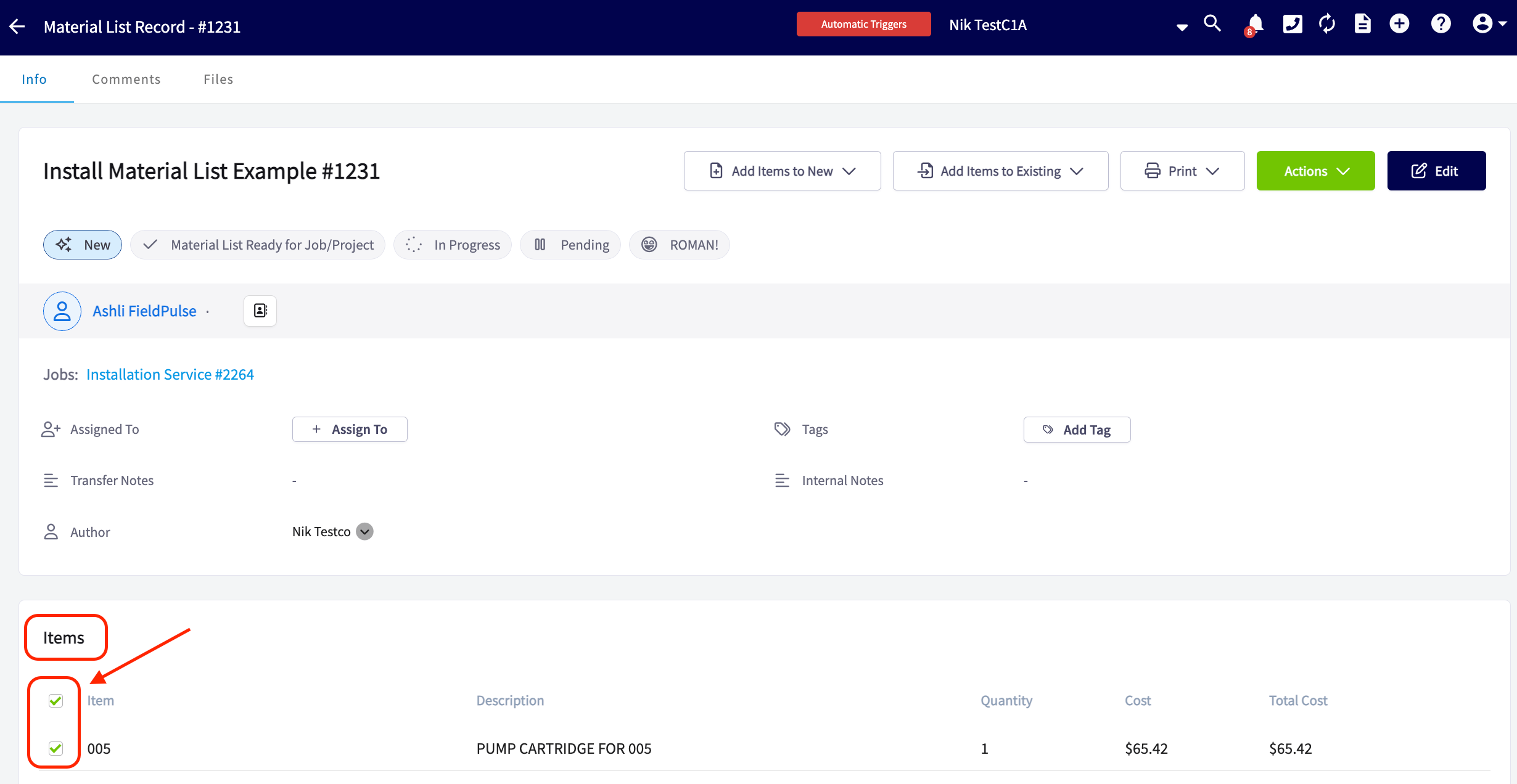
 You can transfer all items or just a select few from your material list to a new record. By default, all items are selected, so be sure to uncheck any specific items, tools, or materials that you do not want to carry over into the new record.
 ## Adding Material List Items to an Existing Record
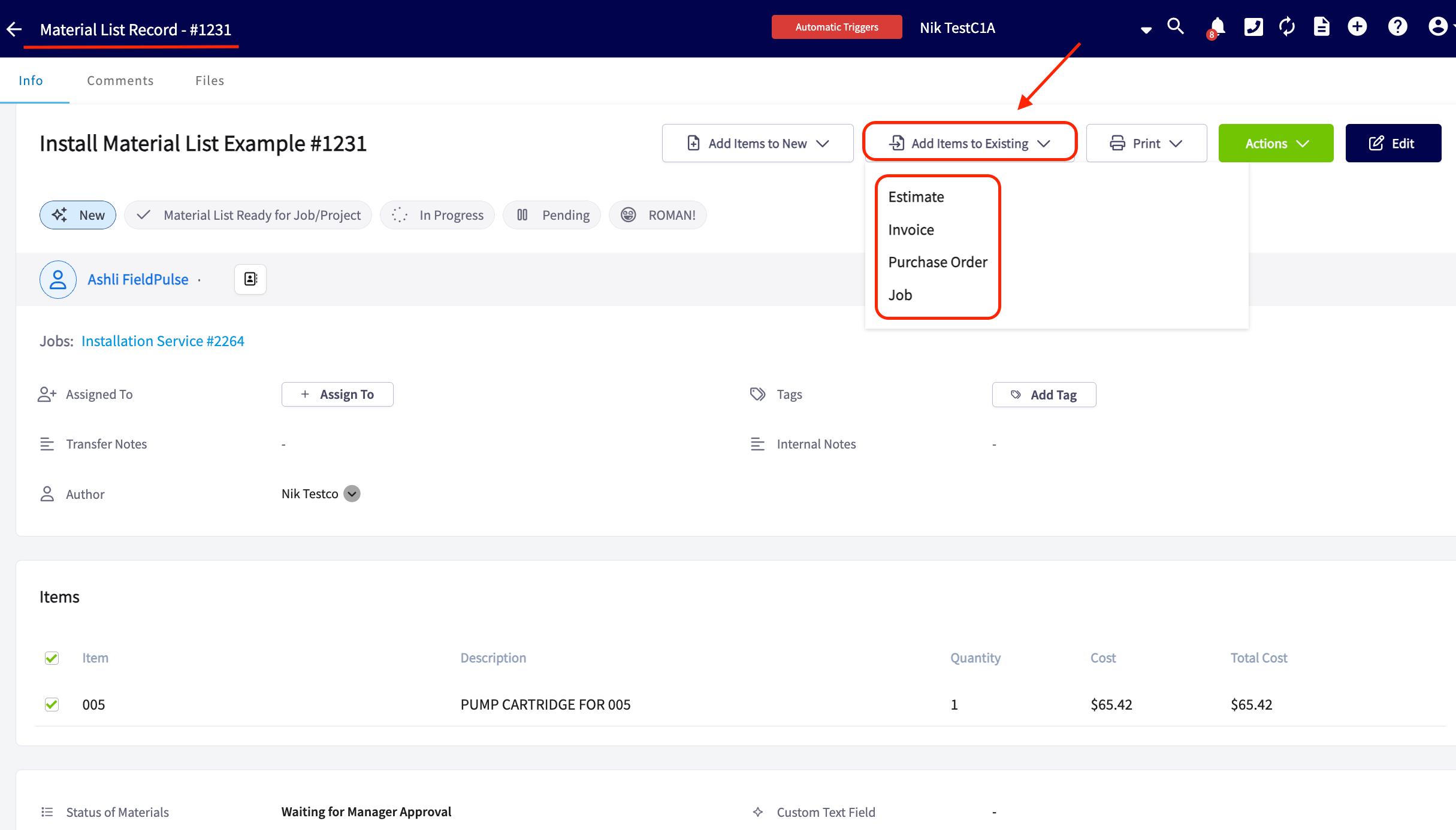
When on the material list, you also have the option to quickly add items from your material list to an **existing record**. You can choose from one of the one of the following records for these materials to be added to: *Estimate, Invoice, Purchase Order, Job*.
## Adding Material List Items to an Existing Record
When on the material list, you also have the option to quickly add items from your material list to an **existing record**. You can choose from one of the one of the following records for these materials to be added to: *Estimate, Invoice, Purchase Order, Job*.
 When transferring material list items to an existing record, you'll find a search bar that makes it easy to locate the record you need. By clicking into the search bar, our system will automatically display some of the most recent record types you've created for this customer.
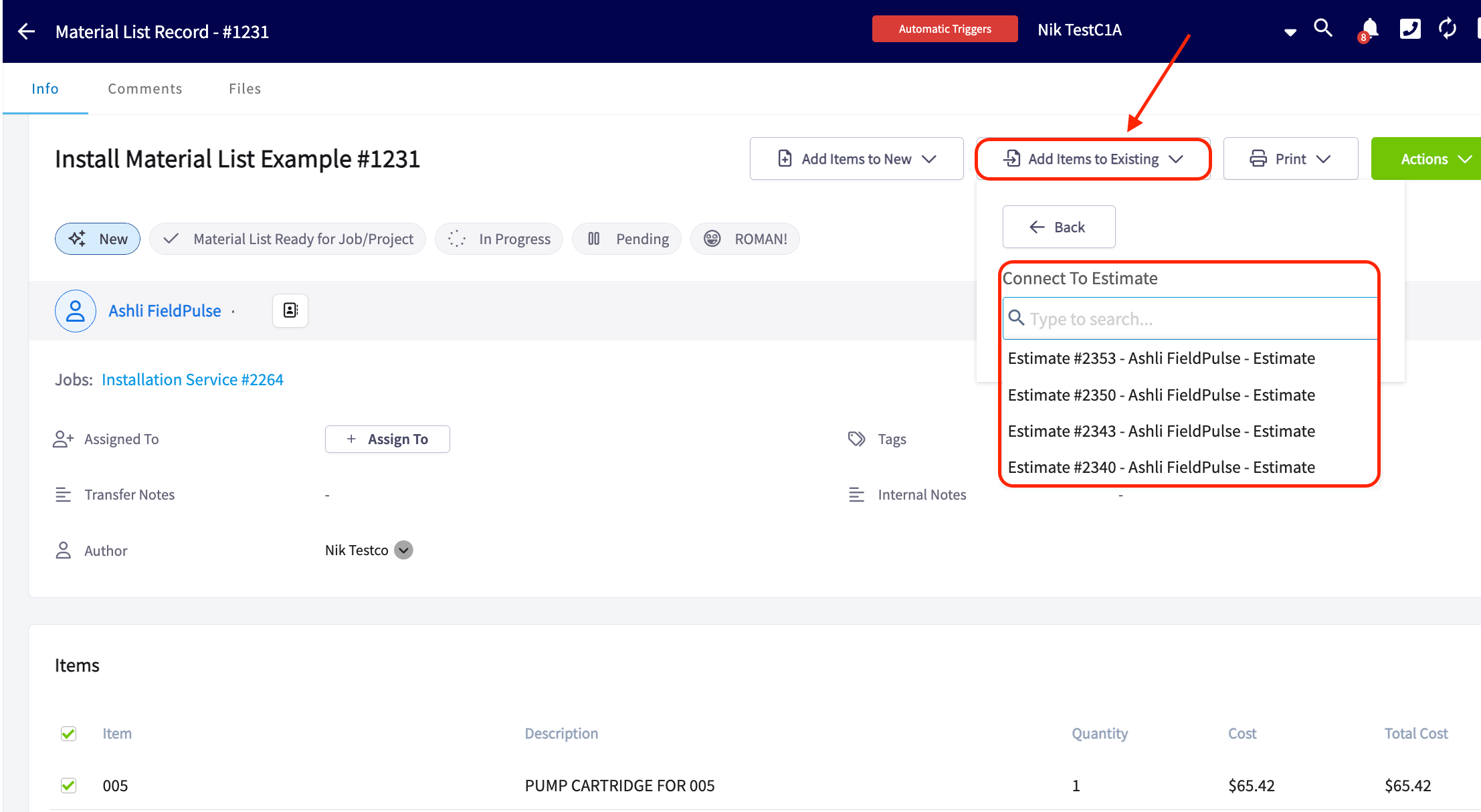 As mentioned above, you can pull over all items or just a select few from your material list to an existing record.
## Links to Associated Records
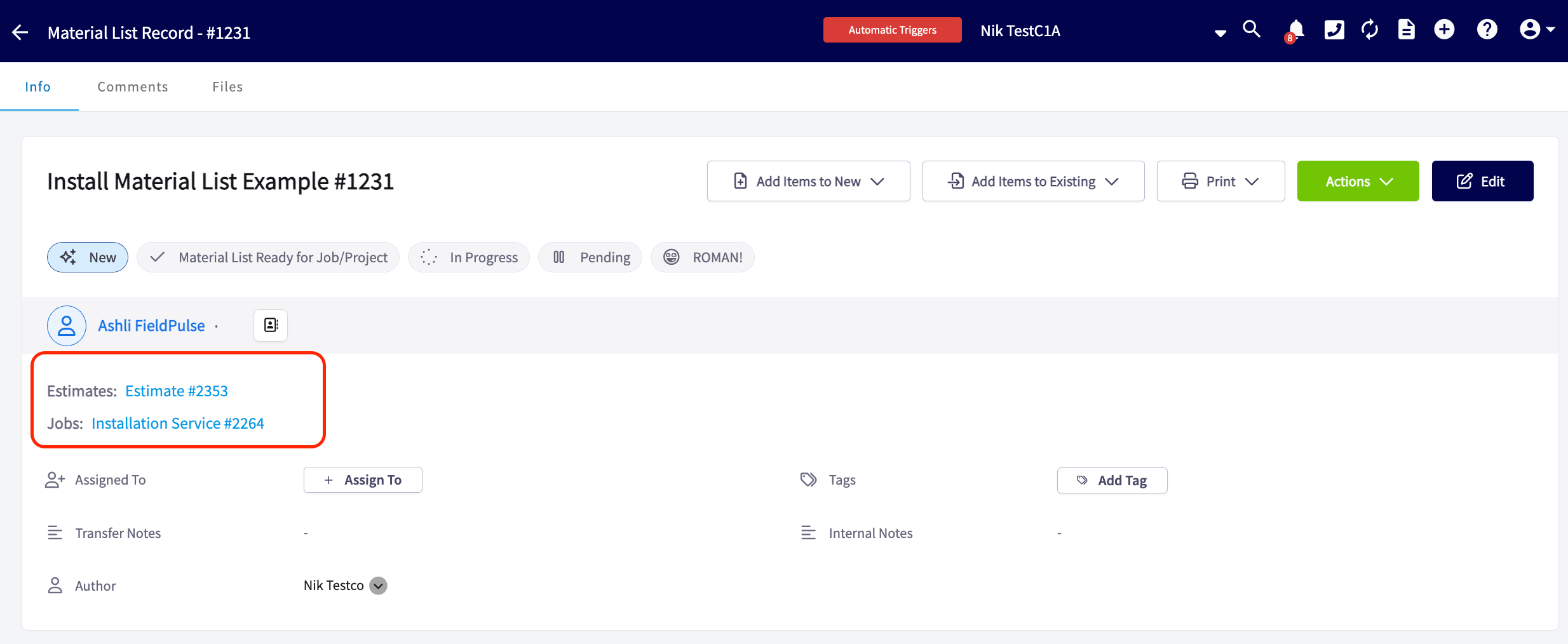
Any records associated with this material list will be displayed here, and you can click on the blue hyperlinks to view the detailed information for each record.
As mentioned above, you can pull over all items or just a select few from your material list to an existing record.
## Links to Associated Records
Any records associated with this material list will be displayed here, and you can click on the blue hyperlinks to view the detailed information for each record.
 ## Printing Material Lists
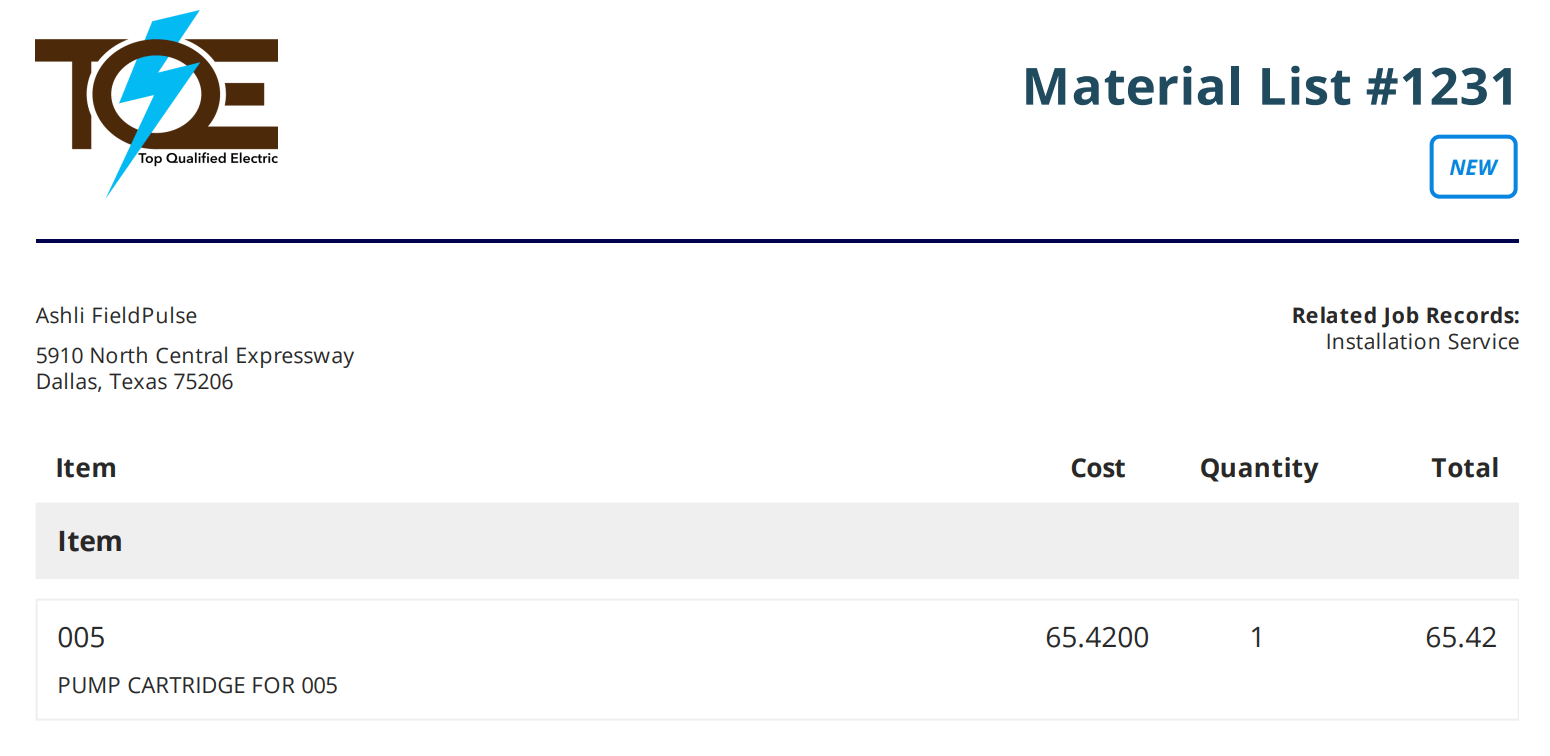
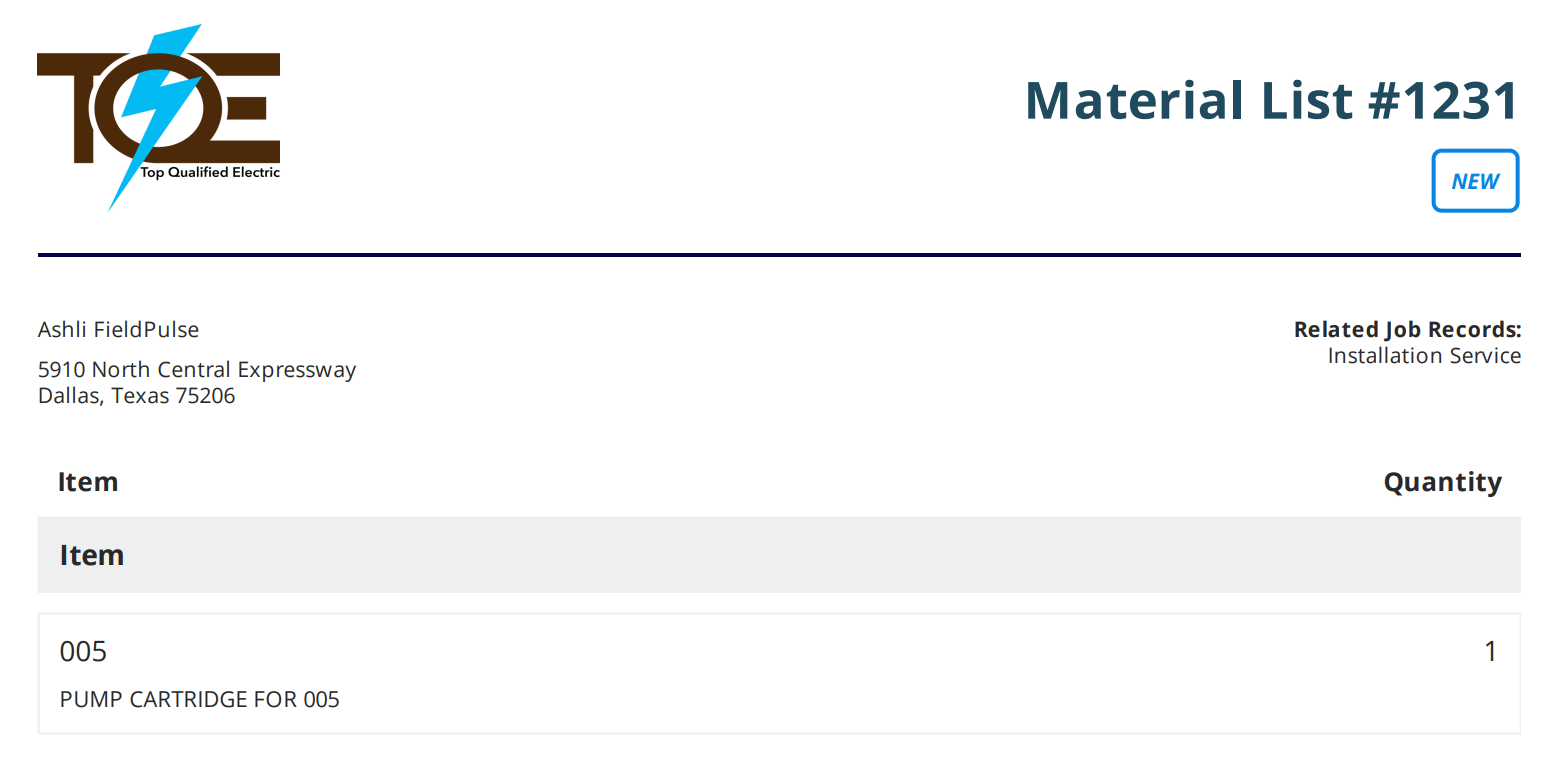
Do you prefer to print your material lists before loading up your vehicles for a successful day on the job? You can absolutely do that! Our printing options allow you to **generate clean, neat, and organized material lists**, ensuring you have everything you need at a glance. You can choose to print your lists **with or without** cost details, making it easy to **stay prepared and efficient** for the day ahead.
## Print view with costs
## Printing Material Lists
Do you prefer to print your material lists before loading up your vehicles for a successful day on the job? You can absolutely do that! Our printing options allow you to **generate clean, neat, and organized material lists**, ensuring you have everything you need at a glance. You can choose to print your lists **with or without** cost details, making it easy to **stay prepared and efficient** for the day ahead.
## Print view with costs
 ## Print view without costs
 ***
# Permissions
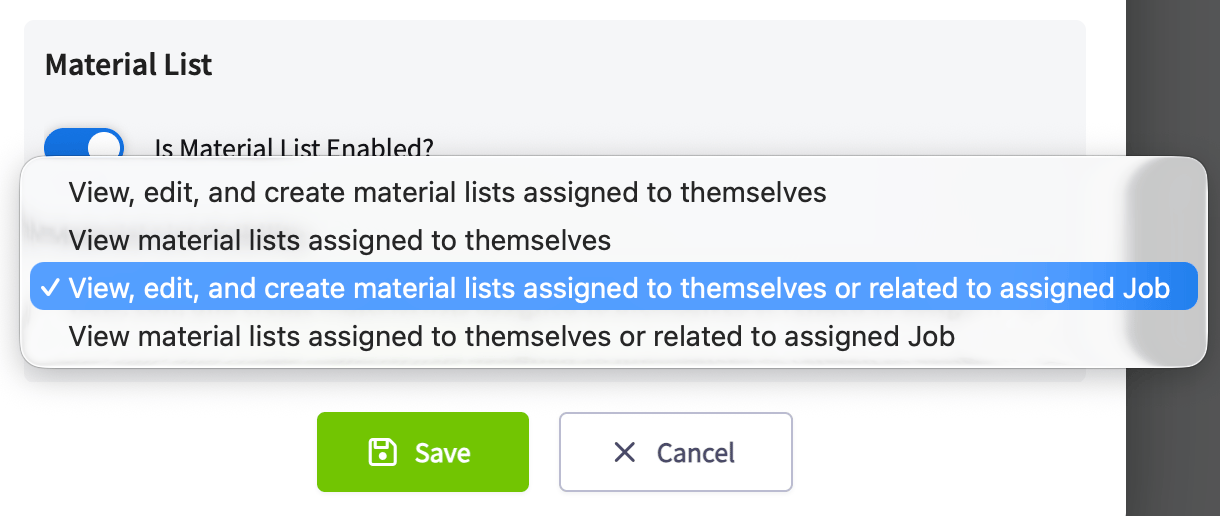
You can turn material lists on or off per user. To do so, navigate to *Company Settings* from the menu on the left hand side of your screen and select *User Accounts.* Navigate to the *Users* tab and select the first user you'd like to turn material lists on for. After adjusting your permissions ensure you press the *Save* button.
***
# Permissions
You can turn material lists on or off per user. To do so, navigate to *Company Settings* from the menu on the left hand side of your screen and select *User Accounts.* Navigate to the *Users* tab and select the first user you'd like to turn material lists on for. After adjusting your permissions ensure you press the *Save* button.
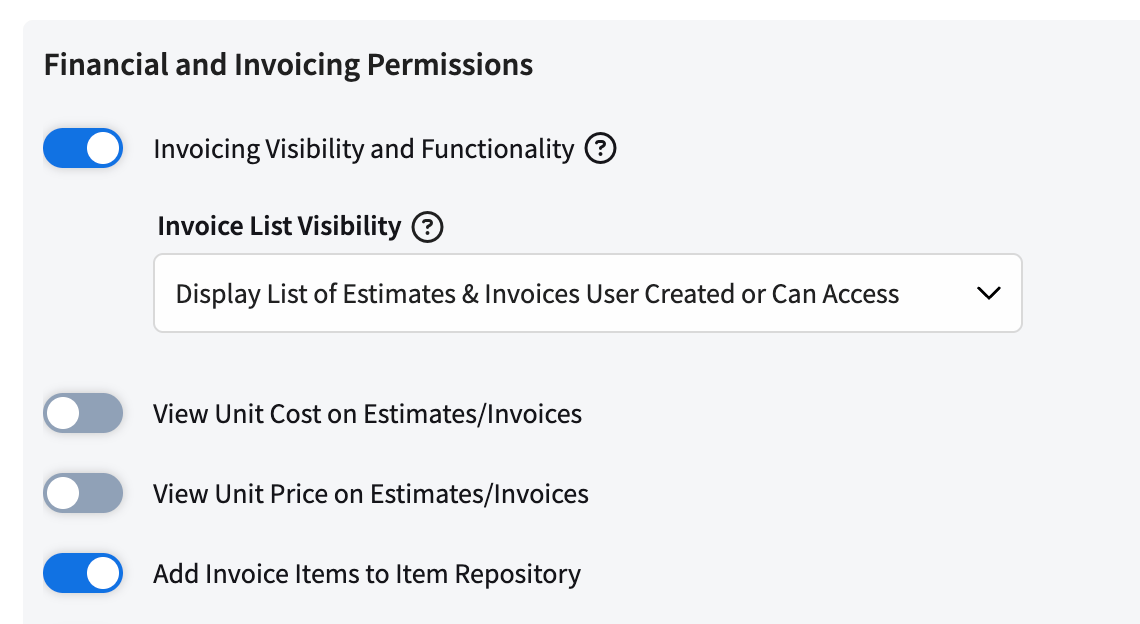
 You can also control which users see the cost and/or price of line items on any estimates or invoices they create.
 ## Note: This process will need to be repeated for every user within your FieldPulse account
***
### To view/learn about material lists on the mobile app, [the material lists mobile app guide](/using-fieldpulse/material-lists/material-lists-mobile-app).
***
**Have additional questions?**
*Contact us at [support@fieldpulse.com](mailto:support@fieldpulse.com) or use the chat feature in the bottom right corner of your screen.*
## Related topics
- [Material Lists](/using-fieldpulse/material-lists/index.md)
- [ClearPath Widgets: Related Records](/features-add-ons/clearpath/clearpath-widgets/clearpath-widgets-related-records.md)
- [Get list of Material Lists](/api-reference/material-lists/get-list-of-material-lists.md)
- [Create Material List](/api-reference/material-lists/create-material-list.md)
- [Material Lists - Mobile App](/using-fieldpulse/material-lists/material-lists-mobile-app.md)
## Note: This process will need to be repeated for every user within your FieldPulse account
***
### To view/learn about material lists on the mobile app, [the material lists mobile app guide](/using-fieldpulse/material-lists/material-lists-mobile-app).
***
**Have additional questions?**
*Contact us at [support@fieldpulse.com](mailto:support@fieldpulse.com) or use the chat feature in the bottom right corner of your screen.*
## Related topics
- [Material Lists](/using-fieldpulse/material-lists/index.md)
- [ClearPath Widgets: Related Records](/features-add-ons/clearpath/clearpath-widgets/clearpath-widgets-related-records.md)
- [Get list of Material Lists](/api-reference/material-lists/get-list-of-material-lists.md)
- [Create Material List](/api-reference/material-lists/create-material-list.md)
- [Material Lists - Mobile App](/using-fieldpulse/material-lists/material-lists-mobile-app.md)