> ## Documentation Index
> Fetch the complete documentation index at: https://help.fieldpulse.com/llms.txt
> Use this file to discover all available pages before exploring further.
# Adjusting Screen Contrast and Display Themes on Windows and macOS
> Set your Windows or Mac to dark mode and higher contrast to cut eye strain while working in FieldPulse.
## How to Adjust Screen Contrast and Themes for Eye Sensitivity on Windows and macOS
If you prefer a darker theme to reduce eye strain, both **Windows** and **macOS** offer settings that can help. While **FieldPulse** doesn’t currently have a built-in dark mode, you can adjust your device’s overall display to create a more comfortable experience. Here’s how to set it up on both Windows and Mac:
# For Windows
**1. Enable Dark Mode:**
\- Go to **Settings > Personalization > Colors.**
\- Scroll down and select **Dark** under **Choose your color**. This will change most system apps and the taskbar to dark mode.
**2. Adjust High Contrast Settings:**
\- **Open Settings** > **Ease of Access > High Contrast**.
\- Select a high-contrast theme, like H**igh Contrast Black** or **High Contrast White,** to make text and backgrounds easier to read.
**3. Adjust Brightness and Color Settings:**
\- You can adjust brightness from the **Action Center** or go to **Settings** > **System** > **Display** to enable **Night Ligh** t, which reduces blue light for a warmer display.
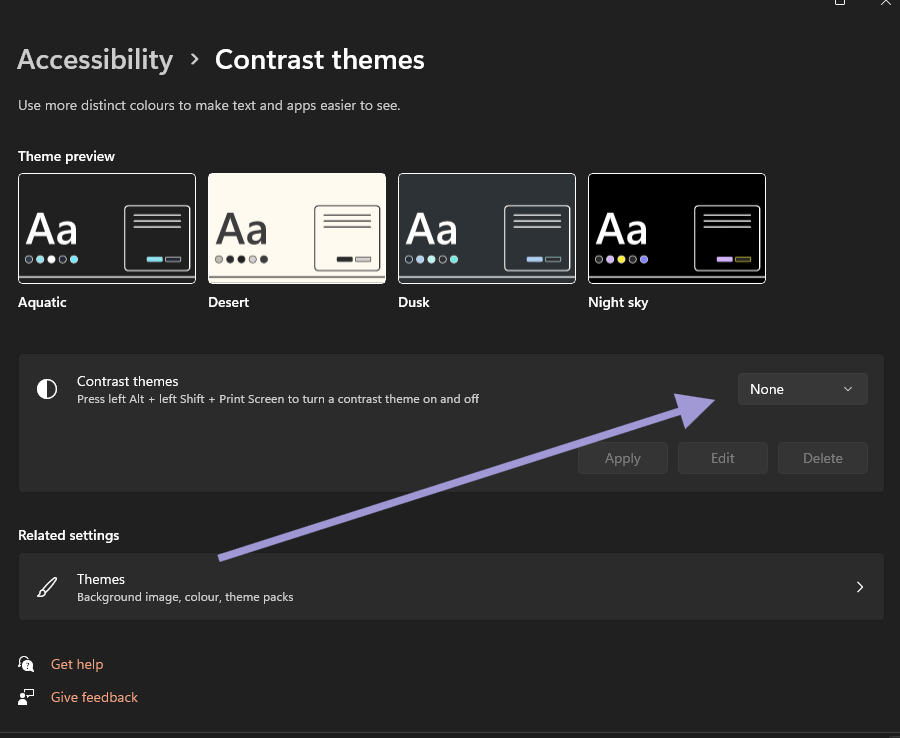
**4. Windows Accessibility - Contrast Themes:**
\- Go to **Settings** > **Ease of Access** > **High Contras** t to choose a theme that enhances visibility for those with eye sensitivity.
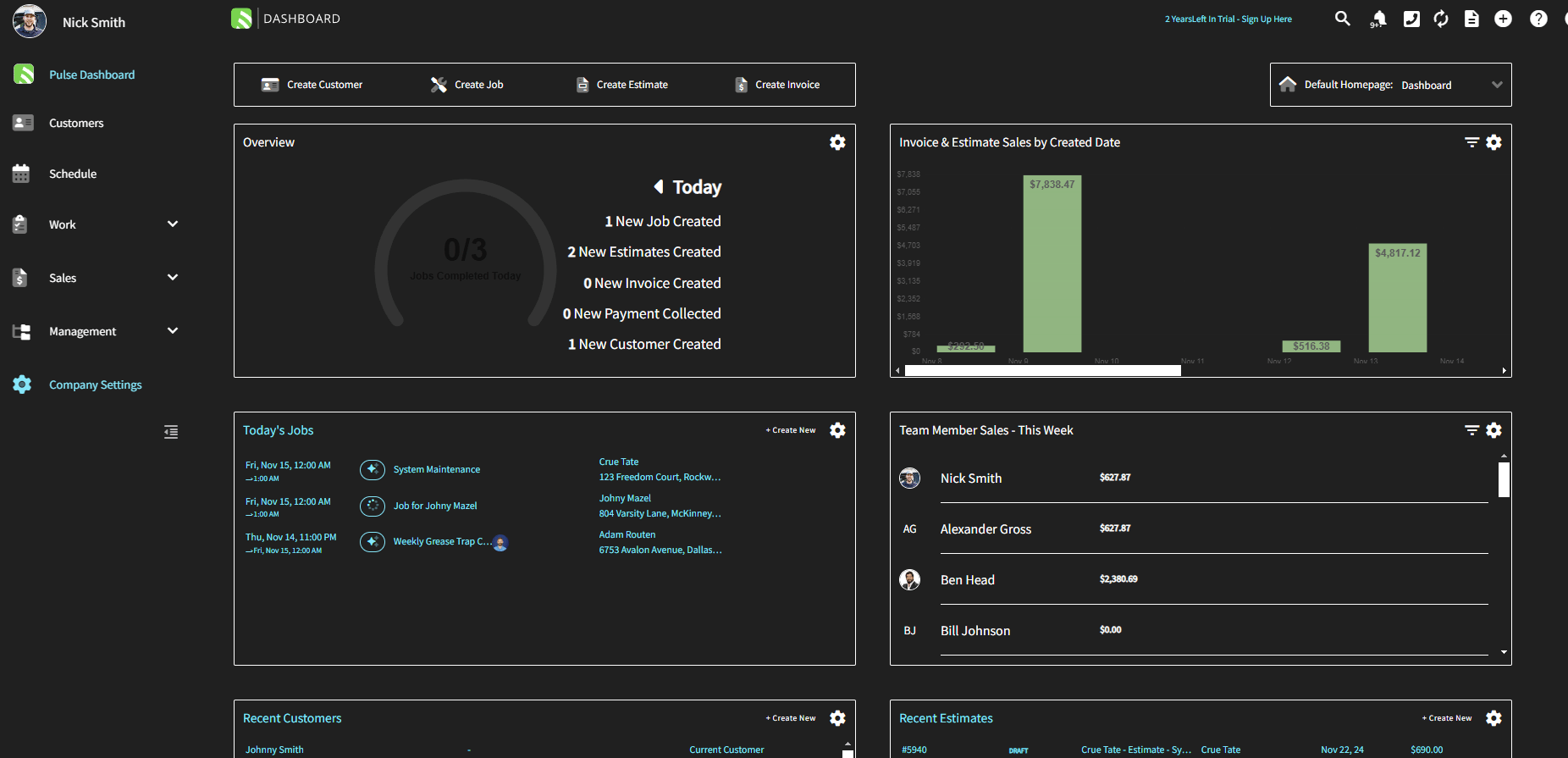
**Example: FieldPulse when the Contrast theme is set to Aquatic on Windows.**
 ***
# For macOS
**1. Enable Dark Mode:**
\- Open **System Preferences** > **General**.
\- Under **Appearance**, select **Dark** to apply a darker theme across most native macOS apps.
**2. Increase Contrast:**
\- Open S**ystem Preferences > Accessibility > Display.**
\- Check **Increase contrast** to make text and interface elements stand out more clearly.
**3. Enable “Reduce Transparency”:**
\- In the same **Display** section of **Accessibility**, check **Reduce transparency** to make the interface simpler and easier on the eyes.
**4. Enable Night Shift for Warmer Screen:**
\- Go to **System Preferences > Displays > Night Shift.**
\- Set it to turn on automatically from sunset to sunrise or adjust the color temperature to a warmer tone to reduce blue light.
**5. Adjust Text Size:**
\- In Accessibility> Display, you can adjust text size and enable Reduce motion for a more readable experience.
***
# Conclusion
While FieldPulse doesn’t have a dark mode, both Windows and macOS offer simple ways to adjust your display settings for improved comfort. By enabling Dark Mode, increasing contrast, and adjusting the brightness and color temperature, you can reduce eye strain and create a more comfortable environment, even when using apps like FieldPulse.
***
# For macOS
**1. Enable Dark Mode:**
\- Open **System Preferences** > **General**.
\- Under **Appearance**, select **Dark** to apply a darker theme across most native macOS apps.
**2. Increase Contrast:**
\- Open S**ystem Preferences > Accessibility > Display.**
\- Check **Increase contrast** to make text and interface elements stand out more clearly.
**3. Enable “Reduce Transparency”:**
\- In the same **Display** section of **Accessibility**, check **Reduce transparency** to make the interface simpler and easier on the eyes.
**4. Enable Night Shift for Warmer Screen:**
\- Go to **System Preferences > Displays > Night Shift.**
\- Set it to turn on automatically from sunset to sunrise or adjust the color temperature to a warmer tone to reduce blue light.
**5. Adjust Text Size:**
\- In Accessibility> Display, you can adjust text size and enable Reduce motion for a more readable experience.
***
# Conclusion
While FieldPulse doesn’t have a dark mode, both Windows and macOS offer simple ways to adjust your display settings for improved comfort. By enabling Dark Mode, increasing contrast, and adjusting the brightness and color temperature, you can reduce eye strain and create a more comfortable environment, even when using apps like FieldPulse.