> ## Documentation Index
> Fetch the complete documentation index at: https://help.fieldpulse.com/llms.txt
> Use this file to discover all available pages before exploring further.
# Notes
> With the notes feature, you can add notes for yourself, your managers, or the whole business. You can even notify team members about these notes to make…
With the notes feature, you can add notes for yourself, your managers, or the whole business. You can even notify team members about these notes to make sure no one misses them.
***
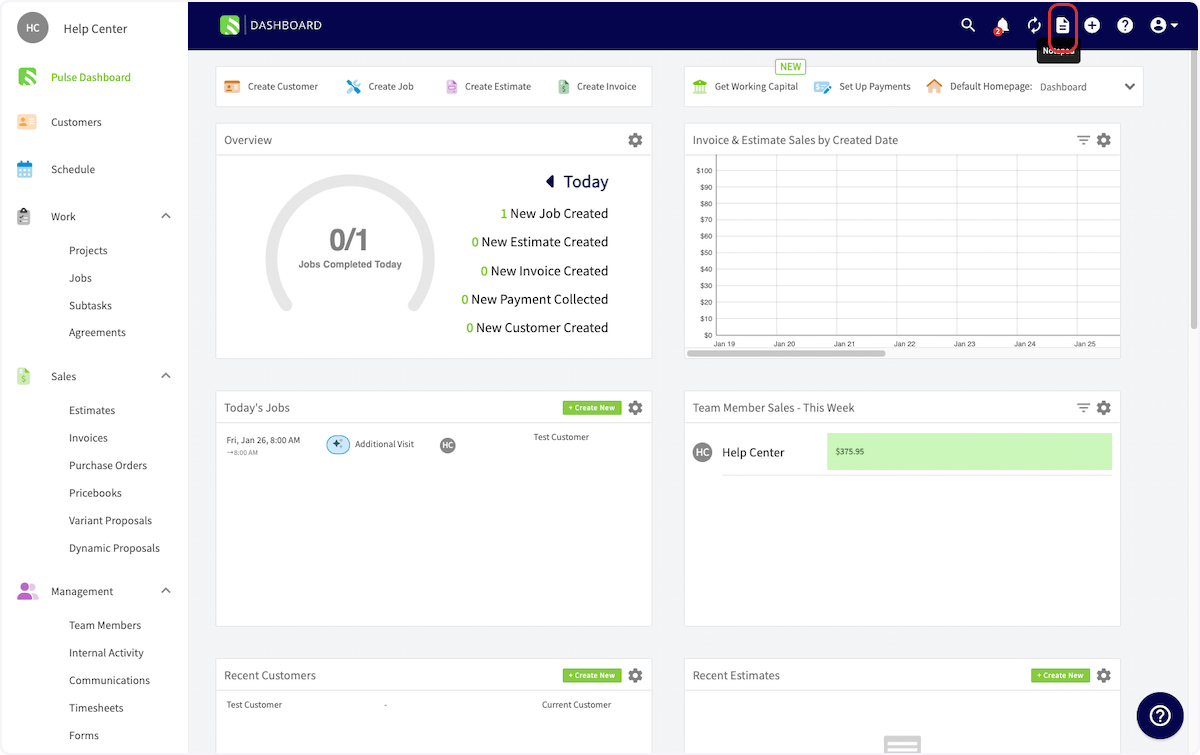
First, click the notepad icon at the top right.
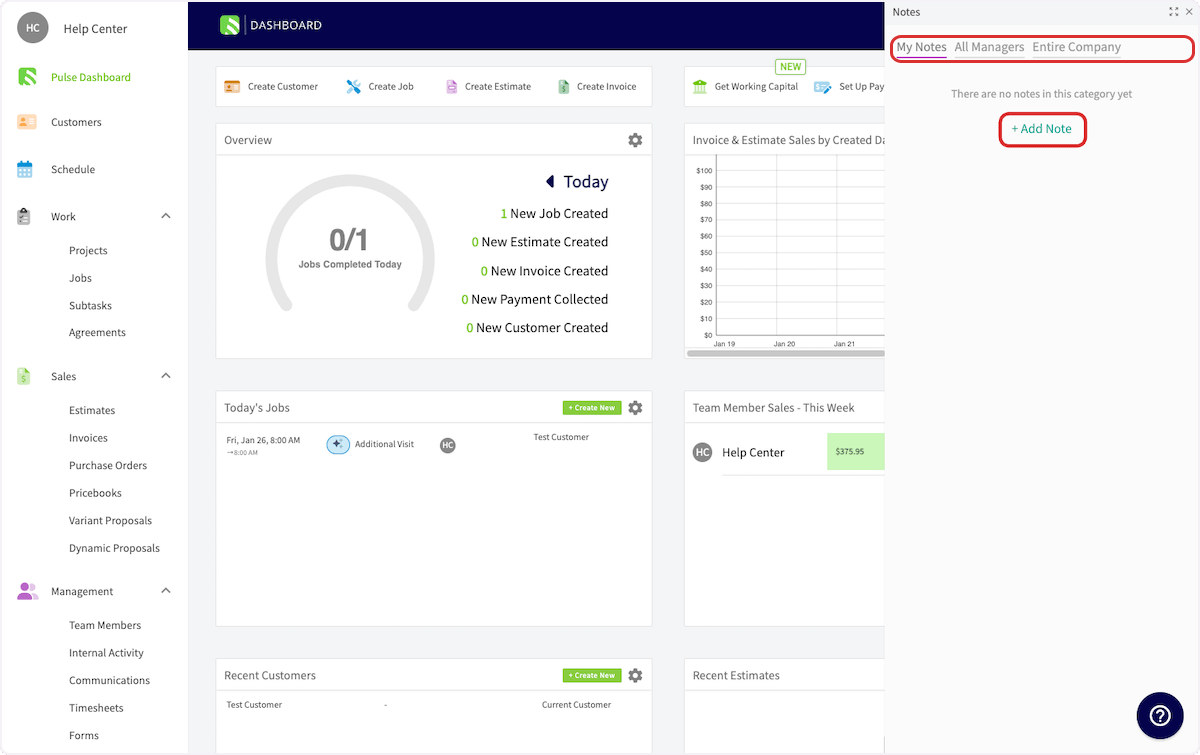
 In the sidebar pop-up, select whether you want the note to be visible for yourself only, managers only, or the entire company. Then, click *Add Note*.
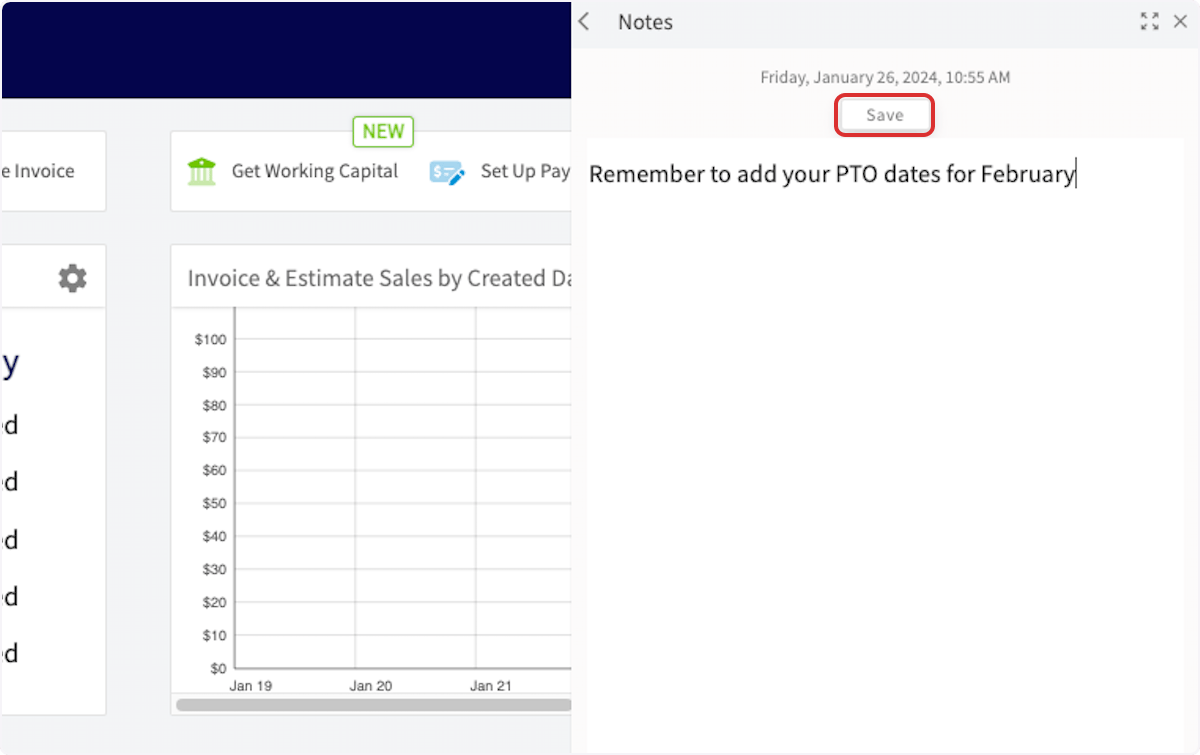
 Once you've added your note, click *Save*.
 Then you will see the options change to *Save*, *Notify*, and *Delete*.
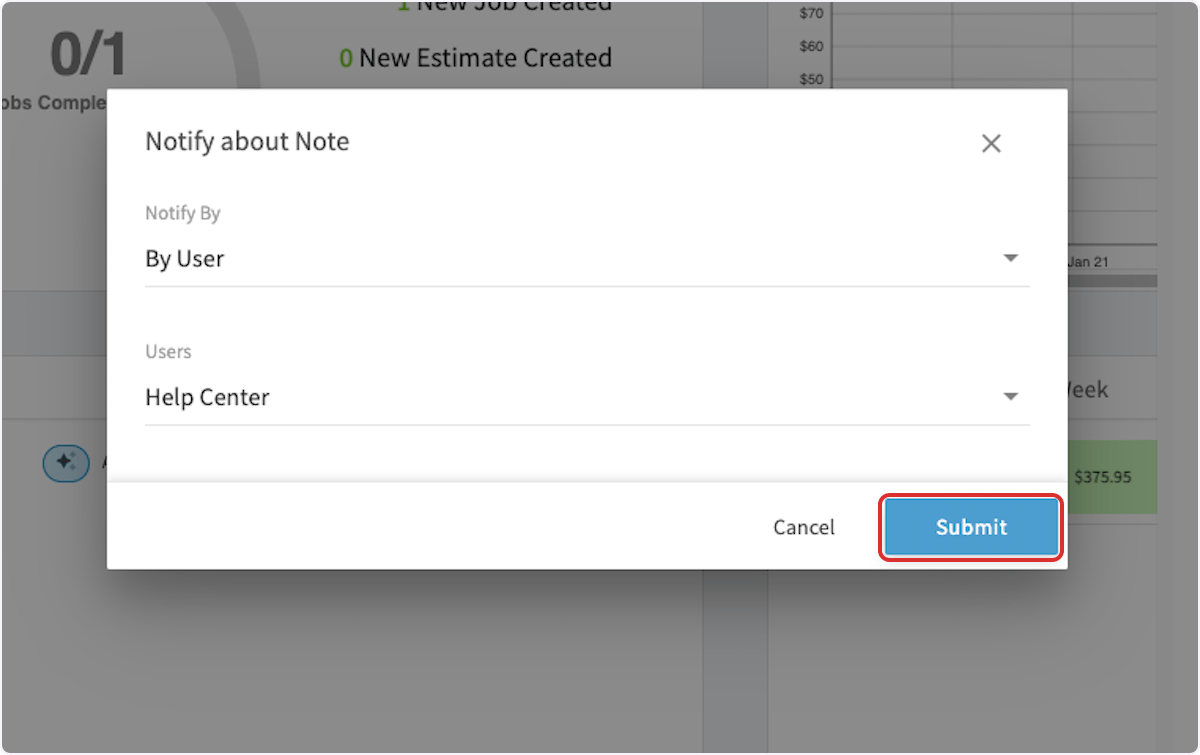
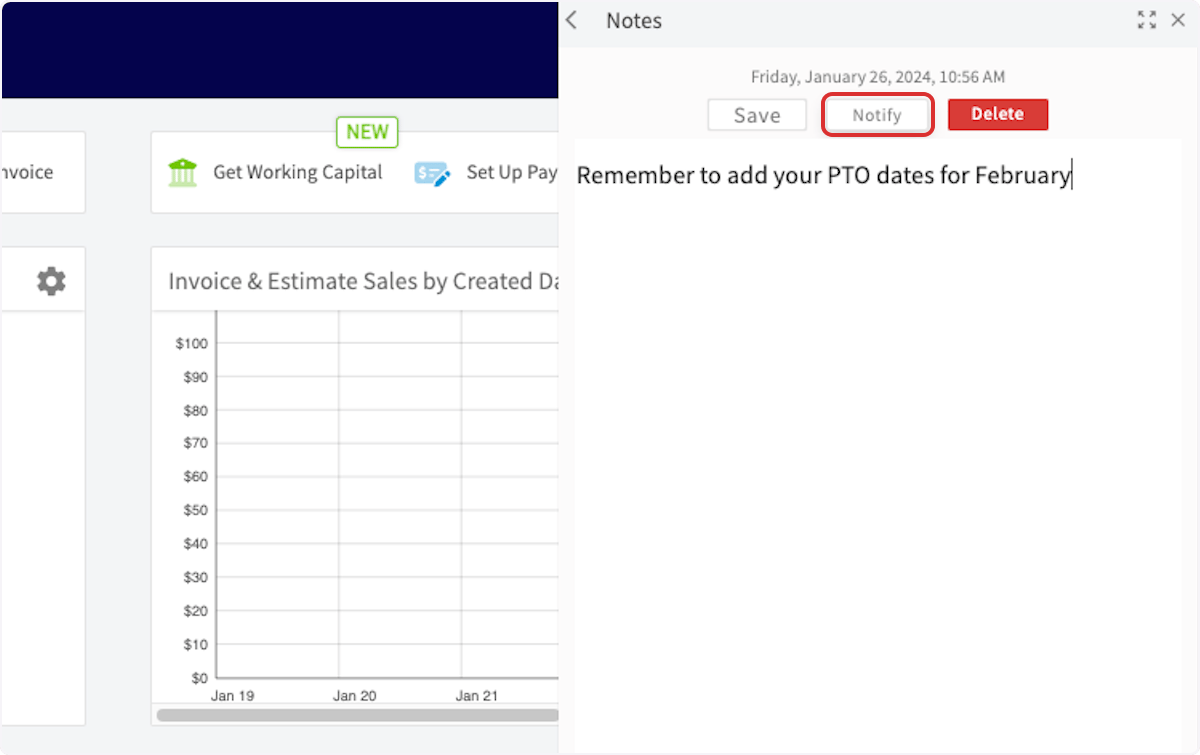 If you click *Notify*, you can select who is notified about the note by role type or by individual user. When you've selected, click *Submit*.
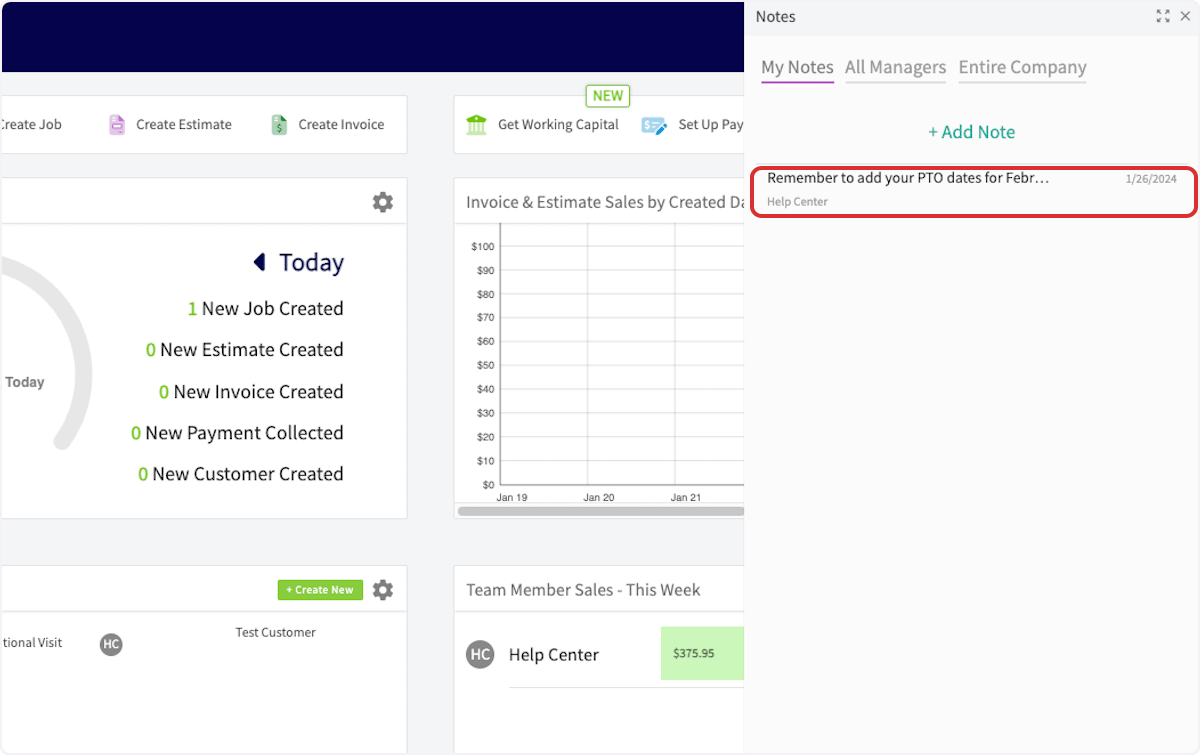
 The note will now show under the section you put it in and will be visible to all team members in those sections. Notifications will also be sent to those you selected.
 ***
# Video Tutorial
***
**Have additional questions?**
*Contact us at [support@fieldpulse.com](mailto:support@fieldpulse.com) or use the chat feature in the bottom right corner of your screen.*
***
# Video Tutorial
***
**Have additional questions?**
*Contact us at [support@fieldpulse.com](mailto:support@fieldpulse.com) or use the chat feature in the bottom right corner of your screen.*