> ## Documentation Index
> Fetch the complete documentation index at: https://help.fieldpulse.com/llms.txt
> Use this file to discover all available pages before exploring further.
# Tap to Pay on iPhone
> Turn any supported iPhone into a card reader so techs collect contactless card, Apple Pay, and Google Pay payments before they leave the driveway.
# Overview
Getting paid at the job site just got a whole lot faster. Tap to Pay on iPhone lets your technicians accept credit cards, debit cards, Apple Pay, and Google Pay directly from the FieldPulse mobile app — no card reader, no extra hardware, no hassle.
Your customer simply taps their card, phone, or smartwatch to the screen, and the payment is processed in seconds. That means less time fumbling with equipment at the end of a job and more confidence that you'll walk away paid.
***
# Prerequisites
Before your team can use Tap to Pay on iPhone, make sure the following are in place:
## **iPhone Requirements**
* iPhone XS or newer
* iOS 18 or newer
* Device must be locked with a passcode, Face ID, or Touch ID
* An Apple ID with iCloud enabled
* A stable internet connection
## **FieldPulse Requirements**
* FieldPulse Payments must be enabled
* Tap to Pay on iPhone must be toggled on in Company Settings
Tap to Pay on iPhone is available on iPhones only. iPads are not supported at this time — this is an Apple platform limitation, not specific to FieldPulse. If a device doesn't meet the requirements above, or if the feature isn't enabled in your account, your technicians will see the standard payment screen instead.
***
# Setting It Up: Admin Experience
Tap to Pay on iPhone is automatically enabled for all FieldPulse Payment users. As an admin user, you can turn it on or off from the web app.
## Enabling or Disabling Tap to Pay on iPhone
Here's how to control the feature for your whole team:
1. Navigate to *Company Settings* → *Estimates & Invoices* → *Payments*.
2. Scroll down to the *Tap to Pay Settings* section.
3. Toggle the *Enable Tap to Pay* switch on or off.
4. Click *Save*.
Only Admin users can access Tap to Pay Settings. **The toggle applies to all eligible technicians** — you can't enable or disable it for individual team members from this screen.
To restrict a specific user from accepting payments altogether, adjust their User Feature Permissions.
## Viewing and Deactivating Registered Devices
The first time a technician uses Tap to Pay on iPhone, their device is automatically registered. You'll see a table in the *Tap to Pay Settings* section in the web app showing each registered device — including the device name, device type, registration date, and last used date.
**To deactivate a registered device:**
1. Go to *Company Settings* → *Estimates & Invoices* → *Payments* → *Tap to Pay Settings.*
2. Find the device in the *Tap to Pay Devices* table.
3. Click *Deactivate* next to the device.
4. Confirm the deactivation in the pop-up prompt.
***
# On Mobile: Admin Experience
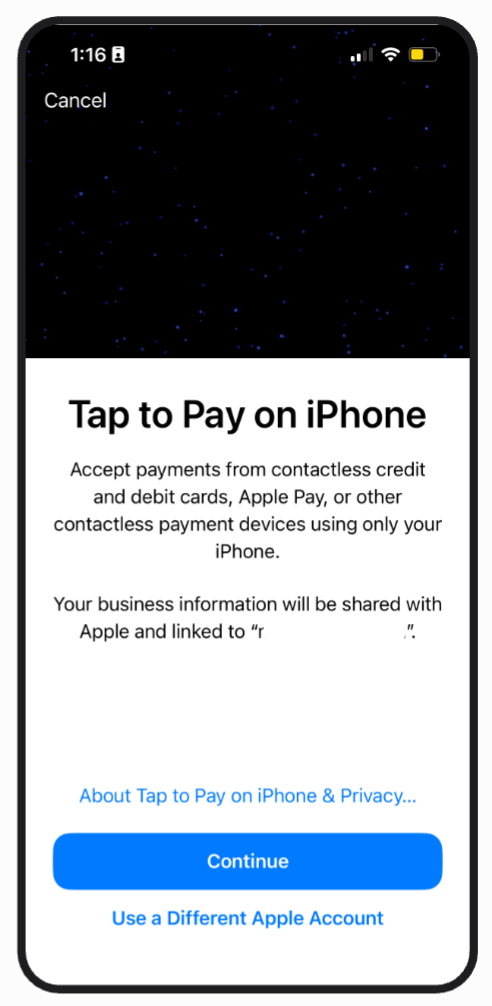
To begin using Tap to Pay on iPhone, one admin user has to accept Apple's Tap to Pay terms and conditions before anyone else in your company can use our Tap to Pay feature. You can do this by navigating to an Invoice record, select *Collect Payment*, and then tap the new *Tap to Pay on iPhone* button for the first time. The terms and conditions will appear and once accepted, this never has to be done again and all users with access to collect payment in FieldPulse will be able to do so.
 ***
# On Mobile: Field Experience
The first time you use Tap to Pay on iPhone, your device will be automatically registered as a payment device. This one-time setup happens in the background in just a few seconds — no action needed from you.
## Collecting Payment in the Field
### Step 1
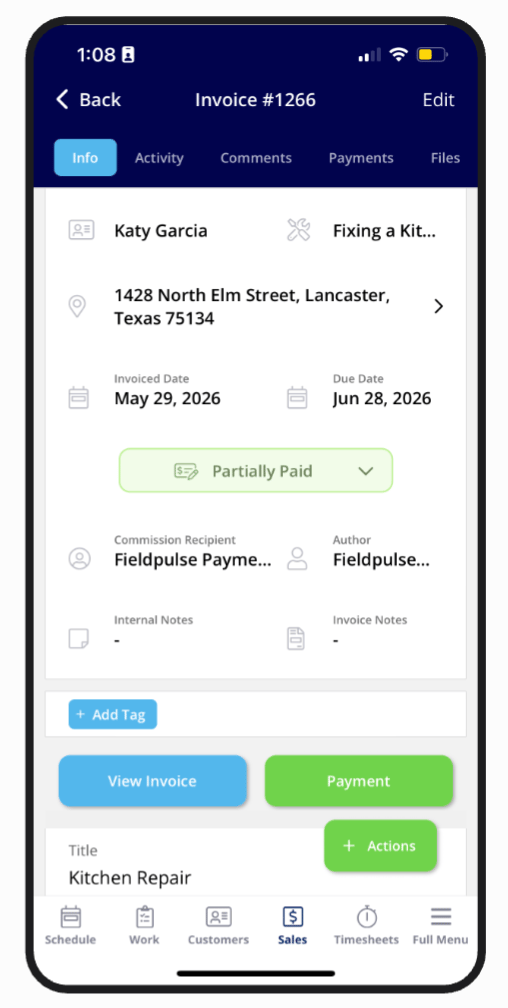
In the FieldPulse mobile app, navigate to the invoice record for the job you just completed.
***
# On Mobile: Field Experience
The first time you use Tap to Pay on iPhone, your device will be automatically registered as a payment device. This one-time setup happens in the background in just a few seconds — no action needed from you.
## Collecting Payment in the Field
### Step 1
In the FieldPulse mobile app, navigate to the invoice record for the job you just completed.
 ### Step 2
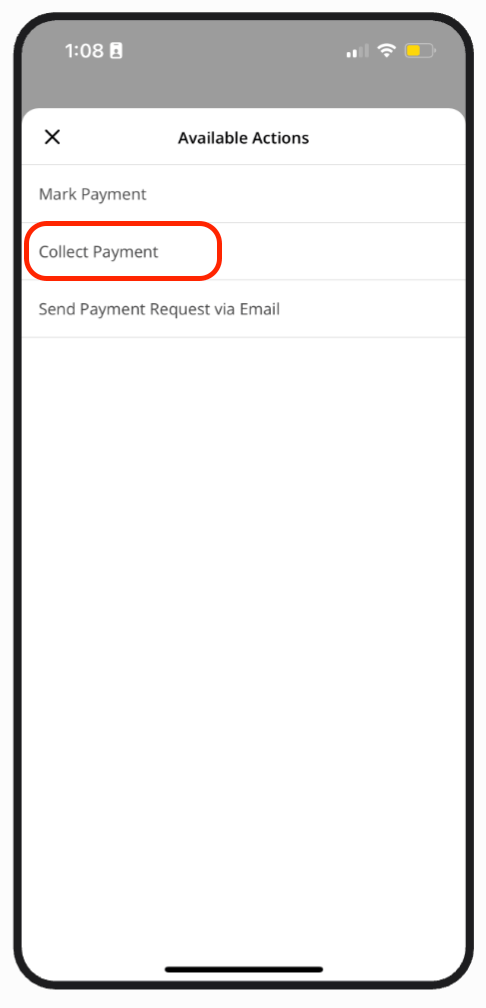
Tap the *Collect Payment* button on the Invoice record screen.
### Step 2
Tap the *Collect Payment* button on the Invoice record screen.
 ### Step 3
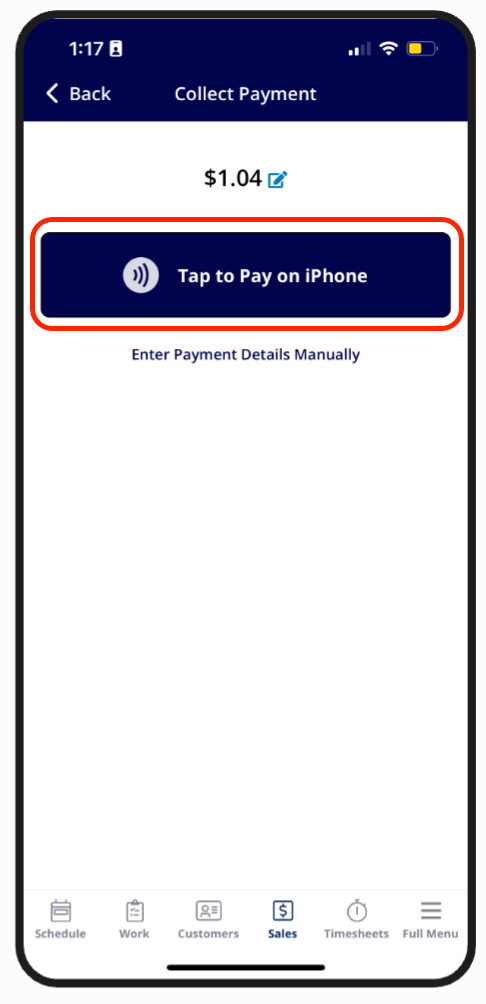
At the top of the payment screen, tap the *Tap to Pay on iPhone* button.
### Step 3
At the top of the payment screen, tap the *Tap to Pay on iPhone* button.
 ### Step 4
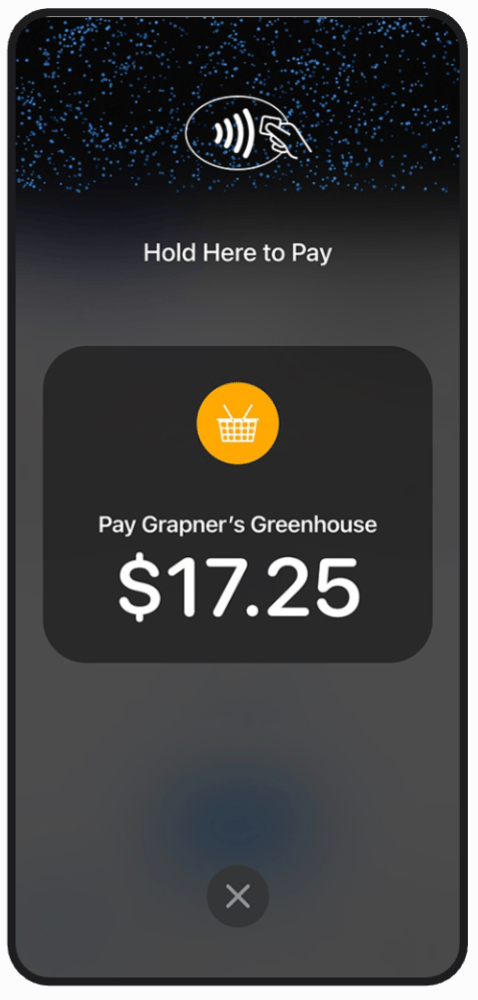
Apple's Tap to Pay on iPhone interface will appear on your screen. Ask your customer to hold their credit card, debit card, Apple Pay, or Google Pay device near the top of your iPhone.
### Step 4
Apple's Tap to Pay on iPhone interface will appear on your screen. Ask your customer to hold their credit card, debit card, Apple Pay, or Google Pay device near the top of your iPhone.
 ### Step 5
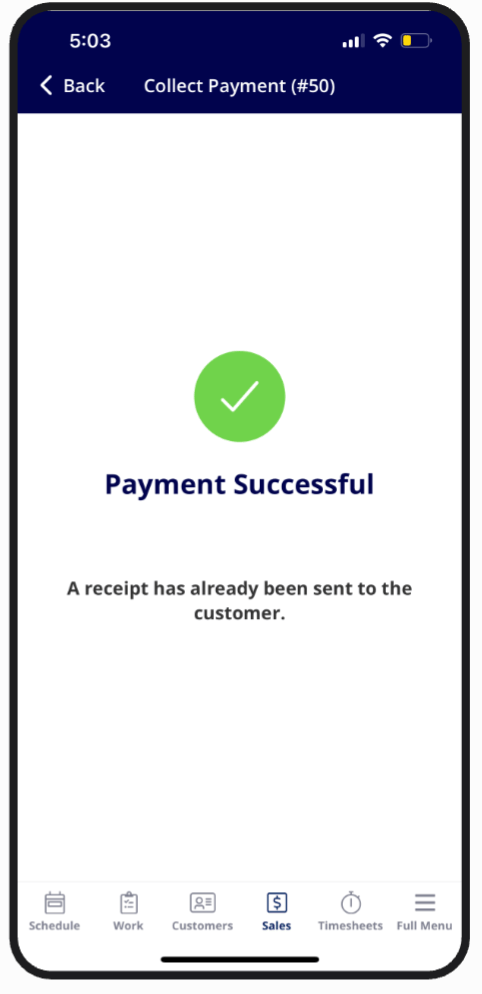
Once the card is read successfully, the payment processes automatically. A "Payment Successful" screen will appear.
### Step 5
Once the card is read successfully, the payment processes automatically. A "Payment Successful" screen will appear.
 ### Step 6
From the confirmation screen, tap to send a receipt to your customer by email or SMS. Or if this is already configured in your FieldPulse account, a receipt will be automatically sent to your customer.
## If a Payment Fails
If the payment doesn't go through — for example, if the card has been declined — a "Payment Failed" screen will appear. From there, you have two options:
* Tap *Retry* to attempt the payment again using Tap to Pay on iPhone.
* Enter the card details manually to process payment via the *Take Payment* screen.
🚀 **FieldPulse Pro Tip:** Metal credit cards can sometimes be harder to read on the first tap. If the card doesn't register, try holding it against the screen a little longer or tapping a second time before switching to manual entry.
**Note:** Tap to Pay will not work if you are on an active phone call.
***
# What Your Customer Sees
When you initiate a Tap to Pay payment, Apple's native Tap to Pay interface appears on your iPhone screen. Your customer will see a prompt to hold their card or device near the top of the iPhone — the same experience they'd have at any contactless terminal.
Once their card is read, they'll see a brief confirmation on screen before you receive the "Payment Successful" message.
***
# Troubleshooting
| **Issue** | **Likely Cause** | **Fix** |
| ------------------------------------------- | ------------------------------------------------------------------------------------------------ | ----------------------------------------------------------------------------------------------------------------------------------------- |
| Device not appearing in the *Devices* table | The technician hasn't completed their first Tap to Pay transaction yet. | Devices register automatically on first use. Once the tech completes their first Tap to Pay payment, the device will appear in the table. |
| Device re-registers after being deactivated | Deactivation removes the device from the list but doesn't revoke the user's payment permissions. | To fully restrict a user from processing payments, update their payment User Feature Permissions. Deactivation alone isn't enough. |
***
# Error Messages & What To Do
If you see one of the messages below while using Tap to Pay on iPhone, here's what it means and what to do next.
| **Error Message** | **What To Do** |
| ------------------------------------------------------------------------------------------------------------------------------------------------------------- | ------------------------------------------------------------------------------------------------------------------------------------------------------------------- |
| This device does not support Tap to Pay. | Ask your account admin to check the device's status in Payment Settings within Company Settings and reactivate it if needed. |
| Tap to Pay requires Location Services to be enabled. Please enable it in Settings. | Go to your iPhone Settings and enable Location Services, then try again. |
| Tap to Pay requires additional permissions. Please ensure Location Services are enabled, an iCloud account is connected, and a password is set on the device. | Check that Location Services are enabled, you're signed into iCloud, and your iPhone has a passcode set. Then try again. |
| Your session expired. Please try again. | Tap the Tap to Pay on iPhone button again to start a new session. Sessions expire after 5 minutes of inactivity. |
| Another payment is in progress. Please wait a moment and try again. | Wait a few seconds and try again. If this keeps happening, contact support. |
| Tap to Pay is still preparing. Please wait a moment and try again. | Wait a few seconds and try again. If this continues, contact support. |
| Tap to Pay could not read the card. Please try again. | Tap the card again, holding it steady against the top of your iPhone. Metal cards can sometimes take longer to read. |
| Your card reader session paused. Please try again. | Wait a few seconds and try again. If this keeps happening, contact support. |
| Network or service error. Please check your connection and try again. | Check that you have a strong Wi-Fi or cellular connection, then try again. |
| This payment may already be processed. Please check the invoice. | Check the invoice to confirm whether the payment already went through before trying again. |
| Tap to Pay isn't configured correctly. Please contact support. | Contact support for help getting Tap to Pay set up correctly. |
| Tap to Pay isn't configured correctly. Please contact support. | Make sure you're on the latest version of the FieldPulse app, then try again. If the issue continues, contact support. |
| Apple's Terms and Conditions must first be accepted by an Admin user. | Have an admin on your account accept Apple's Terms & Conditions for Tap to Pay. See the Help Center for step-by-step instructions. |
| Tap to Pay needs the app in the foreground. Return to FieldPulse and try again. | Return to the FieldPulse app and keep it open while completing the payment. Don't switch to another app or your home screen mid-transaction. |
| Tap to Pay cannot be used during a phone call. Please end the call and try again. | End your phone call, then try the payment again. |
| Tap to Pay could not be completed. Please try again. (Code: \
### Step 6
From the confirmation screen, tap to send a receipt to your customer by email or SMS. Or if this is already configured in your FieldPulse account, a receipt will be automatically sent to your customer.
## If a Payment Fails
If the payment doesn't go through — for example, if the card has been declined — a "Payment Failed" screen will appear. From there, you have two options:
* Tap *Retry* to attempt the payment again using Tap to Pay on iPhone.
* Enter the card details manually to process payment via the *Take Payment* screen.
🚀 **FieldPulse Pro Tip:** Metal credit cards can sometimes be harder to read on the first tap. If the card doesn't register, try holding it against the screen a little longer or tapping a second time before switching to manual entry.
**Note:** Tap to Pay will not work if you are on an active phone call.
***
# What Your Customer Sees
When you initiate a Tap to Pay payment, Apple's native Tap to Pay interface appears on your iPhone screen. Your customer will see a prompt to hold their card or device near the top of the iPhone — the same experience they'd have at any contactless terminal.
Once their card is read, they'll see a brief confirmation on screen before you receive the "Payment Successful" message.
***
# Troubleshooting
| **Issue** | **Likely Cause** | **Fix** |
| ------------------------------------------- | ------------------------------------------------------------------------------------------------ | ----------------------------------------------------------------------------------------------------------------------------------------- |
| Device not appearing in the *Devices* table | The technician hasn't completed their first Tap to Pay transaction yet. | Devices register automatically on first use. Once the tech completes their first Tap to Pay payment, the device will appear in the table. |
| Device re-registers after being deactivated | Deactivation removes the device from the list but doesn't revoke the user's payment permissions. | To fully restrict a user from processing payments, update their payment User Feature Permissions. Deactivation alone isn't enough. |
***
# Error Messages & What To Do
If you see one of the messages below while using Tap to Pay on iPhone, here's what it means and what to do next.
| **Error Message** | **What To Do** |
| ------------------------------------------------------------------------------------------------------------------------------------------------------------- | ------------------------------------------------------------------------------------------------------------------------------------------------------------------- |
| This device does not support Tap to Pay. | Ask your account admin to check the device's status in Payment Settings within Company Settings and reactivate it if needed. |
| Tap to Pay requires Location Services to be enabled. Please enable it in Settings. | Go to your iPhone Settings and enable Location Services, then try again. |
| Tap to Pay requires additional permissions. Please ensure Location Services are enabled, an iCloud account is connected, and a password is set on the device. | Check that Location Services are enabled, you're signed into iCloud, and your iPhone has a passcode set. Then try again. |
| Your session expired. Please try again. | Tap the Tap to Pay on iPhone button again to start a new session. Sessions expire after 5 minutes of inactivity. |
| Another payment is in progress. Please wait a moment and try again. | Wait a few seconds and try again. If this keeps happening, contact support. |
| Tap to Pay is still preparing. Please wait a moment and try again. | Wait a few seconds and try again. If this continues, contact support. |
| Tap to Pay could not read the card. Please try again. | Tap the card again, holding it steady against the top of your iPhone. Metal cards can sometimes take longer to read. |
| Your card reader session paused. Please try again. | Wait a few seconds and try again. If this keeps happening, contact support. |
| Network or service error. Please check your connection and try again. | Check that you have a strong Wi-Fi or cellular connection, then try again. |
| This payment may already be processed. Please check the invoice. | Check the invoice to confirm whether the payment already went through before trying again. |
| Tap to Pay isn't configured correctly. Please contact support. | Contact support for help getting Tap to Pay set up correctly. |
| Tap to Pay isn't configured correctly. Please contact support. | Make sure you're on the latest version of the FieldPulse app, then try again. If the issue continues, contact support. |
| Apple's Terms and Conditions must first be accepted by an Admin user. | Have an admin on your account accept Apple's Terms & Conditions for Tap to Pay. See the Help Center for step-by-step instructions. |
| Tap to Pay needs the app in the foreground. Return to FieldPulse and try again. | Return to the FieldPulse app and keep it open while completing the payment. Don't switch to another app or your home screen mid-transaction. |
| Tap to Pay cannot be used during a phone call. Please end the call and try again. | End your phone call, then try the payment again. |
| Tap to Pay could not be completed. Please try again. (Code: \) | Try again. If it still doesn't work, contact support and share the error code shown, along with what you were doing, your email, and the date and time it happened. |
| Tap to Pay could not determine your location. Please make sure Location Services are enabled and try again. | Go to your iPhone Settings and enable Location Services, then try again. |
| This device doesn't support Tap to Pay. Please use manual entry. | Use manual card entry instead. Your device may not support Tap to Pay. |
| Tap to Pay isn't active for your account. Please contact your admin. | Contact your account admin to reactivate Tap to Pay for your device in Company Settings. |
| Failed to get payment configuration | Restart the FieldPulse app and try again. If the issue continues, contact support. |
| Failed to register device | Make sure your device meets all Tap to Pay requirements (see Help Center), then try again. If the issue continues, contact support. |
| Payment failed. Please try a different card or use manual entry. | Try a different card, or use manual entry instead. |
***
# FAQs
**Does Tap to Pay on iPhone work with all cards?**
Yes! It works with all major credit and debit cards, as well as Apple Pay and Google Pay.
**Will my payment processing rates change?**
No. Your processing rates stay the same when using Tap to Pay on iPhone. There are no additional fees for this payment feature.
**Is there a transaction limit?**
Tap to Pay on iPhone itself doesn't have a transaction limit. However, your customer's bank or card provider may have their own contactless limit. For larger transactions, customers can use Apple Pay or Google Pay — both typically allow higher amounts since they require biometric authentication (Face ID or fingerprint).
**Does Tap to Pay work with Card Fee Recovery?**
Yes. If you have Card Fee Recovery enabled, it applies to Tap to Pay transactions just like any other card payment — no extra setup needed.
**Does this work on iPads?**
No. Tap to Pay on iPhone is only available on iPhones (iPhone XS or newer). This is an Apple platform limitation and is not specific to FieldPulse.
**Does this work on Android?**
Not at this time. Tap to Pay on iPhone is currently available on iPhones only. Android support is planned for a future release.
**Will Tap to Pay payments sync with QuickBooks and other integrations?**
Yes. Payments collected via Tap to Pay are processed the same as all other FieldPulse payments.
***
**Have additional questions?**
*Contact us at [support@fieldpulse.com](mailto:support@fieldpulse.com) or use the chat feature in the bottom right corner of your screen.*