> ## Documentation Index
> Fetch the complete documentation index at: https://help.fieldpulse.com/llms.txt
> Use this file to discover all available pages before exploring further.
# Collecting Payments: 3 General Methods
> Take card payments three ways: email a payment link, charge on mobile in the field, or process it on the web app.
# Overview
Want to collect and track customer payments directly in FieldPulse? **FieldPulse Payments** makes the process seamless and saves you from making yet another account!
**You can accept payments in 3 ways:**
* Emailing an online payment request via web app or mobile app
* Processing the payment on the mobile app
* Processing the payment on the web app
***
# Prerequisites
To enable FieldPulse Payments, email us at [support@fieldpulse.com](mailto:support@fieldpulse.com) or use the chat feature in the bottom right corner of your screen.
***
# On Web: Admin Experience
## Processing a Payment
To process a payment, go to the invoice record that you are looking to collect payment on and click on *Payment*.
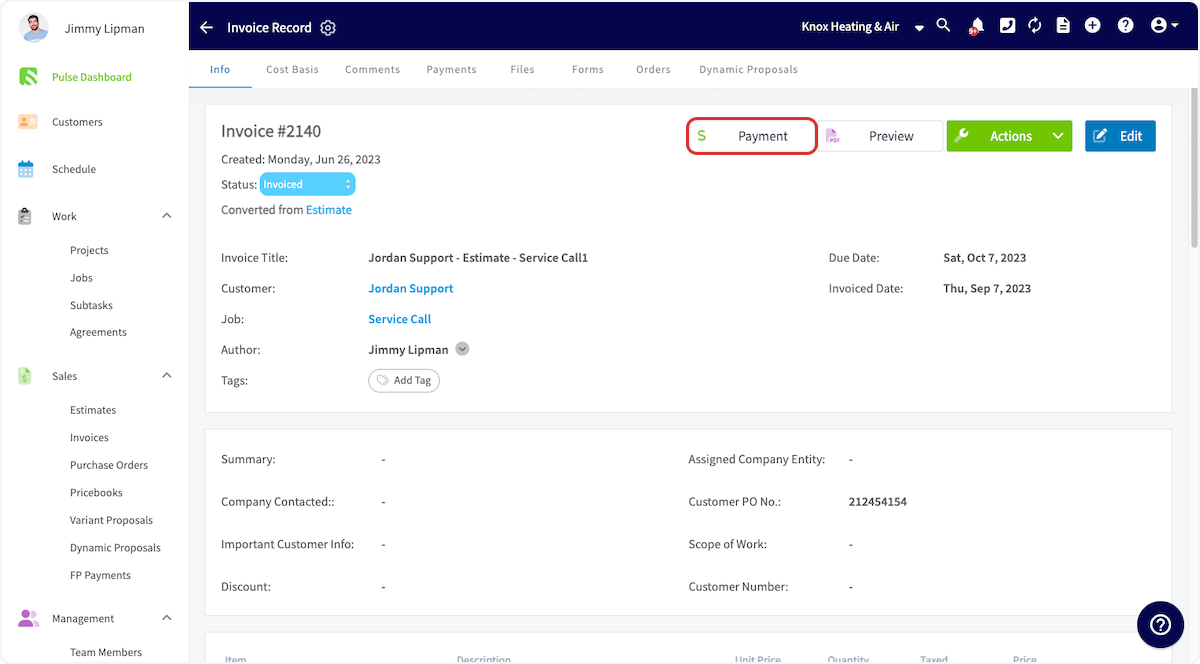 From here, a window will pop up - select *Take Payment*.
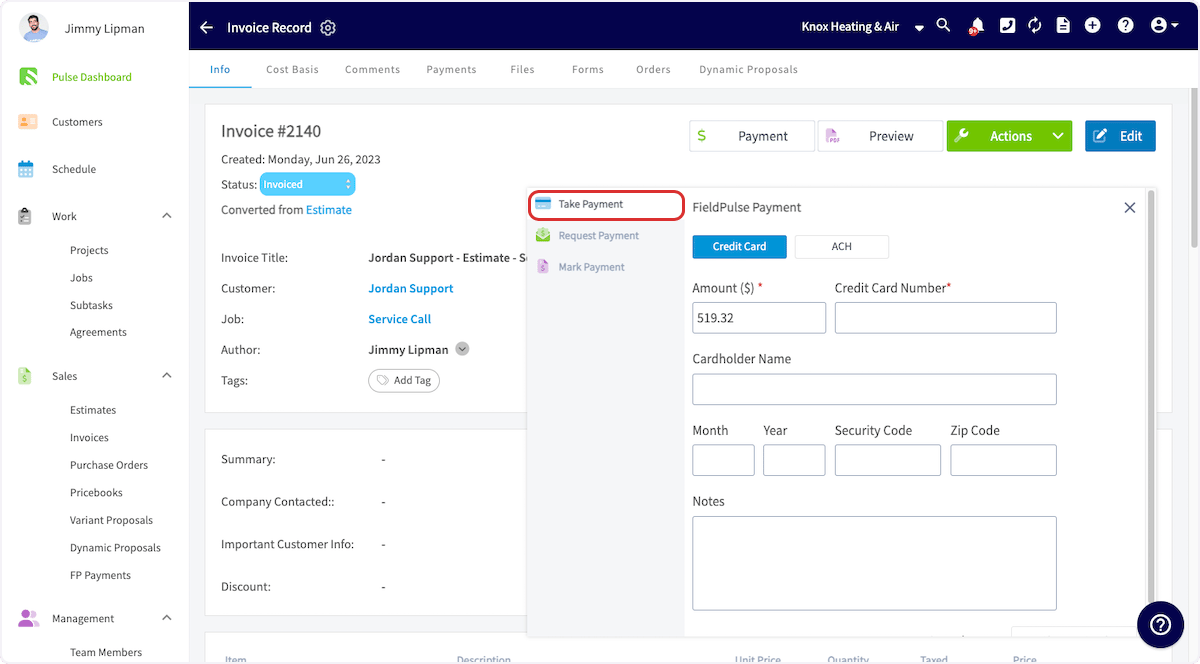 Once the card details have been entered, the *Charge Card* button in the lower right-hand corner will become available. Once you click, the payment will be collected. Then you will see the status of the invoice marked as *Paid* or *Partially Paid* depending on the amount you collected. This will also create a payment record under the invoice - to view your payment history select Payments from the top of the invoice record.
## Emailing a Payment Request
Here's how to email an online payment request to the customer along with their FieldPulse estimate or invoice. This provides them with the ability to pay online with their debit/credit card or ACH.
### Method 1
Select or create the estimate/invoice that you would like to take payment on. Select *Preview* to generate the estimate/invoice for you.
Once the card details have been entered, the *Charge Card* button in the lower right-hand corner will become available. Once you click, the payment will be collected. Then you will see the status of the invoice marked as *Paid* or *Partially Paid* depending on the amount you collected. This will also create a payment record under the invoice - to view your payment history select Payments from the top of the invoice record.
## Emailing a Payment Request
Here's how to email an online payment request to the customer along with their FieldPulse estimate or invoice. This provides them with the ability to pay online with their debit/credit card or ACH.
### Method 1
Select or create the estimate/invoice that you would like to take payment on. Select *Preview* to generate the estimate/invoice for you.
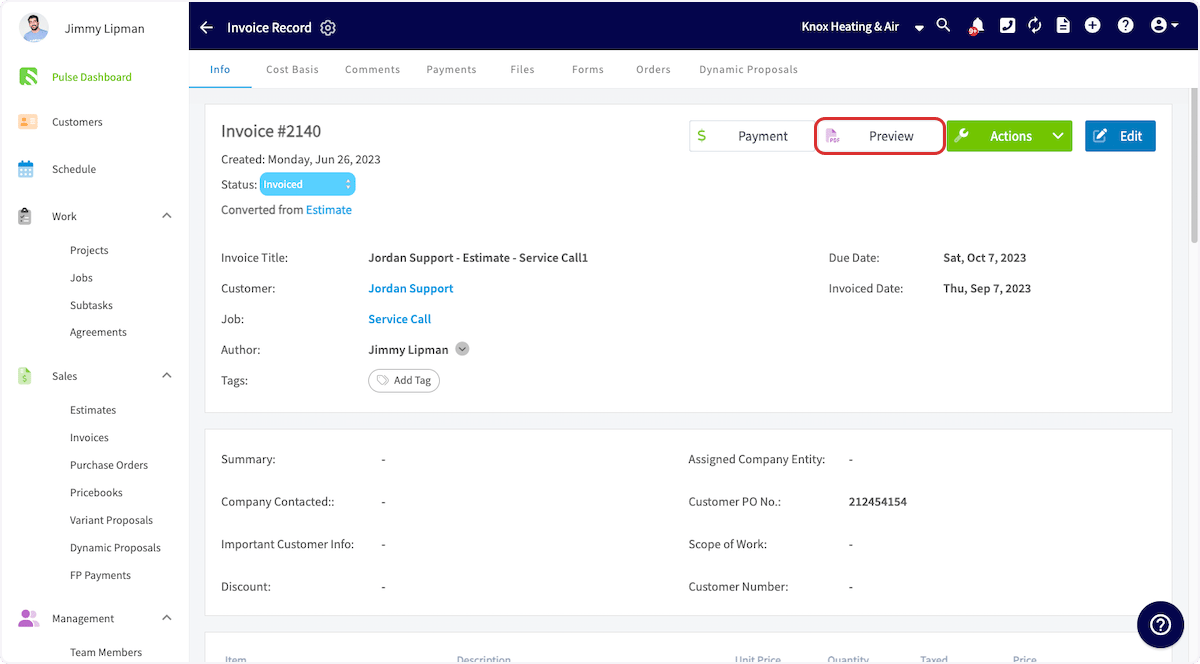 Once the estimate/invoice PDF has been generated, select *Email to Customer*.
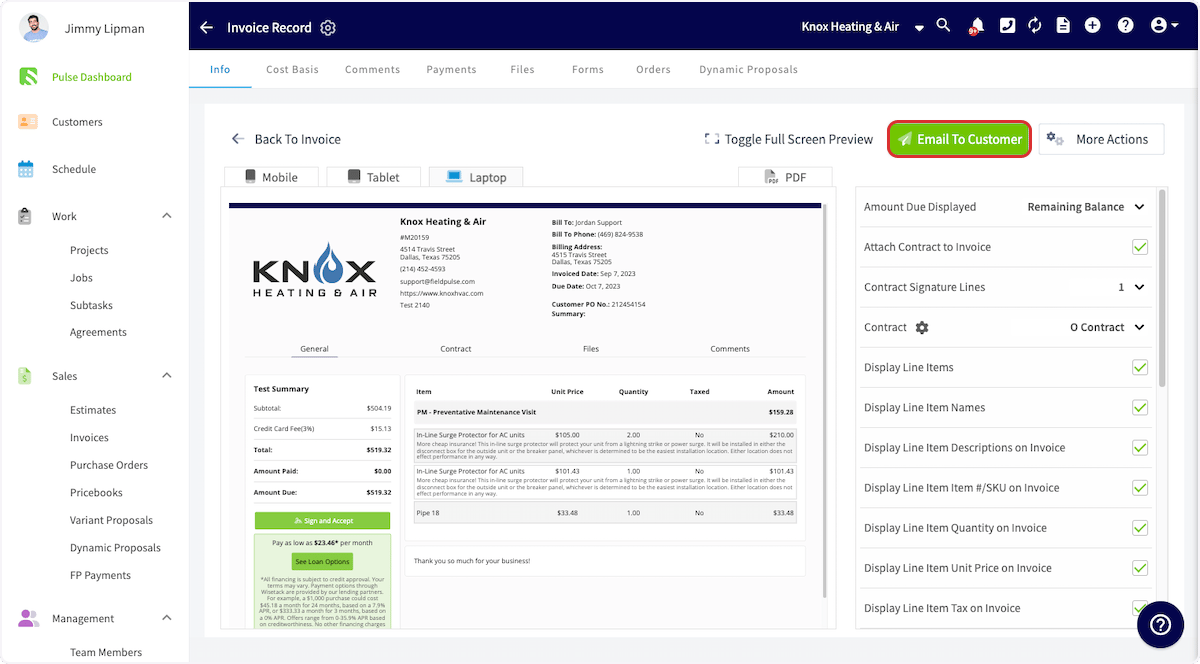 This will display a window where you can adjust the email message and toggle on the *Include Payment Request*. You will now be able to enter the payment request amount.
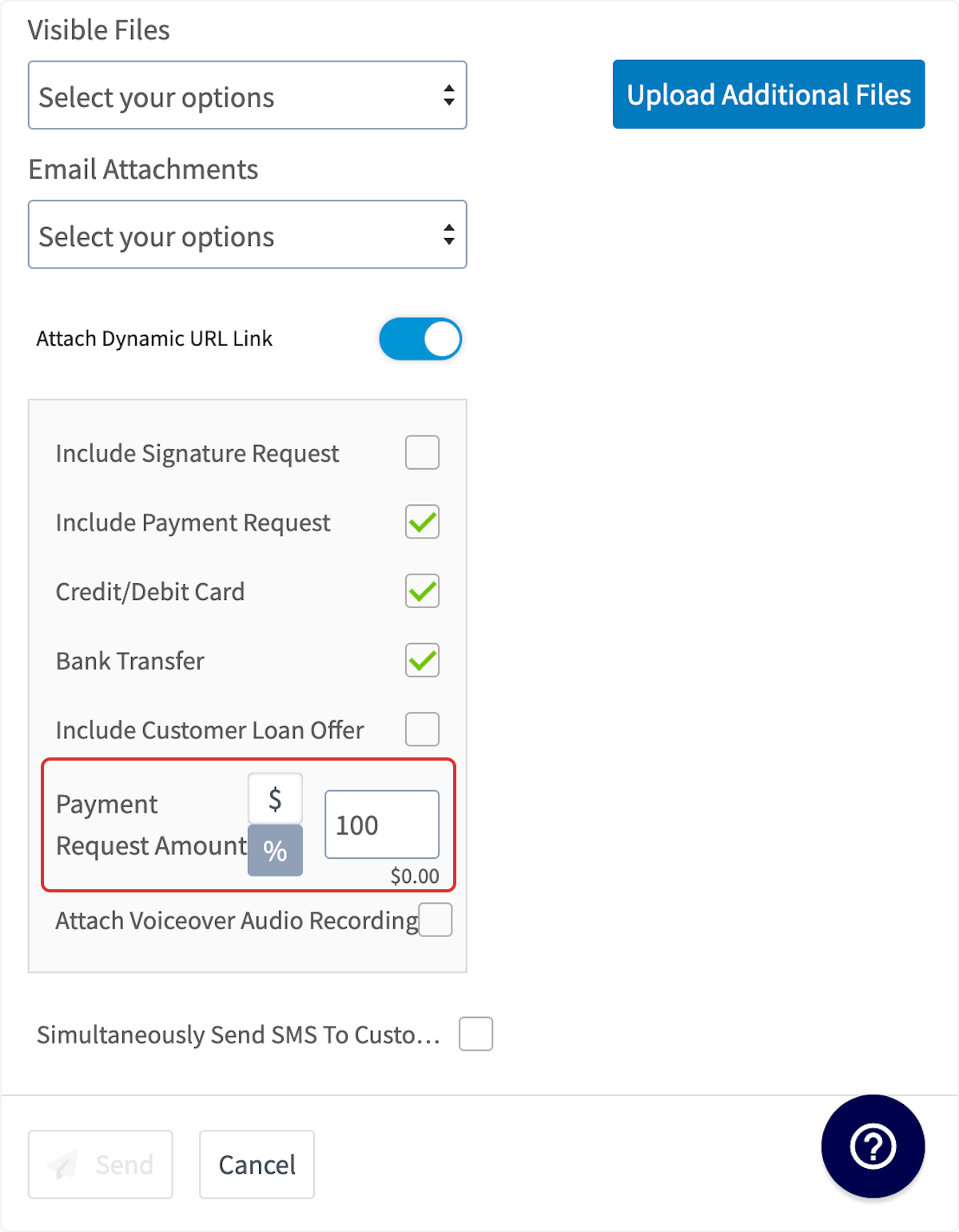
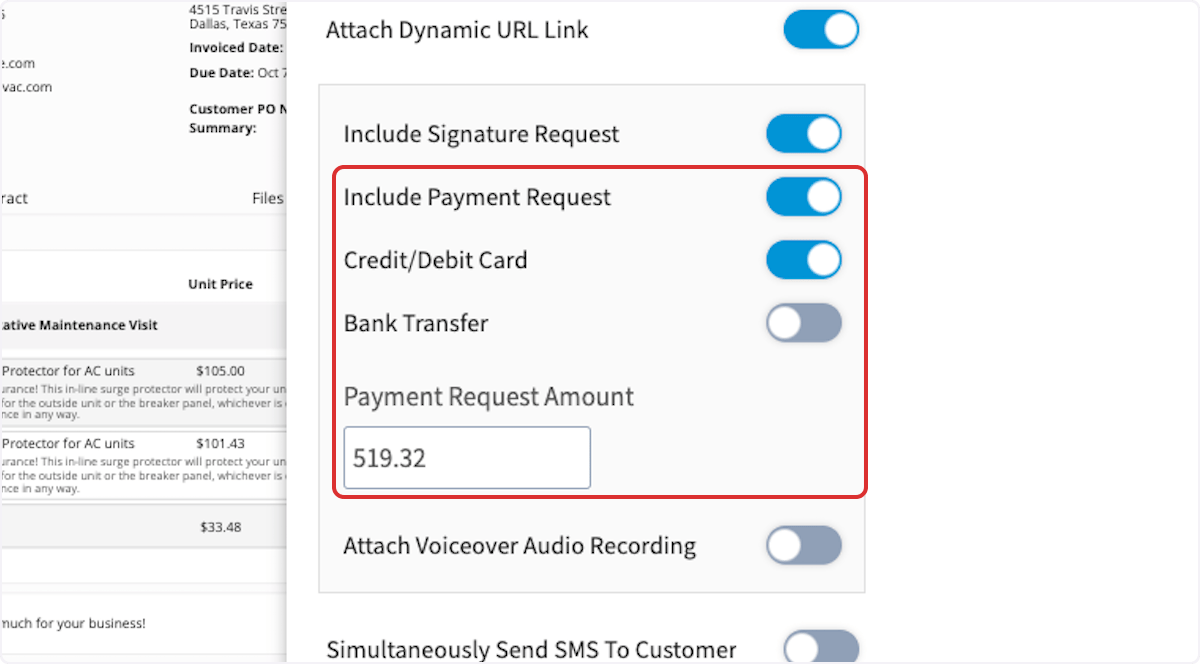 If you are collecting payment on an estimate, you can request a specific dollar amount or percentage of the total estimate amount.
 You can now send the estimate/invoice and payment request to your customer. Once the payment has been processed, the status of the invoice record in FieldPulse will now say *Paid*. You can view the payment history under *Payments* as well.
### Method 2
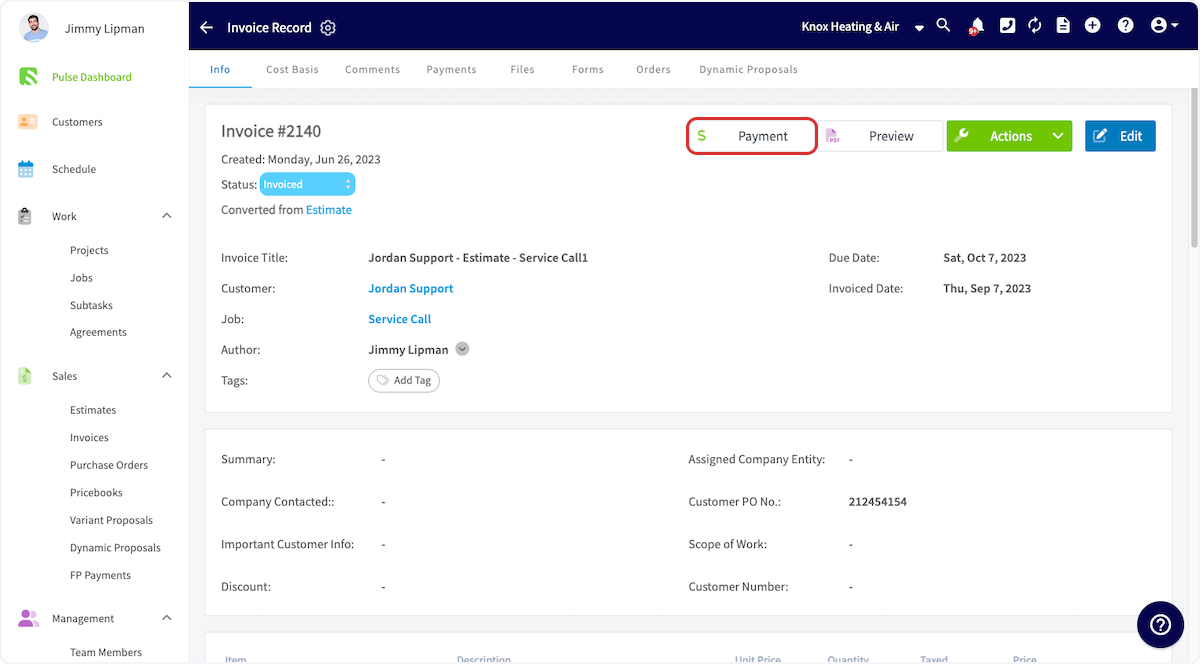
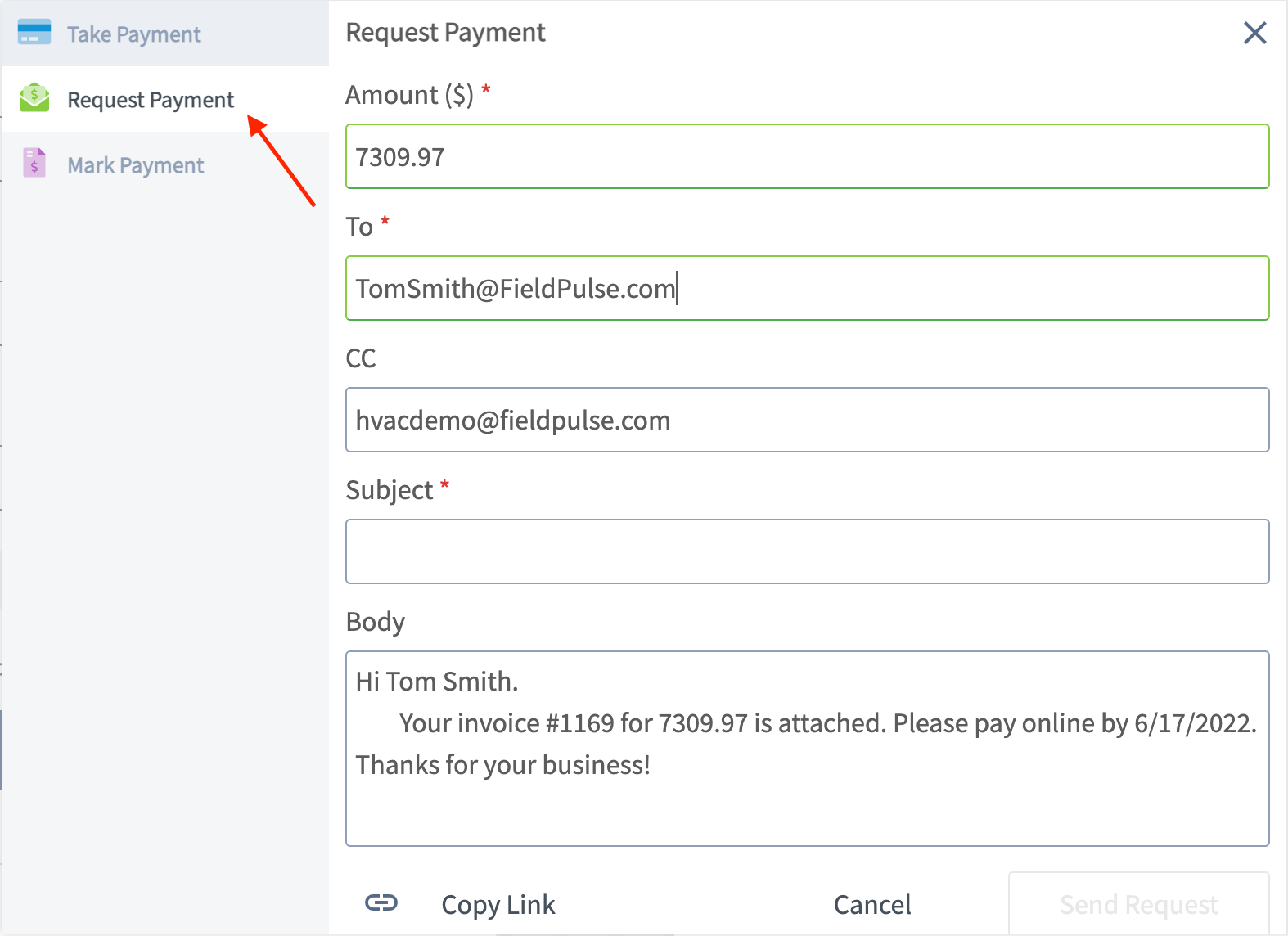
Another way to request payment by email is to return to the invoice record. Select the *Payment* button and choose *Request Payment*.
You can now send the estimate/invoice and payment request to your customer. Once the payment has been processed, the status of the invoice record in FieldPulse will now say *Paid*. You can view the payment history under *Payments* as well.
### Method 2
Another way to request payment by email is to return to the invoice record. Select the *Payment* button and choose *Request Payment*.
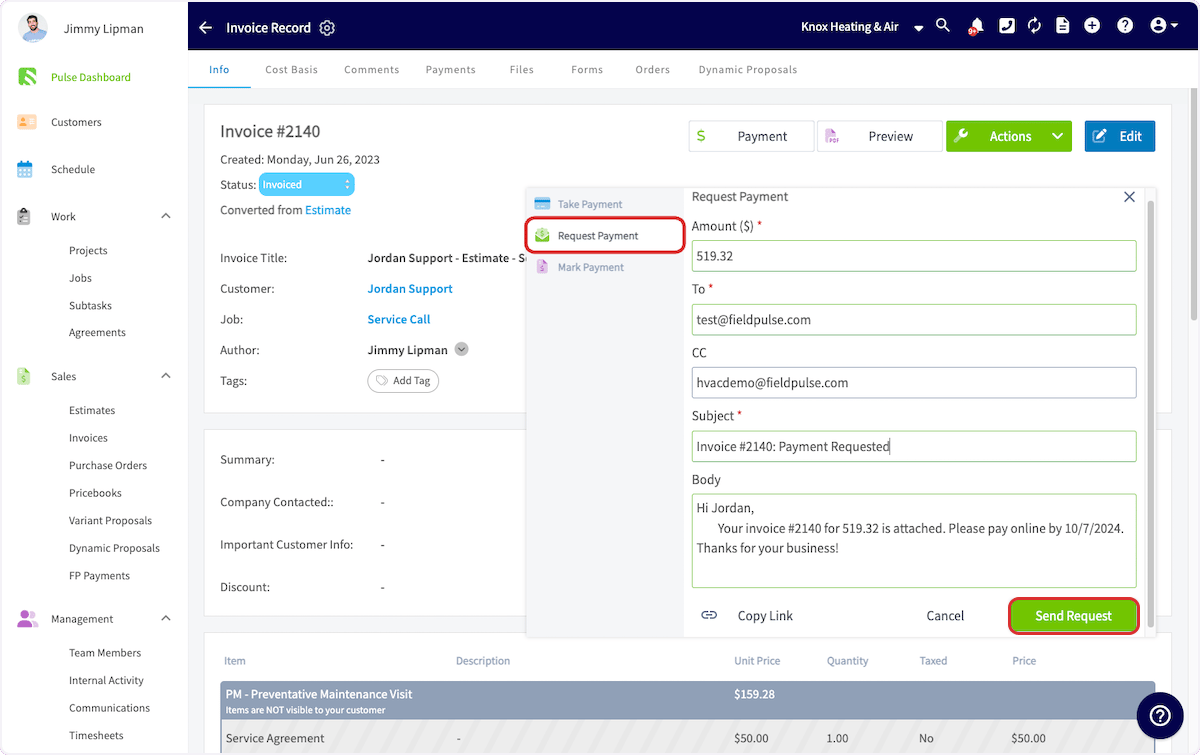 Now that the payment link has been inserted, you can email the invoice and payment request out to your customer.
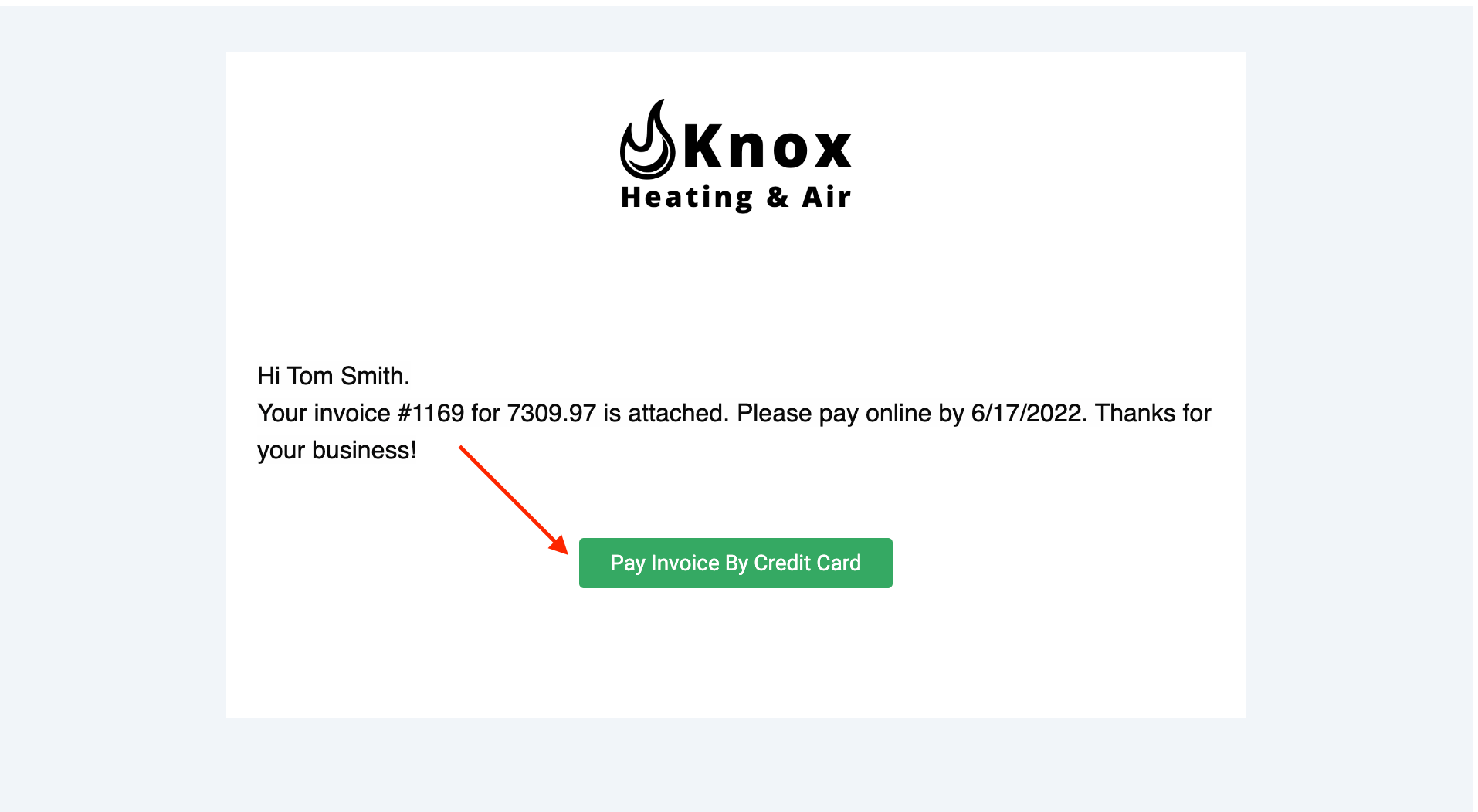
 Once you send the email, your customer will receive an email similar to the example shown below. By clicking Pay Invoice By Credit Card, your customer will be able to enter their credit/debit card information or set up a bank transfer.
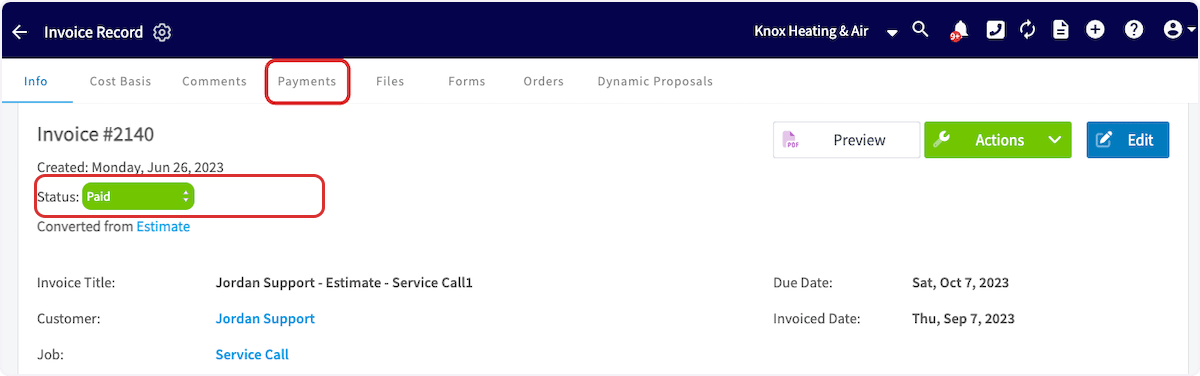
 Once the payment has been processed, the status of the invoice record in FieldPulse will now say *Paid*. You can view the payment history under *Payments* as well.
 ***
# On Mobile: Field Experience
## Select an Invoice
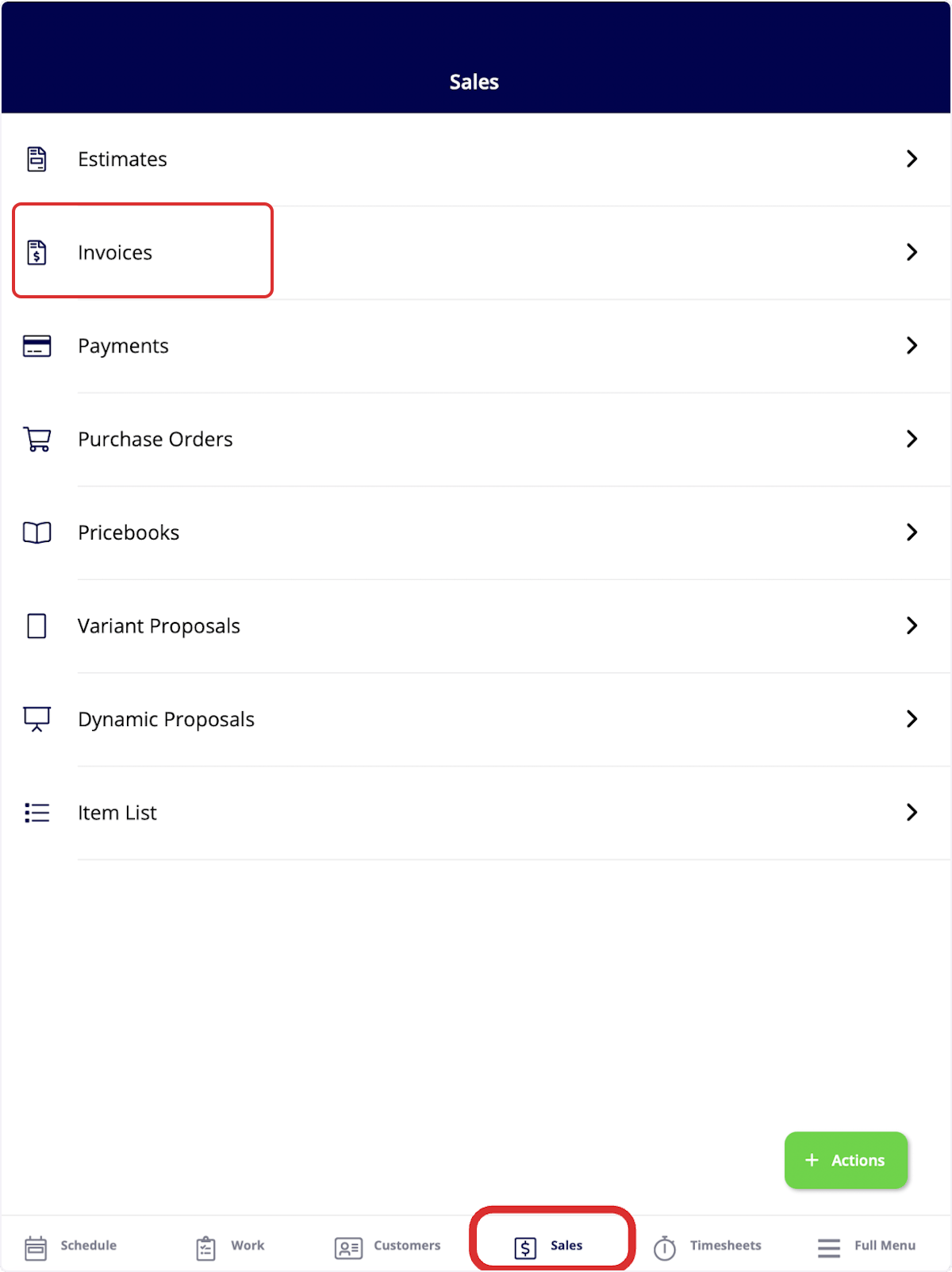
To begin, select the invoice on which you would like to apply payment. Select the *Sales* tab at the bottom of your screen, then click *Invoices*.
***
# On Mobile: Field Experience
## Select an Invoice
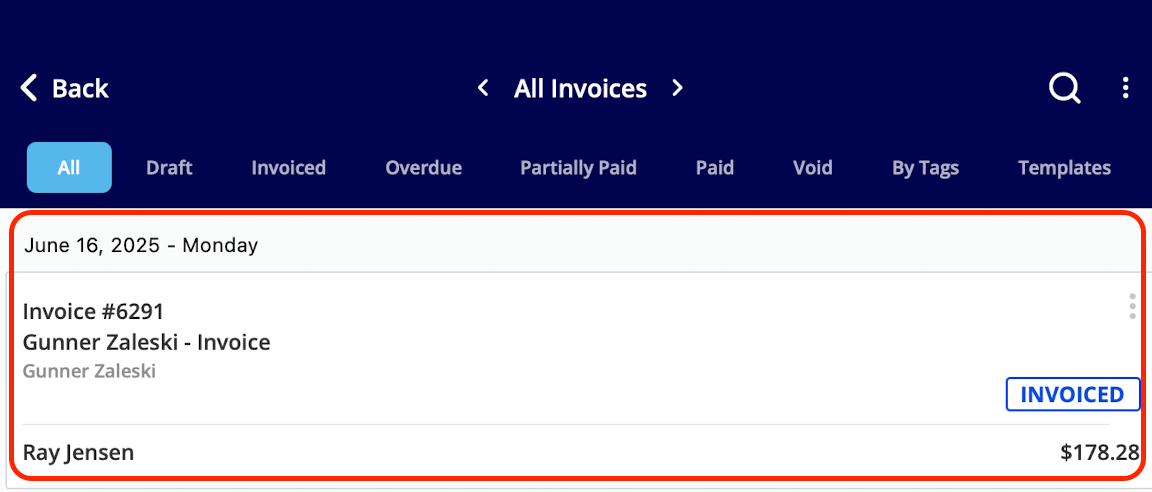
To begin, select the invoice on which you would like to apply payment. Select the *Sales* tab at the bottom of your screen, then click *Invoices*.
 Next, click on the invoice record where you'd like to apply payment.
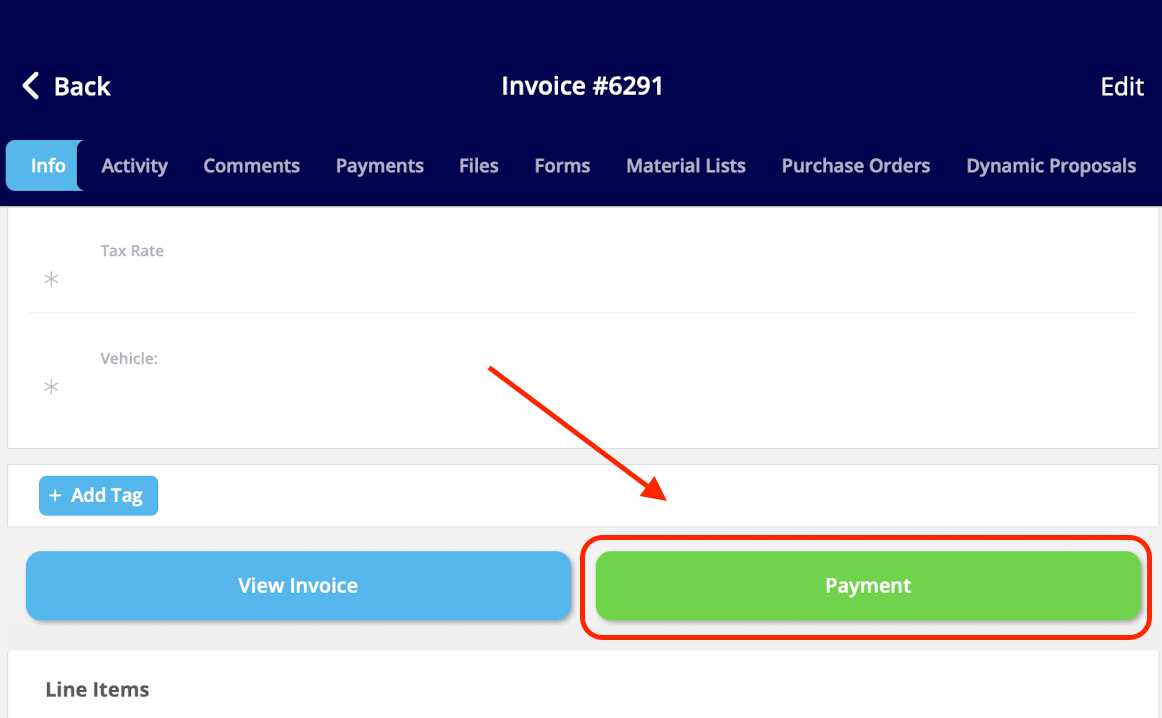
 Once in the invoice record, select *Payment*.
 Or, utilize the green *Actions* button and select *Payment* that way.
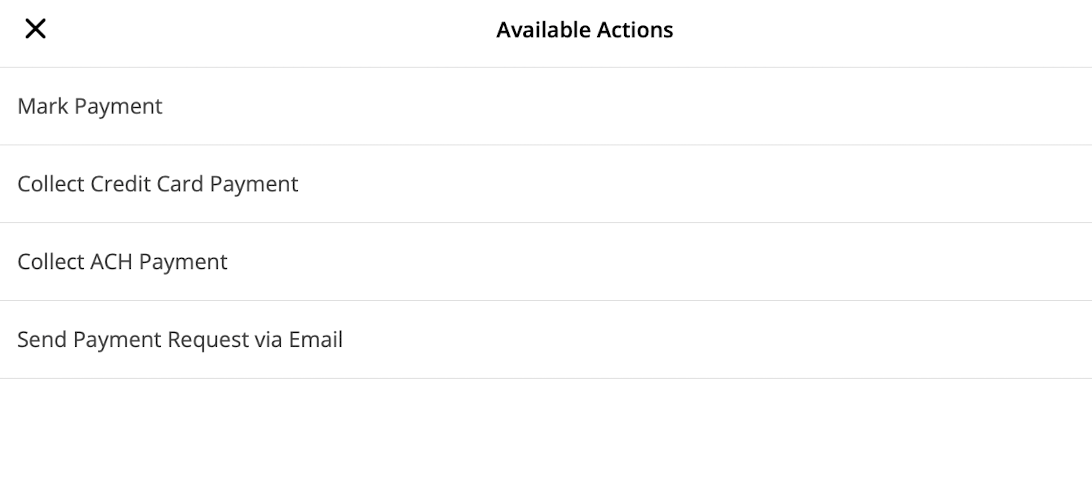
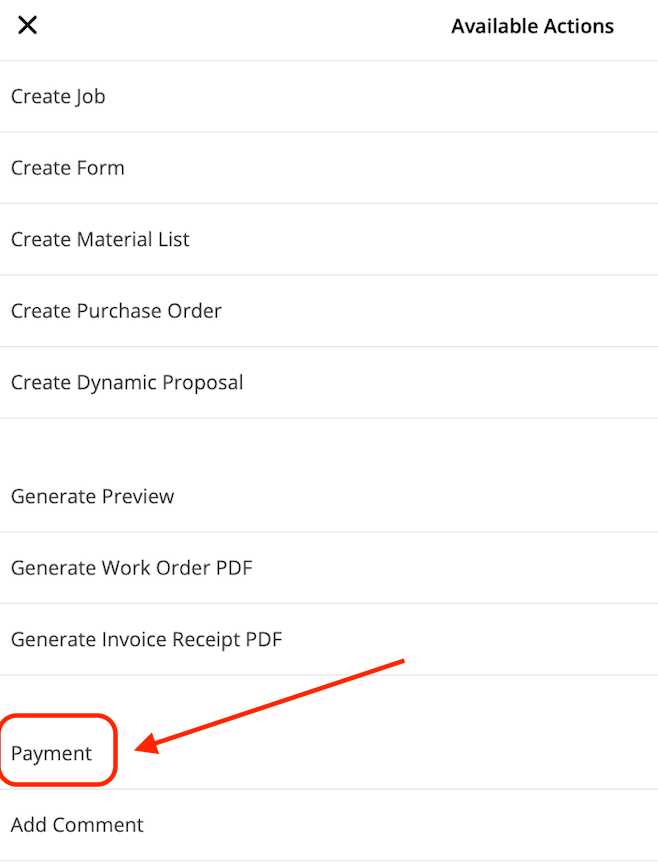 You can now select to *Mark Payment*, *Collect Credit Card Payment*, *Collect ACH Payment* or *Send Payment Request via Email*. As mentioned above, *Collect Credit Card Payment, Collect ACH Payment* and *Send Payment Request via Email* require the use of FieldPulse Payments.
 ## Collect Credit Card Payment
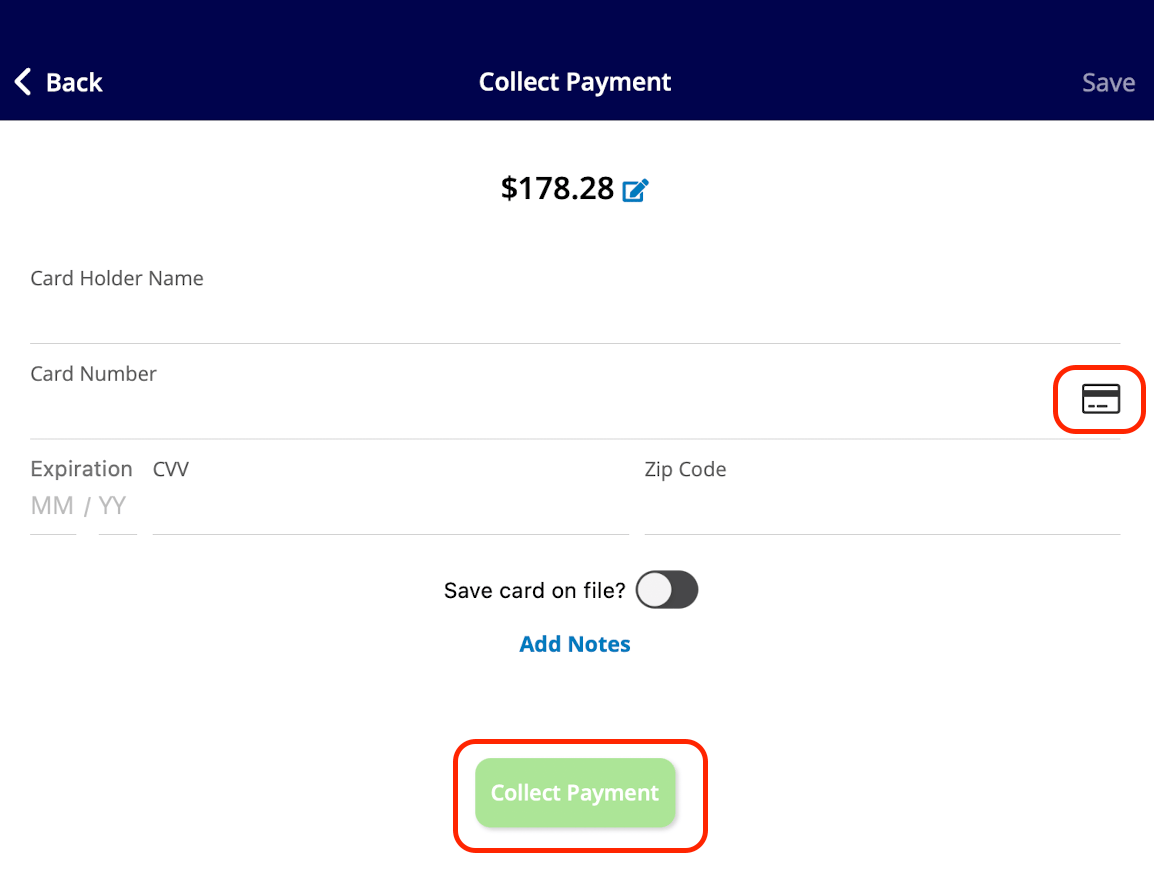
If you select *Collect Credit Card Payment*, you can adjust the payment amount and add notes. You can type in the card details or select the credit card icon to use your device's camera to scan and enter the card details. Once you add all necessary details, click *Collect Payment* to collect the payment in FieldPulse.
## Collect Credit Card Payment
If you select *Collect Credit Card Payment*, you can adjust the payment amount and add notes. You can type in the card details or select the credit card icon to use your device's camera to scan and enter the card details. Once you add all necessary details, click *Collect Payment* to collect the payment in FieldPulse.
 ## Collect ACH Payment
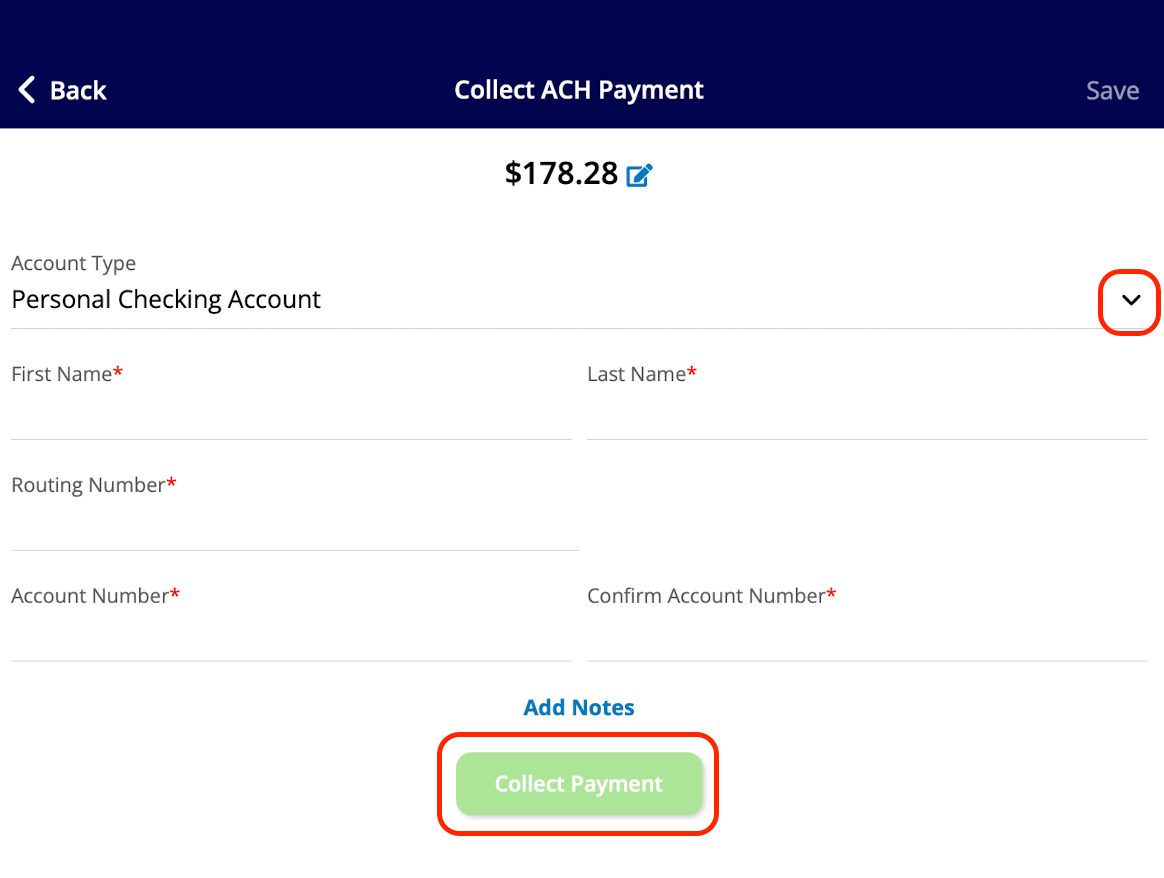
If you select *Collect ACH Payment*, you can also process payments from personal checking/savings accounts or business checking/savings on the mobile app.
## Collect ACH Payment
If you select *Collect ACH Payment*, you can also process payments from personal checking/savings accounts or business checking/savings on the mobile app.
 ## Send Payment Request via Email
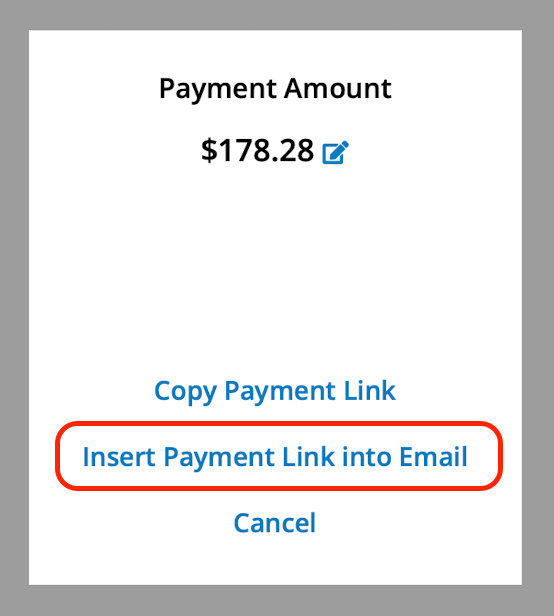
If you select *Send Payment Request via Email*, you can adjust the requested payment amount, as well as copy the payment link or insert it into an email. For this example, we will select *Insert Payment Link into Email*.
## Send Payment Request via Email
If you select *Send Payment Request via Email*, you can adjust the requested payment amount, as well as copy the payment link or insert it into an email. For this example, we will select *Insert Payment Link into Email*.
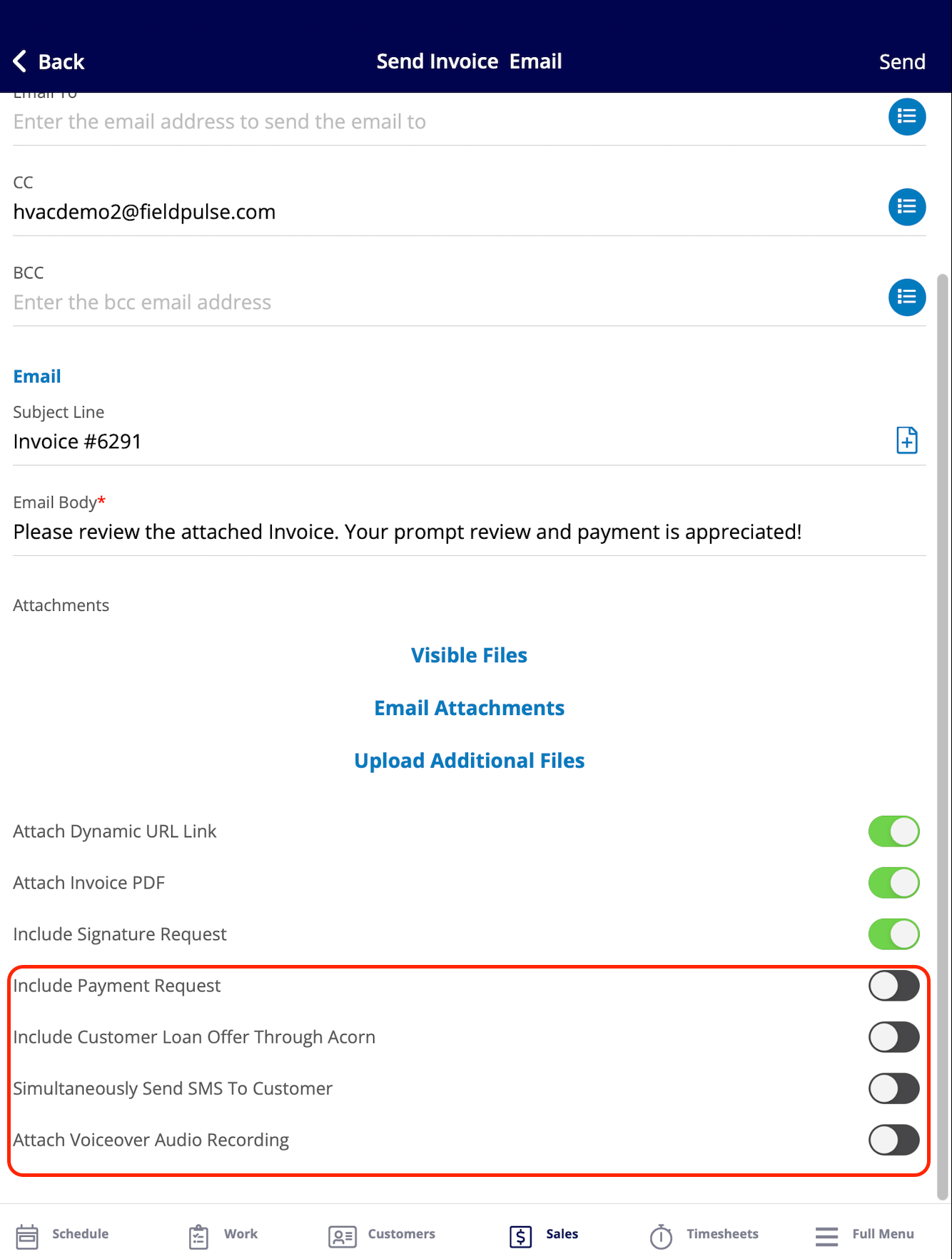
 You can now edit/adjust your email before sending it to your customer by utilizing the toggles at the bottom.
* ***Include Payment Request:*** When toggled on, this allows you to decide whether or not you would like to accept credit card/debit card and bank transfers. You also can adjust the payment amount due. You can request a specific dollar amount or percentage.
* ***Include Customer Loan Offer Through Acorn:*** When toggled on, this allows your customers access to financing options pending approval of their application. Learn more about Acorn Finance [the Acorn Finance integration guide](/integrations-partners/financing/acorn-finance-integration).
* ***Simultaneously Send SMS To Customer:*** When this option is toggled on, you can send a text message at the same time as the email.
* **Customization:** You can personalize the text message to convey any message you choose.
* **Audio Attachment:** There is also an option to attach an audio recording to the text message.
* ***Attach Voiceover Audio Recording:*** When toggled on, this option allows you to include a personalized audio message. This feature is particularly useful for walking your customer through the invoice, helping to address any questions they may have in advance.
Once your email is complete, select *Send* to send the payment request to your customer.
You can now edit/adjust your email before sending it to your customer by utilizing the toggles at the bottom.
* ***Include Payment Request:*** When toggled on, this allows you to decide whether or not you would like to accept credit card/debit card and bank transfers. You also can adjust the payment amount due. You can request a specific dollar amount or percentage.
* ***Include Customer Loan Offer Through Acorn:*** When toggled on, this allows your customers access to financing options pending approval of their application. Learn more about Acorn Finance [the Acorn Finance integration guide](/integrations-partners/financing/acorn-finance-integration).
* ***Simultaneously Send SMS To Customer:*** When this option is toggled on, you can send a text message at the same time as the email.
* **Customization:** You can personalize the text message to convey any message you choose.
* **Audio Attachment:** There is also an option to attach an audio recording to the text message.
* ***Attach Voiceover Audio Recording:*** When toggled on, this option allows you to include a personalized audio message. This feature is particularly useful for walking your customer through the invoice, helping to address any questions they may have in advance.
Once your email is complete, select *Send* to send the payment request to your customer.
 ## Invoice Status
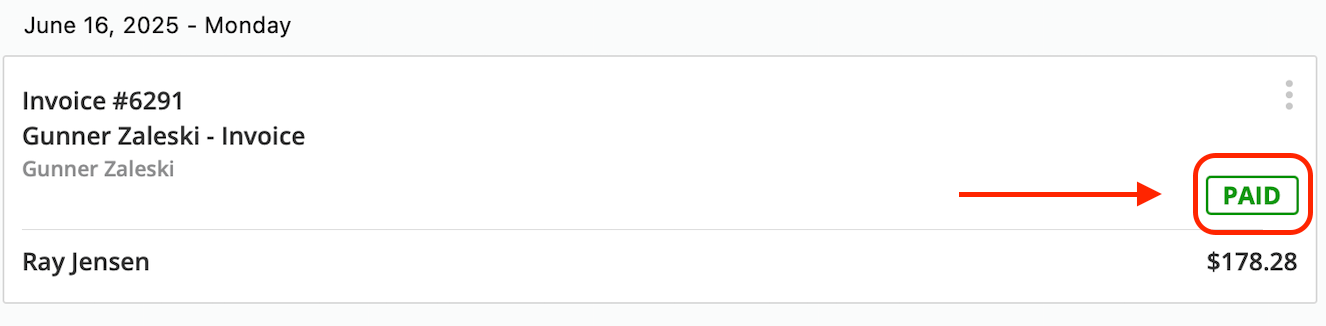
After marking payment, collecting payment, or receiving payment from a payment request email, your invoice status will now read *Paid*. If you only accepted a partial payment on the invoice, the status will instead say *Partially Paid*.
## Invoice Status
After marking payment, collecting payment, or receiving payment from a payment request email, your invoice status will now read *Paid*. If you only accepted a partial payment on the invoice, the status will instead say *Partially Paid*.
 ***
# Video Tutorials
## Web App
## Mobile
***
**Have additional questions?**
*Contact us at [support@fieldpulse.com](mailto:support@fieldpulse.com) or use the chat feature in the bottom right corner of your screen.*
***
# Video Tutorials
## Web App
## Mobile
***
**Have additional questions?**
*Contact us at [support@fieldpulse.com](mailto:support@fieldpulse.com) or use the chat feature in the bottom right corner of your screen.*