> ## Documentation Index
> Fetch the complete documentation index at: https://help.fieldpulse.com/llms.txt
> Use this file to discover all available pages before exploring further.
# Partial & Progress Payments
> Using estimates and invoices, you can request partial payments, deposits, or progress payments. There are three methods outlined below to achieve this result.
Using estimates and invoices, you can request partial payments, deposits, or progress payments. There are three methods outlined below to achieve this result.
***
# Estimate & Invoice Preview
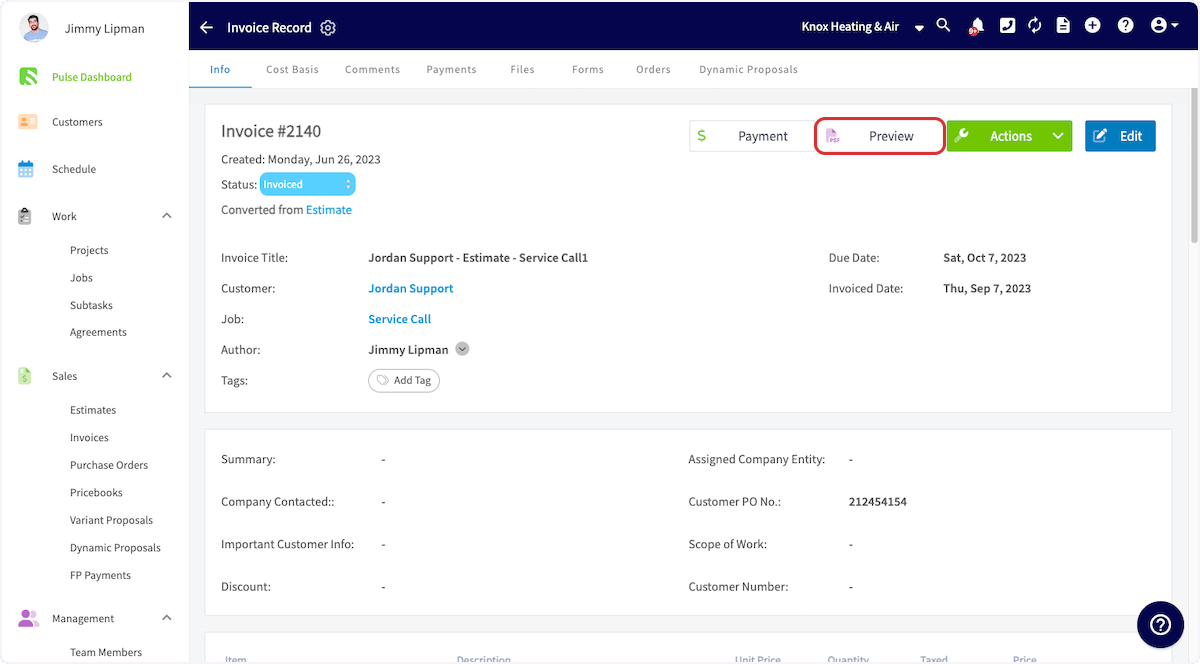
Select or create the estimate/invoice that you would like to take payment on. Select *Preview* to generate the estimate/invoice.
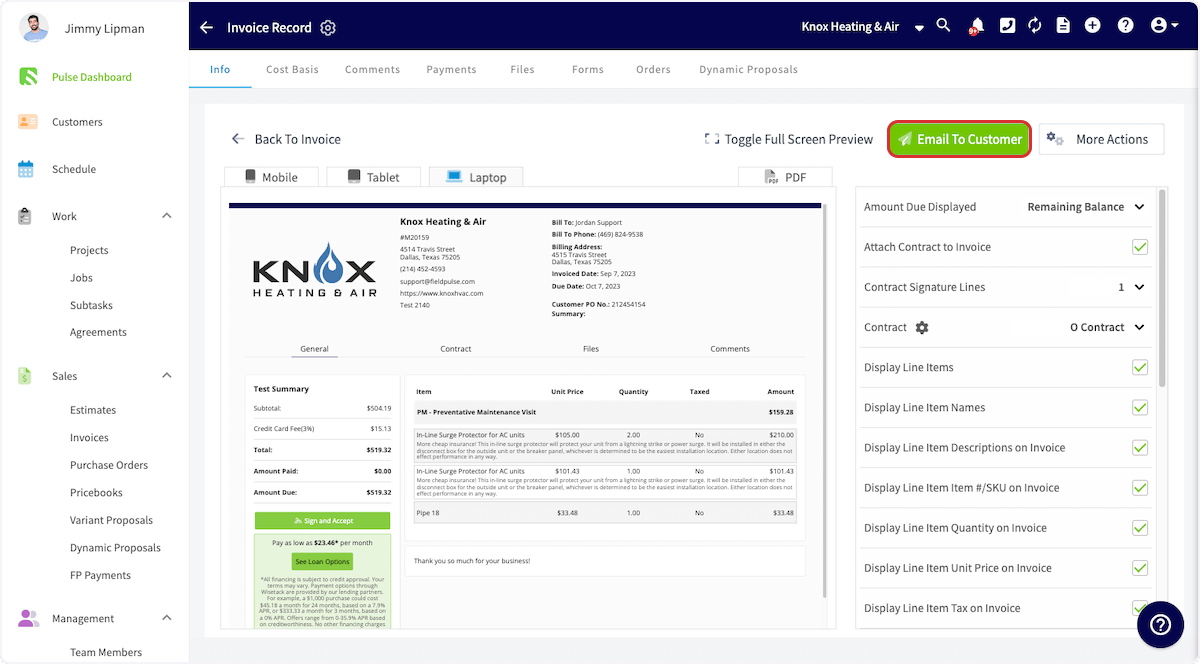
 Once the PDF has been generated, select *Email to Customer*.
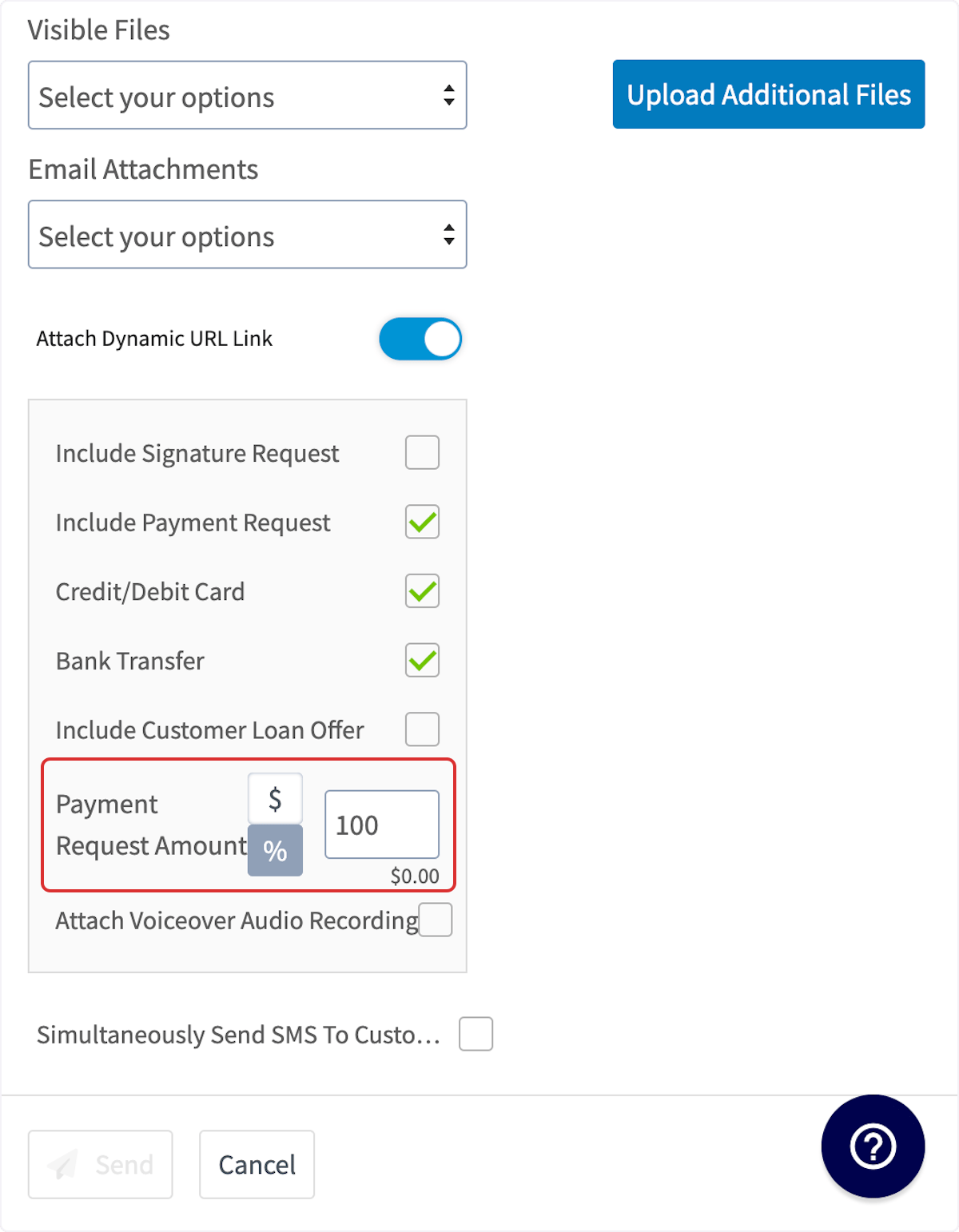
 Scroll down and request a specific dollar amount or percentage of the total estimate amount.
 ***
# Invoice Settings
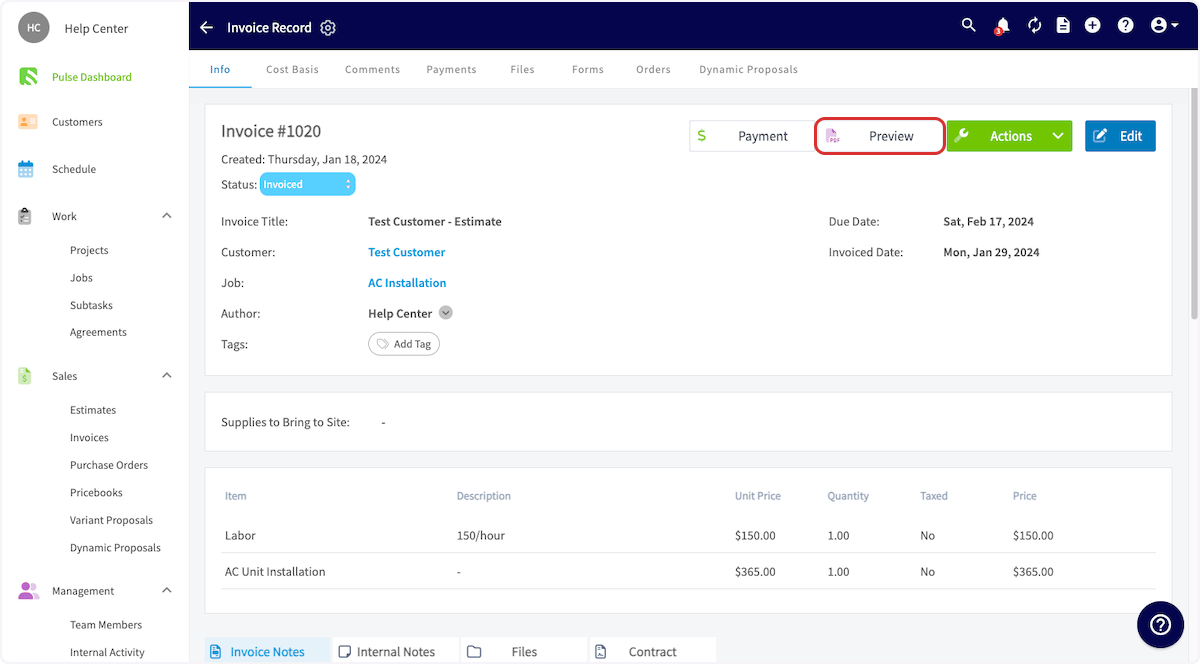
Another way to collect partial or progress payments is when you're creating or editing an invoice. Begin by clicking on the invoice record, then select *Preview*.
***
# Invoice Settings
Another way to collect partial or progress payments is when you're creating or editing an invoice. Begin by clicking on the invoice record, then select *Preview*.
 Once in the invoice preview, select the text next to *Amount Due Displayed*.
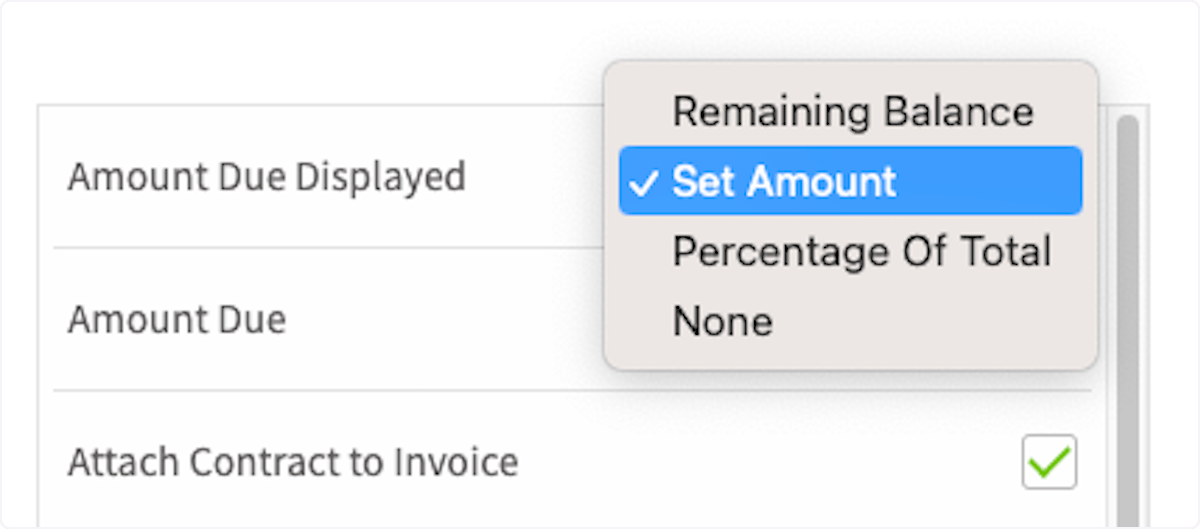
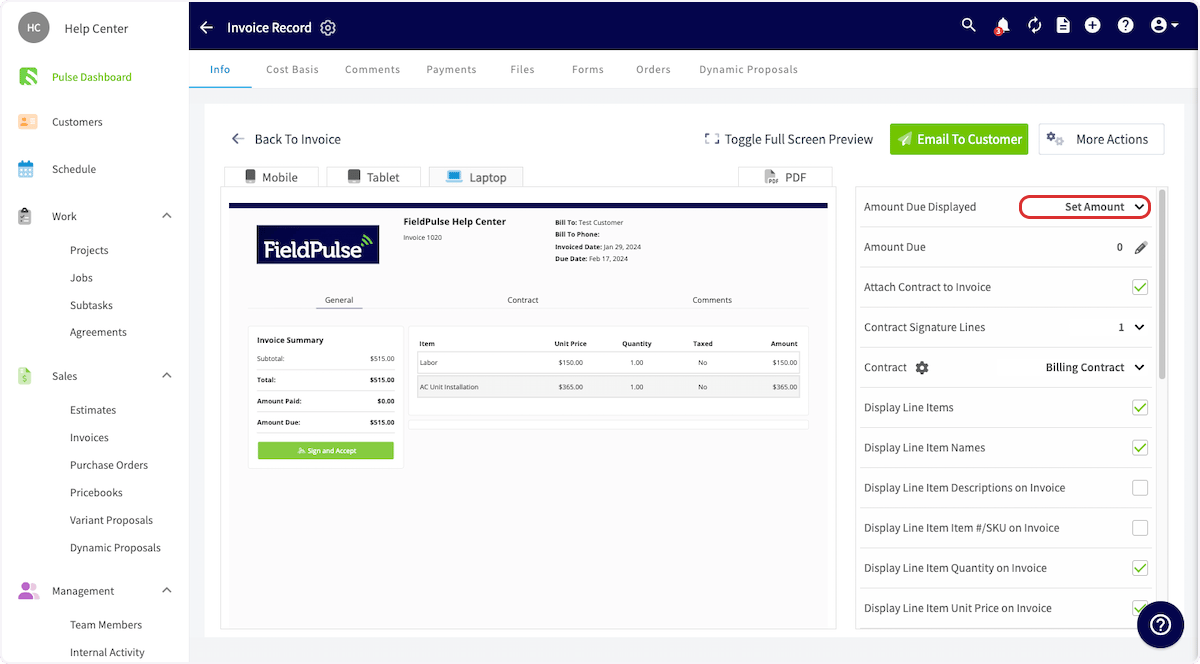 You can now select what payment you'd like to collect from your customer: the remaining balance on their invoice, a set dollar amount, or a percentage of the total invoice.
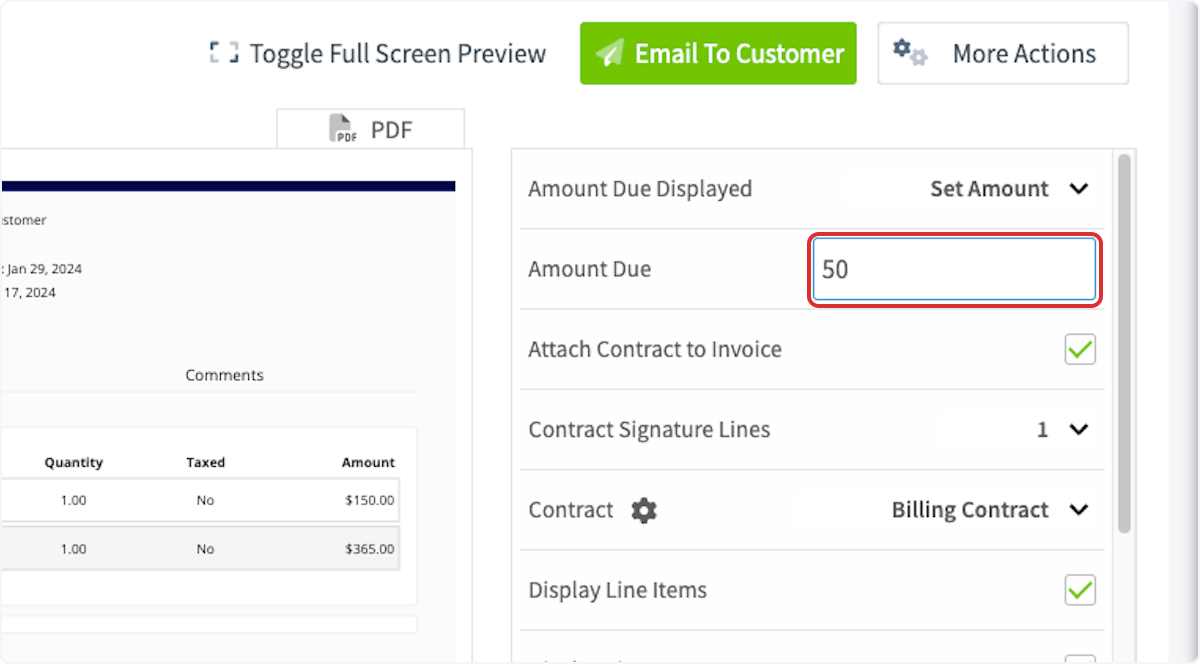
 If you select *Set Amount*, you'll then need to enter the dollar amount you'd like to collect in the *Amount Due* field.
 If you select *Percentage of Total*, you'll then need to enter the percentage amount you'd like to collect in the *Amount Due* field.
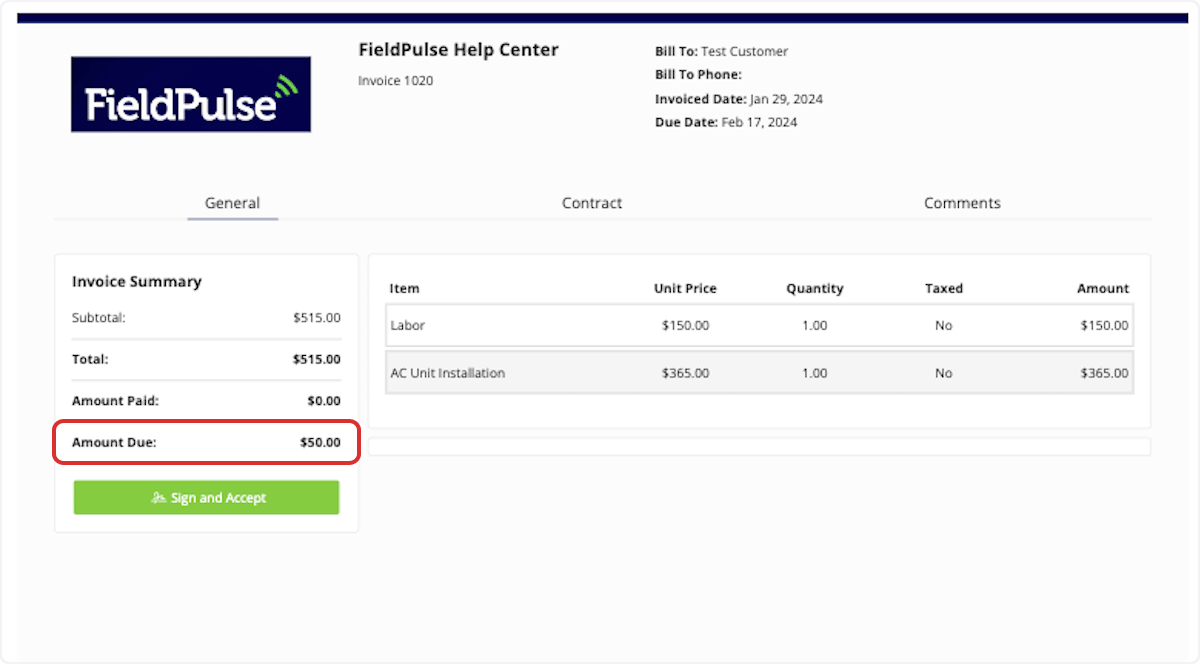
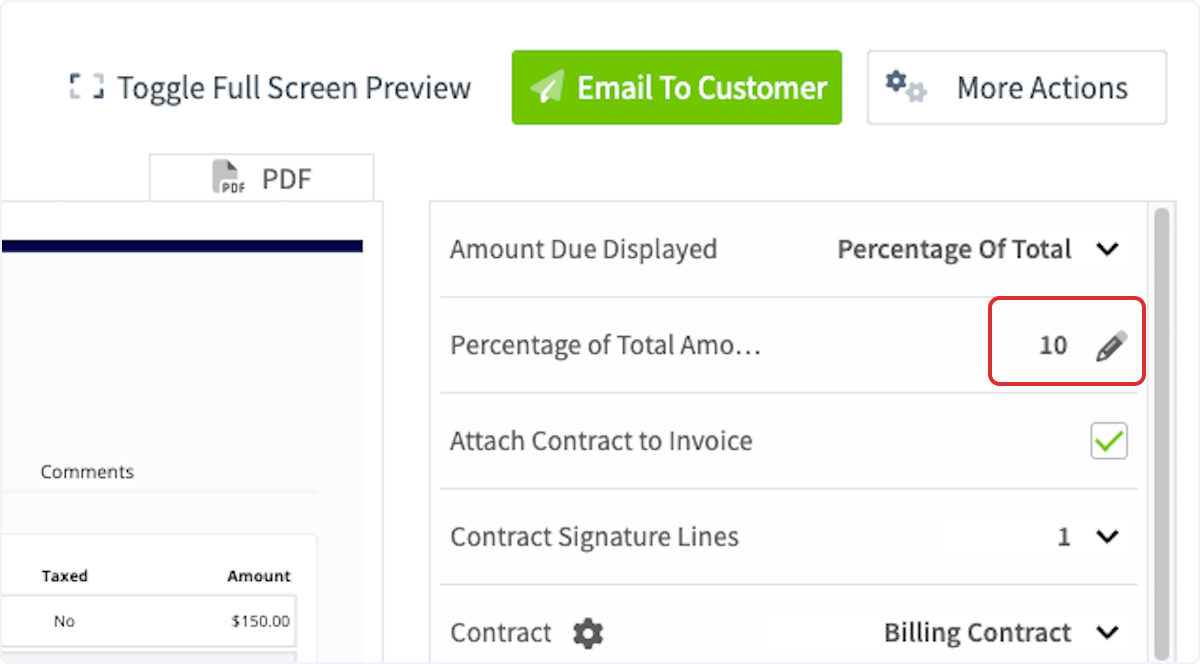 Once you make your changes, your invoice preview will reflect the new amount due. You can now email the invoice to your customer or collect payment on site.
 ***
# Invoice Actions
Another method for collecting partial or progress payments is by clicking on the invoice record, then selecting *Actions*.
***
# Invoice Actions
Another method for collecting partial or progress payments is by clicking on the invoice record, then selecting *Actions*.
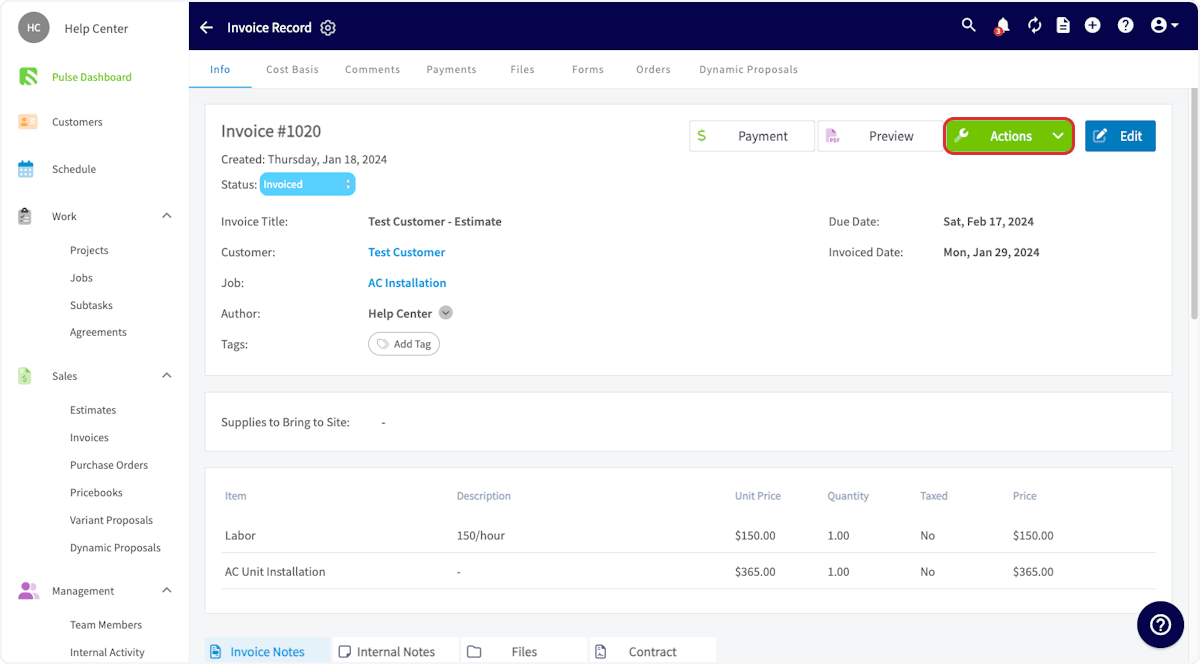 Click on *Generate Progress Invoice*.
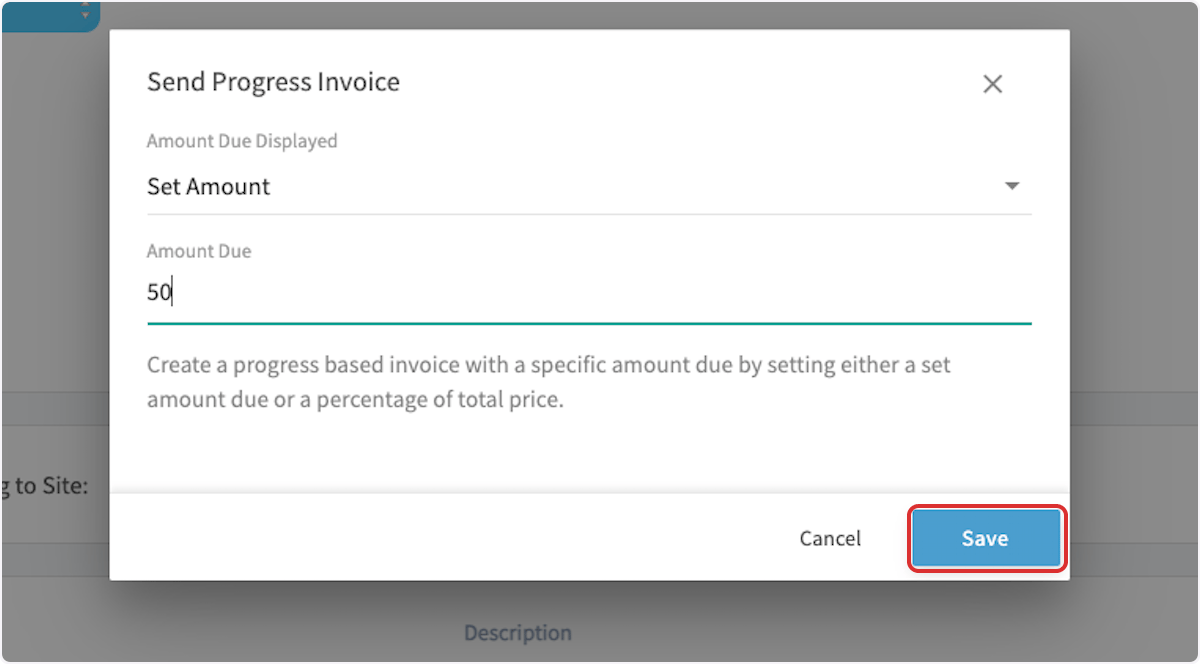
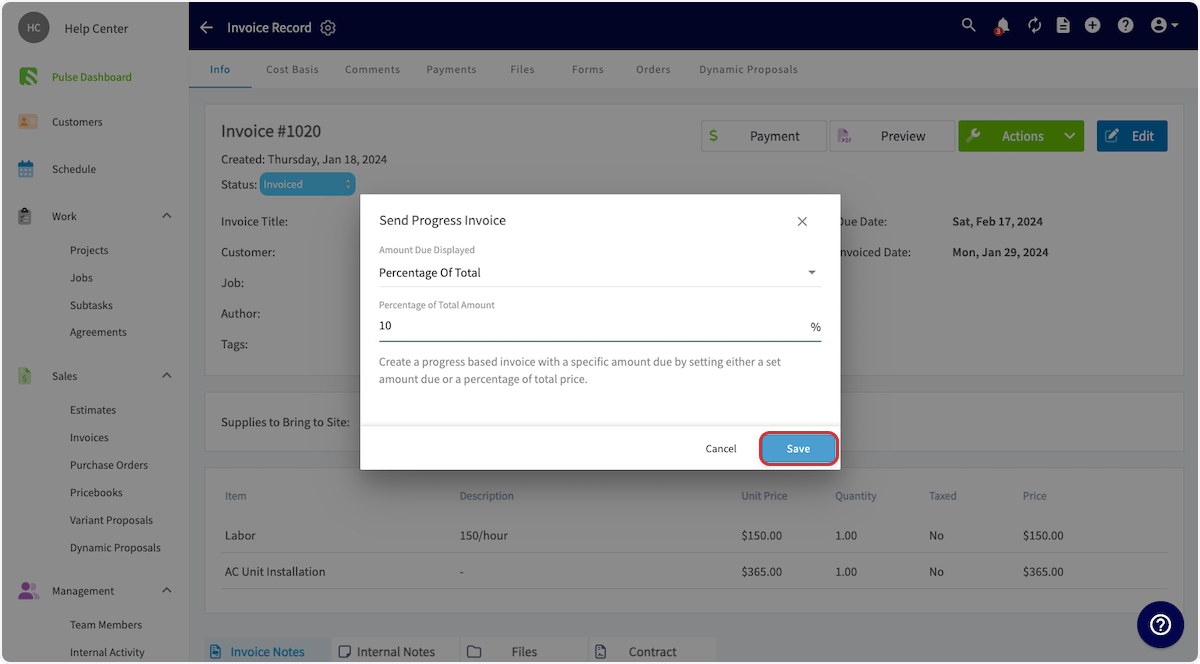
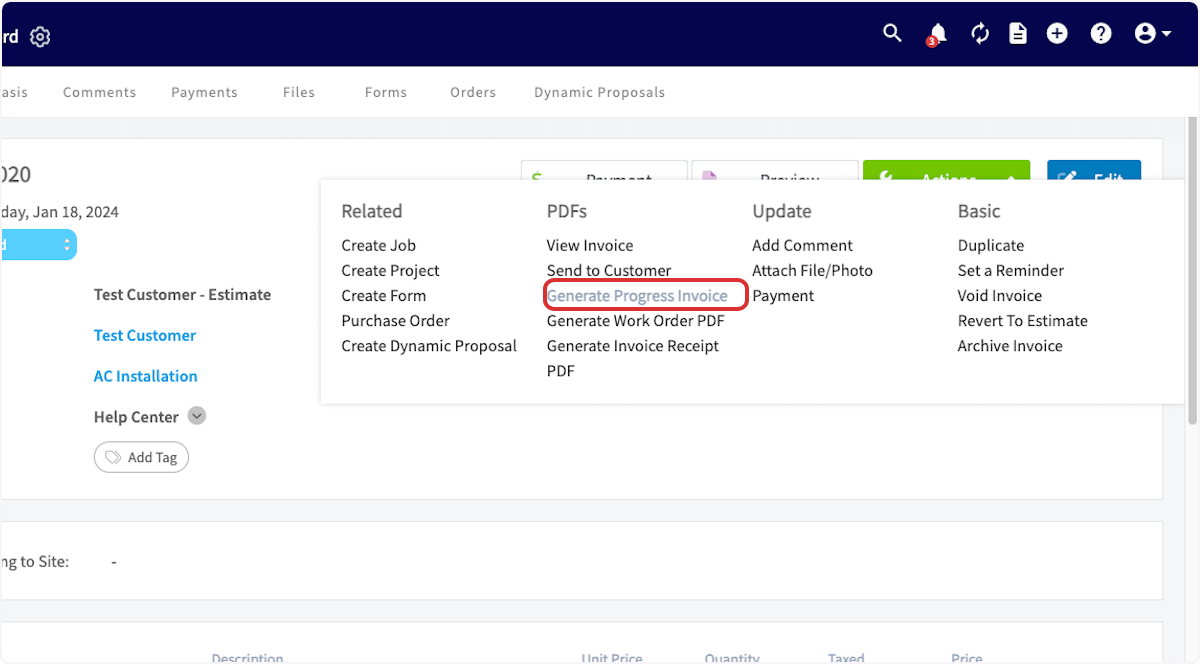 In the pop-up window, you can now select what payment you'd like to collect from your customer: the remaining balance on their invoice, a set dollar amount, or a percentage of the total invoice.
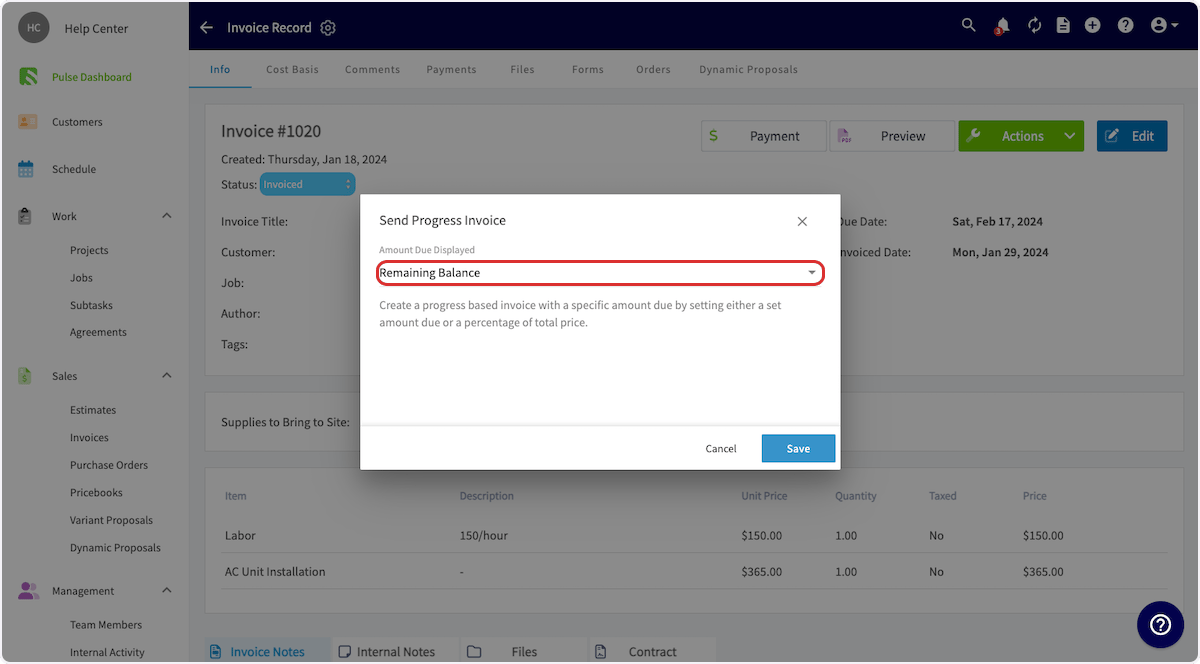 If you select *Set Amount*, you'll then need to enter the dollar amount you'd like to collect in the *Amount Due* field, then press *Save*.
 If you select *Percentage of Total*, you'll then need to enter the percentage amount you'd like to collect in the *Amount Due* field, then press *Save*.
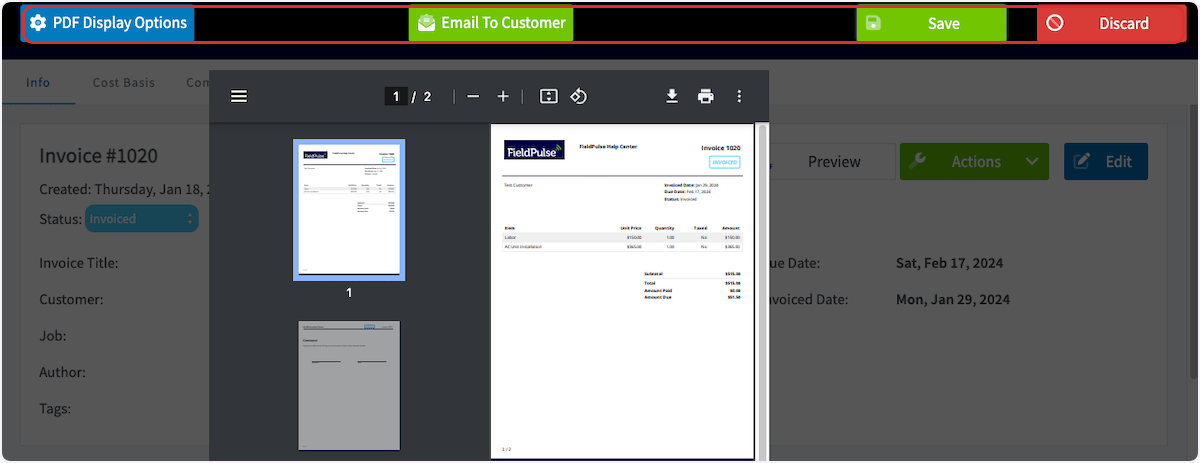
 A PDF preview of the invoice will now pop up. You can adjust the display options, email the invoice to your customer, save the PDF to the invoice record, or discard it.
 ***
# Video Tutorial
***
**Have additional questions?**
*Contact us at [support@fieldpulse.com](mailto:support@fieldpulse.com) or use the chat feature in the bottom right corner of your screen.*
***
# Video Tutorial
***
**Have additional questions?**
*Contact us at [support@fieldpulse.com](mailto:support@fieldpulse.com) or use the chat feature in the bottom right corner of your screen.*