> ## Documentation Index
> Fetch the complete documentation index at: https://help.fieldpulse.com/llms.txt
> Use this file to discover all available pages before exploring further.
# Project Management
> Manage multi-week jobs as Projects that group tasks, work assignments, and staged invoicing under one long-term record.
# Overview
Although jobs can span multiple days, if you have longer-term projects with complex work assignments and specialized invoicing needs, you may want to consider using the *Project* record. *Projects* enable more effective management of long-term initiatives that involve multiple tasks assigned beneath them.
***
# Prerequisites
Before you can use Project Management, make sure the following is in place:
* Project Management is enabled in your account
***
# On Web: Admin Experience
## Managing Your Projects
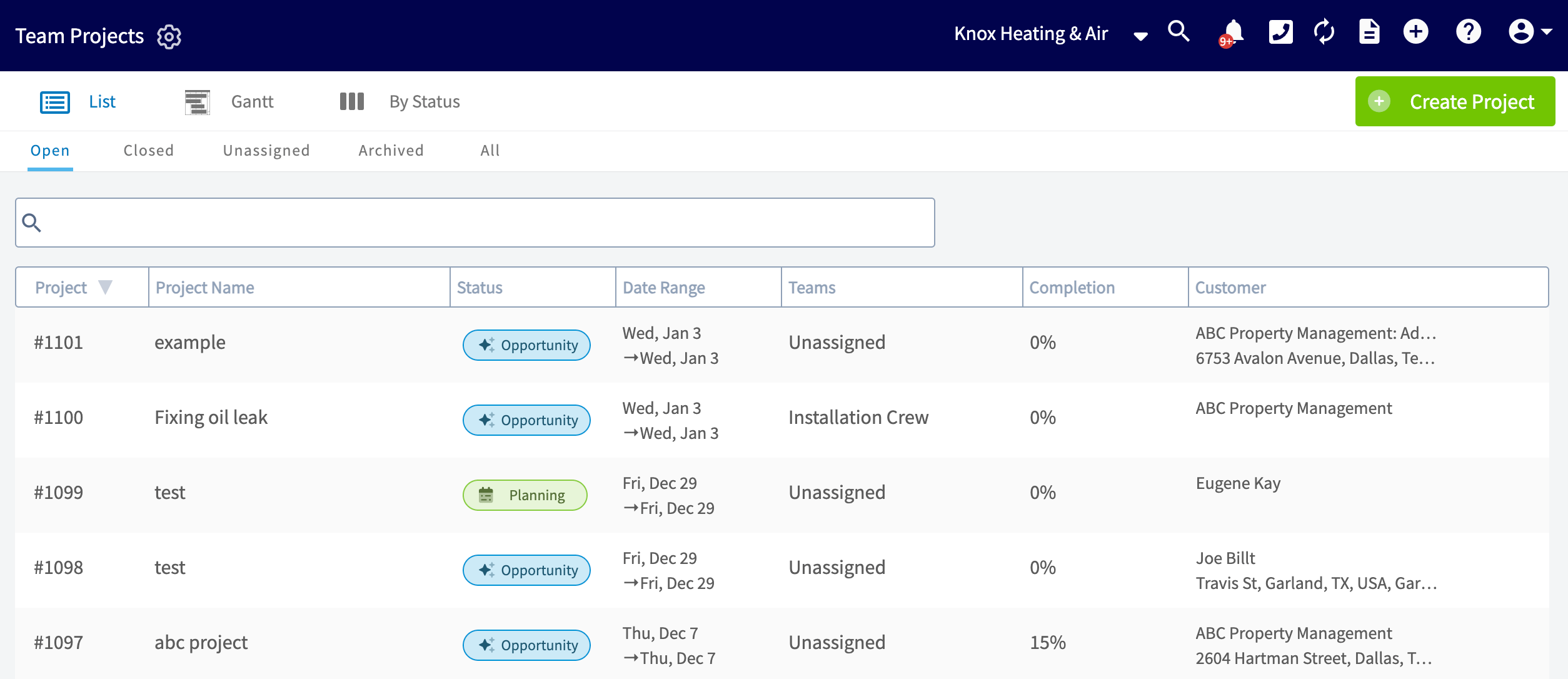
After enabling Projects, find them on the left-side of your screen under *Work*. Once on the *Projects* page, you will be taken to the *List* view by default. Here you can view a list of all of your projects. In this view, you can see the Project names, status, date range, assigned teams, completion percentage, and associated customer.
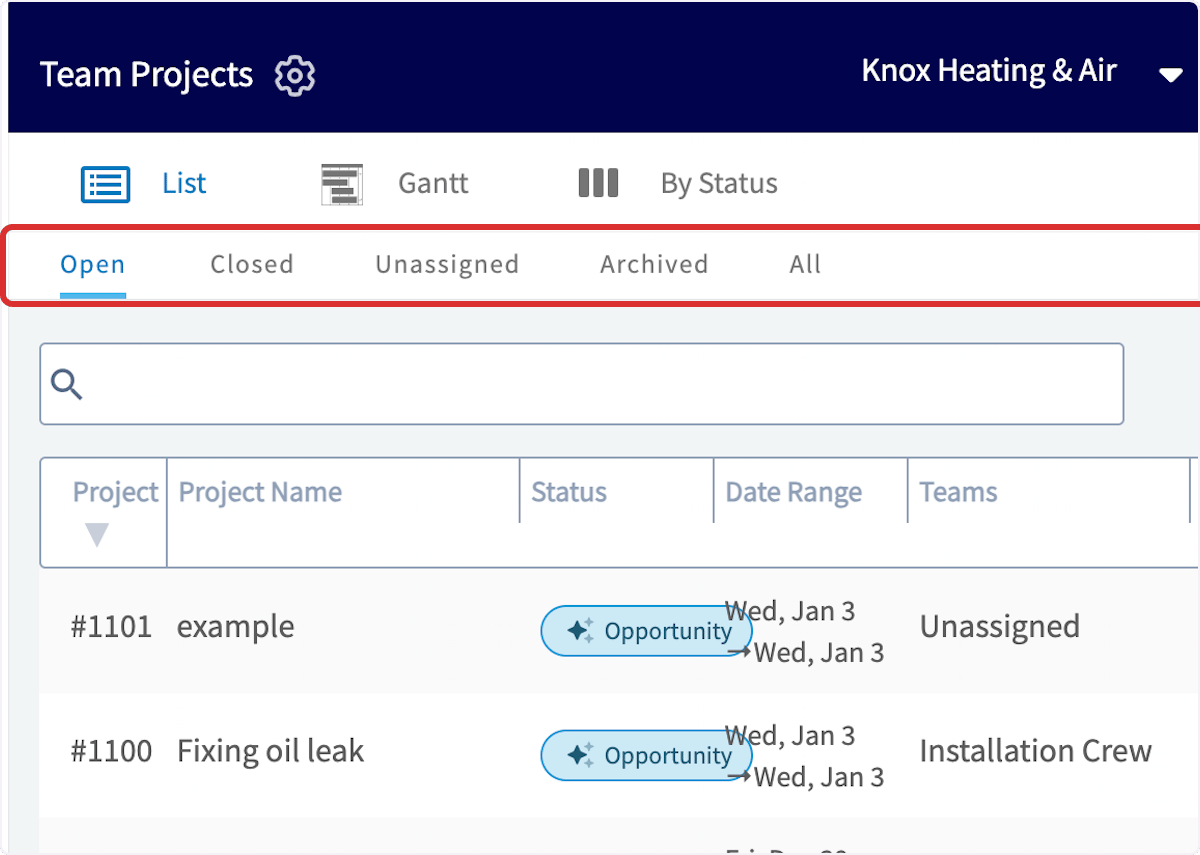
 By clicking the *Open*, *Closed*, *Unassigned, Archived,* or *All* tabs, you can easily sort your projects by status, as well as see which projects have not been assigned to teams. You can also see all of your projects at a glance.
 ## Gantt Tab
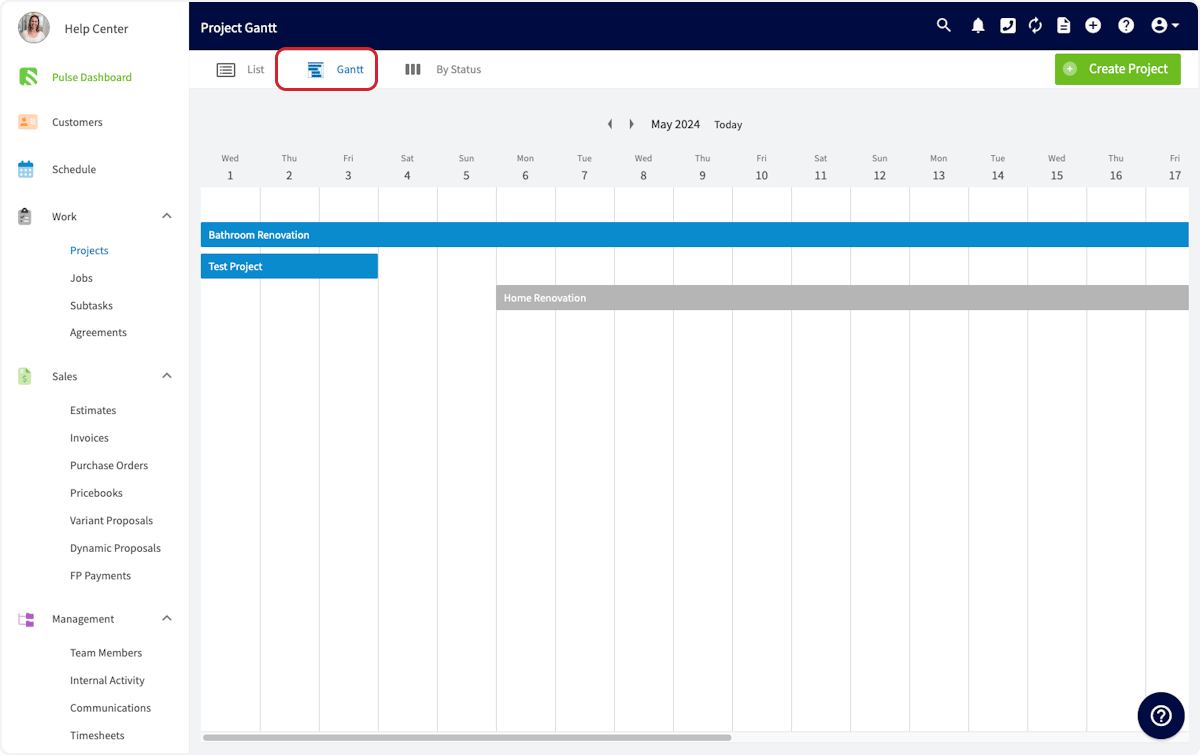
You can also use the *Gantt* tab to organize your projects by date, and see what you have going on for the month. Hover over any of the projects listed in the Gantt view to show the details.
## Gantt Tab
You can also use the *Gantt* tab to organize your projects by date, and see what you have going on for the month. Hover over any of the projects listed in the Gantt view to show the details.
 ## By Status Tab
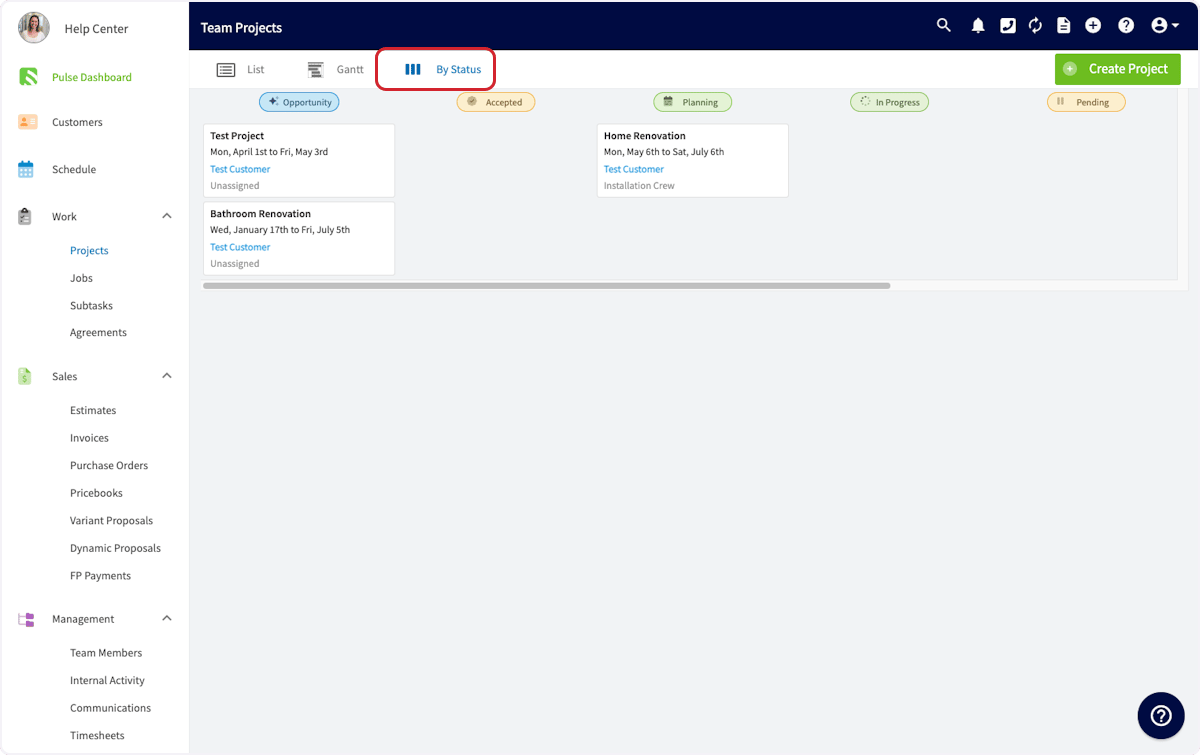
Click on the *By Status* tab to see your projects organized by their completion status.
## By Status Tab
Click on the *By Status* tab to see your projects organized by their completion status.
 ## Creating a Project
### Create a Project from Scratch
Click the *Create Project* button to create a new project.
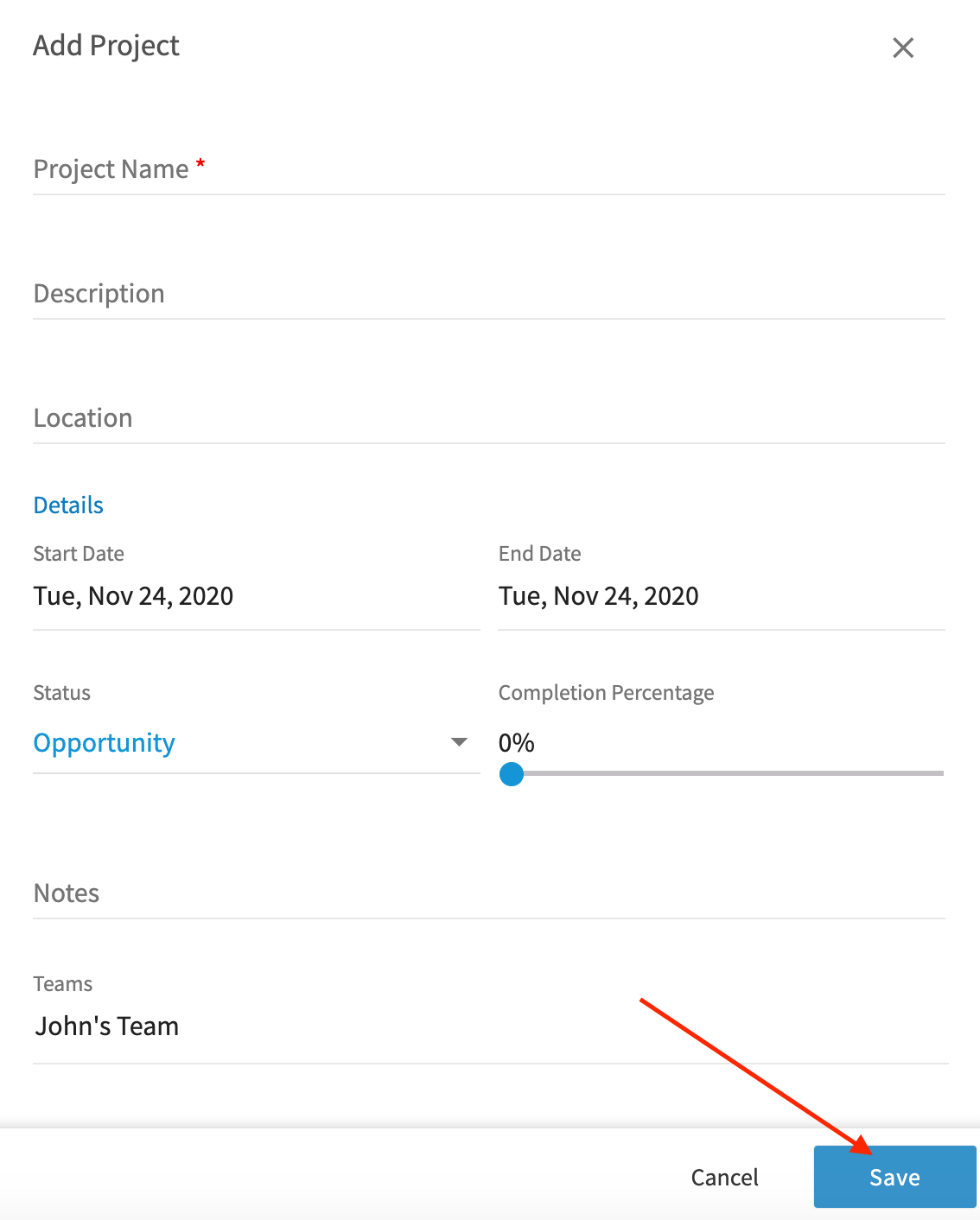
In the pop-up window, select the customer, name your project, add a description, and choose the start and end date. The location will automatically be pulled from your customer's information. Alternatively, You can also enter location coordinates in either Decimal Degrees (e.g., `34.0522, -118.2437`) or Degrees, Minutes, Seconds (e.g., `34°03'08"N, 118°14'37"W`) formats.
## Creating a Project
### Create a Project from Scratch
Click the *Create Project* button to create a new project.
In the pop-up window, select the customer, name your project, add a description, and choose the start and end date. The location will automatically be pulled from your customer's information. Alternatively, You can also enter location coordinates in either Decimal Degrees (e.g., `34.0522, -118.2437`) or Degrees, Minutes, Seconds (e.g., `34°03'08"N, 118°14'37"W`) formats.
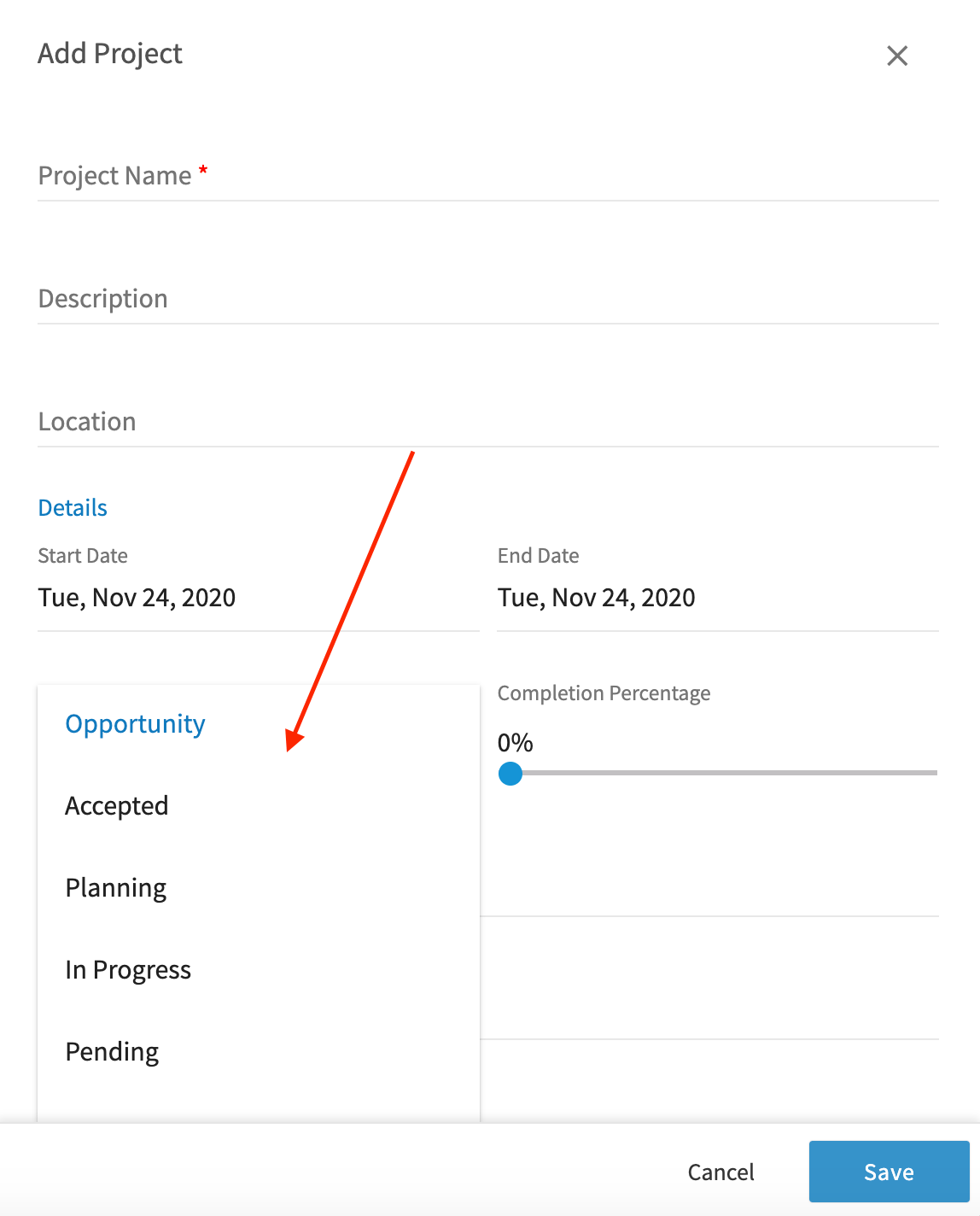
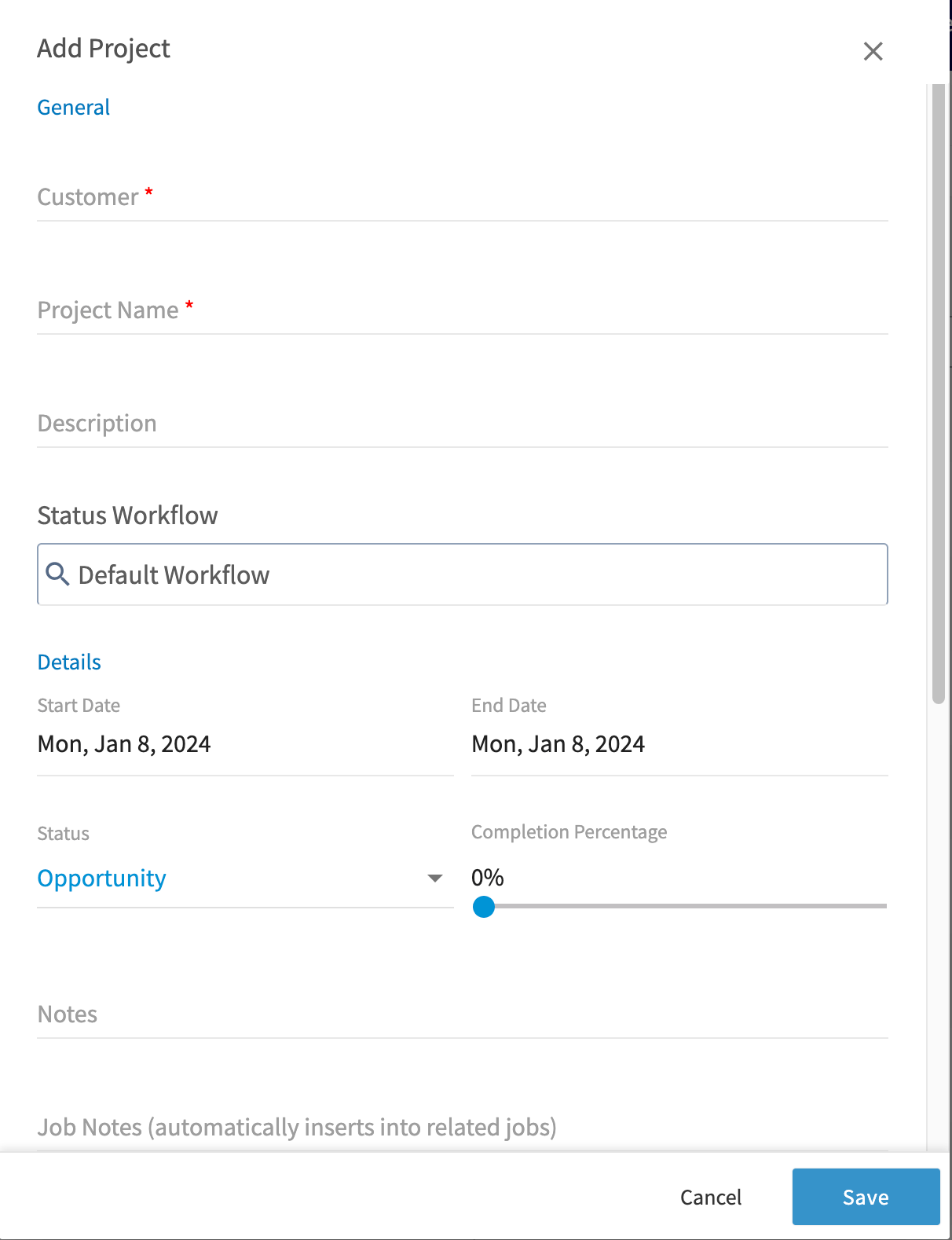 Next, change the *Project Status* to reflect the stage that the project is at. You'll be able to updated this as the project progresses.
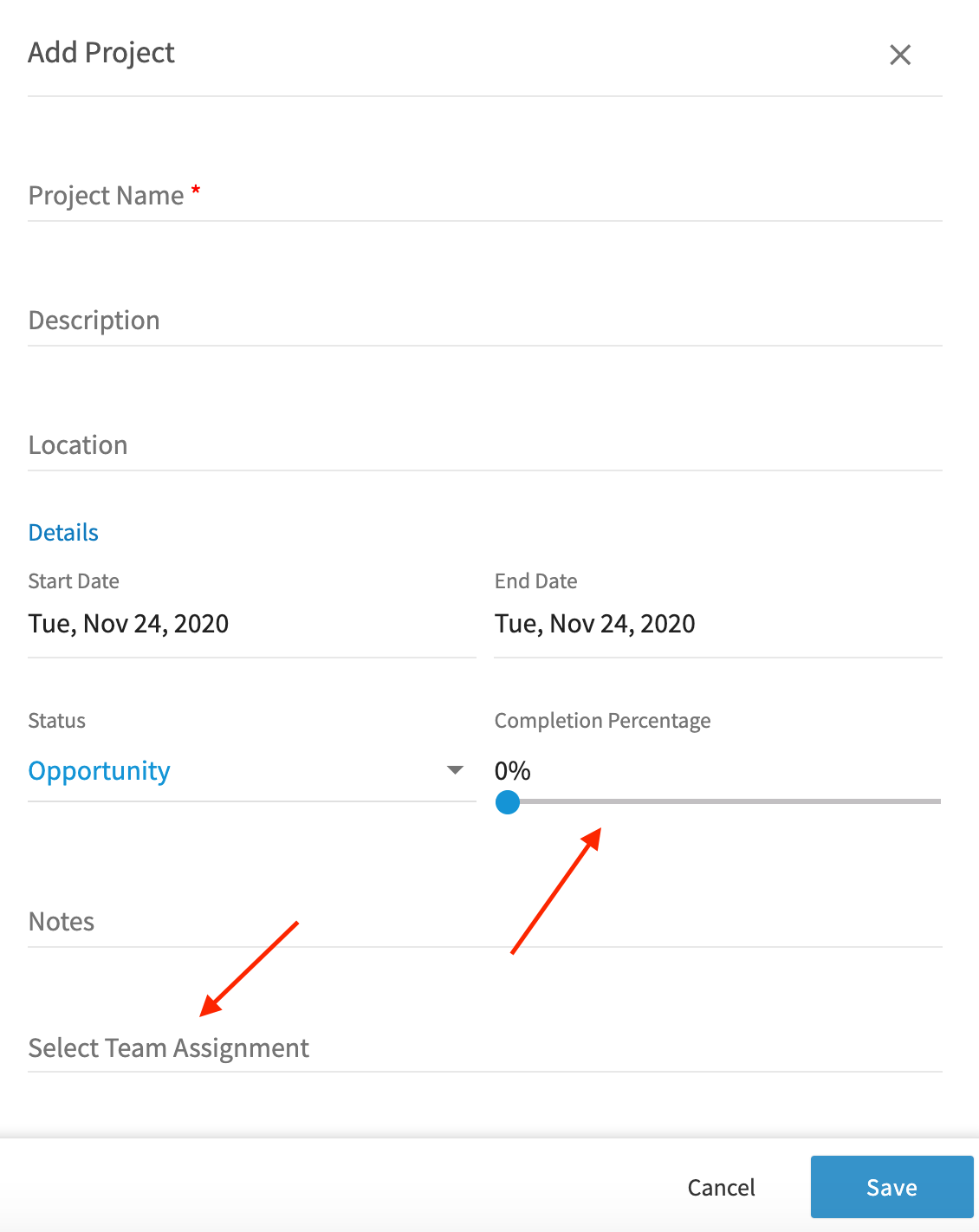
 If you'd like to track your progress on this project, use the completion percentage slider to indicate your current completion level. You can continue to update this slider as the job progresses. You must also click *Select Team Assignment* to assign one of your teams to this project. To learn more about teams, visit [this article](/using-fieldpulse/users-teams/teams-team-member-structure).
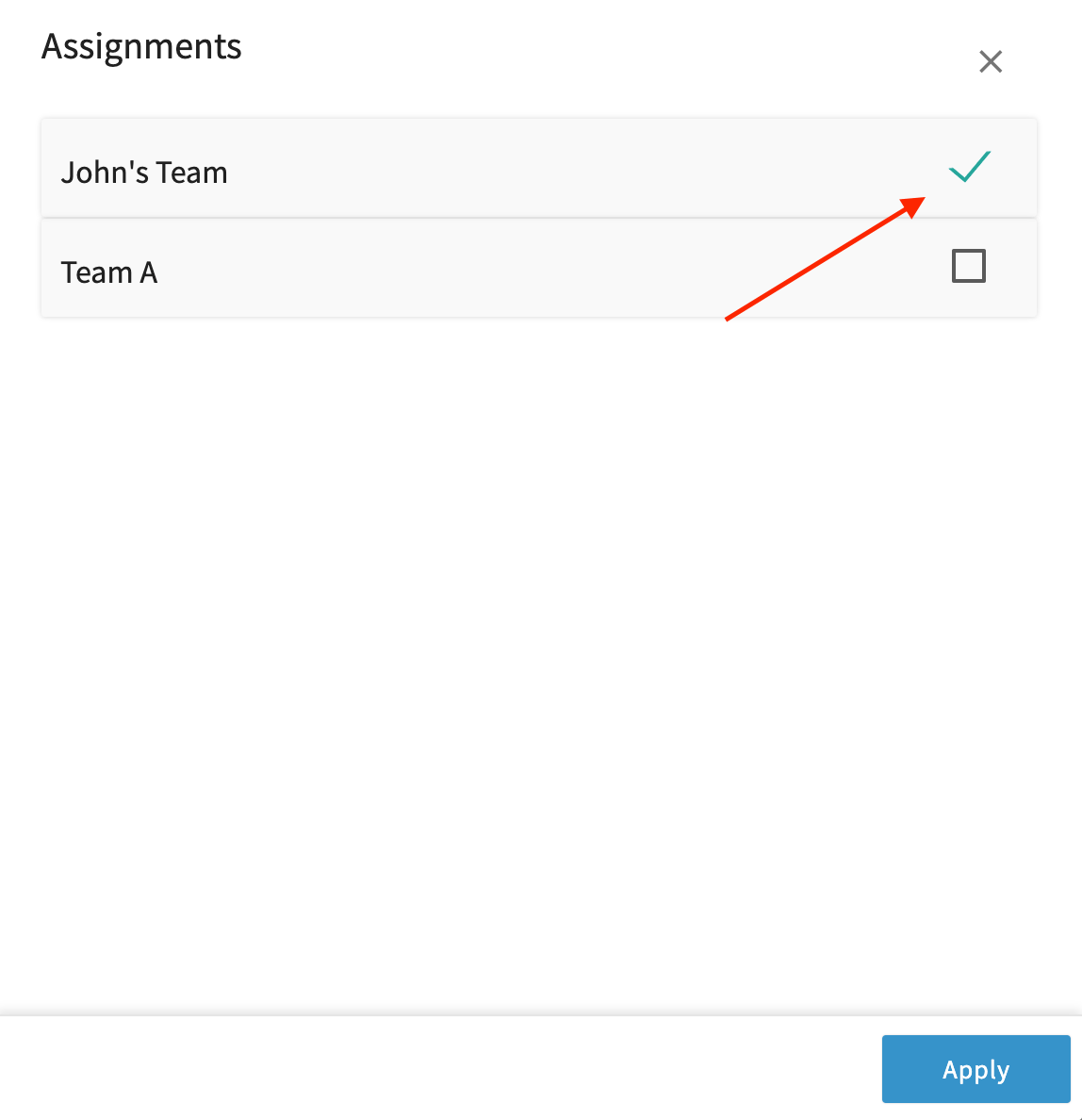
 This will pop up a window where you can select a team to assign this project to. Once you've selected a team, click 'Apply'.
 Once your project's details are complete, click *Save*.
 ### Create a Project from a Job
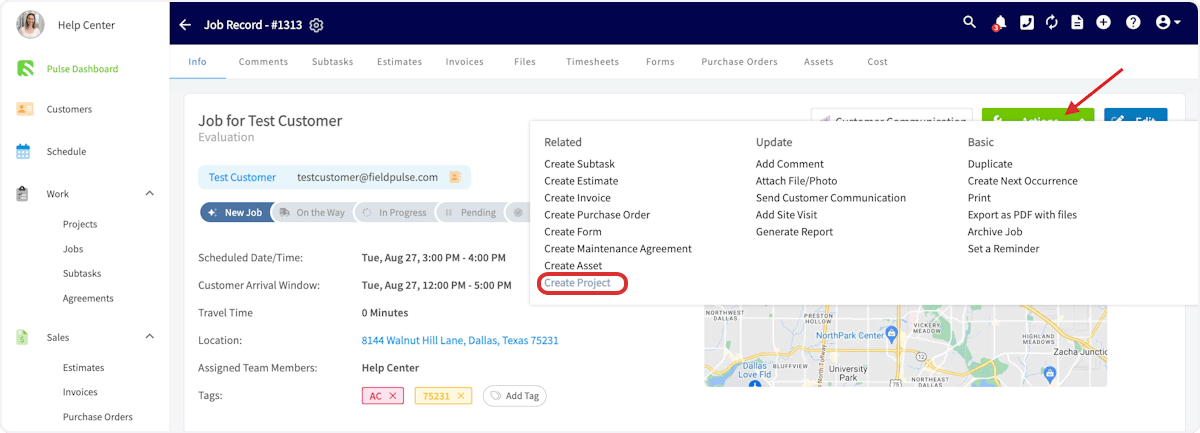
Start a project from an existing job record to keep everything connected. This is perfect for when a small job, evaluation, or estimate visit turns into a larger project! Select *Actions* > *Create Project* on a job record to get started, then follow the steps listed above to complete your project.
### Create a Project from a Job
Start a project from an existing job record to keep everything connected. This is perfect for when a small job, evaluation, or estimate visit turns into a larger project! Select *Actions* > *Create Project* on a job record to get started, then follow the steps listed above to complete your project.
 ### Create a Project from a Template
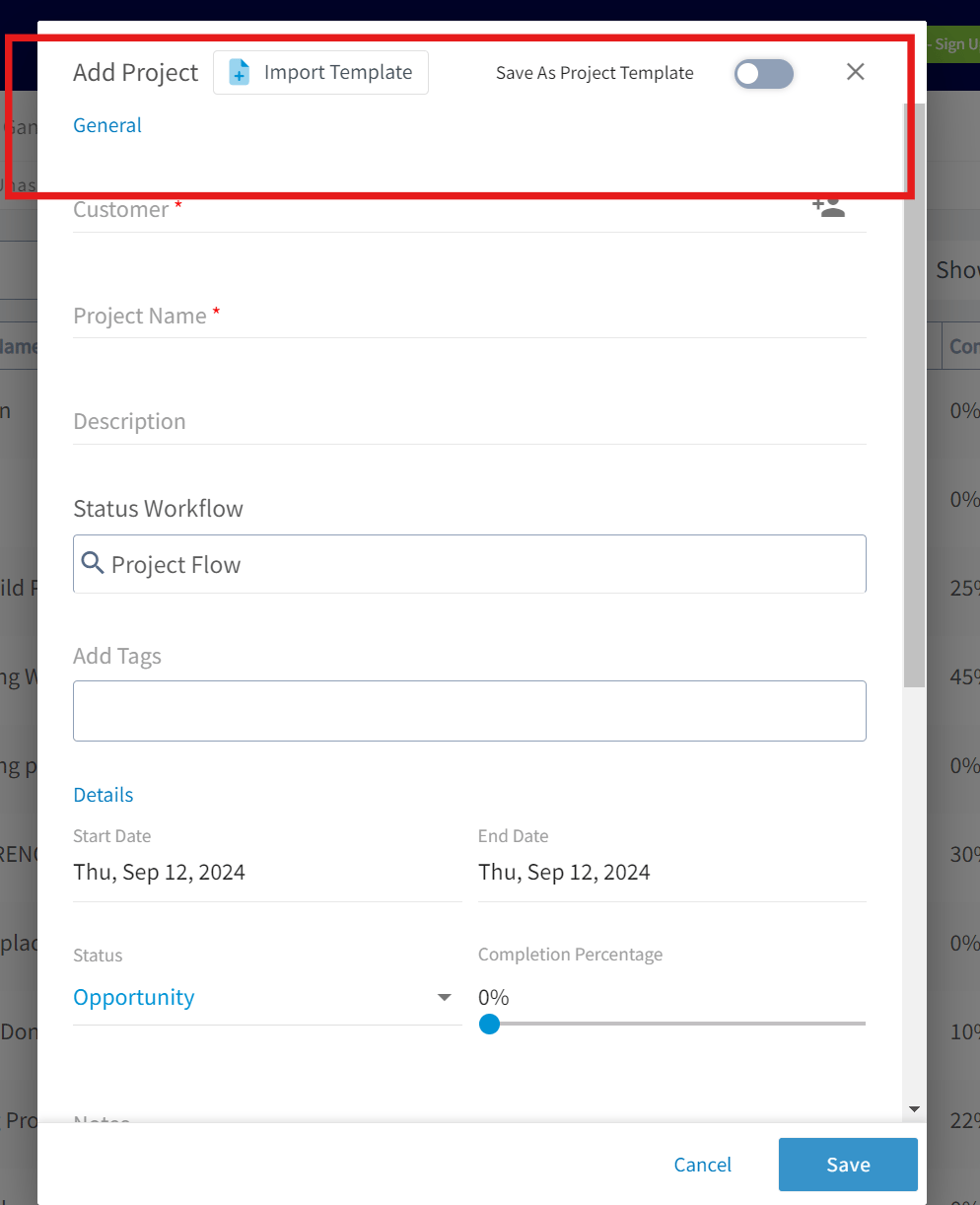
Create project templates in the web app to save time and ensure consistency! Build new sub-records or attach previously created templates for records such as subtasks, estimates, and invoices.
To create a project template, toggle on *Save as Project Template* when filling out your project details. To build a project from an existing template, select *Import Template*, then select your desired template.
### Create a Project from a Template
Create project templates in the web app to save time and ensure consistency! Build new sub-records or attach previously created templates for records such as subtasks, estimates, and invoices.
To create a project template, toggle on *Save as Project Template* when filling out your project details. To build a project from an existing template, select *Import Template*, then select your desired template.
 *Note:* Project Templates can include Job Templates within them. This means any preset jobs you've built as Job Templates can be nested inside a Project Template, so your standard set of jobs is automatically ready to go whenever you spin up a new project from that template.
## Navigating a Project Record
After creating your project, you will be taken to the project record, where you can:
* View and edit all the details you just entered
* Add comments
* Add jobs or subtasks
* Create estimates and invoices
* Attach files
* Track employee timesheets
* And more!
Click the *Actions* button to perform any of these actions.
*Note:* Project Templates can include Job Templates within them. This means any preset jobs you've built as Job Templates can be nested inside a Project Template, so your standard set of jobs is automatically ready to go whenever you spin up a new project from that template.
## Navigating a Project Record
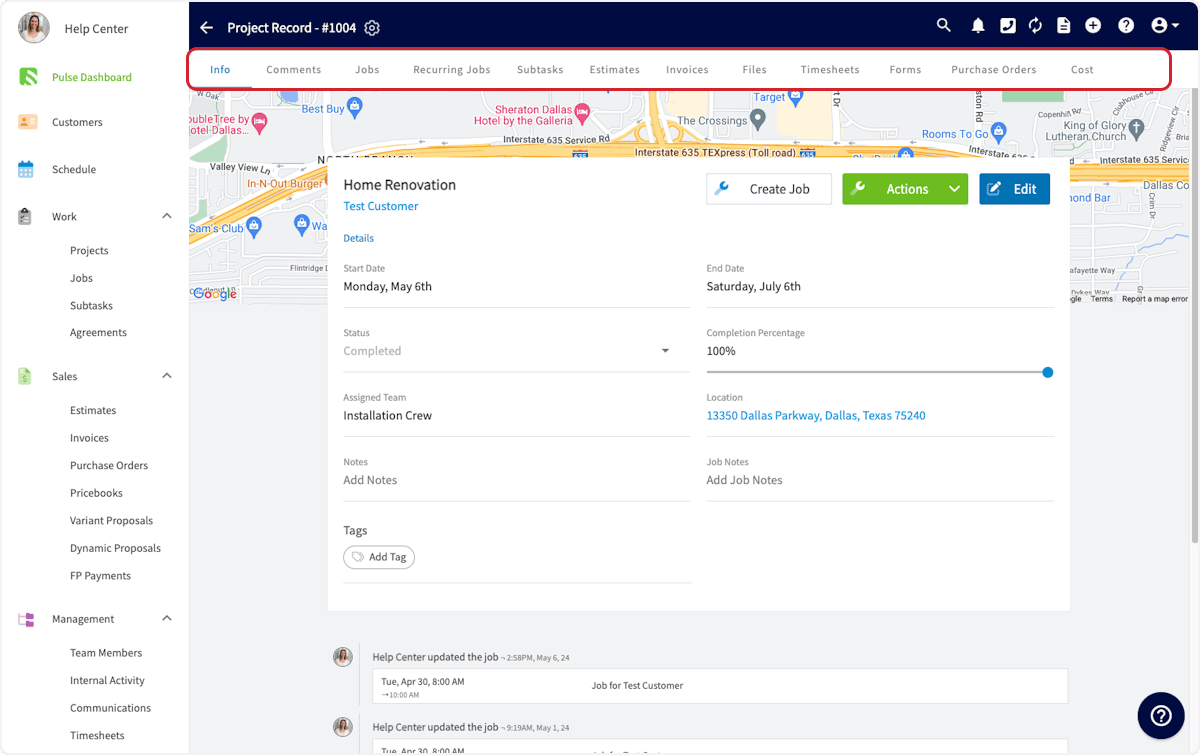
After creating your project, you will be taken to the project record, where you can:
* View and edit all the details you just entered
* Add comments
* Add jobs or subtasks
* Create estimates and invoices
* Attach files
* Track employee timesheets
* And more!
Click the *Actions* button to perform any of these actions.
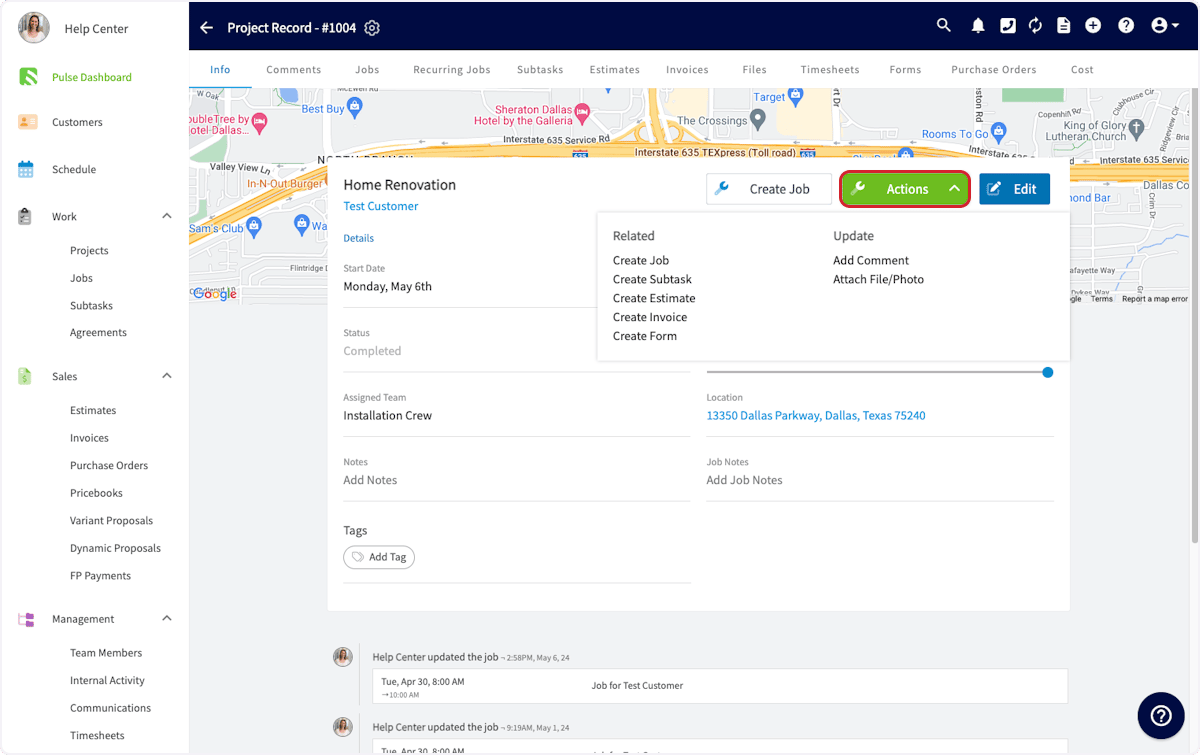 You can also select any of these actions from the tabs at the top of the *Project Record*.
 ## Adding to a Project
Now, you'll want to add jobs to this project. This can be done from the tabs at the top of the Project Record or from the *Project Actions* button. Click *Create New* to set up the first job for this project.
## Adding to a Project
Now, you'll want to add jobs to this project. This can be done from the tabs at the top of the Project Record or from the *Project Actions* button. Click *Create New* to set up the first job for this project.
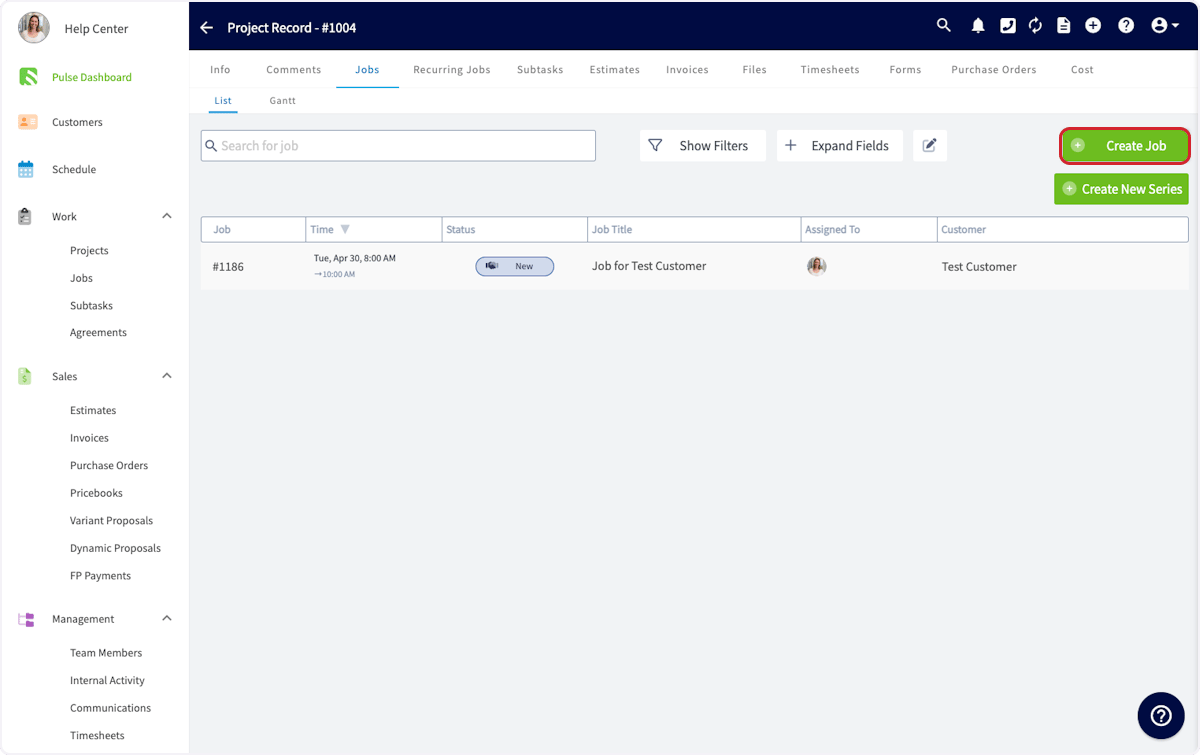 ***Note:*** *If you are not already in the Project Record, you can also create a job from the Jobs button on the left-hand side of your screen. (Just be sure to link it to the related project!)*
This will pop up a window to create a job within this project. The Project, Customer and location will be pre-populated. If you need a refresher on creating jobs, [the guide to creating jobs](/using-fieldpulse/work/creating-a-job). You can assign this job to any team member on the team that is assigned to this project.
***Note:*** *If you are not already in the Project Record, you can also create a job from the Jobs button on the left-hand side of your screen. (Just be sure to link it to the related project!)*
This will pop up a window to create a job within this project. The Project, Customer and location will be pre-populated. If you need a refresher on creating jobs, [the guide to creating jobs](/using-fieldpulse/work/creating-a-job). You can assign this job to any team member on the team that is assigned to this project.
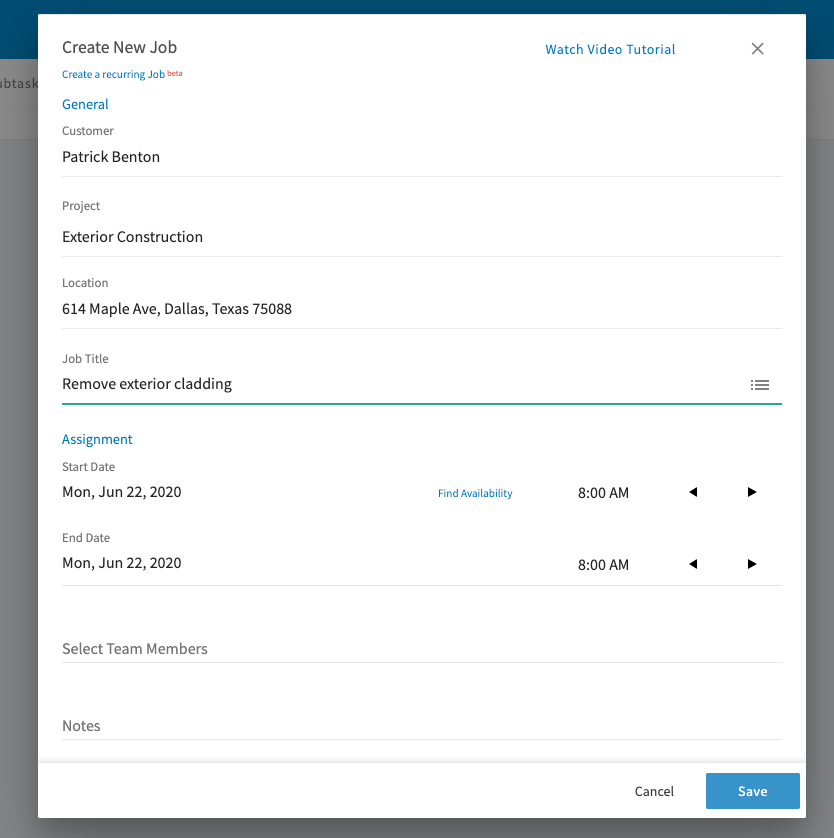 Once you press *Save*, the job will show up in the jobs list within the project. Repeat this process to add all the jobs you need in this project.
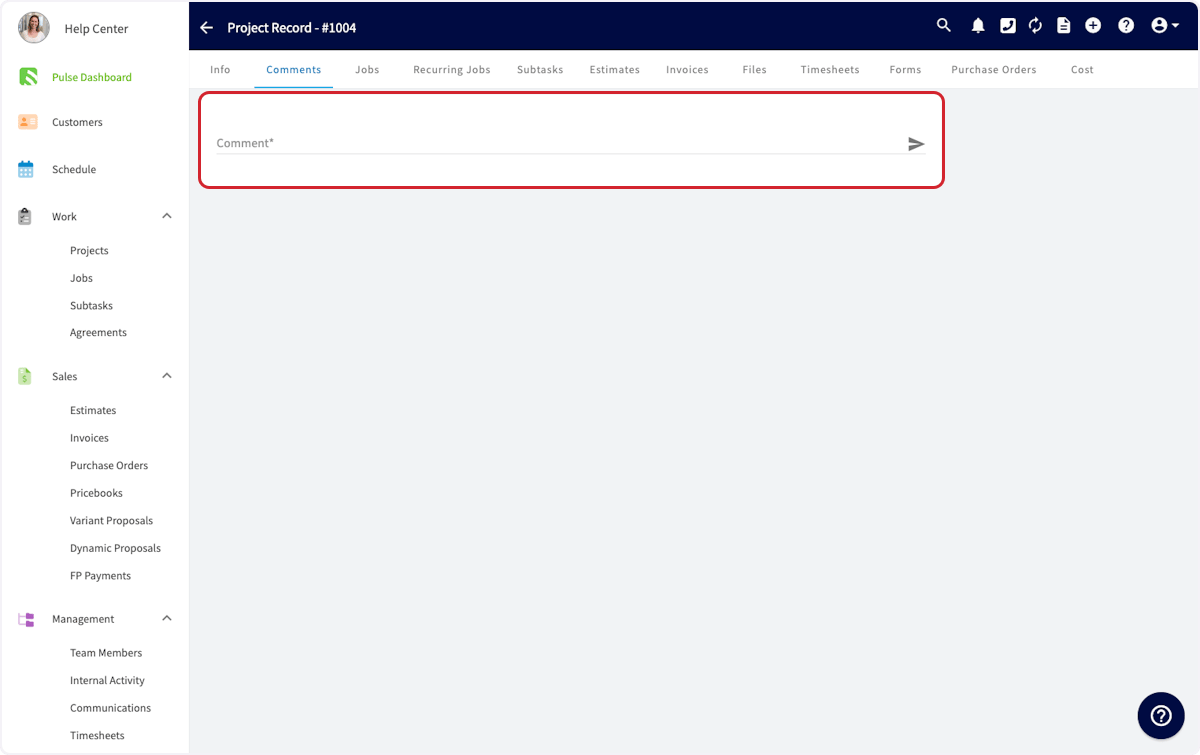
Once you've added all of your jobs to the project, and your team members have been automatically notified, you may want to add some comments to this project for your team to see. To do so, click on the *Comments* tab at the top of the Project Record. Write your comment, then click the *Send* button. This will be visible to all members of the team assigned to this project.
Once you press *Save*, the job will show up in the jobs list within the project. Repeat this process to add all the jobs you need in this project.
Once you've added all of your jobs to the project, and your team members have been automatically notified, you may want to add some comments to this project for your team to see. To do so, click on the *Comments* tab at the top of the Project Record. Write your comment, then click the *Send* button. This will be visible to all members of the team assigned to this project.
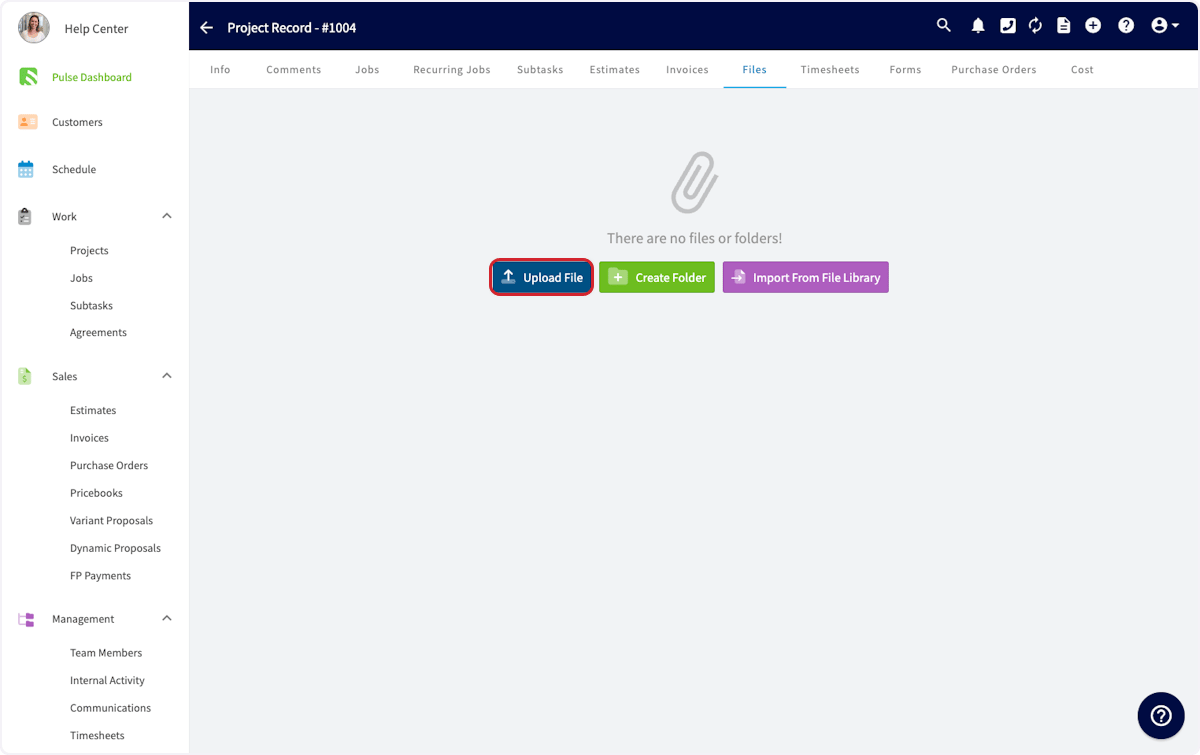
 You can also add files to this project under the *Files* tab.
Examples of file uploads may include:
* Photos you want to share with your team
* PDF documents like a service manual for a particular piece of equipment.
You can also add files to this project under the *Files* tab.
Examples of file uploads may include:
* Photos you want to share with your team
* PDF documents like a service manual for a particular piece of equipment.
 ## Related Project Tab
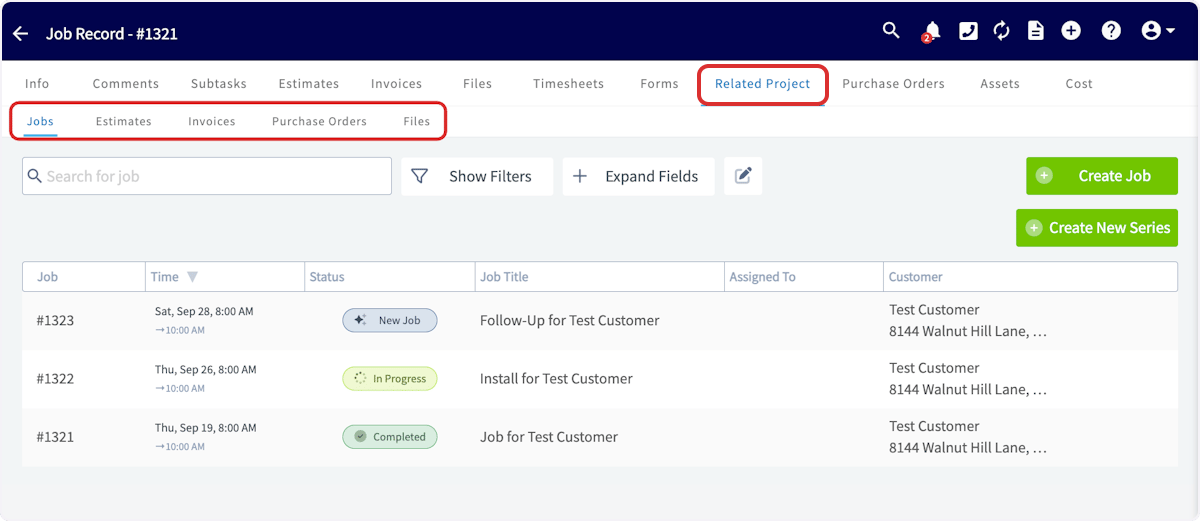
When viewing a record linked to a project, you'll notice the *Related Project* tab at the top of your screen. This tab allows you to view all records linked to the project from an easy-to-access location. Many users use this feature to reference files from a previous job while working on the project's next job.
Click here to quickly open other jobs, estimates, invoices, purchase orders, and files linked to the same project.
## Related Project Tab
When viewing a record linked to a project, you'll notice the *Related Project* tab at the top of your screen. This tab allows you to view all records linked to the project from an easy-to-access location. Many users use this feature to reference files from a previous job while working on the project's next job.
Click here to quickly open other jobs, estimates, invoices, purchase orders, and files linked to the same project.
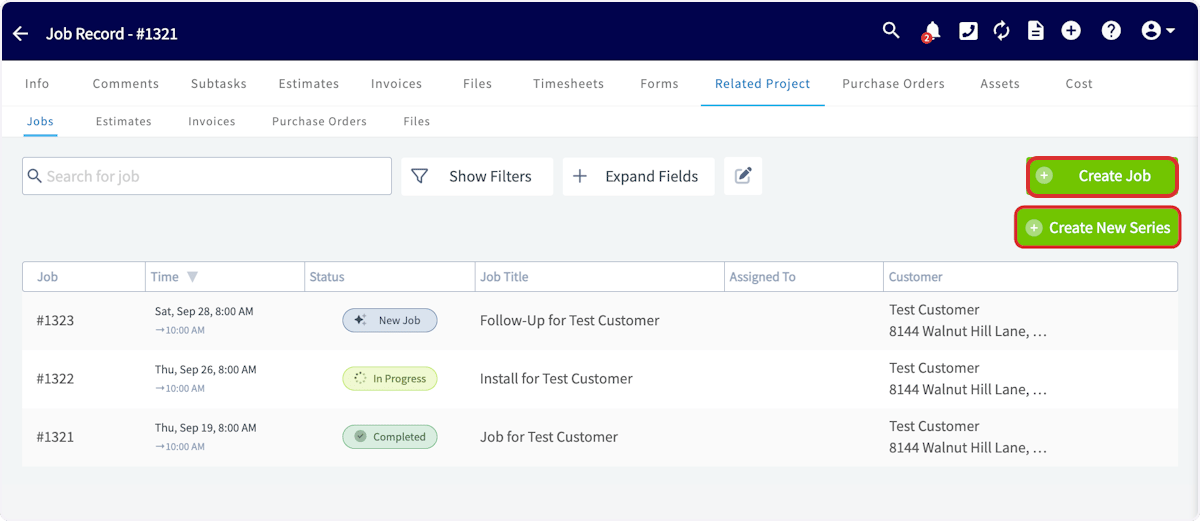
 You can also create any of those records and automatically link them to the project from this page by using the *Create* button.
 ## Completing a Project
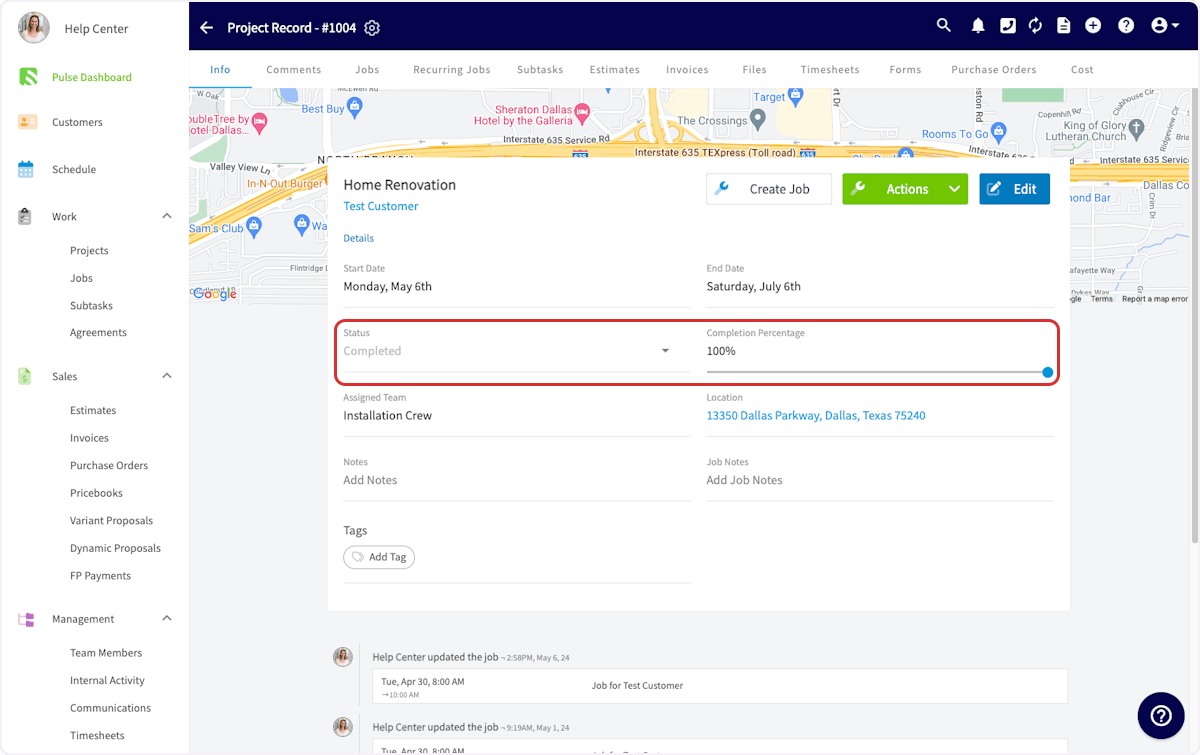
When your project is complete, navigate to the *Info* tab in your Project Record and change the status to *Complete*. You'll also want to set the completion percentage to 100%.
## Completing a Project
When your project is complete, navigate to the *Info* tab in your Project Record and change the status to *Complete*. You'll also want to set the completion percentage to 100%.
 ***
# On Mobile: Field Experience
## Creating a Project
To create a project, begin by selecting the *Work* tab from the bottom menu. Then select *Projects*.
***
# On Mobile: Field Experience
## Creating a Project
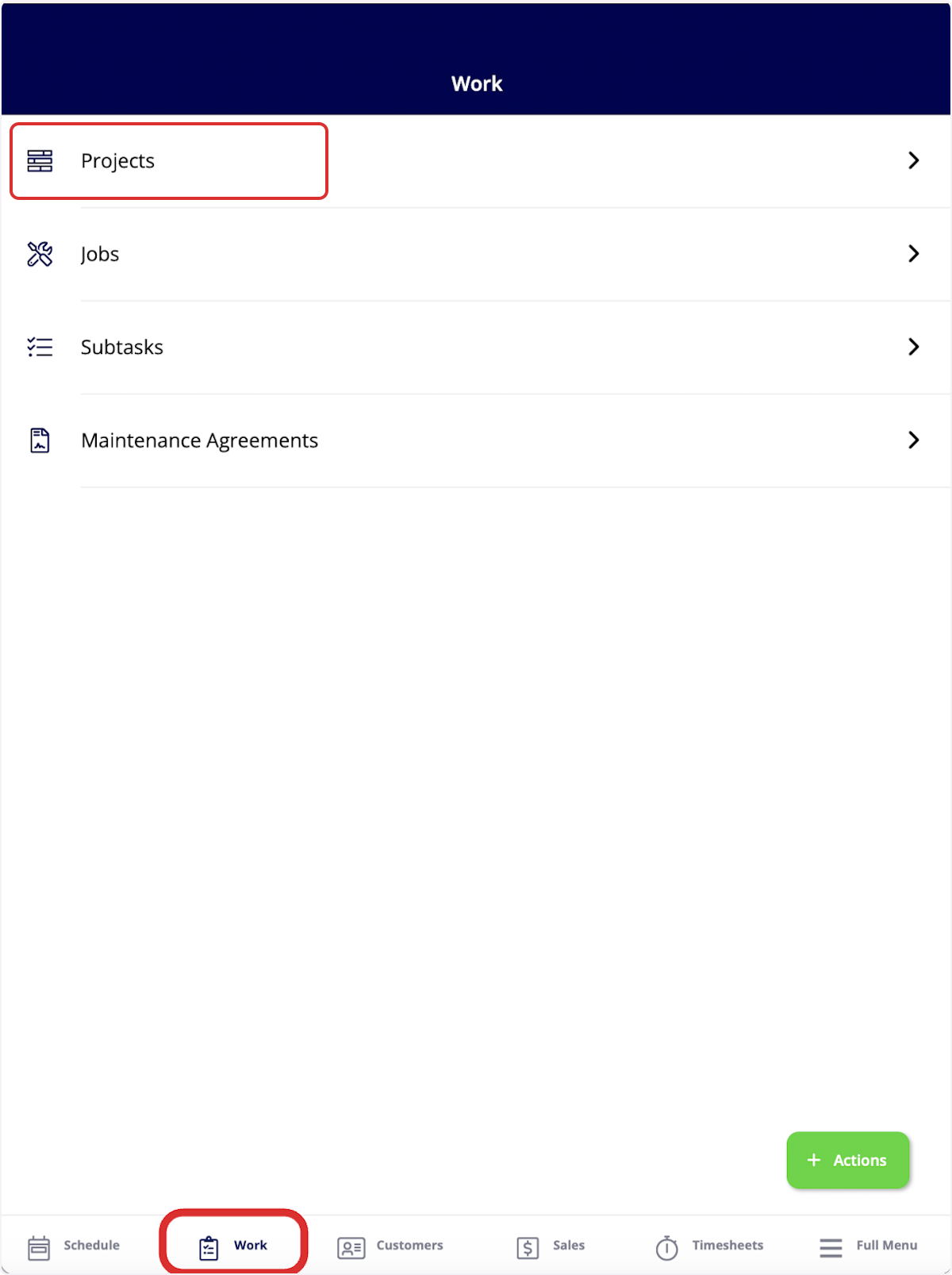
To create a project, begin by selecting the *Work* tab from the bottom menu. Then select *Projects*.
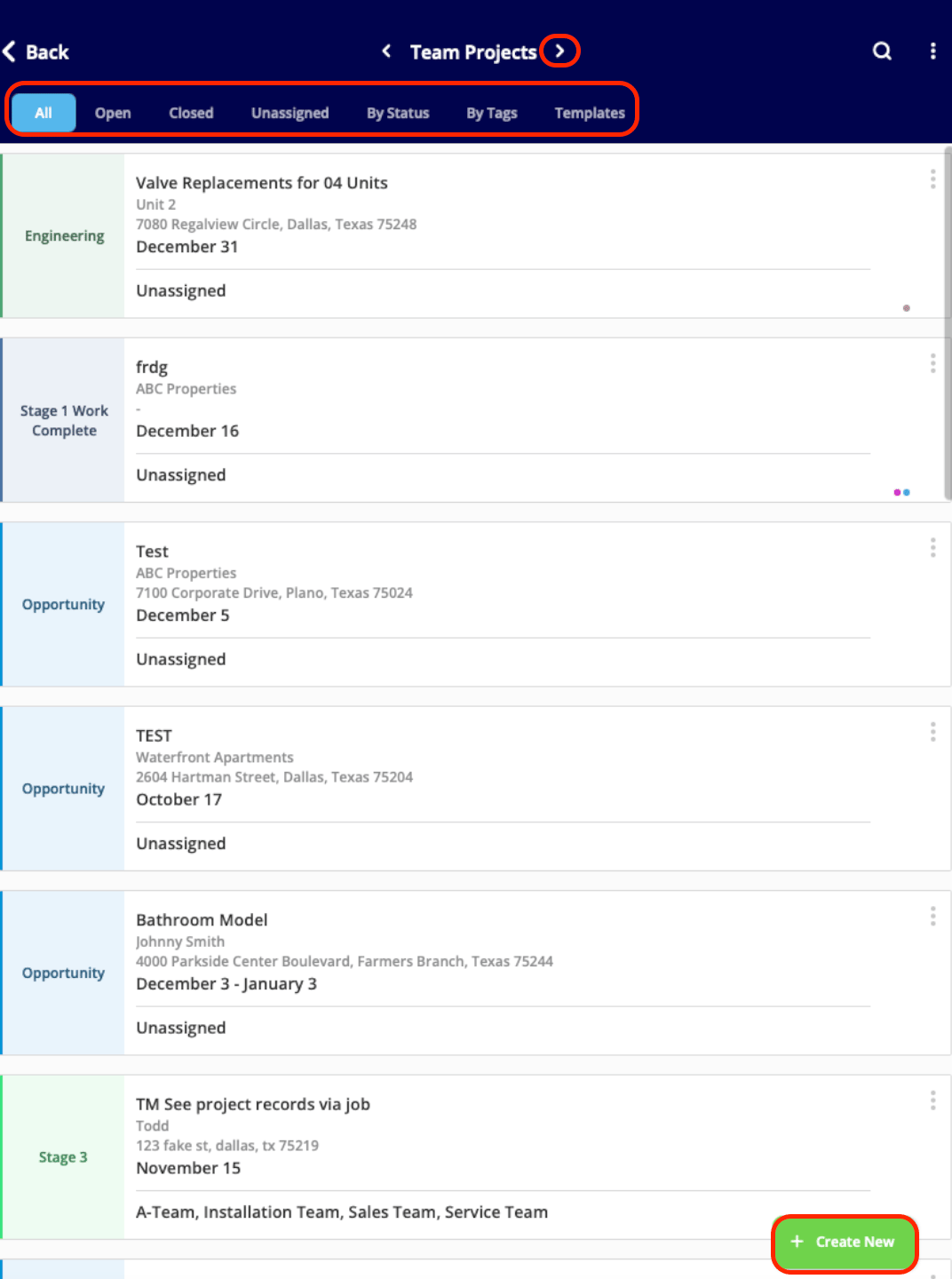
 To organize your existing projects, select from the menu at the top of the screen (*All*, *Open*, *Closed*, *Unassigned*, *By Status*). Additionally, sort between *Team Projects* and *My Projects* using the arrows.
To create a new project, click *Create New*.
To organize your existing projects, select from the menu at the top of the screen (*All*, *Open*, *Closed*, *Unassigned*, *By Status*). Additionally, sort between *Team Projects* and *My Projects* using the arrows.
To create a new project, click *Create New*.
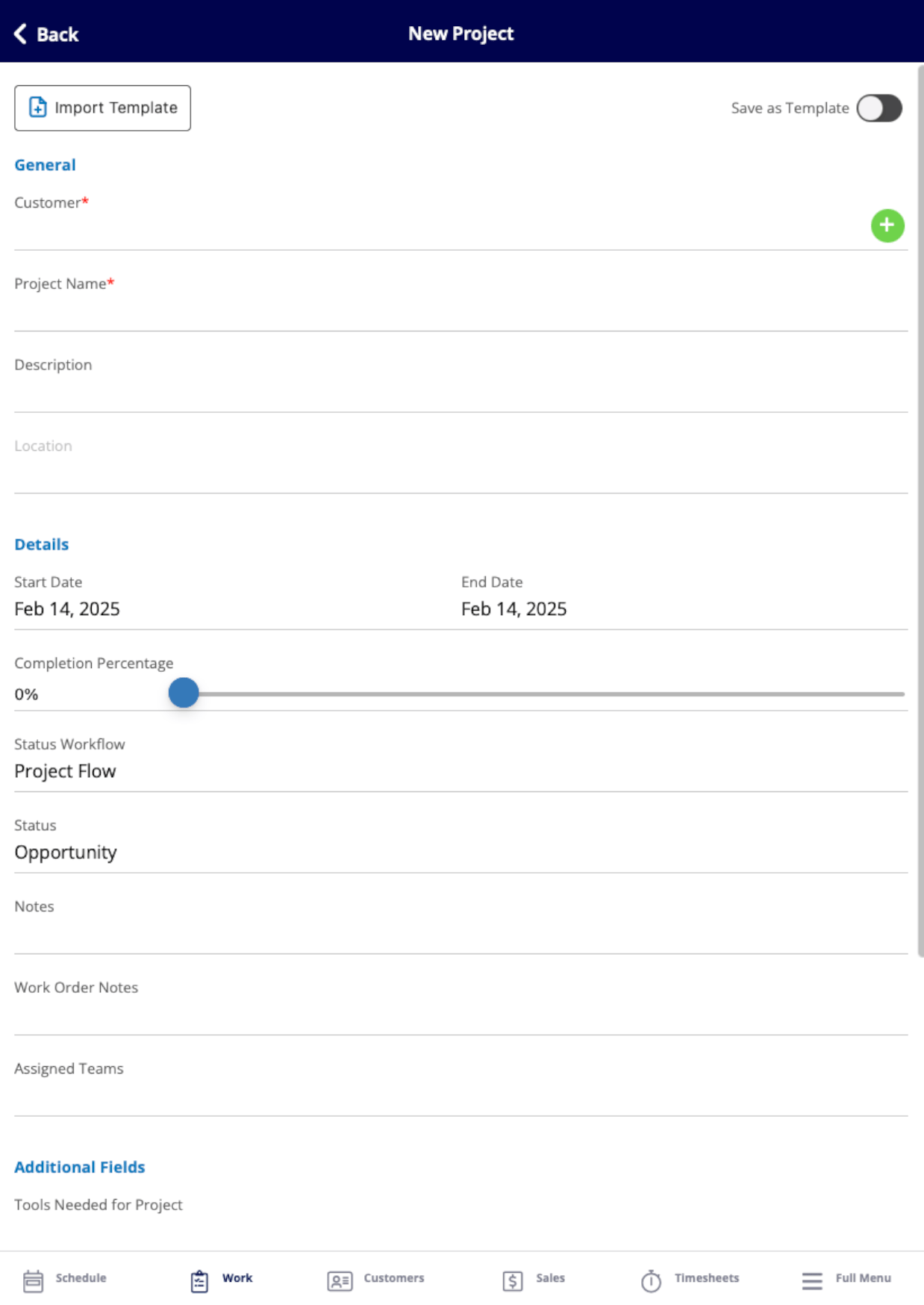
 Now you can fill in the details of your project.
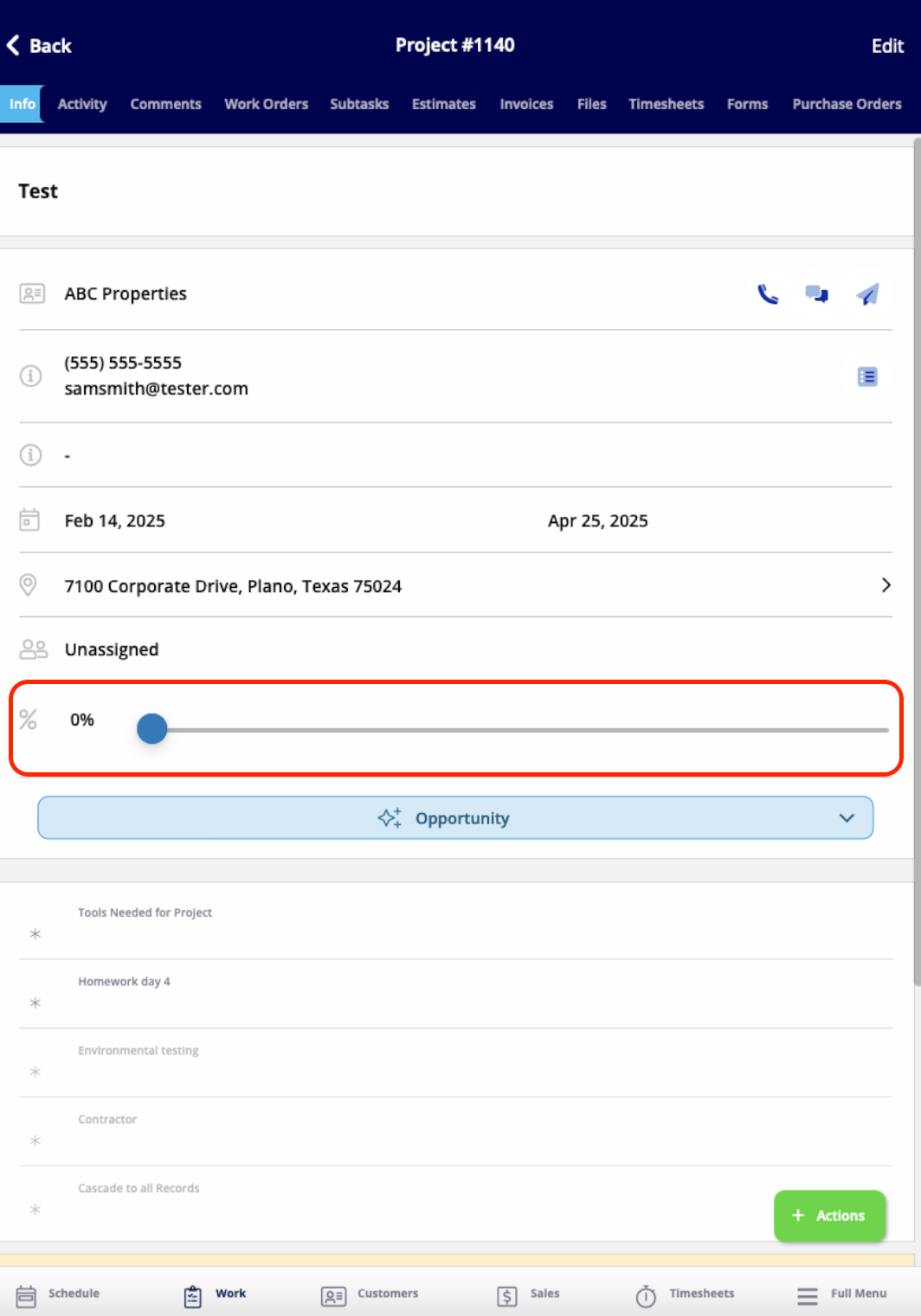
 After completing and saving your new project, you can view the project record. On this page, you can change the project status and track your progress using the completion percentage slider to indicate your current completion level.
 From this page, you can also:
* View and edit all the details you just entered
* Add comments
* Add jobs or subtasks
* Create estimates and invoices
* Attach files
* Track employee timesheets
* And more!
Click *Actions* to perform any of these actions, or select any of these actions from the tabs at the top of the screen.
***
# FAQs
**If you delete a project, will it also delete/archive the jobs under that project?**
No! No need to worry - those jobs will still be accessible within FieldPulse.
***
# Video Tutorials
## Web App
## Mobile
***
**Have additional questions?**
*Contact us at [support@fieldpulse.com](mailto:support@fieldpulse.com) or use the chat feature in the bottom right corner of your screen.*
## Related topics
- [Project Management](/using-fieldpulse/project-management/index.md)
- [Custom Fields on Project Records](/using-fieldpulse/project-management/custom-fields-on-project-records.md)
- [What's New](/changelog/index.md)
- [Custom Fields on Purchase Orders](/using-fieldpulse/purchase-orders/custom-fields-on-purchase-orders.md)
- [Purchase Orders](/using-fieldpulse/purchase-orders/index.md)
From this page, you can also:
* View and edit all the details you just entered
* Add comments
* Add jobs or subtasks
* Create estimates and invoices
* Attach files
* Track employee timesheets
* And more!
Click *Actions* to perform any of these actions, or select any of these actions from the tabs at the top of the screen.
***
# FAQs
**If you delete a project, will it also delete/archive the jobs under that project?**
No! No need to worry - those jobs will still be accessible within FieldPulse.
***
# Video Tutorials
## Web App
## Mobile
***
**Have additional questions?**
*Contact us at [support@fieldpulse.com](mailto:support@fieldpulse.com) or use the chat feature in the bottom right corner of your screen.*
## Related topics
- [Project Management](/using-fieldpulse/project-management/index.md)
- [Custom Fields on Project Records](/using-fieldpulse/project-management/custom-fields-on-project-records.md)
- [What's New](/changelog/index.md)
- [Custom Fields on Purchase Orders](/using-fieldpulse/purchase-orders/custom-fields-on-purchase-orders.md)
- [Purchase Orders](/using-fieldpulse/purchase-orders/index.md)