> ## Documentation Index
> Fetch the complete documentation index at: https://help.fieldpulse.com/llms.txt
> Use this file to discover all available pages before exploring further.
# Commission Reports
> Report on flat-rate and per-user commissions, then save the results and turn them into dashboard widgets.
Within *Reporting*, use the *Commissions* tab to create reports that incorporate both flat-rate and user specific commissions. Save your Commission reports and even create Widgets from the data within your report to then add to your Dashboard.
To learn more about FieldPulse's commission structure, [the commission structures guide](/using-fieldpulse/commission-markups-profitability/a-comprehensive-guide-to-fieldpulse-s-commission-structures).
***
# Create a Commission Report
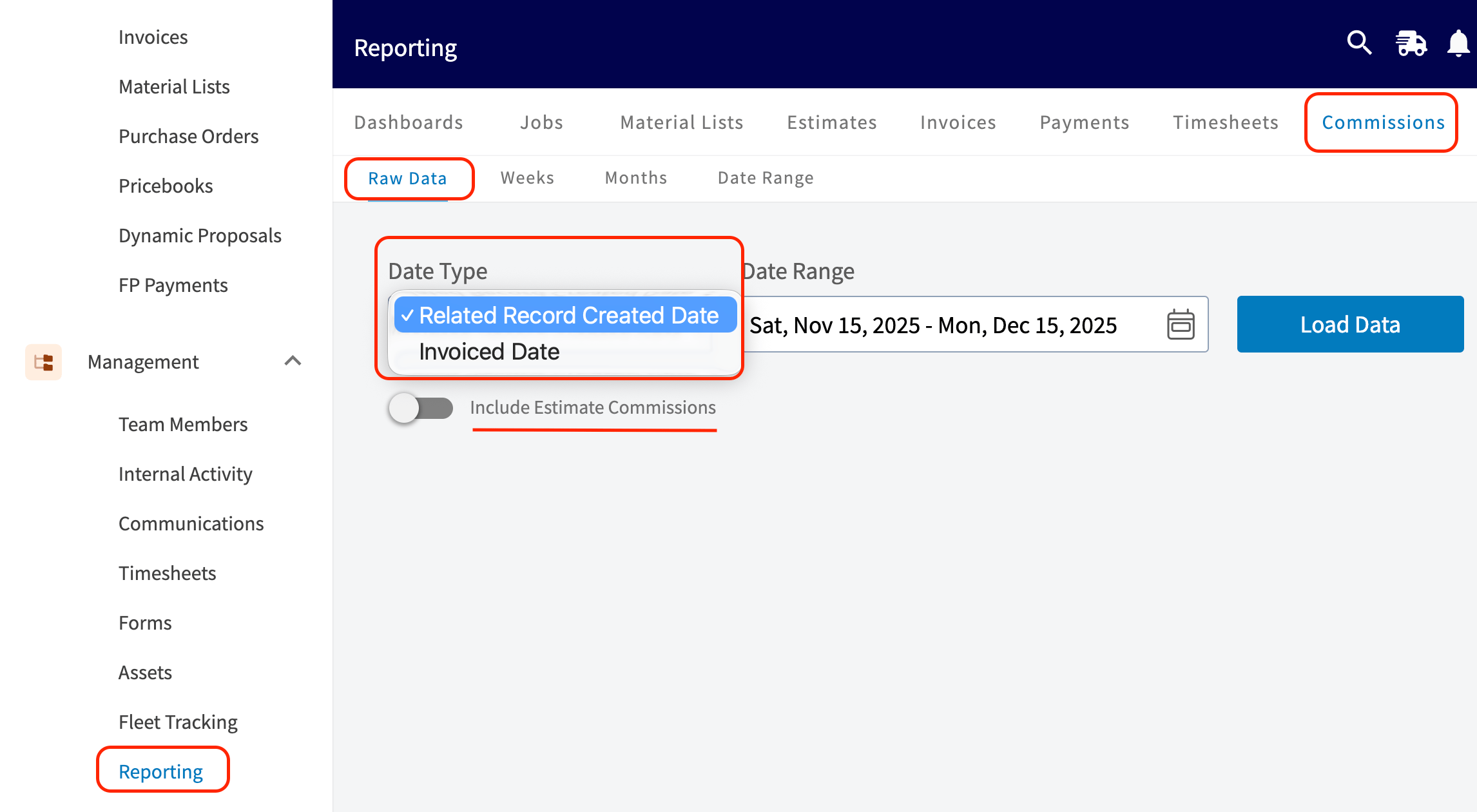
## Step 1: Date Type
Choose one of the following options:
* **Related Record Created Date:** This refers to the date associated with the Estimate or Invoice record.
* **Invoiced Date:** This is the date when the Invoice was sent to the customer.
 ## Step 2: Date Range
Select the start date for the reporting period. Click on the calendar icon to choose a preset date range, then click *Load Data*.
## Step 2: Date Range
Select the start date for the reporting period. Click on the calendar icon to choose a preset date range, then click *Load Data*.
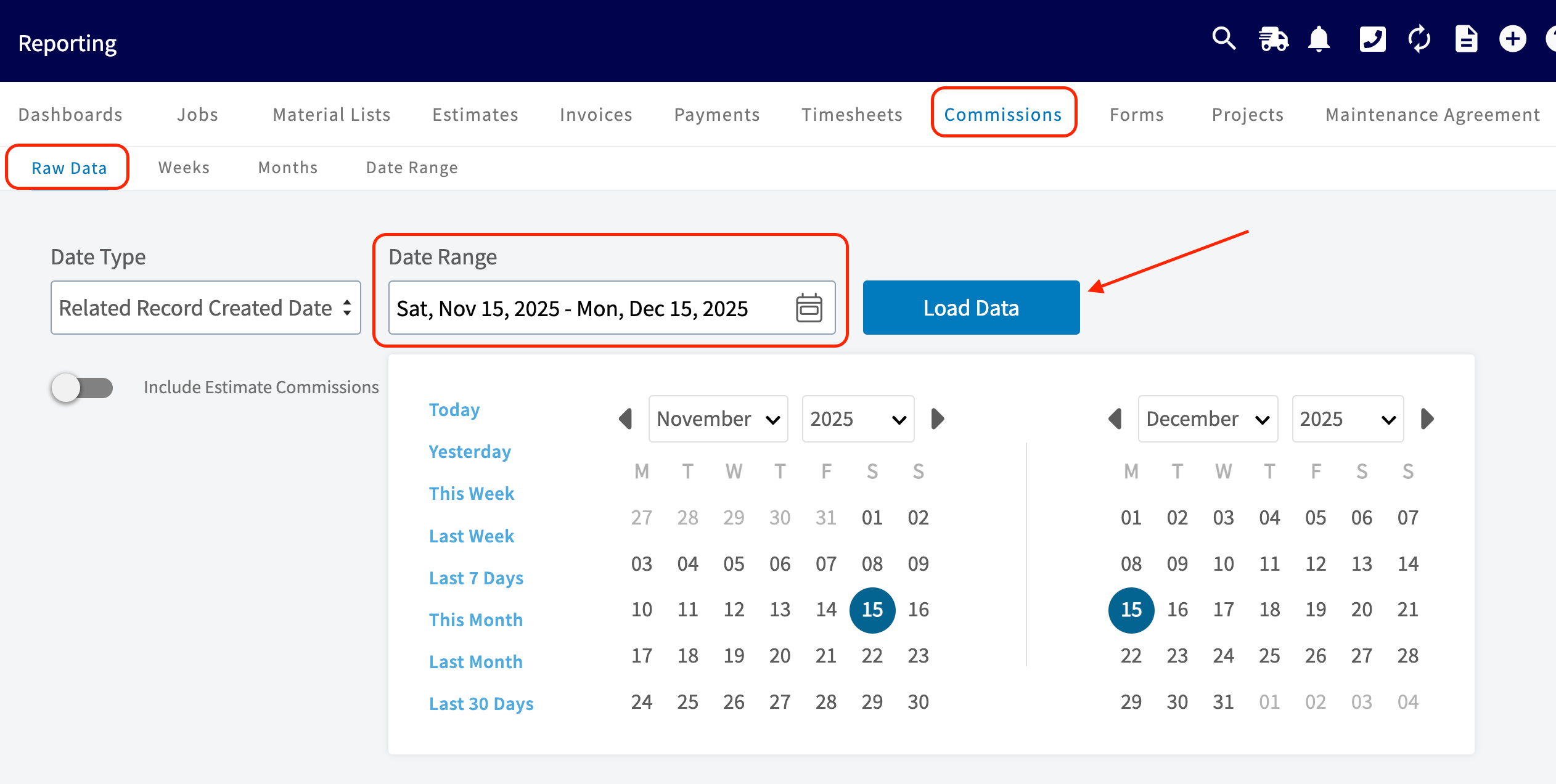 * **Today:** From 12:00 AM to the current time
* **Yesterday:** Previous day from 12:00 AM to 11:59 PM
* **This Week:** From Monday through Sunday of the current week
* **Last Week:** Previous week
* **Last 7 Days:** Previous seven days, including today
* **This Month:** From the first of the current month to the current day
* **Last Month:** Entire month before the current month
* **Last 30 Days:** Previous 30 days, including today
* **Custom:** Use the calendar to select start and end dates
## Step 3: Columns
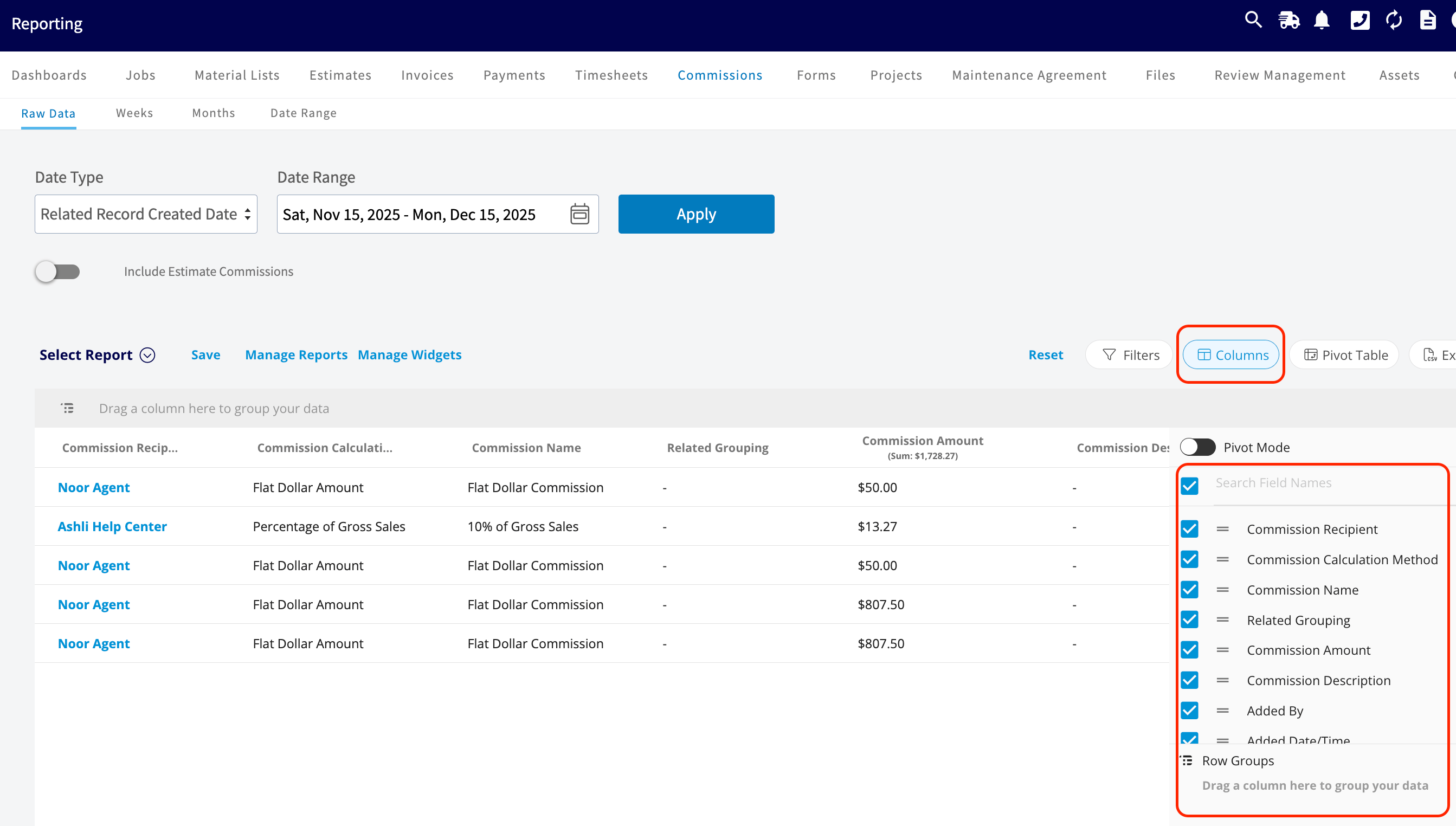
Select the columns to include in your report by clicking *Columns*. Commission reports include these columns by default:
* Commission Recipient
* Commission Type
* Commission Name
* Related Grouping
* Commission Amount
* Commission Description
* Added By
* Added Date/Time
* Related Estimate
* Related Invoice
* Related Invoice Status
* Related Job
* Related Job Status
* Related Customer
Use the check boxes to decide which columns you wish to include in your report.
* **Today:** From 12:00 AM to the current time
* **Yesterday:** Previous day from 12:00 AM to 11:59 PM
* **This Week:** From Monday through Sunday of the current week
* **Last Week:** Previous week
* **Last 7 Days:** Previous seven days, including today
* **This Month:** From the first of the current month to the current day
* **Last Month:** Entire month before the current month
* **Last 30 Days:** Previous 30 days, including today
* **Custom:** Use the calendar to select start and end dates
## Step 3: Columns
Select the columns to include in your report by clicking *Columns*. Commission reports include these columns by default:
* Commission Recipient
* Commission Type
* Commission Name
* Related Grouping
* Commission Amount
* Commission Description
* Added By
* Added Date/Time
* Related Estimate
* Related Invoice
* Related Invoice Status
* Related Job
* Related Job Status
* Related Customer
Use the check boxes to decide which columns you wish to include in your report.
 ***
# Group by Commission Recipient & Related Job
***
**Have additional questions?**
*Contact us at [support@fieldpulse.com](mailto:support@fieldpulse.com) or use the chat feature in the bottom right corner of your screen.*
***
# Group by Commission Recipient & Related Job
***
**Have additional questions?**
*Contact us at [support@fieldpulse.com](mailto:support@fieldpulse.com) or use the chat feature in the bottom right corner of your screen.*