> ## Documentation Index
> Fetch the complete documentation index at: https://help.fieldpulse.com/llms.txt
> Use this file to discover all available pages before exploring further.
# Custom Forms Reports
> Report on responses from any custom form template so field-collected data rolls up into one view.
Within *Reporting*, use the *Forms* tab to create reports that incorporate any Custom Form Template in your account.
To learn more about Custom Forms, [the Custom Forms overview](/features-add-ons/custom-forms/custom-forms-overview).
***
# **Create a Custom Form Report**
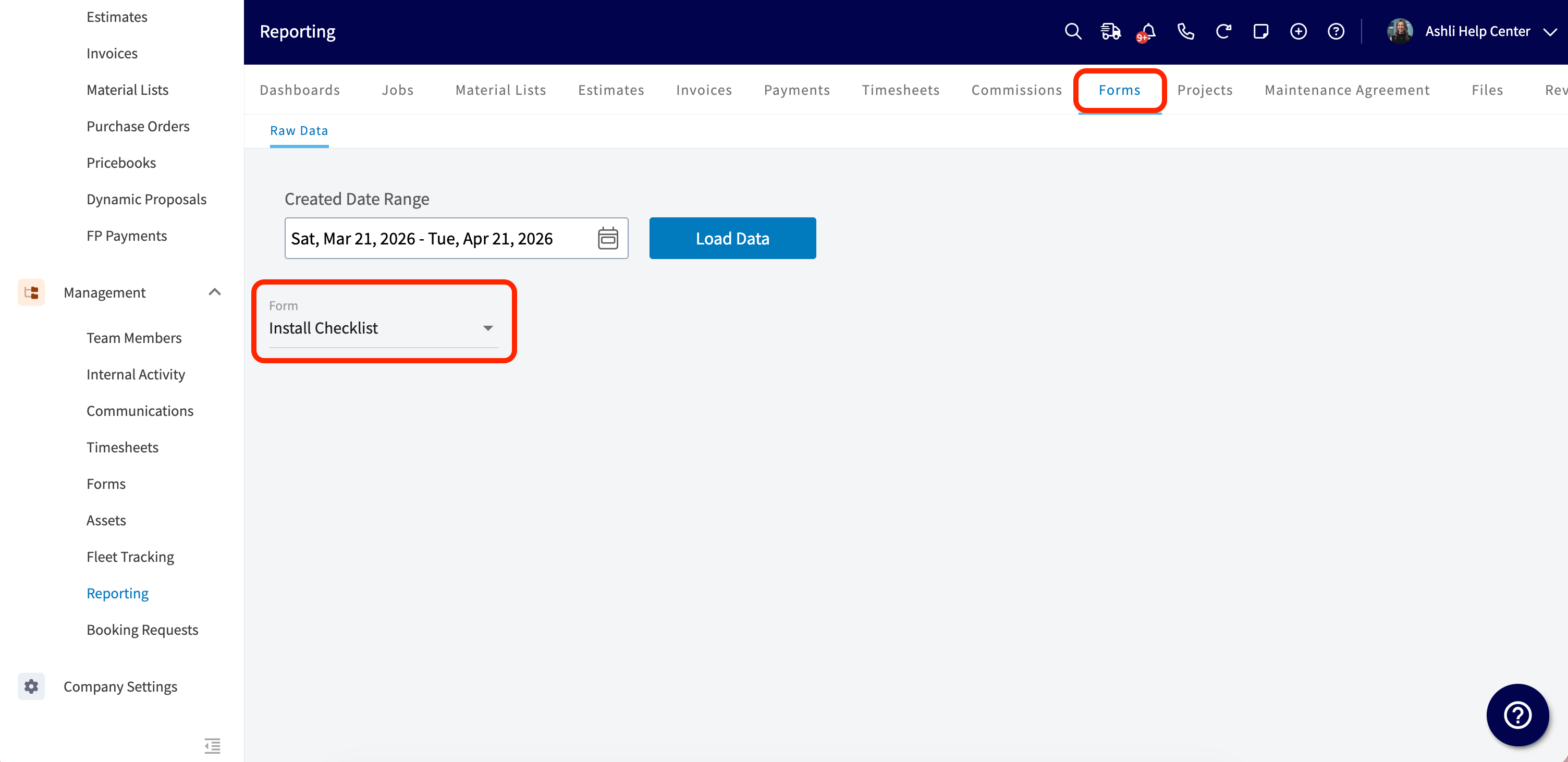
## **Step 1: Form**
Select the form you want to report on from the drop down.
 ## **Step 2: Date Range**
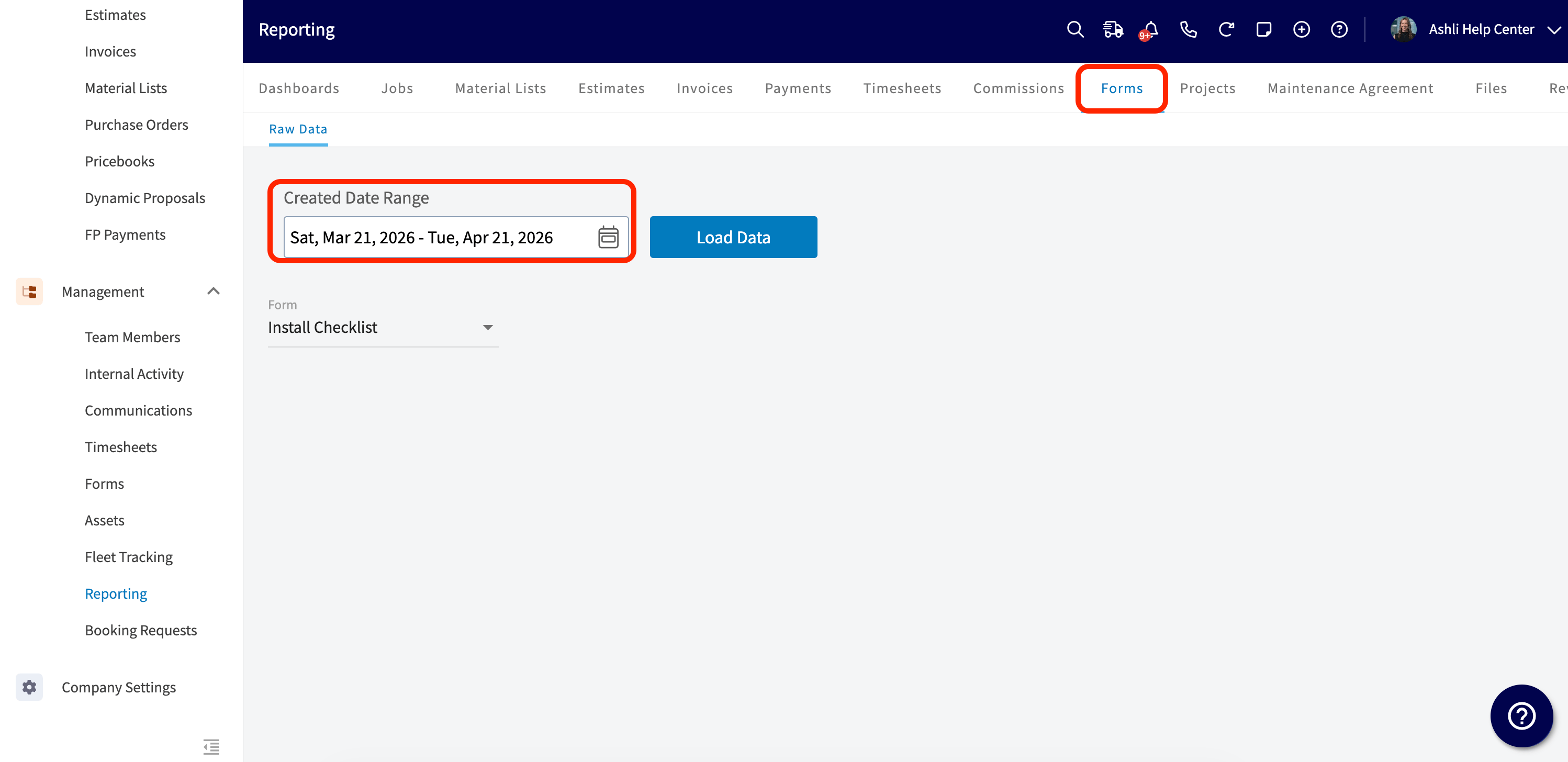
Select the start date for the reporting period. Click on the calendar icon to choose a preset date range, then click *Load Data*.
## **Step 2: Date Range**
Select the start date for the reporting period. Click on the calendar icon to choose a preset date range, then click *Load Data*.
 * **Today:** From 12:00 AM to the current time
* **Yesterday:** Previous day from 12:00 AM to 11:59 PM
* **This Week:** From Monday through Sunday of the current week
* **Last Week:** Previous week
* **Last 7 Days:** Previous seven days, including today
* **This Month:** From the first of the current month to the current day
* **Last Month:** Entire month before the current month
* **Last 30 Days:** Previous 30 days, including today
* **Custom:** Use the calendar to select start and end dates
## **Step 3: Columns**
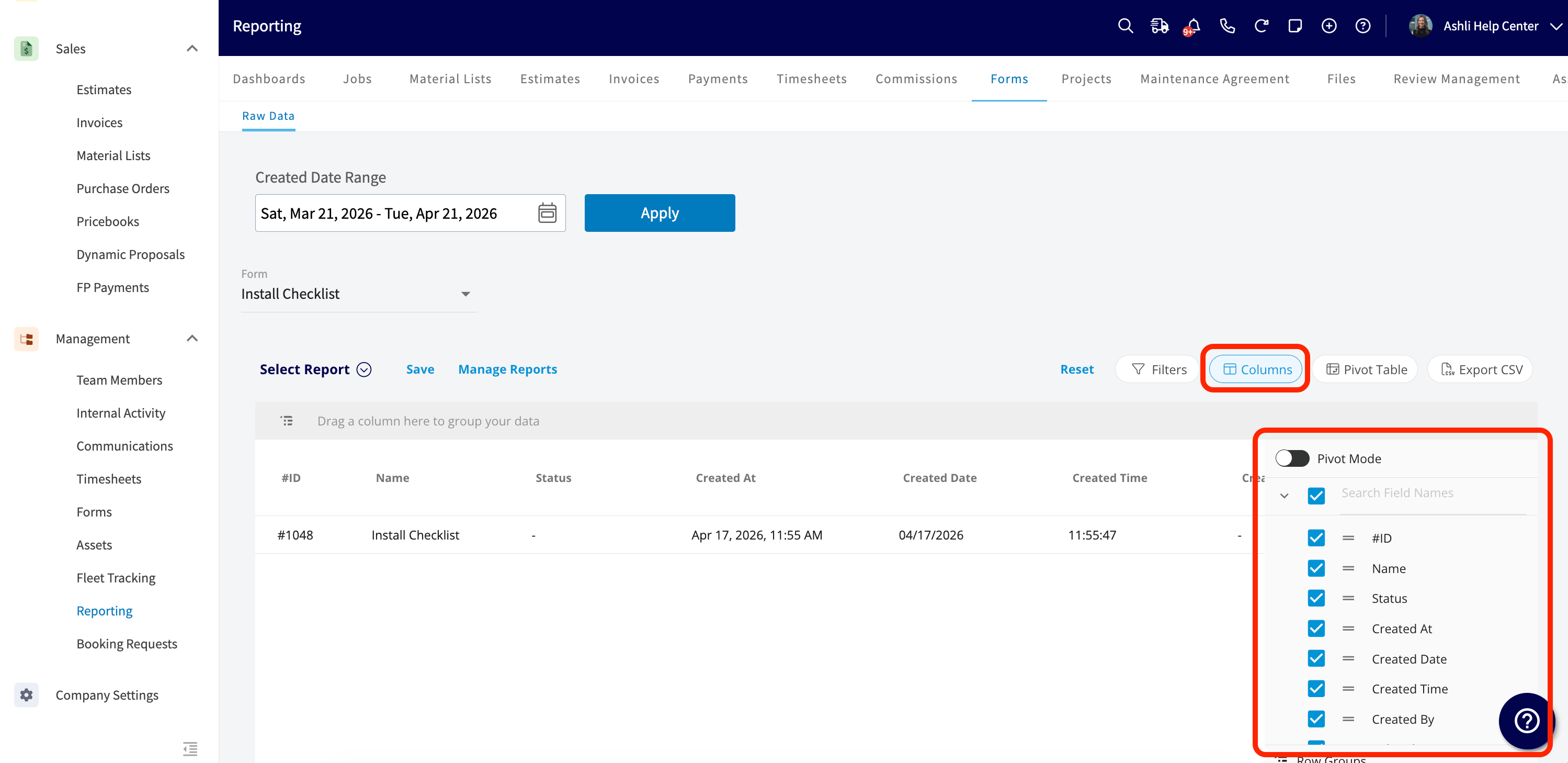
Select the columns to include in your report by clicking *Columns*. Custom Form reports include these columns by default:
* \#ID
* Name
* Status
* Created At
* Created Date
* Created Time
* Created By
* Related Customer
* Related Maintenance Agreement
* Related Job
* Related Invoice
* Related Project
* Related Asset
* Customer
* Customer Display Name
* Customer Company Name
* Customer First Name
* Customer Last Name
* **Today:** From 12:00 AM to the current time
* **Yesterday:** Previous day from 12:00 AM to 11:59 PM
* **This Week:** From Monday through Sunday of the current week
* **Last Week:** Previous week
* **Last 7 Days:** Previous seven days, including today
* **This Month:** From the first of the current month to the current day
* **Last Month:** Entire month before the current month
* **Last 30 Days:** Previous 30 days, including today
* **Custom:** Use the calendar to select start and end dates
## **Step 3: Columns**
Select the columns to include in your report by clicking *Columns*. Custom Form reports include these columns by default:
* \#ID
* Name
* Status
* Created At
* Created Date
* Created Time
* Created By
* Related Customer
* Related Maintenance Agreement
* Related Job
* Related Invoice
* Related Project
* Related Asset
* Customer
* Customer Display Name
* Customer Company Name
* Customer First Name
* Customer Last Name
 ***
**Have additional questions?**
*Contact us at [support@fieldpulse.com](mailto:support@fieldpulse.com) or use the chat feature in the bottom right corner of your screen.*
***
***
**Have additional questions?**
*Contact us at [support@fieldpulse.com](mailto:support@fieldpulse.com) or use the chat feature in the bottom right corner of your screen.*
***