> ## Documentation Index
> Fetch the complete documentation index at: https://help.fieldpulse.com/llms.txt
> Use this file to discover all available pages before exploring further.
# Item Usage Reports
> Break down item usage by job, customer, or part to see quantities, cost, and price on the work you bill.
Use the *Invoices > Item Usage* tab to create reports based on item usage data including item quantity, total cost, total price, and more. Some common item usage reports include item usage by item, by job, and by customer.
***
# Create an Item Usage Report
## Date Range
Begin by selecting date type you'd like to use to generate the report.
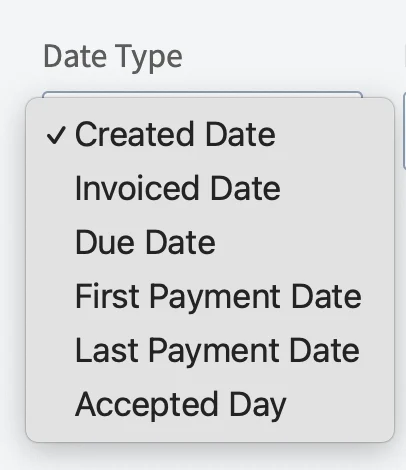 * **Created Date:** When the invoice was created
* **Invoiced Date:** When the invoice was sent to the customer
* **Due Date:** When the invoice was due
* **First Payment Date:** When the customer made their first payment on the invoice
* **Last Payment Date:** When the customer made their last payment on the invoice
Then, select the start date range for which you’d like to report on. Click on the calendar icon to select a date range and click *Load Data*.
* **Created Date:** When the invoice was created
* **Invoiced Date:** When the invoice was sent to the customer
* **Due Date:** When the invoice was due
* **First Payment Date:** When the customer made their first payment on the invoice
* **Last Payment Date:** When the customer made their last payment on the invoice
Then, select the start date range for which you’d like to report on. Click on the calendar icon to select a date range and click *Load Data*.
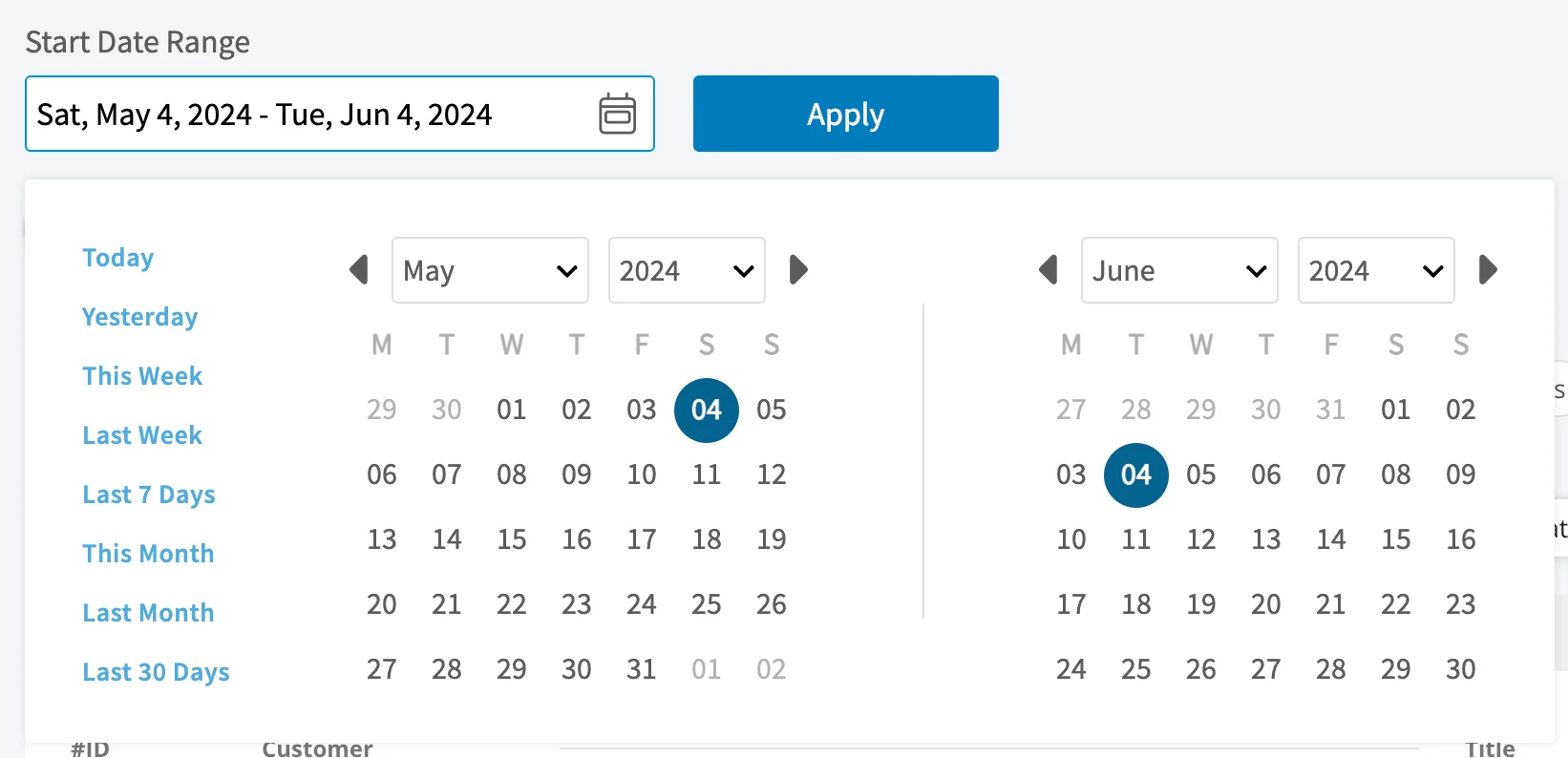 * **Today:** From 12:00 AM to the current time
* **Yesterday:** Previous day from 12:00 AM to 11:59 PM
* **This Week:** From Monday through Sunday of the current week
* **Last Week:** Previous week
* **Last 7 Days:** Previous seven days, including today
* **This Month:** From the first of the current month to the current day
* **Last Month:** Entire month before the current month
* **Last 30 Days:** Previous 30 days, including today
* **Custom:** Use the calendar to select start and end dates
## Columns
* **Today:** From 12:00 AM to the current time
* **Yesterday:** Previous day from 12:00 AM to 11:59 PM
* **This Week:** From Monday through Sunday of the current week
* **Last Week:** Previous week
* **Last 7 Days:** Previous seven days, including today
* **This Month:** From the first of the current month to the current day
* **Last Month:** Entire month before the current month
* **Last 30 Days:** Previous 30 days, including today
* **Custom:** Use the calendar to select start and end dates
## Columns
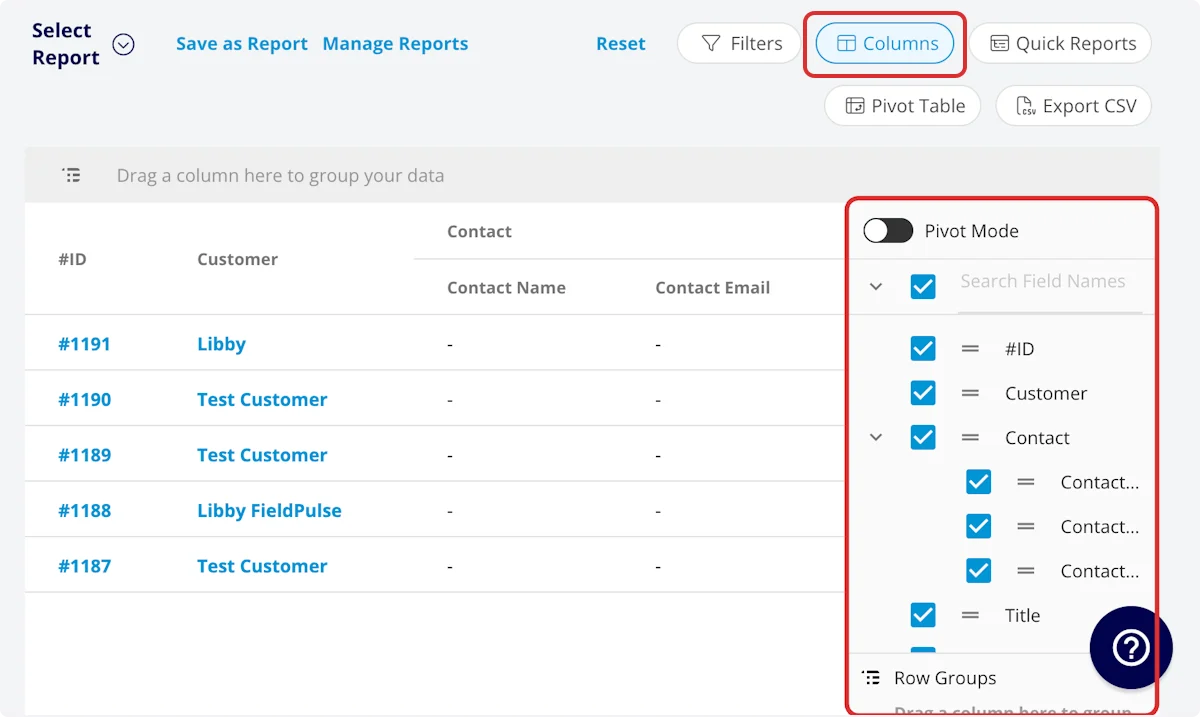 Select the columns to include in your report by clicking *Columns*. The item usage report includes these columns by default:
* **Item Name:** Line item name
* **Item Type:** Product - Inventory, Product - Non Inventory, or Service - Labor
* **Item Description:** Item description
* **Item Quantity:** Item quantity on related invoice
* **Unit Cost:** Unit cost
* **Unit Price:** Unit price
* **SKU/ID#:** Item #/SKU
* **Total Item Cost:** Unit cost \* item quantity
* **Total Item Price:** Unit price \* item quantity
* **QuickBooks Class:** If you sync with QuickBooks, the class will be displayed here.
* **Invoice**
* **Invoice ID#:** Invoice number
* **Invoice Customer:** Customer linked to the invoice
* **Invoice Creator Name:** Author of the invoice
* **Invoice Created Date:** Date and time the invoice was created
* **Invoice Sent Date:** Date and time the invoice was sent to the customer
* **Invoice Status:** Invoice status
* **Custom Fields:** User-created fields related to the invoice
* **Parent Job**
* **Job ID#:** Job number
* **Job Title:** Job record title
* **Job Status:** Job workflow status
* **Start Date/Time:** Date and time the job was scheduled to begin
* **End Date/Time:** Date and time the job was scheduled to end
* **Created At:** Date and time the job record was created
* **Location:** Service location for the job
* **Assigned Team Members:** Users assigned to the job
* **Assigned Teams:** Teams assigned to the job
* **Notes:** Notes on job record
* **Field Notes:** Notes left by assigned user(s) on the job
* **Tags:** Tags attached to the job record
* **Scheduled Duration:** Time scheduled for the job, recorded in HH:MM:SS
* **Job Duration:** Time spent in In Progress status type, recorded in HH:MM:SS
* **Travel Duration:** Time spent in On The Way status type, recorded in HH:MM:SS
* **Custom Fields:** User-created fields related to the job record
* **Grouping Title:** Grouping under which line item is housed on invoice
# Filters
Select the columns to include in your report by clicking *Columns*. The item usage report includes these columns by default:
* **Item Name:** Line item name
* **Item Type:** Product - Inventory, Product - Non Inventory, or Service - Labor
* **Item Description:** Item description
* **Item Quantity:** Item quantity on related invoice
* **Unit Cost:** Unit cost
* **Unit Price:** Unit price
* **SKU/ID#:** Item #/SKU
* **Total Item Cost:** Unit cost \* item quantity
* **Total Item Price:** Unit price \* item quantity
* **QuickBooks Class:** If you sync with QuickBooks, the class will be displayed here.
* **Invoice**
* **Invoice ID#:** Invoice number
* **Invoice Customer:** Customer linked to the invoice
* **Invoice Creator Name:** Author of the invoice
* **Invoice Created Date:** Date and time the invoice was created
* **Invoice Sent Date:** Date and time the invoice was sent to the customer
* **Invoice Status:** Invoice status
* **Custom Fields:** User-created fields related to the invoice
* **Parent Job**
* **Job ID#:** Job number
* **Job Title:** Job record title
* **Job Status:** Job workflow status
* **Start Date/Time:** Date and time the job was scheduled to begin
* **End Date/Time:** Date and time the job was scheduled to end
* **Created At:** Date and time the job record was created
* **Location:** Service location for the job
* **Assigned Team Members:** Users assigned to the job
* **Assigned Teams:** Teams assigned to the job
* **Notes:** Notes on job record
* **Field Notes:** Notes left by assigned user(s) on the job
* **Tags:** Tags attached to the job record
* **Scheduled Duration:** Time scheduled for the job, recorded in HH:MM:SS
* **Job Duration:** Time spent in In Progress status type, recorded in HH:MM:SS
* **Travel Duration:** Time spent in On The Way status type, recorded in HH:MM:SS
* **Custom Fields:** User-created fields related to the job record
* **Grouping Title:** Grouping under which line item is housed on invoice
# Filters
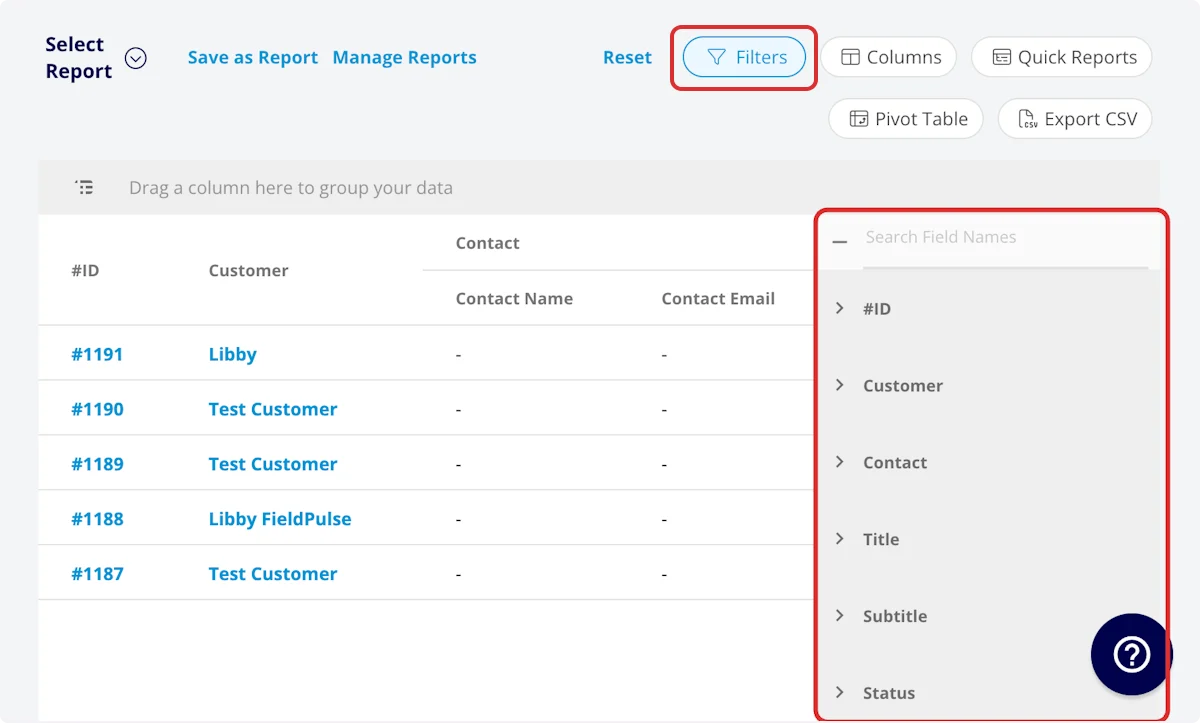 Before running the report, set filters to narrow your results. From the *Filters* icon, select how you want to filter the report:
* **Item Name:** filter by contents
* **Item Description:** filter by contents
* **SKU/ID#:** filter by contents
* **Invoice**
* **Invoice ID#:** filter by contents
* **Invoice Customer:** filter by contents
* **Invoice Creator Name:** filter by contents
* **Invoice Created Date:** filter by date
* **Invoice Sent Date:** filter by date
* **Invoice Status:** select status
* **Parent Job**
* **Job ID#:** filter by contents
* **Job Title:** filter by contents
* **Job Status:** select status
* **Start Date/Time:** filter by date
* **End Date/Time:** filter by date
* **Created At:** filter by date
* **Location:** filter by contents
* **Assigned Team Members:** filter by contents
* **Assigned Teams:** filter by contents
* **Notes:** filter by contents
* **Field Notes:** filter by contents
* **Tags:** filter by contents
* **Scheduled Duration:** filter by contents
* **Job Duration:** filter by contents
* **Travel Duration:** filter by contents
* **Grouping Title:** filter by contents
When filtering by contents, you will need to choose an operator and then enter values to filter the data. Use the table below to learn more about each operator.
| **Operator** | **Retrieves Data** | **Example** | **Data Retrieved** |
| ------------------------ | ------------------------------------------ | ------------------------------------------------- | ----------------------------------------------------------- |
| Equals | Equal to a specified value | Created By - Equals Tom Gause | For all records created by Tom Gause only |
| Not Equal | Different from a specified value | Tag - Not Equal to HVAC | For all records except those using the HVAC tag |
| Less Than | Lower than a specified value | #ID - Less than 1144 | For all records below #1144 |
| Less Than or Equal To | Lower than or equal to a specified value | Job Date/Time - Less than or equal to 12/13/2023 | For jobs scheduled before or on 12/13/2023 |
| Greater Than | Greater than a specified value | Job Duration - Greater than 60 minutes | For jobs in the In Progress status type for over 60 minutes |
| Greater Than or Equal To | Greater than or equal to a specified value | Job Date/Time - Greater than or equal to 1/1/2024 | For jobs scheduled on or after 1/1/2024 |
| In Range | Including and between two specified values | #ID - Between 1225 and 1236 | For all estimate records with #IDs between 1225 and 1236 |
| Starts With | Begins with a specified value | Title - Annual | For all job records beginning with Annual |
| Ends With | Ends with a specified value | Location - TX | For all job locations ending with TX |
| Blank | No values are in the field | Subtitle | For all job records with blank subtitles |
| Not Blank | Values in the field | Notes | For all job records with values in the notes field |
***
# Common Item Usage Reports
## Item Usage by Item
Use this report to view your item usage by item, as well as the total item cost and price.
**Columns:** Customize to your needs, but must include *Item Name*, *Total Item Cost*, and *Total Item Price*.
**Group By:** *Item Name*
## Item Usage by Job
Use this report to view your item usage by job.
**Columns:** Customize to your needs, but must include *Parent Job*.
**Group By:** *Parent Job*
## Item Usage by Customer
Use this report to view your item usage by customer. This report is helpful when you've performed multiple jobs for a customer over an extended period of time.
**Columns:** Customize to your needs, but must include *Invoice Customer*.
**Group By:** *Invoice Customer*
## Item Usage - Roll Up Reporting
The item usage report is included in roll-up reporting for locations/franchisors, providing a comprehensive view of item usage across all of your operations.
***
**Have additional questions?**
*Contact us at [support@fieldpulse.com](mailto:support@fieldpulse.com) or use the chat feature in the bottom right corner of your screen.*
Before running the report, set filters to narrow your results. From the *Filters* icon, select how you want to filter the report:
* **Item Name:** filter by contents
* **Item Description:** filter by contents
* **SKU/ID#:** filter by contents
* **Invoice**
* **Invoice ID#:** filter by contents
* **Invoice Customer:** filter by contents
* **Invoice Creator Name:** filter by contents
* **Invoice Created Date:** filter by date
* **Invoice Sent Date:** filter by date
* **Invoice Status:** select status
* **Parent Job**
* **Job ID#:** filter by contents
* **Job Title:** filter by contents
* **Job Status:** select status
* **Start Date/Time:** filter by date
* **End Date/Time:** filter by date
* **Created At:** filter by date
* **Location:** filter by contents
* **Assigned Team Members:** filter by contents
* **Assigned Teams:** filter by contents
* **Notes:** filter by contents
* **Field Notes:** filter by contents
* **Tags:** filter by contents
* **Scheduled Duration:** filter by contents
* **Job Duration:** filter by contents
* **Travel Duration:** filter by contents
* **Grouping Title:** filter by contents
When filtering by contents, you will need to choose an operator and then enter values to filter the data. Use the table below to learn more about each operator.
| **Operator** | **Retrieves Data** | **Example** | **Data Retrieved** |
| ------------------------ | ------------------------------------------ | ------------------------------------------------- | ----------------------------------------------------------- |
| Equals | Equal to a specified value | Created By - Equals Tom Gause | For all records created by Tom Gause only |
| Not Equal | Different from a specified value | Tag - Not Equal to HVAC | For all records except those using the HVAC tag |
| Less Than | Lower than a specified value | #ID - Less than 1144 | For all records below #1144 |
| Less Than or Equal To | Lower than or equal to a specified value | Job Date/Time - Less than or equal to 12/13/2023 | For jobs scheduled before or on 12/13/2023 |
| Greater Than | Greater than a specified value | Job Duration - Greater than 60 minutes | For jobs in the In Progress status type for over 60 minutes |
| Greater Than or Equal To | Greater than or equal to a specified value | Job Date/Time - Greater than or equal to 1/1/2024 | For jobs scheduled on or after 1/1/2024 |
| In Range | Including and between two specified values | #ID - Between 1225 and 1236 | For all estimate records with #IDs between 1225 and 1236 |
| Starts With | Begins with a specified value | Title - Annual | For all job records beginning with Annual |
| Ends With | Ends with a specified value | Location - TX | For all job locations ending with TX |
| Blank | No values are in the field | Subtitle | For all job records with blank subtitles |
| Not Blank | Values in the field | Notes | For all job records with values in the notes field |
***
# Common Item Usage Reports
## Item Usage by Item
Use this report to view your item usage by item, as well as the total item cost and price.
**Columns:** Customize to your needs, but must include *Item Name*, *Total Item Cost*, and *Total Item Price*.
**Group By:** *Item Name*
## Item Usage by Job
Use this report to view your item usage by job.
**Columns:** Customize to your needs, but must include *Parent Job*.
**Group By:** *Parent Job*
## Item Usage by Customer
Use this report to view your item usage by customer. This report is helpful when you've performed multiple jobs for a customer over an extended period of time.
**Columns:** Customize to your needs, but must include *Invoice Customer*.
**Group By:** *Invoice Customer*
## Item Usage - Roll Up Reporting
The item usage report is included in roll-up reporting for locations/franchisors, providing a comprehensive view of item usage across all of your operations.
***
**Have additional questions?**
*Contact us at [support@fieldpulse.com](mailto:support@fieldpulse.com) or use the chat feature in the bottom right corner of your screen.*