> ## Documentation Index
> Fetch the complete documentation index at: https://help.fieldpulse.com/llms.txt
> Use this file to discover all available pages before exploring further.
# Reporting Templates
> A library of pre-built FieldPulse report templates you can download and import into your account, from job status to sales tax.
FieldPulse offers a library of pre-built report templates covering the most common things businesses want to track, from job status to sales tax. Instead of building a report from scratch, download any of these ready-made templates and import them directly into your account. Find the template you want below, then follow the steps in that section to add it to your account.
To learn more about building your own reports, check out our [Raw Data Reporting](/using-fieldpulse/reporting/raw-data-reporting) and [Custom Reporting Dashboard](/using-fieldpulse/reporting/custom-reporting-dashboard) articles.
## Jobs by Status
See exactly where every job stands across your pipeline: how many are new, scheduled, in progress, or complete.
**Download the Jobs by Status template**
**How to add it to your account:**
1. Download the template above and save it to your device. It will save as a .json file.
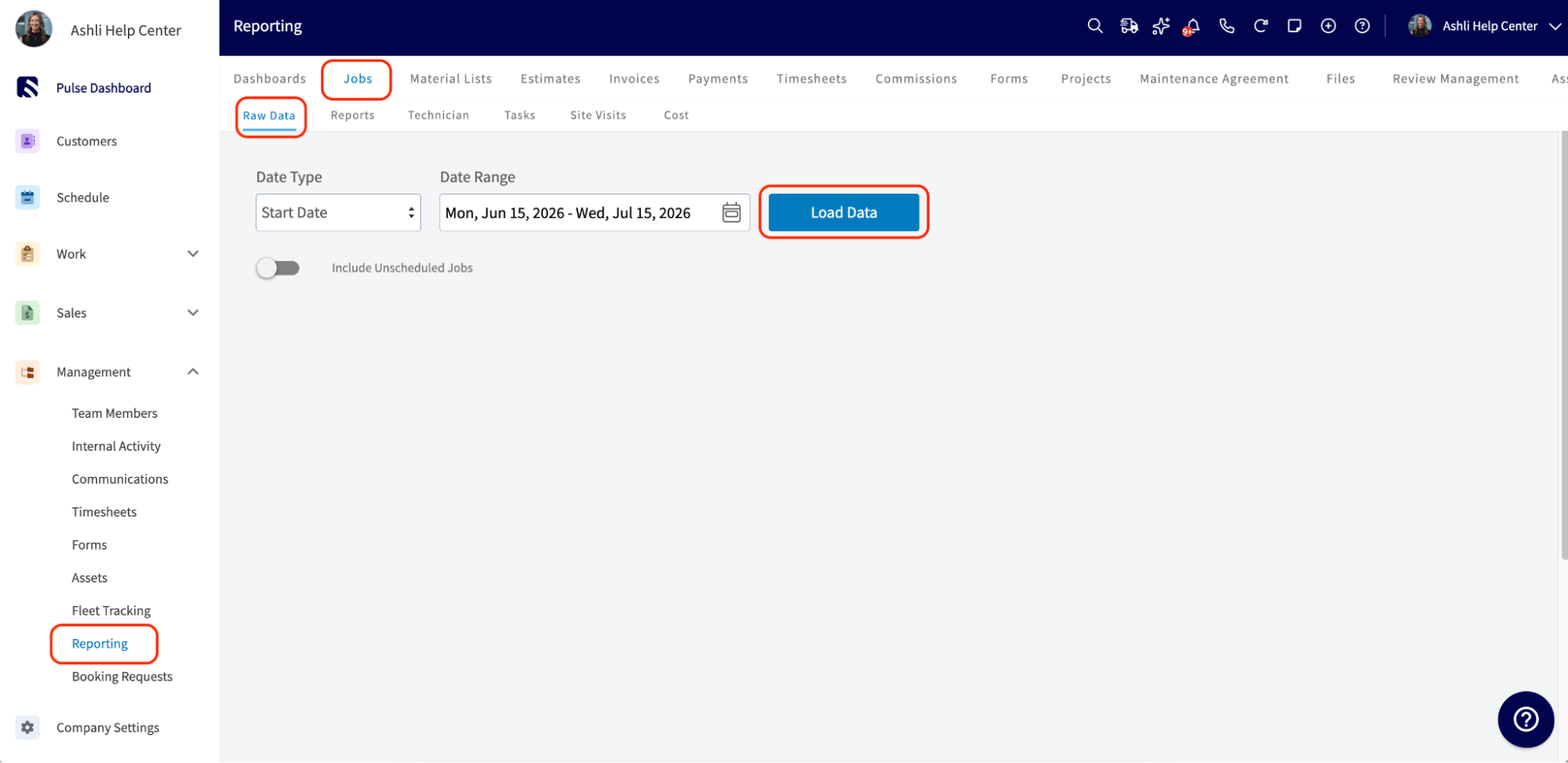
2. In FieldPulse, go to **Reporting** in the left-side menu under the **Management** section. Click the **Jobs** tab, then click into the **Raw Data** subtab. Click **Load Data**. (It doesn't matter what date range is selected, this just opens the report screen.)
 3. Click **Manage Reports** and drag the file you downloaded into the box, or click the box to browse for it.
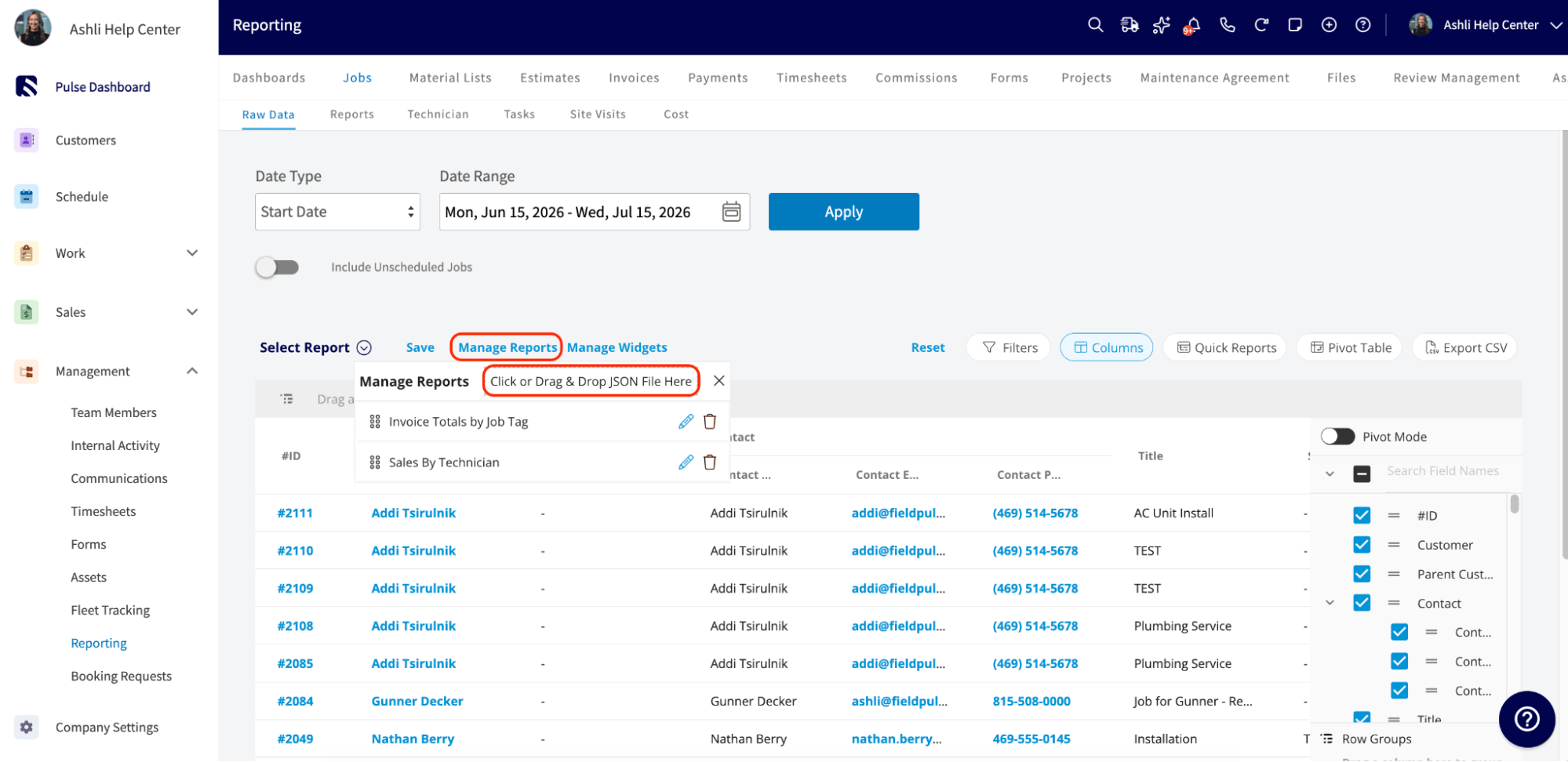 4. Your new report appears at the bottom of the list. You can open it anytime from the **Select Report** dropdown.
## Sales by Technician
Track performance and revenue by team member, so you can see who's closing the most jobs and generating the most revenue.
**Download the Sales by Technician template**
**How to add it to your account:**
1. Download the template above and save it to your device. It will save as a .json file.
2. In FieldPulse, go to **Reporting** in the left-side menu under the **Management** section. Click the **Jobs** tab, then click into the **Raw Data** subtab. Click **Load Data**. (It doesn't matter what date range is selected, this just opens the report screen.)
3. Click **Manage Reports** and drag the file you downloaded into the box, or click the box to browse for it.
4. Your new report appears at the bottom of the list. You can open it anytime from the **Select Report** dropdown.
## Estimate Conversion Rate
See how well your estimates are converting into paid jobs, overall a quick way to gauge how your sales process is performing.
**Download the Estimate Conversion Rate template**
**How to add it to your account:**
1. Download the template above and save it to your device. It will save as a .json file.
2. In FieldPulse, go to **Reporting** in the left-side menu under the **Management** section. Click the **Estimates** tab, then click into the **Raw Data** subtab. Click **Load Data**. (It doesn't matter what date range is selected, this just opens the report screen.)
4. Your new report appears at the bottom of the list. You can open it anytime from the **Select Report** dropdown.
## Sales by Technician
Track performance and revenue by team member, so you can see who's closing the most jobs and generating the most revenue.
**Download the Sales by Technician template**
**How to add it to your account:**
1. Download the template above and save it to your device. It will save as a .json file.
2. In FieldPulse, go to **Reporting** in the left-side menu under the **Management** section. Click the **Jobs** tab, then click into the **Raw Data** subtab. Click **Load Data**. (It doesn't matter what date range is selected, this just opens the report screen.)
3. Click **Manage Reports** and drag the file you downloaded into the box, or click the box to browse for it.
4. Your new report appears at the bottom of the list. You can open it anytime from the **Select Report** dropdown.
## Estimate Conversion Rate
See how well your estimates are converting into paid jobs, overall a quick way to gauge how your sales process is performing.
**Download the Estimate Conversion Rate template**
**How to add it to your account:**
1. Download the template above and save it to your device. It will save as a .json file.
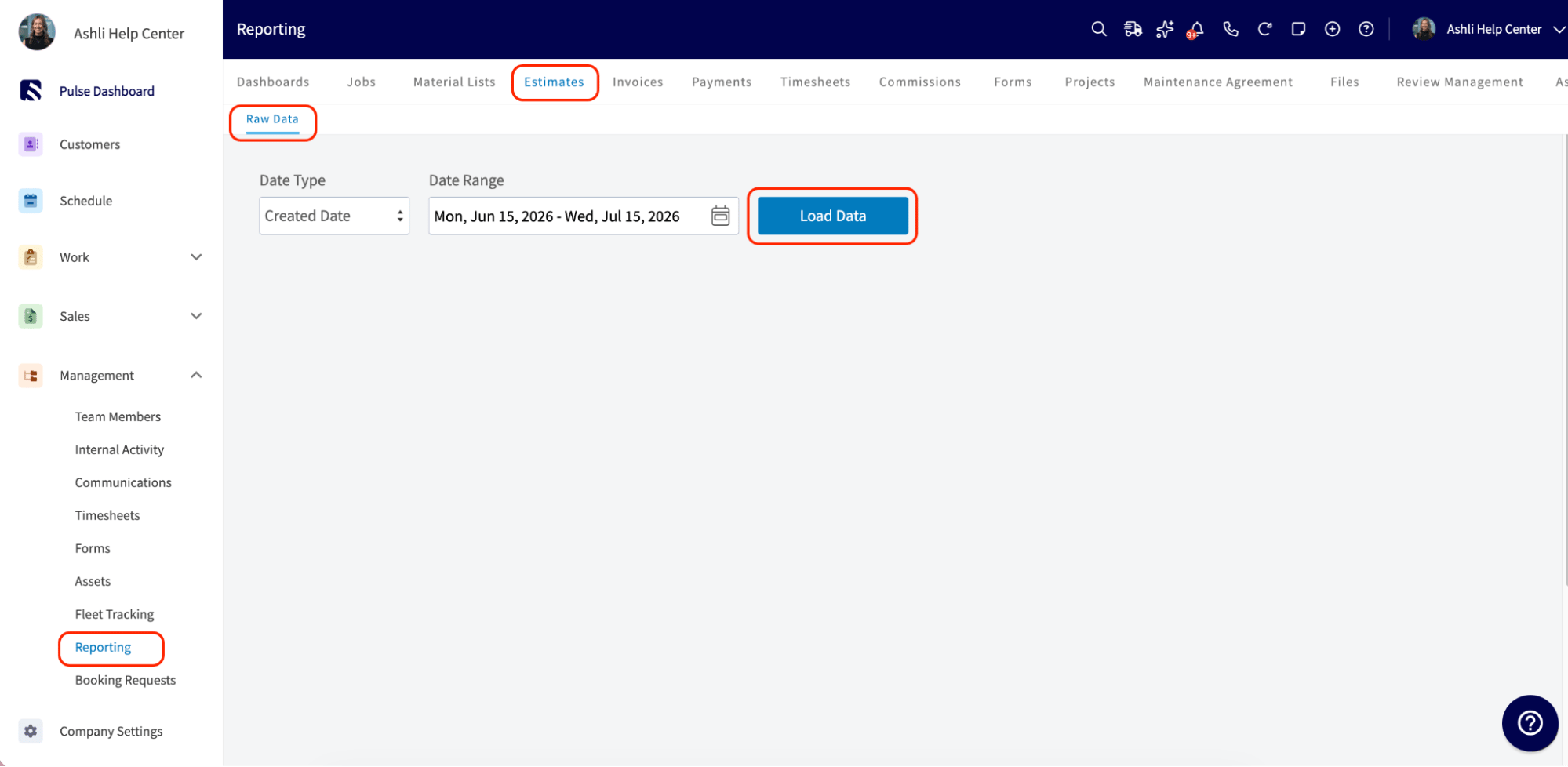
2. In FieldPulse, go to **Reporting** in the left-side menu under the **Management** section. Click the **Estimates** tab, then click into the **Raw Data** subtab. Click **Load Data**. (It doesn't matter what date range is selected, this just opens the report screen.)
 3. Click **Manage Reports** and drag the file you downloaded into the box, or click the box to browse for it.
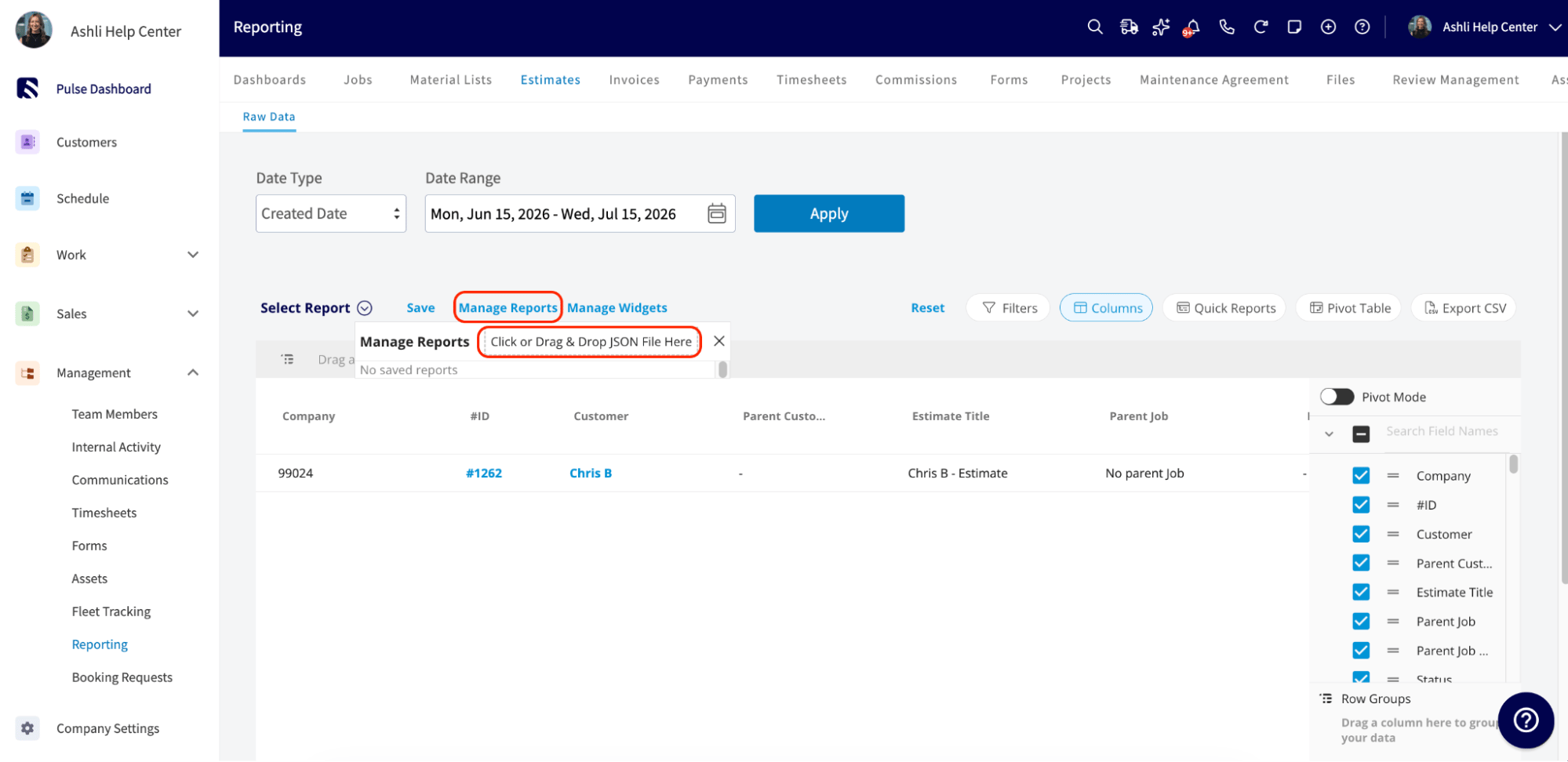 4. Your new report appears at the bottom of the list. You can open it anytime from the **Select Report** dropdown.
## Estimate Conversion Rate by User
Break estimate conversion rate down by team member, so you can see who's most effective at closing estimates.
**Download the Estimate Conversion Rate by User template**
**How to add it to your account:**
1. Download the template above and save it to your device. It will save as a .json file.
2. In FieldPulse, go to **Reporting** in the left-side menu under the **Management** section. Click the **Estimates** tab, then click into the **Raw Data** subtab. Click **Load Data**. (It doesn't matter what date range is selected, this just opens the report screen.)
3. Click **Manage Reports** and drag the file you downloaded into the box, or click the box to browse for it.
4. Your new report appears at the bottom of the list. You can open it anytime from the **Select Report** dropdown.
## Estimates by Status
See where every estimate stands — draft, sent, accepted, or declined — all in one view.
**Download the Estimates by Status template**
**How to add it to your account:**
1. Download the template above and save it to your device. It will save as a .json file.
2. In FieldPulse, go to **Reporting** in the left-side menu under the **Management** section. Click the **Estimates** tab, then click into the **Raw Data** subtab. Click **Load Data**. (It doesn't matter what date range is selected, this just opens the report screen.)
3. Click **Manage Reports** and drag the file you downloaded into the box, or click the box to browse for it.
4. Your new report appears at the bottom of the list. You can open it anytime from the **Select Report** dropdown.
## Total Sales
Get a clear financial snapshot of your overall sales.
**Download the Total Sales template**
**How to add it to your account:**
1. Download the template above and save it to your device. It will save as a .json file.
2. In FieldPulse, go to **Reporting** in the left-side menu under the **Management** section. Click the **Invoices** tab, then click into the **Raw Data** subtab. Click **Load Data**. (It doesn't matter what date range is selected, this just opens the report screen.)
4. Your new report appears at the bottom of the list. You can open it anytime from the **Select Report** dropdown.
## Estimate Conversion Rate by User
Break estimate conversion rate down by team member, so you can see who's most effective at closing estimates.
**Download the Estimate Conversion Rate by User template**
**How to add it to your account:**
1. Download the template above and save it to your device. It will save as a .json file.
2. In FieldPulse, go to **Reporting** in the left-side menu under the **Management** section. Click the **Estimates** tab, then click into the **Raw Data** subtab. Click **Load Data**. (It doesn't matter what date range is selected, this just opens the report screen.)
3. Click **Manage Reports** and drag the file you downloaded into the box, or click the box to browse for it.
4. Your new report appears at the bottom of the list. You can open it anytime from the **Select Report** dropdown.
## Estimates by Status
See where every estimate stands — draft, sent, accepted, or declined — all in one view.
**Download the Estimates by Status template**
**How to add it to your account:**
1. Download the template above and save it to your device. It will save as a .json file.
2. In FieldPulse, go to **Reporting** in the left-side menu under the **Management** section. Click the **Estimates** tab, then click into the **Raw Data** subtab. Click **Load Data**. (It doesn't matter what date range is selected, this just opens the report screen.)
3. Click **Manage Reports** and drag the file you downloaded into the box, or click the box to browse for it.
4. Your new report appears at the bottom of the list. You can open it anytime from the **Select Report** dropdown.
## Total Sales
Get a clear financial snapshot of your overall sales.
**Download the Total Sales template**
**How to add it to your account:**
1. Download the template above and save it to your device. It will save as a .json file.
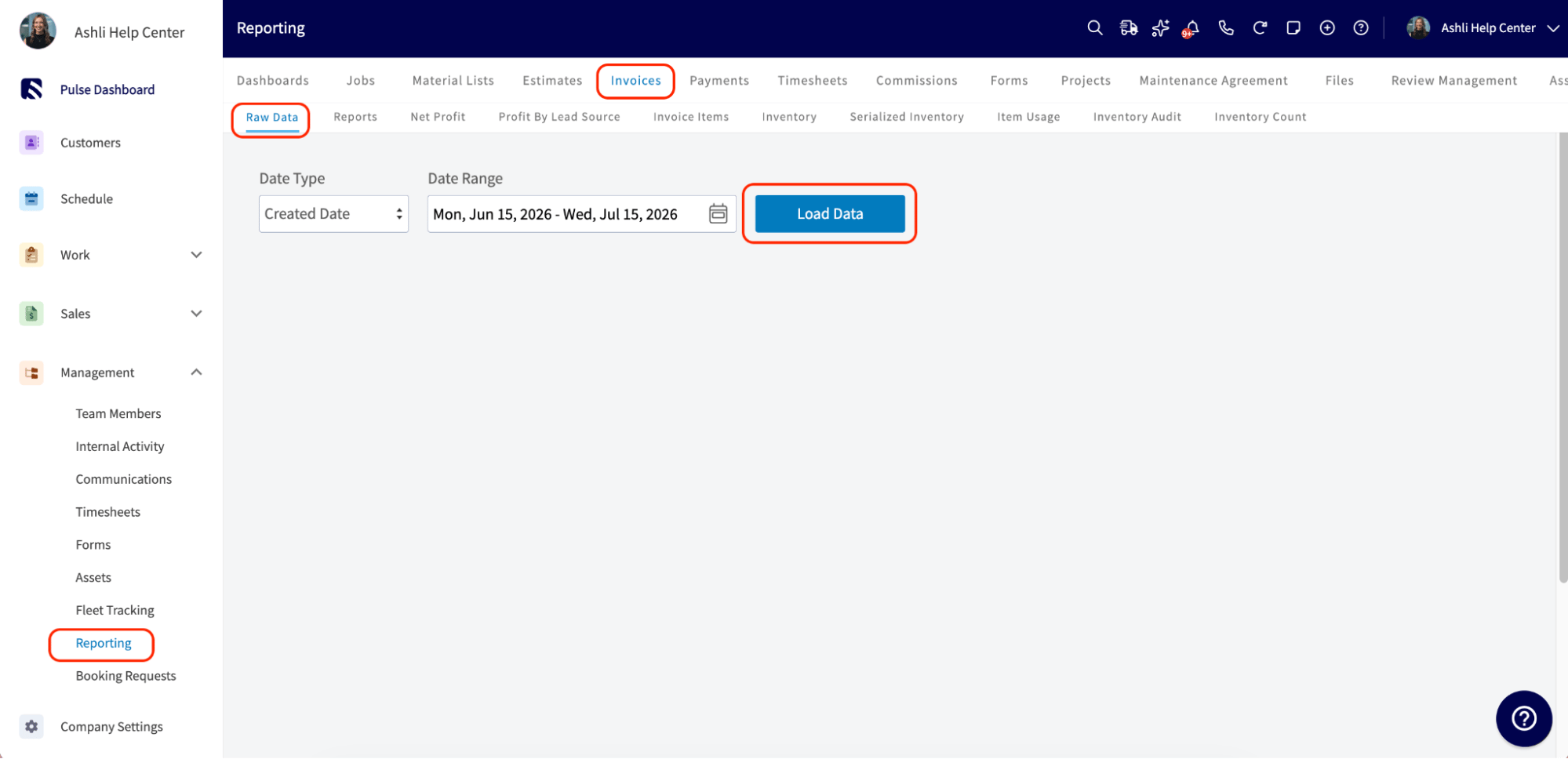
2. In FieldPulse, go to **Reporting** in the left-side menu under the **Management** section. Click the **Invoices** tab, then click into the **Raw Data** subtab. Click **Load Data**. (It doesn't matter what date range is selected, this just opens the report screen.)
 3. Click **Manage Reports** and drag the file you downloaded into the box, or click the box to browse for it.
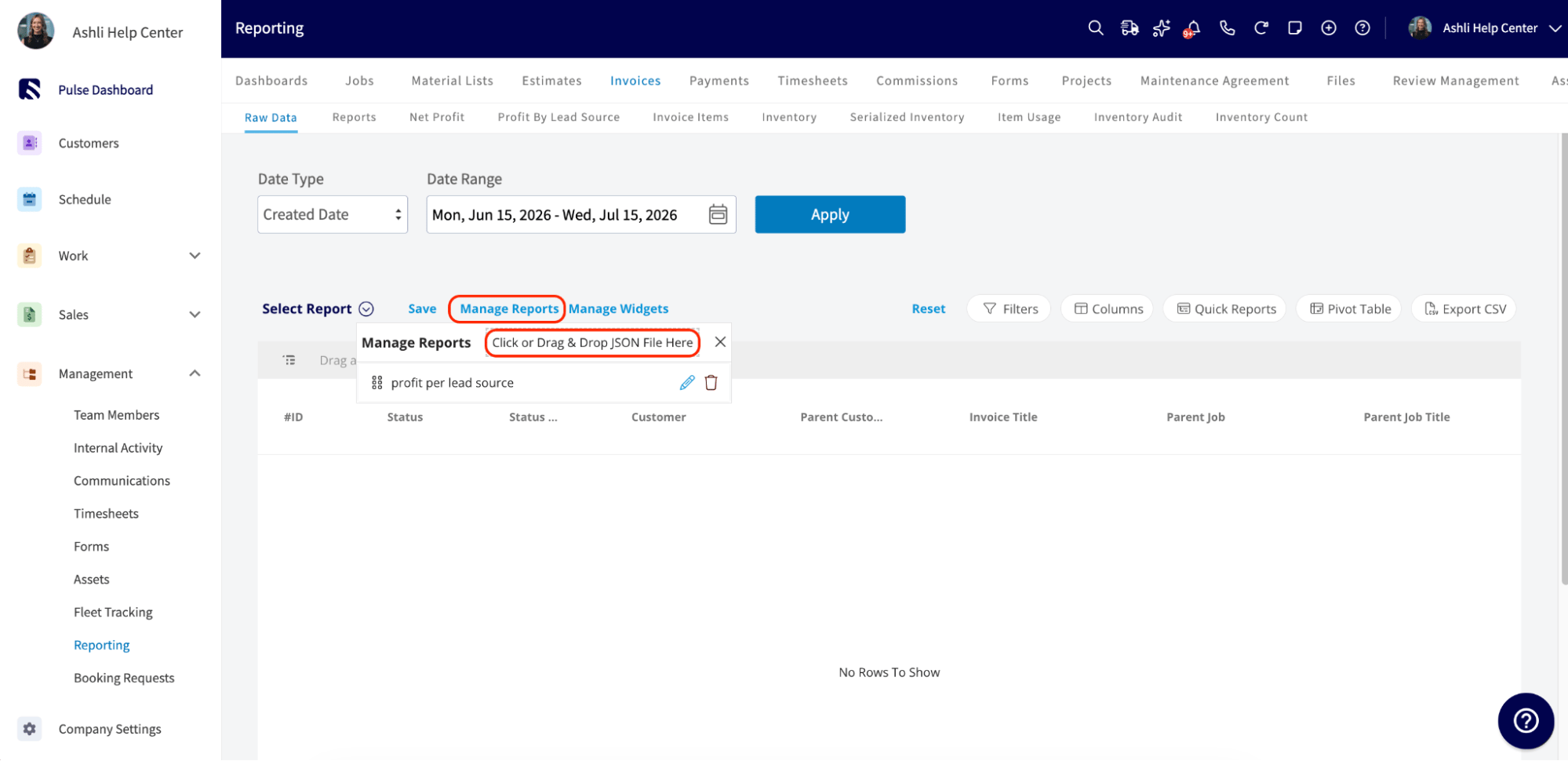 4. Your new report appears at the bottom of the list. You can open it anytime from the **Select Report** dropdown.
## Sales Tax
Keep a clean, accurate record of the sales tax you've collected.
**Download the Sales Tax template**
**How to add it to your account:**
1. Download the template above and save it to your device. It will save as a .json file.
2. In FieldPulse, go to **Reporting** in the left-side menu under the **Management** section. Click the **Invoices** tab, then click into the **Raw Data** subtab. Click **Load Data**. (It doesn't matter what date range is selected, this just opens the report screen.)
3. Click **Manage Reports** and drag the file you downloaded into the box, or click the box to browse for it.
4. Your new report appears at the bottom of the list. You can open it anytime from the **Select Report** dropdown.
## Overdue Invoices
Stay on top of invoices that are past due, so nothing slips through the cracks.
**Download the Overdue Invoices template**
**How to add it to your account:**
1. Download the template above and save it to your device. It will save as a .json file.
2. In FieldPulse, go to **Reporting** in the left-side menu under the **Management** section. Click the **Invoices** tab, then click into the **Raw Data** subtab. Click **Load Data**. (It doesn't matter what date range is selected, this just opens the report screen.)
3. Click **Manage Reports** and drag the file you downloaded into the box, or click the box to browse for it.
4. Your new report appears at the bottom of the list. You can open it anytime from the **Select Report** dropdown.
## Unpaid Invoices
See every invoice that hasn't been paid yet, in one place.
**Download the Unpaid Invoices template**
**How to add it to your account:**
1. Download the template above and save it to your device. It will save as a .json file.
2. In FieldPulse, go to **Reporting** in the left-side menu under the **Management** section. Click the **Invoices** tab, then click into the **Raw Data** subtab. Click **Load Data**. (It doesn't matter what date range is selected, this just opens the report screen.)
3. Click **Manage Reports** and drag the file you downloaded into the box, or click the box to browse for it.
4. Your new report appears at the bottom of the list. You can open it anytime from the **Select Report** dropdown.
## Sales by Lead Source
See which marketing channels are actually bringing in business.
**Download the Sales by Lead Source template**
**How to add it to your account:**
1. Download the template above and save it to your device. It will save as a .json file.
2. In FieldPulse, go to **Reporting** in the left-side menu under the **Management** section. Click the **Invoices** tab, then click into the **Raw Data** subtab. Click **Load Data**. (It doesn't matter what date range is selected, this just opens the report screen.)
3. Click **Manage Reports** and drag the file you downloaded into the box, or click the box to browse for it.
4. Your new report appears at the bottom of the list. You can open it anytime from the **Select Report** dropdown.
## Sales by Invoice Creator
Track sales by the team member who created the invoice.
**Download the Sales by Invoice Creator template**
**How to add it to your account:**
1. Download the template above and save it to your device. It will save as a .json file.
2. In FieldPulse, go to **Reporting** in the left-side menu under the **Management** section. Click the **Invoices** tab, then click into the **Raw Data** subtab. Click **Load Data**. (It doesn't matter what date range is selected, this just opens the report screen.)
3. Click **Manage Reports** and drag the file you downloaded into the box, or click the box to browse for it.
4. Your new report appears at the bottom of the list. You can open it anytime from the **Select Report** dropdown.
## Commissions by Recipient
Keep payroll and commission numbers straight, broken out by who's receiving them.
**Download the Commissions by Recipient template**
**How to add it to your account:**
1. Download the template above and save it to your device. It will save as a .json file.
2. In FieldPulse, go to **Reporting** in the left-side menu under the **Management** section. Click the **Invoices** tab, then click into the **Raw Data** subtab. Click **Load Data**. (It doesn't matter what date range is selected, this just opens the report screen.)
3. Click **Manage Reports** and drag the file you downloaded into the box, or click the box to browse for it.
4. Your new report appears at the bottom of the list. You can open it anytime from the **Select Report** dropdown.
## Payment History
Keep a clean, complete record of every payment received.
**Download the Payment History template**
**How to add it to your account:**
1. Download the template above and save it to your device. It will save as a .json file.
2. In FieldPulse, go to **Reporting** in the left-side menu under the **Management** section. Click the **Payments** tab, then click into the **Raw Data** subtab. Click **Load Data**. (It doesn't matter what date range is selected, this just opens the report screen.)
4. Your new report appears at the bottom of the list. You can open it anytime from the **Select Report** dropdown.
## Sales Tax
Keep a clean, accurate record of the sales tax you've collected.
**Download the Sales Tax template**
**How to add it to your account:**
1. Download the template above and save it to your device. It will save as a .json file.
2. In FieldPulse, go to **Reporting** in the left-side menu under the **Management** section. Click the **Invoices** tab, then click into the **Raw Data** subtab. Click **Load Data**. (It doesn't matter what date range is selected, this just opens the report screen.)
3. Click **Manage Reports** and drag the file you downloaded into the box, or click the box to browse for it.
4. Your new report appears at the bottom of the list. You can open it anytime from the **Select Report** dropdown.
## Overdue Invoices
Stay on top of invoices that are past due, so nothing slips through the cracks.
**Download the Overdue Invoices template**
**How to add it to your account:**
1. Download the template above and save it to your device. It will save as a .json file.
2. In FieldPulse, go to **Reporting** in the left-side menu under the **Management** section. Click the **Invoices** tab, then click into the **Raw Data** subtab. Click **Load Data**. (It doesn't matter what date range is selected, this just opens the report screen.)
3. Click **Manage Reports** and drag the file you downloaded into the box, or click the box to browse for it.
4. Your new report appears at the bottom of the list. You can open it anytime from the **Select Report** dropdown.
## Unpaid Invoices
See every invoice that hasn't been paid yet, in one place.
**Download the Unpaid Invoices template**
**How to add it to your account:**
1. Download the template above and save it to your device. It will save as a .json file.
2. In FieldPulse, go to **Reporting** in the left-side menu under the **Management** section. Click the **Invoices** tab, then click into the **Raw Data** subtab. Click **Load Data**. (It doesn't matter what date range is selected, this just opens the report screen.)
3. Click **Manage Reports** and drag the file you downloaded into the box, or click the box to browse for it.
4. Your new report appears at the bottom of the list. You can open it anytime from the **Select Report** dropdown.
## Sales by Lead Source
See which marketing channels are actually bringing in business.
**Download the Sales by Lead Source template**
**How to add it to your account:**
1. Download the template above and save it to your device. It will save as a .json file.
2. In FieldPulse, go to **Reporting** in the left-side menu under the **Management** section. Click the **Invoices** tab, then click into the **Raw Data** subtab. Click **Load Data**. (It doesn't matter what date range is selected, this just opens the report screen.)
3. Click **Manage Reports** and drag the file you downloaded into the box, or click the box to browse for it.
4. Your new report appears at the bottom of the list. You can open it anytime from the **Select Report** dropdown.
## Sales by Invoice Creator
Track sales by the team member who created the invoice.
**Download the Sales by Invoice Creator template**
**How to add it to your account:**
1. Download the template above and save it to your device. It will save as a .json file.
2. In FieldPulse, go to **Reporting** in the left-side menu under the **Management** section. Click the **Invoices** tab, then click into the **Raw Data** subtab. Click **Load Data**. (It doesn't matter what date range is selected, this just opens the report screen.)
3. Click **Manage Reports** and drag the file you downloaded into the box, or click the box to browse for it.
4. Your new report appears at the bottom of the list. You can open it anytime from the **Select Report** dropdown.
## Commissions by Recipient
Keep payroll and commission numbers straight, broken out by who's receiving them.
**Download the Commissions by Recipient template**
**How to add it to your account:**
1. Download the template above and save it to your device. It will save as a .json file.
2. In FieldPulse, go to **Reporting** in the left-side menu under the **Management** section. Click the **Invoices** tab, then click into the **Raw Data** subtab. Click **Load Data**. (It doesn't matter what date range is selected, this just opens the report screen.)
3. Click **Manage Reports** and drag the file you downloaded into the box, or click the box to browse for it.
4. Your new report appears at the bottom of the list. You can open it anytime from the **Select Report** dropdown.
## Payment History
Keep a clean, complete record of every payment received.
**Download the Payment History template**
**How to add it to your account:**
1. Download the template above and save it to your device. It will save as a .json file.
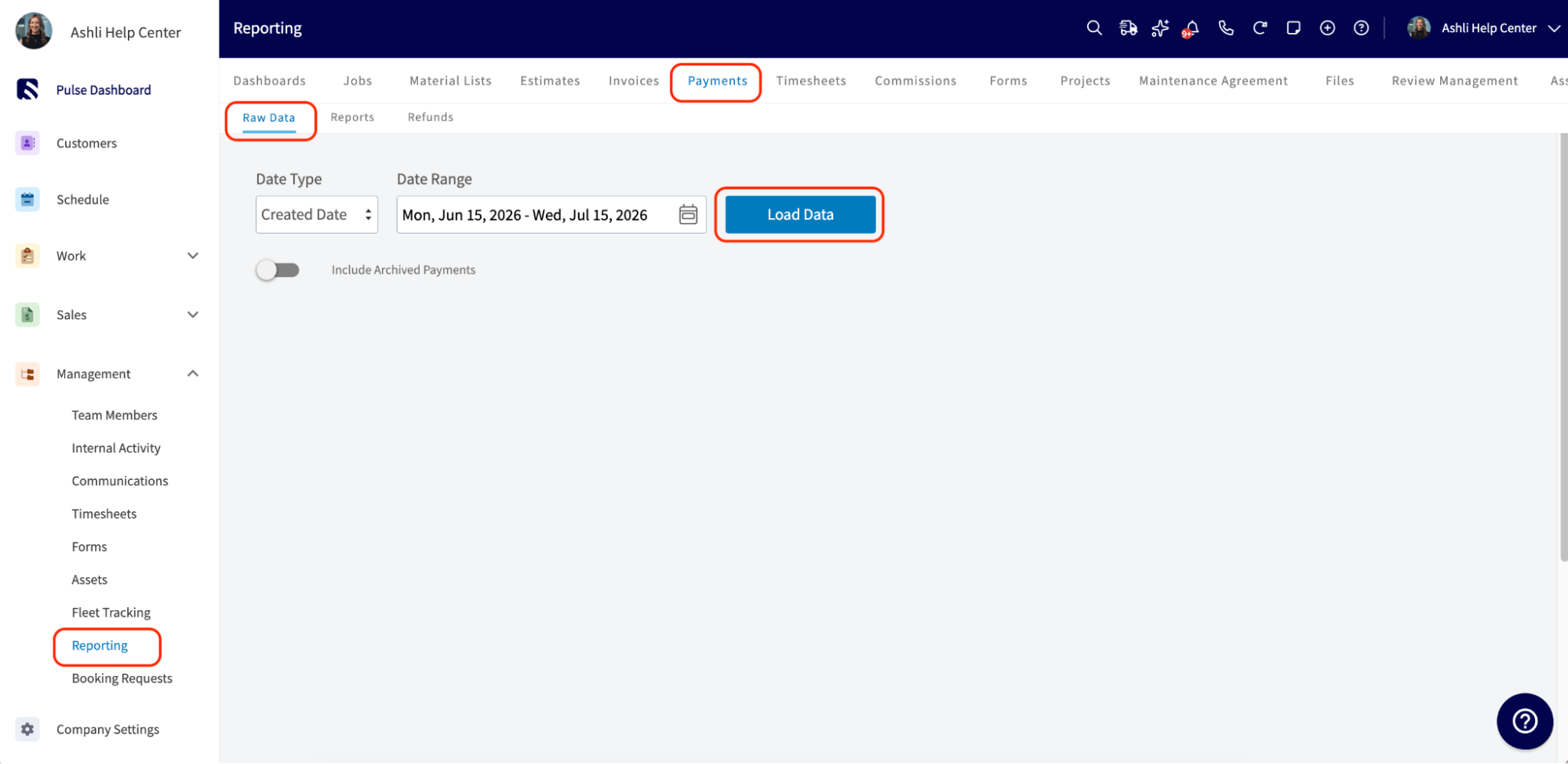
2. In FieldPulse, go to **Reporting** in the left-side menu under the **Management** section. Click the **Payments** tab, then click into the **Raw Data** subtab. Click **Load Data**. (It doesn't matter what date range is selected, this just opens the report screen.)
 3. Click **Manage Reports** and drag the file you downloaded into the box, or click the box to browse for it.
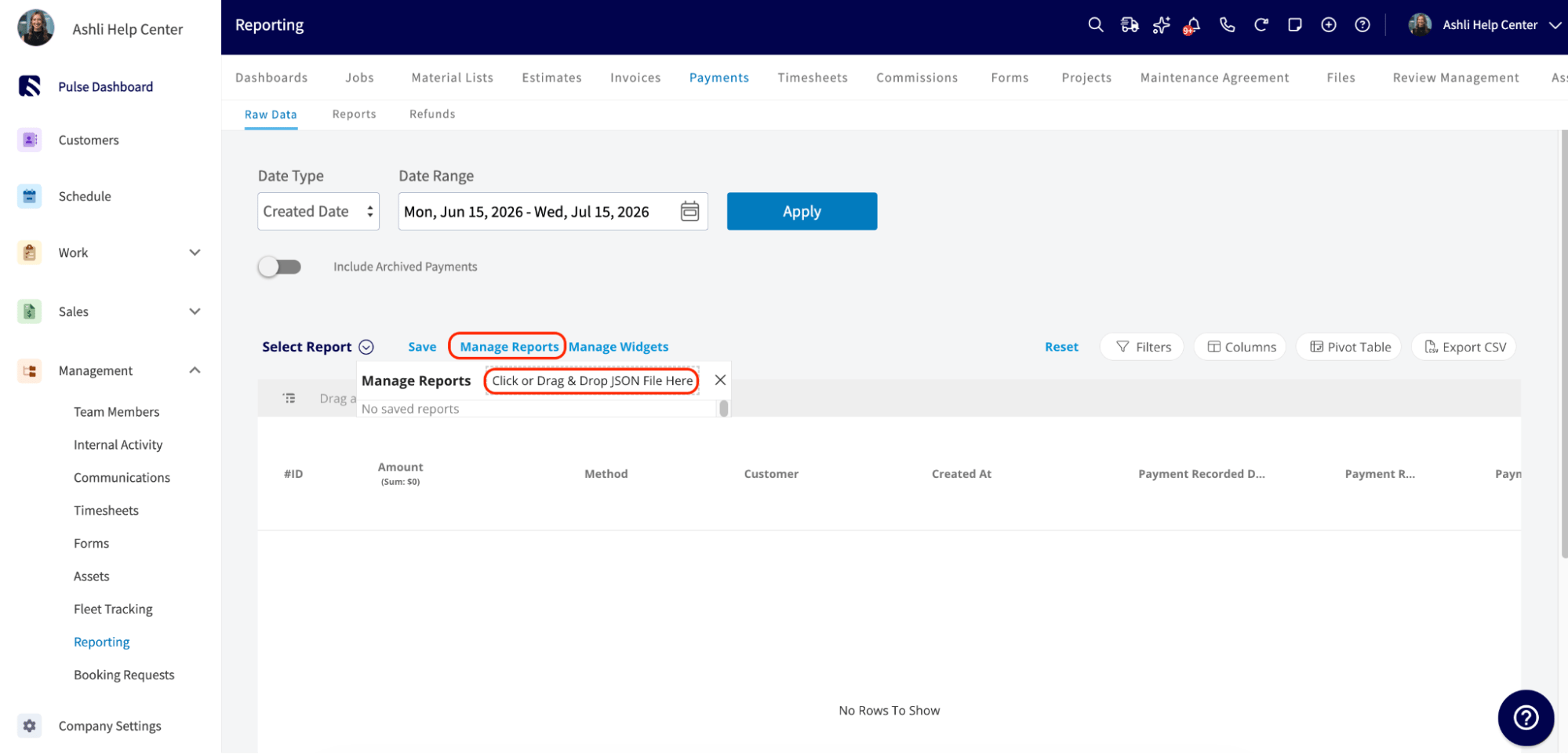 4. Your new report appears at the bottom of the list. You can open it anytime from the **Select Report** dropdown.
## Have additional questions?
*Contact us at [support@fieldpulse.com](mailto:support@fieldpulse.com) or use the chat feature in the bottom right corner of your screen.*
4. Your new report appears at the bottom of the list. You can open it anytime from the **Select Report** dropdown.
## Have additional questions?
*Contact us at [support@fieldpulse.com](mailto:support@fieldpulse.com) or use the chat feature in the bottom right corner of your screen.*