> ## Documentation Index
> Fetch the complete documentation index at: https://help.fieldpulse.com/llms.txt
> Use this file to discover all available pages before exploring further.
# Dispatch Availability Scheduling
> Open the Team Schedule, spot which techs have an open slot, and book the job onto their calendar without double-booking anyone or leaving gaps in the day.
The team dispatch view can be used to find availability among team members and schedule a job around their availability. This can be done directly on the *Dispatch View* on the *Schedule* page or when creating a new job and clicking *Find Availability* near the date/time selector.
***
# Scheduling from the Dispatch View
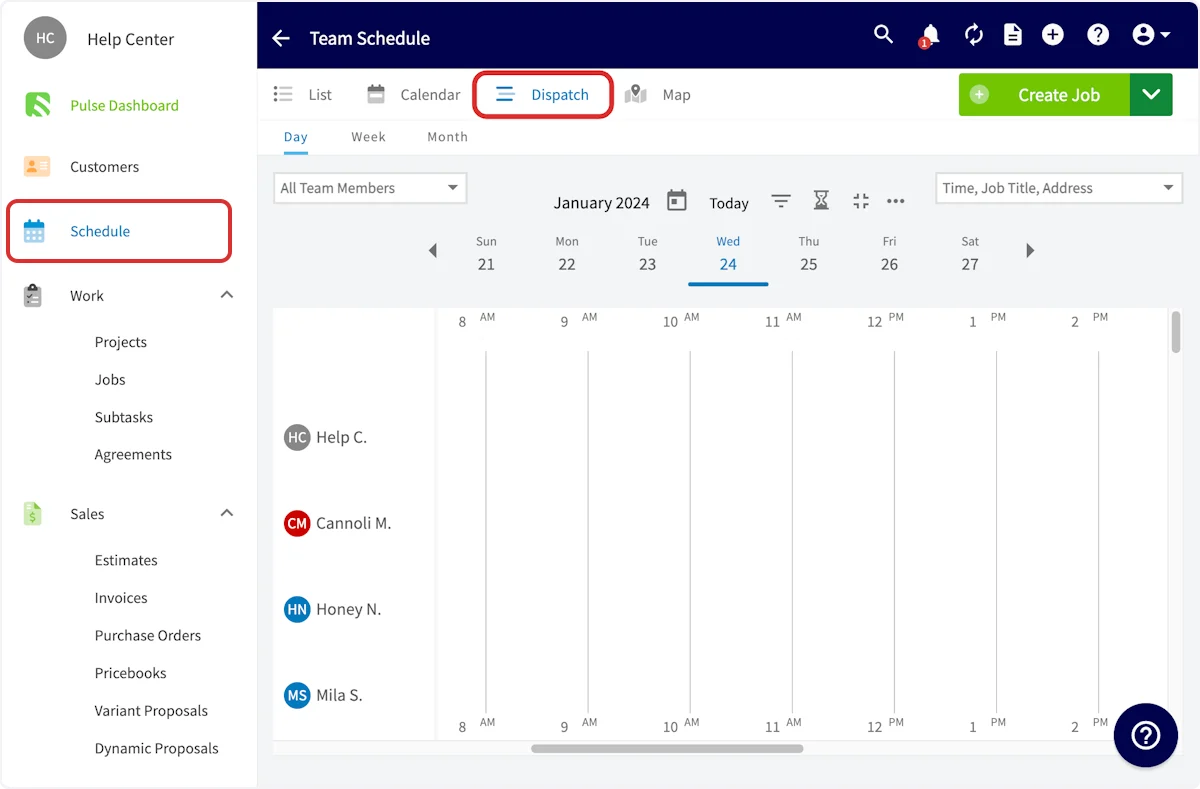
To begin, select *Schedule* from the left-side menu. Open *Dispatch View* on the Team Schedule page.
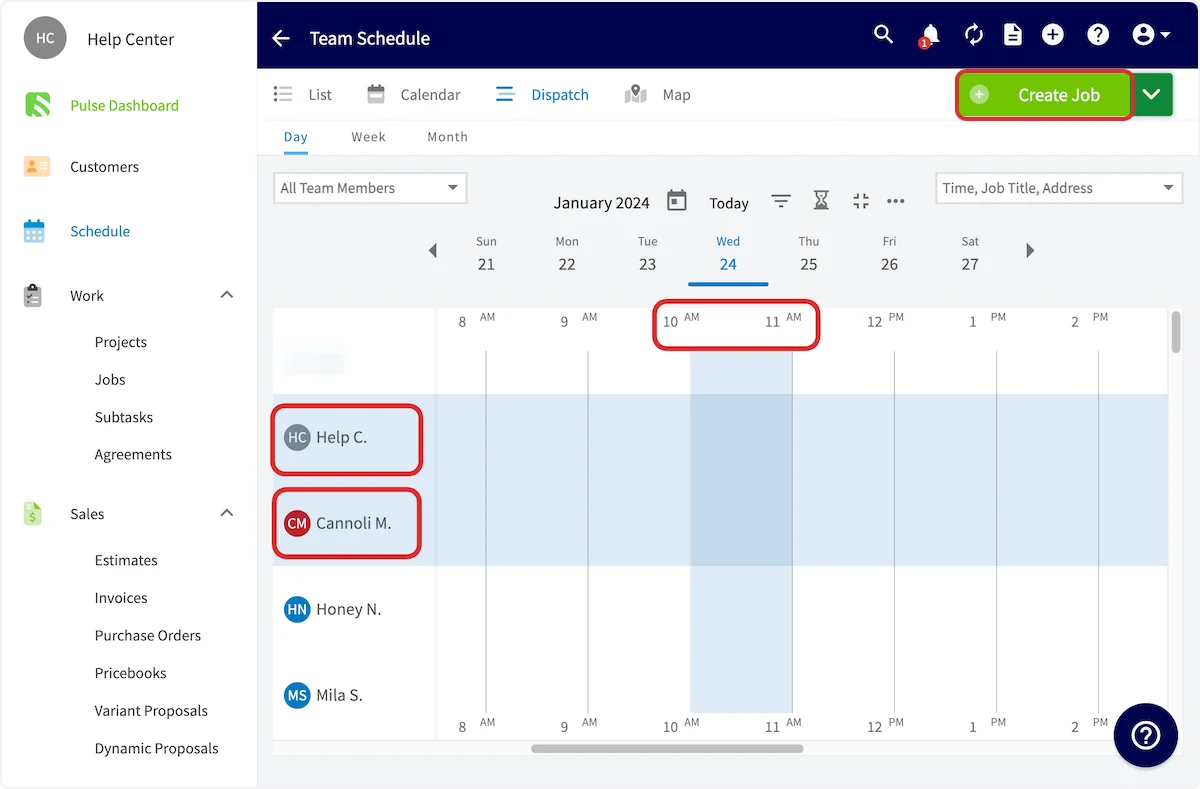
 Once you have found availability for your team member(s), click their name(s) from the left column. The selected team member(s) row will be highlighted in blue to indicate they have been selected.
Select the time slot that you wish to use as the start time for the job record and click the top of the time grid. *(**Note:** When you select the start time, it will default to a 1 hour duration. This can be edited on the job record.)*
Once you’ve selected the team members and time slot, click *Create Job* in the upper right corner.
Once you have found availability for your team member(s), click their name(s) from the left column. The selected team member(s) row will be highlighted in blue to indicate they have been selected.
Select the time slot that you wish to use as the start time for the job record and click the top of the time grid. *(**Note:** When you select the start time, it will default to a 1 hour duration. This can be edited on the job record.)*
Once you’ve selected the team members and time slot, click *Create Job* in the upper right corner.
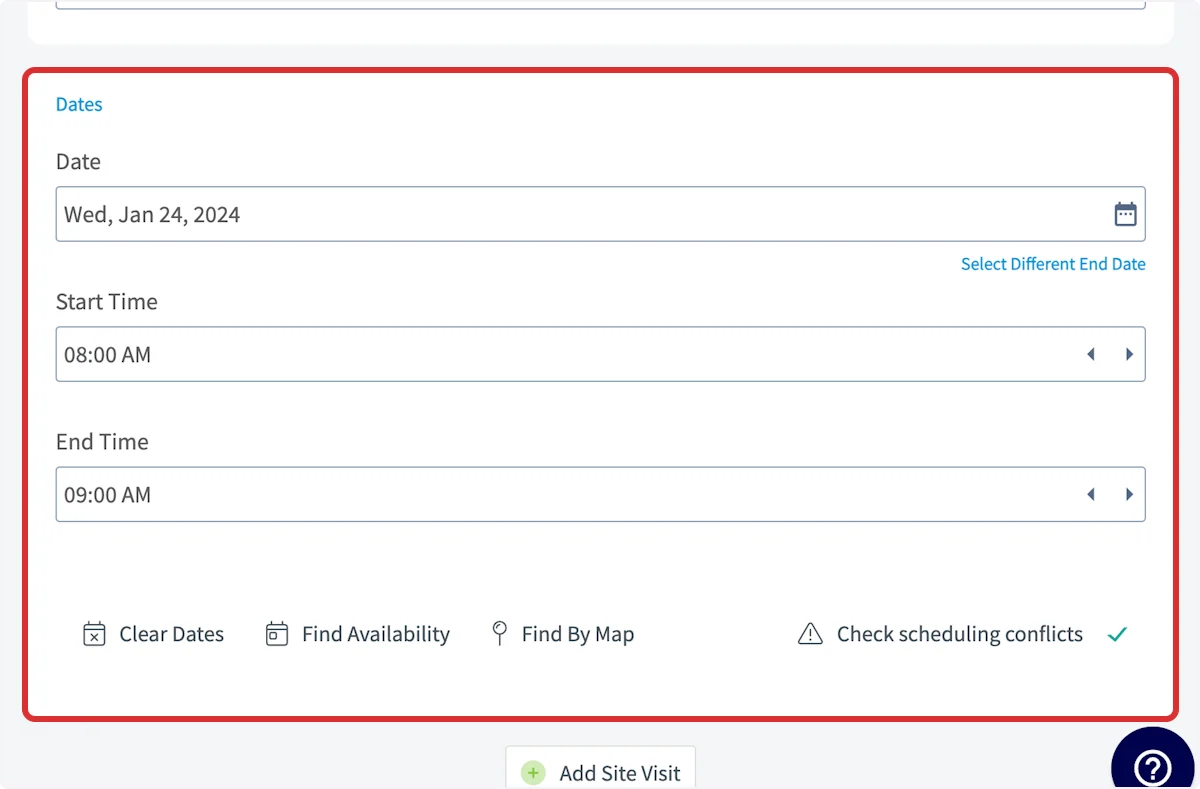
 The new job record will have the selected team members and time slot automatically inserted. From there, simply fill out the remaining fields and edit the assignments as necessary.
 ***
# Scheduling from a Job Record
When creating a job record, you can also utilize the dispatch view for scheduling. When creating the new record, scroll down and select the *Find Availability* button.
***
# Scheduling from a Job Record
When creating a job record, you can also utilize the dispatch view for scheduling. When creating the new record, scroll down and select the *Find Availability* button.
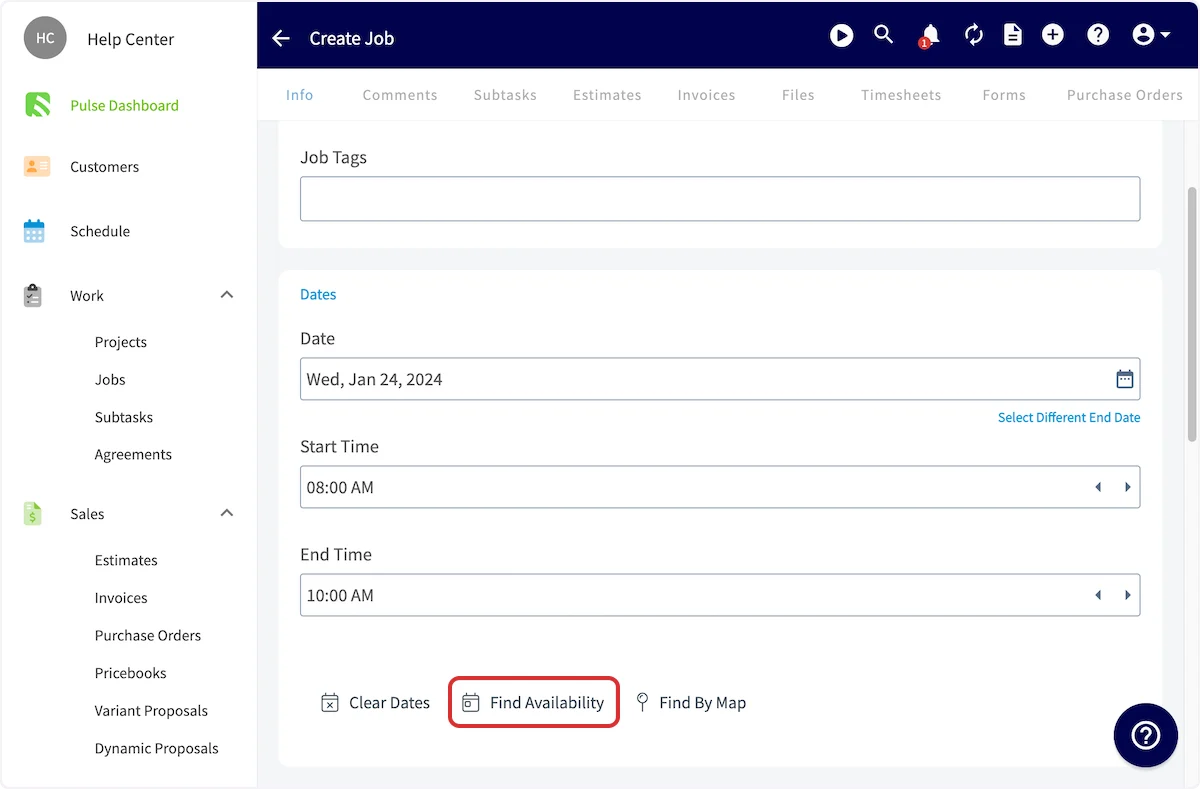 FieldPulse will automatically suggest time slots based on your scheduling requirements. These can be added to [job templates](/using-fieldpulse/work/job-templates) for quicker job scheduling.
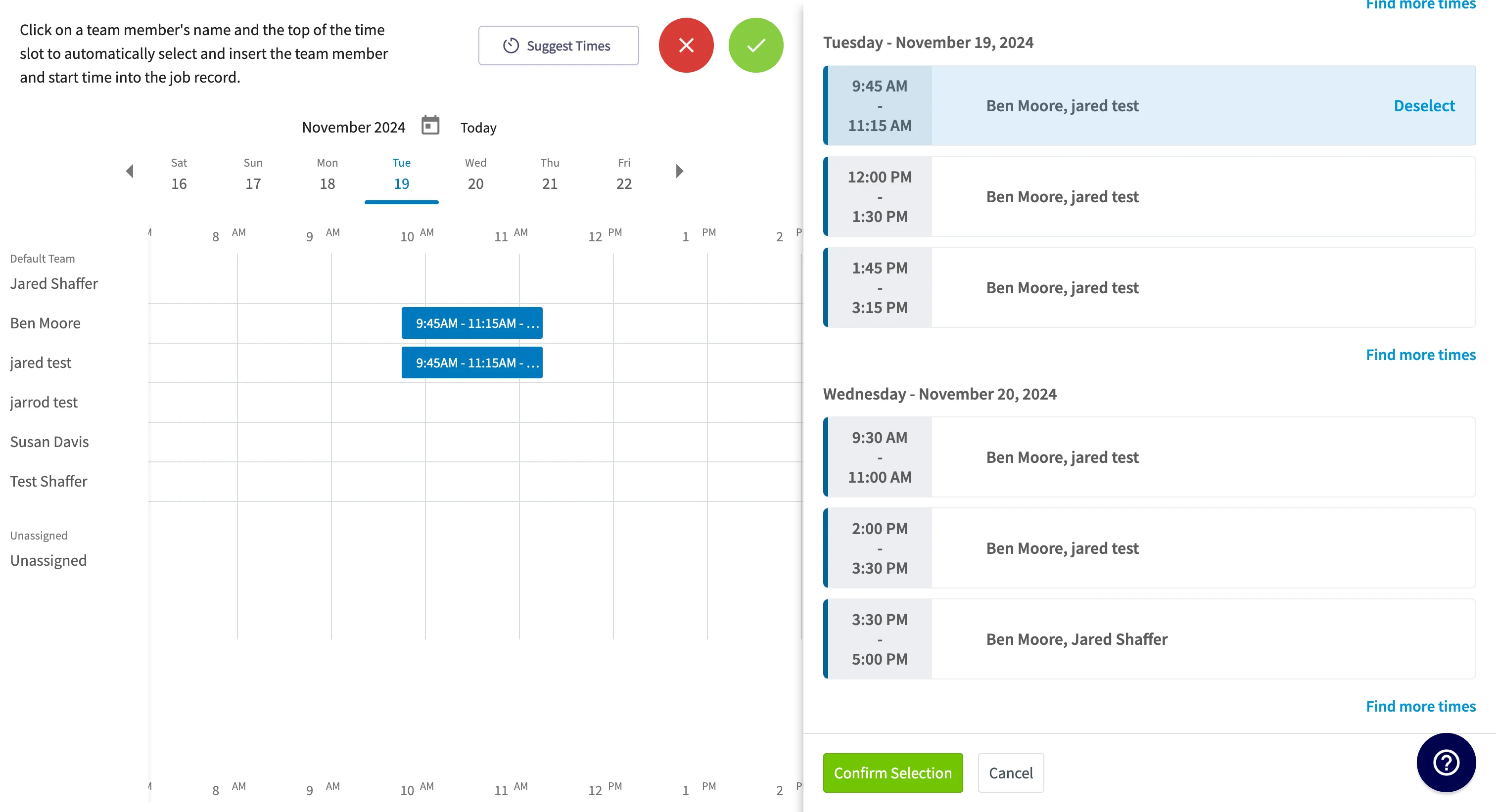
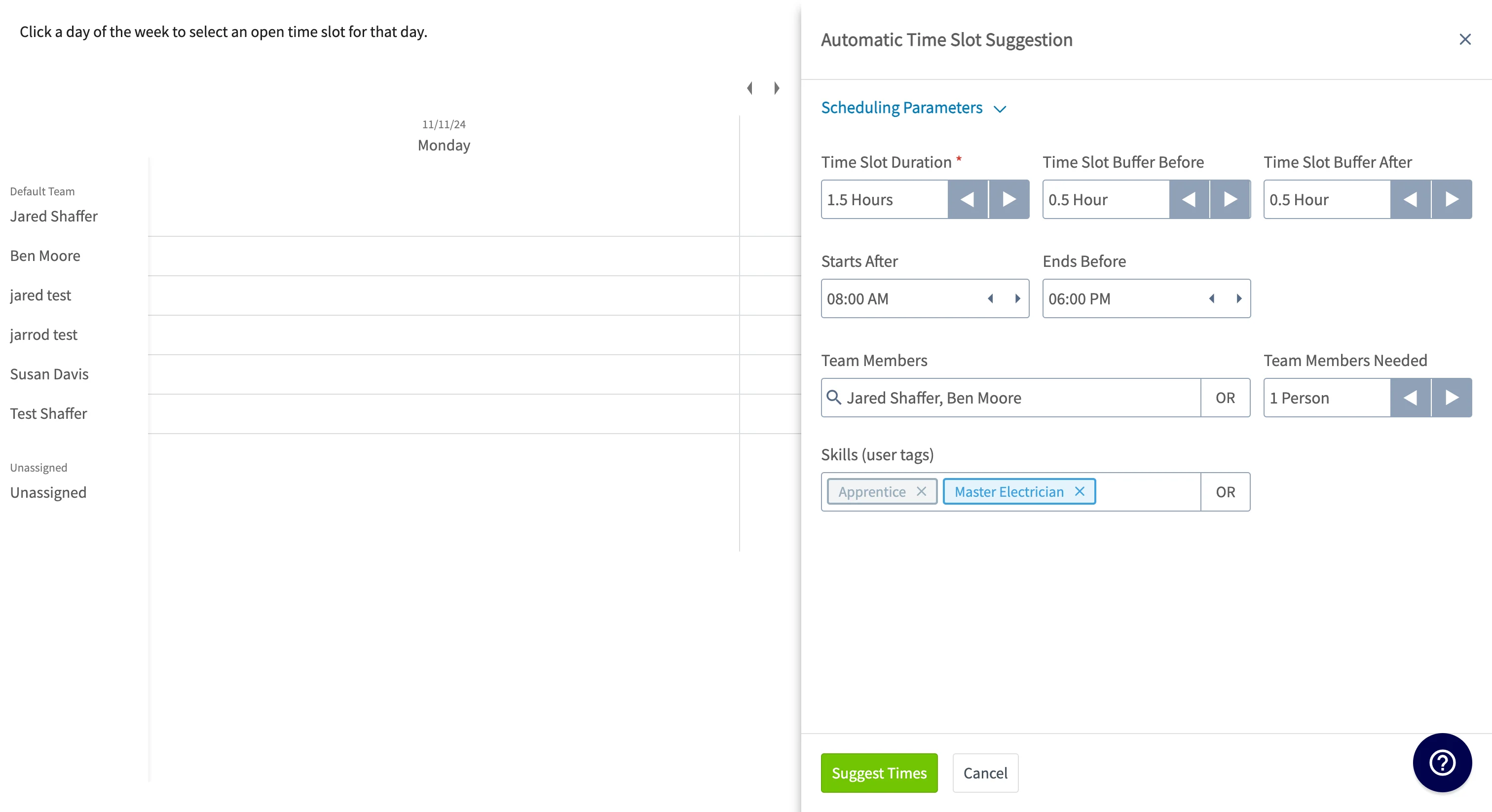 After making your selections, click Suggest Times and FieldPulse will recommend different combinations of users who are available to service the job. Confirm your select and the job will be assigned to these users and scheduled at the selected time.
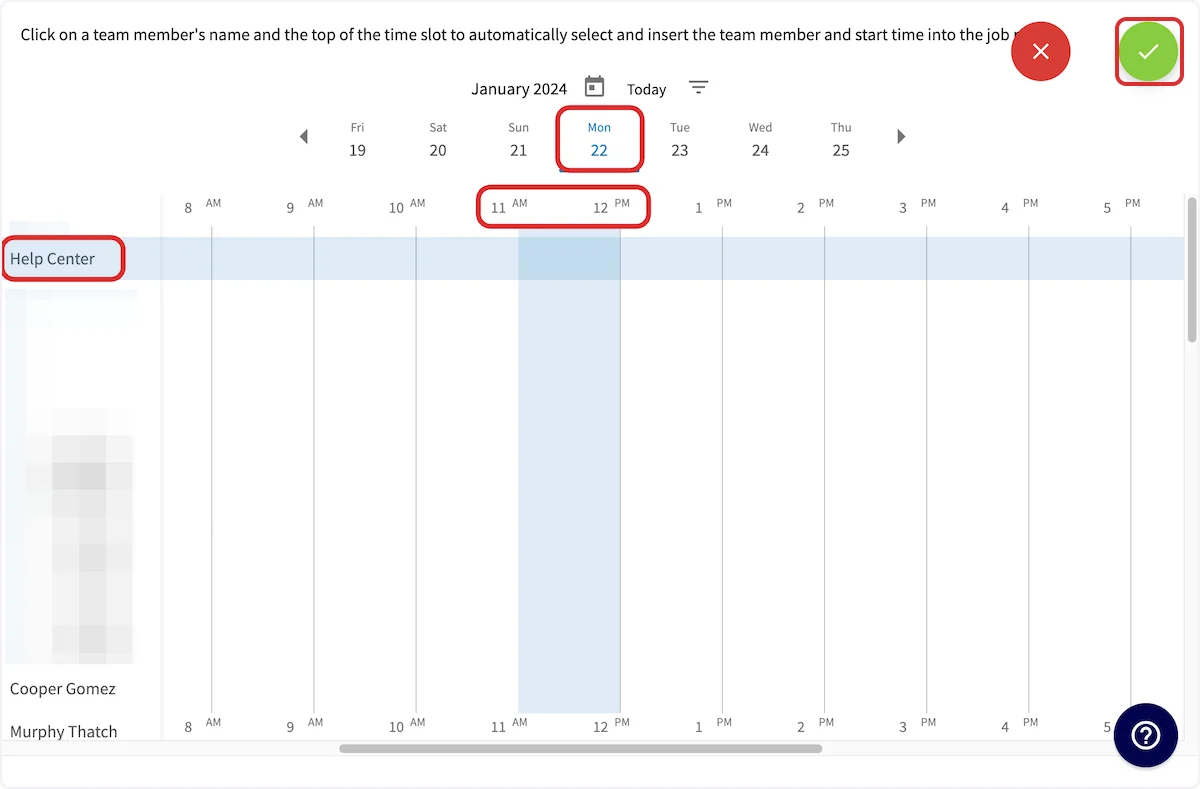
 If you don't want to use FieldPulse's suggested times, you can manually select a time. Select (1) your desired day of the week, (2) team member name, and (3) the time slot to schedule the job. When all three have been selected, click the green check mark. *(**Note:** When you select the start time, it will default to a 1 hour duration. This can be edited on the job record.)*
 The new job record will have now the selected team members and time slot automatically inserted. From there, simply fill out the remaining fields and edit the assignments as necessary.
To learn how to set working hours for multi-day jobs, [setting working hours for multi-day jobs](/using-fieldpulse/scheduling-dispatch/setting-working-hours-for-multi-day-jobs).
***
# Video Tutorial
***
**Have additional questions?**
*Contact us at [support@fieldpulse.com](mailto:support@fieldpulse.com) or use the chat feature in the bottom right corner of your screen.*
The new job record will have now the selected team members and time slot automatically inserted. From there, simply fill out the remaining fields and edit the assignments as necessary.
To learn how to set working hours for multi-day jobs, [setting working hours for multi-day jobs](/using-fieldpulse/scheduling-dispatch/setting-working-hours-for-multi-day-jobs).
***
# Video Tutorial
***
**Have additional questions?**
*Contact us at [support@fieldpulse.com](mailto:support@fieldpulse.com) or use the chat feature in the bottom right corner of your screen.*