> ## Documentation Index
> Fetch the complete documentation index at: https://help.fieldpulse.com/llms.txt
> Use this file to discover all available pages before exploring further.
# Route Optimization
> Plot filtered jobs on the map, set the crew, first-job time, and stop order, then have FieldPulse auto-schedule the whole route from those inputs.
Using the route optimization features in FieldPulse, you can ensure that your service agents are routing their jobs as efficiently as possible each day.
This feature allows you to manually optimize the route and schedule of jobs using the map. Select options to filter jobs to plot on a map, and then select the order in which to schedule, the team members assigned to these jobs, and the date/time of the first job. These jobs will be automatically scheduled using the inputs provided.
***
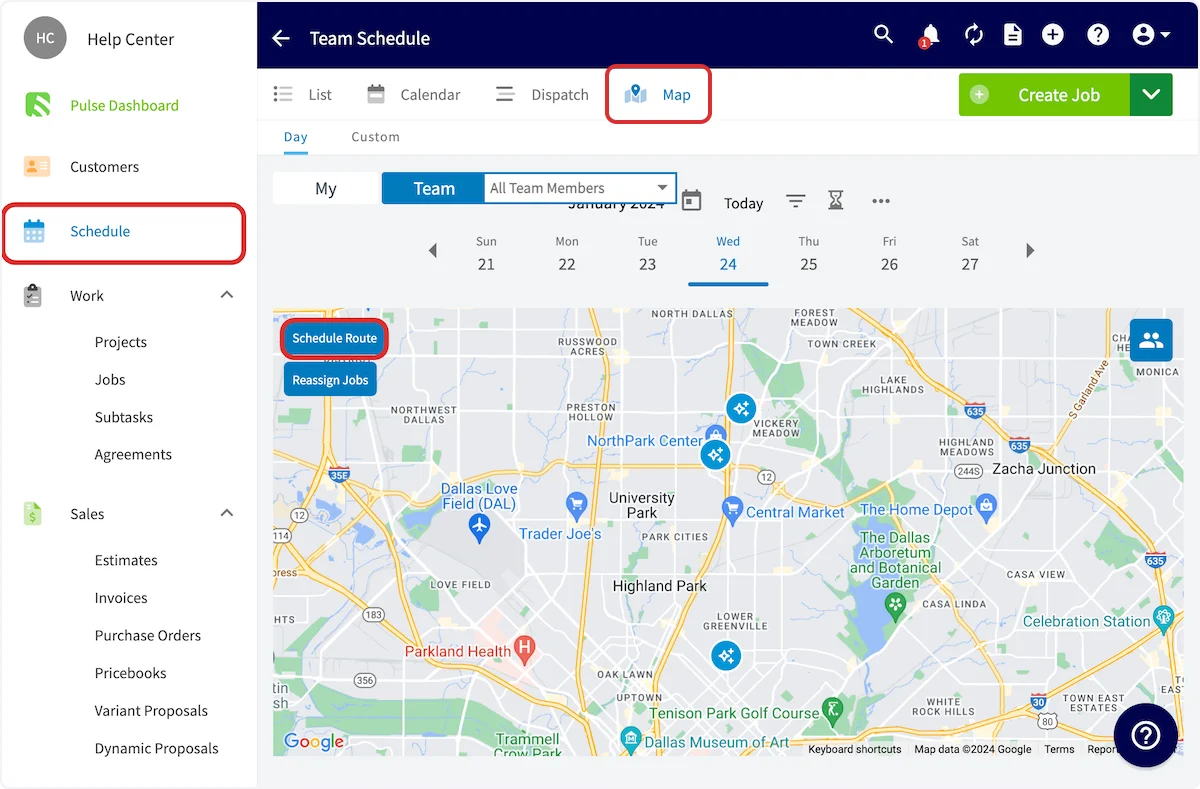
To begin optimizing your routes, select *Schedule* from the left-side menu, then click on the *Map View* in the Team Schedule. Finally, select the date you'd like to schedule a route for and select *Schedule Route*.
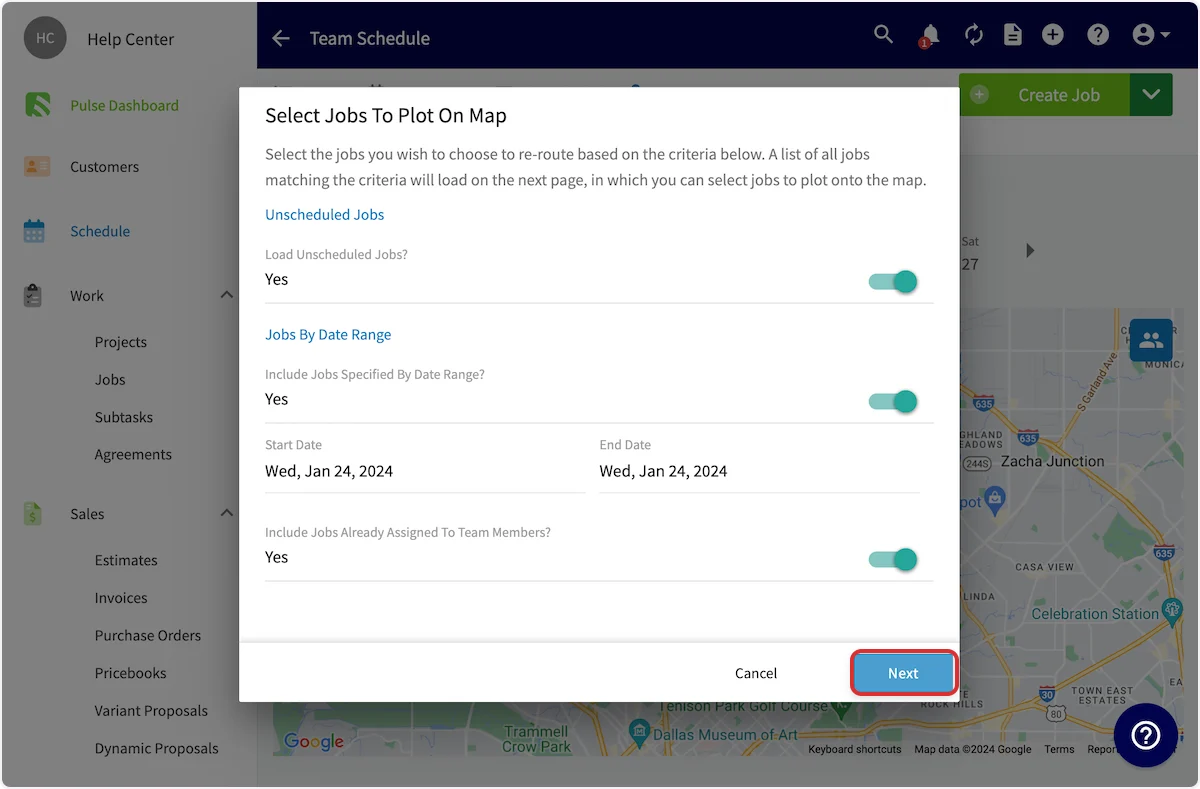
 FieldPulse will now prompt you to customize the jobs included in the route scheduling. Curate the included jobs based on date, assigned jobs, and scheduled jobs. Press *Next* when you've customized the criteria to meet your needs.
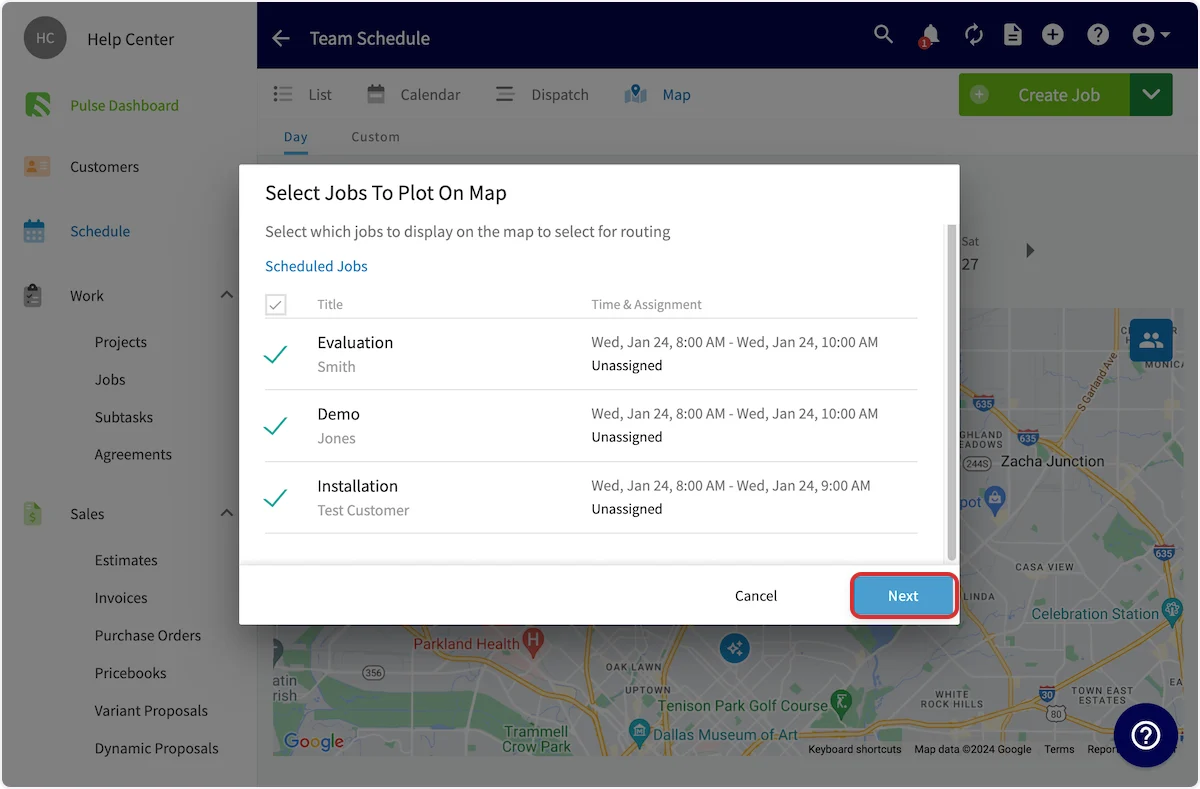
 You will now be presented with a list of jobs that met your criteria. Select the jobs you'd like to schedule on the same route, then press *Next*.
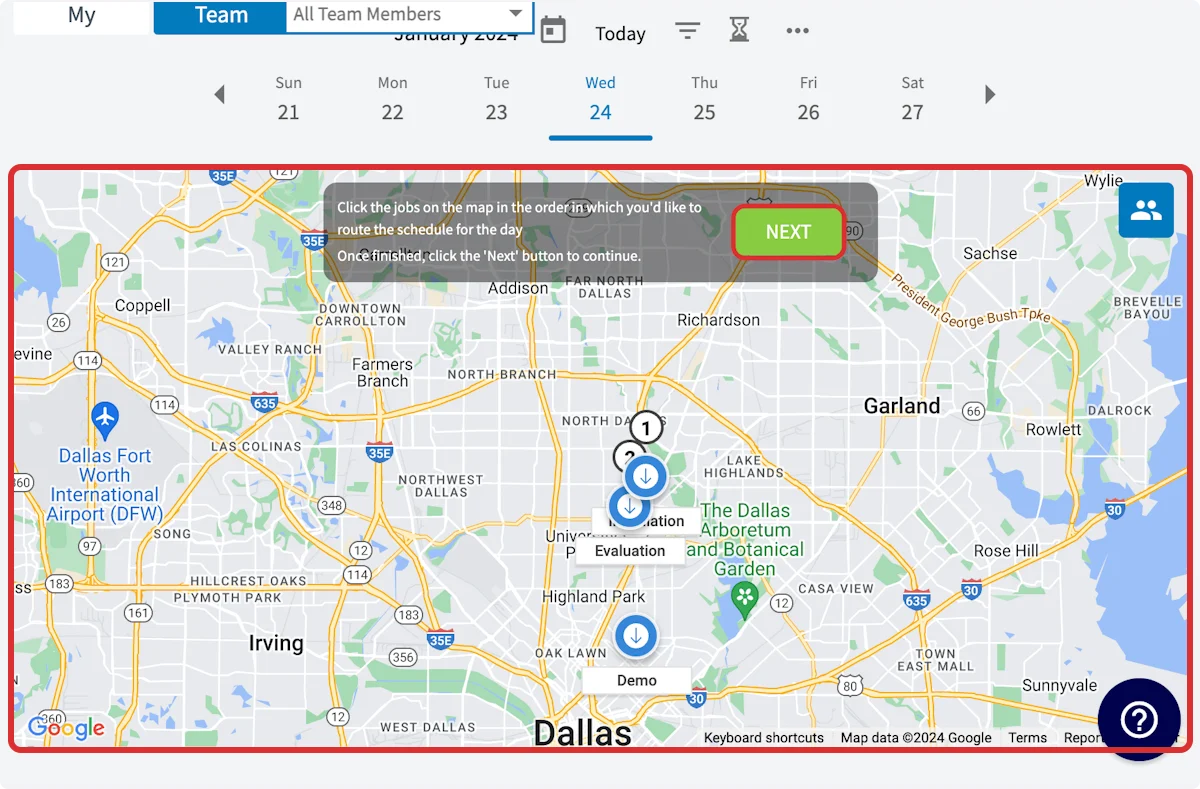
 You'll now click on the jobs on the map in the order in which you'd like to schedule them for the day. You'll notice numbers appearing above each job to indicate your order. Press *Next* after selecting your preferred order.
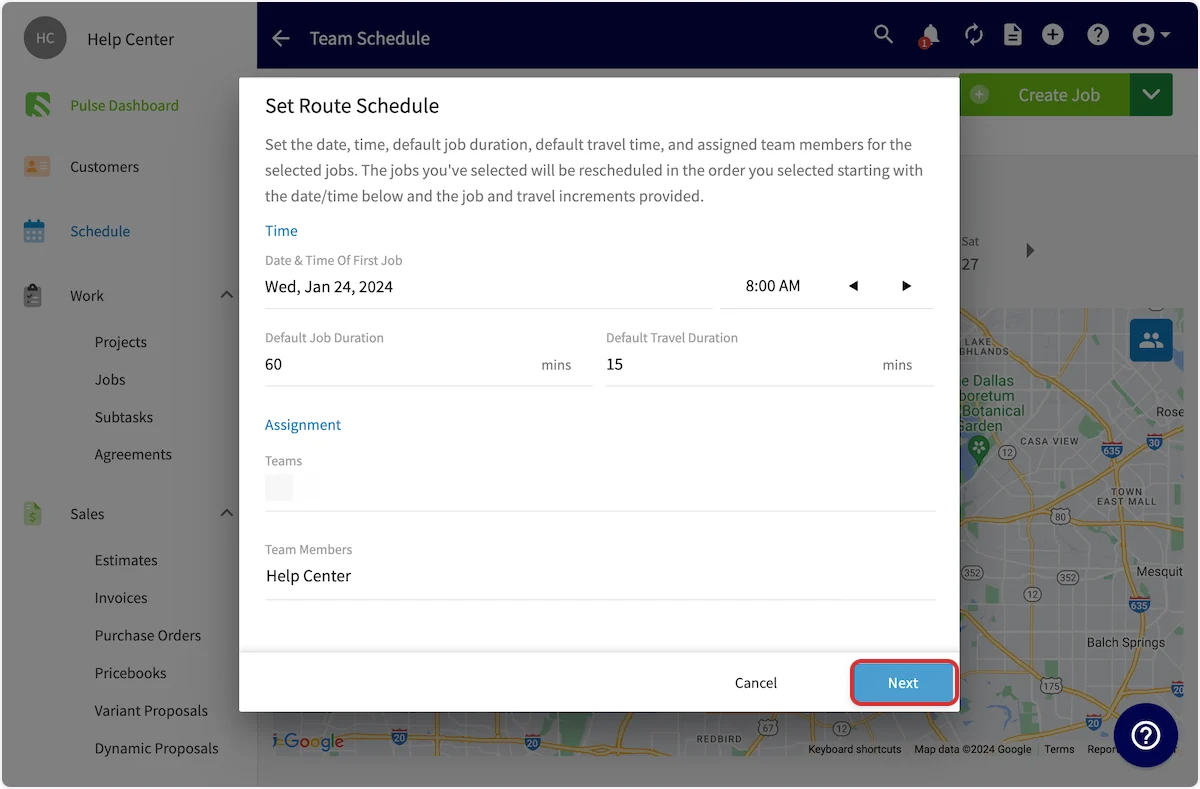
 Now you can set the date and time when you'd like the first job to take place. Customize the default job duration and the default travel duration as well. Lastly, select the teams or team members you'd like to perform these jobs. Press *Next* to continue.
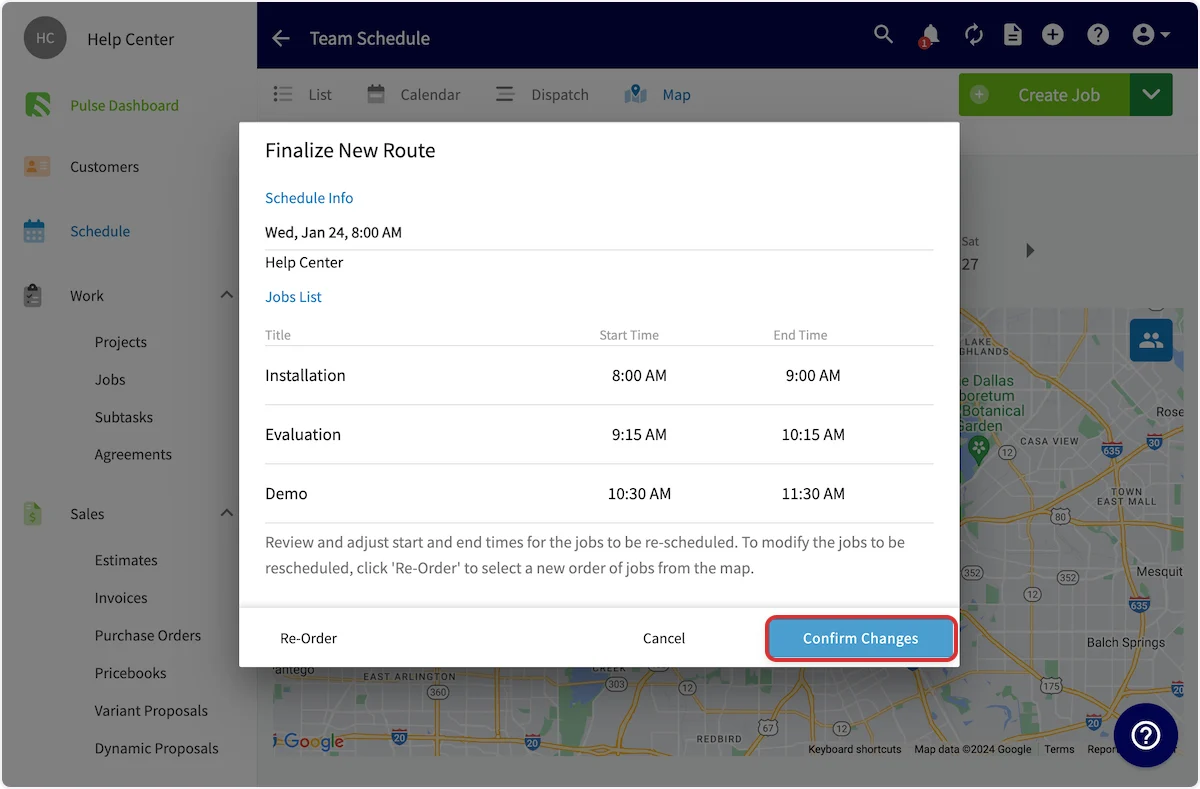
 You will now preview the optimized route details. You can change the start and end times for your jobs here, press *Re-Order* to make changes to the order of jobs, or select *Confirm Changes* to add the newly scheduled jobs to your schedule.
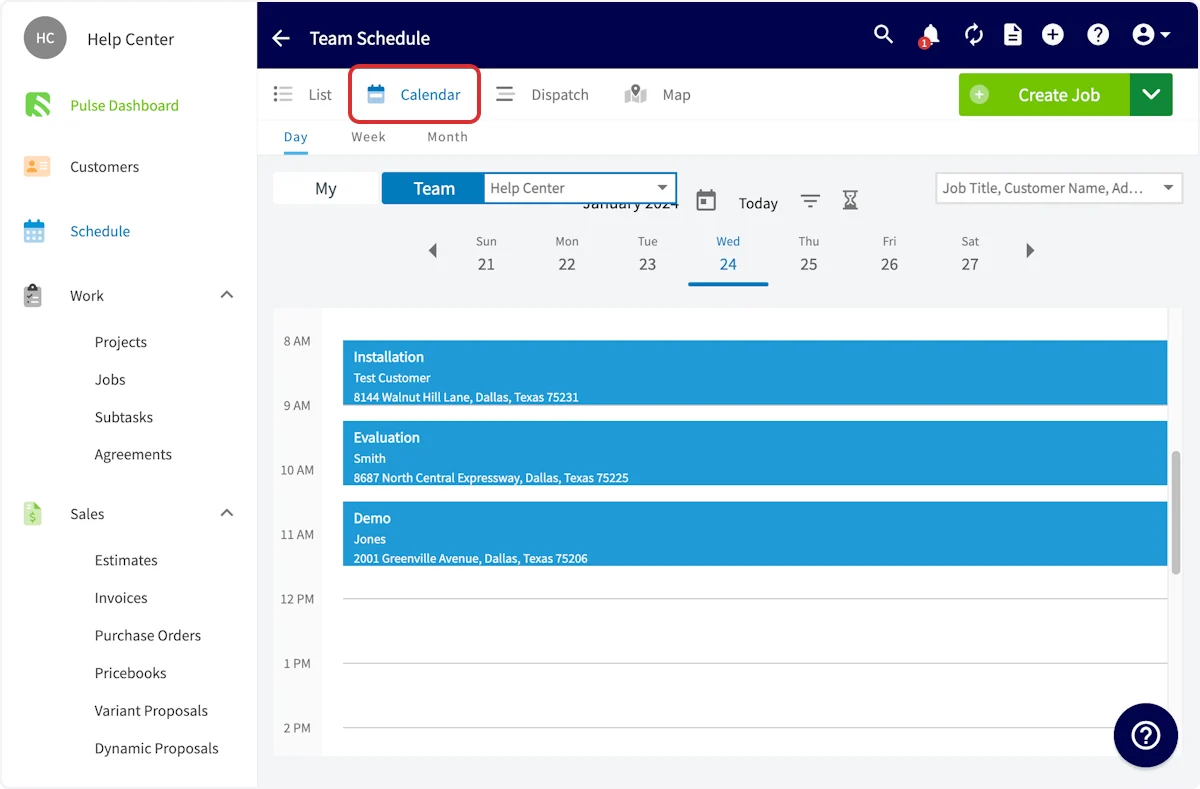
 Now, you can click on the jobs in the map view or any other schedule view to see that the changes were applied and your route has now been optimized.
 ***
# Video Tutorial
***
**Have additional questions?**
*Contact us at [support@fieldpulse.com](mailto:support@fieldpulse.com) or use the chat feature in the bottom right corner of your screen.*
***
# Video Tutorial
***
**Have additional questions?**
*Contact us at [support@fieldpulse.com](mailto:support@fieldpulse.com) or use the chat feature in the bottom right corner of your screen.*