> ## Documentation Index
> Fetch the complete documentation index at: https://help.fieldpulse.com/llms.txt
> Use this file to discover all available pages before exploring further.
# Schedule Visibility Settings
> Limit each service agent to only the jobs they're assigned, keeping the rest of the schedule private and uncluttered.
# **Service Agent Schedule Visibility**
As an administrator, you have the ability to restrict your service agent's schedule view. This can be beneficial for schedule simplicity, internal adjustments, or general schedule privacy.
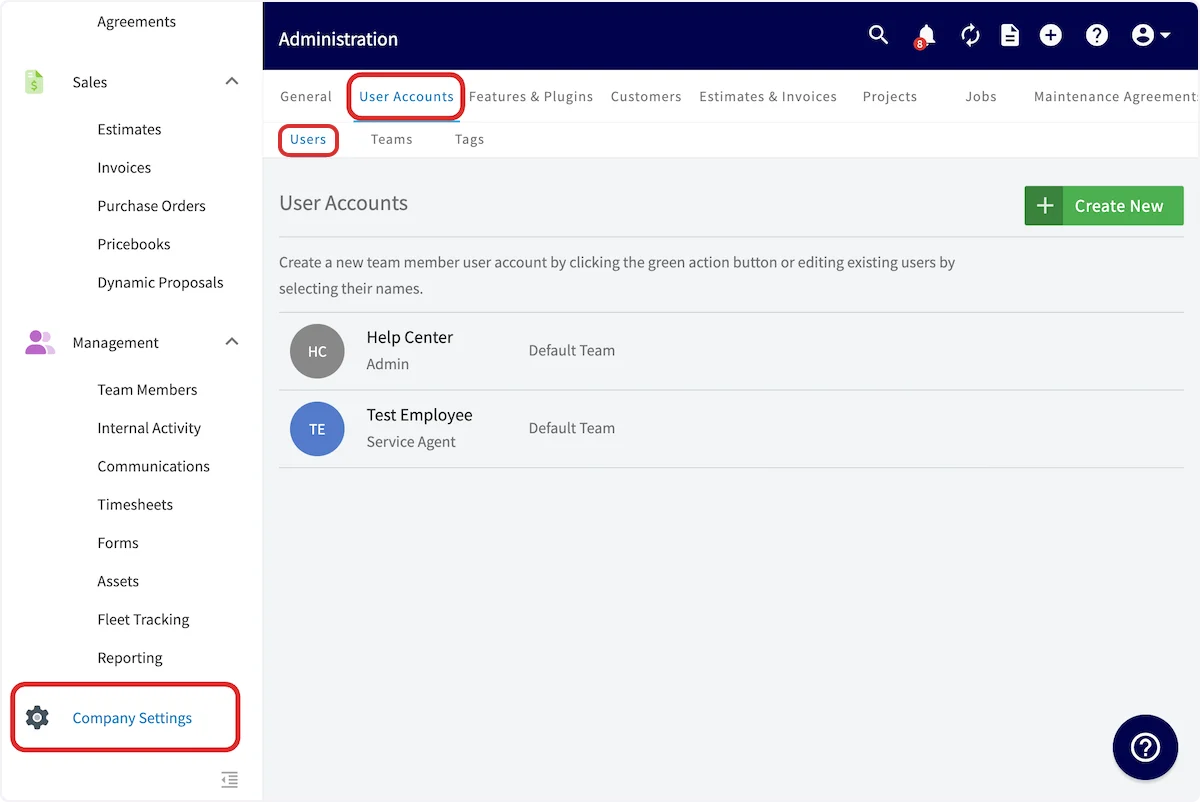
Navigate to *Company Settings*, select *User Accounts,* then *Users*.
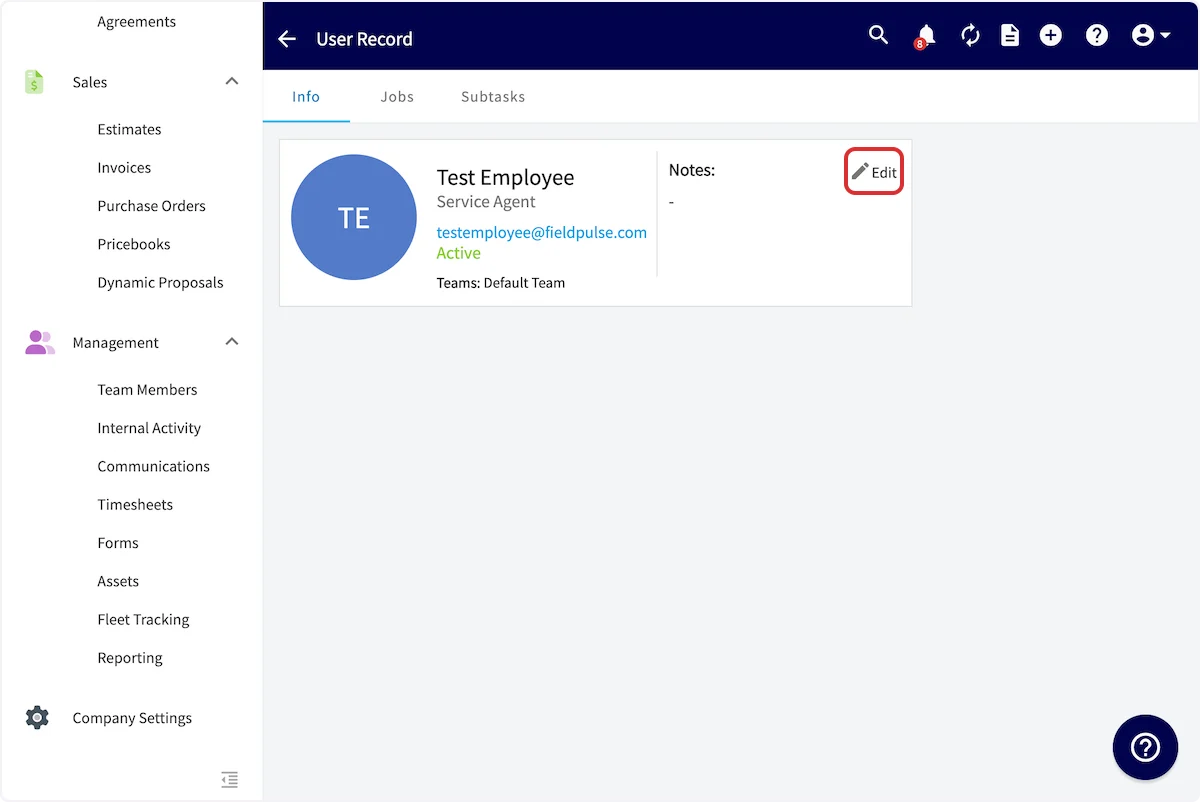
 Select a user and press *Edit*.
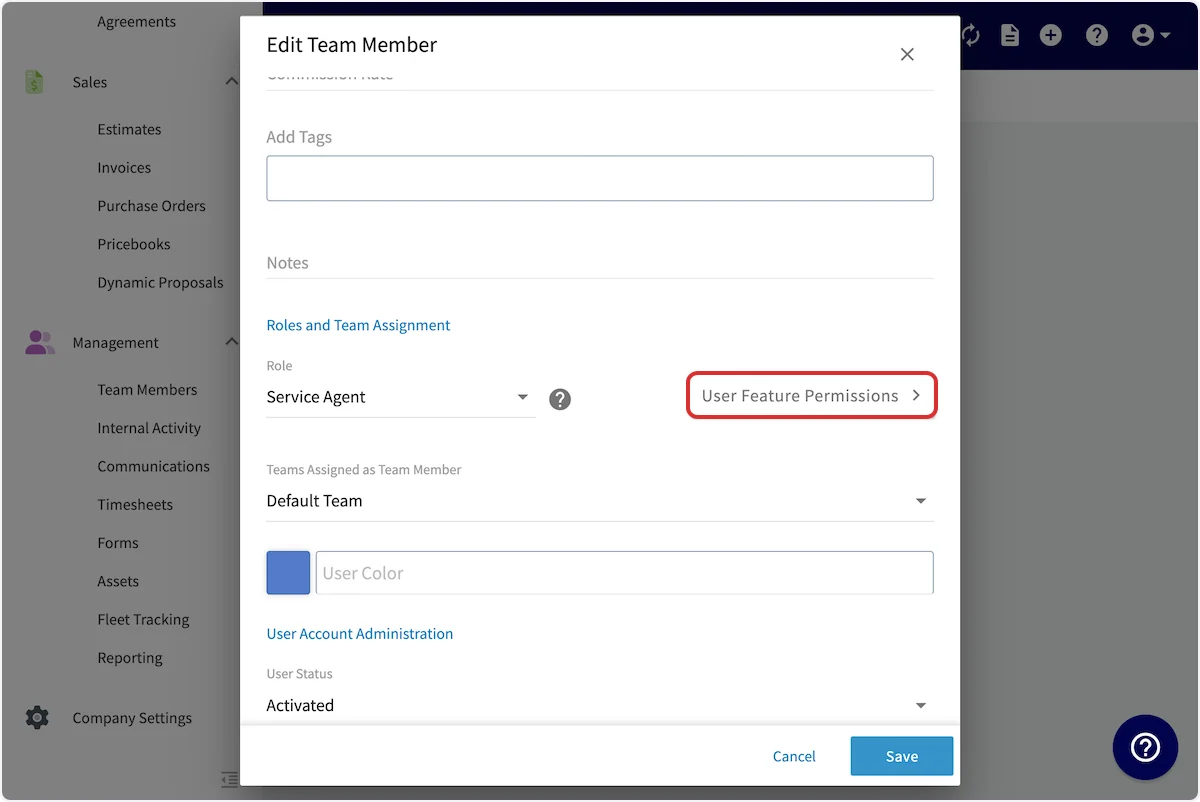
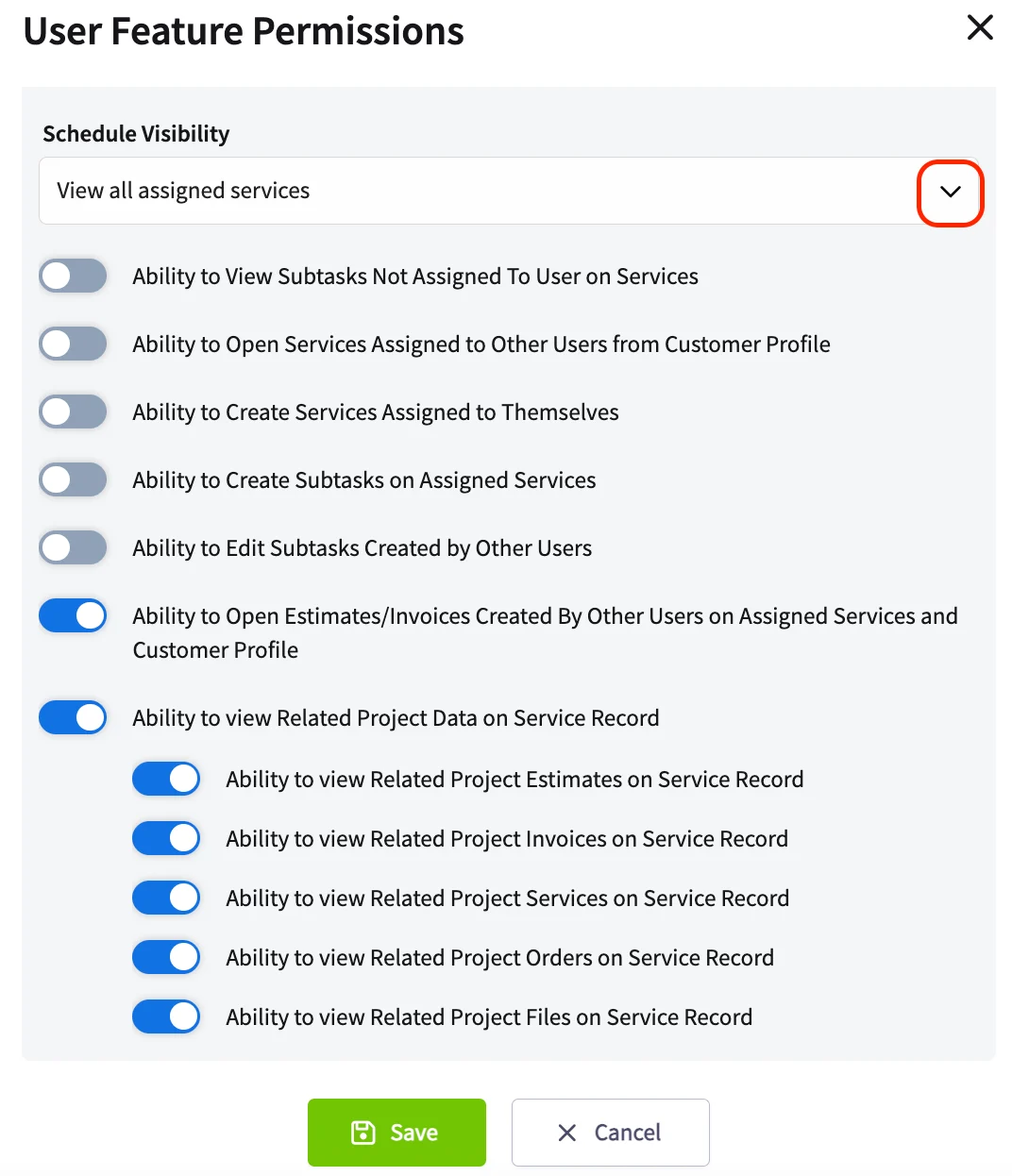
 You should then select *User Feature Permissions* and adjust the *Schedule Visibility*. The options include:
* *View all assigned jobs*
* *View one open job at a time*
* *View jobs assigned today*
* *View jobs assigned today and tomorrow*
* *View jobs assigned today, tomorrow, and the day after*
You should then select *User Feature Permissions* and adjust the *Schedule Visibility*. The options include:
* *View all assigned jobs*
* *View one open job at a time*
* *View jobs assigned today*
* *View jobs assigned today and tomorrow*
* *View jobs assigned today, tomorrow, and the day after*
 ***
# Manual Dispatch
Further manage your team members' schedules by hiding or un-hiding jobs and site visits at your discretion, ensuring optimal control over assignments.
## Set Up
Navigate to *Company Settings*, then select *Jobs*. Remain on the *General* subtab.
***
# Manual Dispatch
Further manage your team members' schedules by hiding or un-hiding jobs and site visits at your discretion, ensuring optimal control over assignments.
## Set Up
Navigate to *Company Settings*, then select *Jobs*. Remain on the *General* subtab.
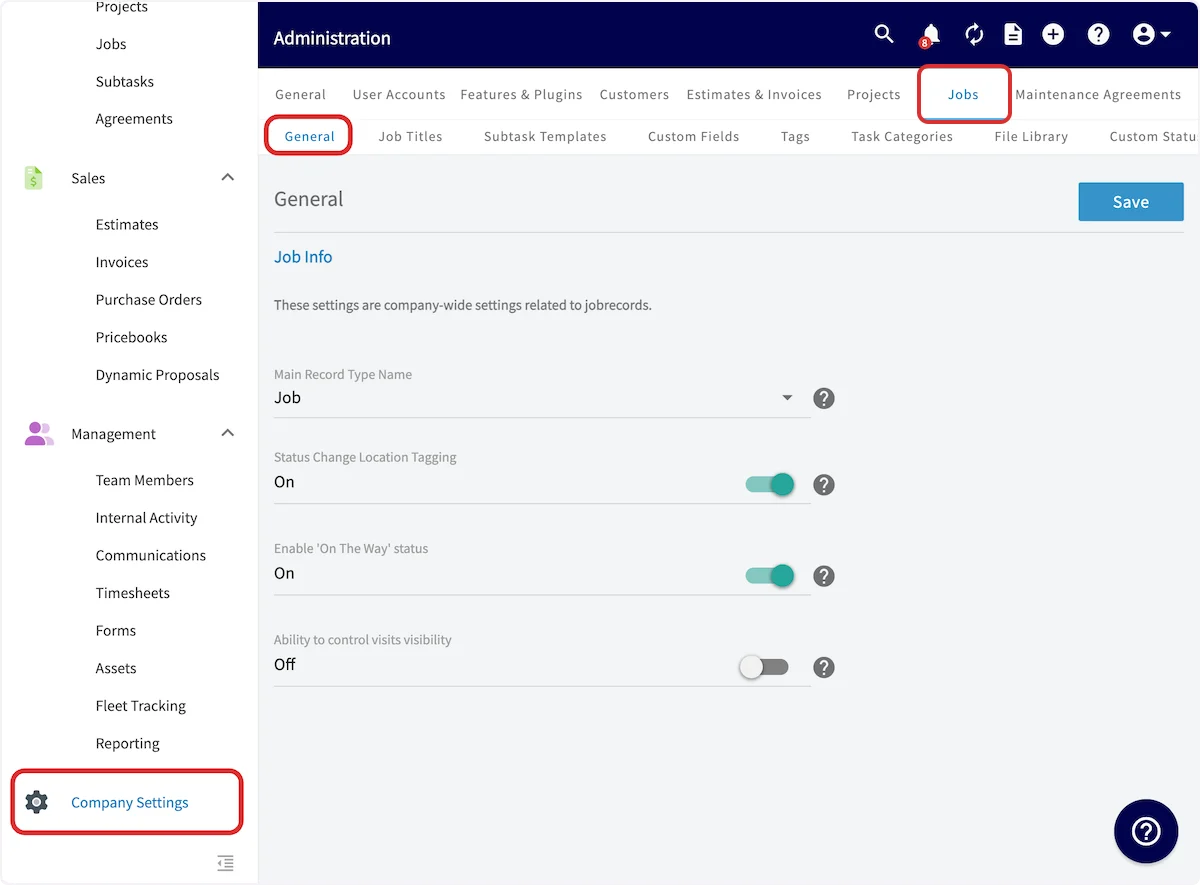 Next, toggle on *Ability to control visits visibility*.
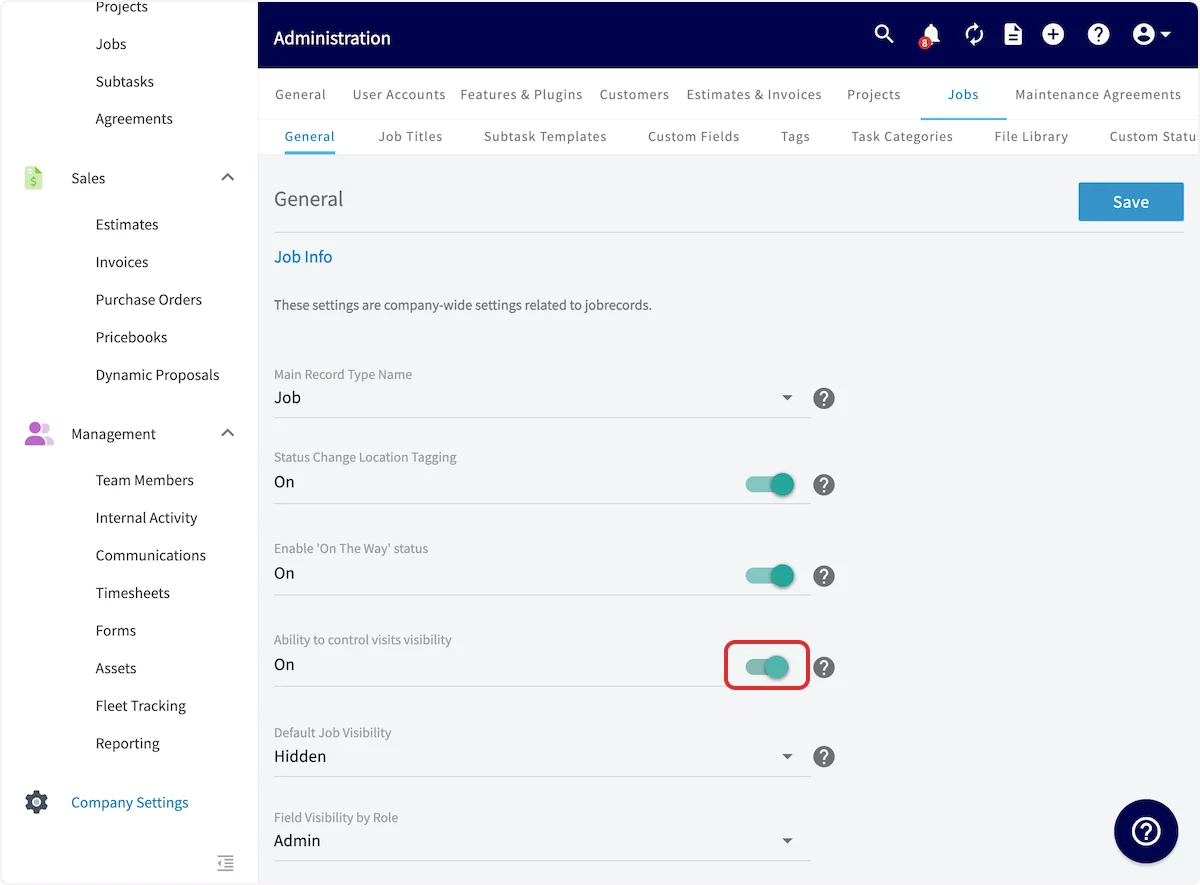 You will then need to choose your *Default Visibility* when you create a new job (Hidden or Un-Hidden), as well as choose which roles can hide and unhide jobs.
 ## Use
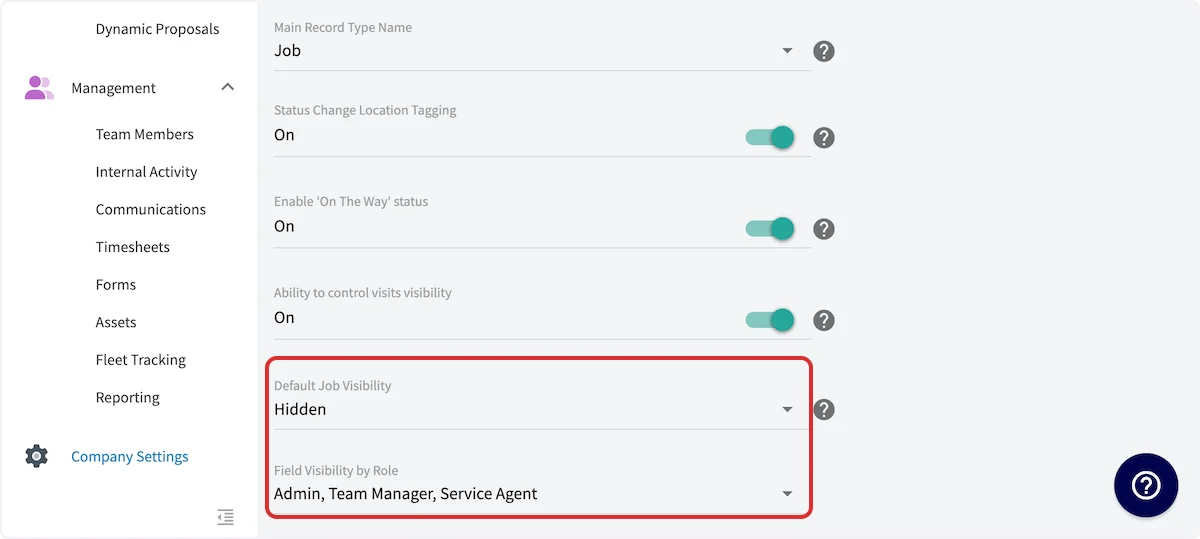
The eye icon indicates whether a job is currently visible to the team members assigned to it. As shown below, the slashed eye icon indicates that a job is **not** visible.
To adjust the visibility, right click on the job to view this menu. Then select *Un-Hide Job* (or *Hide Job*) to adjust the visibility.
## Use
The eye icon indicates whether a job is currently visible to the team members assigned to it. As shown below, the slashed eye icon indicates that a job is **not** visible.
To adjust the visibility, right click on the job to view this menu. Then select *Un-Hide Job* (or *Hide Job*) to adjust the visibility.
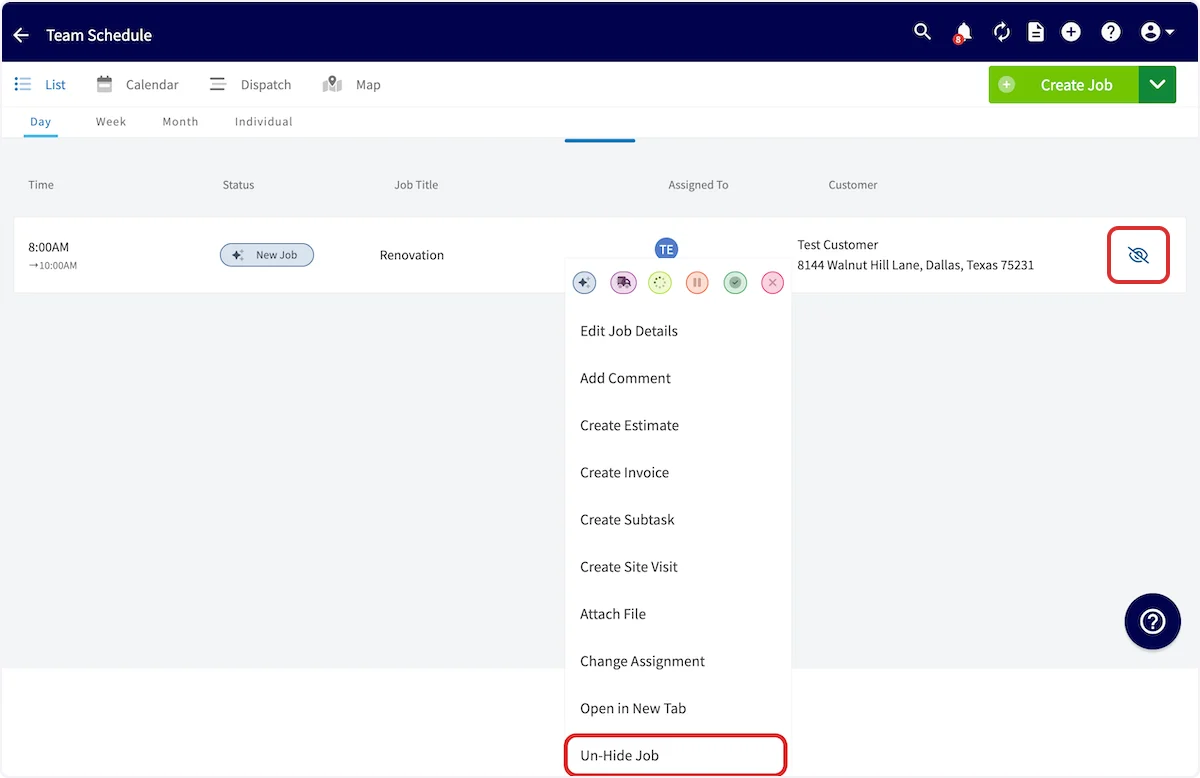 After selecting Un-Hide Job, the eye icon indicates that the job is now visible to the assigned user(s).
 ***
# Video Tutorial
***
**Have additional questions?**
*Contact us at [support@fieldpulse.com](mailto:support@fieldpulse.com) or use the chat feature in the bottom right corner of your screen.*
***
# Video Tutorial
***
**Have additional questions?**
*Contact us at [support@fieldpulse.com](mailto:support@fieldpulse.com) or use the chat feature in the bottom right corner of your screen.*