> ## Documentation Index
> Fetch the complete documentation index at: https://help.fieldpulse.com/llms.txt
> Use this file to discover all available pages before exploring further.
# Using the Schedule Map View
> See jobs and techs plotted on a map to balance workloads, spot unscheduled work, and tighten routing across the day.
# Introduction to Schedule Map View
The Schedule Map View provides a dynamic and intuitive way to access information about job allocations and team availability. By representing jobs and employees spatially, your business can quickly identify workload distribution, locate unscheduled jobs, and assess team performance.
## Benefits of Our Map View
* **Instant Insights**: The visual nature of maps allows your team to quickly grasp job locations and employee assignments, making it easier to identify gaps or overlaps in scheduling.
* **Resource Optimization**: By viewing jobs and team members on a map, your business can optimize routes and manage resources more effectively, reducing travel time and increasing productivity.
***
# Schedule Map - Day View
Filter your daily view by clicking on *Schedule* > *Map* > *Day* > then click the dropdown menu next to where it says *Team*.
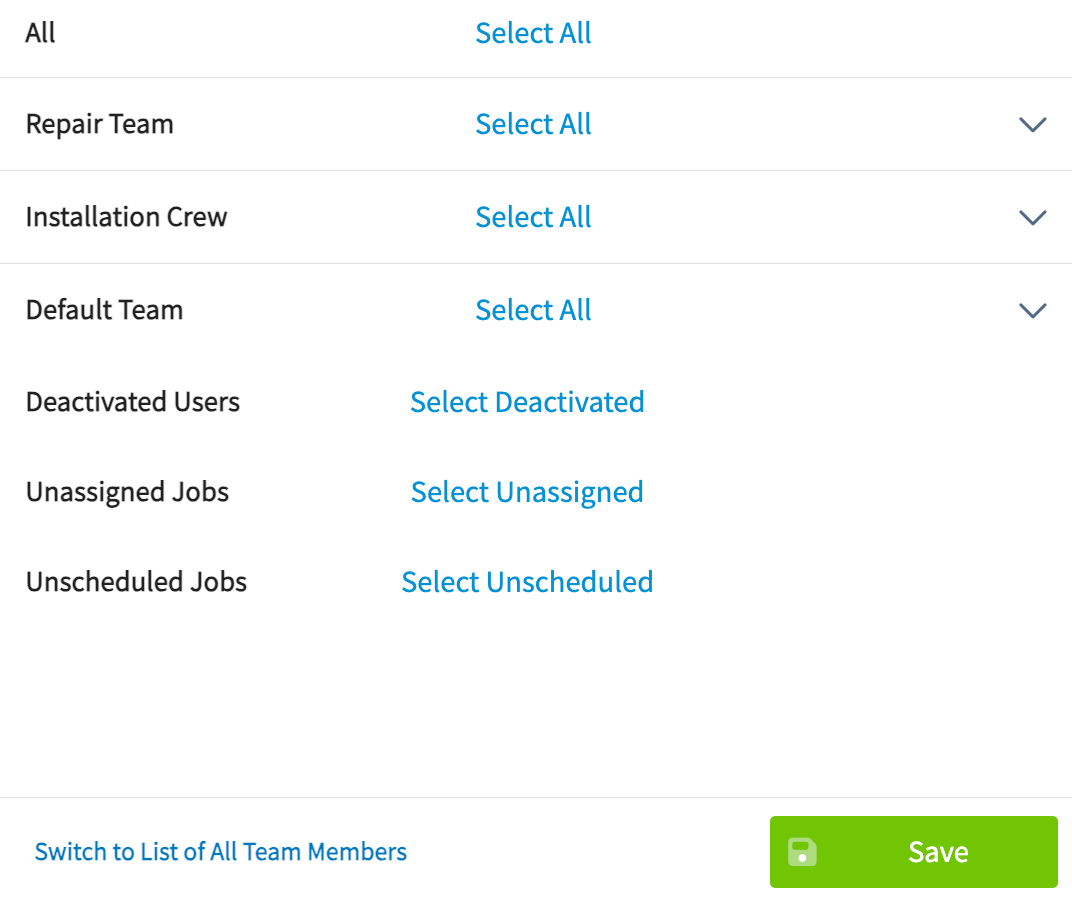
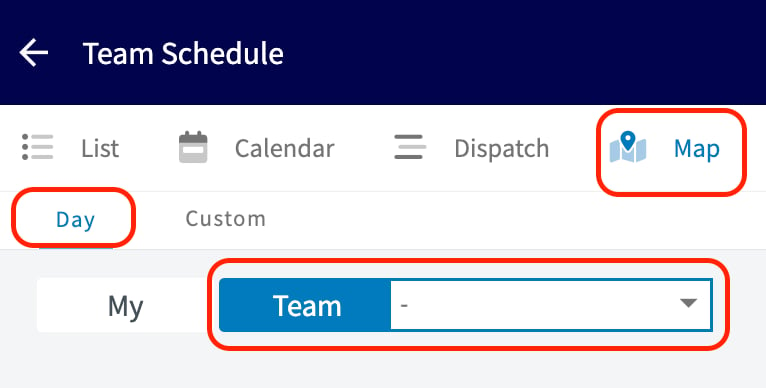 From this menu, you can choose what you wish to display on your map view. Options include:
* Teams you’ve created in FieldPulse
* Deactivated Users
* Unassigned Jobs
* Unscheduled Jobs (Note: Unscheduled jobs must have an assigned location to be viewable on the map)
From this menu, you can choose what you wish to display on your map view. Options include:
* Teams you’ve created in FieldPulse
* Deactivated Users
* Unassigned Jobs
* Unscheduled Jobs (Note: Unscheduled jobs must have an assigned location to be viewable on the map)
 ***
# Schedule Map - Custom View
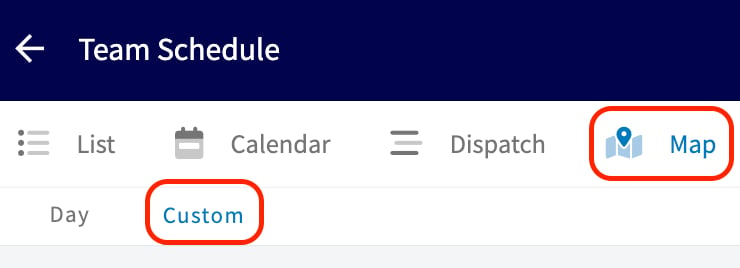
To access the custom view, click on *Schedule* > *Map* > *Custom*. This option offers the same functionality as the Day View, but allows you to select your map view based on a custom date range.
***
# Schedule Map - Custom View
To access the custom view, click on *Schedule* > *Map* > *Custom*. This option offers the same functionality as the Day View, but allows you to select your map view based on a custom date range.
 Begin by selecting your date range, then utilize the following features to customize your view:
* **Users dropdown menu:** Choose from the following:
* Teams you’ve created in FieldPulse
* Deactivated Users
* Unassigned Jobs
* Unscheduled Jobs (Note: Unscheduled jobs must have an assigned location to be viewable on the map)
Begin by selecting your date range, then utilize the following features to customize your view:
* **Users dropdown menu:** Choose from the following:
* Teams you’ve created in FieldPulse
* Deactivated Users
* Unassigned Jobs
* Unscheduled Jobs (Note: Unscheduled jobs must have an assigned location to be viewable on the map)
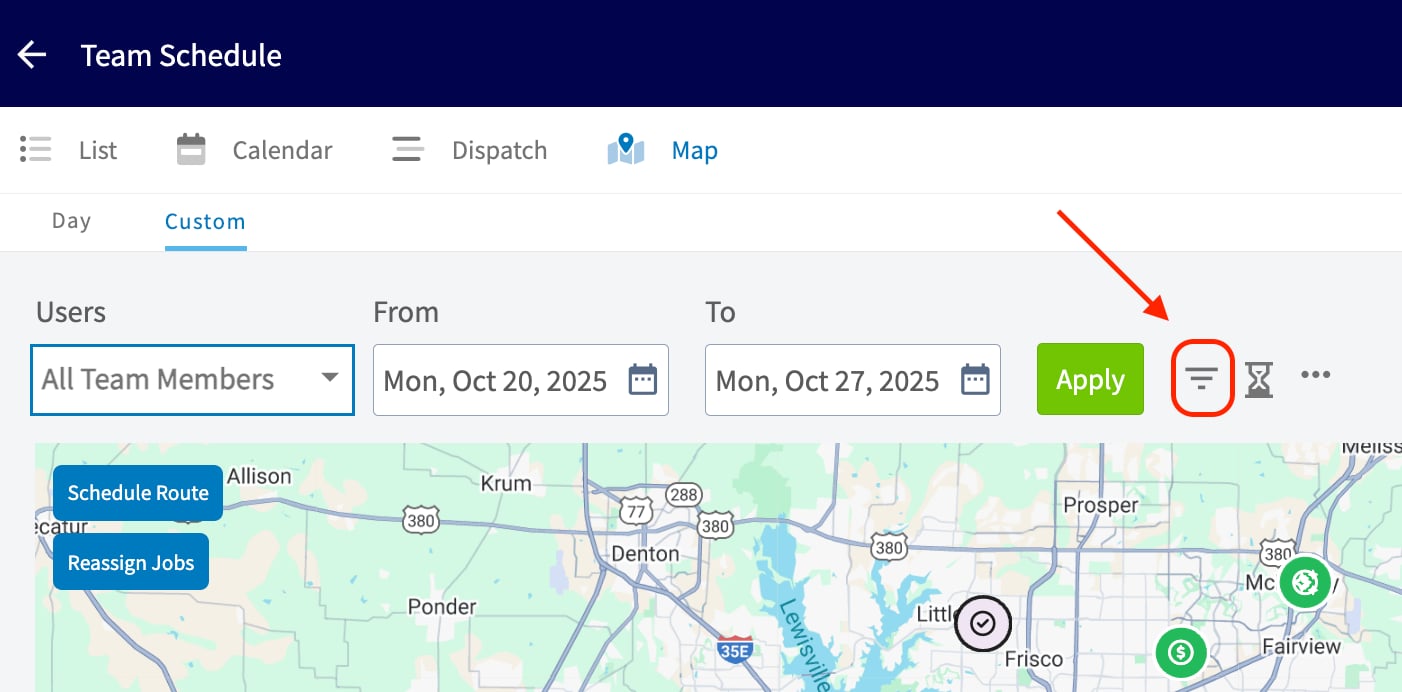
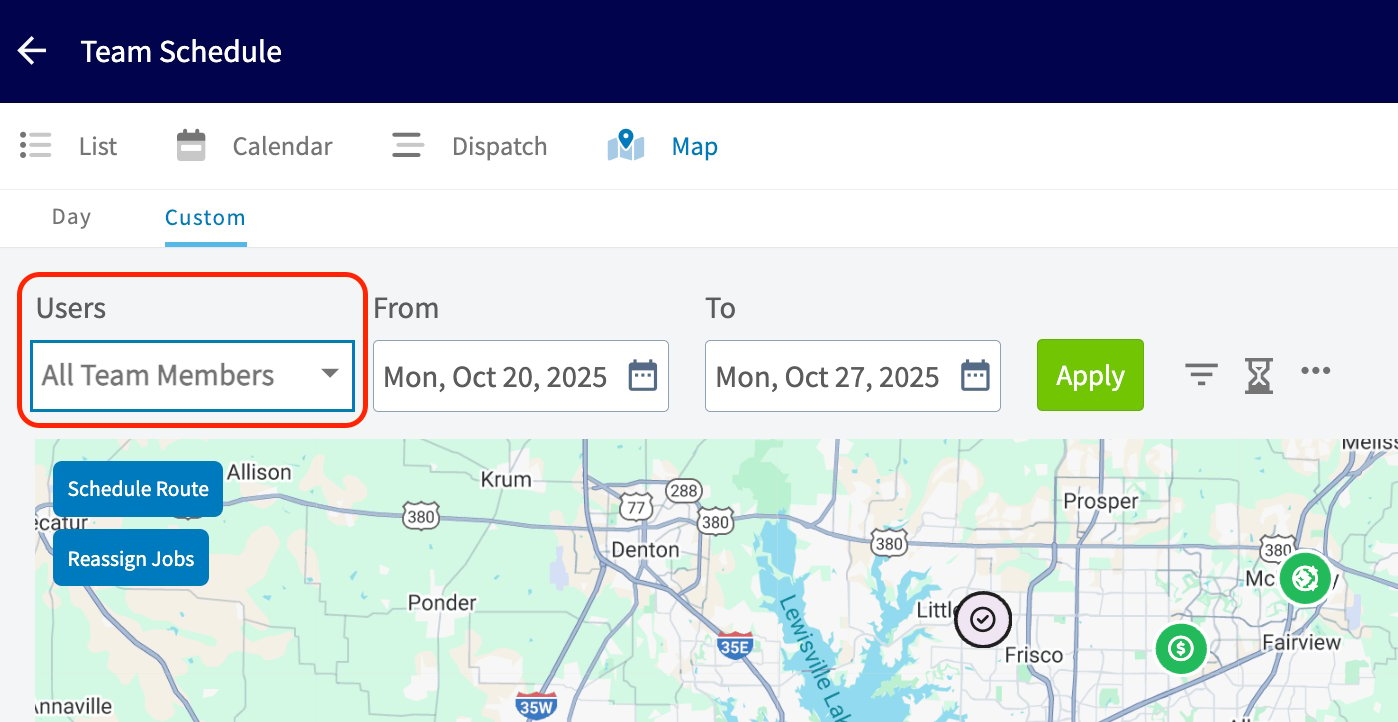 * **Filter by Job Status**
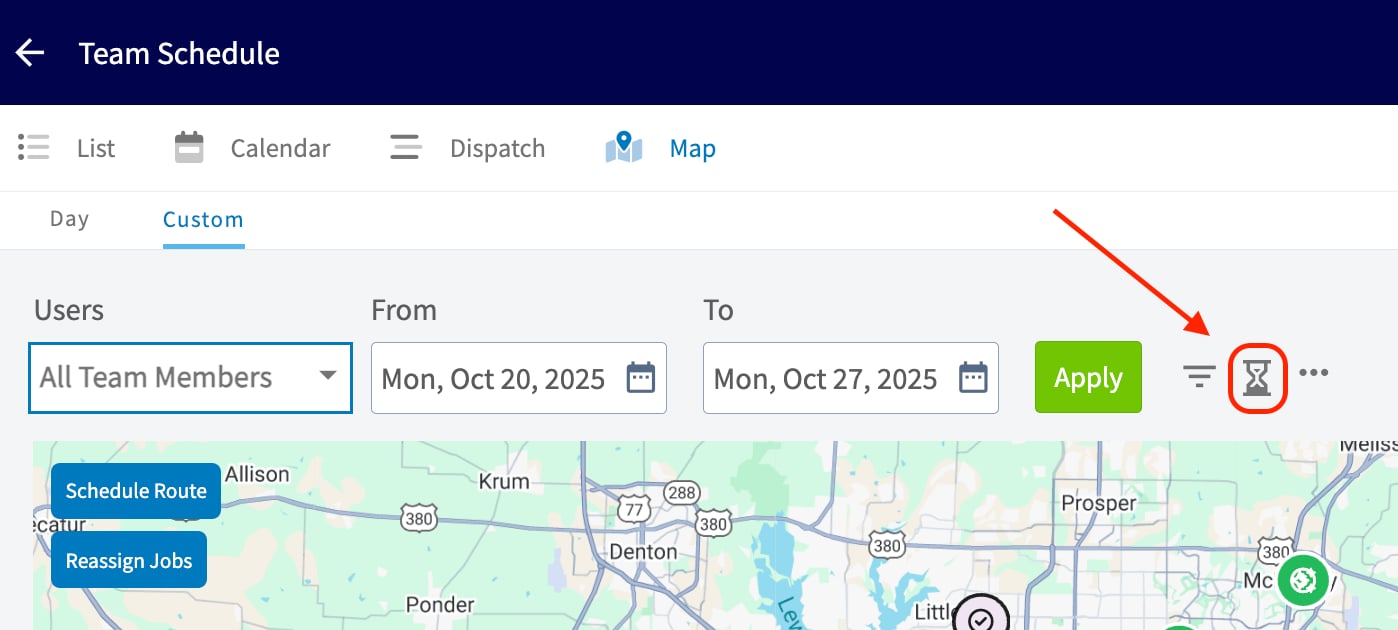
 * **Job Queue Panel (hourglass icon)**
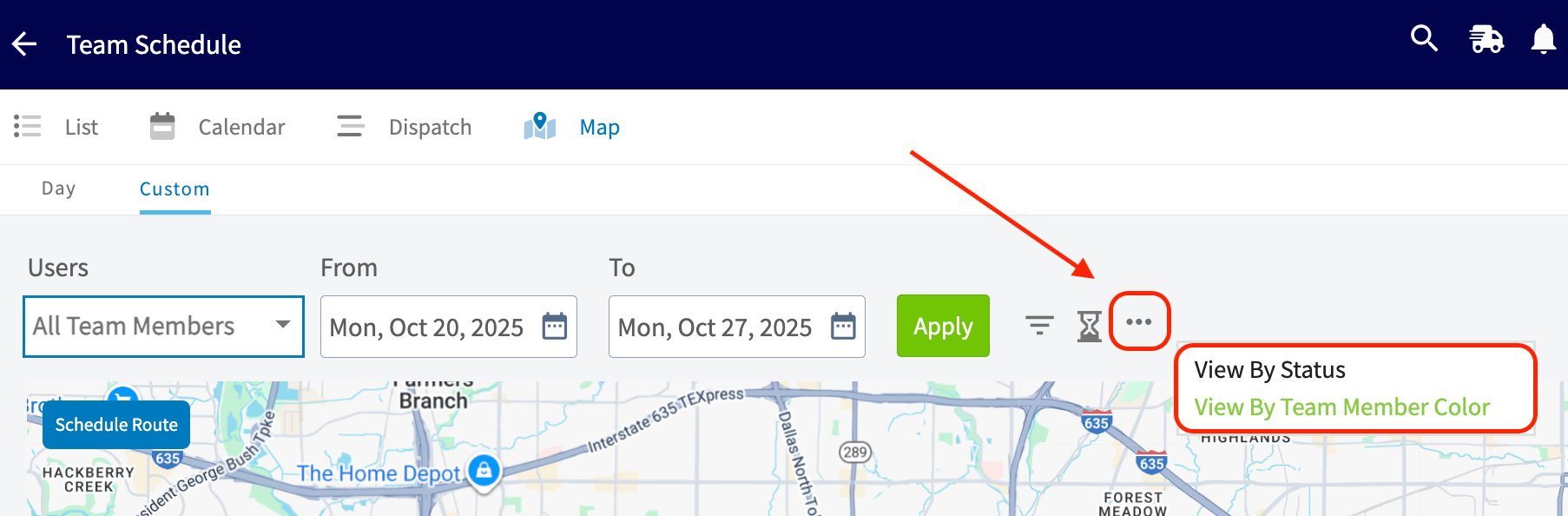
 * **View by Status or Team Member Color**
 ***
**Have additional questions?**
*Contact us at [support@fieldpulse.com](mailto:support@fieldpulse.com) or use the chat feature in the bottom right corner of your screen.*
***
**Have additional questions?**
*Contact us at [support@fieldpulse.com](mailto:support@fieldpulse.com) or use the chat feature in the bottom right corner of your screen.*