> ## Documentation Index
> Fetch the complete documentation index at: https://help.fieldpulse.com/llms.txt
> Use this file to discover all available pages before exploring further.
# Checking the Location of Your Team Members
> Plot each tech's last known location and timestamp on a map from the Team Members page, pulled from their mobile app activity.
FieldPulse allows you to see your team's location on a map, so you can make sure everyone is where they're supposed to be throughout the day.
To see your team's last known location plotted on a map, click on *Team Members* in the left-side menu. Then on the team members page, click on *Map*:
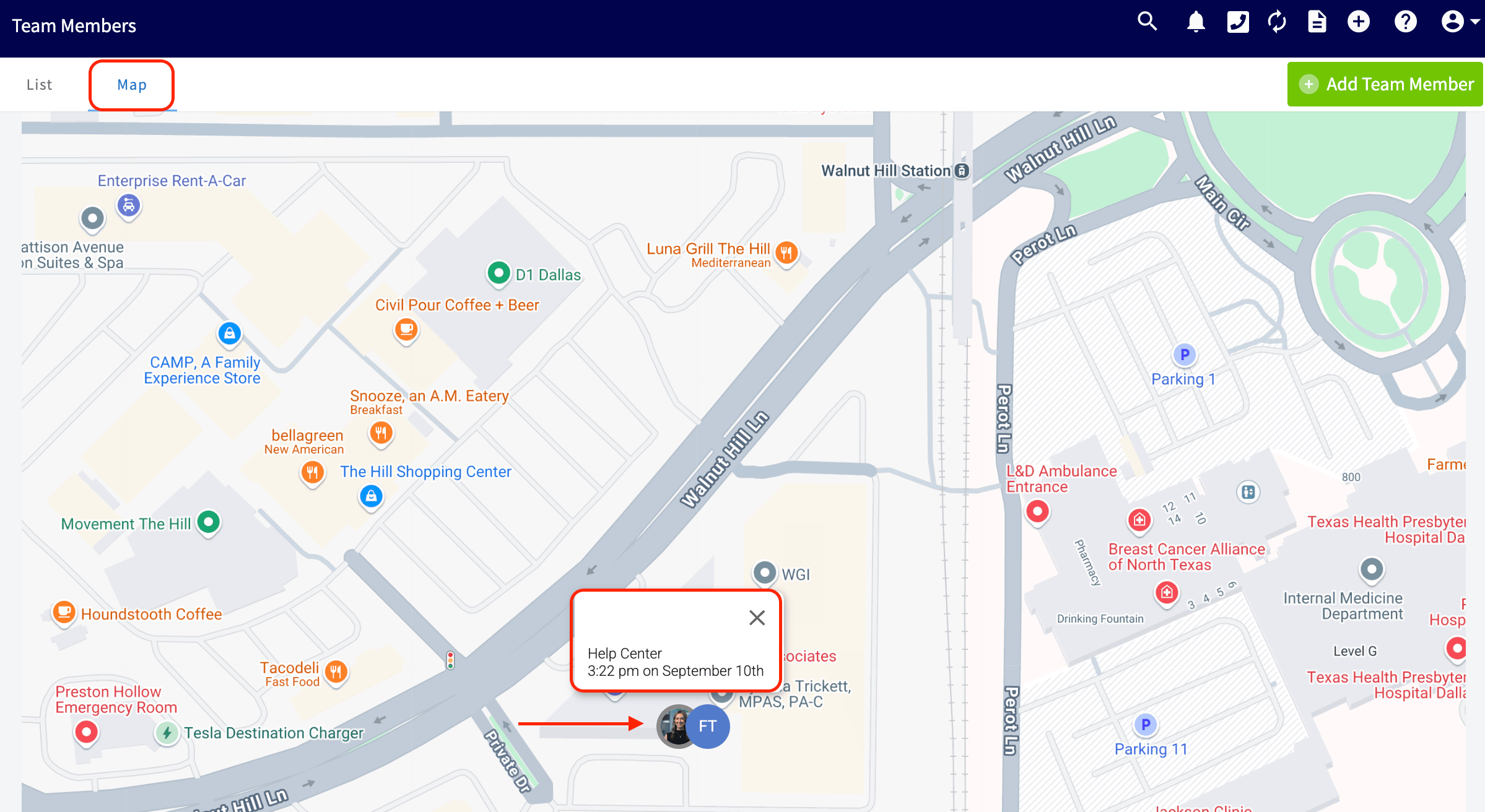
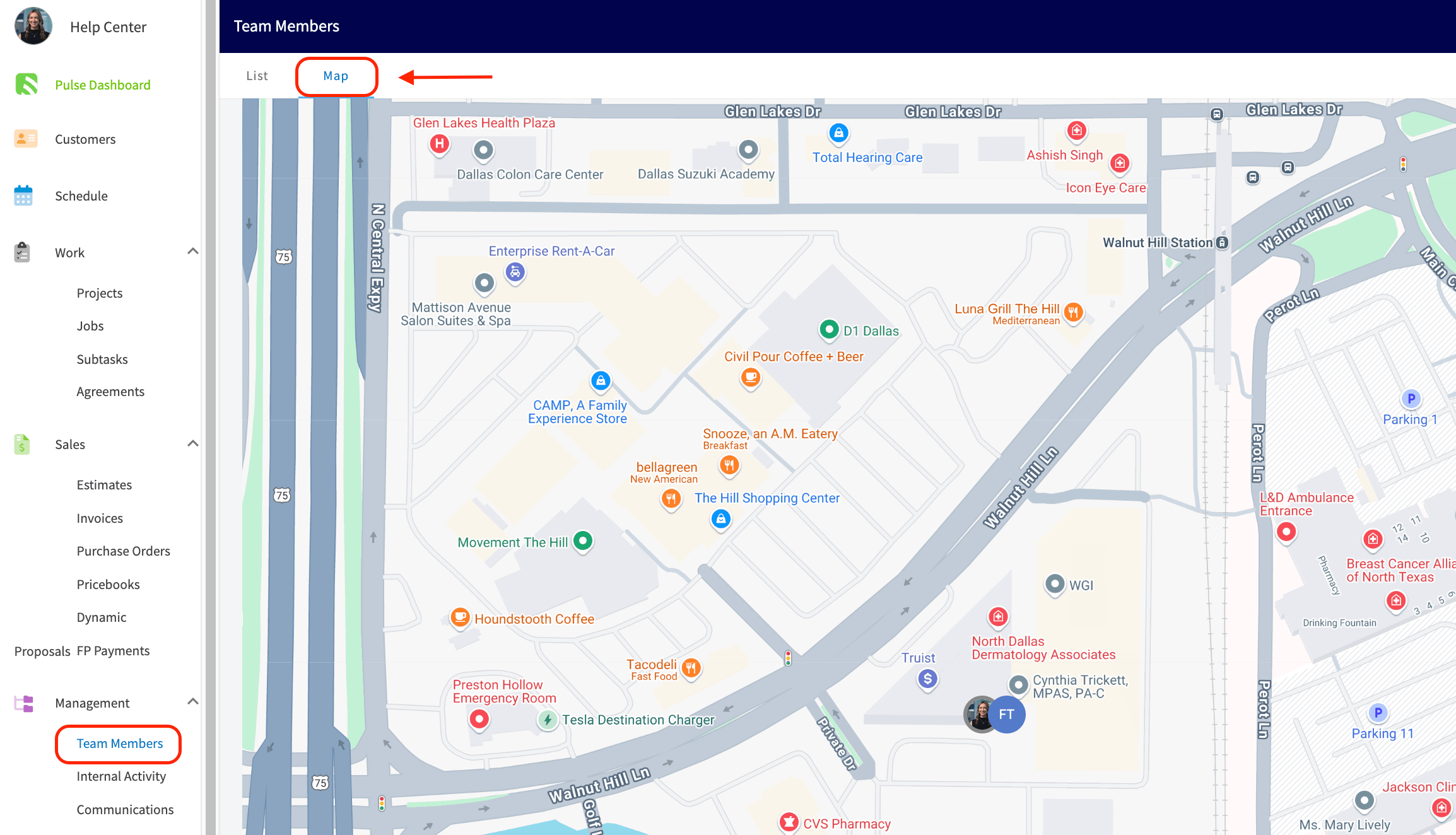 You'll now see your team members displayed on the map. If you click on a team member you'll see the time that they were last seen. The last known location and timestamp is based on their location the last time they used the FieldPulse mobile app.
 If you'd like to further track your team members and your vehicles, check out the [Fleet Tracking article](/features-add-ons/pulse-fleet-tracking).
***
**Have additional questions?**
*Contact us at [support@fieldpulse.com](mailto:support@fieldpulse.com) or use the chat feature in the bottom right corner of your screen.*
If you'd like to further track your team members and your vehicles, check out the [Fleet Tracking article](/features-add-ons/pulse-fleet-tracking).
***
**Have additional questions?**
*Contact us at [support@fieldpulse.com](mailto:support@fieldpulse.com) or use the chat feature in the bottom right corner of your screen.*