> ## Documentation Index
> Fetch the complete documentation index at: https://help.fieldpulse.com/llms.txt
> Use this file to discover all available pages before exploring further.
# Teams & Team Member Structure
> Group users into one or more teams to organize assignments, delegation, and scheduling around how your crews actually operate.
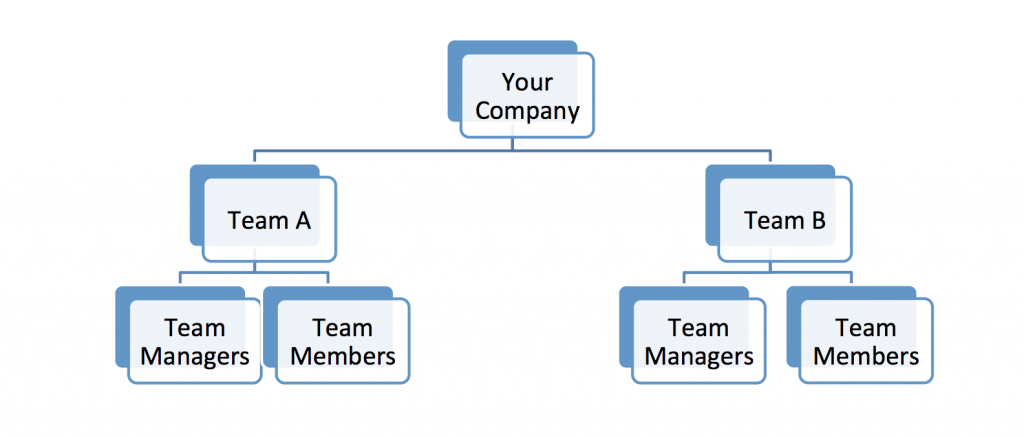
In FieldPulse, a user is an individual who has access to FieldPulse, while a team is a group of users who work together on specific tasks or projects.. This allows for better organization and delegation of tasks, as well as scheduling. Your company may choose to operate as 1 team or multiple teams based on your business needs.
 ***
# Creating a Team
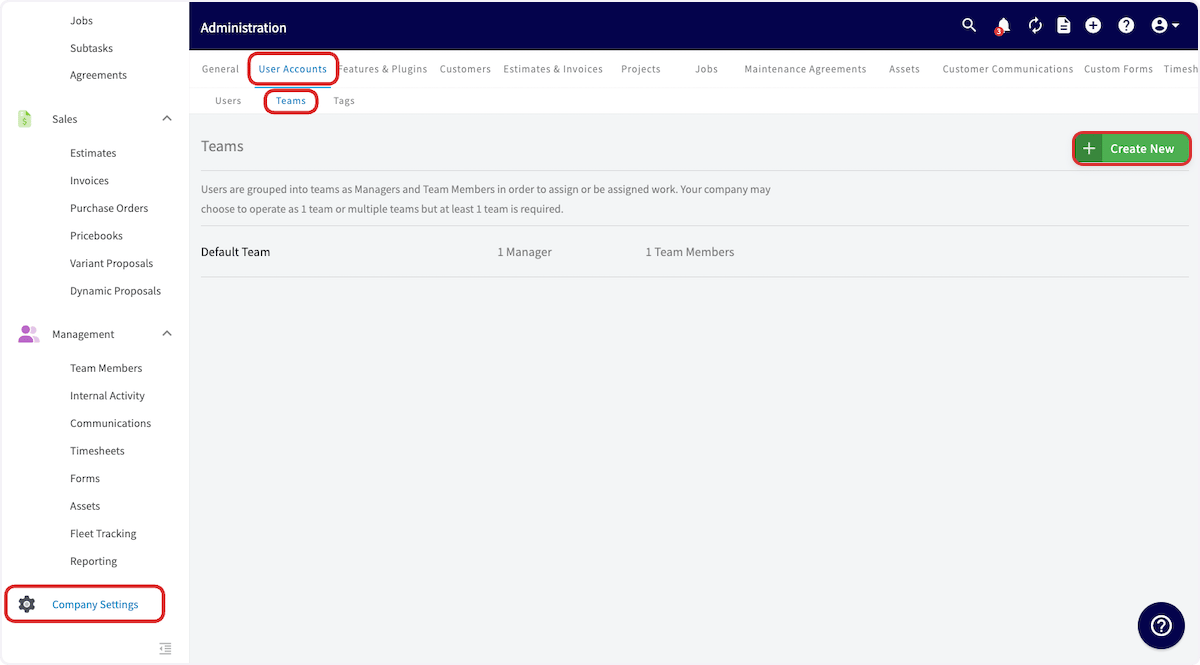
As every business must have at least one team, a team called "Default Team" is automatically included in your account. It can be renamed and modified as necessary, and additional teams can be added.
Select *Company Settings* from the left-side menu, then select *User Accounts* and then the *Teams* tab. On the *Teams* tab, click *Create New*.
***
# Creating a Team
As every business must have at least one team, a team called "Default Team" is automatically included in your account. It can be renamed and modified as necessary, and additional teams can be added.
Select *Company Settings* from the left-side menu, then select *User Accounts* and then the *Teams* tab. On the *Teams* tab, click *Create New*.
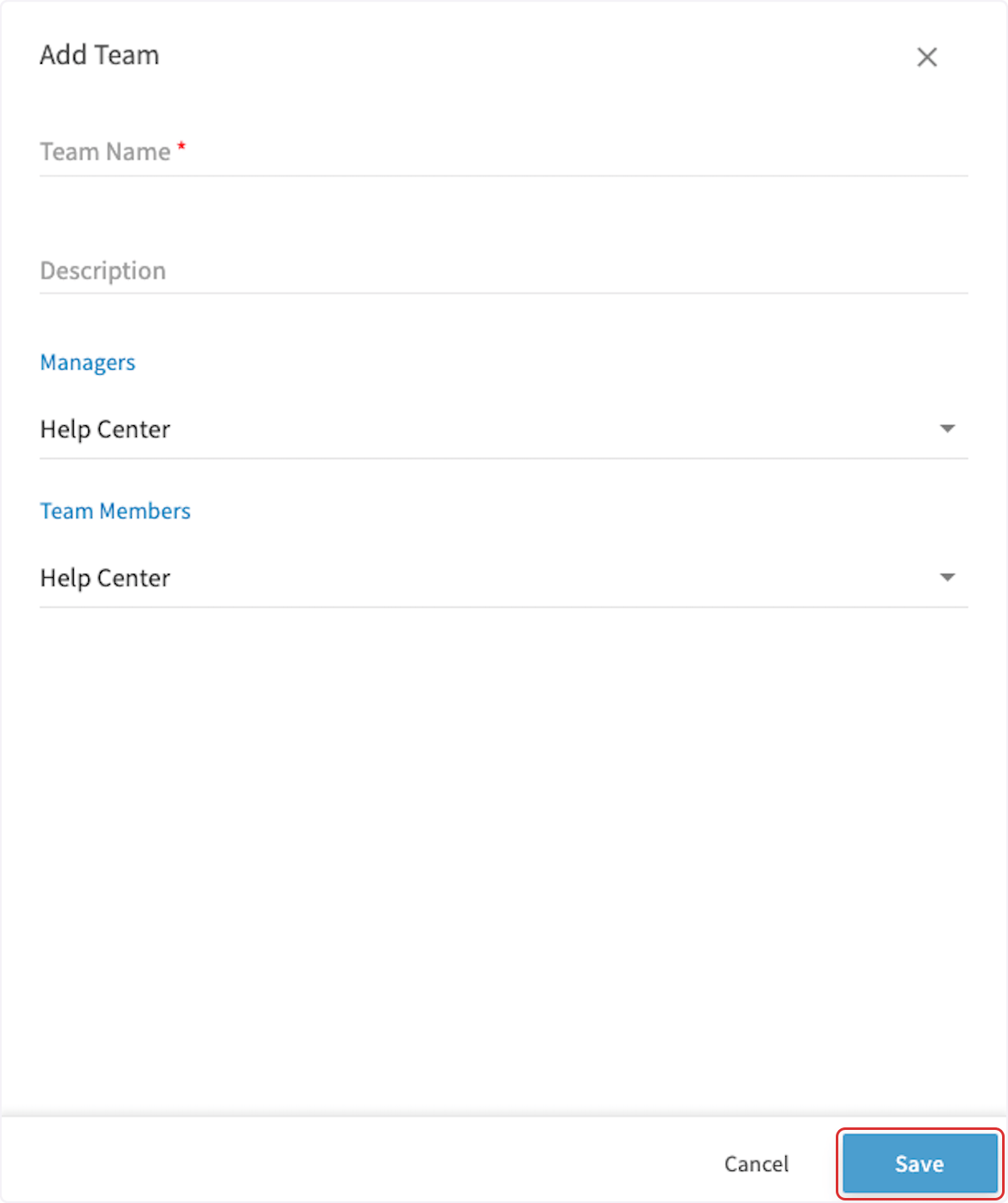
 Enter a team name (and description if needed), select the team manager(s) and team member(s), and click *Save* to create the new team. *(**Note:** Only Administrators and Team Managers can serve as managers on a team, while any role can be designated as a team member.)*
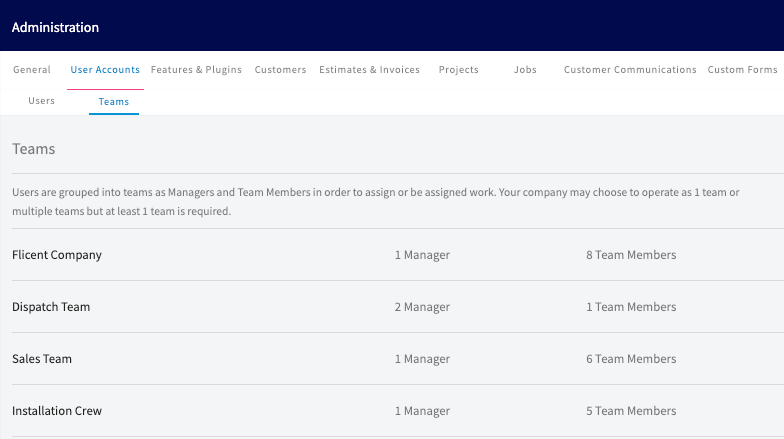
 Your teams will display like this:
 ***
# Video Tutorial
***
**Have additional questions?**
*Contact us at [support@fieldpulse.com](mailto:support@fieldpulse.com) or use the chat feature in the bottom right corner of your screen.*
***
# Video Tutorial
***
**Have additional questions?**
*Contact us at [support@fieldpulse.com](mailto:support@fieldpulse.com) or use the chat feature in the bottom right corner of your screen.*