> ## Documentation Index
> Fetch the complete documentation index at: https://help.fieldpulse.com/llms.txt
> Use this file to discover all available pages before exploring further.
# Custom Fields on Job Records
> Add custom fields to job records to capture the data you need, ordered your way and gated by role permissions.
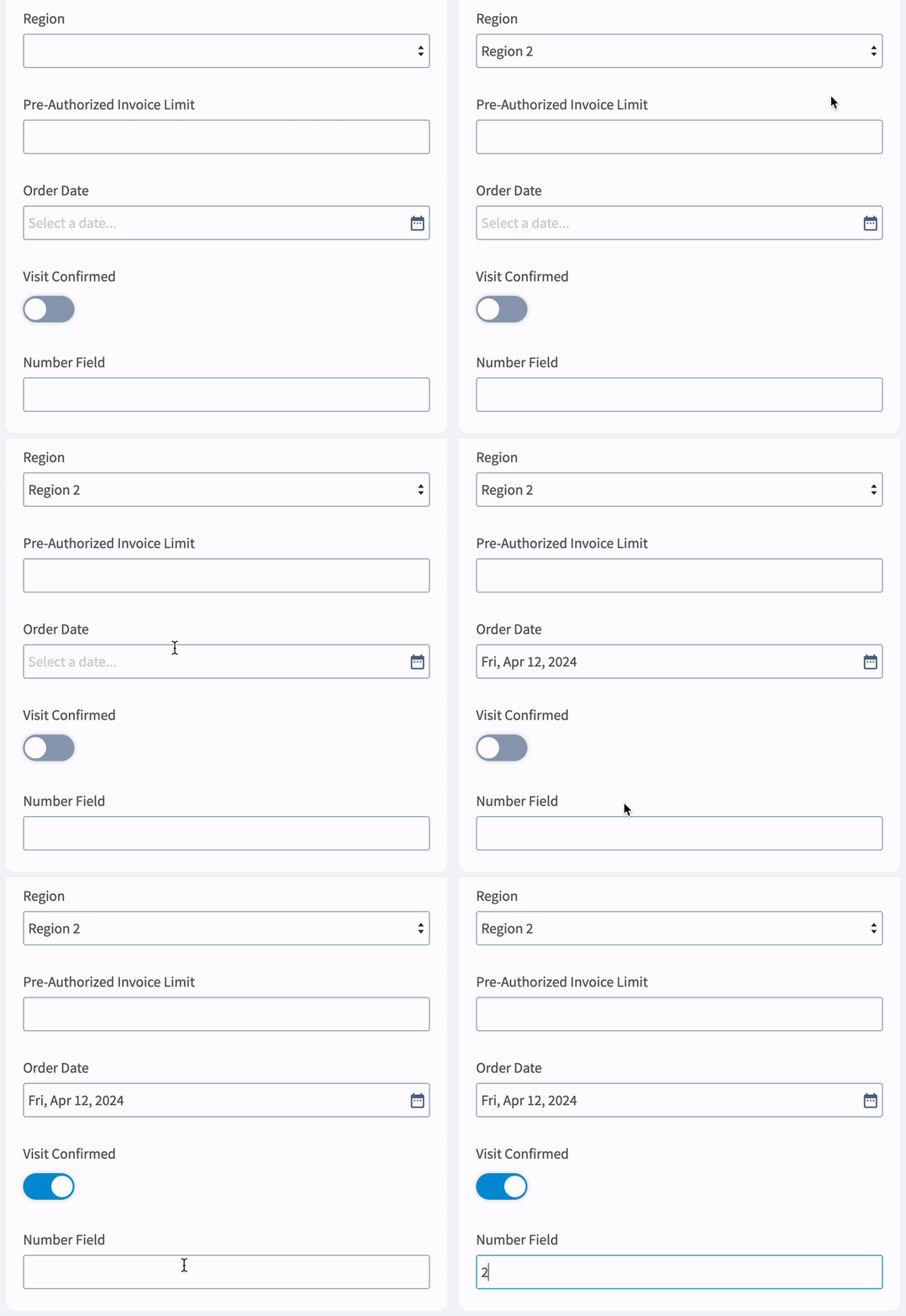
You can create custom fields for your job records to store and display any data you wish. With the ability to set the order of your custom fields and add different visibility permissions by role, you can control how your custom fields are displayed to your team members.
# Adding a New Custom Field
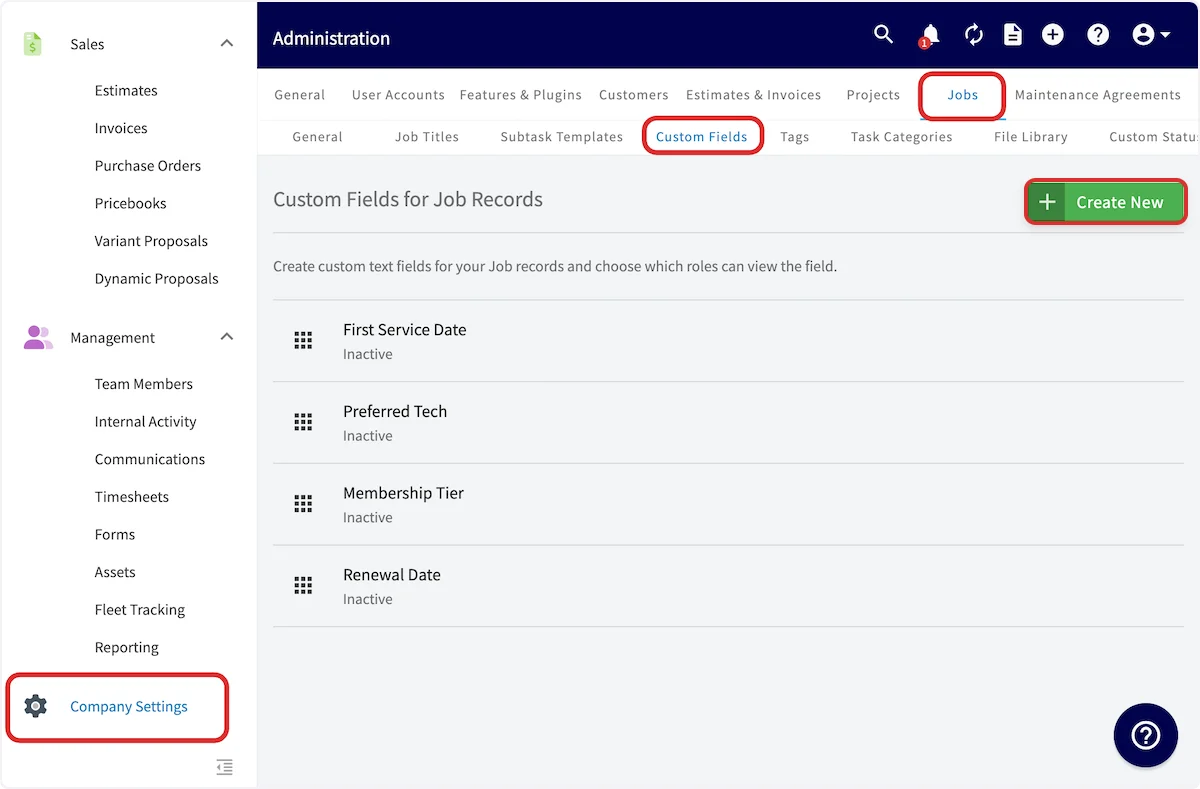
To create a custom field, navigate to *Company Settings*, click on *Jobs* and then the *Custom Fields* tab.
On the *Custom Fields* page, click *Create New*.
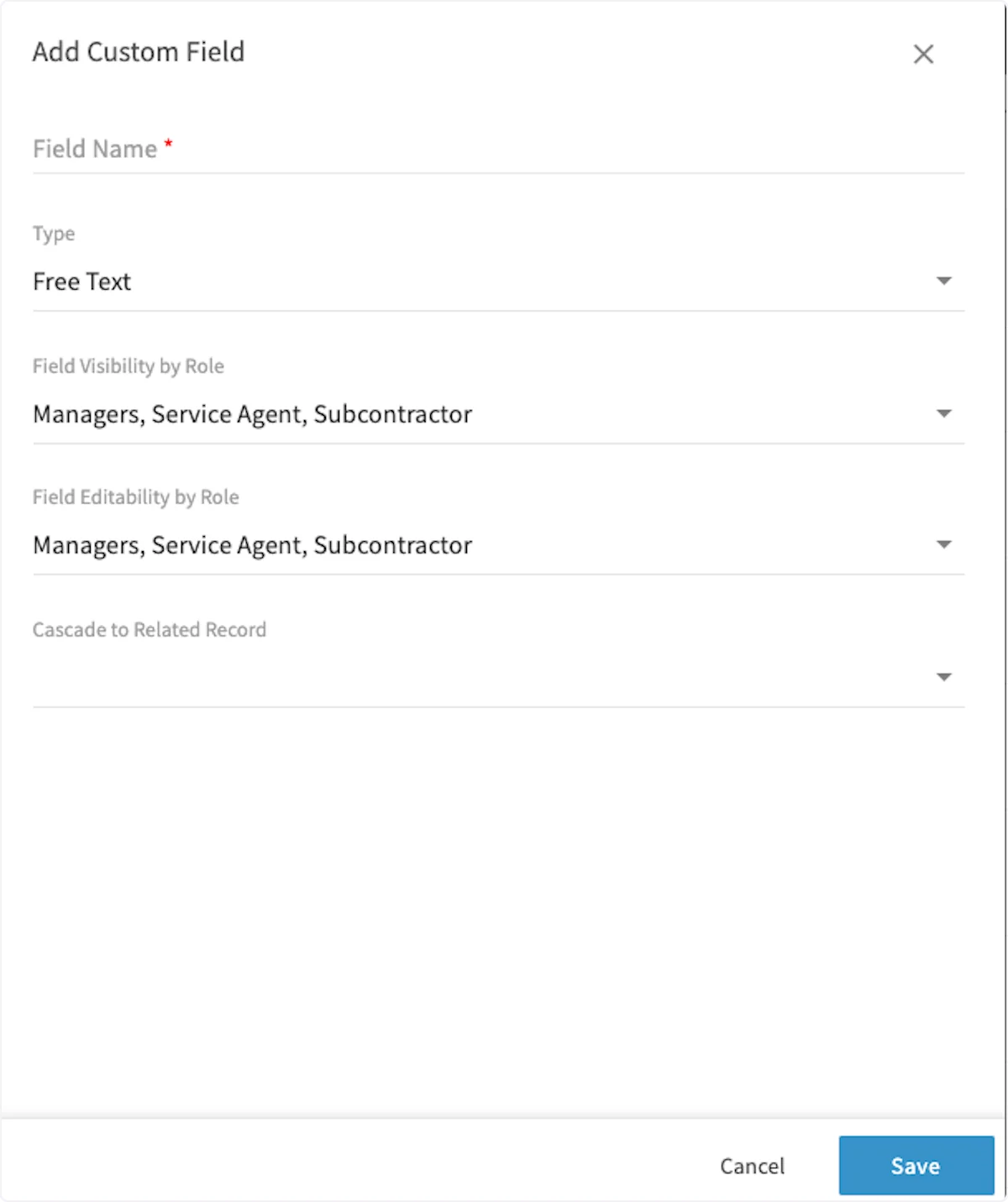
 In the pop-up window, add the custom field name and select which roles should be able to edit and view the field. *Cascade to Related Record* will allow you to select additional FieldPulse records where you'd like the information recorded in this custom field to appear.
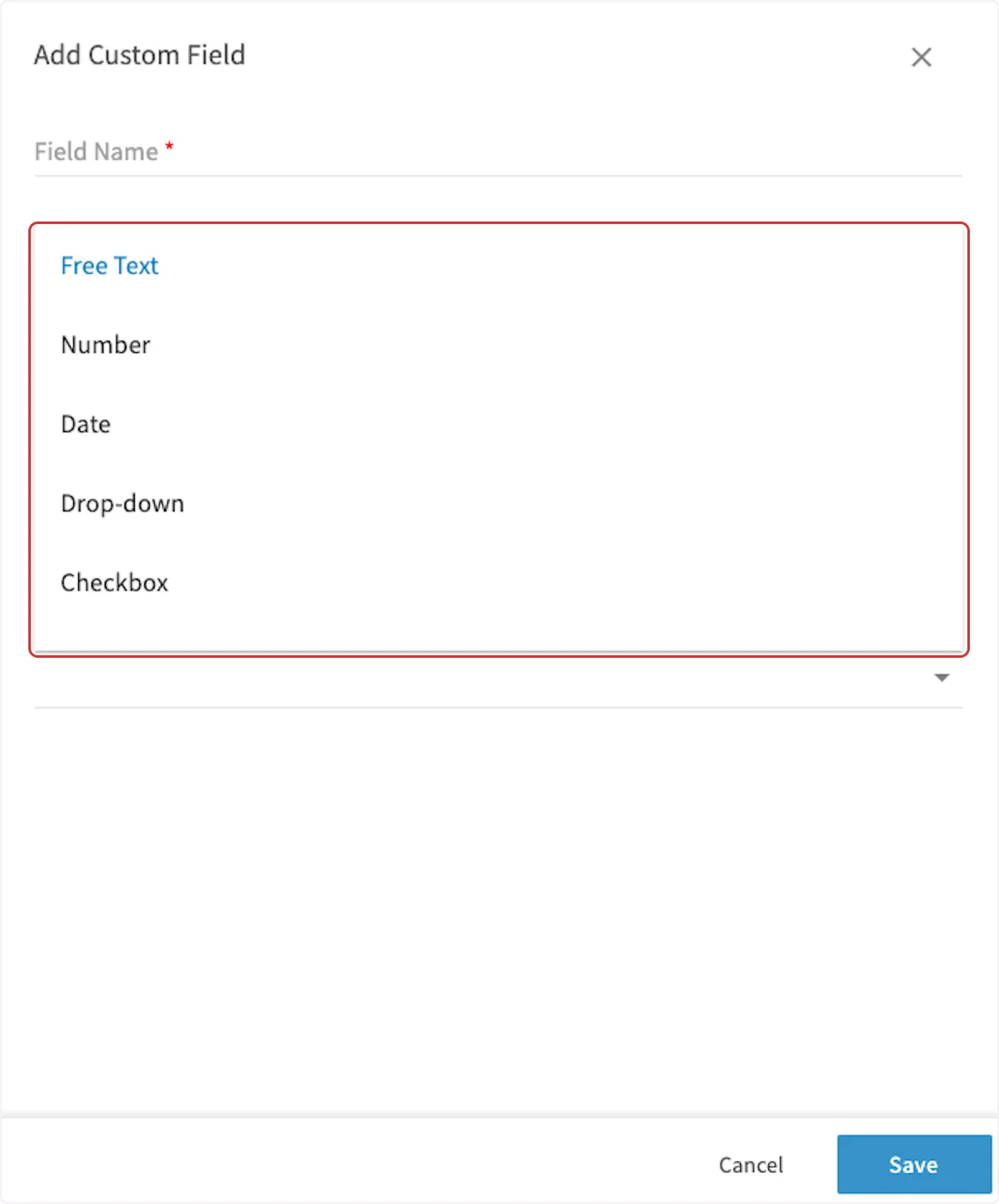
 You can also adjust the type of custom field displayed: Free Text, Number, Date, Drop-down, or Checkbox. When you're done, be sure to press *Save*.
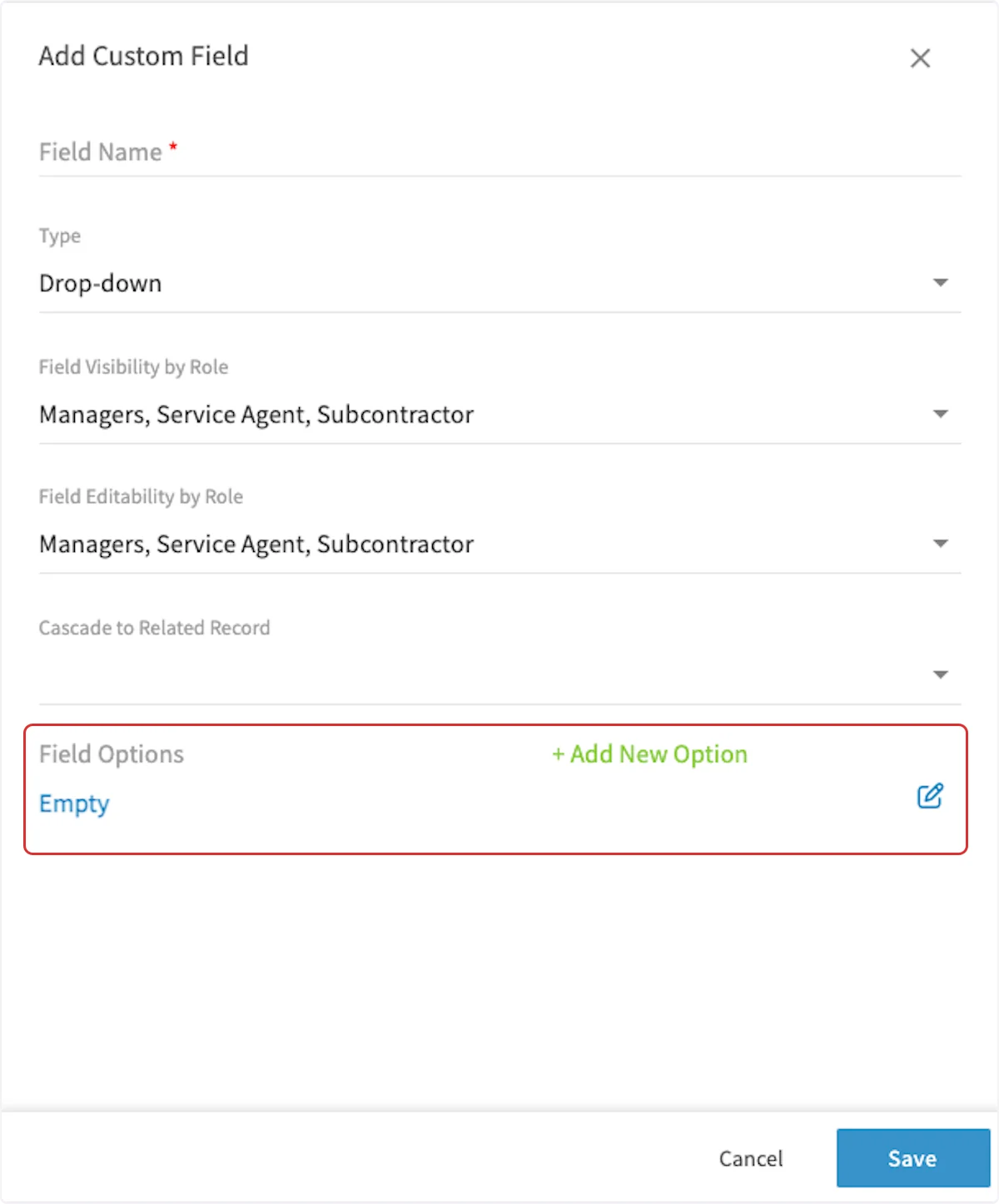
 If using the drop-down option, be sure to create/edit the drop-down options before saving the custom field.
 Next time you create a new job, you'll see your new custom field under *Additional Fields. (**Note**: A full re-sync (sometimes requires log out and log in) is required on your mobile apps to see newly created custom fields.)*
 ***
# Video Tutorial
***
**Have additional questions?**
*Contact us at [support@fieldpulse.com](mailto:support@fieldpulse.com) or use the chat feature in the bottom right corner of your screen.*
***
# Video Tutorial
***
**Have additional questions?**
*Contact us at [support@fieldpulse.com](mailto:support@fieldpulse.com) or use the chat feature in the bottom right corner of your screen.*