> ## Documentation Index
> Fetch the complete documentation index at: https://help.fieldpulse.com/llms.txt
> Use this file to discover all available pages before exploring further.
# Custom Status Workflows
> Build status stages for jobs, projects, and material lists to track time in each phase and trigger customer updates.
Custom statuses allow your team and your customer to know the current stage each job, project, or material list is in. You can even track the amount of time spent in each stage. While custom statuses are an internal tool, you can use them to send automated messages to your customers to keep them in the loop.
***Note: Customers will not view material lists, these are internal only.***
***
# Creating Custom Statuses for Jobs
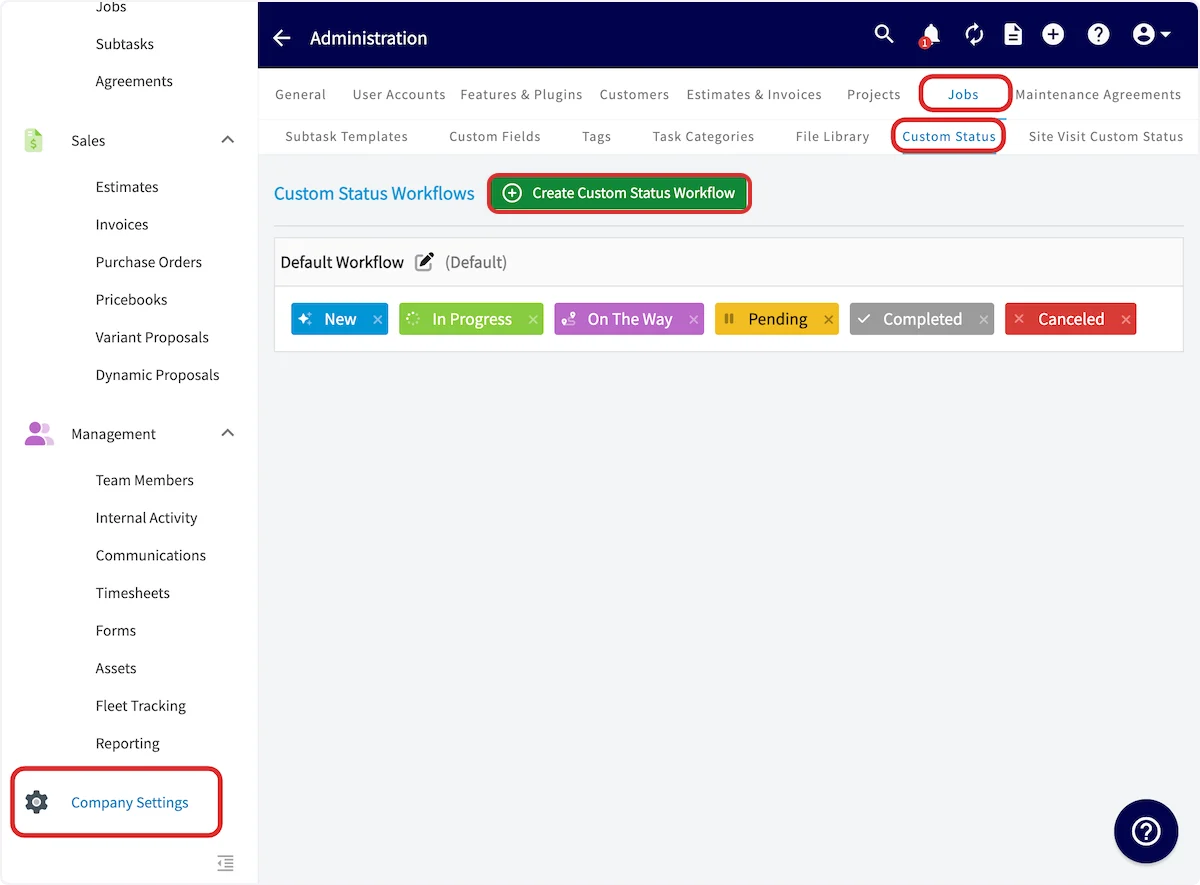
FieldPulse has a default job status workflow. You can customize your job status workflow depending on the job/service you are doing. To do so, begin by clicking *Company Settings*, then *Jobs*, and *Custom Status*.
Here, you can view the default workflow or create a new one by selecting *Create Custom Status Workflow*.
 To create a new job status workflow, begin by creating custom statuses with names, colors, symbols, and types. The type lets you specify if the status relates to time recordings, pauses, or job completions.
Placing a new custom status under *Travel Time* or *In Progress* will allow the time spent in this status to be tracked. Only time spent in these two status types will be recorded in FieldPulse.
To create a new job status workflow, begin by creating custom statuses with names, colors, symbols, and types. The type lets you specify if the status relates to time recordings, pauses, or job completions.
Placing a new custom status under *Travel Time* or *In Progress* will allow the time spent in this status to be tracked. Only time spent in these two status types will be recorded in FieldPulse.
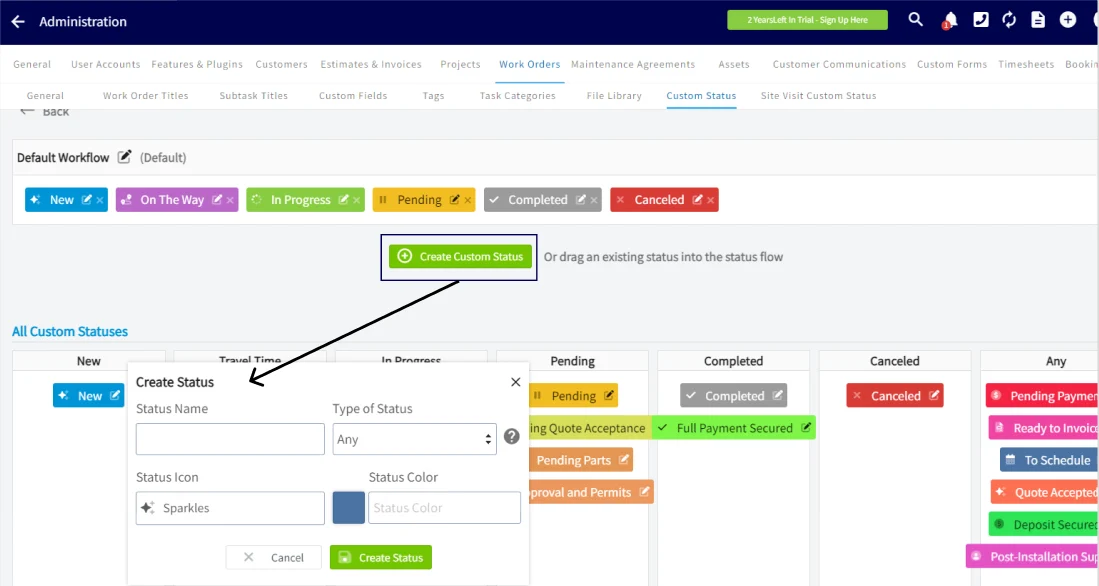 Once statuses are set, drag and drop them into your custom workflow. Select one as the default for common use. When you have multiple status workflows, you can select the applicable workflow for each job you create.
***
# Creating Custom Statuses for Projects
You can customize your project status workflow depending on the project/service you are doing. To do so, begin by clicking *Company Settings*, then *Projects*, and *Custom Status*.
Once statuses are set, drag and drop them into your custom workflow. Select one as the default for common use. When you have multiple status workflows, you can select the applicable workflow for each job you create.
***
# Creating Custom Statuses for Projects
You can customize your project status workflow depending on the project/service you are doing. To do so, begin by clicking *Company Settings*, then *Projects*, and *Custom Status*.
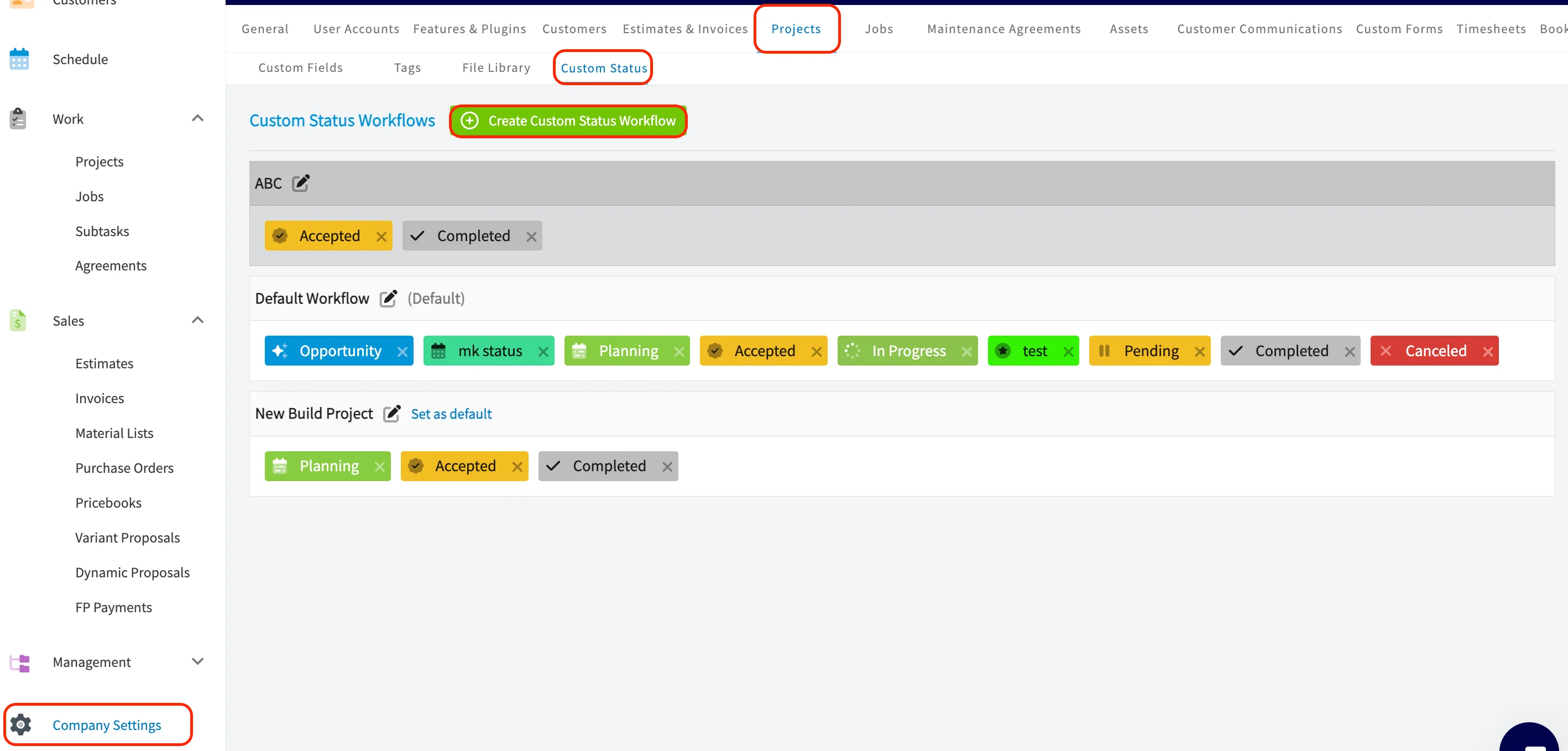 FieldPulse provides you with a *Default Workflow*, but feel free to create and customize your own by clicking the green *Create Custom Status Workflow* button. To learn more about projects including how to enable them, [the projects guide](/using-fieldpulse/project-management/project-management).
***
# Creating Custom Statuses for Material Lists
You can configure your custom material list workflow. To do this, start by clicking on *Company Settings*, then go to *Material List*, and select *Custom Status*.
FieldPulse provides you with a *Default Workflow*, but feel free to create and customize your own by clicking the green *Create Custom Status Workflow* button. To learn more about projects including how to enable them, [the projects guide](/using-fieldpulse/project-management/project-management).
***
# Creating Custom Statuses for Material Lists
You can configure your custom material list workflow. To do this, start by clicking on *Company Settings*, then go to *Material List*, and select *Custom Status*.
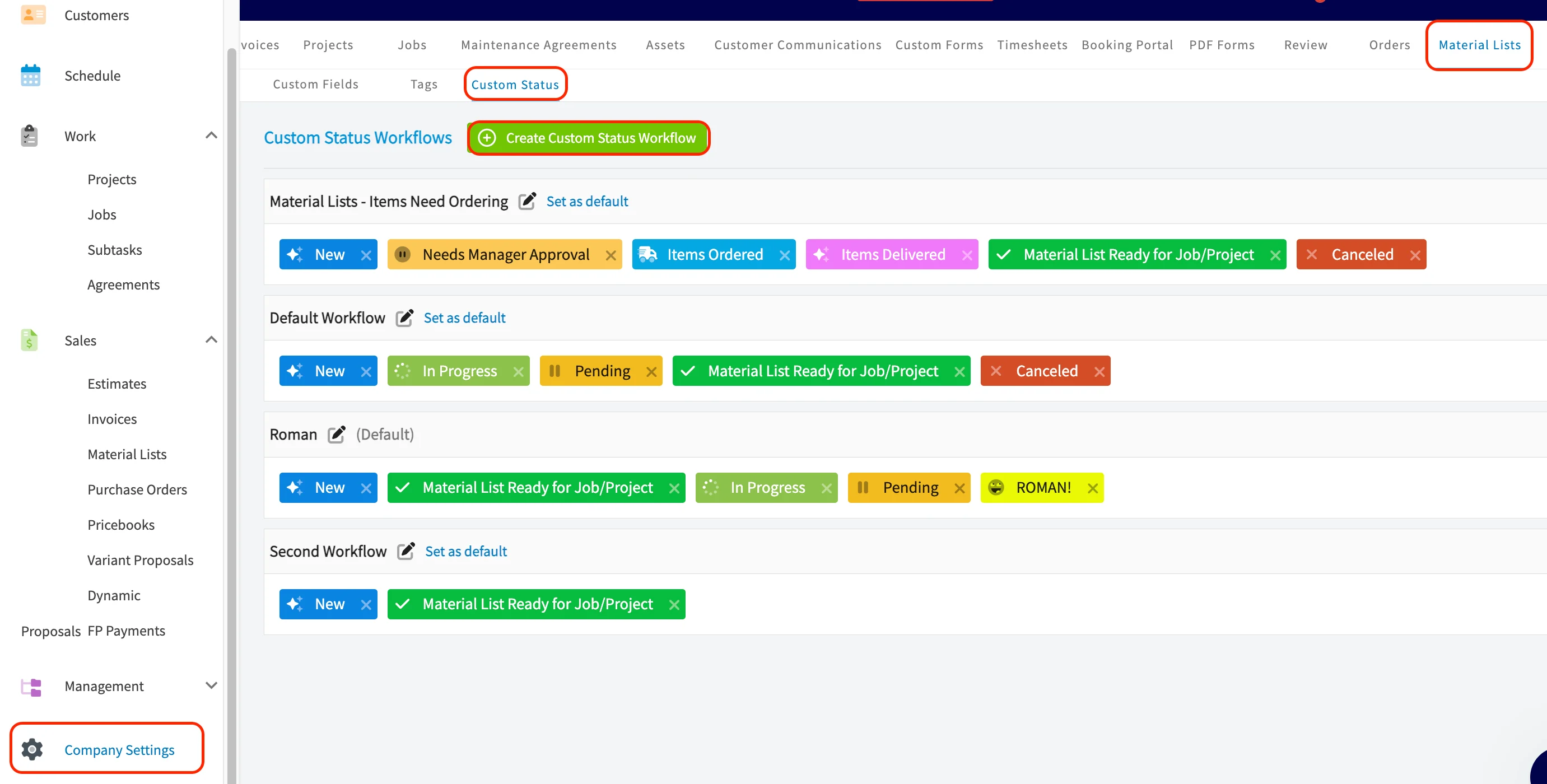 FieldPulse provides you with a *Default Workflow*, but feel free to create and customize your own by clicking the green *Create Custom Status Workflow* button. To learn more about material lists including how to enable them, [the material lists guide](/using-fieldpulse/material-lists/material-lists).
***
# Using Custom Statuses
The default workflow includes the following statuses:
* ***New:*** *the job has not been started, and no one is on their way.*
* ***On the Way:*** *a service agent is on their way to the job.*
* ***In Progress:*** *a service agent is at the job and has begun work.*
* ***Pending:*** *the job is paused but not yet completed.*
* ***Completed:*** *the job has been completed.*
* ***Canceled:*** *the job has been canceled.*
## Time Tracking
Selecting any status under the *Travel Time* type will begin tracking the time spent in this status. Once the status is changed, a new field will appear on the job record documenting the time your team member spent en-route to the job.
FieldPulse provides you with a *Default Workflow*, but feel free to create and customize your own by clicking the green *Create Custom Status Workflow* button. To learn more about material lists including how to enable them, [the material lists guide](/using-fieldpulse/material-lists/material-lists).
***
# Using Custom Statuses
The default workflow includes the following statuses:
* ***New:*** *the job has not been started, and no one is on their way.*
* ***On the Way:*** *a service agent is on their way to the job.*
* ***In Progress:*** *a service agent is at the job and has begun work.*
* ***Pending:*** *the job is paused but not yet completed.*
* ***Completed:*** *the job has been completed.*
* ***Canceled:*** *the job has been canceled.*
## Time Tracking
Selecting any status under the *Travel Time* type will begin tracking the time spent in this status. Once the status is changed, a new field will appear on the job record documenting the time your team member spent en-route to the job.
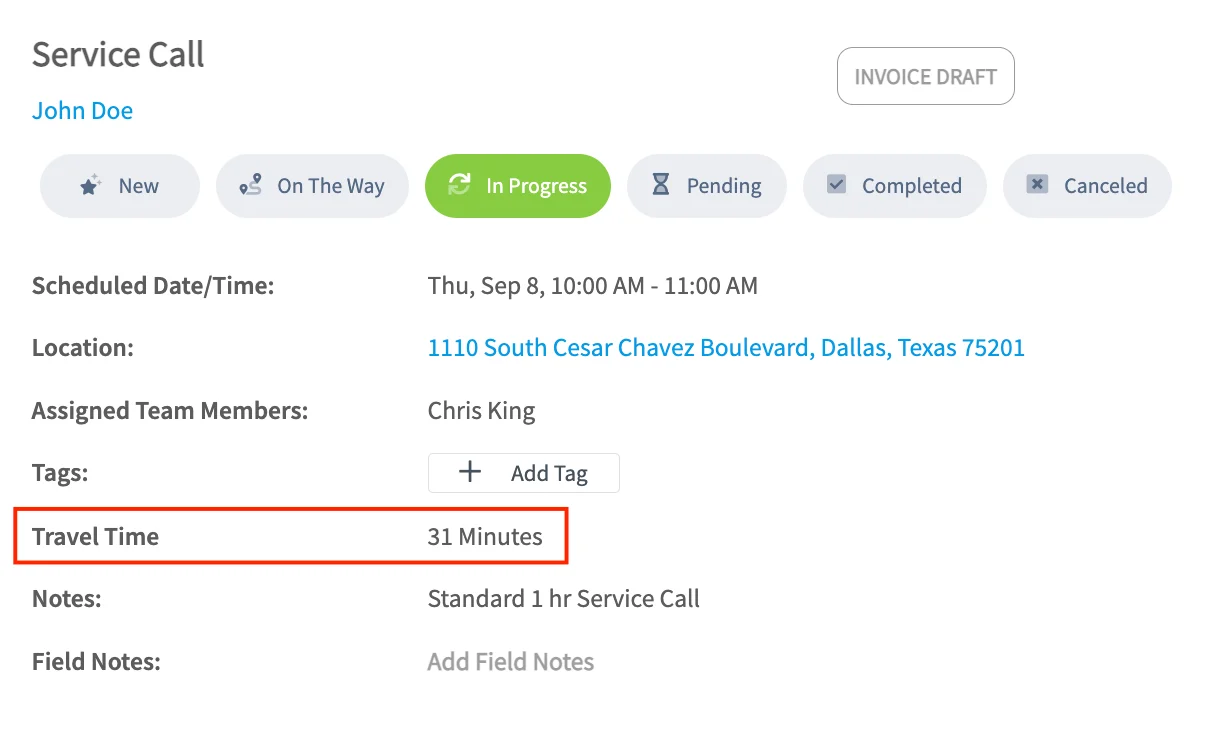 Additionally, selecting a status under the *In Progress* type will also begin time tracking. The job duration is calculated based on the amount of time the job is in the *In Progress* status. The clock can be paused at anytime simply by moving it to another status such as *Pending*.
## Automatic Customer Communications
Many businesses utilize automatic triggers with customer communications to send messages to customers. Examples include:
* **On the Way** triggering a text message to notify the customer a service agent is on the way.
* **Completed** triggering an email or text message asking for feedback or a review.
To set up automatic triggers based on job statuses for your business, visit the [Customer Communications article](/using-fieldpulse/communications-notifications/customer-communications).
***
# Video Tutorial
***
**Have additional questions?**
*Contact us at [support@fieldpulse.com](mailto:support@fieldpulse.com) or use the chat feature in the bottom right corner of your screen.*
Additionally, selecting a status under the *In Progress* type will also begin time tracking. The job duration is calculated based on the amount of time the job is in the *In Progress* status. The clock can be paused at anytime simply by moving it to another status such as *Pending*.
## Automatic Customer Communications
Many businesses utilize automatic triggers with customer communications to send messages to customers. Examples include:
* **On the Way** triggering a text message to notify the customer a service agent is on the way.
* **Completed** triggering an email or text message asking for feedback or a review.
To set up automatic triggers based on job statuses for your business, visit the [Customer Communications article](/using-fieldpulse/communications-notifications/customer-communications).
***
# Video Tutorial
***
**Have additional questions?**
*Contact us at [support@fieldpulse.com](mailto:support@fieldpulse.com) or use the chat feature in the bottom right corner of your screen.*