> ## Documentation Index
> Fetch the complete documentation index at: https://help.fieldpulse.com/llms.txt
> Use this file to discover all available pages before exploring further.
# Dynamic Job Reports
> Build a report or PDF from one job or several, choosing which details show so customers see only what matters.
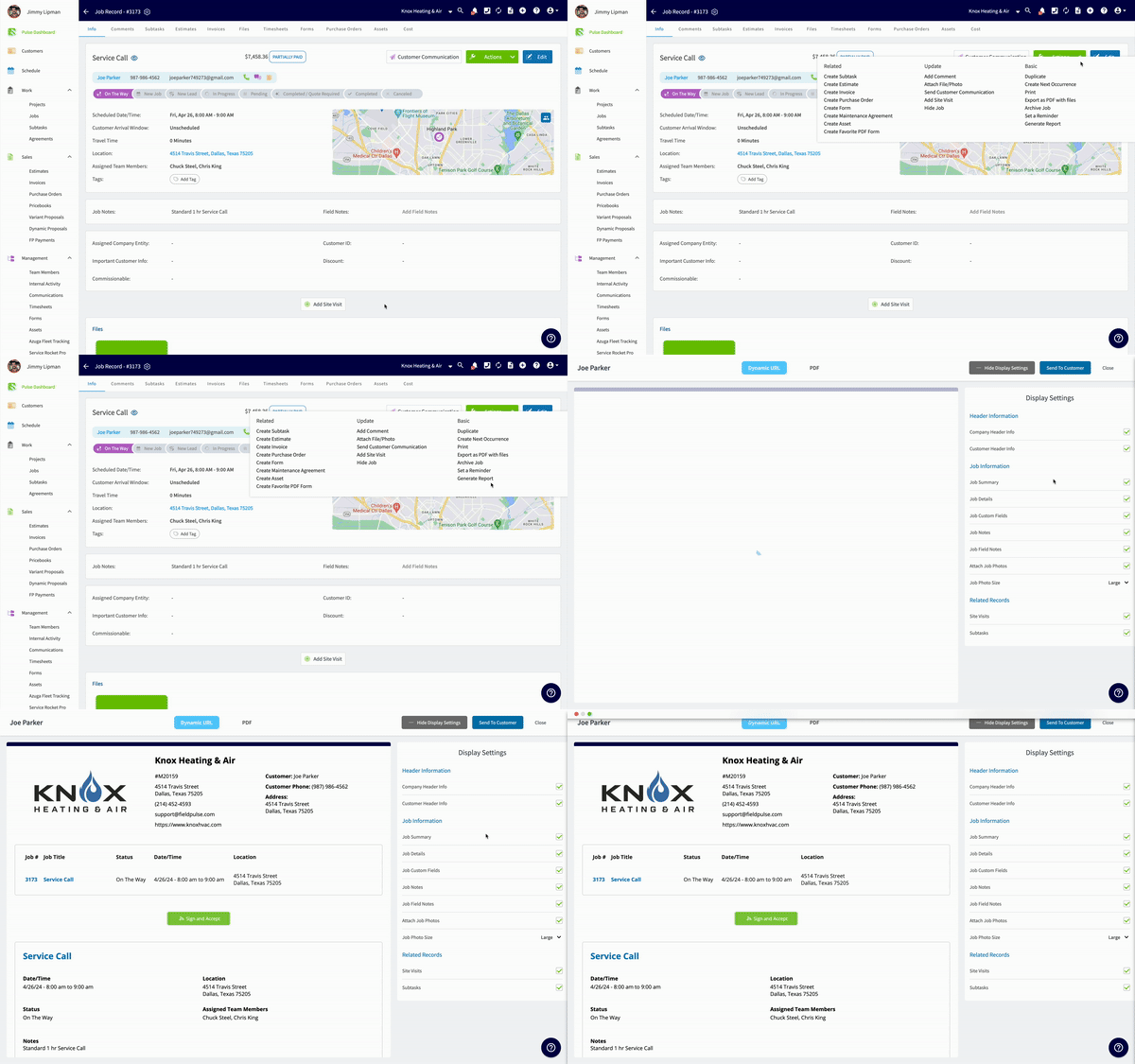 Utilize the data from your job records to generate a dynamic report and/or PDF! Create an individual job report or combine multiple jobs into a single, professional summary. These reports provide a comprehensive overview of job details and ensure you showcase what's relevant to your customer while hiding unnecessary information with customizable display options.
***
# Creating a Dynamic Job Report
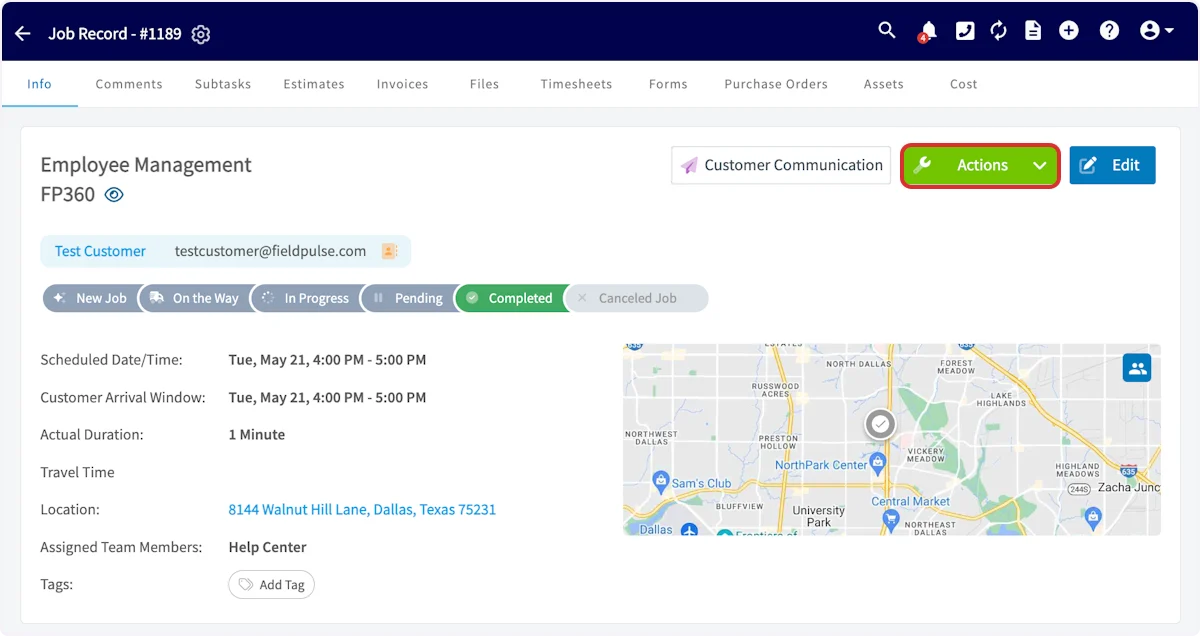
Begin by navigating to the job record for which you'd like to create a dynamic job report, select *Actions* then *Generate Report*.
Utilize the data from your job records to generate a dynamic report and/or PDF! Create an individual job report or combine multiple jobs into a single, professional summary. These reports provide a comprehensive overview of job details and ensure you showcase what's relevant to your customer while hiding unnecessary information with customizable display options.
***
# Creating a Dynamic Job Report
Begin by navigating to the job record for which you'd like to create a dynamic job report, select *Actions* then *Generate Report*.
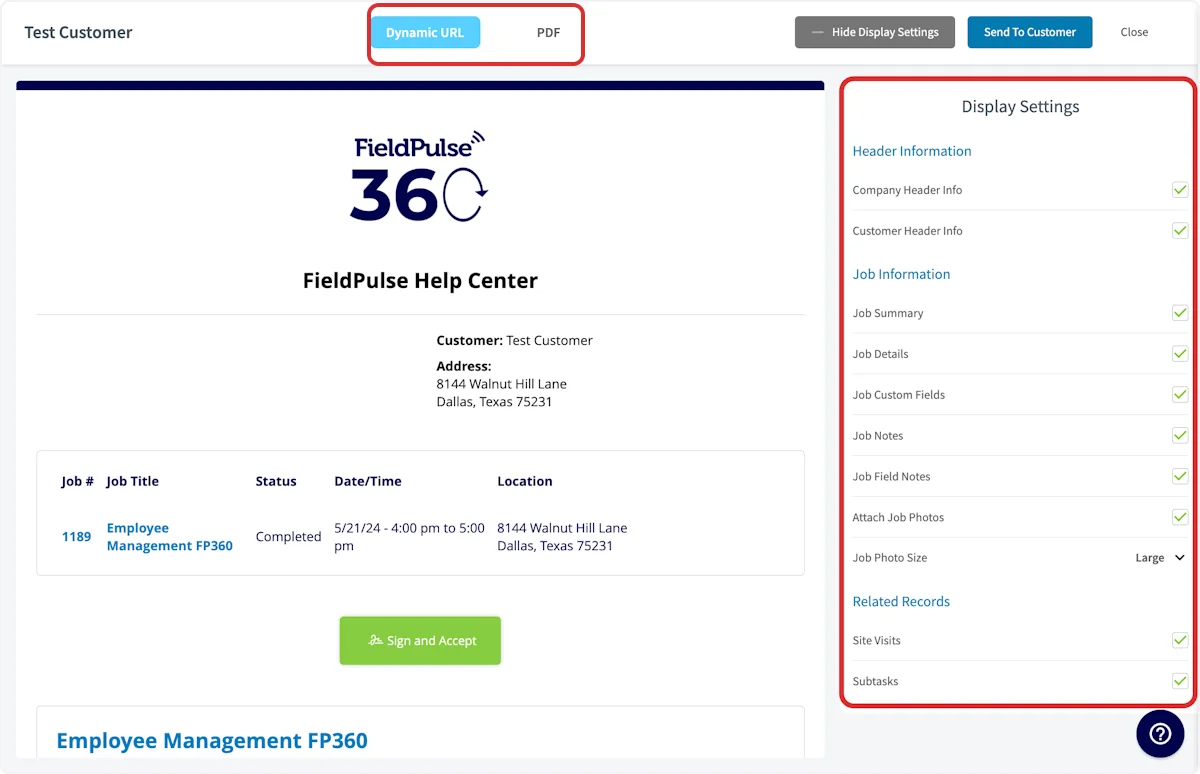
 You can now view the preview of your report as a Dynamic URL or PDF by selecting your preference the top of the screen. Additionally, use the display settings on the right-side menu to ensure you showcase relevant information while hiding unnecessary details. Select/deselect details such as job summary, notes, details, and photos to customize your report. These changes will reflect on this individual Dynamic Job Report only.
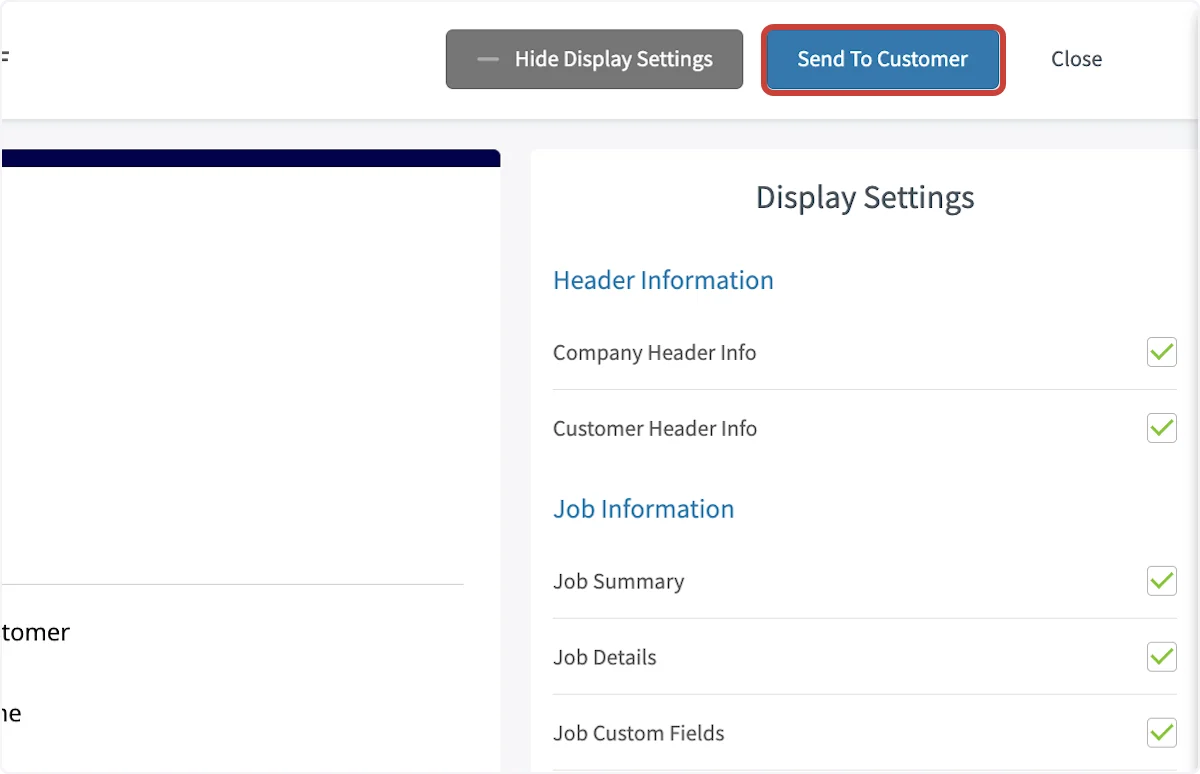
 When your report is ready, select *Send to Customer*.
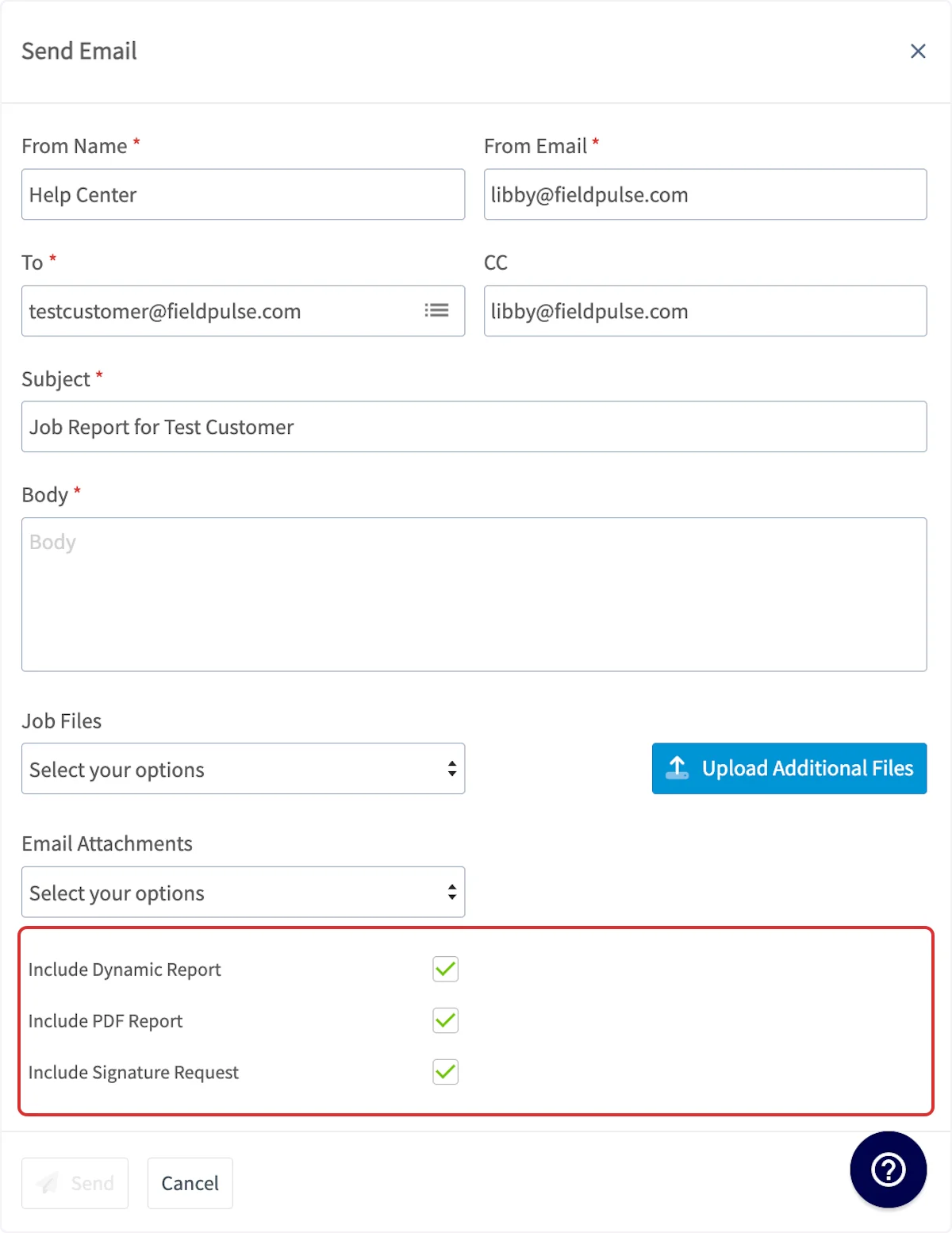
 You can now customize who the email is sent to, as well as the subject and body. Attach any pertinent files, and select to include the Dynamic Report, PDF Report, and/or Signature Request.
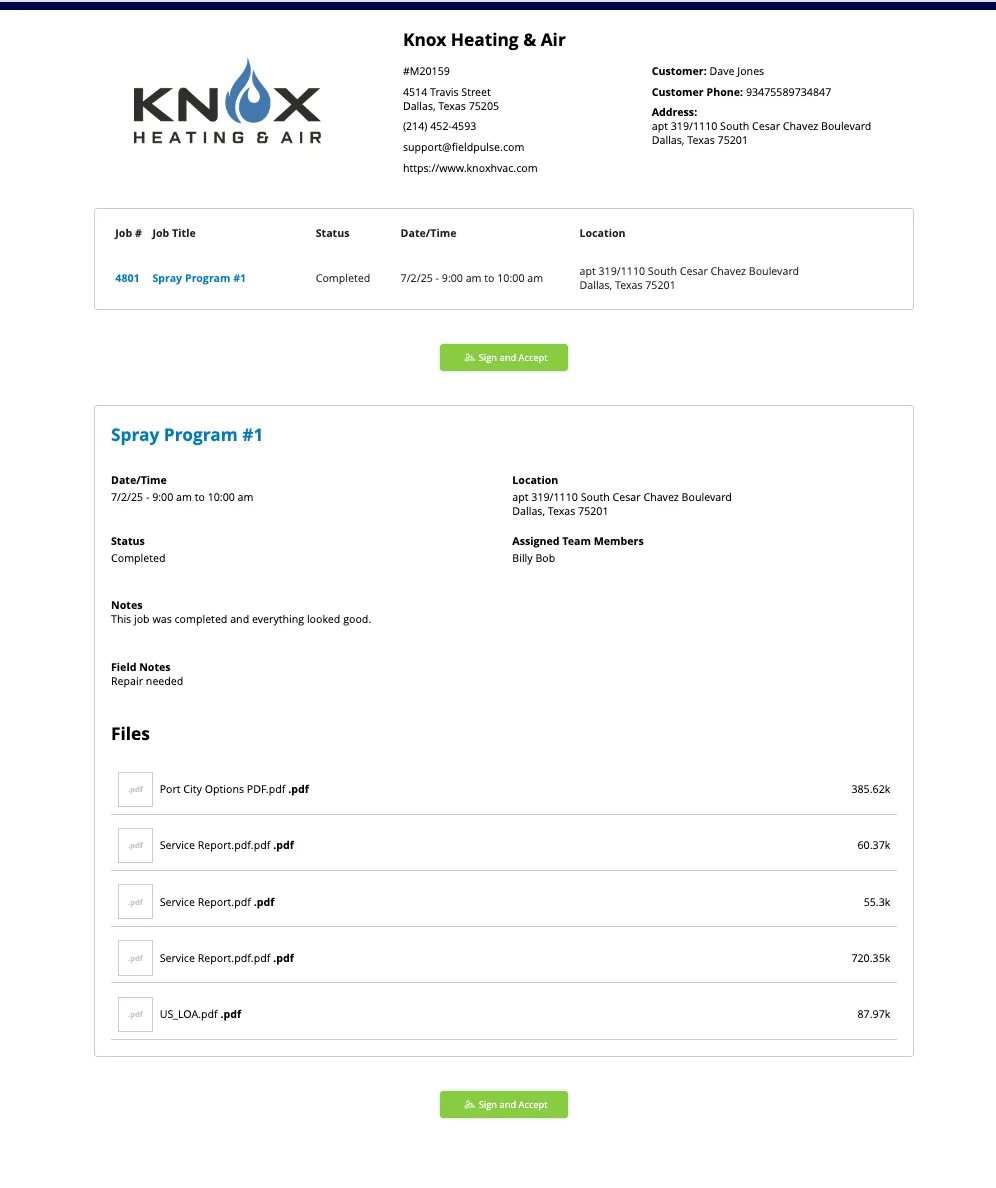
 Dynamic Job Report with Signature Request Example:
 ***
# Creating a Multi-Job Report
To create a report for multiple jobs, begin by navigating to the customer record associated with those jobs. Select *Jobs* from the top menu, then click the checkbox icon.
***
# Creating a Multi-Job Report
To create a report for multiple jobs, begin by navigating to the customer record associated with those jobs. Select *Jobs* from the top menu, then click the checkbox icon.
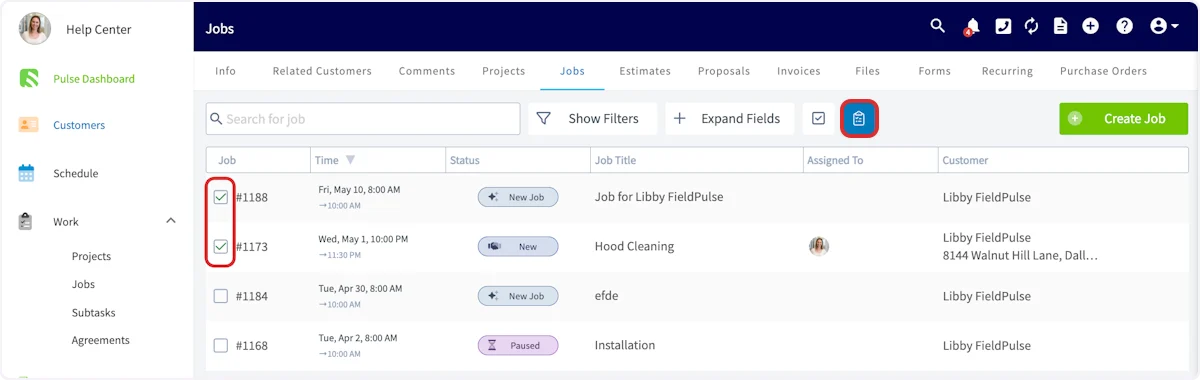
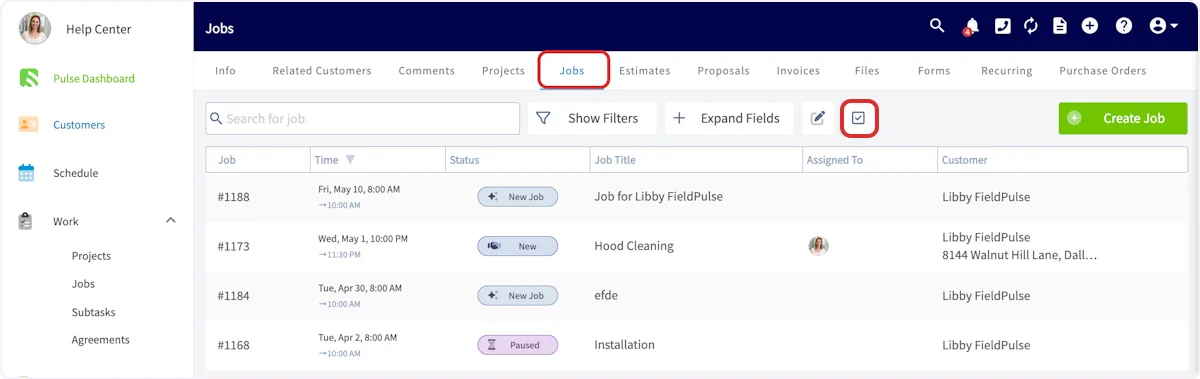 You can now click to select the various job records you'd like to be included in this report. When you are ready to generate the report, select the clipboard icon.
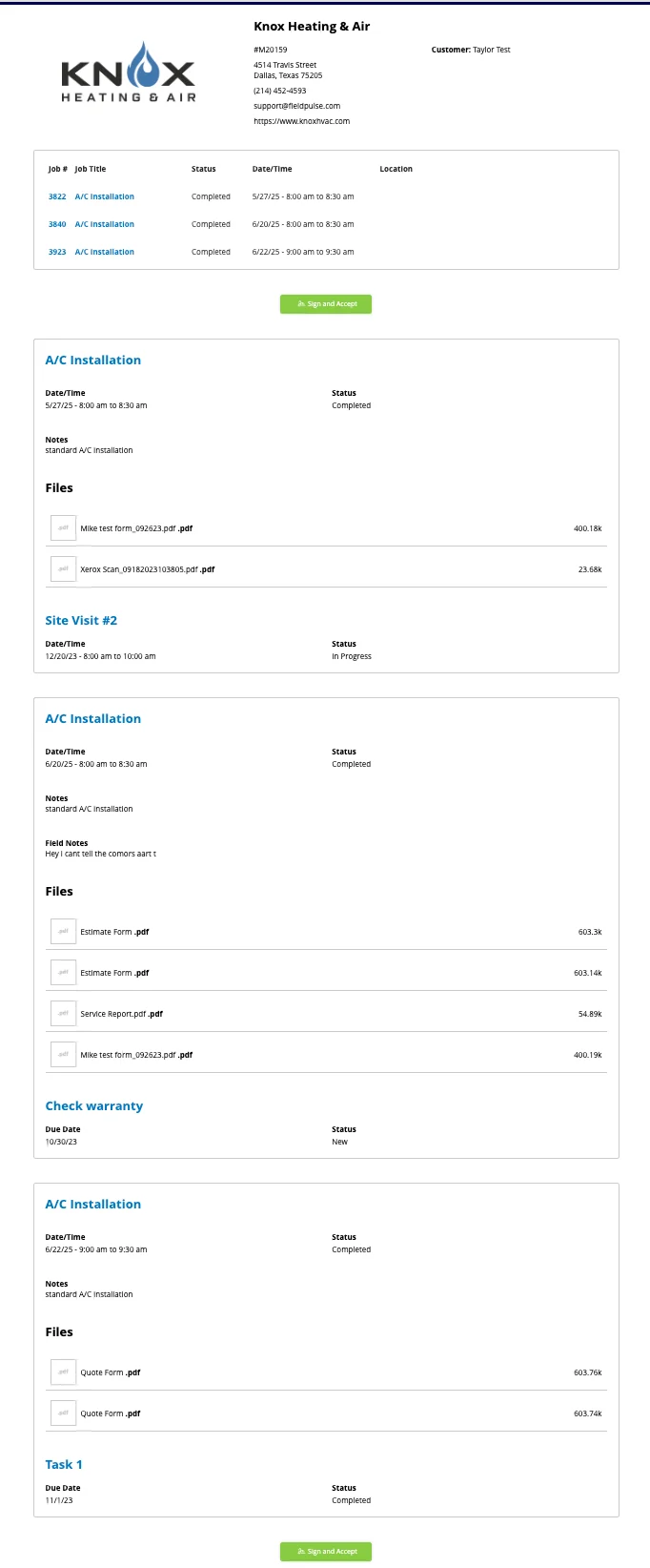
 You will now follow the same process of customizing your display options before sending the report to your customer. Here is an example of what your multi-asset report may look like:
 ***
# Creating a Job Report on the Mobile App
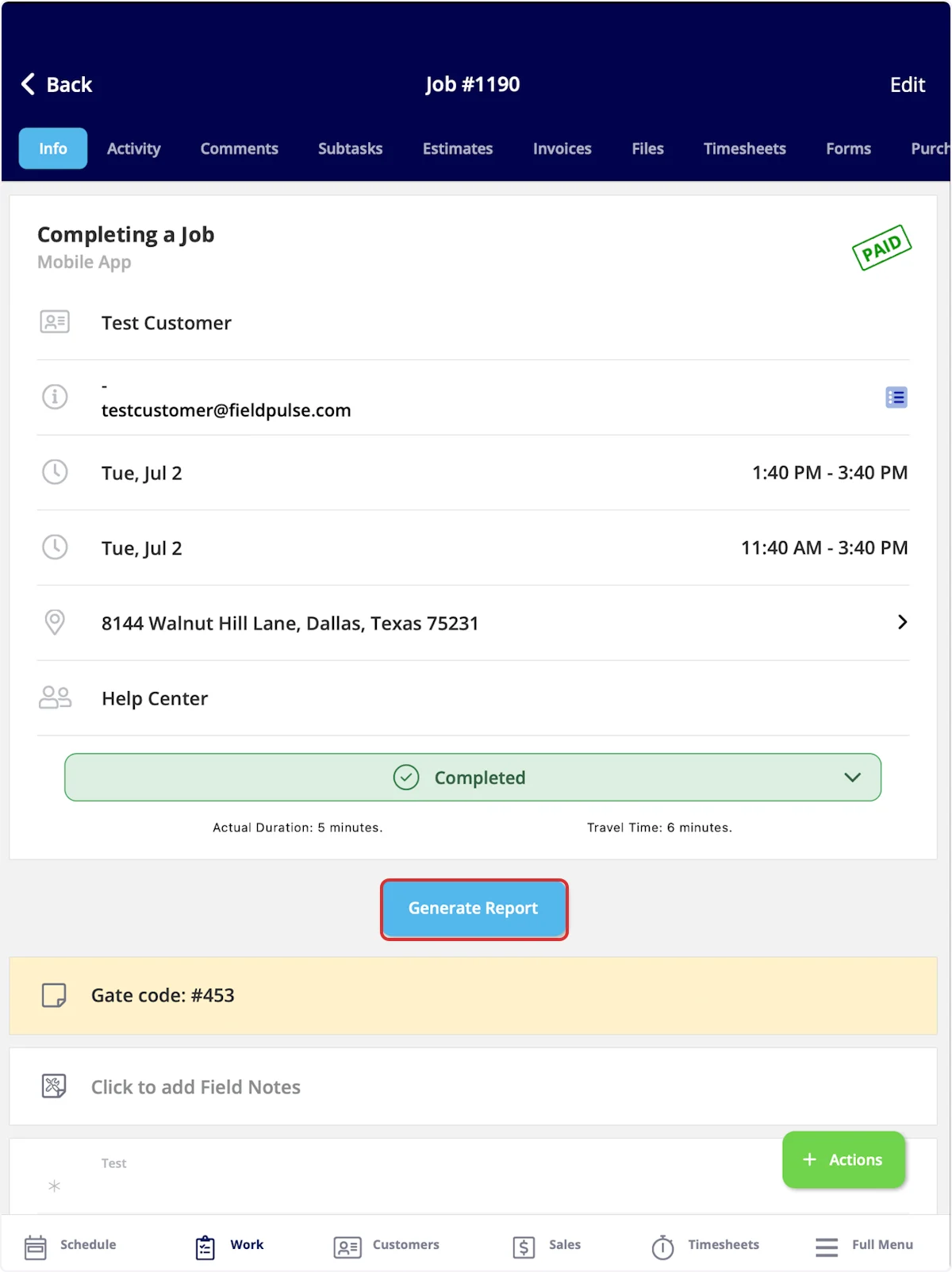
Begin by navigating to the job record for which you'd like to create a dynamic job report, select *Generate Report*. You can also select *Actions* then *Generate Report*.
***
# Creating a Job Report on the Mobile App
Begin by navigating to the job record for which you'd like to create a dynamic job report, select *Generate Report*. You can also select *Actions* then *Generate Report*.
 You can now view the preview of your report as a Dynamic URL or PDF by selecting your preference the top of the screen. Additionally, use the *Settings* button in the top right corner of your screen to ensure you showcase relevant information while hiding unnecessary details. Select/deselect details such as job summary, notes, details, and photos to customize your report.
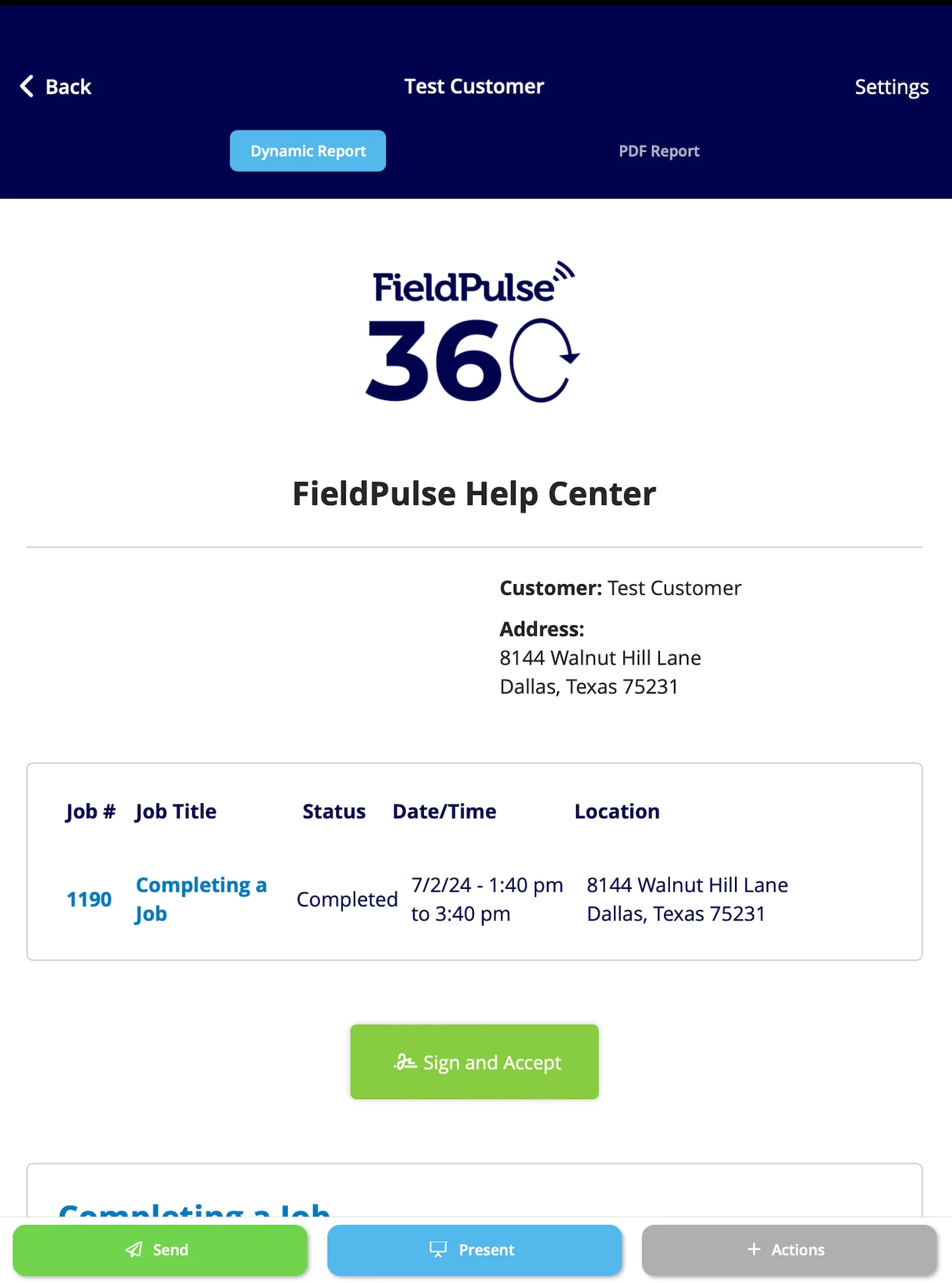 When you're ready, select the *Send* button to email this report to your customer. You can now customize who the email is sent to, as well as the subject and body. Attach any pertinent files, and select to include the Dynamic Report, PDF Report, and/or Signature Request.
***
**Have additional questions?**
*Contact us at [support@fieldpulse.com](mailto:support@fieldpulse.com) or use the chat feature in the bottom right corner of your screen.*
When you're ready, select the *Send* button to email this report to your customer. You can now customize who the email is sent to, as well as the subject and body. Attach any pertinent files, and select to include the Dynamic Report, PDF Report, and/or Signature Request.
***
**Have additional questions?**
*Contact us at [support@fieldpulse.com](mailto:support@fieldpulse.com) or use the chat feature in the bottom right corner of your screen.*