> ## Documentation Index
> Fetch the complete documentation index at: https://help.fieldpulse.com/llms.txt
> Use this file to discover all available pages before exploring further.
# File Management
> You can share files from FieldPulse straight from a record, a customer communication, or right inside an estimate or invoice. Pick the file, choose how to…
# Overview
You can share files from FieldPulse straight from a record, a customer communication, or right inside an estimate or invoice. Pick the file, choose how to send it, and it's in your customer's hands in a few clicks. Behind the scenes, you decide who on your team can see what.
***
# On Web: Admin Experience
## Sharing Files
There are three ways to share files with a customer. Pick the one that fits the job.
## From File
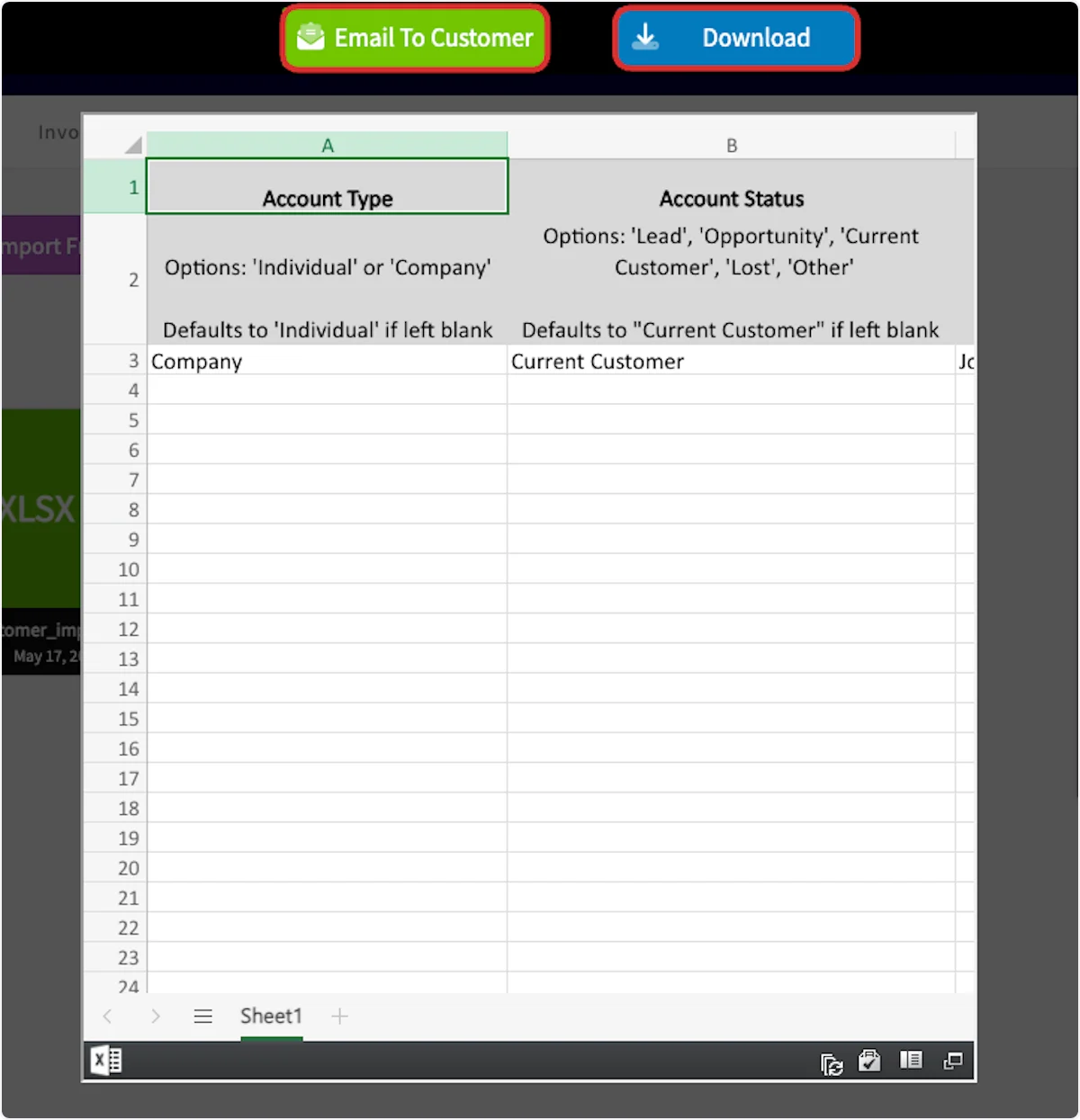
To share a file, begin by clicking on a file. You can now select *Email to Customer* to send this file, or press *Download* to download the file onto your device.
 ## From Customer Communication
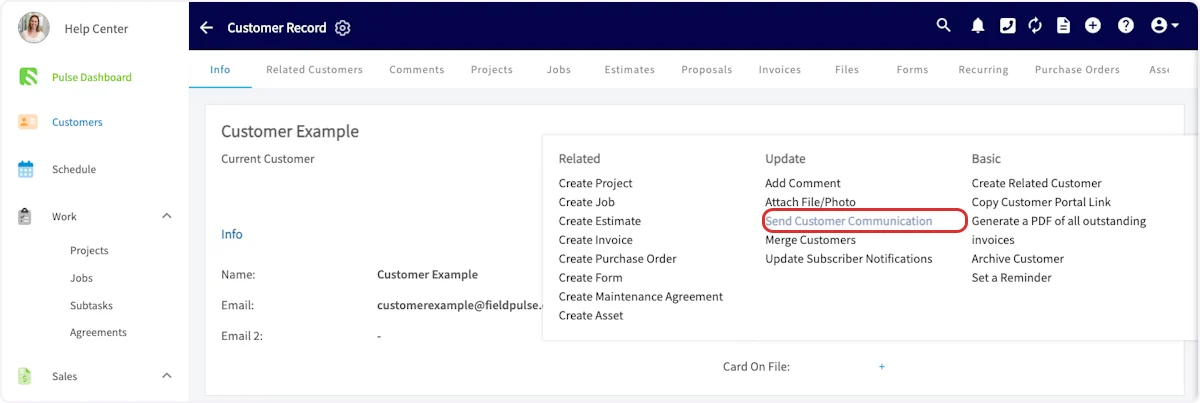
To include a file on a customer communication, begin by selecting *Actions* on the related record, then click *Send Customer Communication*.
## From Customer Communication
To include a file on a customer communication, begin by selecting *Actions* on the related record, then click *Send Customer Communication*.
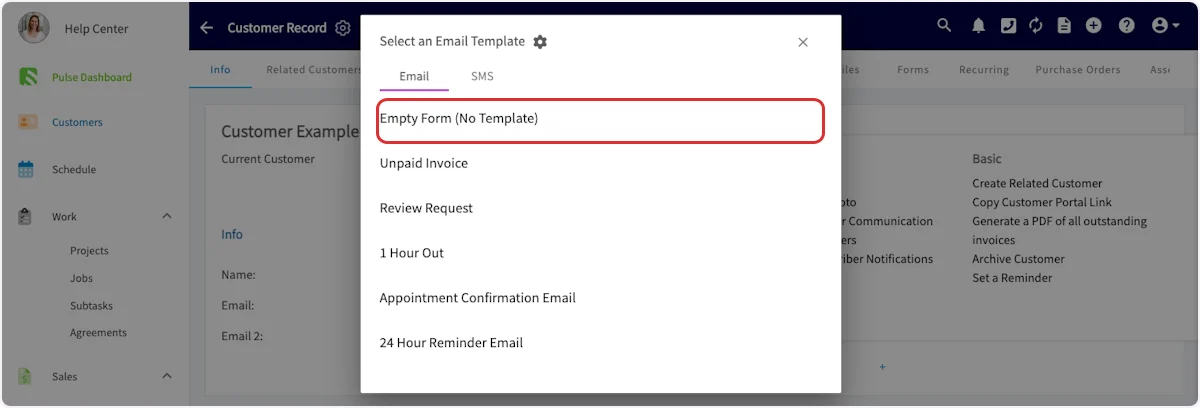
 Select the template you'd like to use, or use an empty form.
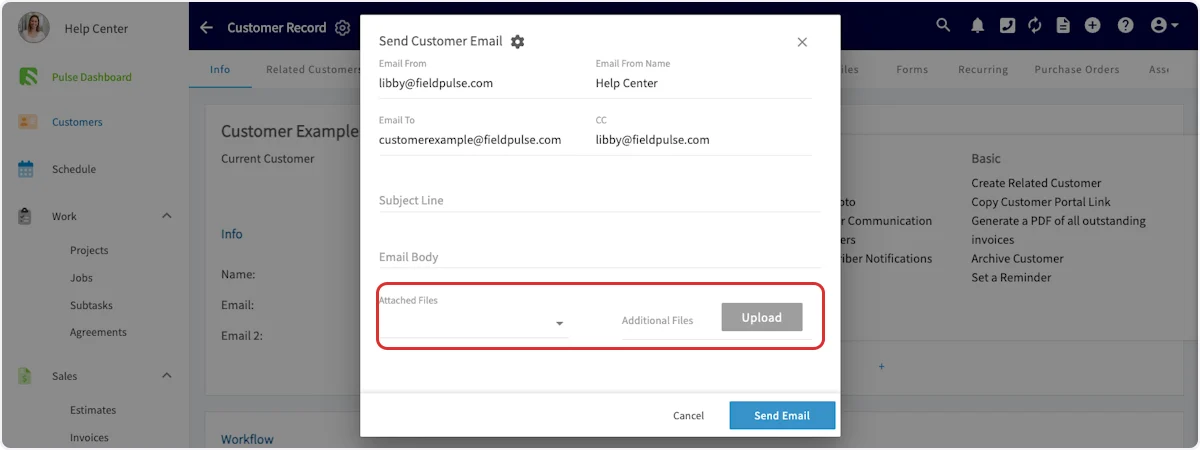
 Click on *Attached Files* to attach files stored in FieldPulse. Click on *Additional Files* to upload files from your device.
 ## From Estimate or Invoice
On an estimate or invoice record, select *Preview*.
## From Estimate or Invoice
On an estimate or invoice record, select *Preview*.
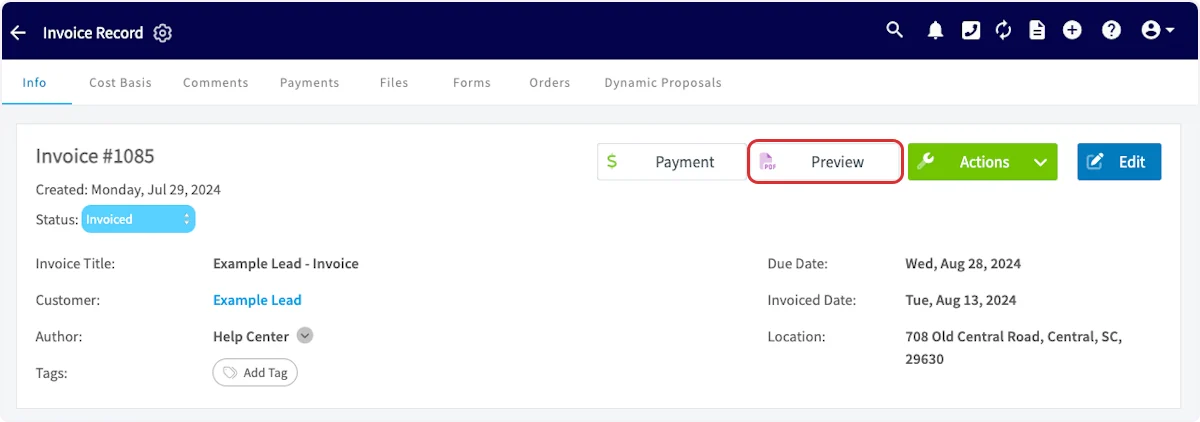 Once previewing the record, click *Email to Customer*.
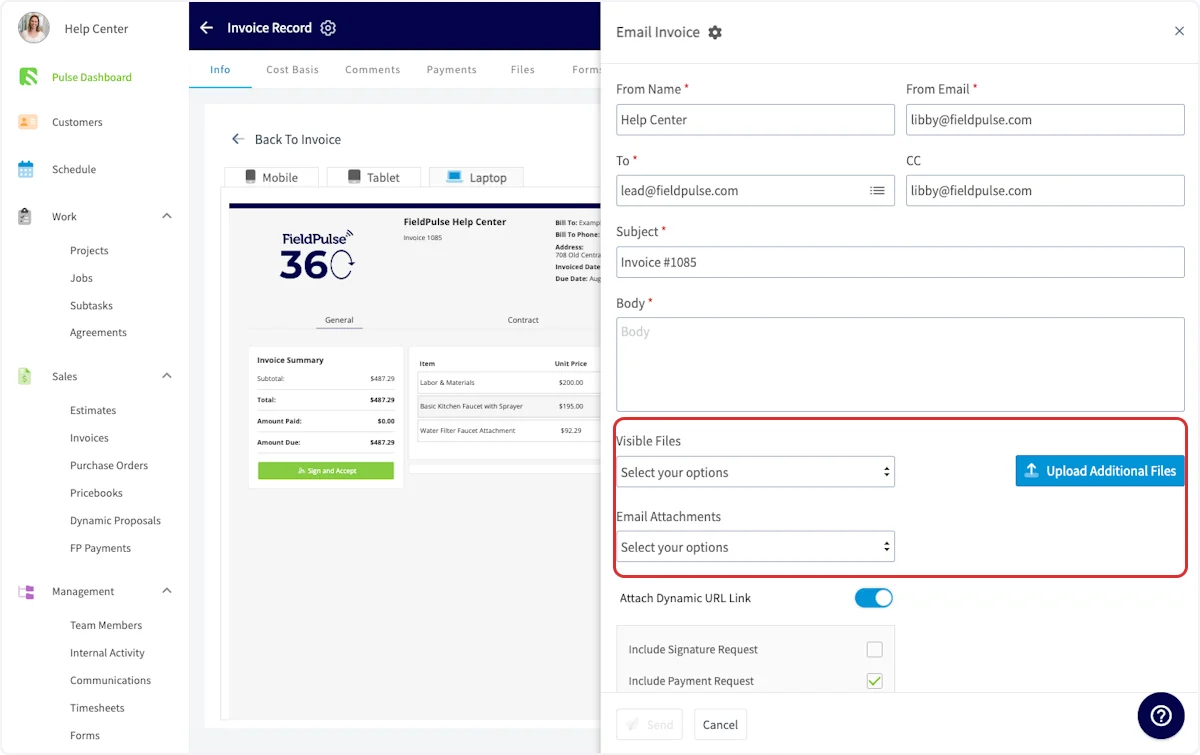
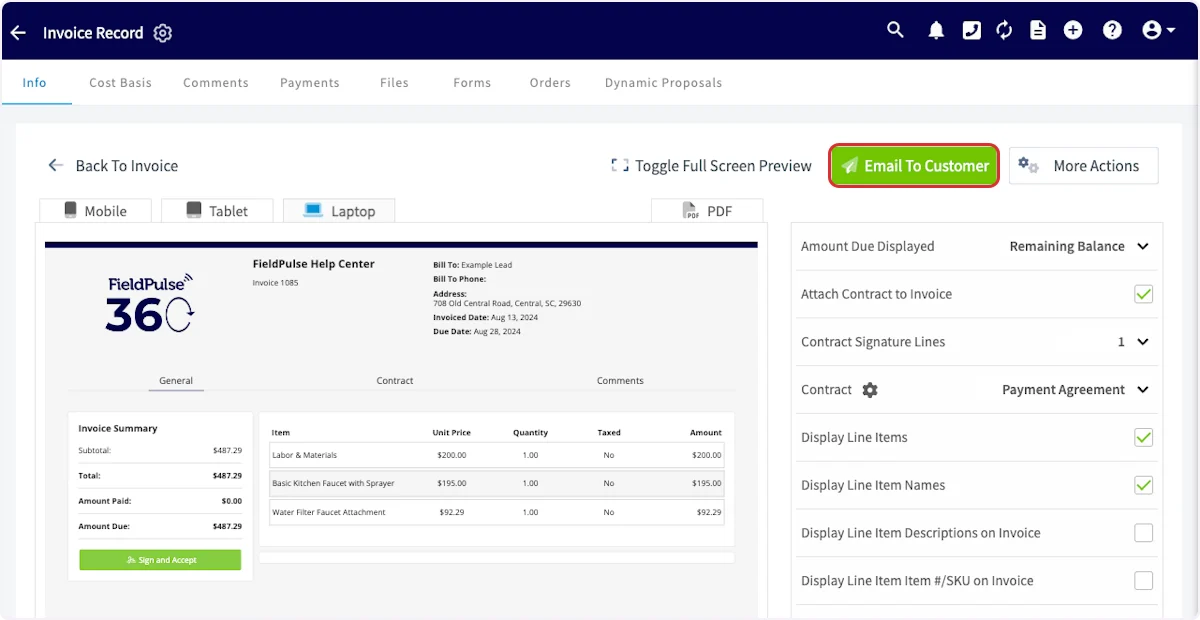 Once here, you can select visible files, email attachments, and upload additional files.
* *Visible Files:* Files stored in FieldPulse will be displayed on the dynamic estimate or invoice
* *Email Attachments*: Files stored in FieldPulse will be attached to the email
* *Upload Additional Files:* Files from your device will be displayed on the dynamic estimate or invoice
Once here, you can select visible files, email attachments, and upload additional files.
* *Visible Files:* Files stored in FieldPulse will be displayed on the dynamic estimate or invoice
* *Email Attachments*: Files stored in FieldPulse will be attached to the email
* *Upload Additional Files:* Files from your device will be displayed on the dynamic estimate or invoice
 ## File Visibility
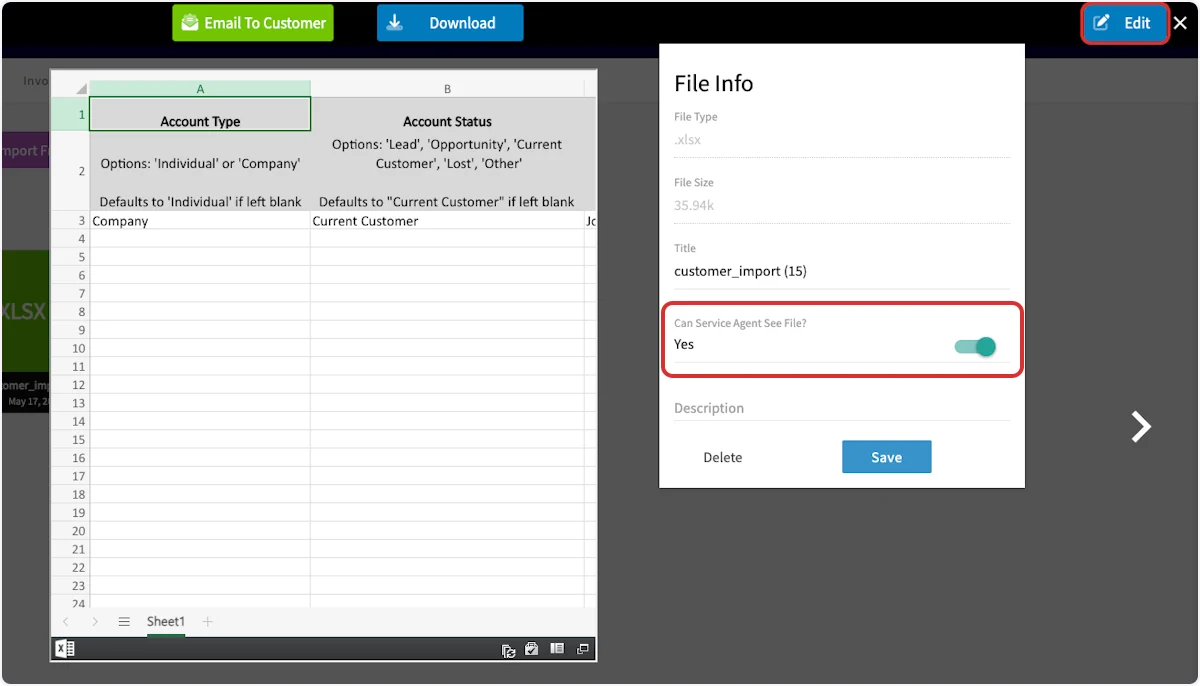
To restrict file visibility, begin by clicking on a file, then select *Edit*. You can toggle on or off *Can Service Agent See File?* as well as *Can Team Manager See File?* Be sure to press *Save* after making changes.
## File Visibility
To restrict file visibility, begin by clicking on a file, then select *Edit*. You can toggle on or off *Can Service Agent See File?* as well as *Can Team Manager See File?* Be sure to press *Save* after making changes.
 ## Moving Files
You can easily move files from a customer record to a job record on the FieldPulse web app. Begin by navigating to the customer record and selecting *Files*. Click *Move Files to FieldPulse Record*, then select the files you'd like to move.
## Moving Files
You can easily move files from a customer record to a job record on the FieldPulse web app. Begin by navigating to the customer record and selecting *Files*. Click *Move Files to FieldPulse Record*, then select the files you'd like to move.
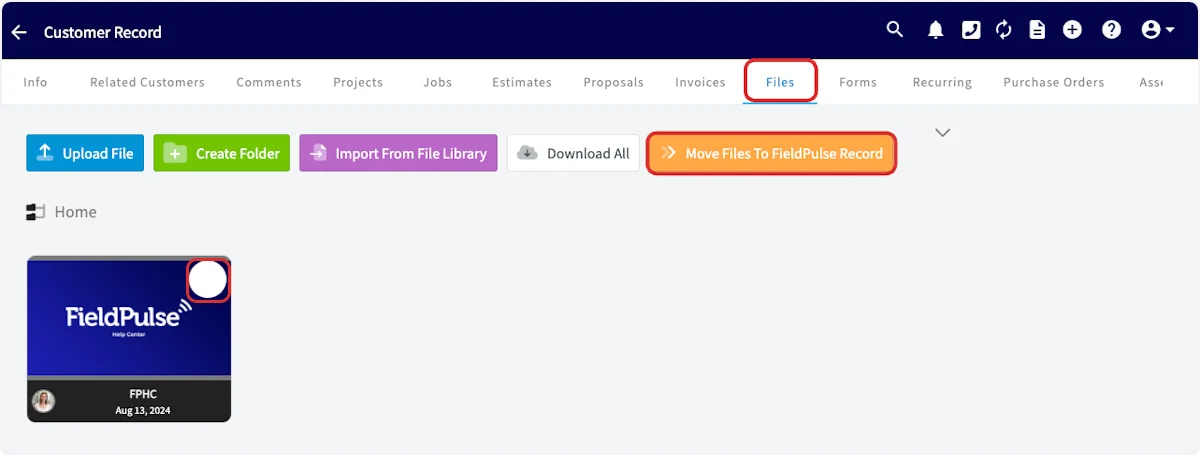 Click in the search box and select the job record where you'd like to transfer the files. *(**Note:** Only jobs linked to this customer will appear.)*
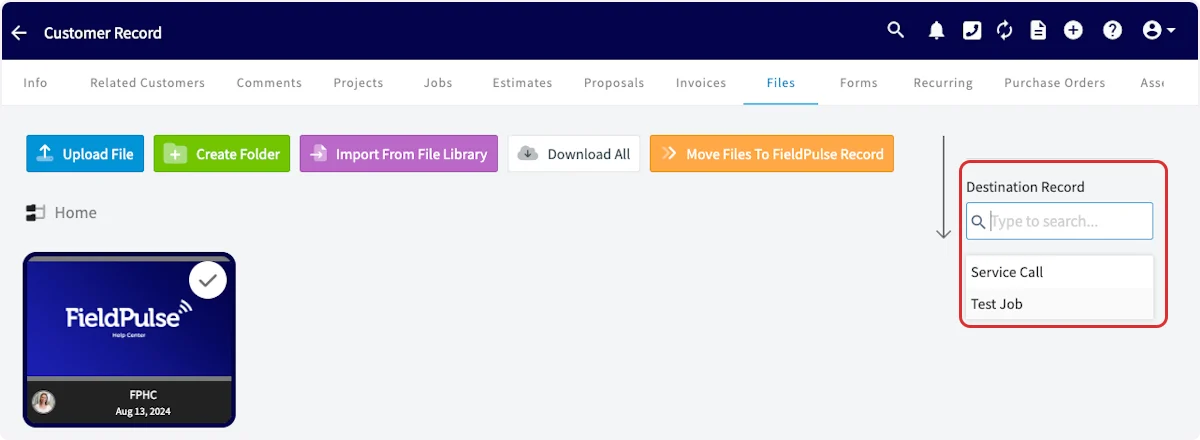 You can then select to *Duplicate & Transfer Files* or *Move Files Only*.
**Could not display content**
#### **Duplicate & Transfer Files**
This option duplicates the files from the primary record and transfers them to the selected record without creating linked duplicates. (***Note***\*: When duplicating and transferring files from a customer record to a job record, duplicates of these files will appear on your customer files tab. This is because FieldPulse displays all files associated with related jobs in this tab.)\*
#### **Move Files Only**
This option removes the files from the primary record and transitions them to the selected record without duplication. (***Note***\*: When moving files from a customer record to a job record, the files will still appear in the customer record. This is because FieldPulse displays all files uploaded to related jobs on the customer files tab.\*)
Our recommendation is to select *Move Files Only*, given that any files on job records will appear on the linked customer's record.
***
# On Mobile: Field Experience
## Creating File Folders
To create a file folder on the mobile app, navigate to the *Files* tab on any record and tap the *Create Folder* button.
You can then select to *Duplicate & Transfer Files* or *Move Files Only*.
**Could not display content**
#### **Duplicate & Transfer Files**
This option duplicates the files from the primary record and transfers them to the selected record without creating linked duplicates. (***Note***\*: When duplicating and transferring files from a customer record to a job record, duplicates of these files will appear on your customer files tab. This is because FieldPulse displays all files associated with related jobs in this tab.)\*
#### **Move Files Only**
This option removes the files from the primary record and transitions them to the selected record without duplication. (***Note***\*: When moving files from a customer record to a job record, the files will still appear in the customer record. This is because FieldPulse displays all files uploaded to related jobs on the customer files tab.\*)
Our recommendation is to select *Move Files Only*, given that any files on job records will appear on the linked customer's record.
***
# On Mobile: Field Experience
## Creating File Folders
To create a file folder on the mobile app, navigate to the *Files* tab on any record and tap the *Create Folder* button.
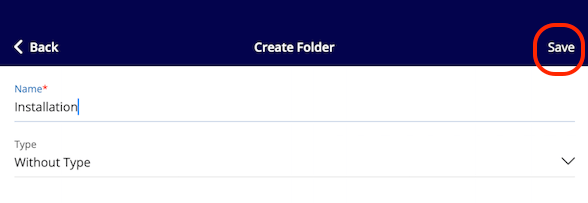
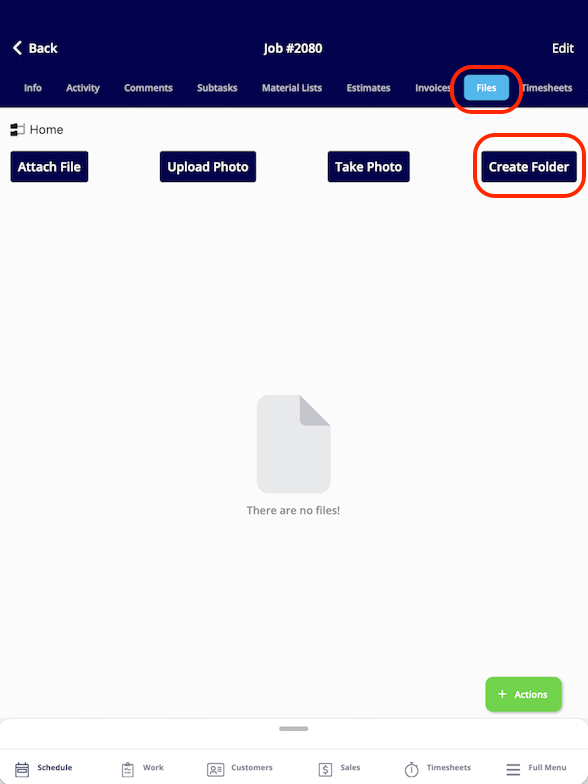 You will be taken to the folder creation screen. Enter a name for your folder in the *File Name* field. This field is required before you can save.
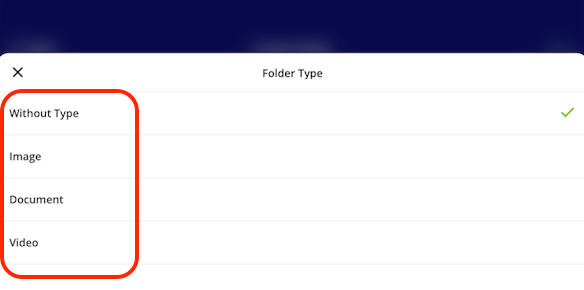
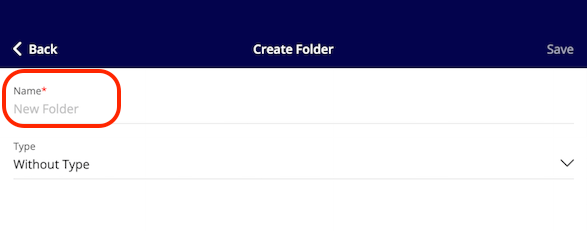 Next, tap the *Type* field to open the selection menu. Choose the type of content this folder will hold:
* *Without a file* (creates an empty placeholder folder)
* *Image*
* *Document*
* *Video*
Next, tap the *Type* field to open the selection menu. Choose the type of content this folder will hold:
* *Without a file* (creates an empty placeholder folder)
* *Image*
* *Document*
* *Video*
 Once you've entered a name and selected a type, tap *Save* to create the folder. To cancel without saving, tap *Exit*. Your new folder will now appear in the *Files* tab.
 ***
# What Your Customer Sees
Files you share land in a few different places depending on the path you take:
* Files emailed from a single file open as a standard email attachment.
* Files attached through *Send Customer Communication* arrive in line with the template you chose.
* *Visible Files* appear inside the dynamic *Estimate* or *Invoice* when the customer opens the link.
* *Email Attachments* attach to the email that delivers the *Estimate* or *Invoice*.
Heads up: customers only see files you explicitly share. Files uploaded to a record stay internal by default.
***
**Have additional questions?**
*Contact us at [support@fieldpulse.com](mailto:support@fieldpulse.com) or use the chat feature in the bottom right corner of your screen.*
***
# What Your Customer Sees
Files you share land in a few different places depending on the path you take:
* Files emailed from a single file open as a standard email attachment.
* Files attached through *Send Customer Communication* arrive in line with the template you chose.
* *Visible Files* appear inside the dynamic *Estimate* or *Invoice* when the customer opens the link.
* *Email Attachments* attach to the email that delivers the *Estimate* or *Invoice*.
Heads up: customers only see files you explicitly share. Files uploaded to a record stay internal by default.
***
**Have additional questions?**
*Contact us at [support@fieldpulse.com](mailto:support@fieldpulse.com) or use the chat feature in the bottom right corner of your screen.*