> ## Documentation Index
> Fetch the complete documentation index at: https://help.fieldpulse.com/llms.txt
> Use this file to discover all available pages before exploring further.
# Maintenance Agreements
> Automate recurring service contracts end to end, from scheduled visits and reminders to billing and signed agreements tied to each customer and asset.
# Overview
When you have customers who need recurring service, Maintenance Agreements let you set the schedule once and FieldPulse handles the job creation, reminders, and billing. Attach agreements to customers and assets, automate visits, send service reminders, and capture signed contracts.
***
# Prerequisites
Before you can start using Maintenance Agreements, make sure the following are in place:
* Maintenance agreements are enabled in your account
***
# On Web: Admin Experience
## Creating a Maintenance Agreement
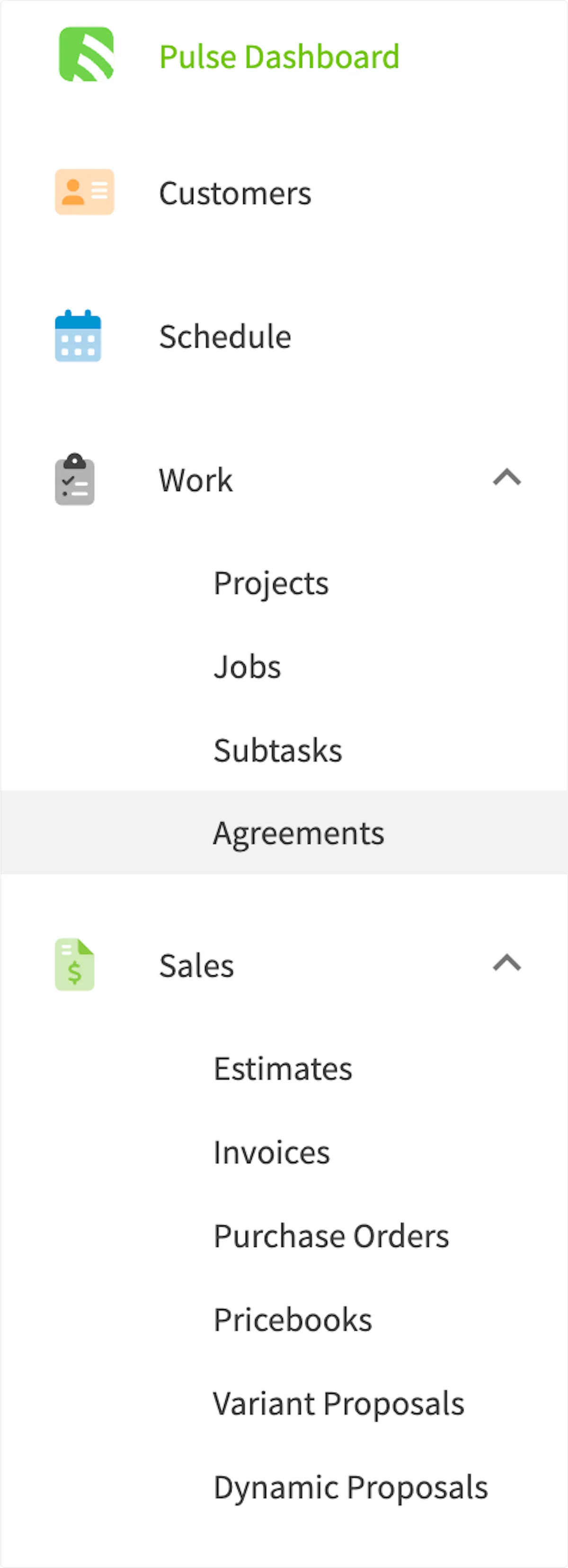
To create a maintenance agreement, begin by selecting *Agreements* on the left-side of the screen.
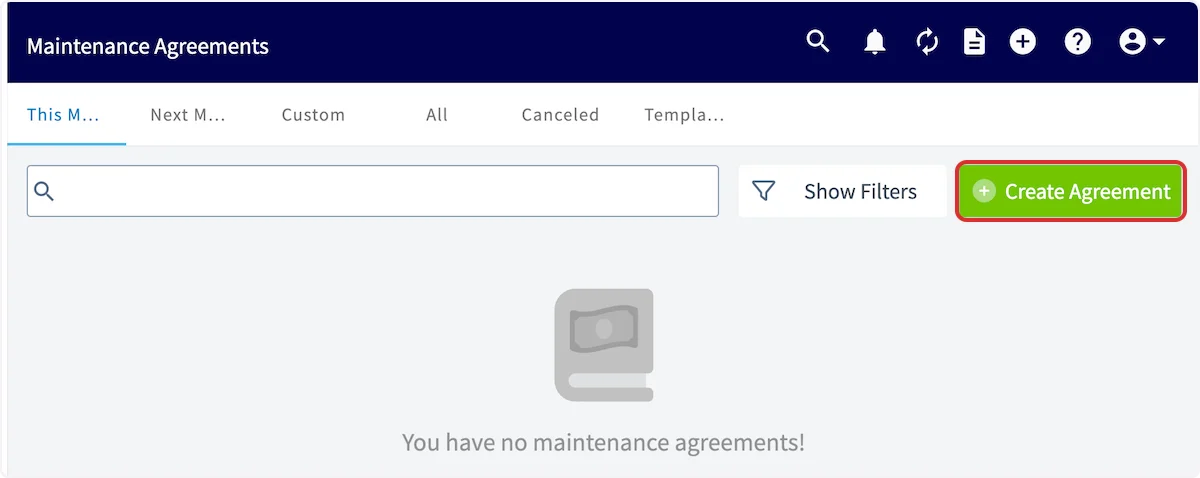
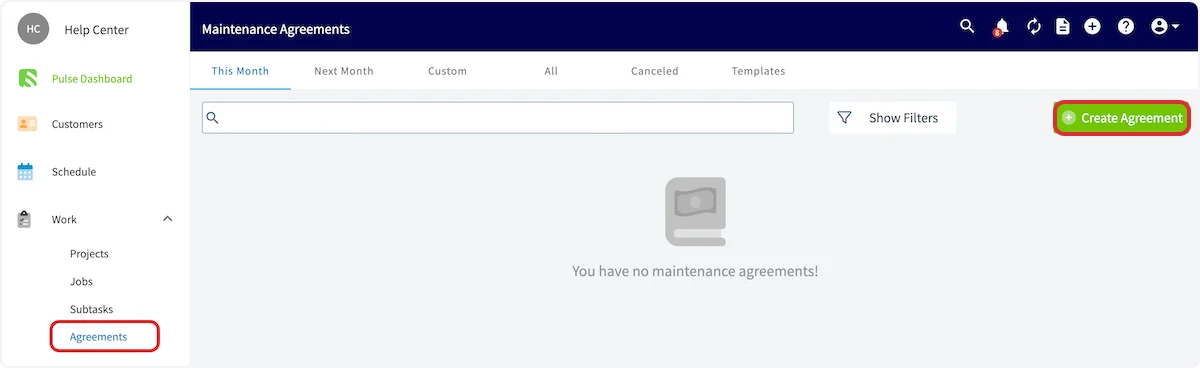
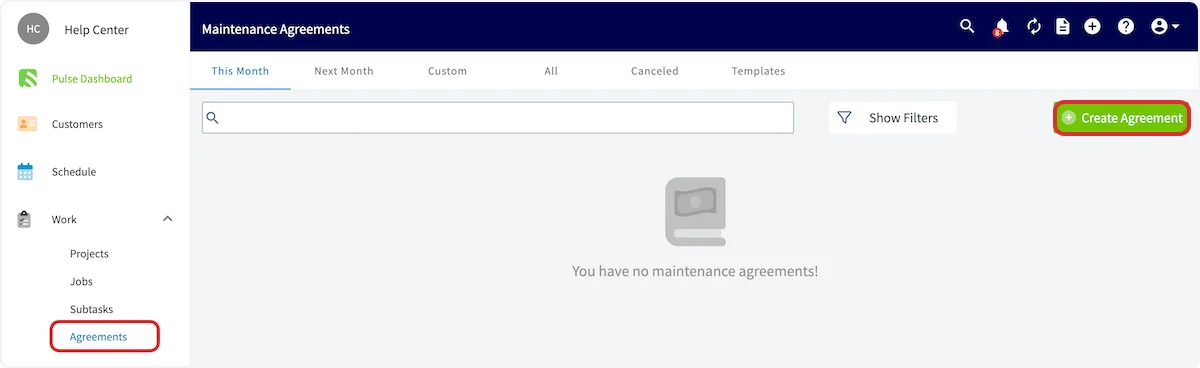
 Once in Maintenance Agreements, you can view your maintenance agreements sorted into various categories at the top of the screen. Click *Create Agreement* to build a new maintenance agreement.
 Another way to create a Maintenance Agreement is directly from the Parent Job. This link lets you quickly identify the Job where the agreement was originally sold or installed.
## General Information
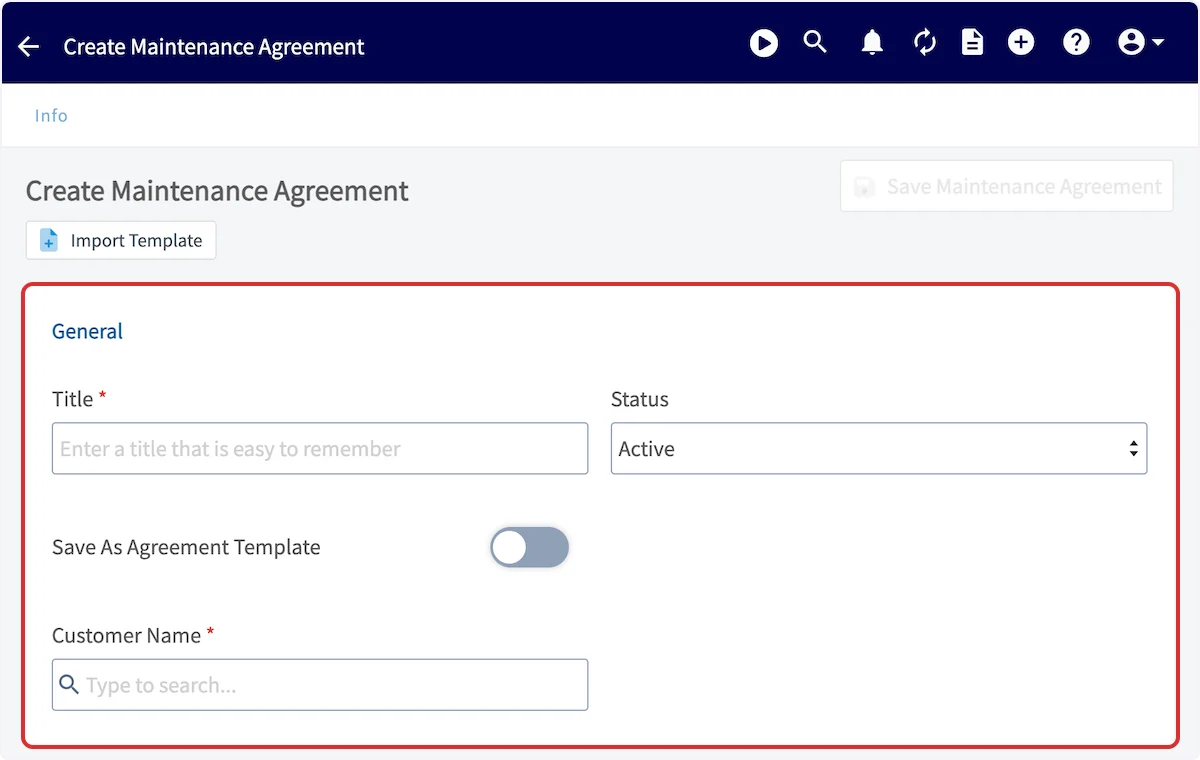
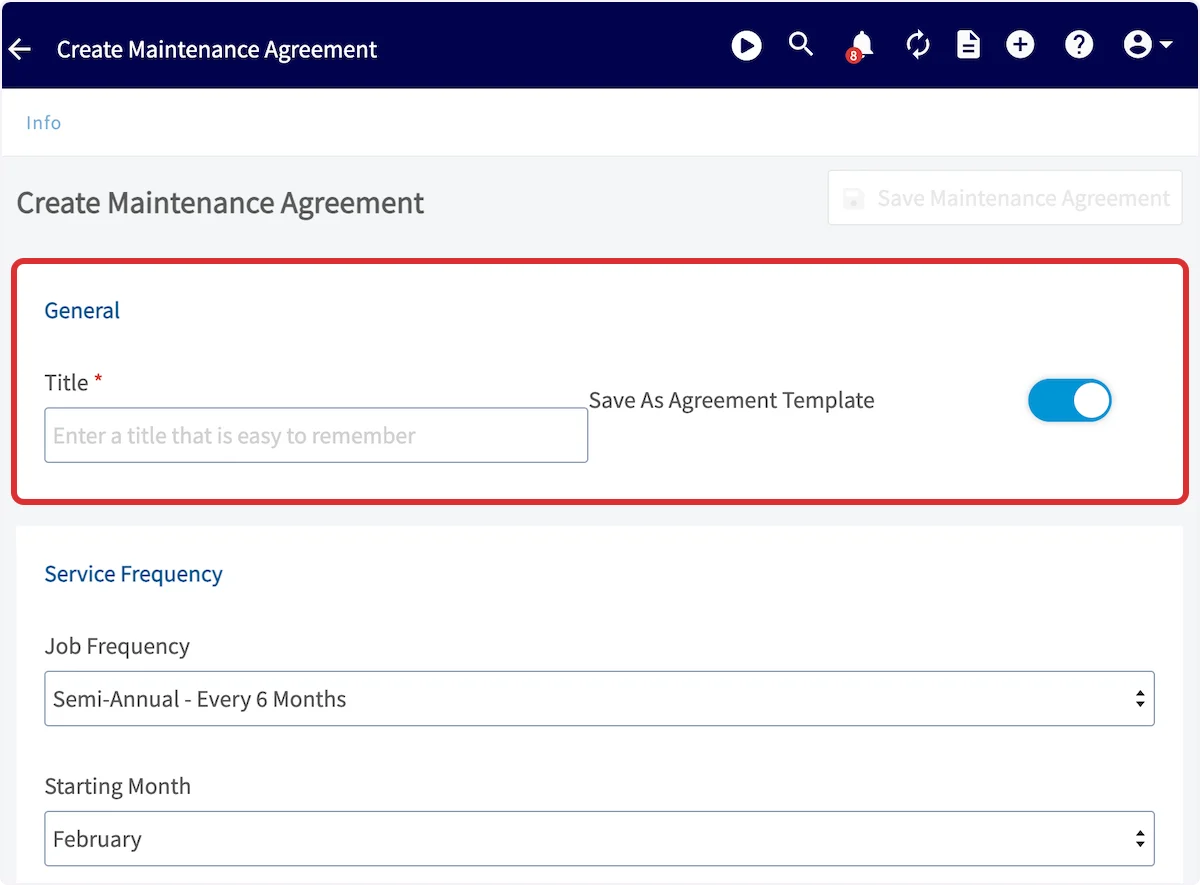
Add a title and link a customer to the maintenance agreement. You can also change the status of the agreement. If you expect to use a similar maintenance agreement many times, toggle on *Save As Agreement Template* to make creating future agreements more efficient! *(**Note**: To use a template in the future, select Import Template).*
Another way to create a Maintenance Agreement is directly from the Parent Job. This link lets you quickly identify the Job where the agreement was originally sold or installed.
## General Information
Add a title and link a customer to the maintenance agreement. You can also change the status of the agreement. If you expect to use a similar maintenance agreement many times, toggle on *Save As Agreement Template* to make creating future agreements more efficient! *(**Note**: To use a template in the future, select Import Template).*
 ## Service Frequency
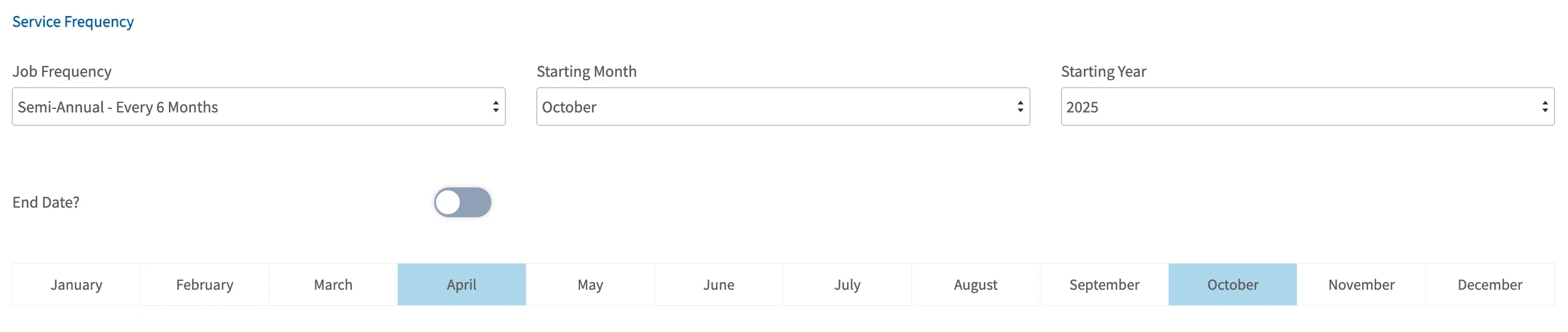
Next, you'll select the job frequency, as well as when you want the service to begin. If the agreement has an end date, toggle on *End Date* and identify the ending month and year. The calendar at the bottom will automatically indicate which months will have services.
## Service Frequency
Next, you'll select the job frequency, as well as when you want the service to begin. If the agreement has an end date, toggle on *End Date* and identify the ending month and year. The calendar at the bottom will automatically indicate which months will have services.
 ## Occurrence Creation
Here you can associate a Job Template with each Maintenance Agreement occurrence. You can choose from an existing template or create a new one directly from this screen.
## Occurrence Creation
Here you can associate a Job Template with each Maintenance Agreement occurrence. You can choose from an existing template or create a new one directly from this screen.
 After selecting a template, the *Job Creation Method* drop down field will appear. You have two options here:
* **Manual:** All Jobs associated with this Maintenance Agreement must be created manually from the Maintenance Agreement’s Jobs tab.
* **Automatic:** Jobs will be auto-created using your selected template, maintaining a rolling basis of 12 months of future occurrences. These jobs will be left unscheduled by default.
* You can schedule your Jobs from:
* The Maintenance Agreement’s Jobs tab.
* The Job List (filter for unscheduled).
* By utilizing the hourglass scheduling tool when on the *Schedule* tab.
## Recurring Billing
If you'd like to attach recurring billing to the agreement, toggle it on here. To learn more about recurring billing, [the recurring billing guide](/using-fieldpulse/estimates-invoices/recurring-billing).
After selecting a template, the *Job Creation Method* drop down field will appear. You have two options here:
* **Manual:** All Jobs associated with this Maintenance Agreement must be created manually from the Maintenance Agreement’s Jobs tab.
* **Automatic:** Jobs will be auto-created using your selected template, maintaining a rolling basis of 12 months of future occurrences. These jobs will be left unscheduled by default.
* You can schedule your Jobs from:
* The Maintenance Agreement’s Jobs tab.
* The Job List (filter for unscheduled).
* By utilizing the hourglass scheduling tool when on the *Schedule* tab.
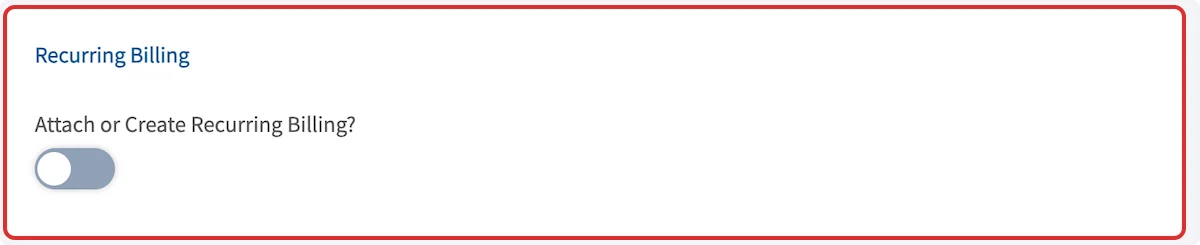
## Recurring Billing
If you'd like to attach recurring billing to the agreement, toggle it on here. To learn more about recurring billing, [the recurring billing guide](/using-fieldpulse/estimates-invoices/recurring-billing).
 ## Billing Frequency
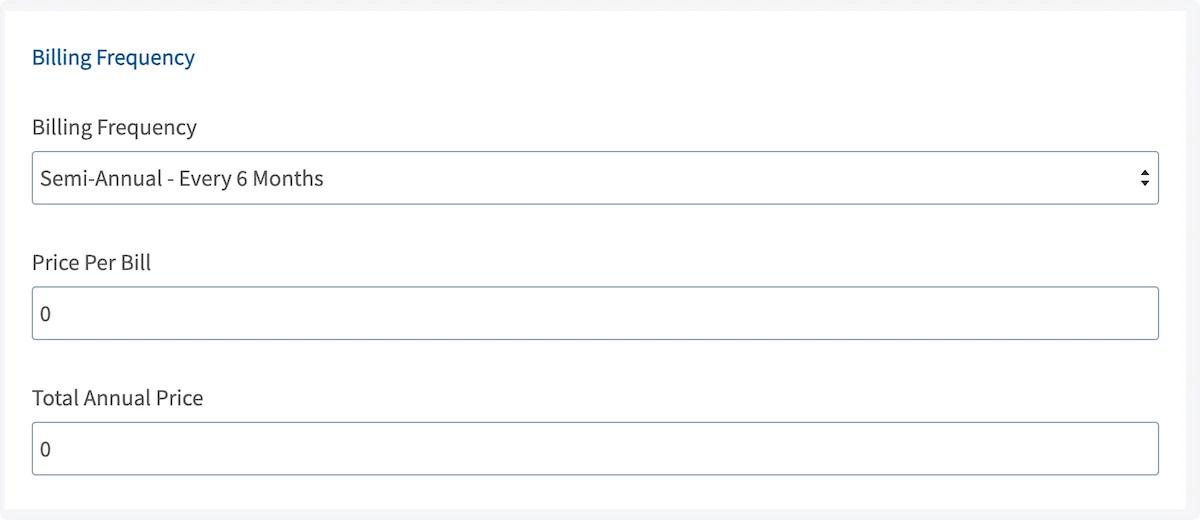
You can also set the billing frequency and enter the price per bill. The annual price will automatically be calculated!
## Billing Frequency
You can also set the billing frequency and enter the price per bill. The annual price will automatically be calculated!
 ## Automatic Reminder
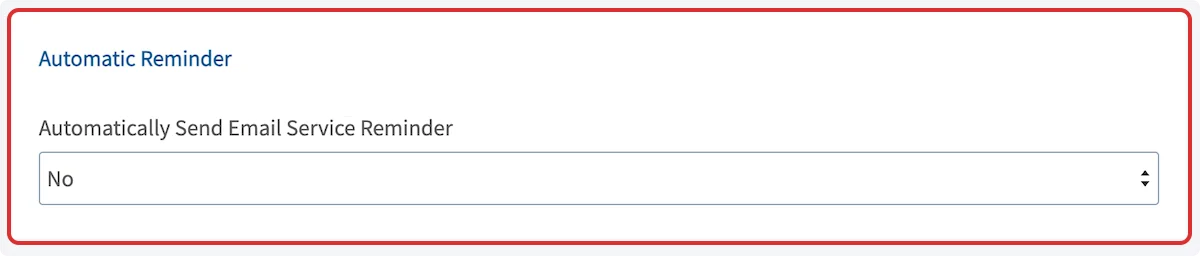
Automatic email service reminders can be sent to customers and team members. Simply select your preference from the dropdown menu here.
## Automatic Reminder
Automatic email service reminders can be sent to customers and team members. Simply select your preference from the dropdown menu here.
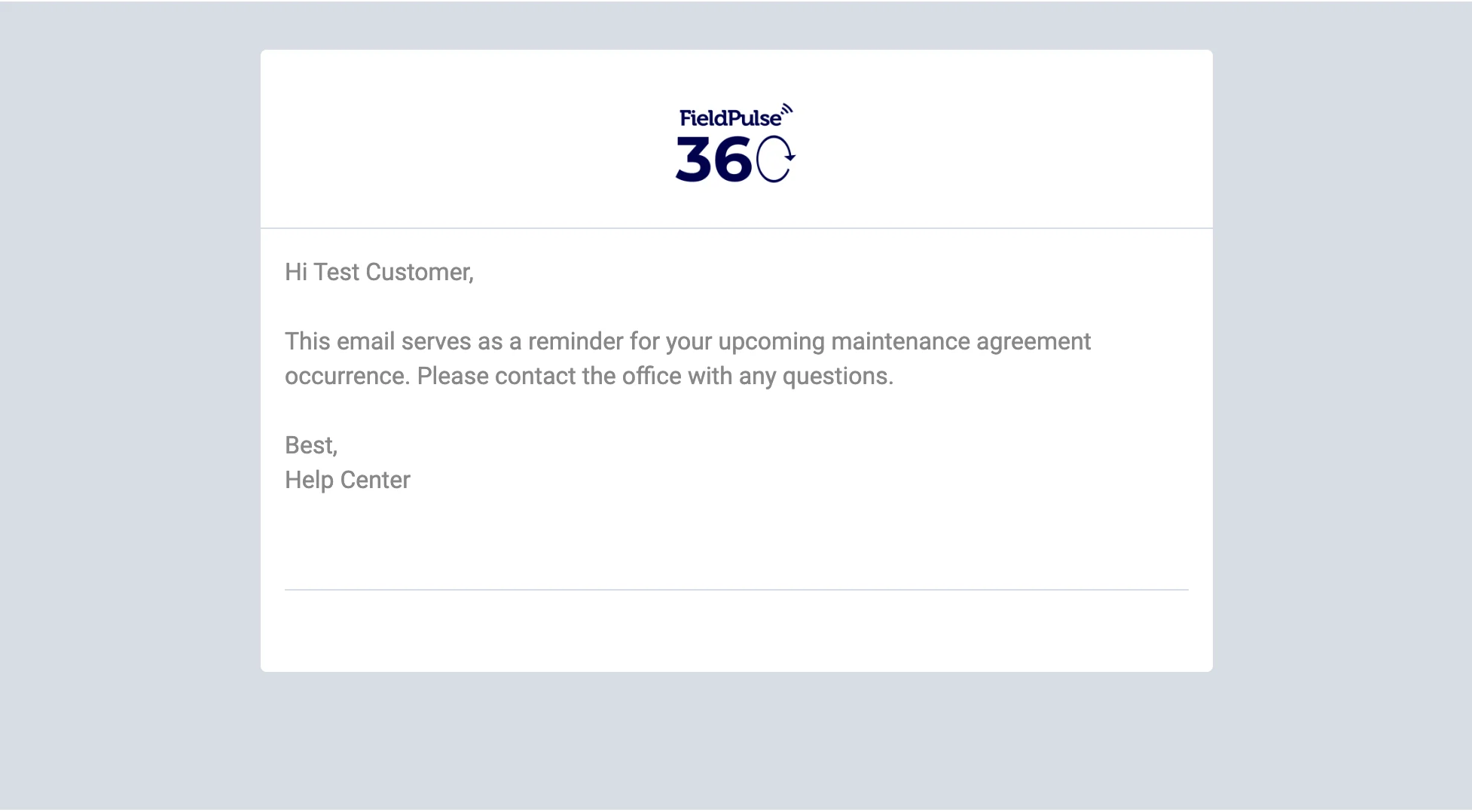
 You can customize the reminder email message, as well as select which internal team members receive the message. An example message may look like this:
 ## Notes
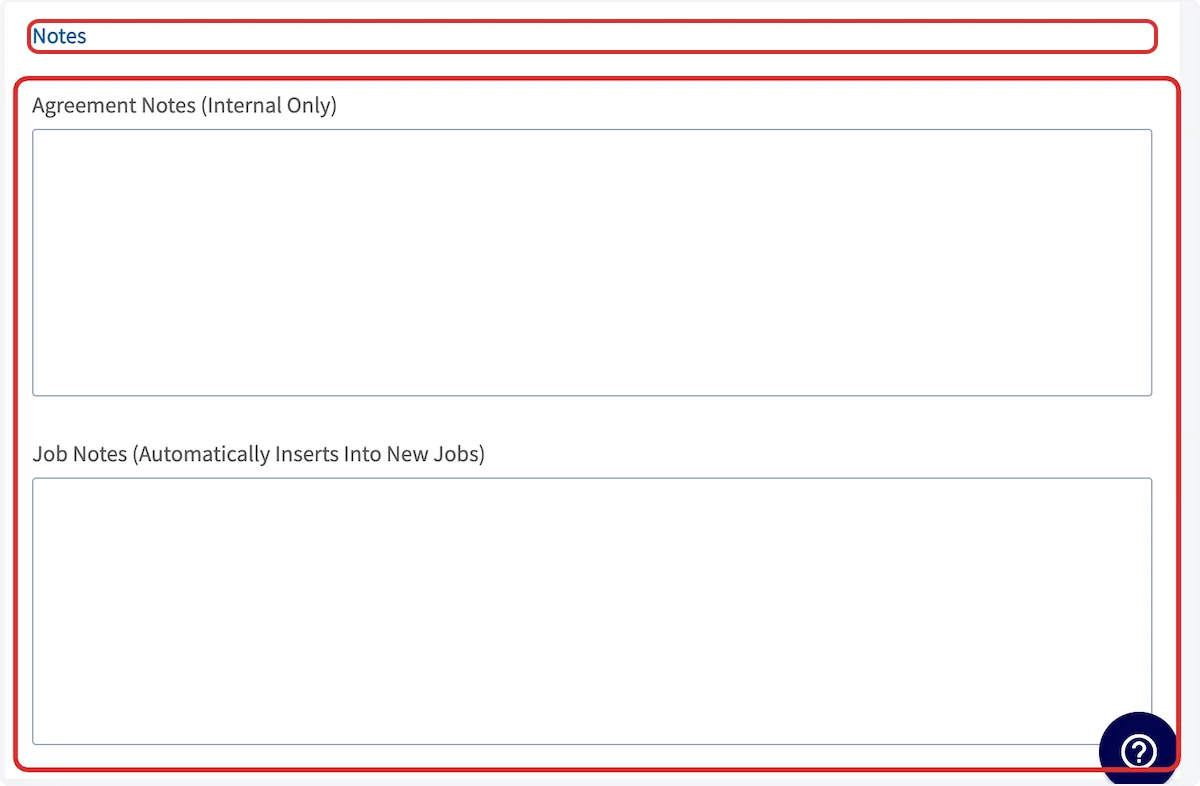
Lastly, add notes here. *Agreement Notes* will be internal records only -- your customers **will not** see them. *Job Notes* will be automatically inserted into new job records -- your customers **will** see them.
## Notes
Lastly, add notes here. *Agreement Notes* will be internal records only -- your customers **will not** see them. *Job Notes* will be automatically inserted into new job records -- your customers **will** see them.
 Be sure to press *Save* after completing your maintenance agreement!
## Templates
When creating a new maintenance agreement, users can effortlessly insert pre-built templates. These templates act as a solid foundation, which users can easily modify details to ensure accuracy and relevance.
To create a maintenance agreement template, begin by navigating to *Maintenance Agreements* in the left-side menu then clicking *Create Agreement*.
Be sure to press *Save* after completing your maintenance agreement!
## Templates
When creating a new maintenance agreement, users can effortlessly insert pre-built templates. These templates act as a solid foundation, which users can easily modify details to ensure accuracy and relevance.
To create a maintenance agreement template, begin by navigating to *Maintenance Agreements* in the left-side menu then clicking *Create Agreement*.
 Before adding any information, toggle on *Save As Agreement Template*.
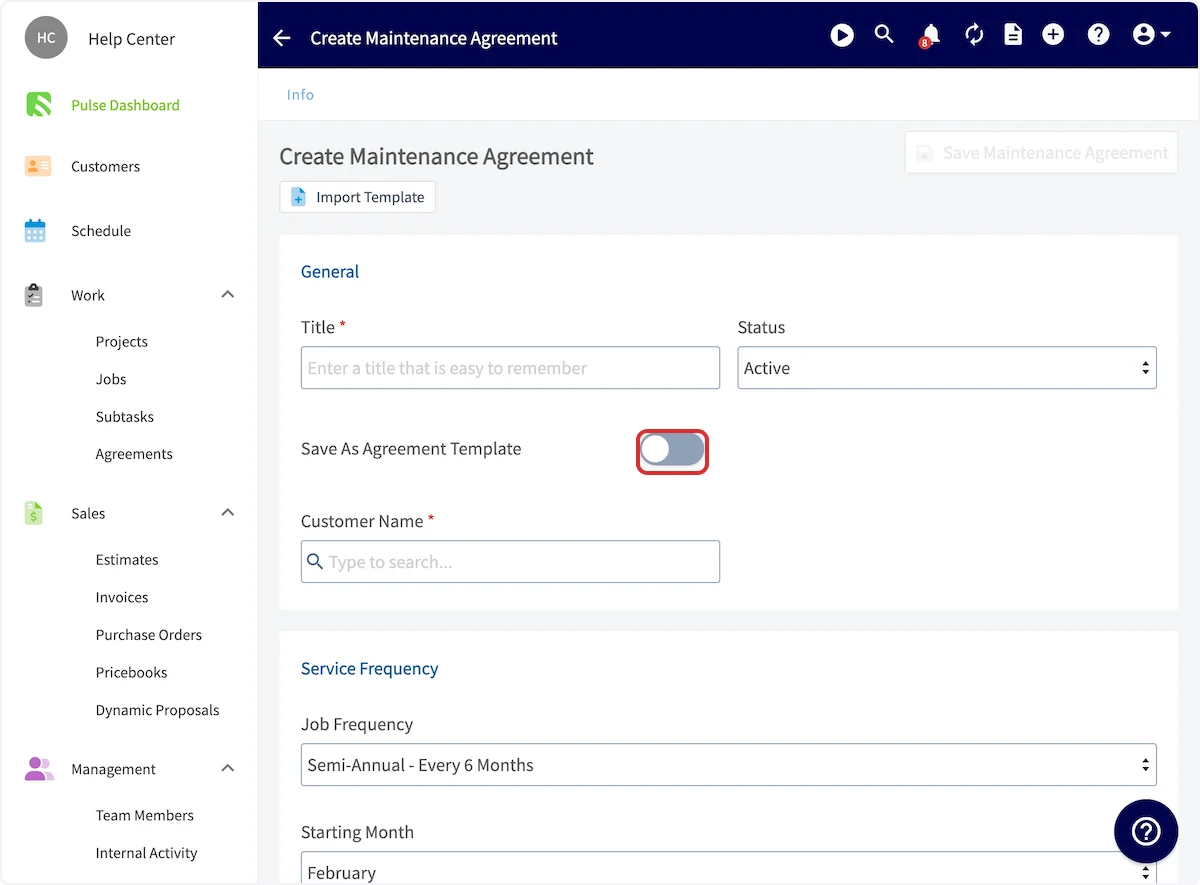 You can now title your template.
 Enter all pertinent details, including scheduling, billing, automatic reminders, and notes. When you've customized your template, press *Save*.
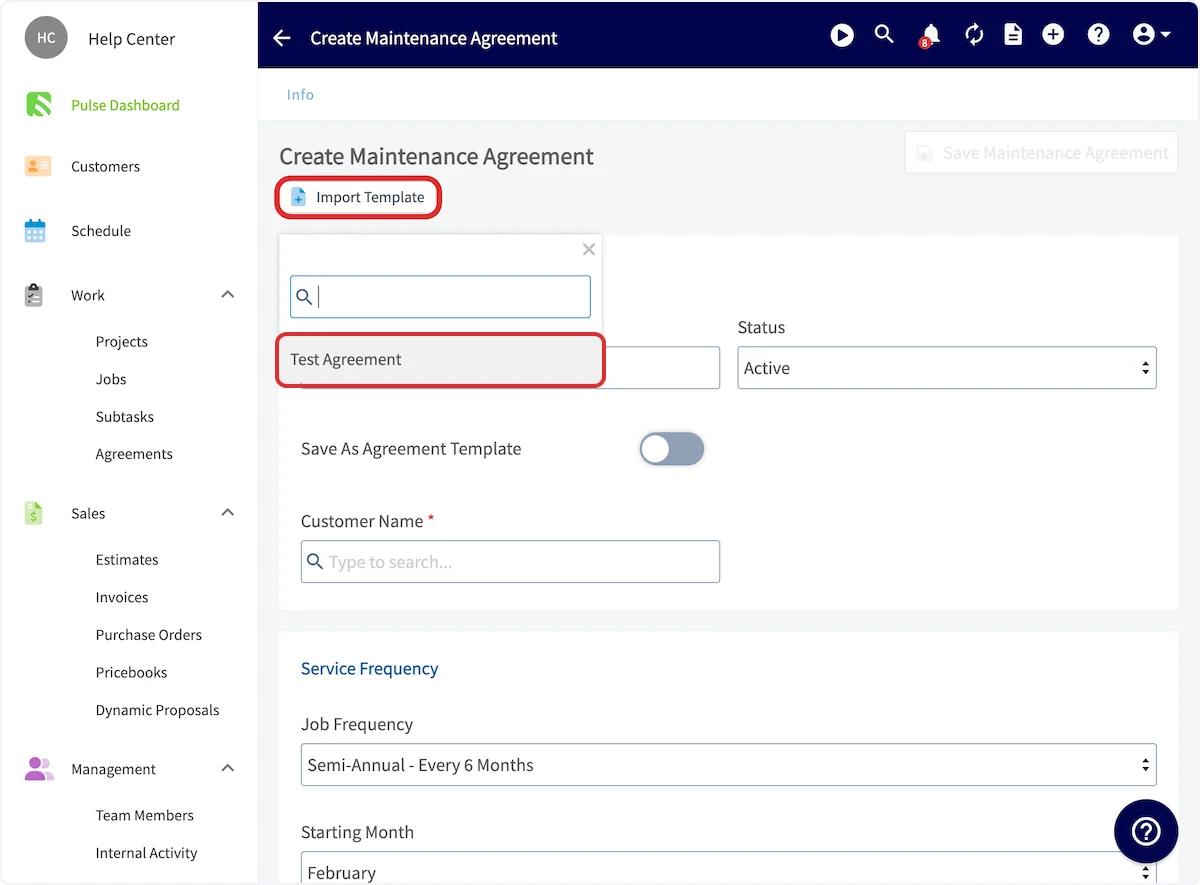
 To insert an agreement template, begin by navigating to *Maintenance Agreements* in the left-side menu then clicking *Create Agreement*.
Before entering any details, click *Import Template* then select the applicable template.
To insert an agreement template, begin by navigating to *Maintenance Agreements* in the left-side menu then clicking *Create Agreement*.
Before entering any details, click *Import Template* then select the applicable template.
 All of the details you entered in the template will now auto-populate, but you can easily modify as needed. Be sure to press *Save* after fine-tuning your maintenance agreement.
## Attaching to Assets
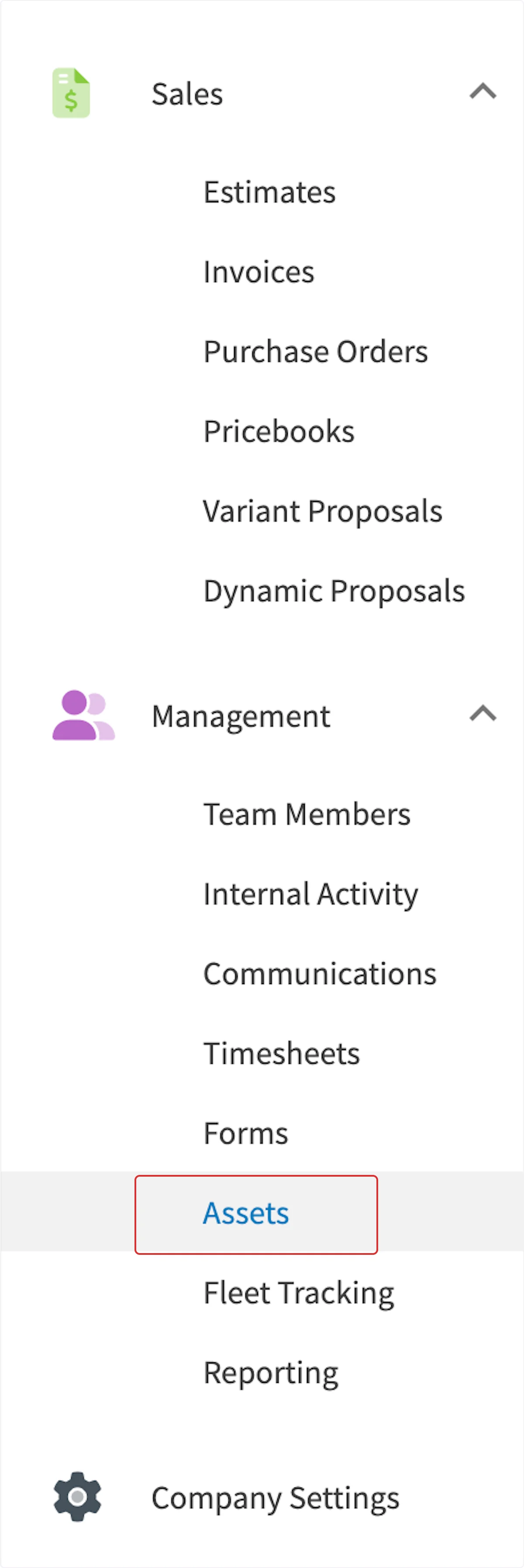
You can attach a maintenance agreement to an asset record. Select *Assets* from the left-side menu. Then press *Create Asset*.
All of the details you entered in the template will now auto-populate, but you can easily modify as needed. Be sure to press *Save* after fine-tuning your maintenance agreement.
## Attaching to Assets
You can attach a maintenance agreement to an asset record. Select *Assets* from the left-side menu. Then press *Create Asset*.
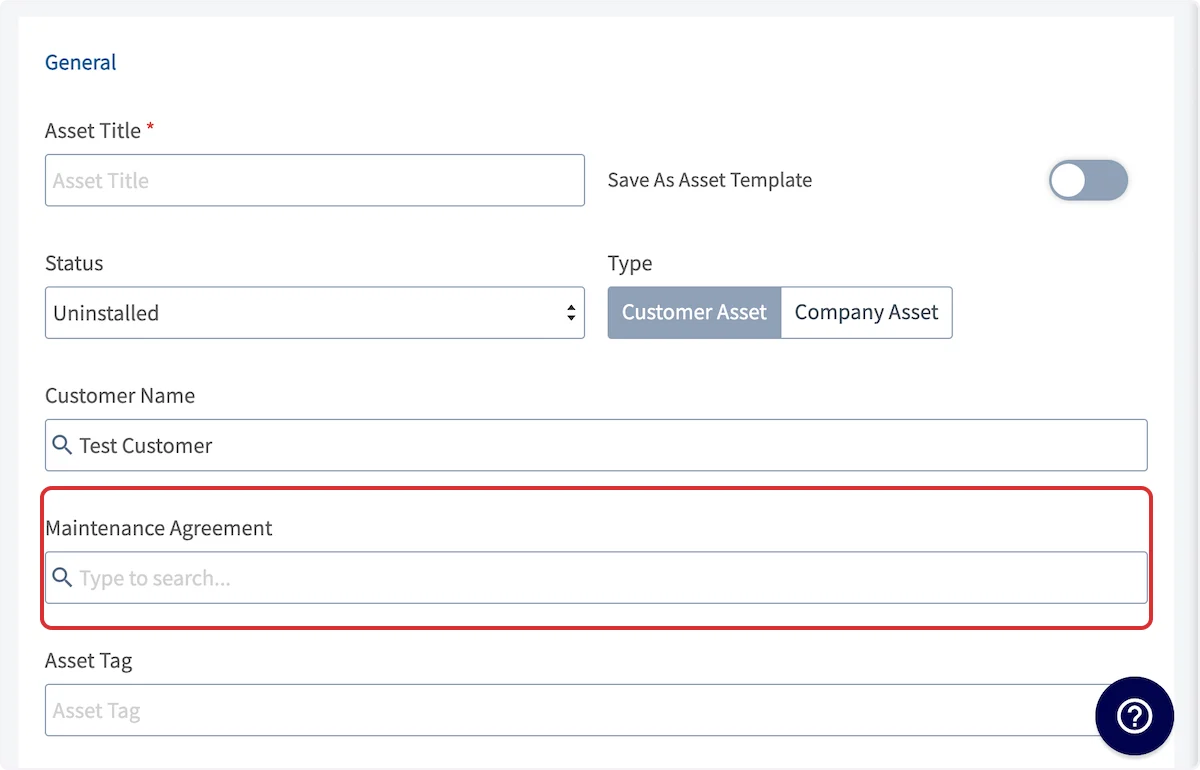
 After entering an *Asset Title* and linked a customer, you will have the option to attach an existing maintenance agreement. Search for it under *Maintenance Agreement*.
 If you want to attach a new maintenance agreement, complete and save your asset without adding a maintenance agreement, then press *Create Maintenance Agreement* on the asset record.
 ## Unlinking Assets from a Maintenance Agreement
When viewing your Maintenance Agreement record, you can unlink an asset by clicking on the *Asset* tab. On the far right of the linked asset, you will see the option to **unlink** it. A pop-up will appear, asking if you want to unlink this asset from all existing and future Maintenance Agreement occurrences or just from future occurrences.
## Unlinking Assets from a Maintenance Agreement
When viewing your Maintenance Agreement record, you can unlink an asset by clicking on the *Asset* tab. On the far right of the linked asset, you will see the option to **unlink** it. A pop-up will appear, asking if you want to unlink this asset from all existing and future Maintenance Agreement occurrences or just from future occurrences.
 ## Contracts
To create a contract in relation to your maintenance agreement, begin by creating the maintenance agreement. Then, navigate to *Contracts* in the top menu. Once here, you can create a contract, send a contract already attached to the maintenance agreement, as well as view the status of already-attached contracts.
## Contracts
To create a contract in relation to your maintenance agreement, begin by creating the maintenance agreement. Then, navigate to *Contracts* in the top menu. Once here, you can create a contract, send a contract already attached to the maintenance agreement, as well as view the status of already-attached contracts.
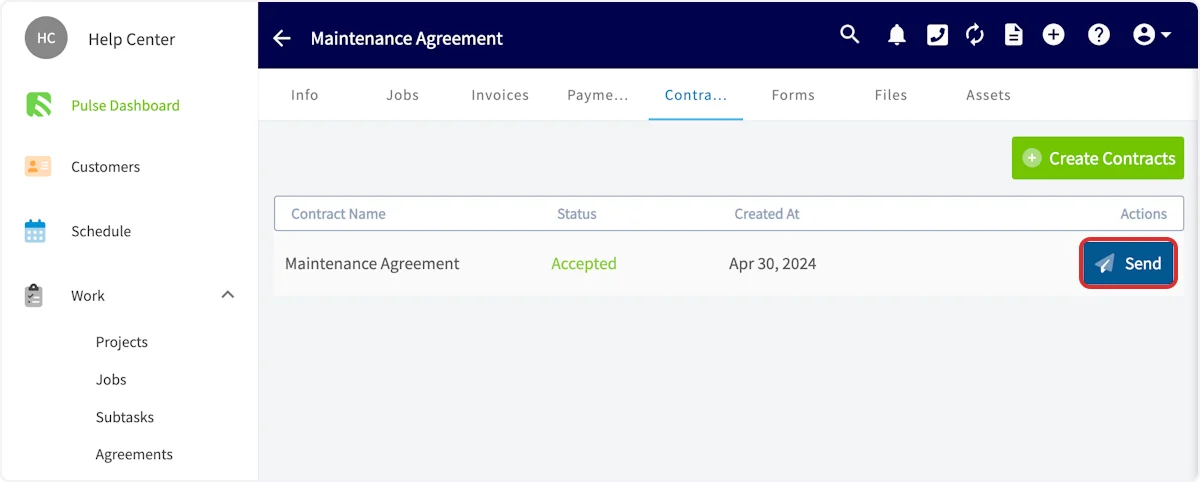
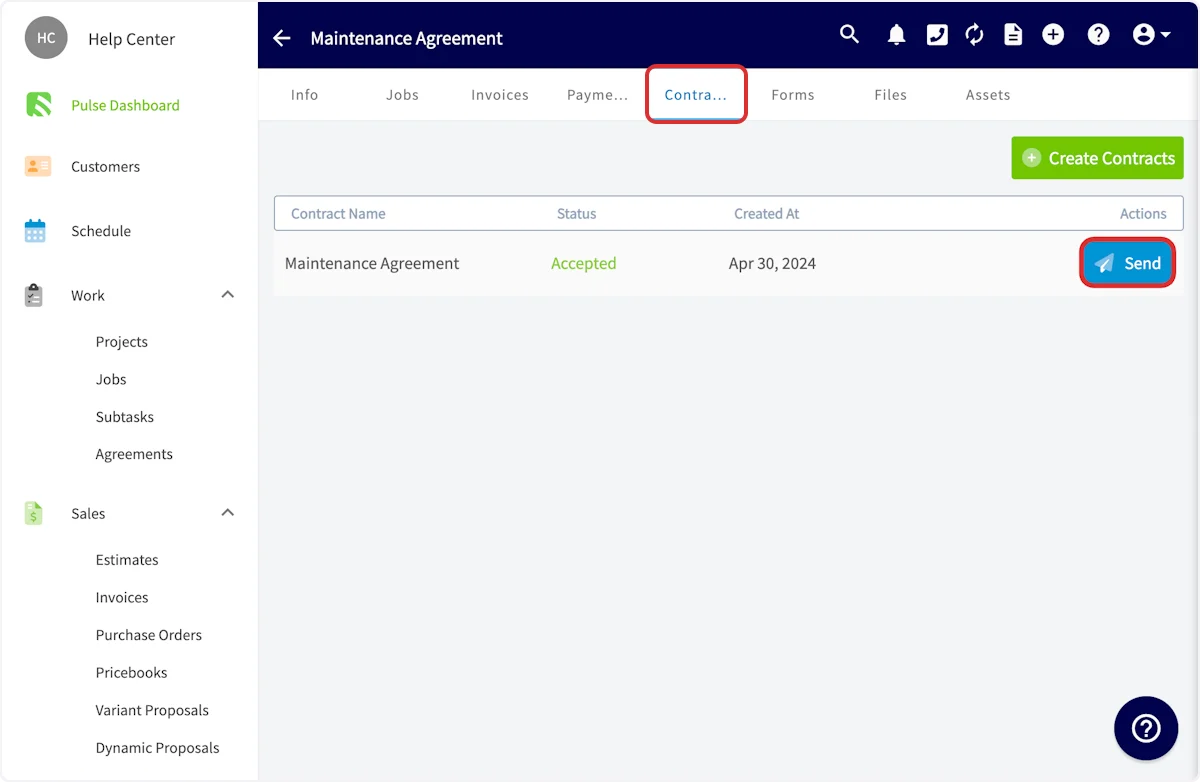 After creating a contract, press *Send* to email it to the customer for acceptance.
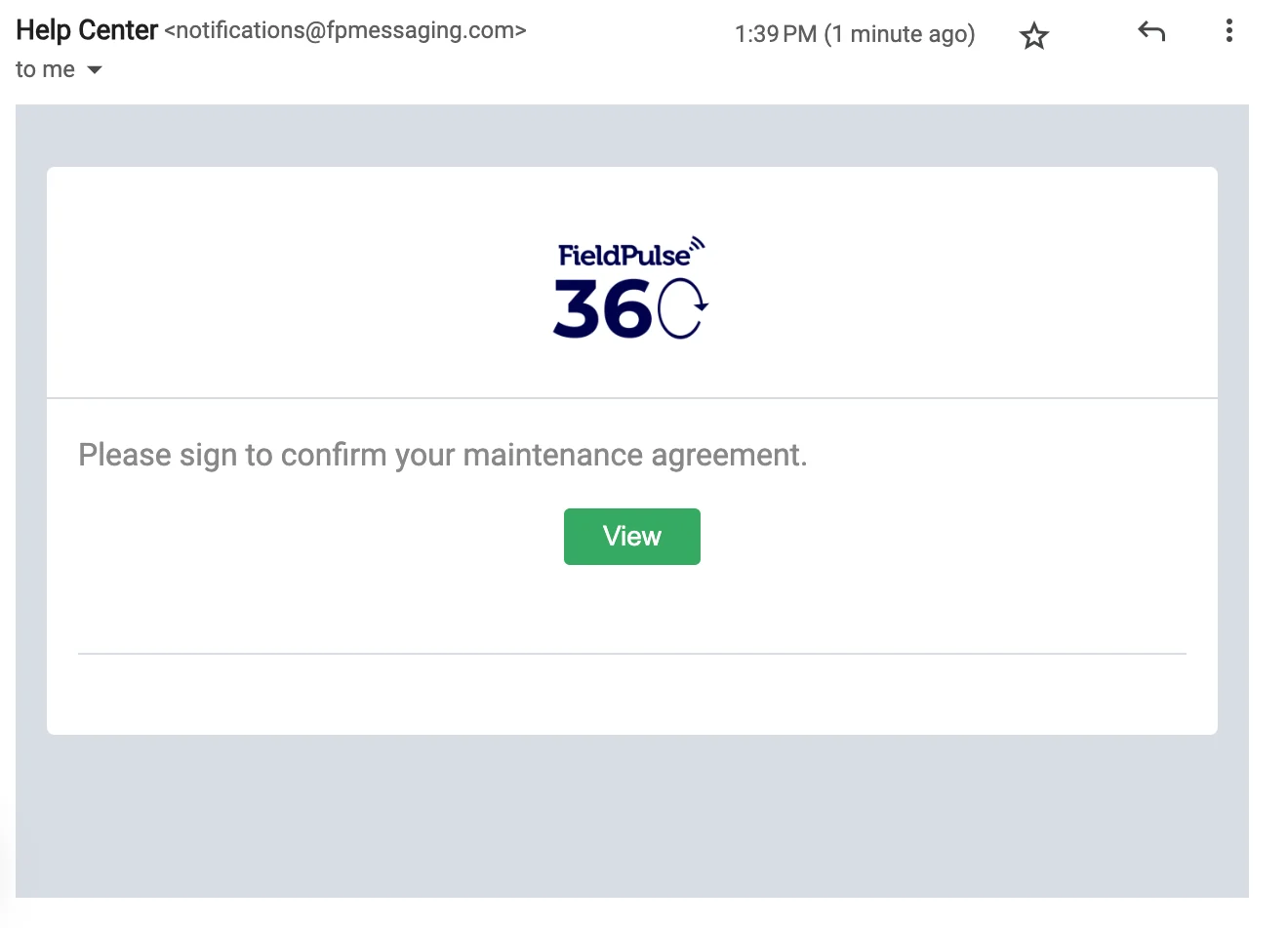
 Your customer will receive an email with your customized message, logo, and name.
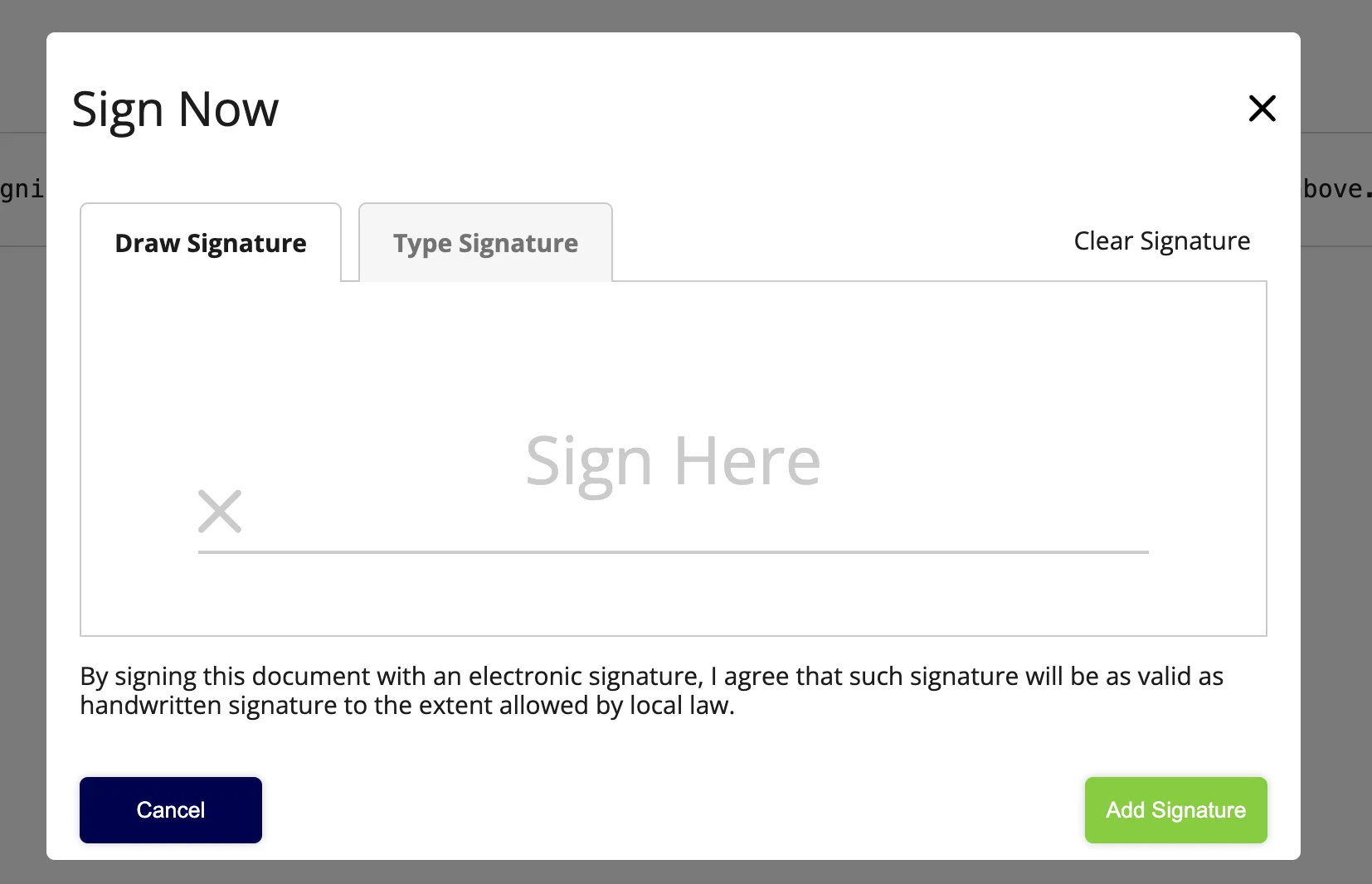
 They can then view the contract and accept it by providing their e-signature.
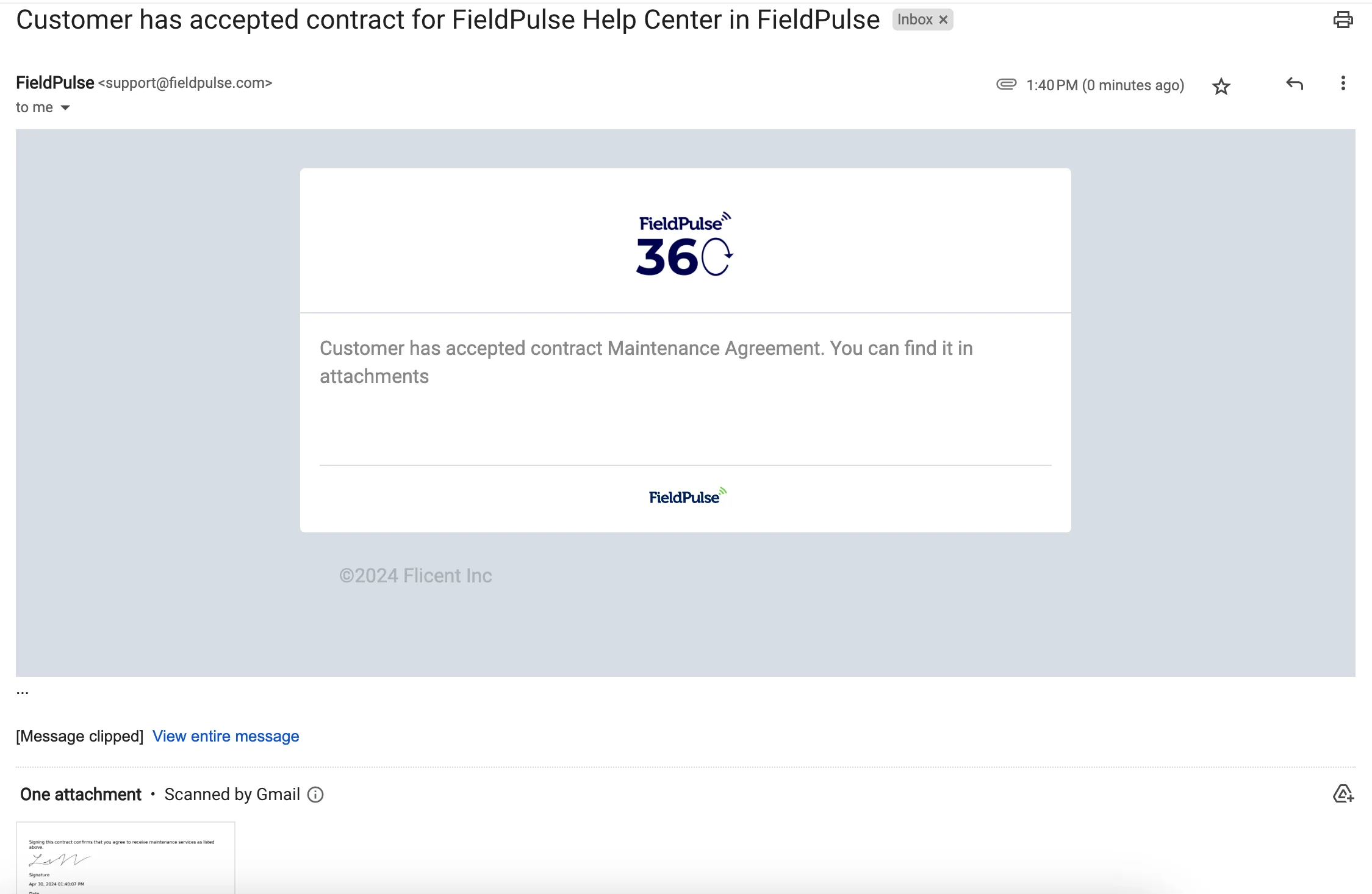
 Once your customer has accepted the contract, you'll receive an email, as well as view the attached contract. The status of the contract will also be updated on the maintenance agreement's *Contract* page.
 ## Scheduling Maintenance Agreement Visits
When scheduling a visit for a maintenance agreement, you have two options: you can manually schedule the visit, or you can allow FieldPulse to automatically create the Job record, leaving you to decide where it fits best in your team’s schedule.
### Manual Scheduling
Begin by using the tabs at the top of the Maintenance Agreements page to sort them. These include *This Month*, *Next Month*, *Custom*, *All*, *Canceled*, and *Templates*. Once you've identified the agreement you'd like to schedule a visit for, hover over it and select the plus icon.
## Scheduling Maintenance Agreement Visits
When scheduling a visit for a maintenance agreement, you have two options: you can manually schedule the visit, or you can allow FieldPulse to automatically create the Job record, leaving you to decide where it fits best in your team’s schedule.
### Manual Scheduling
Begin by using the tabs at the top of the Maintenance Agreements page to sort them. These include *This Month*, *Next Month*, *Custom*, *All*, *Canceled*, and *Templates*. Once you've identified the agreement you'd like to schedule a visit for, hover over it and select the plus icon.
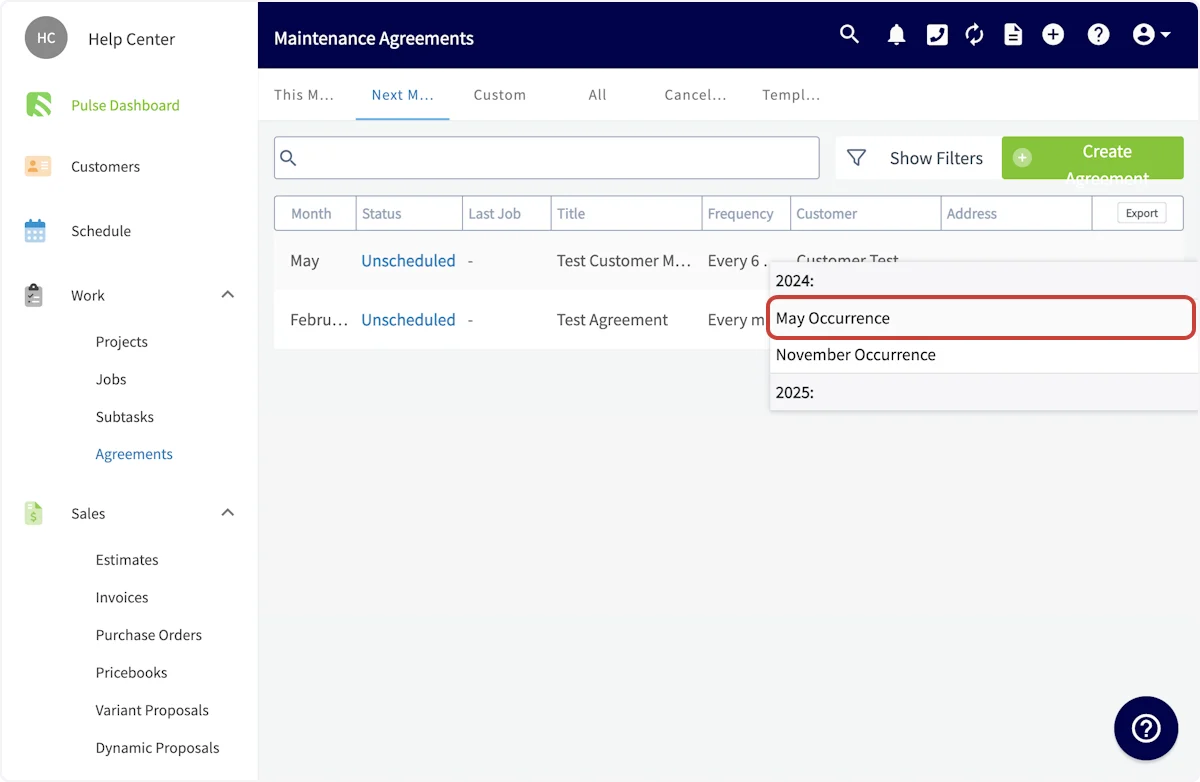
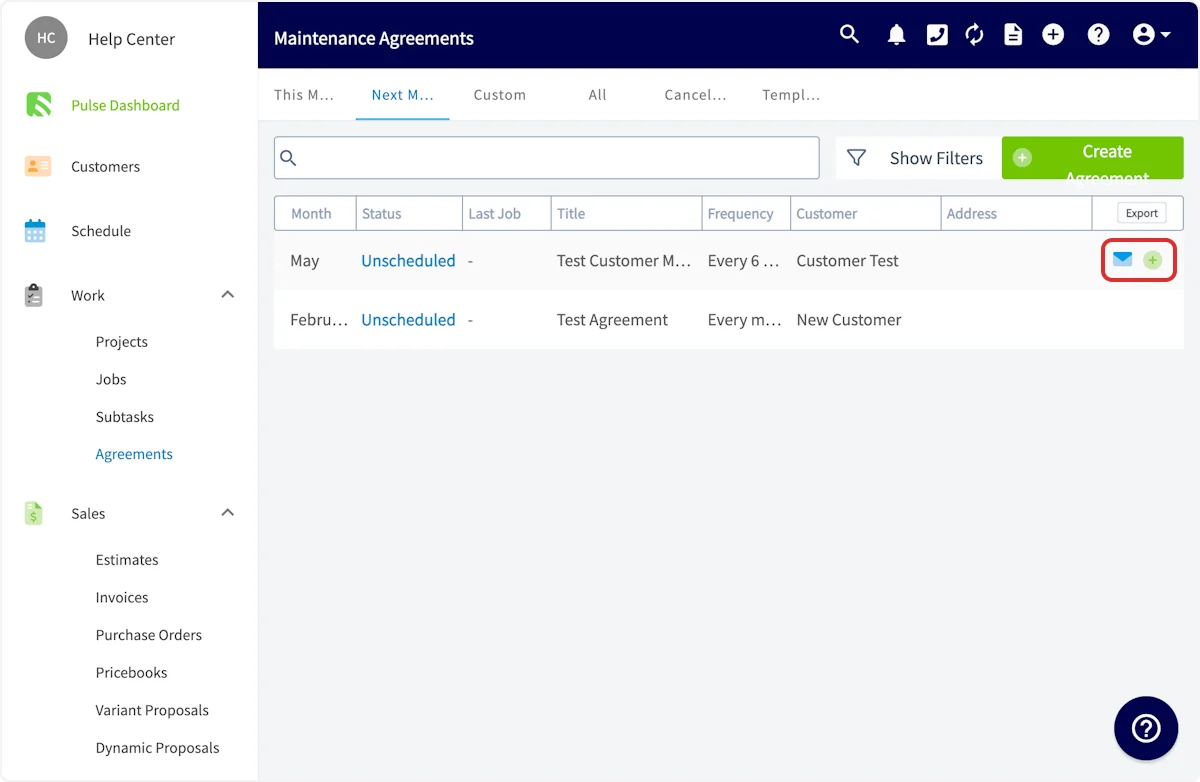 You'll then be able to select which upcoming occurrence you'd like to schedule a job for.
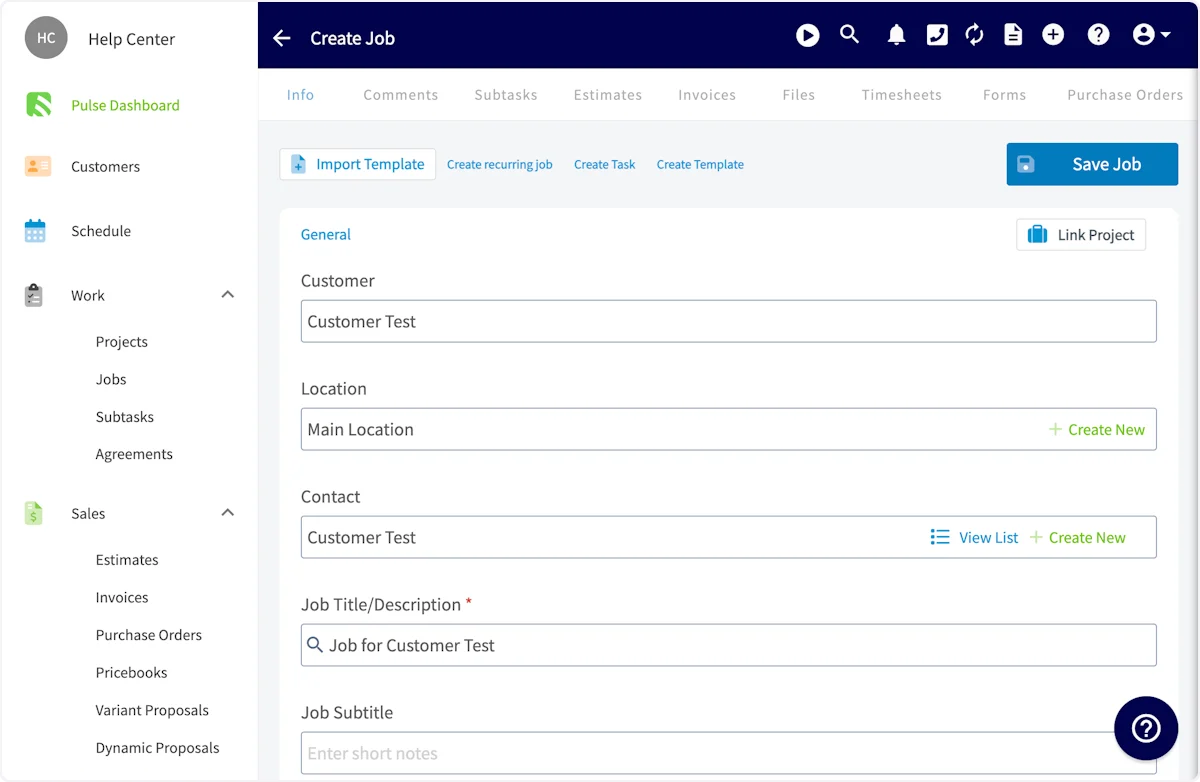
 A job record will now be auto-populated with your customer's name and details. Fill in any additional information including date/time and notes, then press *Save Job*.
 ### Scheduling Automatically Created Jobs
If you selected *Automatic* as your preferred method in the *Job Creation Method* dropdown field on your Maintenance Agreement, FieldPulse will automatically create all Job records associated with this Maintenance Agreement. These jobs will be left unscheduled, allowing you to decide when they fit best into your schedule.
On the *Schedule* tab, click the Hourglass icon and a window will appear towards the lefthand side of your screen. From there, click the Filter icon. You can then filter for Jobs associated with your Maintenance Agreements.
### Scheduling Automatically Created Jobs
If you selected *Automatic* as your preferred method in the *Job Creation Method* dropdown field on your Maintenance Agreement, FieldPulse will automatically create all Job records associated with this Maintenance Agreement. These jobs will be left unscheduled, allowing you to decide when they fit best into your schedule.
On the *Schedule* tab, click the Hourglass icon and a window will appear towards the lefthand side of your screen. From there, click the Filter icon. You can then filter for Jobs associated with your Maintenance Agreements.
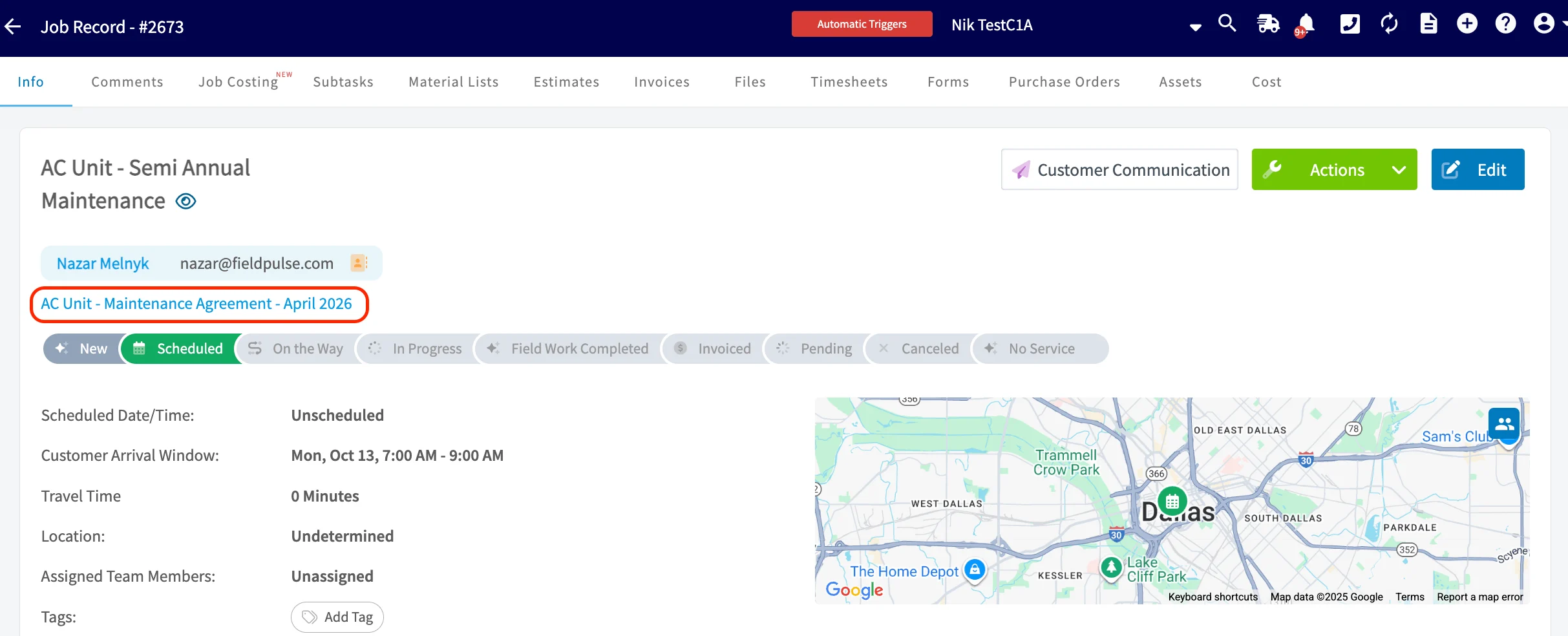
 Each auto-created job will include a link to the related Maintenance Agreement.
 ## Filtering Active and Archived Agreements
Maintenance Agreements include an **Active/Archived filter**! This allows you to easily toggle between active and archived agreements, making it simple to manage your records.
With just a few clicks, you can view archived agreements and restore them whenever needed, streamlining your workflow and ensuring you have access to all relevant information at your fingertips. This enhancement not only keeps your agreements organized but also saves you time by eliminating the hassle of searching through extensive lists.
## Filtering Active and Archived Agreements
Maintenance Agreements include an **Active/Archived filter**! This allows you to easily toggle between active and archived agreements, making it simple to manage your records.
With just a few clicks, you can view archived agreements and restore them whenever needed, streamlining your workflow and ensuring you have access to all relevant information at your fingertips. This enhancement not only keeps your agreements organized but also saves you time by eliminating the hassle of searching through extensive lists.

 ***
# On Mobile: Field Experience
## Creating a Maintenance Agreement
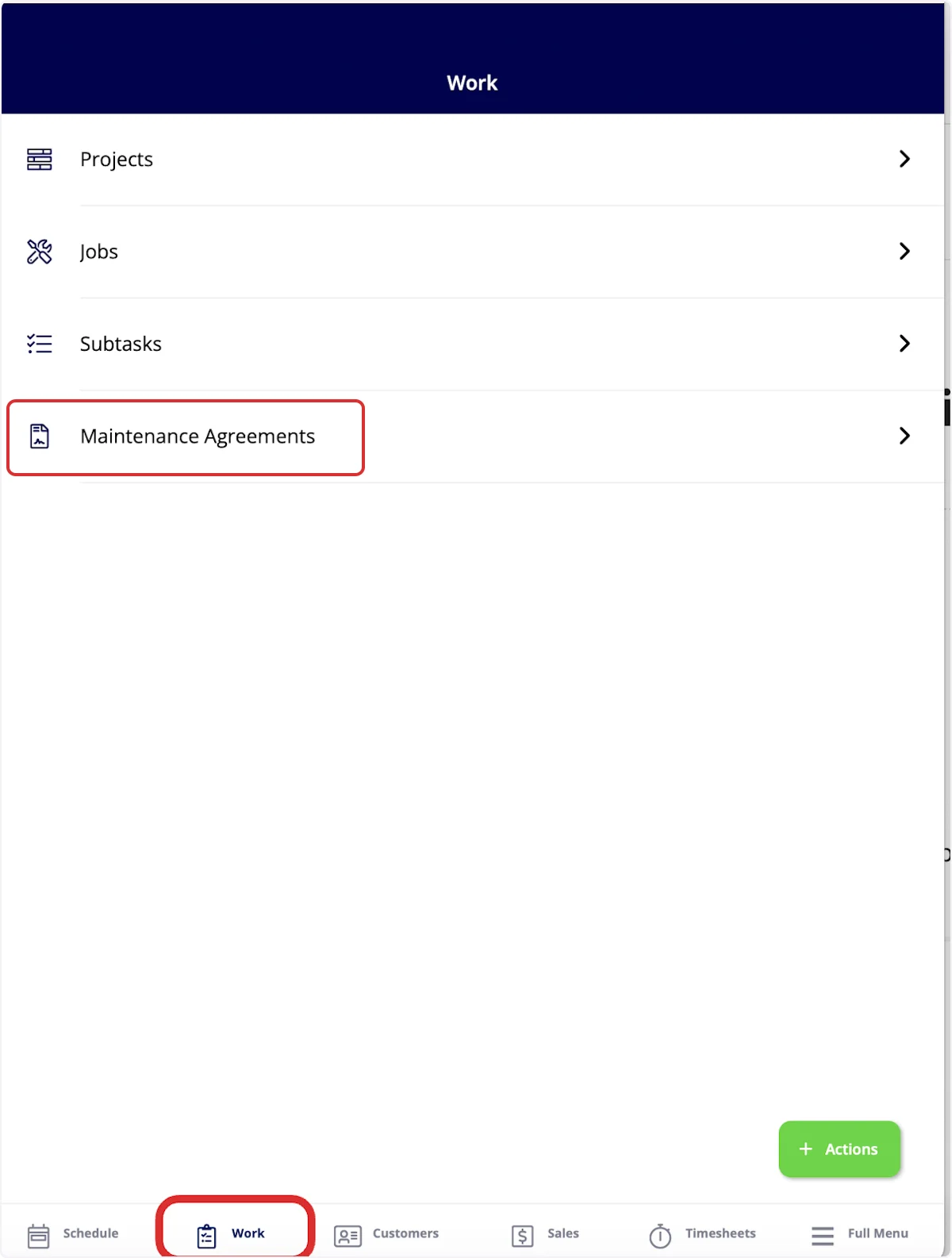
To view existing maintenance agreements or create a new one, navigate to the *Work* tab in the bottom menu. Then select *Maintenance Agreements*.
***
# On Mobile: Field Experience
## Creating a Maintenance Agreement
To view existing maintenance agreements or create a new one, navigate to the *Work* tab in the bottom menu. Then select *Maintenance Agreements*.
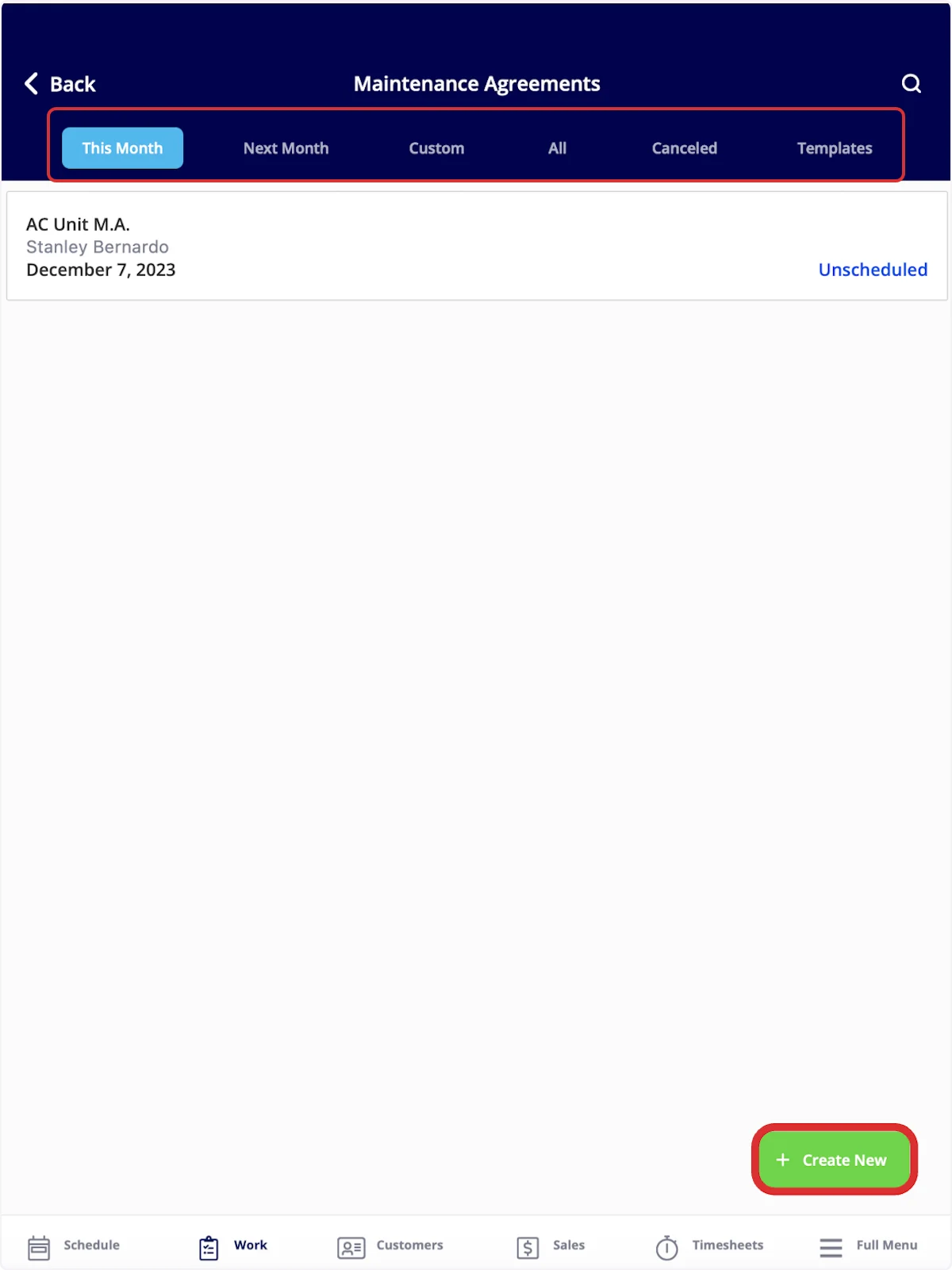
 Once here, you can sort your maintenance agreements using the bar at the top of the screen by *This Month*, *Next Month*, *Custom*, *All*, *Canceled*, and *Templates*. To create a new maintenance agreement, select *Create New*.
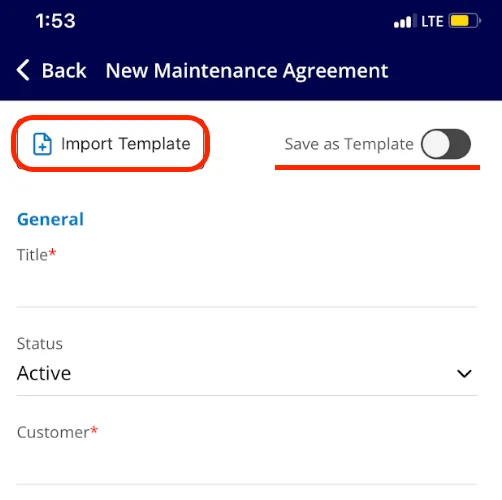
 You can select *Import Template* to build your new maintenance agreement from an existing template, or fill out the details to start from scratch. When creating a new maintenance agreement, you will have the option to turn on the *Save as Template* toggle. More details on completing these fields can be found [the maintenance agreements guide](/using-fieldpulse/work/maintenance-agreements).
 ## Attaching a Maintenance Agreement to a Customer
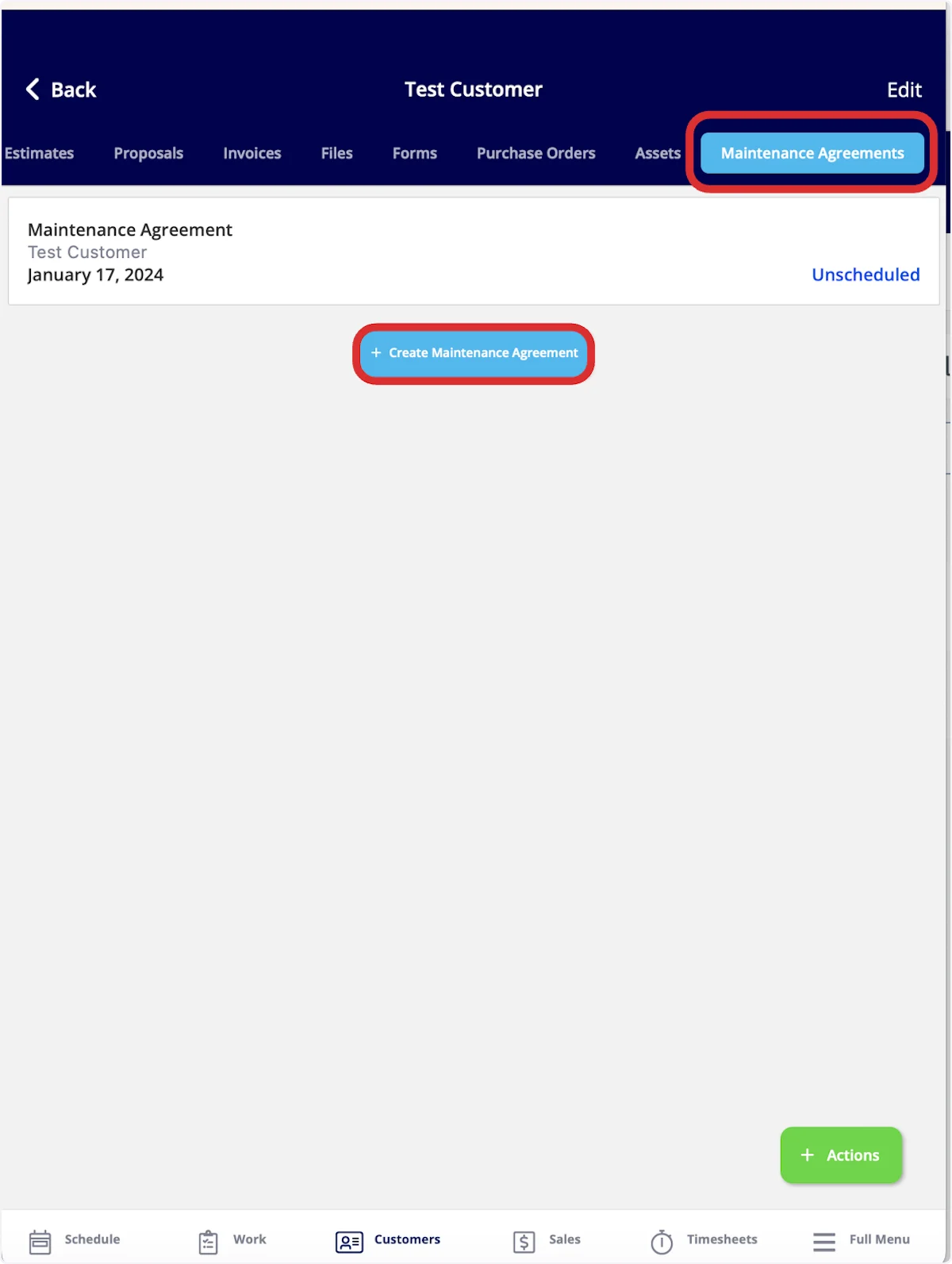
In the mobile app, you can view maintenance agreements attached to your customers. To do so, click on the *Customers* tab in the bottom menu, then select a customer. At the top of the customer record, select *Maintenance Agreements.*
Once here, you can view and edit existing maintenance agreements linked to this customer, as well as create a new maintenance agreement by selecting *Create Maintenance Agreement*.
## Attaching a Maintenance Agreement to a Customer
In the mobile app, you can view maintenance agreements attached to your customers. To do so, click on the *Customers* tab in the bottom menu, then select a customer. At the top of the customer record, select *Maintenance Agreements.*
Once here, you can view and edit existing maintenance agreements linked to this customer, as well as create a new maintenance agreement by selecting *Create Maintenance Agreement*.
 ***
# Video Tutorials
## Web App
## Mobile
***
### **Have additional questions?**
*Contact us at [support@fieldpulse.com](mailto:support@fieldpulse.com) or use the chat feature in the bottom right corner of your screen.*
***
# Video Tutorials
## Web App
## Mobile
***
### **Have additional questions?**
*Contact us at [support@fieldpulse.com](mailto:support@fieldpulse.com) or use the chat feature in the bottom right corner of your screen.*