> ## Documentation Index
> Fetch the complete documentation index at: https://help.fieldpulse.com/llms.txt
> Use this file to discover all available pages before exploring further.
# Managing Unassigned & Unscheduled Jobs
> Park jobs without a date or tech, then assign and schedule them later once your timing and crew availability firm up.
You can create jobs in FieldPulse that are not assigned to a particular team member or scheduled ahead of time. For example, you may have a job to complete sometime in the next 2 weeks, but the day is flexible and you haven't yet decided which team member to assign it to. You can create an unassigned and unscheduled job and then assign and schedule it at a later date.
***
# Creating an Unassigned or Unscheduled Job
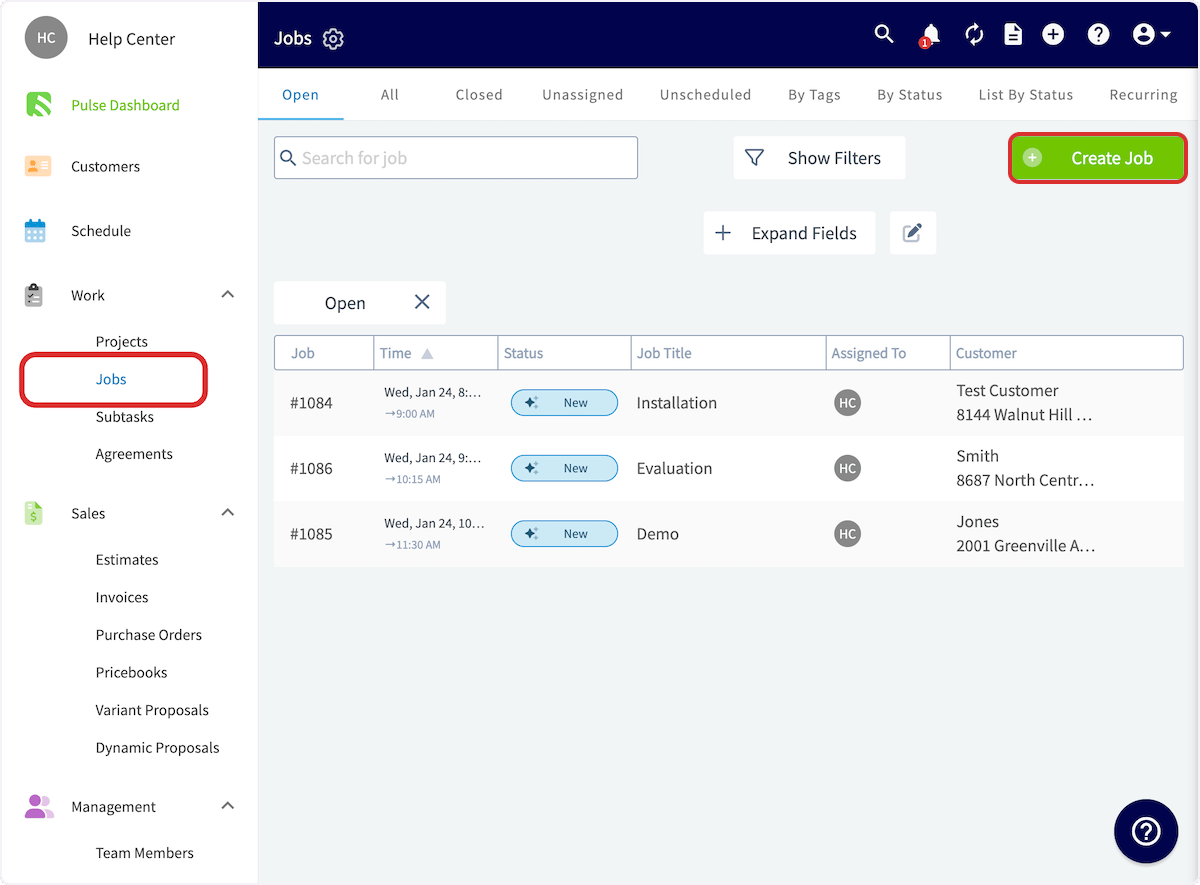
Begin by selecting *Jobs* under *Work* in the left-side menu, then click *Create Job*.
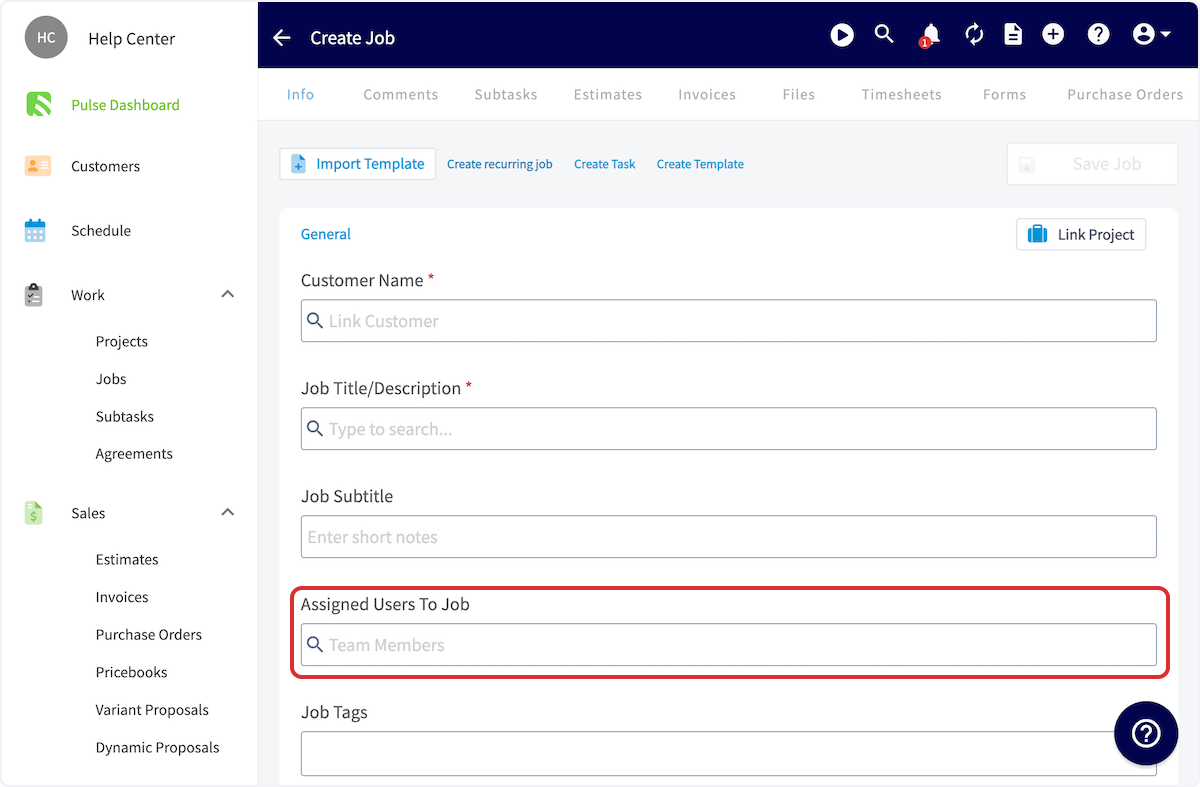
 Complete the job details as normal, but do not assign any team members if you intend to create an **unassigned** job.
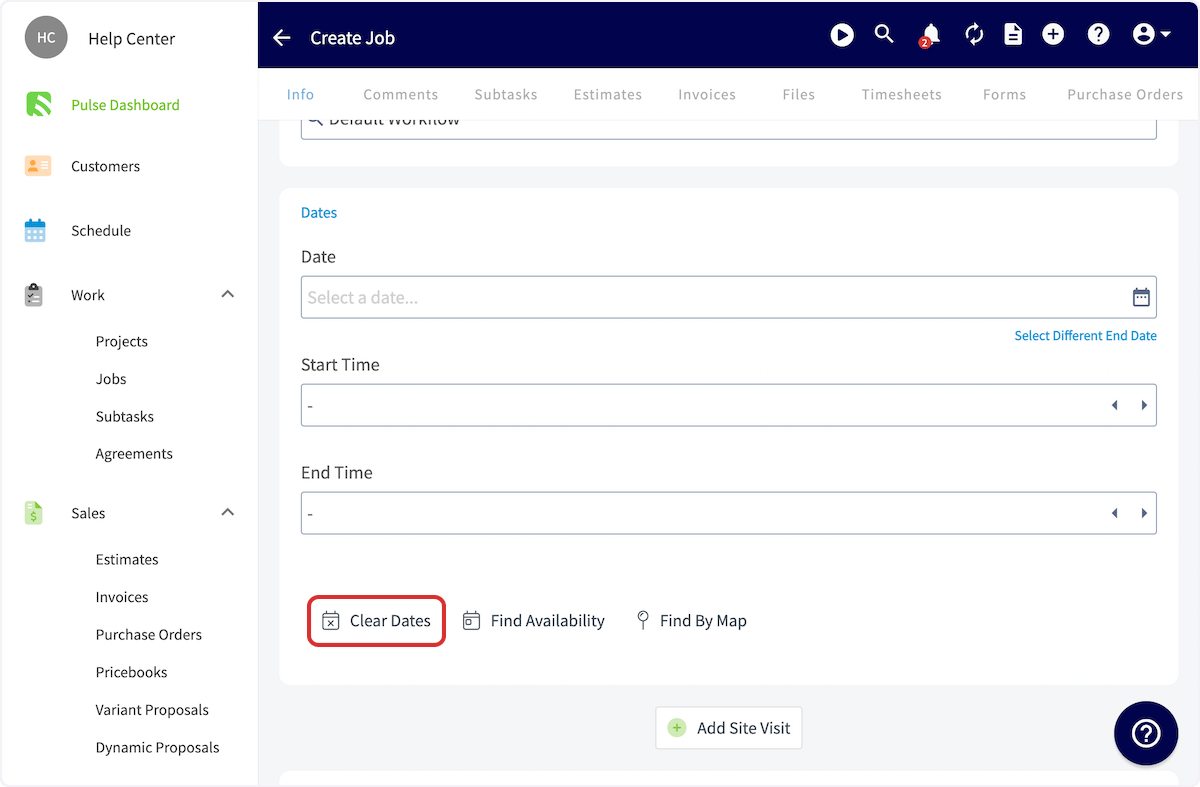
 To ensure your job is **unscheduled**, select *Clear Dates*. Add any other details, then press *Save Job*.
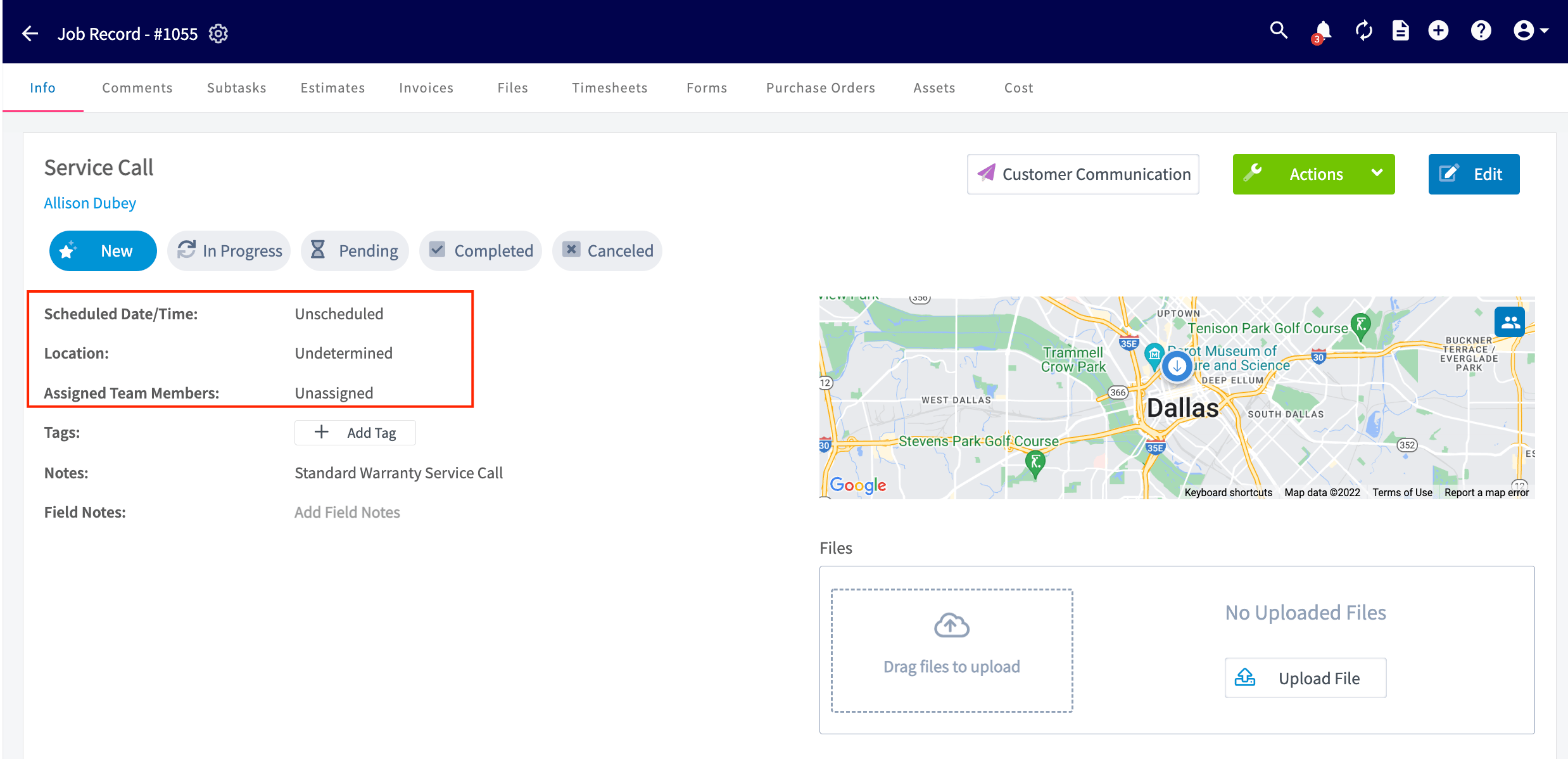
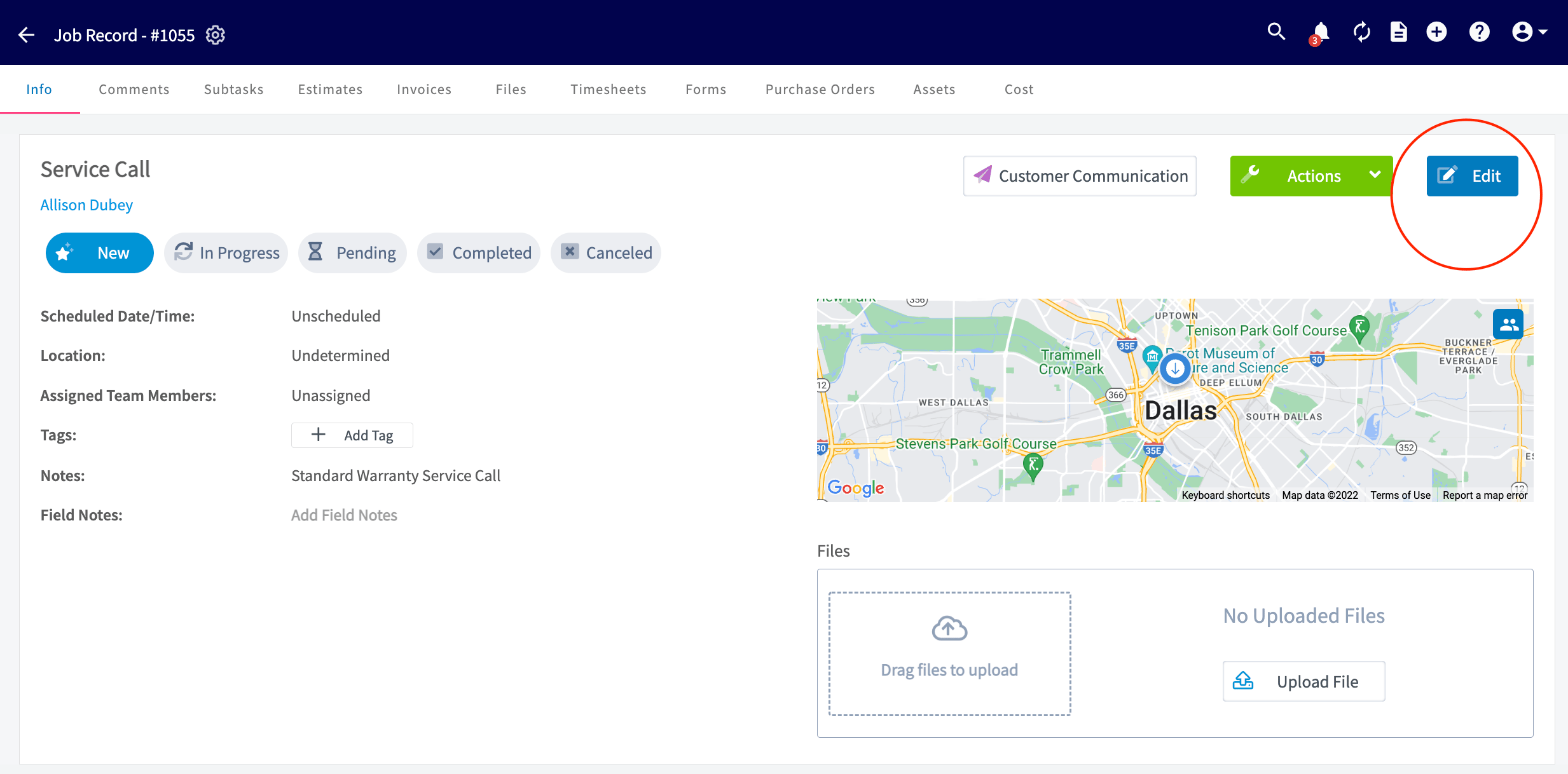
 In the newly created job record, you'll see that the job is **Unscheduled** and **Unassigned**. You can schedule or assign the job at any time by clicking *Edit*.
 ***
# Viewing, Scheduling, & Assigning
## *Option 1:*
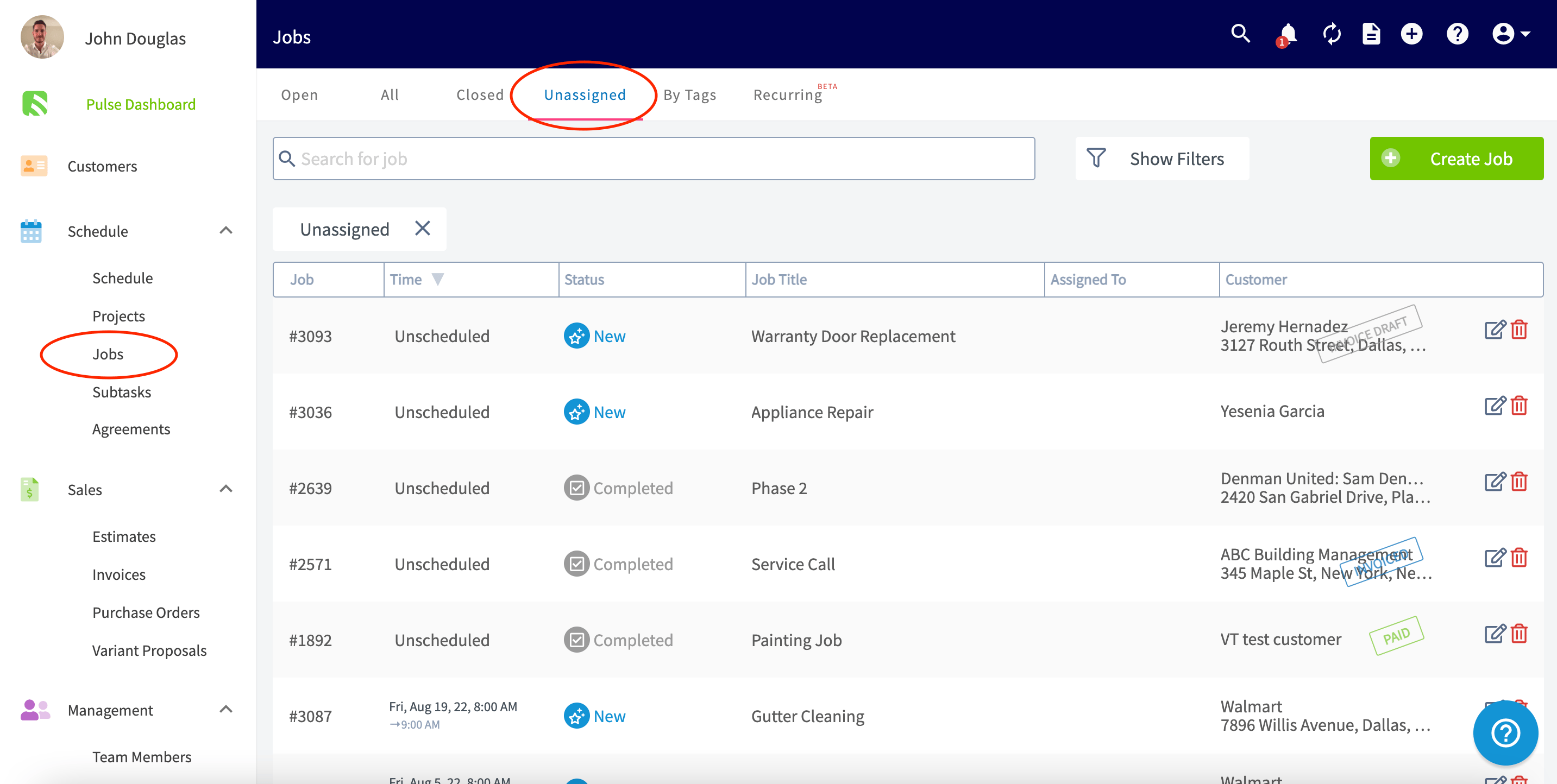
Navigate to the Jobs tab in the left-side menu, and then click Unassigned. This will take you to a page with all the jobs that are unscheduled and/or unassigned.
***
# Viewing, Scheduling, & Assigning
## *Option 1:*
Navigate to the Jobs tab in the left-side menu, and then click Unassigned. This will take you to a page with all the jobs that are unscheduled and/or unassigned.
 When you're ready to assign and schedule a job, click on the job record and then click *Edit* to add a date and assign team members.
 ## *Option 2:*
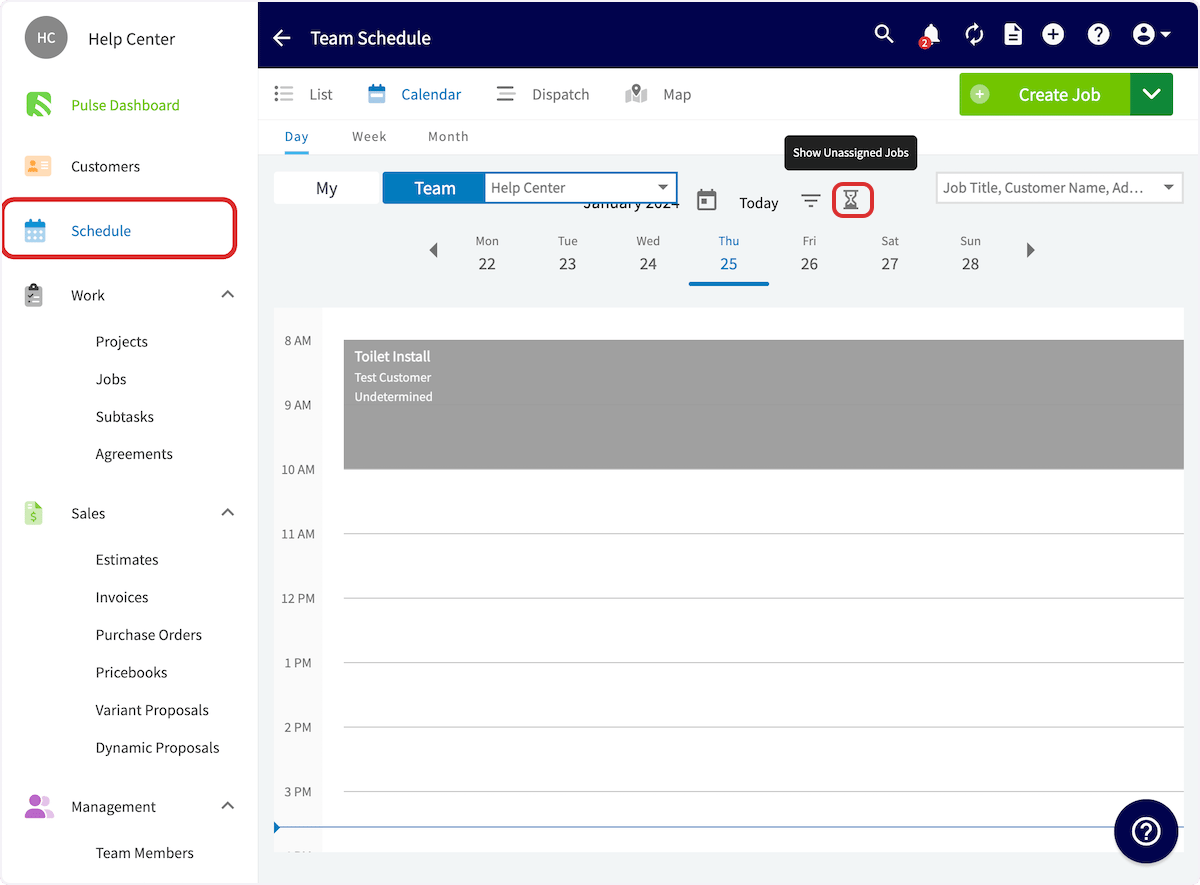
You can also view all unassigned jobs from the *Schedule* tab. On any of the schedule views, select the hourglass icon to display the unassigned and unscheduled jobs.
## *Option 2:*
You can also view all unassigned jobs from the *Schedule* tab. On any of the schedule views, select the hourglass icon to display the unassigned and unscheduled jobs.
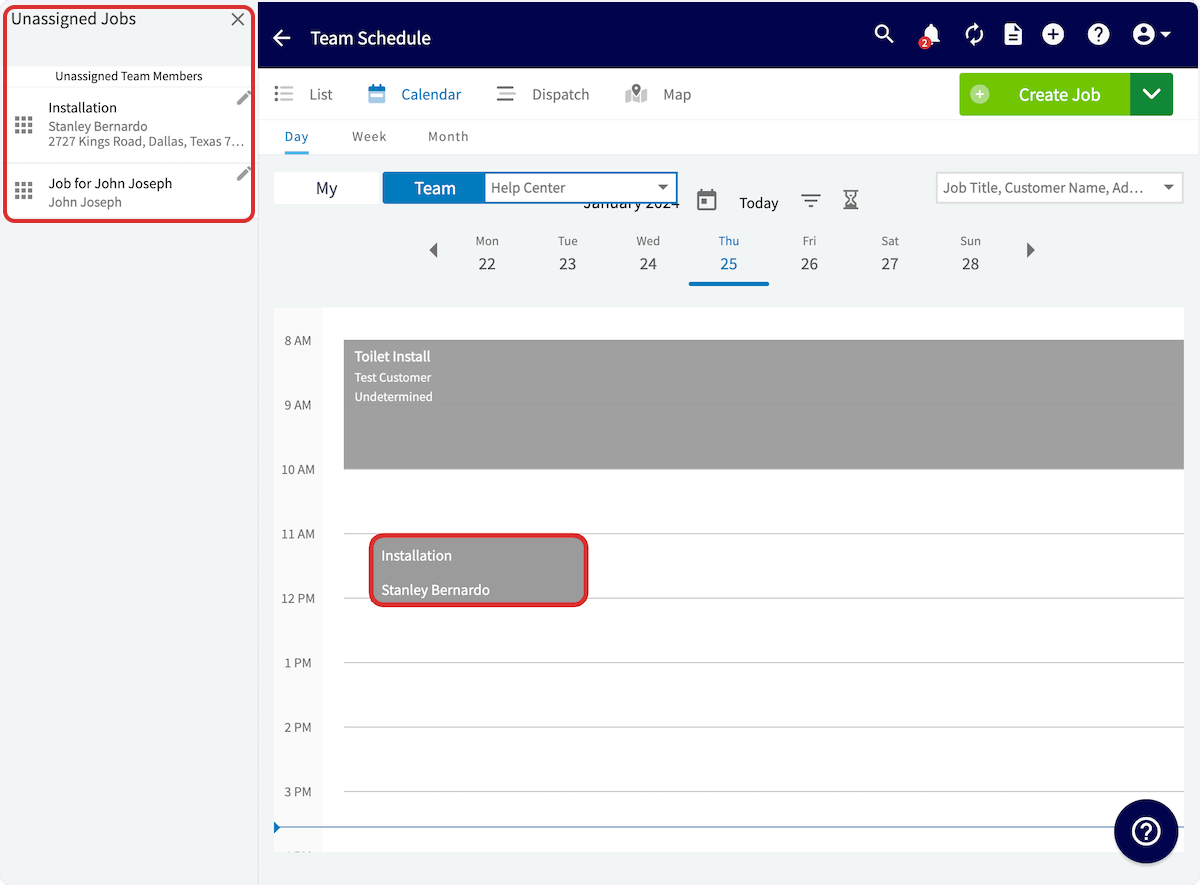
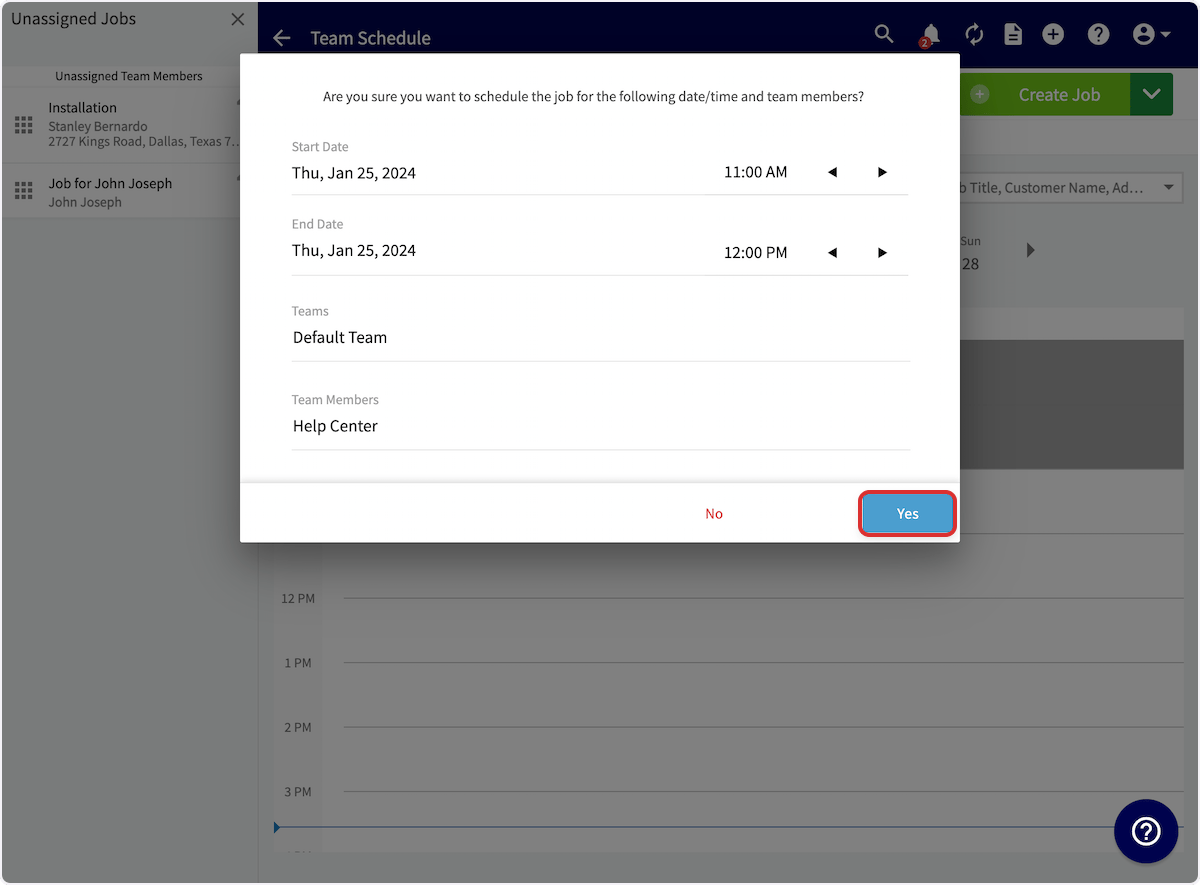
 To schedule an unscheduled job, click and drag it from the list on the left-side of the screen onto your preferred date and time.
 The pop-up will prompt you to confirm the date/time, as well as the teams and team members assigned to the job. If everything looks good, select *Yes* and your unscheduled job will now be scheduled!
 ***
# Video Tutorial
***
**Have additional questions?**
*Contact us at [support@fieldpulse.com](mailto:support@fieldpulse.com) or use the chat feature in the bottom right corner of your screen.*
***
# Video Tutorial
***
**Have additional questions?**
*Contact us at [support@fieldpulse.com](mailto:support@fieldpulse.com) or use the chat feature in the bottom right corner of your screen.*