> ## Documentation Index
> Fetch the complete documentation index at: https://help.fieldpulse.com/llms.txt
> Use this file to discover all available pages before exploring further.
# Recurring Jobs
> Set up repeat jobs on a fixed interval so weekly, monthly, or seasonal work auto-generates instead of being re-entered by hand.
With our recurring jobs feature, you can create a job once, and then set it to re-occur on a regular basis at an interval you choose.
***
# Creating a Recurring Job
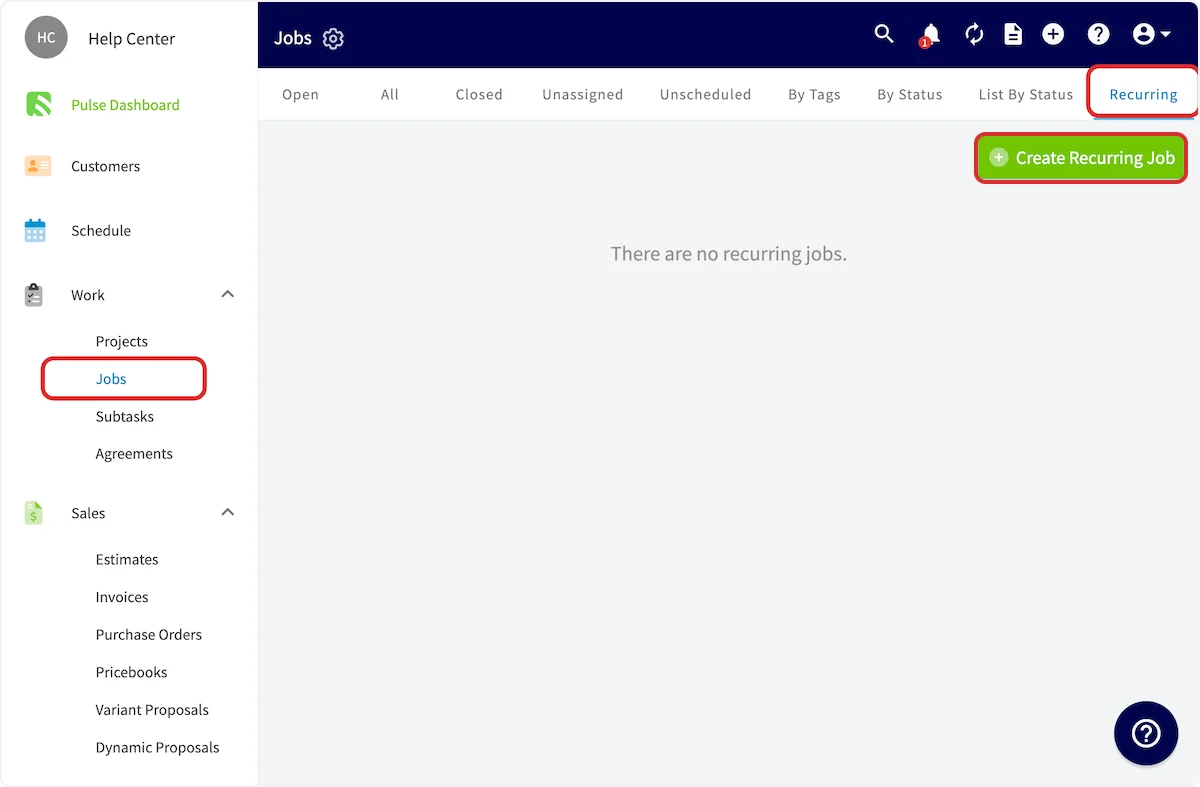
Navigate to the *Jobs* tab in the left-side menu, then select Recurring from the top menu. On this page, you can view and edit existing recurring jobs or create new recurring jobs.
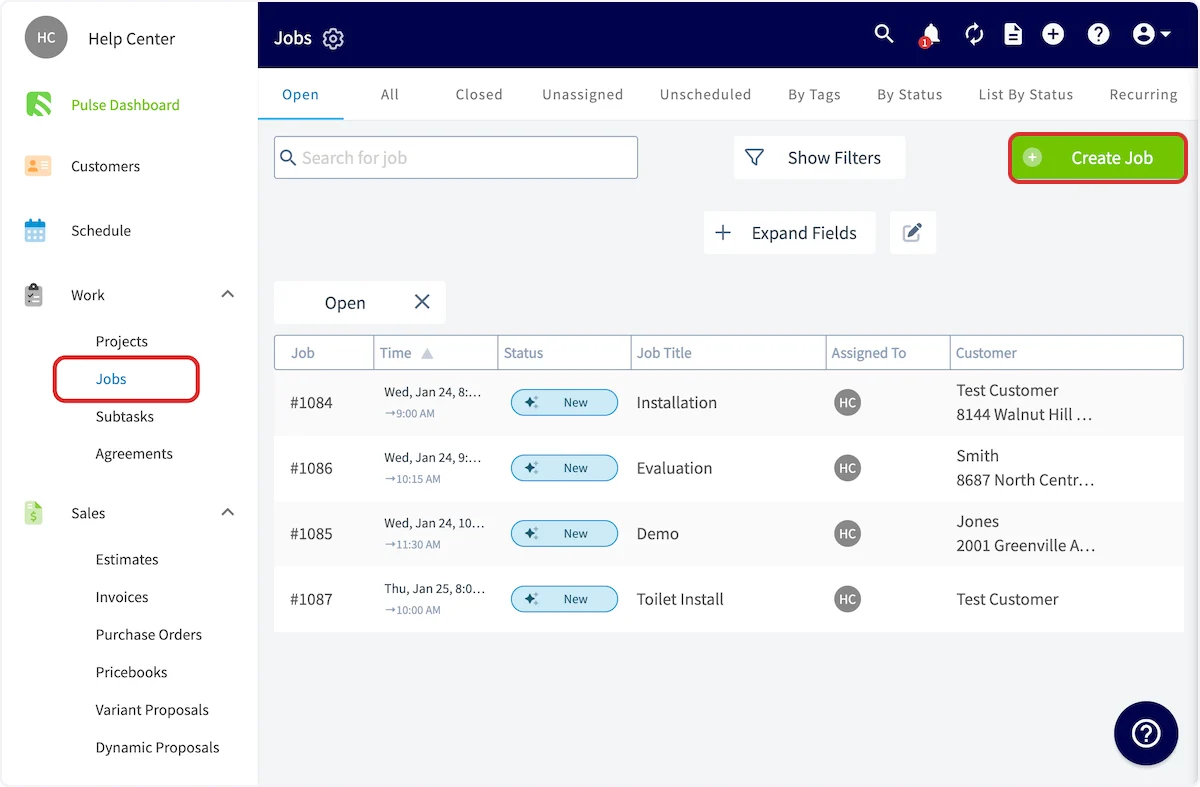
 Another way to create a recurring job is to select Jobs from the left-side menu, then *Create Job*.
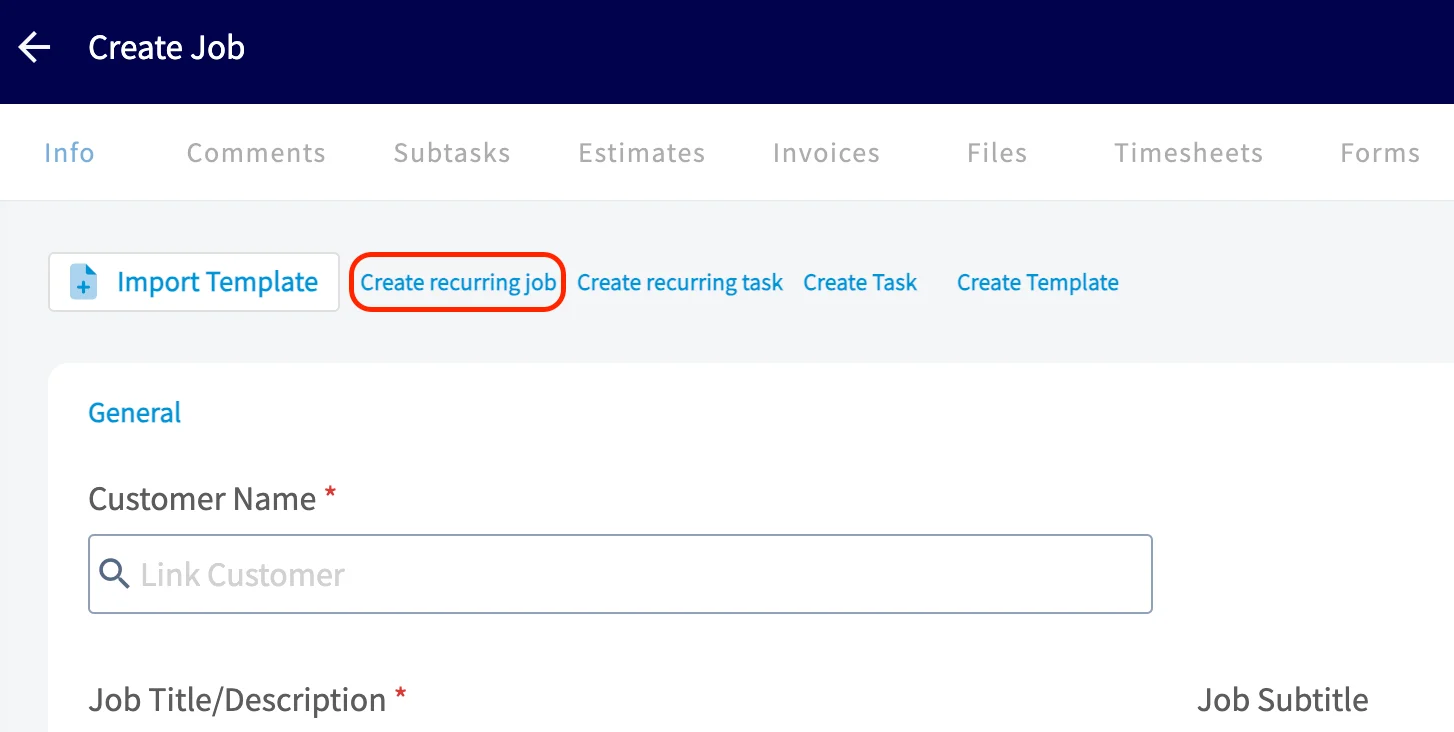
 Instead of entering your job details as normal, select *Create Recurring Job*.
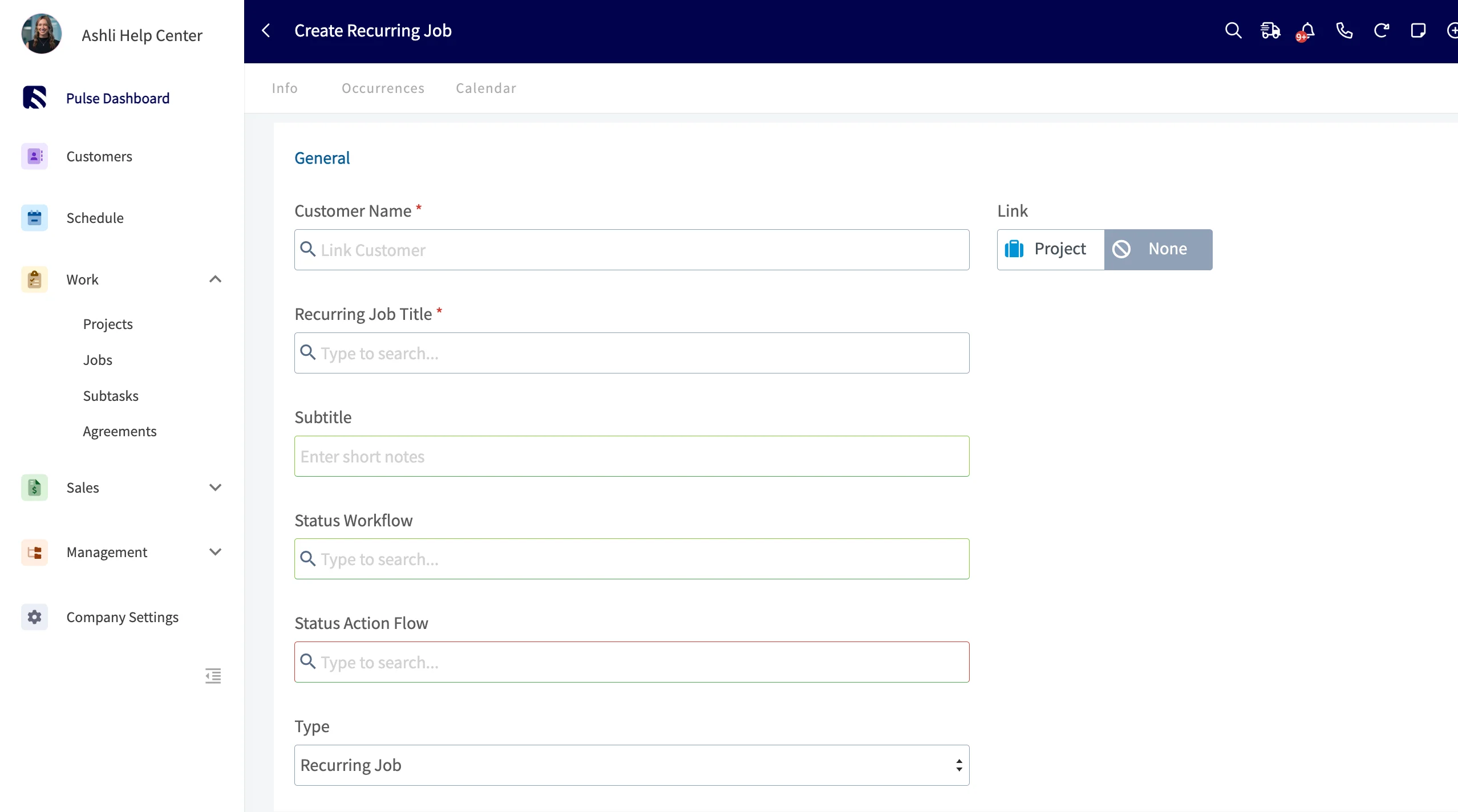
 Now, you'll need to link a customer to the job record. You can select an existing customer, or create a new customer. The location and contact will auto-populate based on the customer you link. Enter a title for the job that describes the work to be performed. Select a Workflow and Status Action Flow ([ClearPath](/features-add-ons/clearpath/clearpath-by-fieldpulse)) that you want each job to follow.
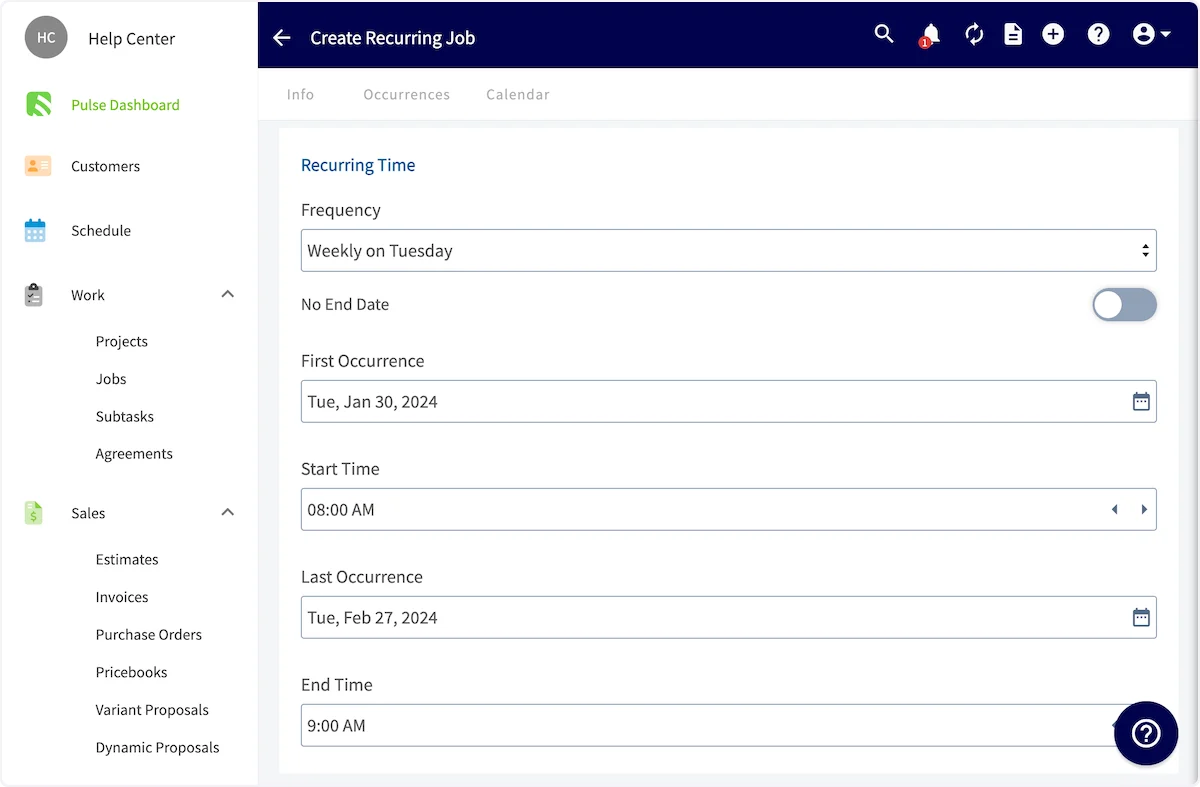
 You can now set the job frequency. Set a first occurrence and start time for this job. If you want this recurring job to have no end point and repeat ongoing, select 'No End Date'. Otherwise, set the date and time of the last occurrence.
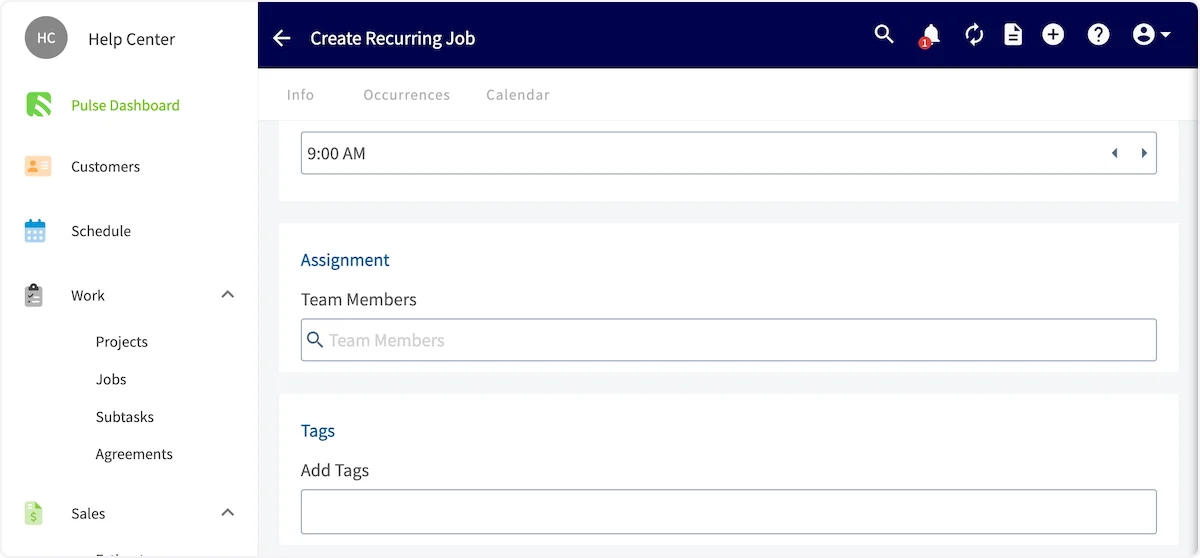
 Next, select team members to assign to the job (which can be changed for future occurrences) and add job tags and notes as needed. Press *Save* when you've entered all pertinent information.
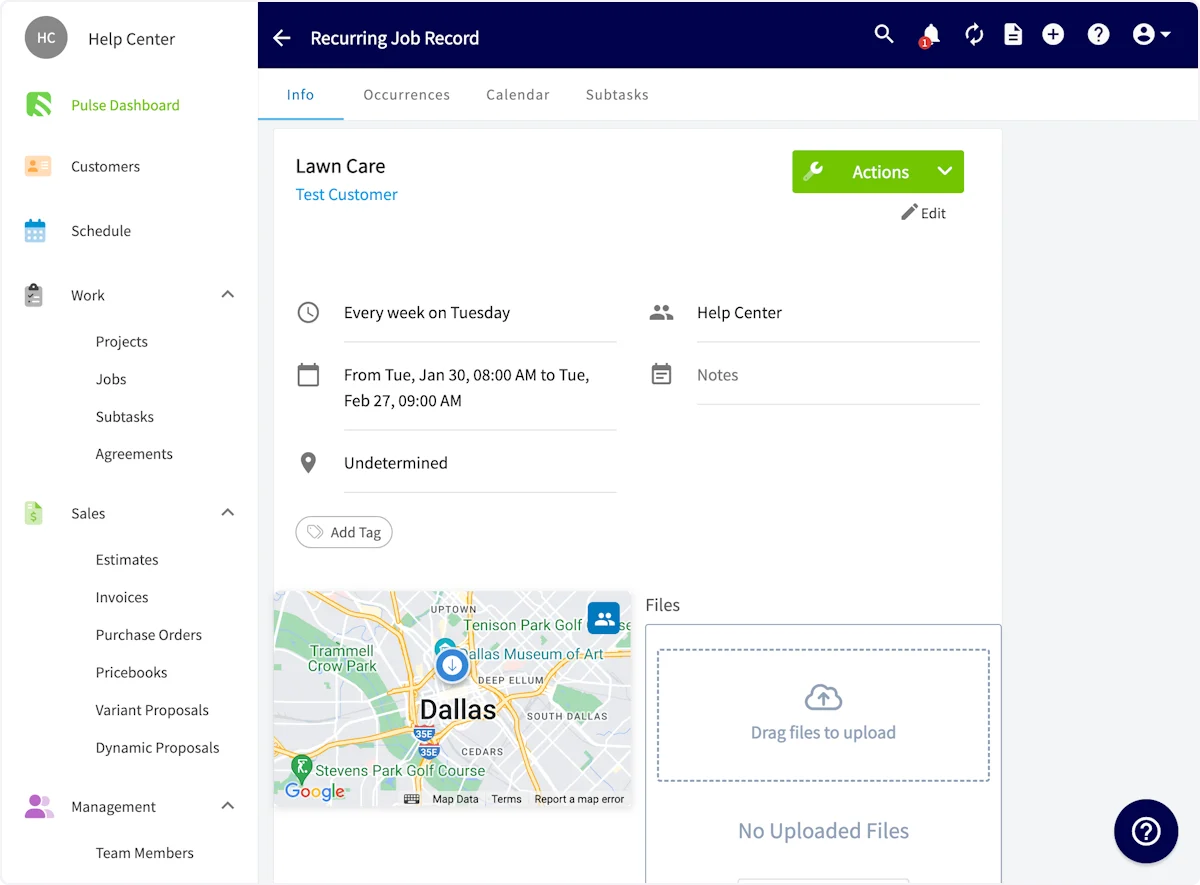
 Your recurring job will now be added to your schedule and listed under *Jobs*. If you'd like to learn how to attach recurring billing to your recurring job, visit the [Recurring Billing article](/using-fieldpulse/estimates-invoices/recurring-billing).
 ***
# FAQs
**If a recurring job is scheduled for a specific week/month occurrence (e.g., "5th Monday") and that occurrence doesn't exist in a given month, will it fall back to the last available occurrence?**
No. If the specified occurrence does not exist in a given month, the job will skip that occurrence entirely. There is no fallback to the nearest or last available day. The next run will resume on the following scheduled occurrence.
***
# Video Tutorial
***
**Have additional questions?**
*Contact us at [support@fieldpulse.com](mailto:support@fieldpulse.com) or use the chat feature in the bottom right corner of your screen.*
***
# FAQs
**If a recurring job is scheduled for a specific week/month occurrence (e.g., "5th Monday") and that occurrence doesn't exist in a given month, will it fall back to the last available occurrence?**
No. If the specified occurrence does not exist in a given month, the job will skip that occurrence entirely. There is no fallback to the nearest or last available day. The next run will resume on the following scheduled occurrence.
***
# Video Tutorial
***
**Have additional questions?**
*Contact us at [support@fieldpulse.com](mailto:support@fieldpulse.com) or use the chat feature in the bottom right corner of your screen.*