> ## Documentation Index
> Fetch the complete documentation index at: https://help.fieldpulse.com/llms.txt
> Use this file to discover all available pages before exploring further.
# Setting a Customer Arrival Window
> Enable arrival windows on jobs and share a customer-facing time range in communications separate from the exact internal schedule.
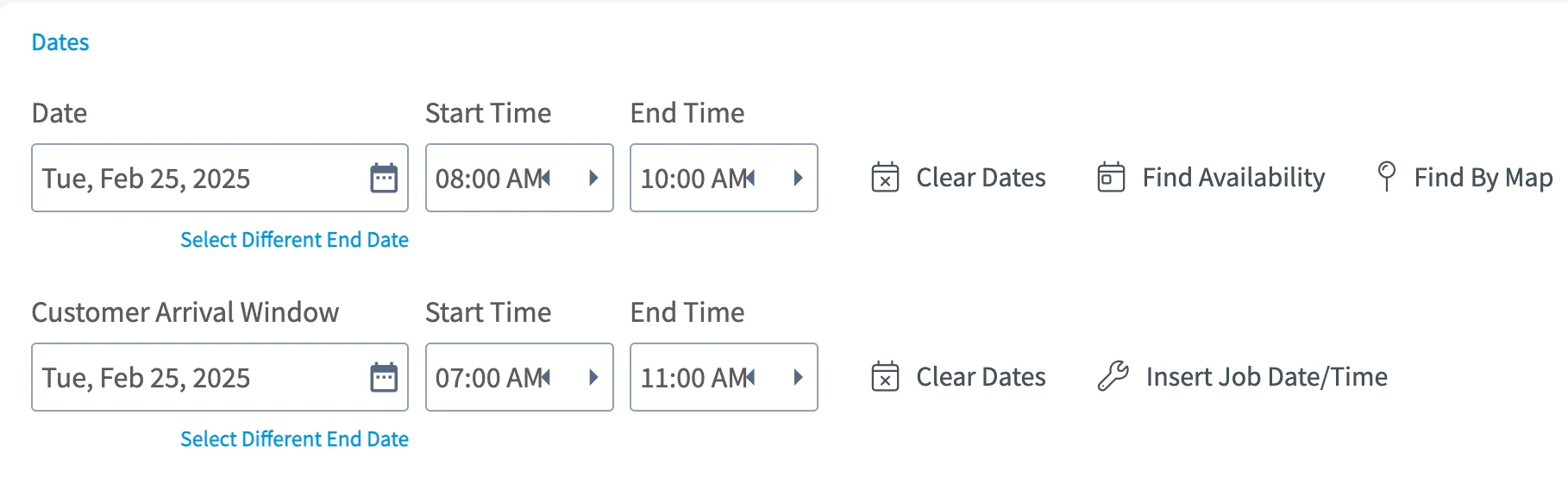
Let your customers know when to expect you! You can set a Customer Arrival Window date/time on jobs. This can be used in customer communication templates to send a different time window to the customer than what you store on the job for internal use.
 ***
# Enabling Customer Arrival Window
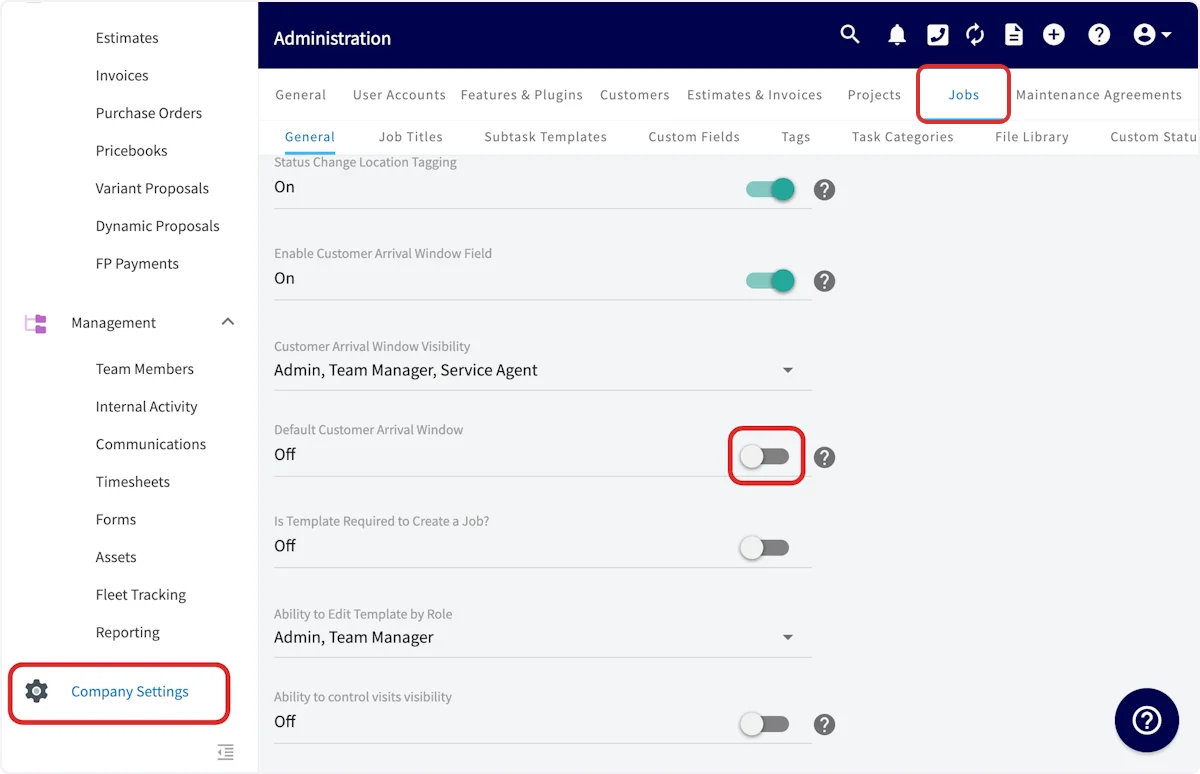
Begin by navigating to *Company Settings*, then select *Jobs*. Scroll down and toggle on *Default Customer Arrival Window*.
***
# Enabling Customer Arrival Window
Begin by navigating to *Company Settings*, then select *Jobs*. Scroll down and toggle on *Default Customer Arrival Window*.
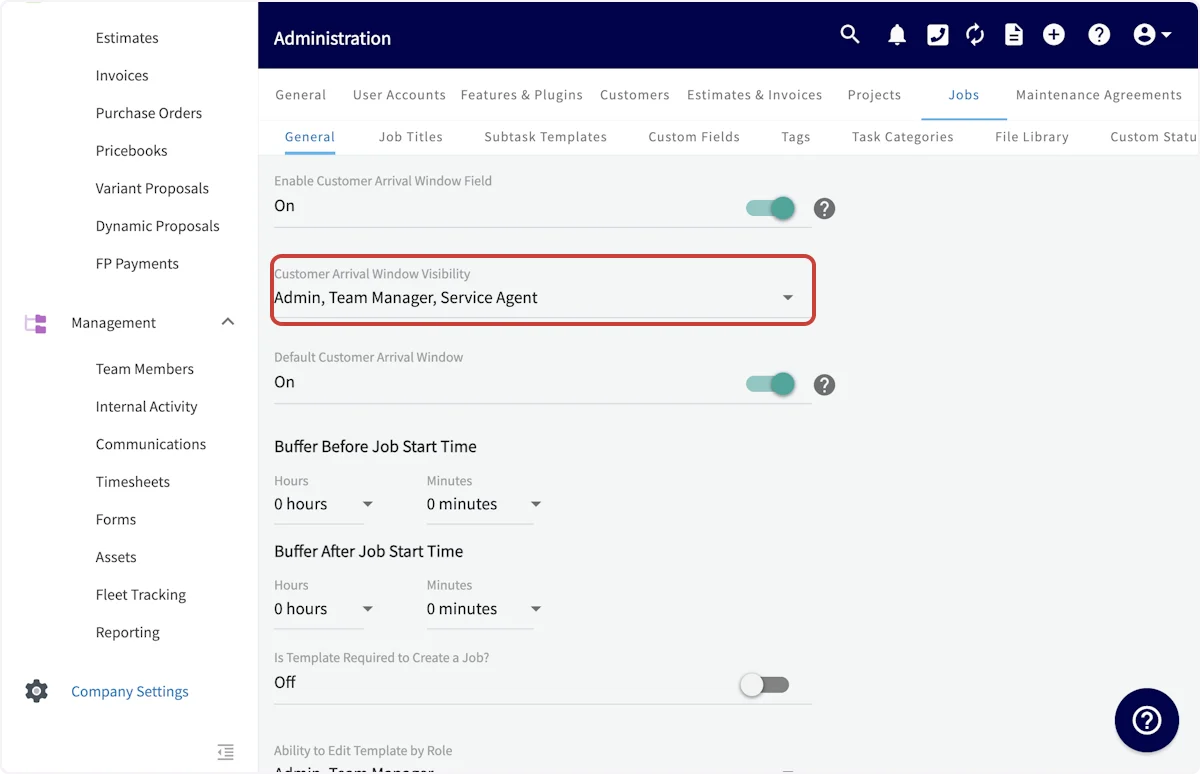
 To adjust which user roles can view the customer arrival window, use the *Customer Arrival Window Visibility* dropdown.
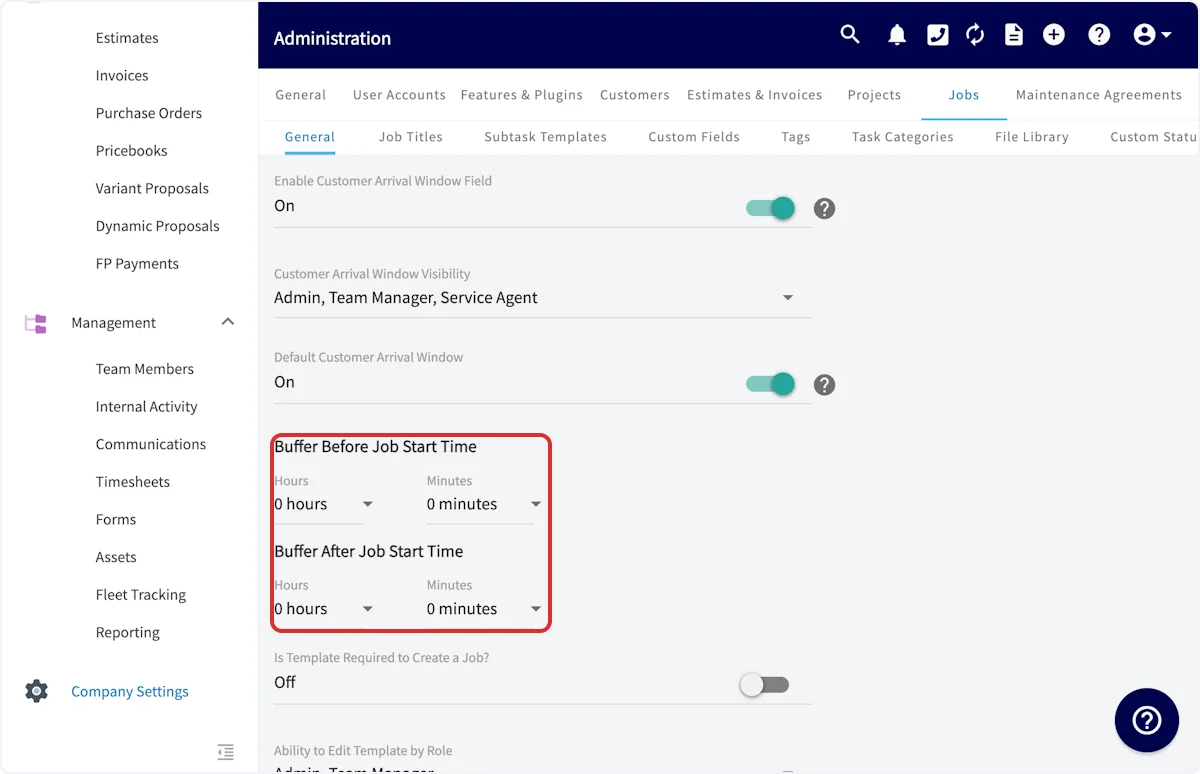
 You can also create a standard customer arrival window by creating a buffer period before and after the job start time. This can always be changed on individual job records.
 ***
# Customer Arrival Window & Customer Communications
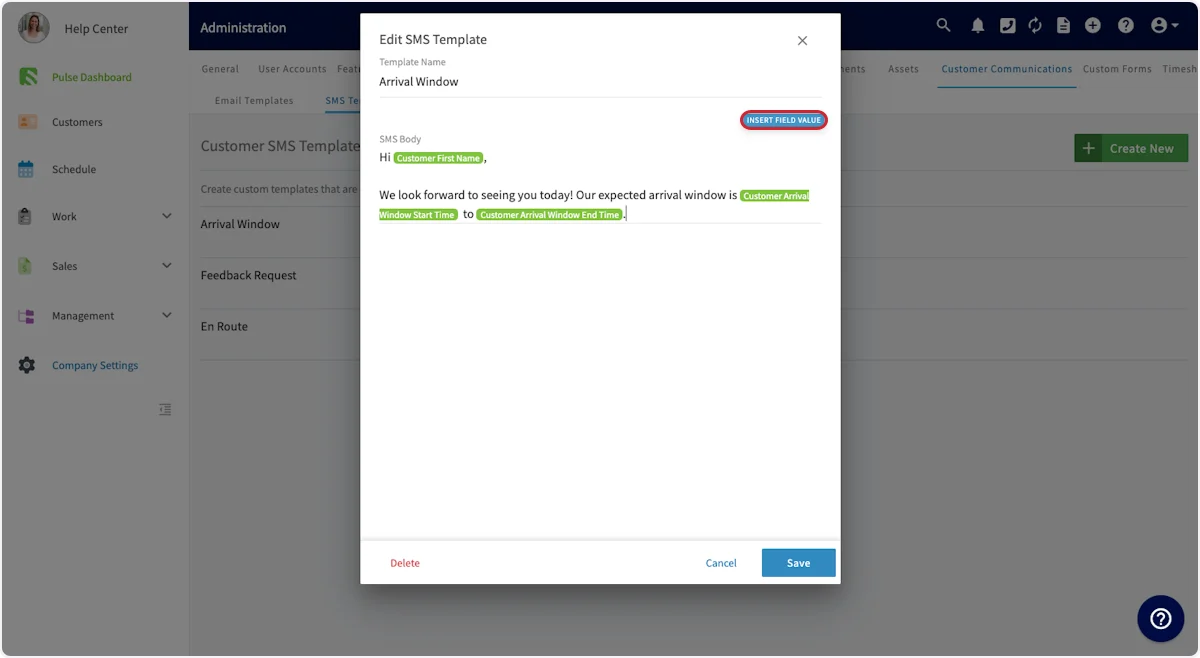
When creating a customer communication email or SMS template, you can input a variety of field values. The customer arrival window start date, start time, end date, and end time are all field values that can be included in your customer communication templates. Simply select *Insert Field Value* and select the customer arrival window component you'd like to include. To learn more about Customer Communications, [the customer communications guide](/using-fieldpulse/communications-notifications/customer-communications).
***
# Customer Arrival Window & Customer Communications
When creating a customer communication email or SMS template, you can input a variety of field values. The customer arrival window start date, start time, end date, and end time are all field values that can be included in your customer communication templates. Simply select *Insert Field Value* and select the customer arrival window component you'd like to include. To learn more about Customer Communications, [the customer communications guide](/using-fieldpulse/communications-notifications/customer-communications).
 ***
**Have additional questions?**
*Contact us at [support@fieldpulse.com](mailto:support@fieldpulse.com) or use the chat feature in the bottom right corner of your screen.*
***
**Have additional questions?**
*Contact us at [support@fieldpulse.com](mailto:support@fieldpulse.com) or use the chat feature in the bottom right corner of your screen.*