
Sync Your FieldPulse Purchase Orders with QuickBooks Desktop
Enable one-way syncing from FieldPulse to QuickBooks for your purchase order data. Once enabled, the sync will be triggered by newly created and updated purchase orders, pushing them to QuickBooks Desktop.Purchase Order in FieldPulse:
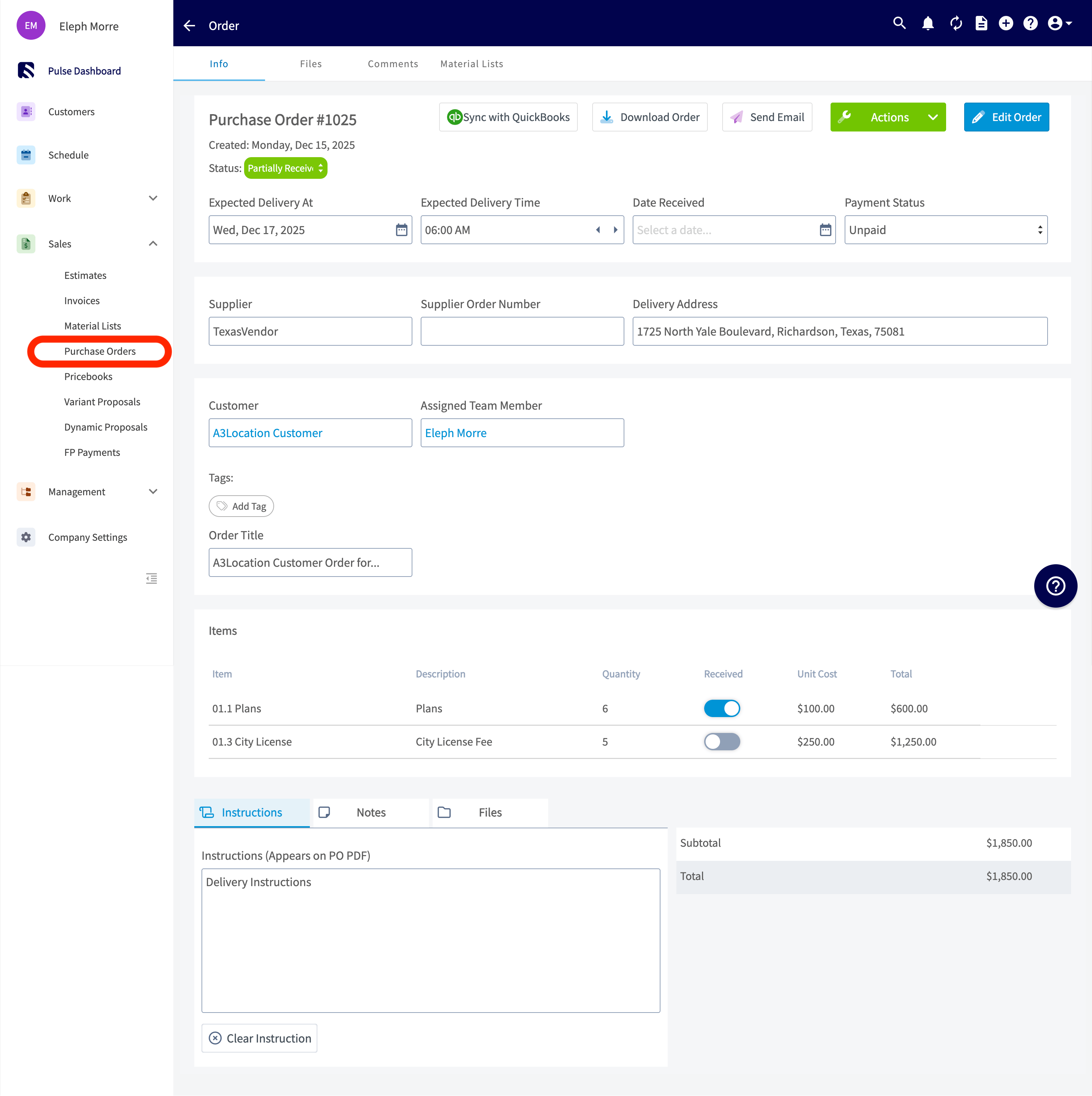
How this syncs over to QuickBooks Desktop:
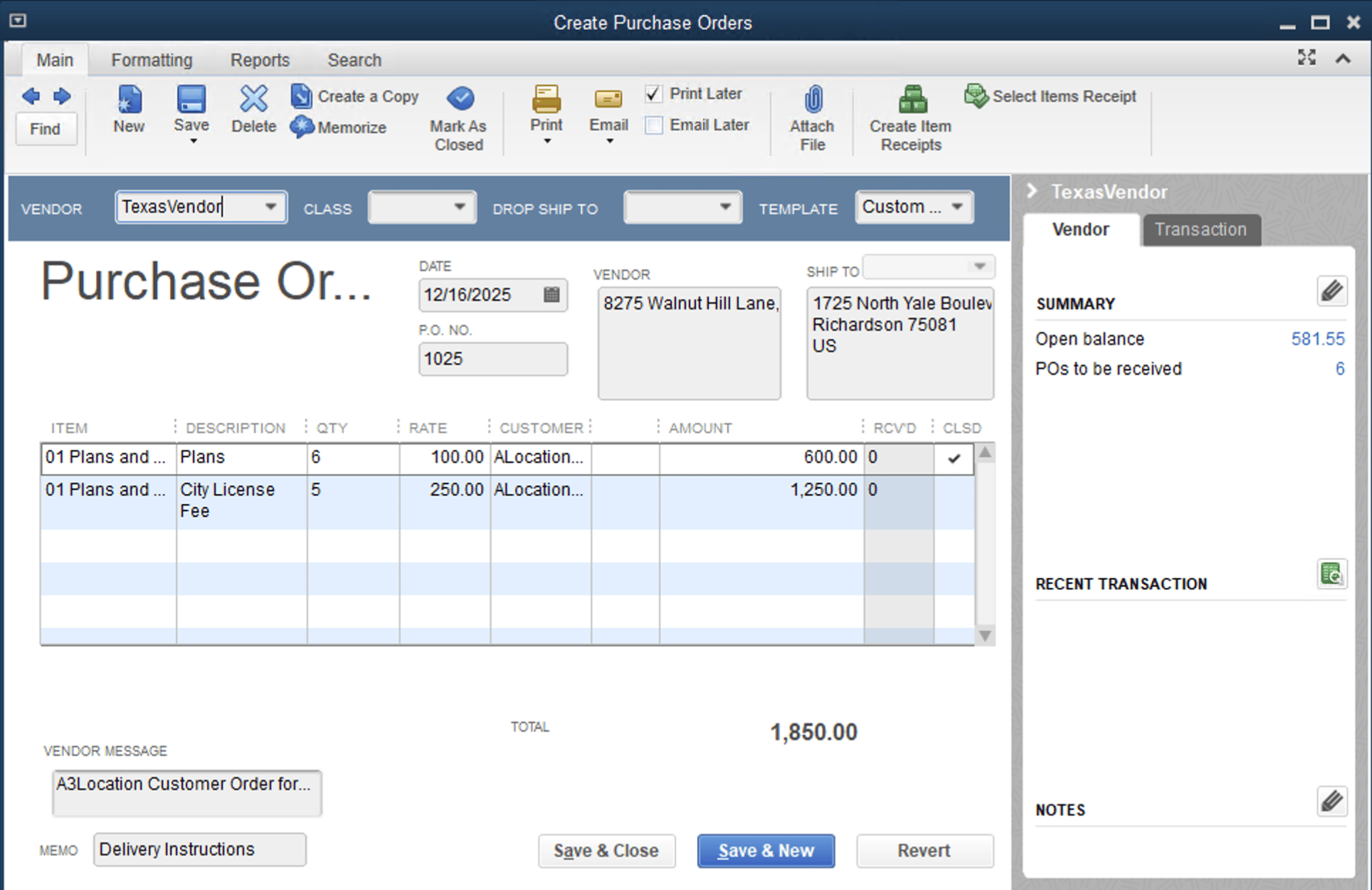
How can I get started?
Reach out to us at support@fieldpulse.com or use the chat in the bottom right corner to initiate your purchase order sync!Purchase Order Field Overview
Explore the table below to see which FieldPulse purchase order fields sync with QuickBooks Desktop and where they will appear. If a field is not listed in the table below, it does not sync with QuickBooks Desktop.| FieldPulse Field | QuickBooks Desktop Field |
|---|---|
| Purchase Order Number | Purchase Order Number |
| Supplier Name | Vendor |
| Supplier Email | Vendor Email (not shown on Purchase Order) |
| Expected Delivery Date | Date |
| Address | Shipping Address |
| Line Item Title | Product / Service |
| Description | Description |
| Quantity | Quantity |
| Unit Cost | Rate |
| Total (Per Line Item) | Amount |
| Created At Date | Created Date in Summary |
| Updated At Date | Last Edited Time |
| Order Title | Your Message to Vendor |
| Instructions | Memo |
| Total | Total |
FieldPulse Purchase Order Statuses
The following FieldPulse statuses will reflect as Open in QuickBooks Desktop:- Compose
- Draft
- Ordered
- Pending
- En Route
- Ready for Pickup
- Partially Received
- Issue
- Received
- Completed
- Canceled
Have additional questions? Contact us at support@fieldpulse.com or use the chat feature in the bottom right corner of your screen.