
Welcome to FieldPulse
As a Service Agent (Technician), most of your day happens in the mobile app. This page walks you through the full loop from getting dispatched to closing out the paperwork, plus what to do when you lose signal. Follow the steps in order and you’ll have everything you need to run a job.Everything below is written for the mobile app, since that’s where most Technicians live day to day. Your Admin controls exactly which of these actions you have access to. See the Service Agent permissions if something looks different on your account.
Get the Job
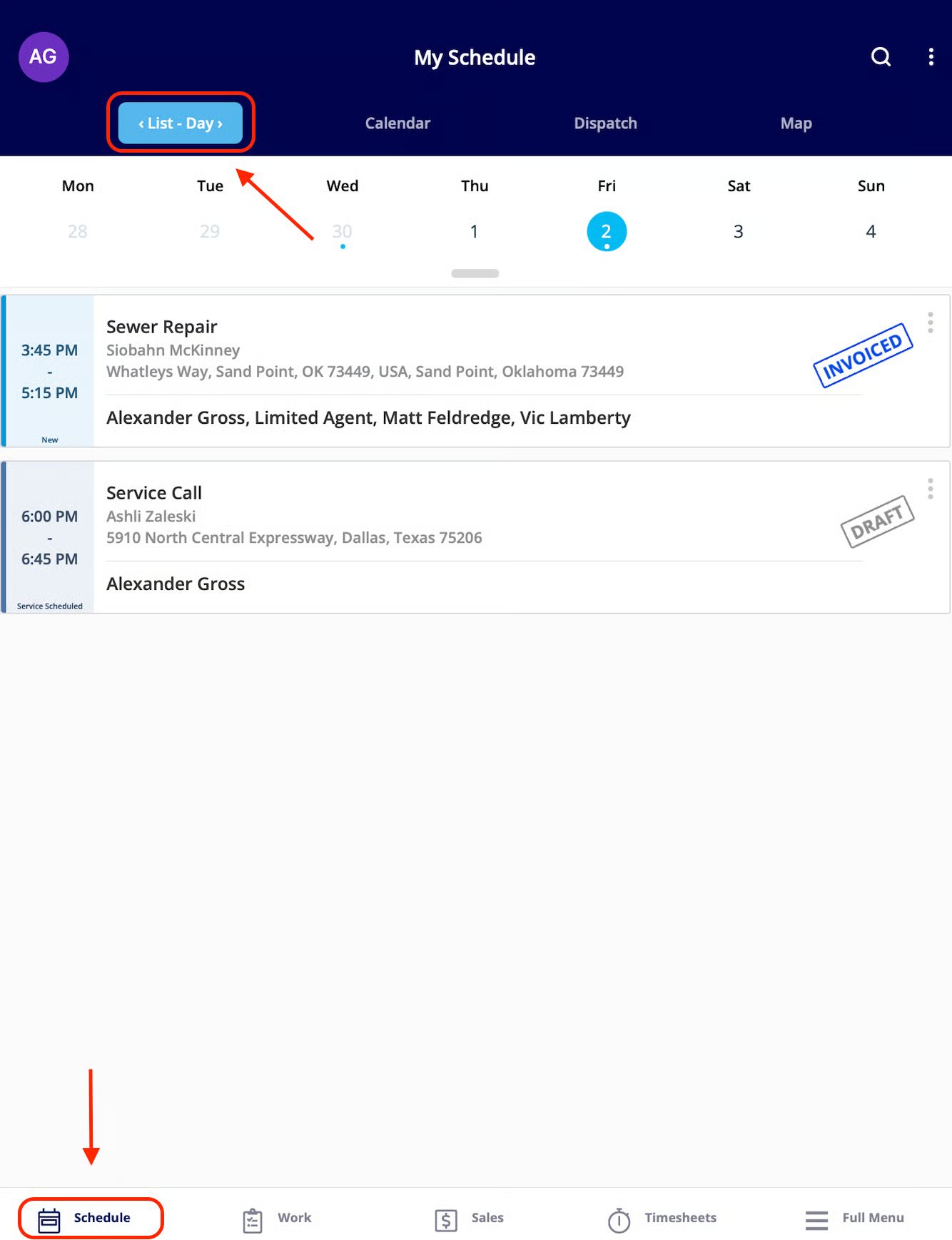
Open the Schedule or Work tab in the bottom menu to see your assigned jobs. Tap a job to open its full record, where you’ll find:- Customer Details: name and address
- Notes: internal notes, highlighted in yellow
- Tags: existing job tags, or add your own
Head Out
From the job record, tap Actions, then Clock In. Next, tap the customer’s address to pull up a map, then tap Navigate to Location for turn-by-turn directions in your preferred map app.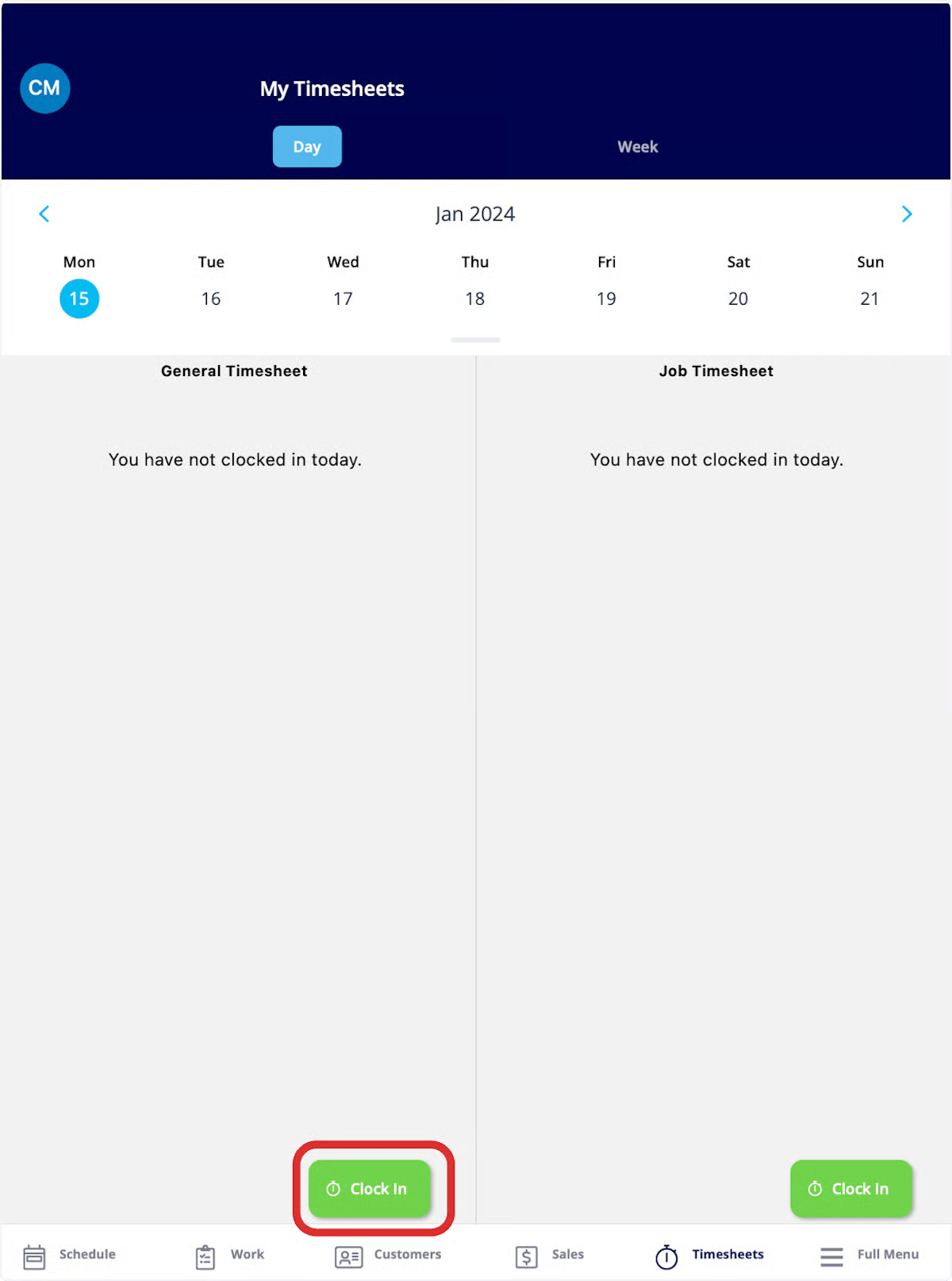
Do the Work
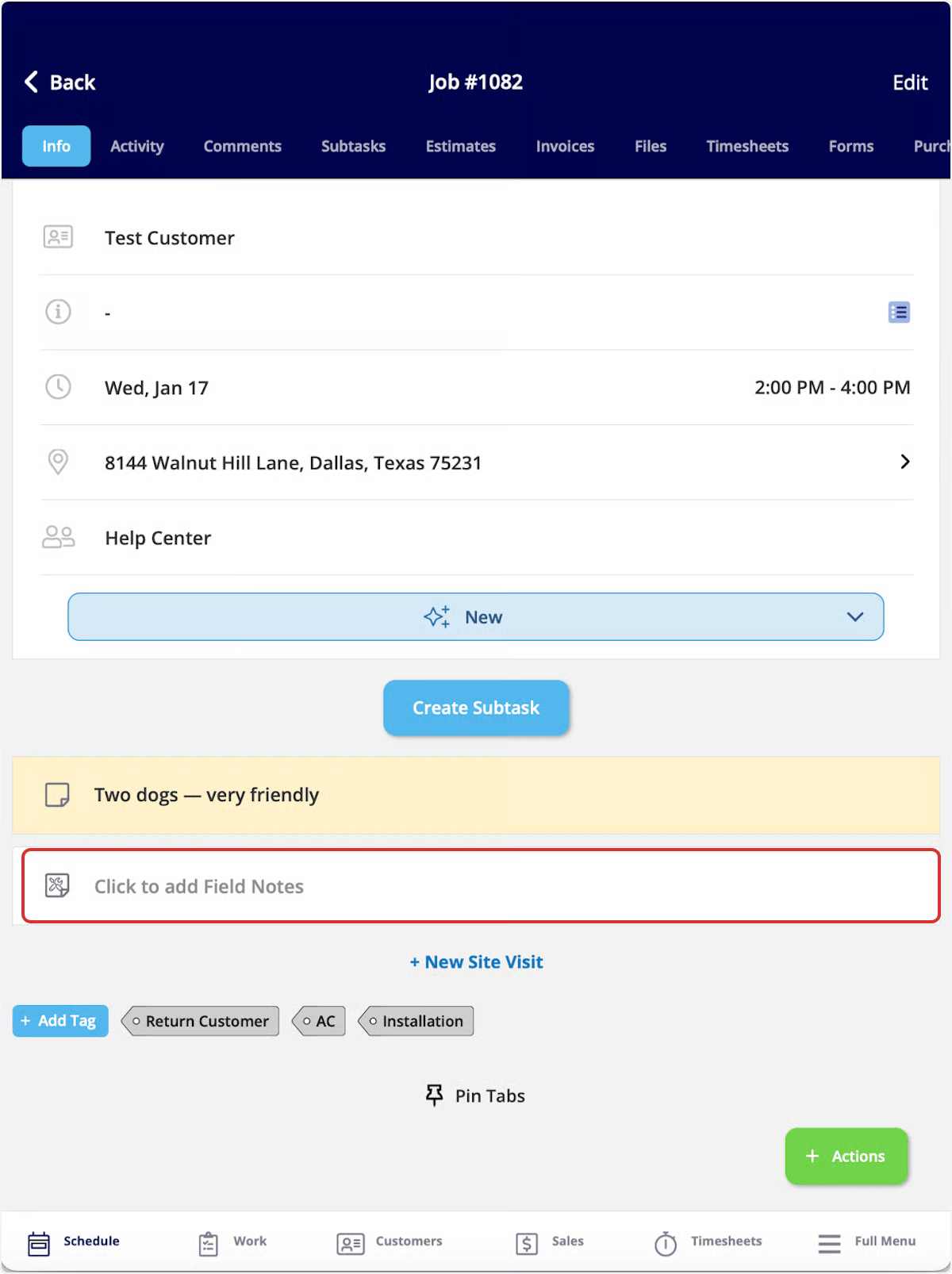
Tap the status bar on the job’s Info page any time to update the job status. FieldPulse tracks how long the job spends in some statuses automatically. This helps the office manage jobs better with visibility into the job progress. From the same record, you can:- Add Field Notes right on the Info page.
- Snap photos or record video, or upload files, in the Files tab (Attach File, Upload Photo, or Take Photo to use the in-app camera and switch to video).
- Leave Comments for your team under the Comments tab.
Wrap It Up
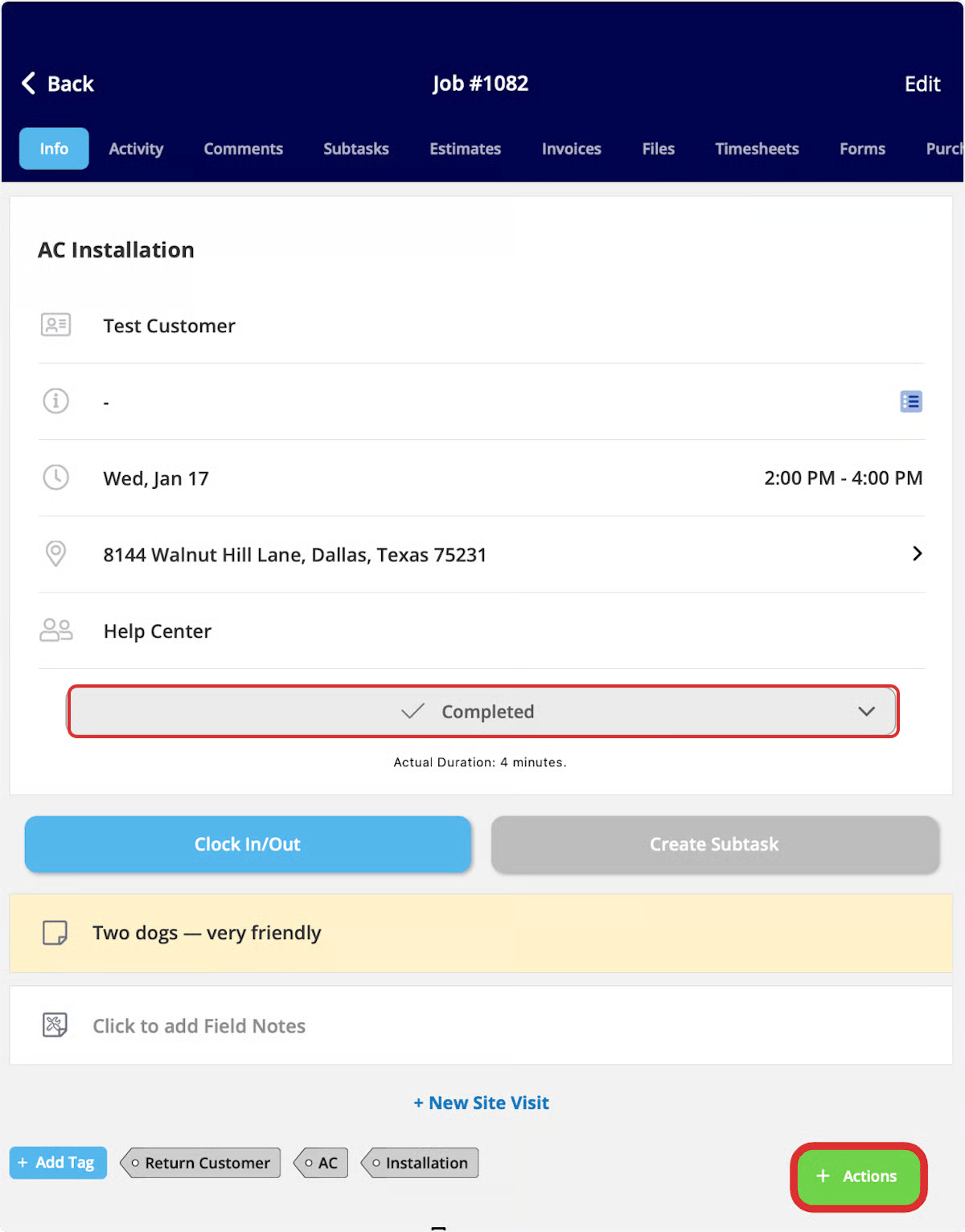
Once the work is done, tap the status bar and select the status that marks the job as finished (often called Completed). Then tap Actions and select Clock Out to stop tracking your time on the job.If a pop-up asks whether you want to mark payment on the related invoice when you complete a job, that’s a company-level setting your Admin controls. It can be turned off in Company Settings > Jobs > General.
Create the Invoice
From the job record, tap Actions, then Create Invoice. If you already sent an estimate and the customer accepted it, open the Estimates tab at the top of the job record, open the estimate, and tap Convert to Invoice instead. Add your line items, then tap Finalize Invoice when you’re ready to bill the customer. You can also start an invoice by tapping Sales in the bottom menu, then Invoices.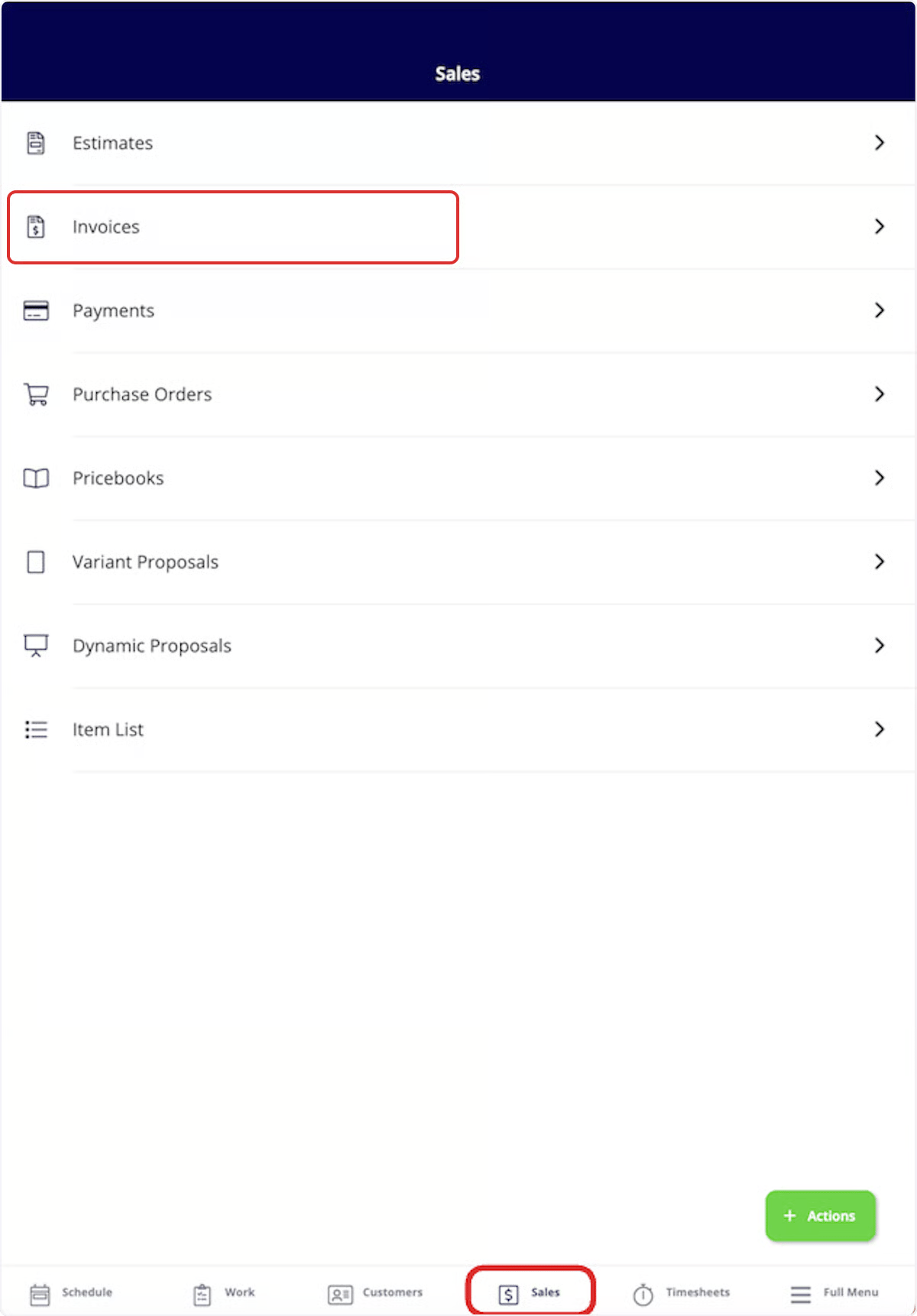
Get Paid
On the invoice, tap Payment. If your company uses FieldPulse Payments, you have two options:- Collect Payment: Take an ACH or card payment on the spot.
- Send Payment Request via Email: Bill the customer later. They’ll get an email with a secure link to pay online.
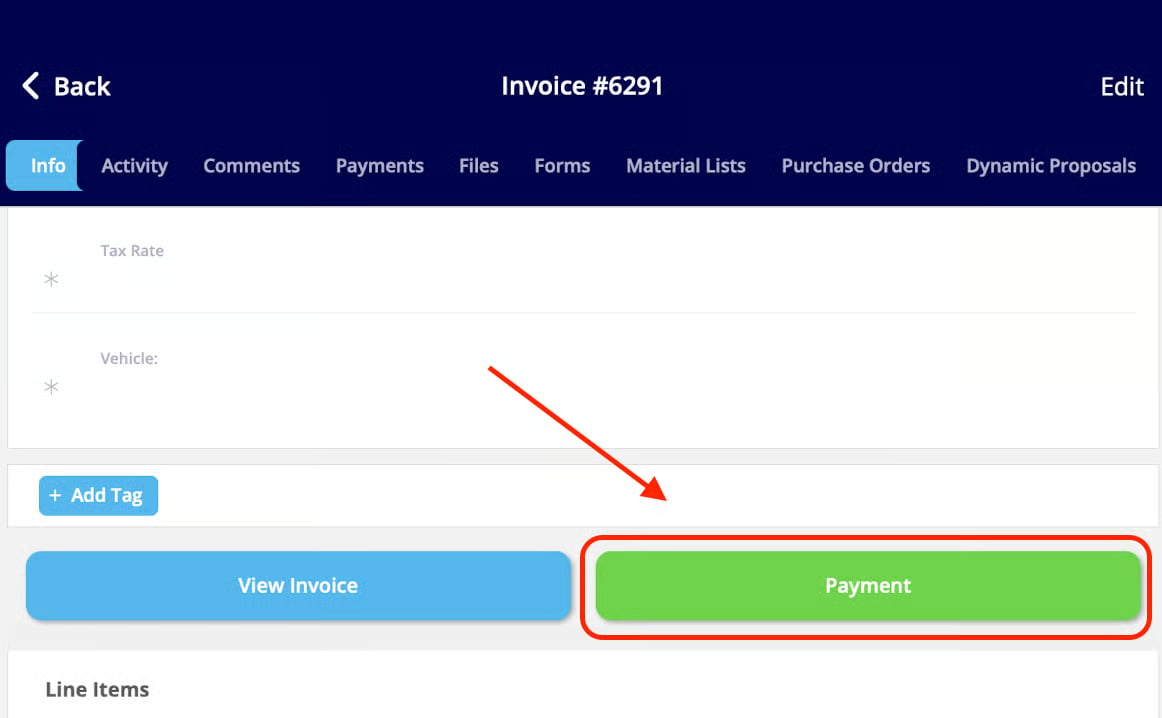
If your company doesn’t use FieldPulse Payments, use Mark Payment to record a cash or check payment manually. Either way, the invoice status updates to Paid automatically once payment is collected, and you can see the full payment history under Payments on the invoice.
No Signal? No Problem
FieldPulse’s Offline Mode keeps you working even without a connection, and everything syncs automatically once you’re back online. Here’s what you can count on in the field:
Read more: Offline Mode Overview
Stuck? We’ve got you. Browse the full FieldPulse Help Center for step-by-step articles and videos on every feature, anytime.
Have additional questions? Contact us at support@fieldpulse.com or use the chat feature in the bottom right corner of your screen.