Who uses this: Limited Agents — the role’s permissions set what appears in the app. Availability: FieldPulse mobile app on iOS and Android; Limited Agents cannot access the web app.If you’re a Limited Agent, the FieldPulse mobile app is where you see the jobs you’re assigned, view their details and files, and log your time — a focused, field-only view of the app.
Overview
This overview is for Limited Agents — the most restricted of the mobile roles, built to see and work only the jobs assigned to you. Your access is different from a manager’s or a Service Agent’s, and if a feature or detail isn’t available in the app, your permissions are the most likely reason. Reach out to your manager with any questions about your access. Here is how the Limited Agent view compares with the other mobile roles:
For the full definition of each role and the permissions behind it, see User Roles and Permissions Details.
To get the app, download FieldPulse from the Apple App Store (iPhone or iPad) or the Google Play Store (Android phone or tablet) and log in with your credentials.
Video walkthrough
Video walkthrough: the FieldPulse mobile app as a Limited Agent
What you can and can’t do
As a Limited Agent, your access is set by your role and your permissions:How it works
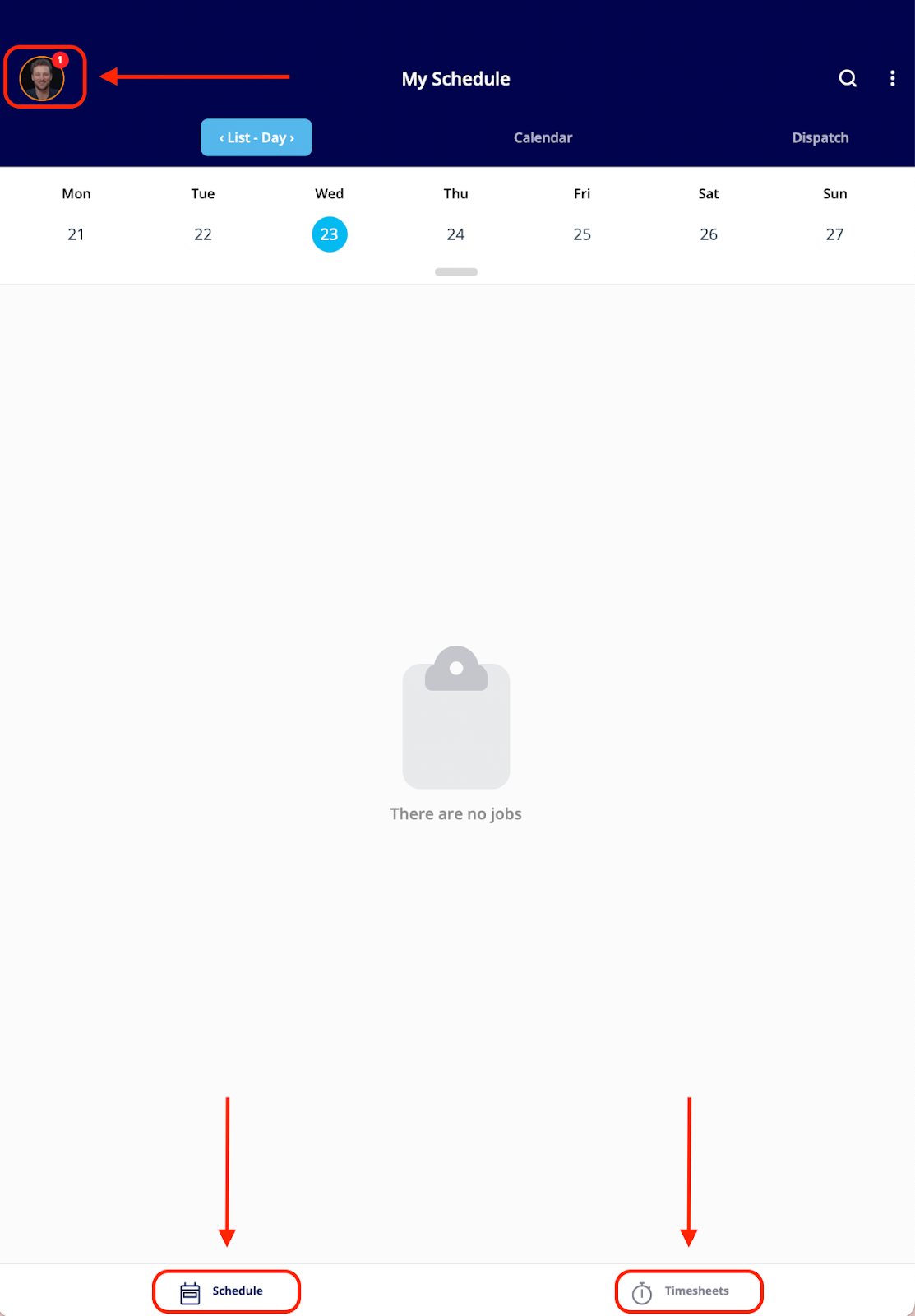
When you log in, the FieldPulse mobile app opens on your schedule and shows the jobs assigned to you. Two tabs anchor a Limited Agent’s day: Schedule in the bottom left corner and Timesheets in the bottom right.Dashboard
On login you land on My Schedule, the Limited Agent dashboard, which lists any jobs assigned to you.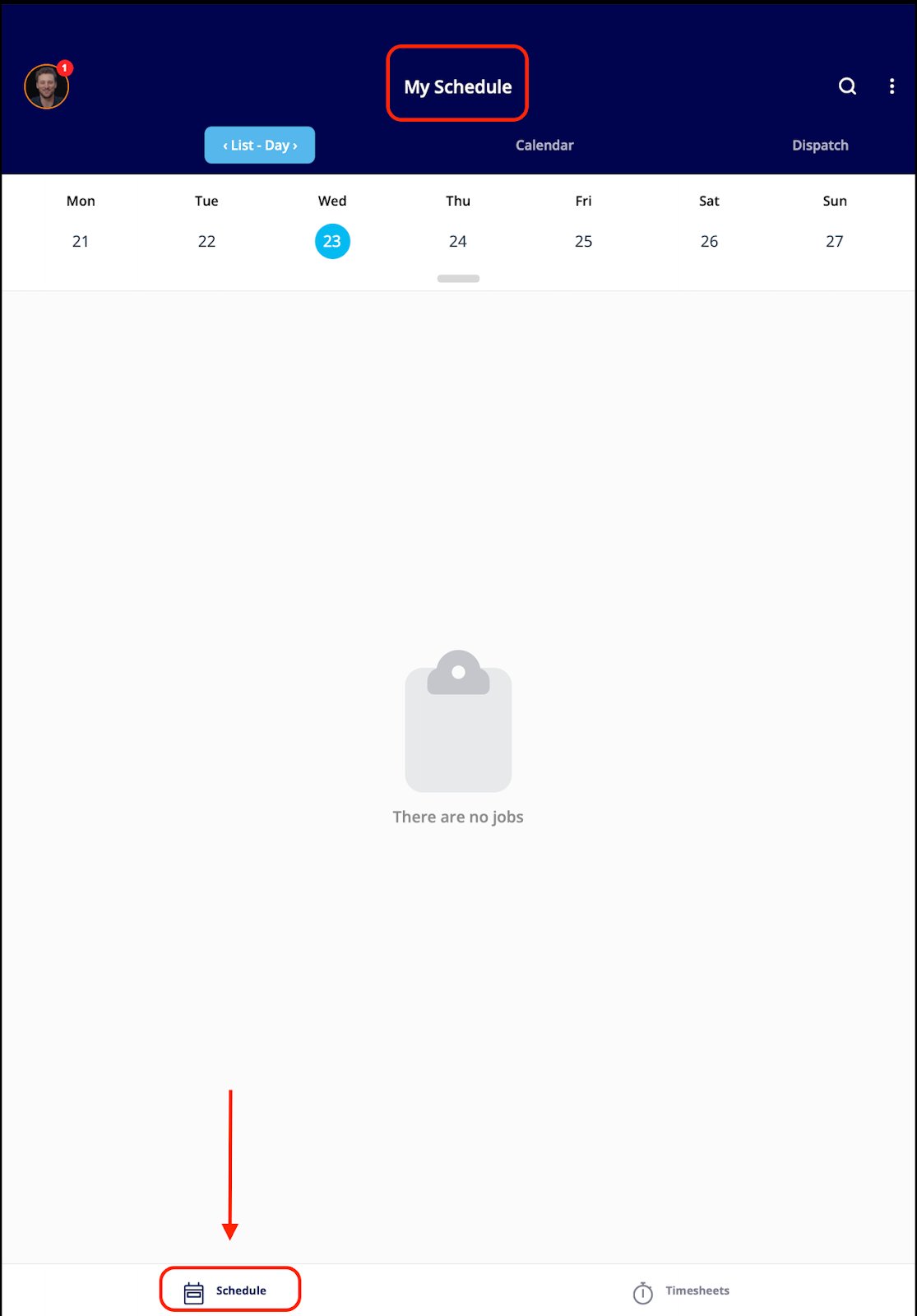
- Tap the round profile icon in the top left corner to edit your profile, view notifications and reminders, or log out.
- See your jobs for the day.
- Clock in and clock out.
Schedule
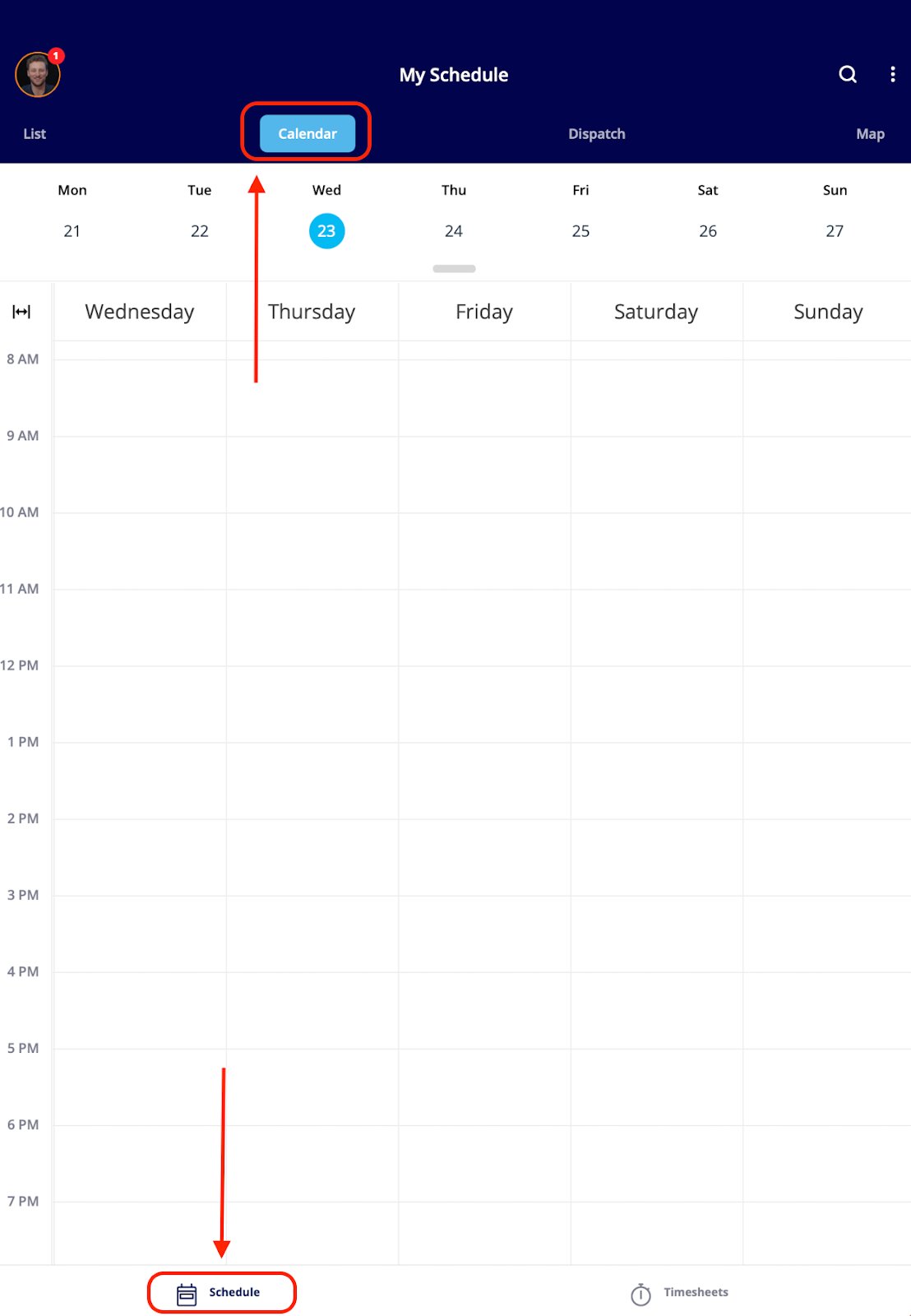
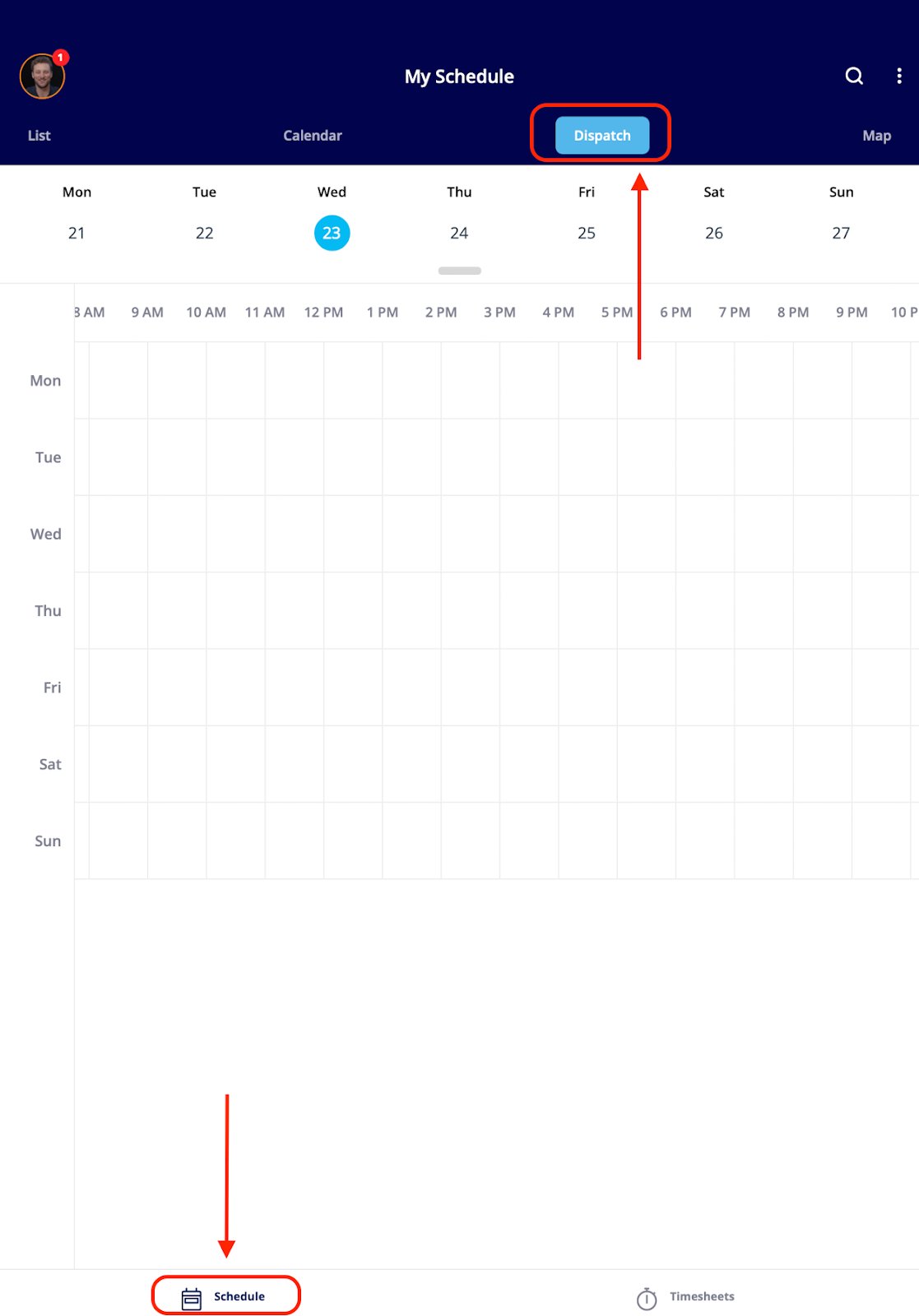
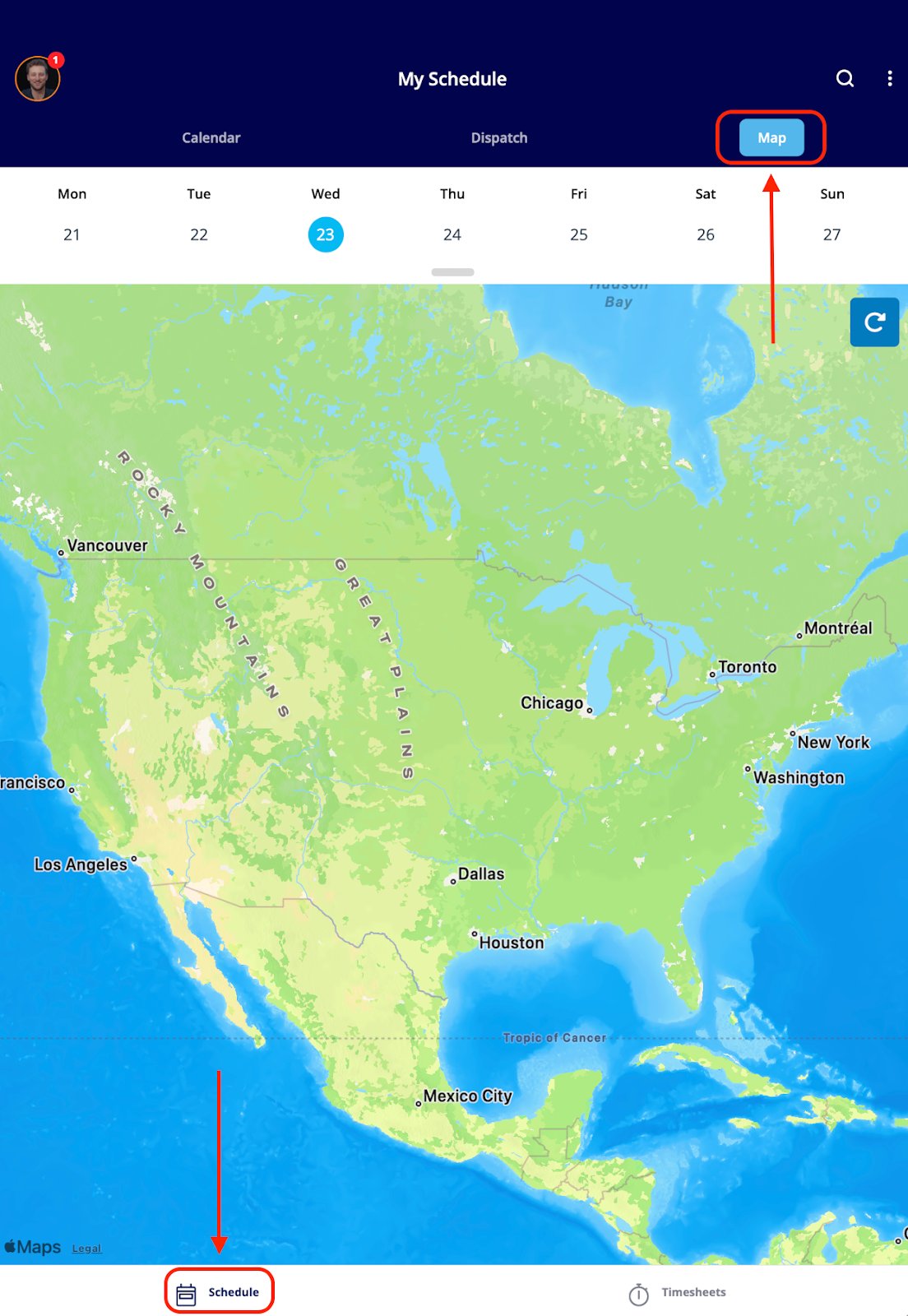
The Schedule tab lists your assigned jobs with four ways to view them: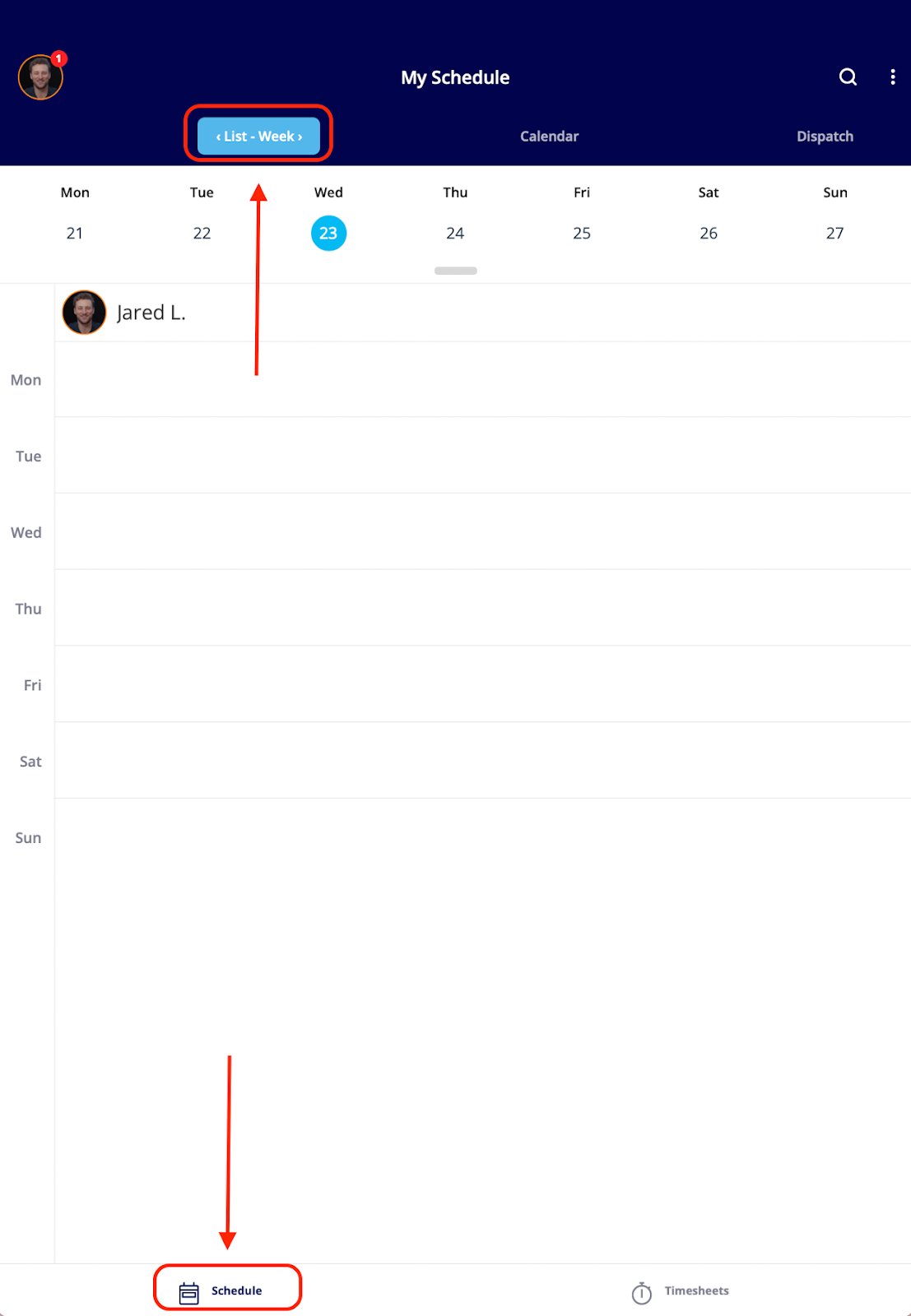
Customizing your job tiles
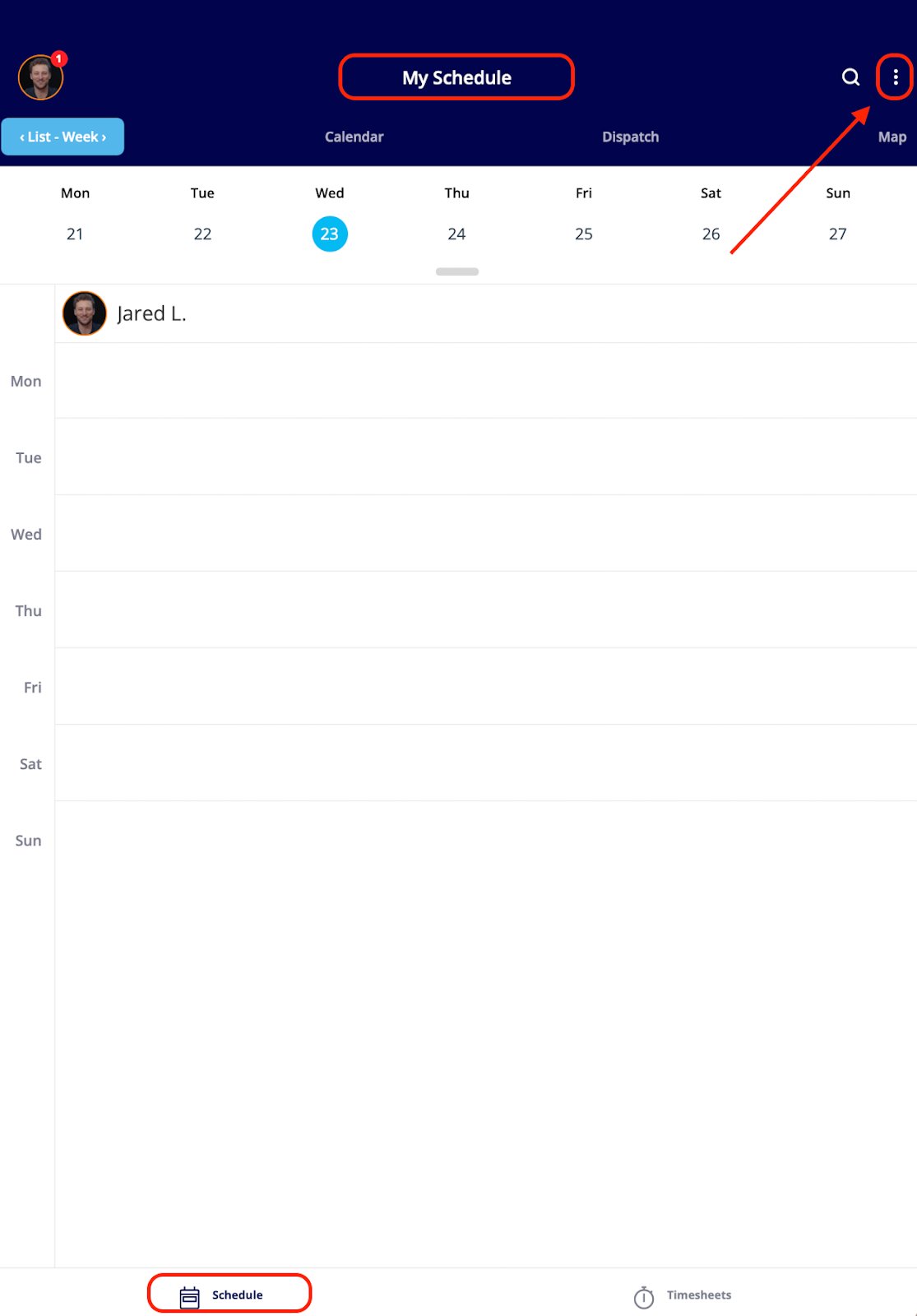
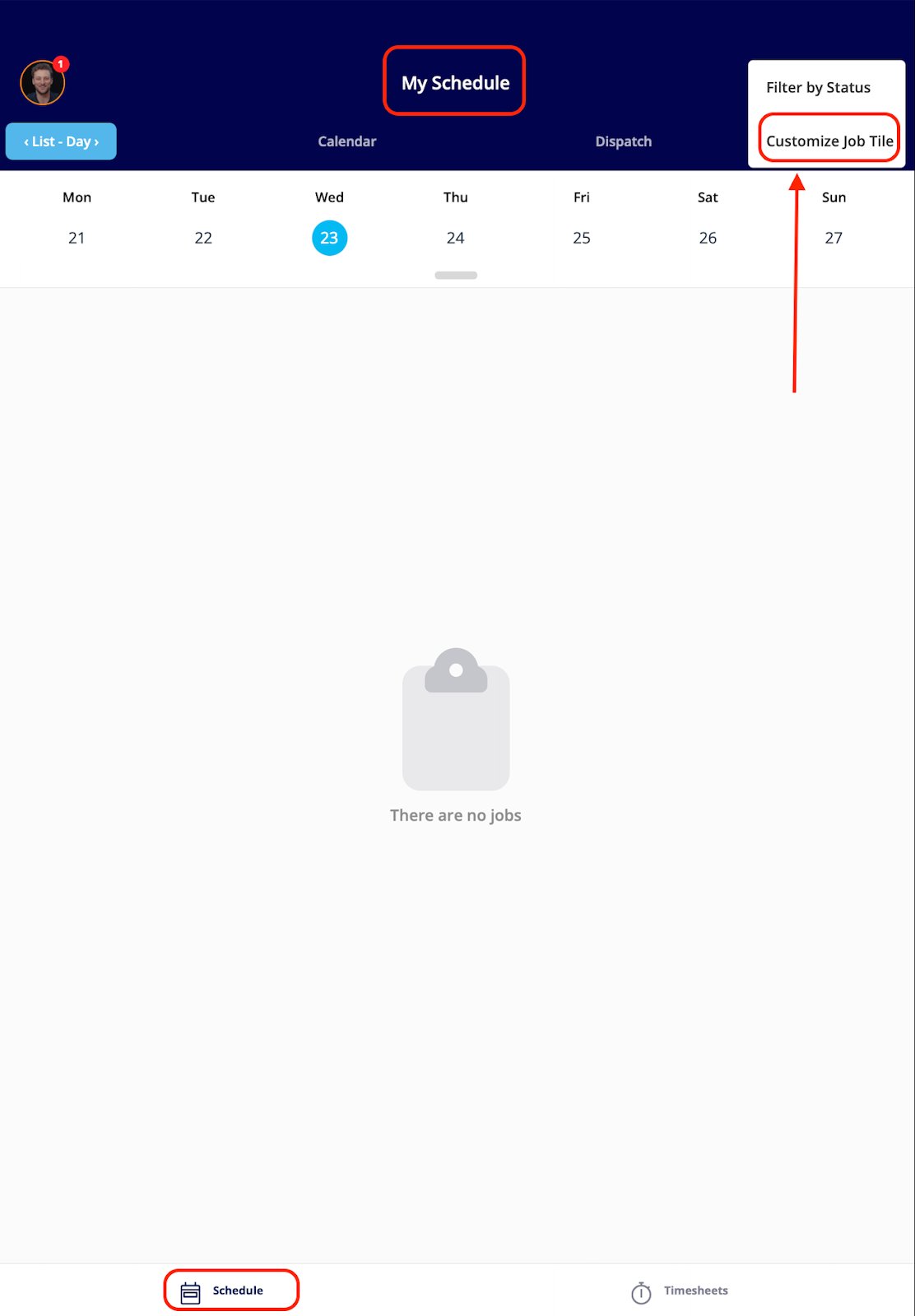
To show more information on each job tile for quick viewing on the schedule, customize the tile layout:-
From a schedule view, tap the three dots in the upper right corner of your screen.
-
Tap Customize Job Tile.
-
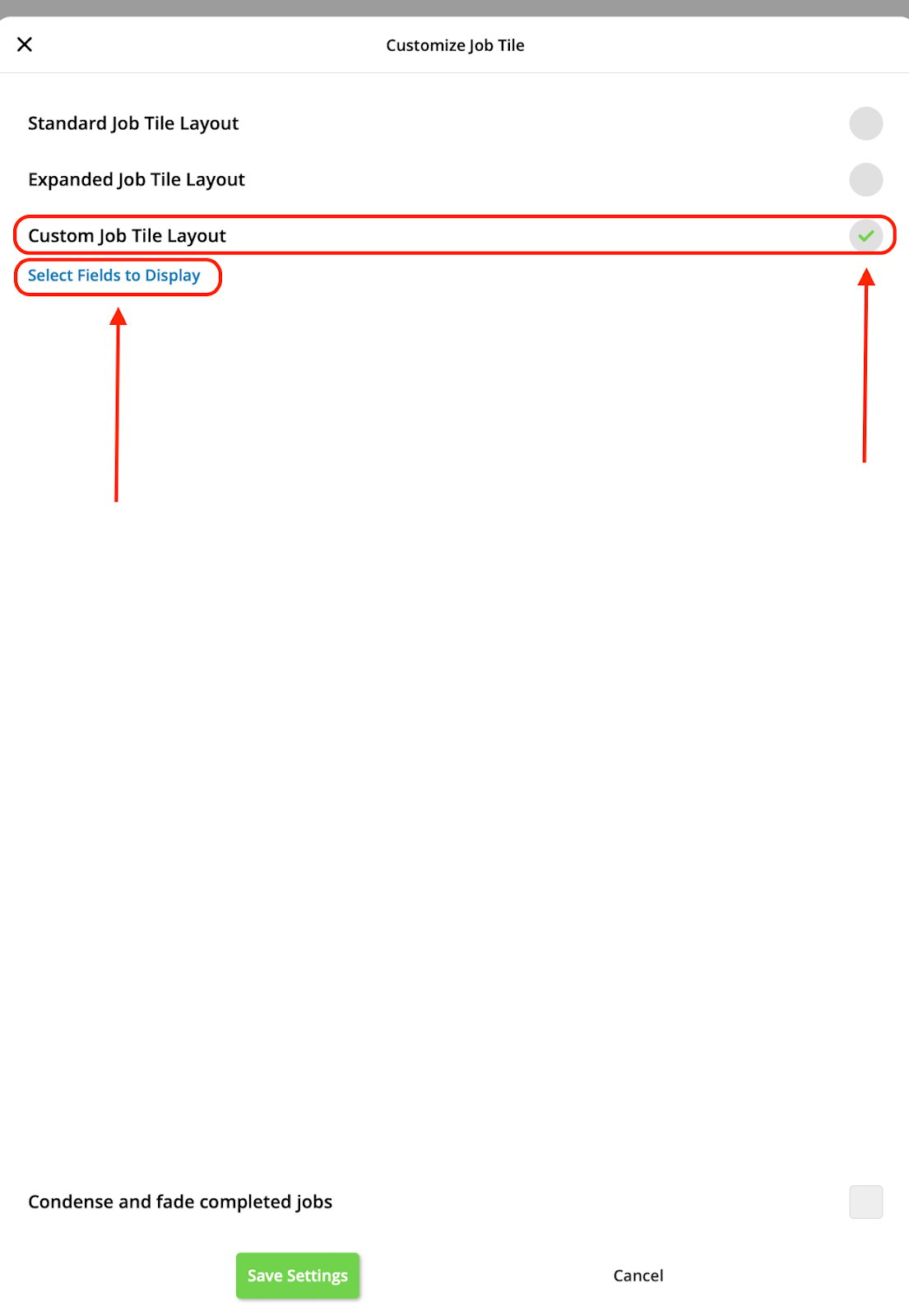
Select Custom Job Tile Layout, then tap Select Fields to Display.
-
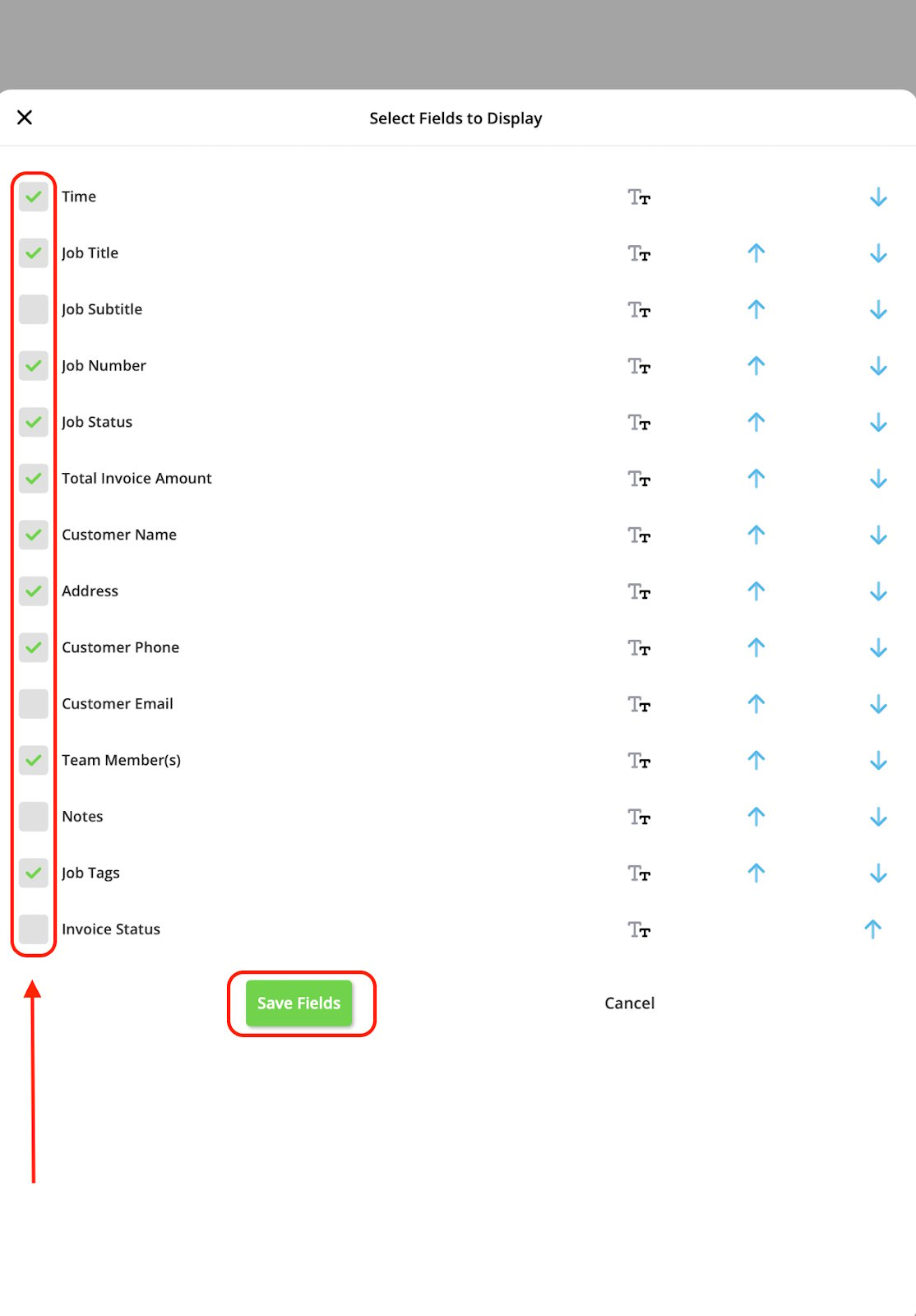
Use the check boxes to select which fields display on your job tiles, then press the green Save Fields button.
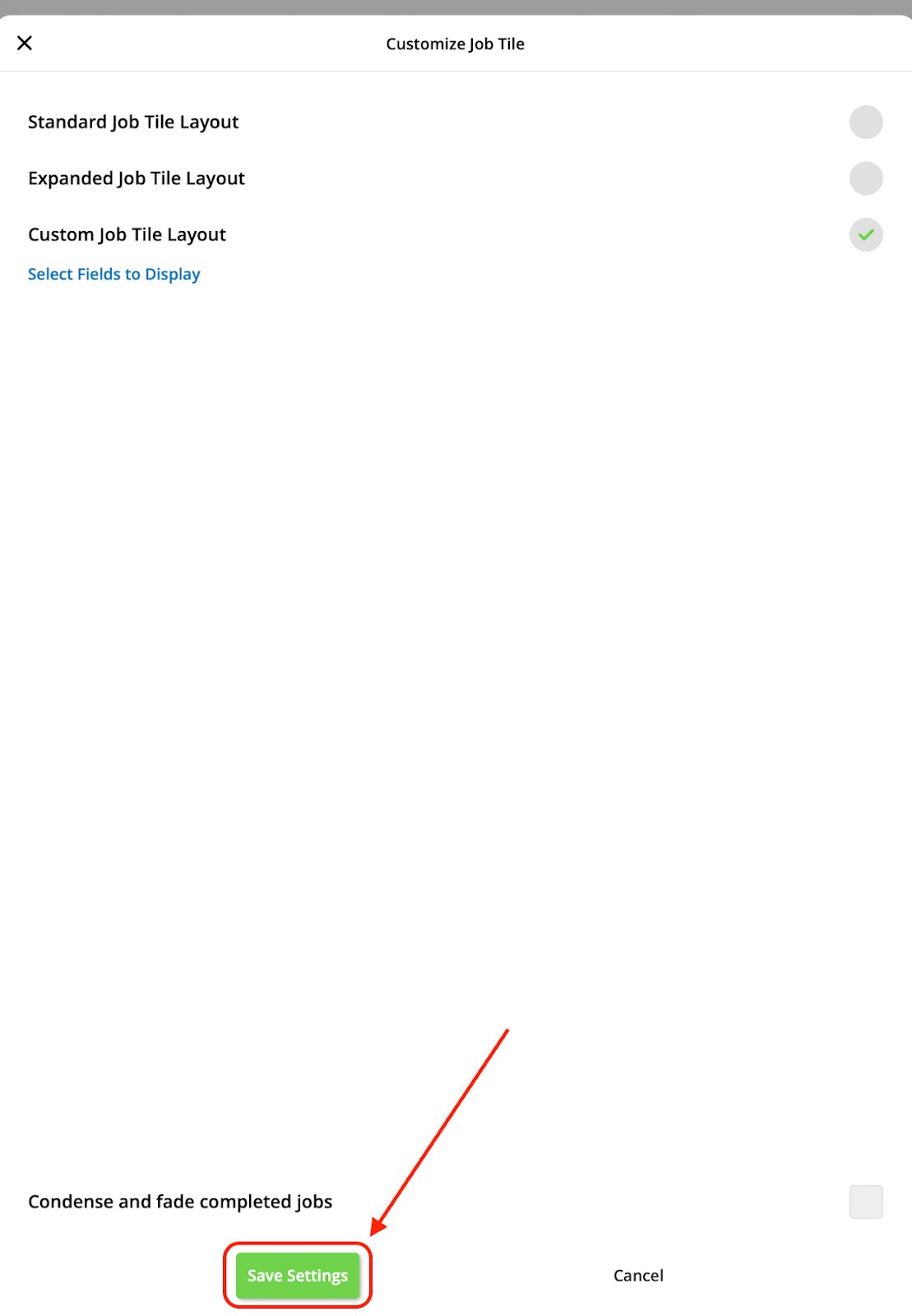
- Back on the Customize Job Tile screen, press the green Save Settings button.
Timesheets
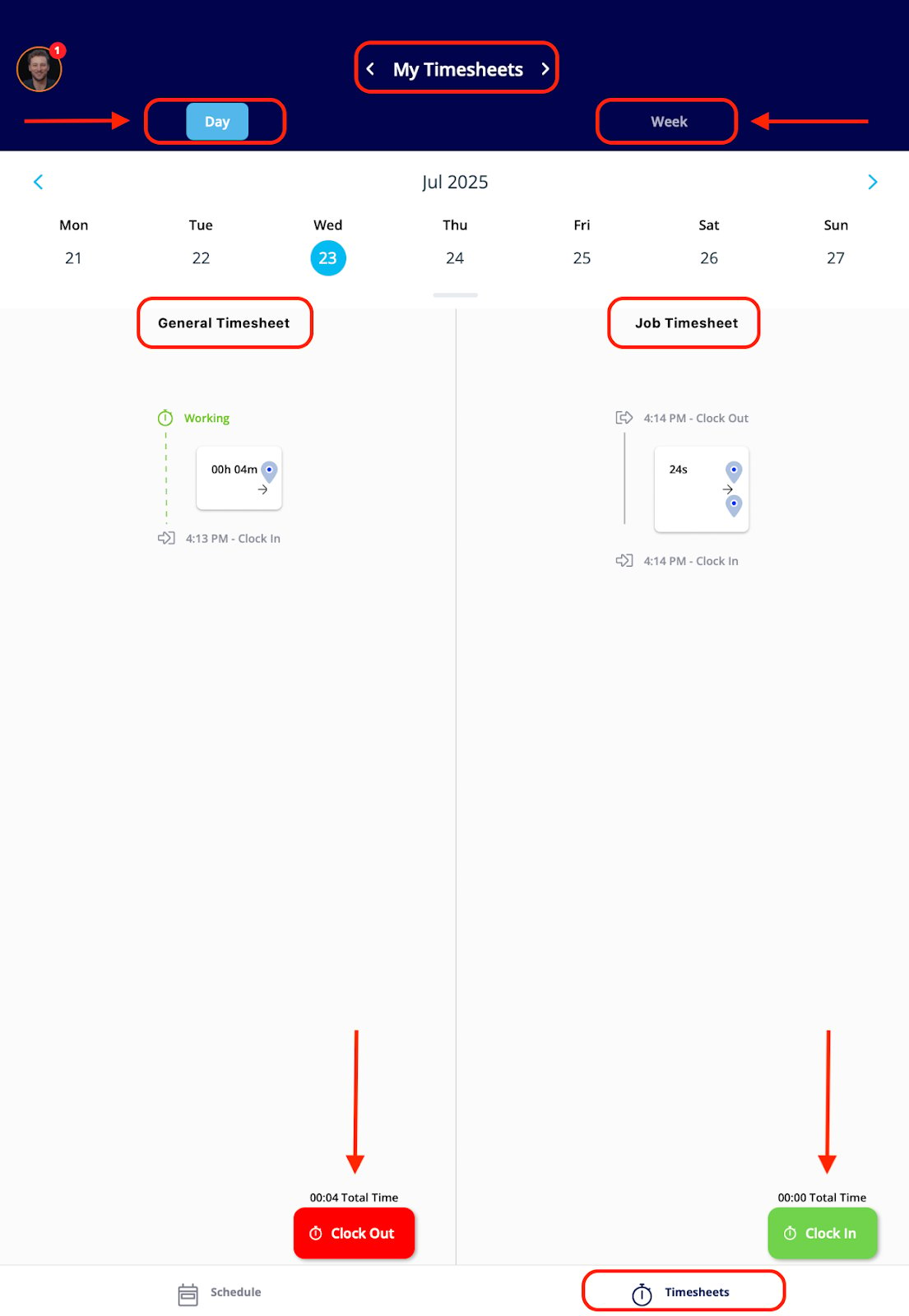
The Timesheets tab is where you clock in and out for the day, using both timesheet types:- General timesheets track your entire workday, from clock-in to clock-out.
- Job timesheets track the time you spend completing a particular job or service.