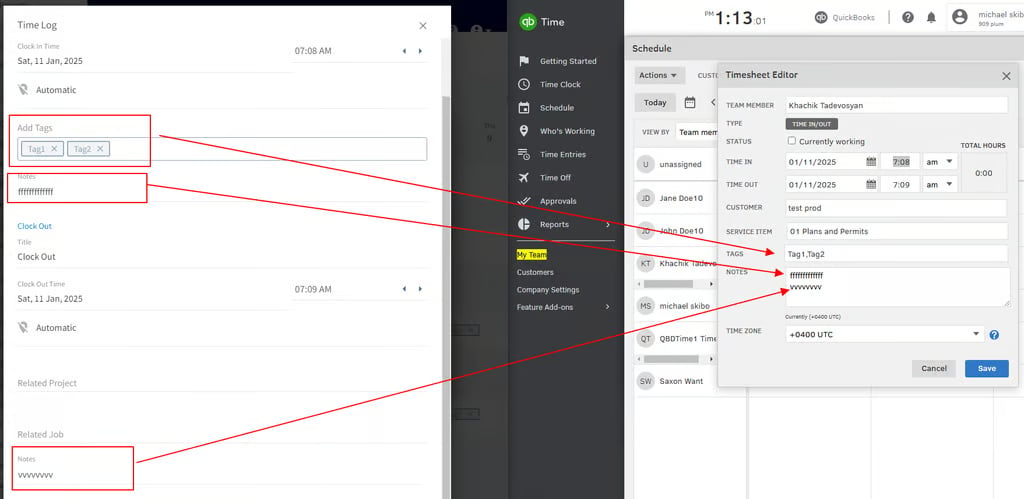
Who uses this: Admins can set this up with help from FieldPulse Support. Availability: US, Canada, Australia, and New Zealand; requires a separate QuickBooks Time subscription from Intuit.Connecting the QuickBooks Time integration pushes your FieldPulse timesheets into QuickBooks Time, so employee clock-in and clock-out data flows into payroll and job costs without re-entry.
Overview
The QuickBooks Time integration syncs FieldPulse timesheet data into QuickBooks Time, a time-tracking product from Intuit for tracking employee hours, running payroll, and keeping accurate job costs. QuickBooks Time is a separate application from the QuickBooks accounting products — it is not QuickBooks Online or QuickBooks Desktop, and it requires its own subscription from Intuit. QuickBooks Time can run on its own or feed timesheets into QuickBooks Online or QuickBooks Desktop.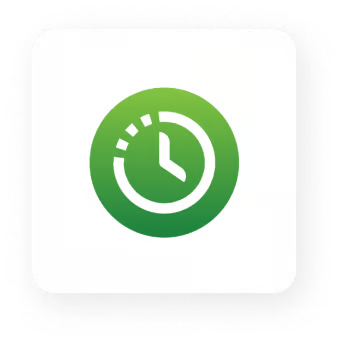
QuickBooks Time calculates total duration and applies its built-in overtime rules from the clock-in and clock-out times you sync.
Before you begin
- You need a QuickBooks Time subscription from Intuit. QuickBooks Time is available in the United States, Canada, Australia, and New Zealand.
- Log time using either general timesheets or job-based timesheets — not both — when syncing to QuickBooks Time. QuickBooks Time rejects overlapping timesheets, which causes sync errors and failed overtime calculations. (For example, clocking into a general timesheet from 8 AM to 5 PM and also logging time against individual jobs that day creates overlaps.)
- Know what does not sync: timesheet locations and related job/project information. Total duration is not pushed directly — QuickBooks Time calculates it from the clock-in and clock-out times.
Connect QuickBooks Time
Setup for this integration is handled by the FieldPulse team, not a self-serve toggle.- Contact Support. Reach out to chat support or your Customer Success Manager to request integration setup.
- Receive your integration link. The team generates a customized link and shares it with you.
- Authenticate your account. Open the link and enter your QuickBooks Time credentials to authenticate the connection.
- Flag user-mapping needs. If specific user mapping is required, tell the FieldPulse team before proceeding.
- Connection setup. FieldPulse developers set up the connection between QuickBooks Time (TSheets) and FieldPulse. This may take several days depending on workload.
- Confirmation. FieldPulse notifies you when setup is complete and the integration is ready to use.
FAQs
Does the sync work with QuickBooks Time’s overtime functionality? Yes. When clock-in and clock-out times sync from FieldPulse, QuickBooks Time automatically applies its built-in overtime rules, which are managed inside QuickBooks Time.