Who uses this: Admins only — Operator AI configuration is admin-only. Availability: Requires the Operator AI add-on and Engage with at least one connected phone number. Contact FieldPulse support to turn the add-on on.Operator AI is FieldPulse’s AI phone agent. It answers your inbound calls in a natural voice, holds a real conversation with the caller, and books the job onto your schedule before the call ends. Because Operator AI lives inside FieldPulse, it already knows your services, your booking availability, your service area, and your customer history — so callers hang up with a real appointment instead of a callback promise. Setting up Operator AI means teaching the agent about your business in the Operator AI Portal, writing the rules it follows, and then forwarding the Engage calls you would otherwise miss to it.
Overview
Setting up Operator AI closes the gap that costs field service businesses the most work: the unanswered phone. The average field service business misses 27% of inbound calls, and 85% of those callers never try back — they call whoever picks up next. Operator AI covers the calls that arrive while the office is on another line, after hours, and on weekends. Setup happens in two places:- In the Operator AI Portal (webai.fieldpulse.com) — you set your company details, build your voice operator, configure rules, and review calls.
- In FieldPulse (Engage) — you forward the calls you would otherwise miss to Operator AI, using your existing working hours and call routing.
Video walkthrough
Watch the Operator AI Portal walkthrough for a tour of the portal before you configure it. The written steps below cover the full setup on their own.Before you begin
Operator AI plugs into your Engage call flow, so a few things need to be in place first:- Operator AI is enabled on your account. Operator AI is an add-on product. If you don’t see it in your account, email support@fieldpulse.com or use the chat icon in the bottom right of your screen to have it enabled.
- Engage is enabled with at least one phone number connected. Operator AI plugs into your existing Engage call flow, so this is the foundation. See Engage Overview.
- Your booking portal is set up with the services callers can book, including service name, description, duration, lead time, and price. Operator AI reads this catalog when it matches a caller’s request to a real service. See Setting Up the Booking Portal.
- Working hours are configured in Engage, including your company time zone. Operator AI operates in your local time zone and uses these hours to handle after-hours calls correctly. See Setting Up Working Hours.
- Call routing is set up the way you want callers handled before they reach Operator AI — phone tree, sequential ring, or direct forwarding. See Setting Up Call Routing.
- You have Admin permissions in FieldPulse. Operator AI configuration is admin-only.
Step-by-step setup
Configure the agent in the Operator AI Portal first, then forward your Engage calls to it.1. Sign in to the Operator AI Portal
- Check your inbox for an email with the subject line Your Operator AI account. The email contains your username and a temporary password.
- Go to webai.fieldpulse.com and sign in with the temporary password.
- Create a new password when prompted, and store it somewhere secure.
2. Configure your company details
Company configuration is where your operator learns the facts about your business.-
Select My Company from the menu on the left side of your screen, then open the Configuration tab. Select Save after every change.
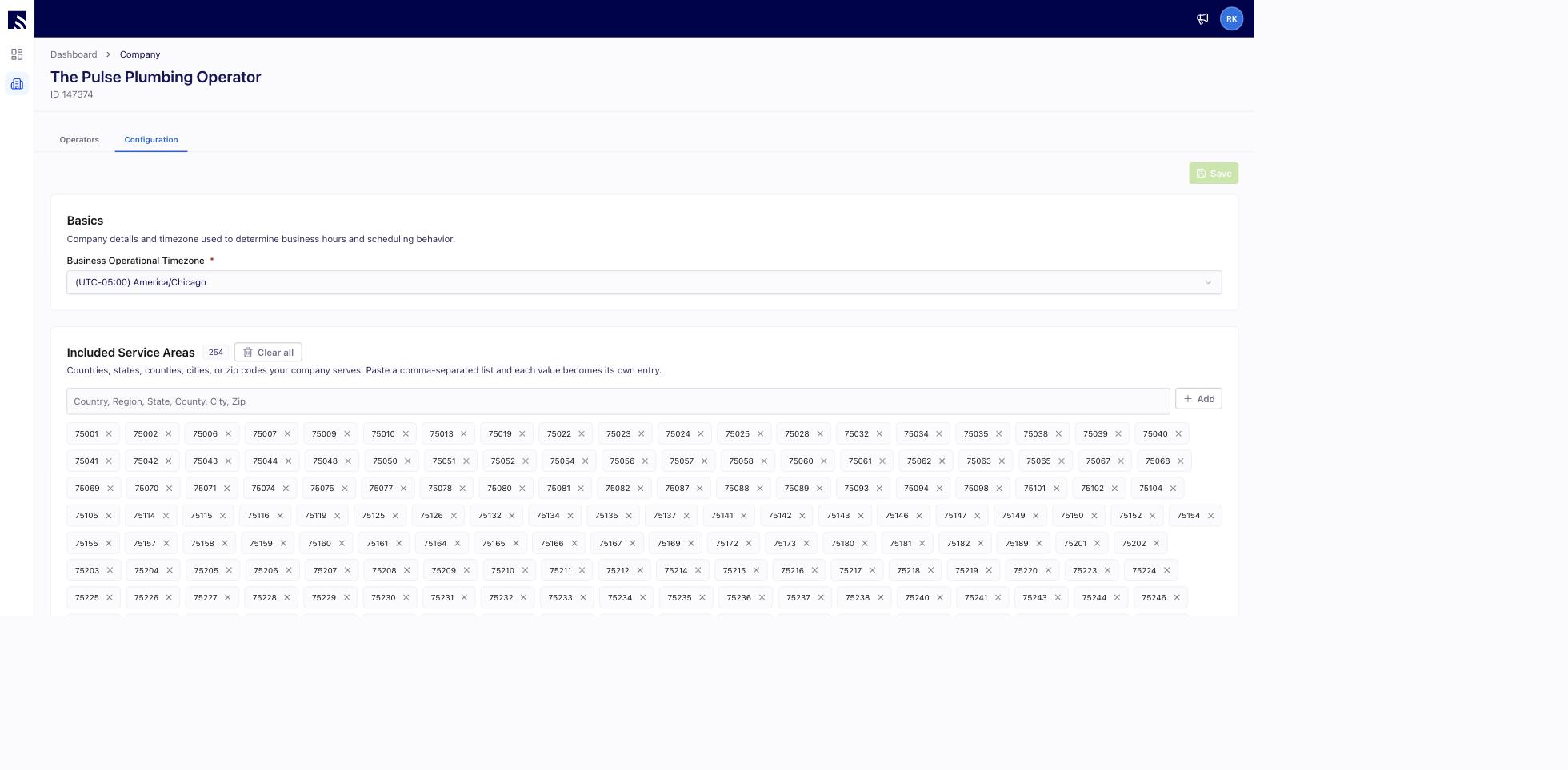
- Set your Business Operational Timezone. Your operator uses this time zone to determine business hours and scheduling behavior.
- Add your Included Service Areas — the countries, states, counties, cities, or zip codes your company serves. Paste a comma-separated list and each value becomes its own entry.
- Optionally add Excluded Service Areas — areas your company does not serve, where the operator politely declines jobs.
- On the Service Matching card, set what happens when a caller’s request doesn’t match your service list: Capture the Lead, Promise a Callback, Soft Decline, or Hard Decline. You can also switch matching off entirely.
- Set When Coverage Is Unconfirmed to decide what happens when an address falls outside both your Included and Excluded Service Areas: Capture the Lead, Promise a Callback, or Decline. If you only list Excluded Service Areas, everything else books normally, and anything in an excluded area is always rejected at job creation.
-
Choose your Scheduling mode: Booking Portal, Booking Hours, or Booking Windows. See Scheduling modes in the Settings reference for what each mode does. FieldPulse recommends Booking Portal if your booking portal is already configured.
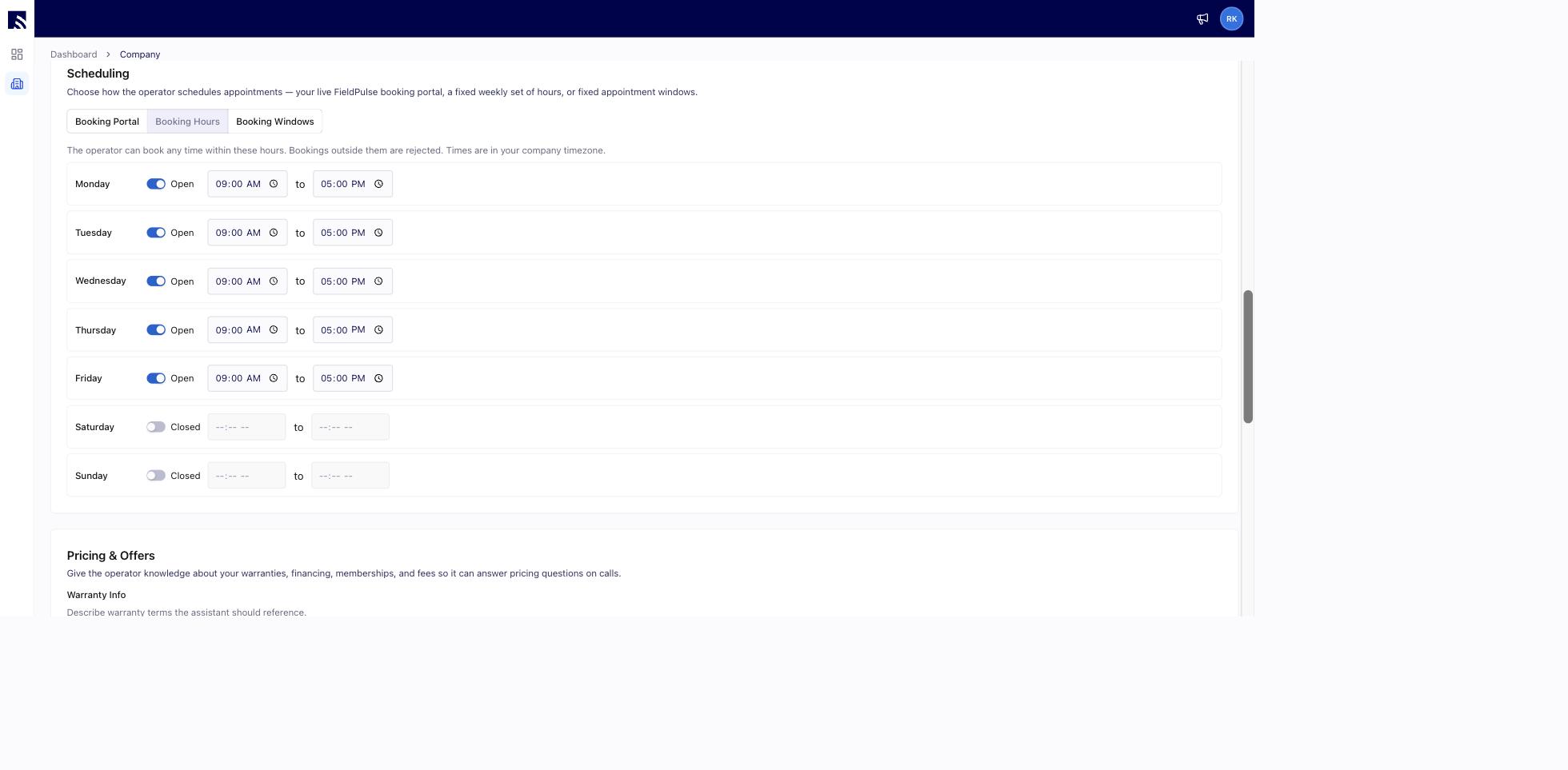
- Choose your Job Creation Mode — separately from your Scheduling mode, this controls how each booked job is created: Scheduled + Assigned, Scheduled + Unassigned, or Unscheduled + Unassigned. See Job creation modes in the Settings reference for what each mode does.
- In Booking Portal mode, choose an Arrival Window option to control how the operator talks about the time it books: Exact Times (the default), Time + Arrival Window, or Arrival Window Only. The exact time is always saved to the job regardless; this setting only changes what the operator says out loud.
- In Booking Hours and Booking Windows mode, set your Booking Limits: Offer Same-Day Appointments (on by default), Minimum Lead Time in hours, and Booking Horizon in days, set per service. The stricter limit always wins. In Booking Portal mode, your booking portal controls these limits instead.
-
Fill in Pricing & Offers — the free-text Warranty Info, Financing Options, Maintenance Membership Details, and Holiday Fee Info fields. Your operator references these to answer pricing questions on calls.
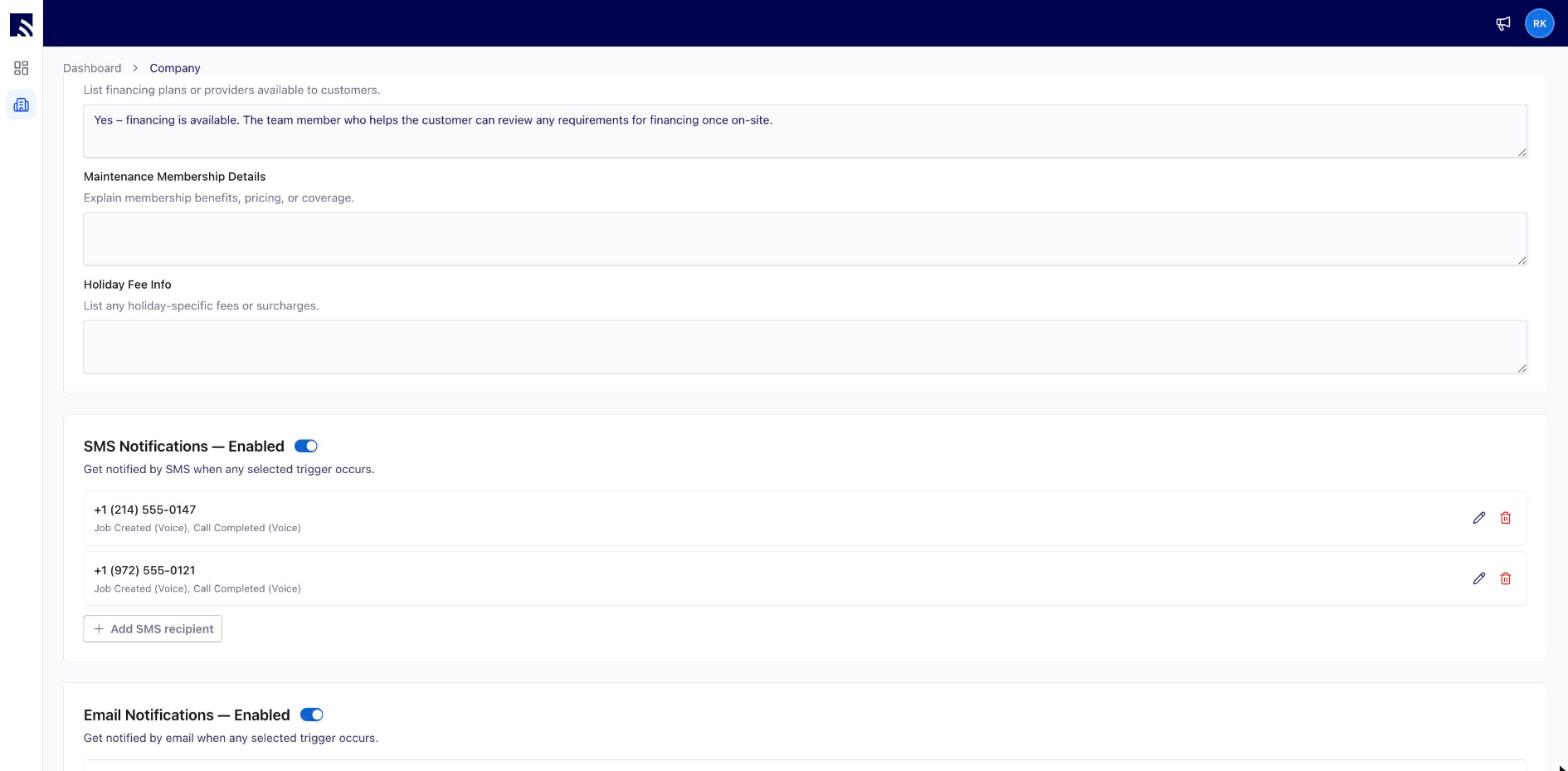
- Add SMS Notifications and Email Notifications recipients and choose their triggers, such as Job Created and Call Completed, so your team hears the moment the operator books a job or finishes a call.
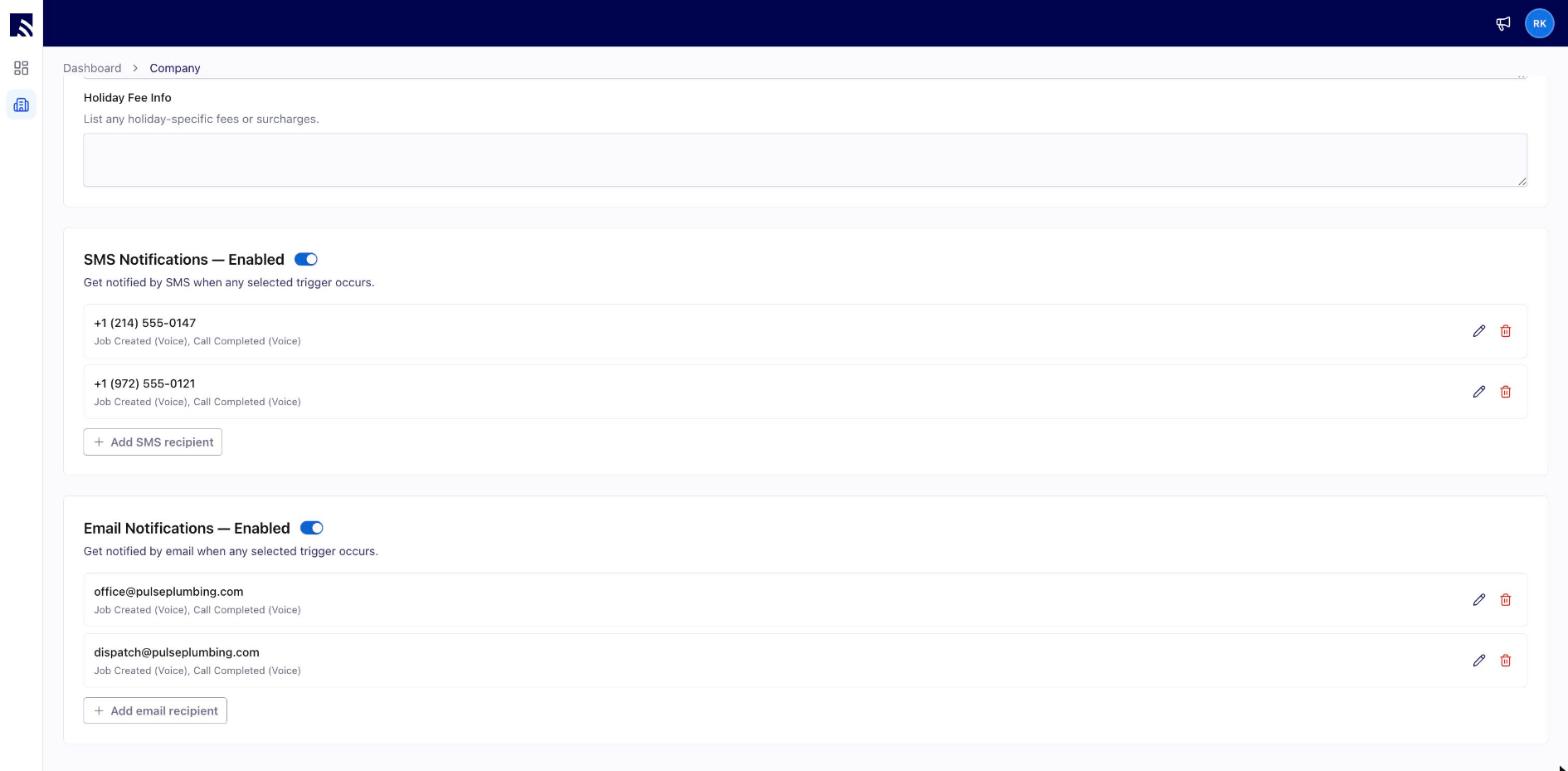
3. Set up your voice operator
The voice operator is the agent callers actually hear.-
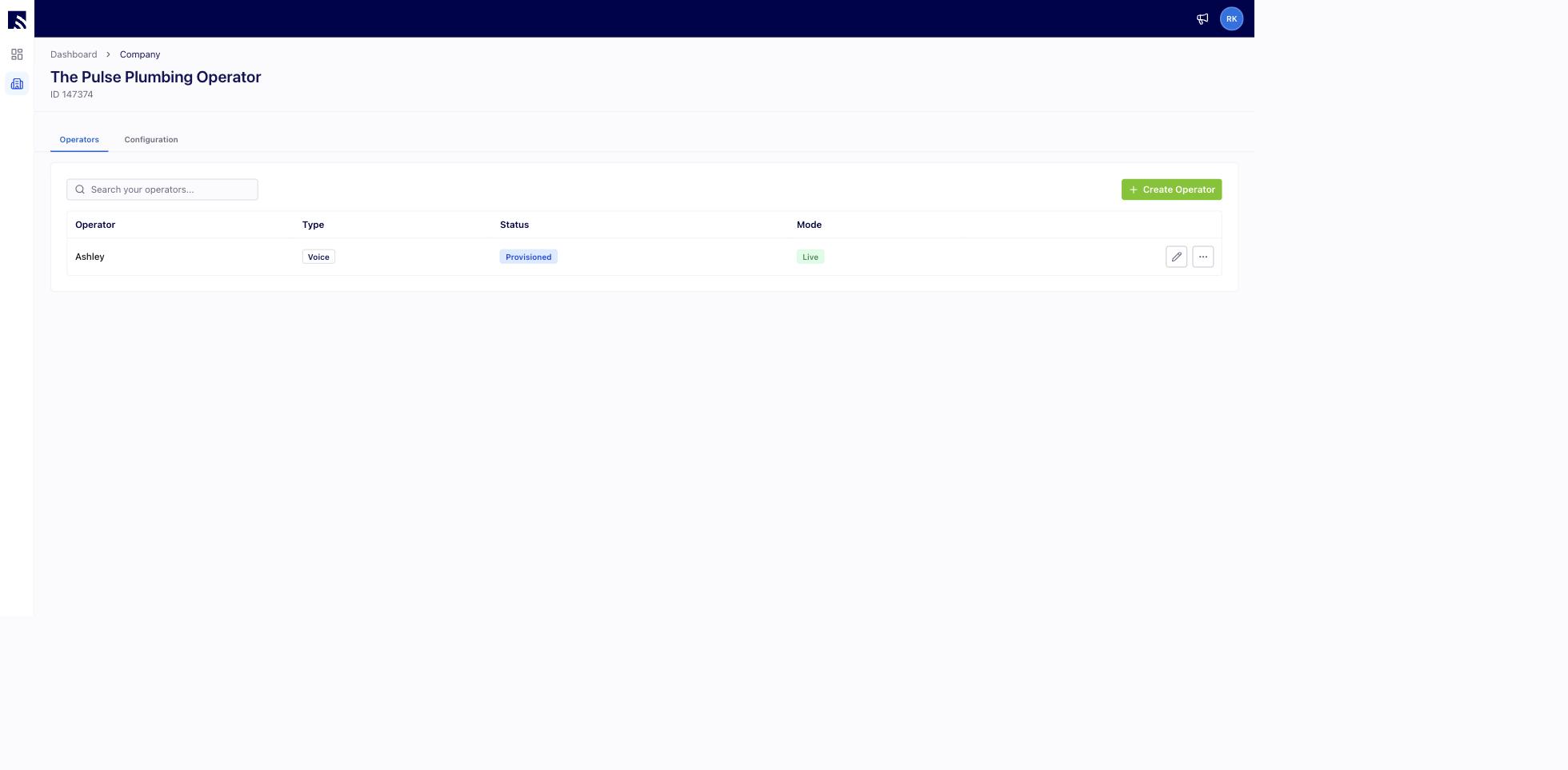
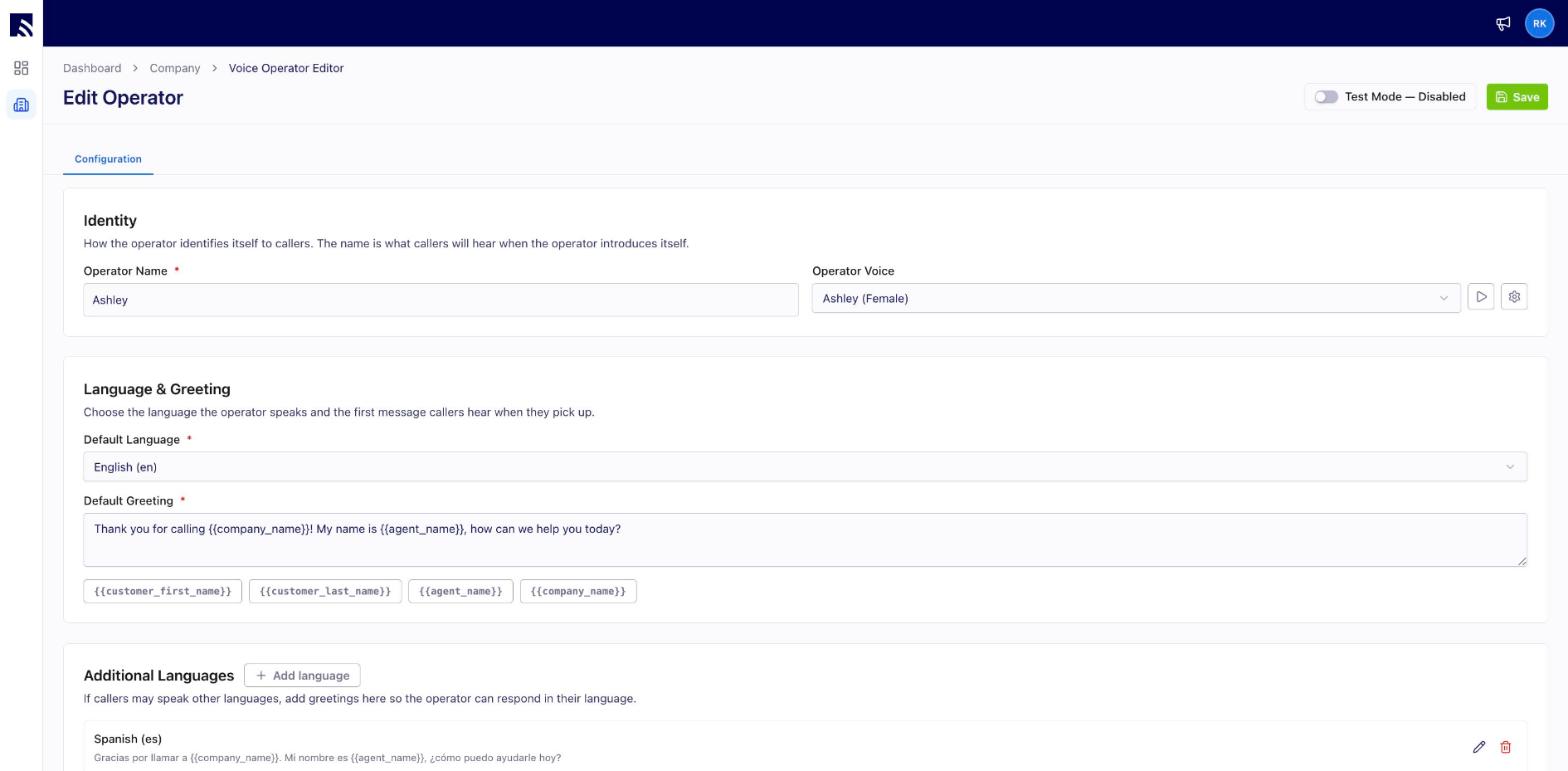
From My Company, open the Operators tab and select the edit icon next to your operator. The Test Mode toggle at the top of the editor lets you try the operator without creating real records or sending notifications.
-
Under Identity, set the Operator Name — this is what callers hear when the operator introduces itself — and pick an Operator Voice. Use the play button to preview the voice.
-
Under Language & Greeting, choose the default language and write the first message callers hear. Use the variable chips —
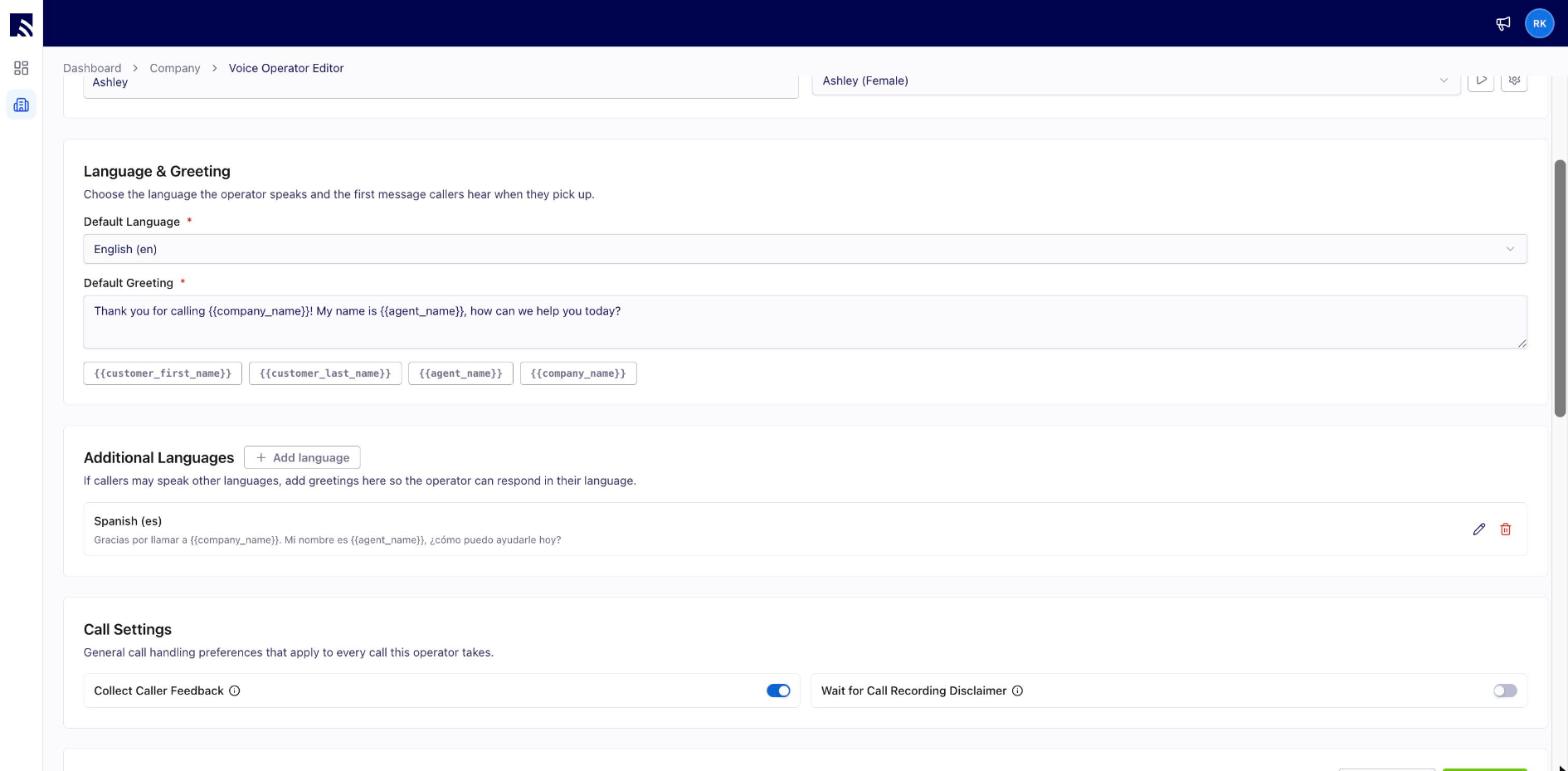
{{agent_name}},{{company_name}},{{customer_first_name}}, and{{customer_last_name}}— to personalize the greeting. - Add Additional Languages so the operator can respond in the caller’s language.
- Review your Call Settings. Collect Caller Feedback asks the caller to rate their experience and leave optional comments before the call ends. Wait for Call Recording Disclaimer adds a brief pause before the greeting so a “this call may be recorded” disclaimer can finish playing.
4. Configure your rules
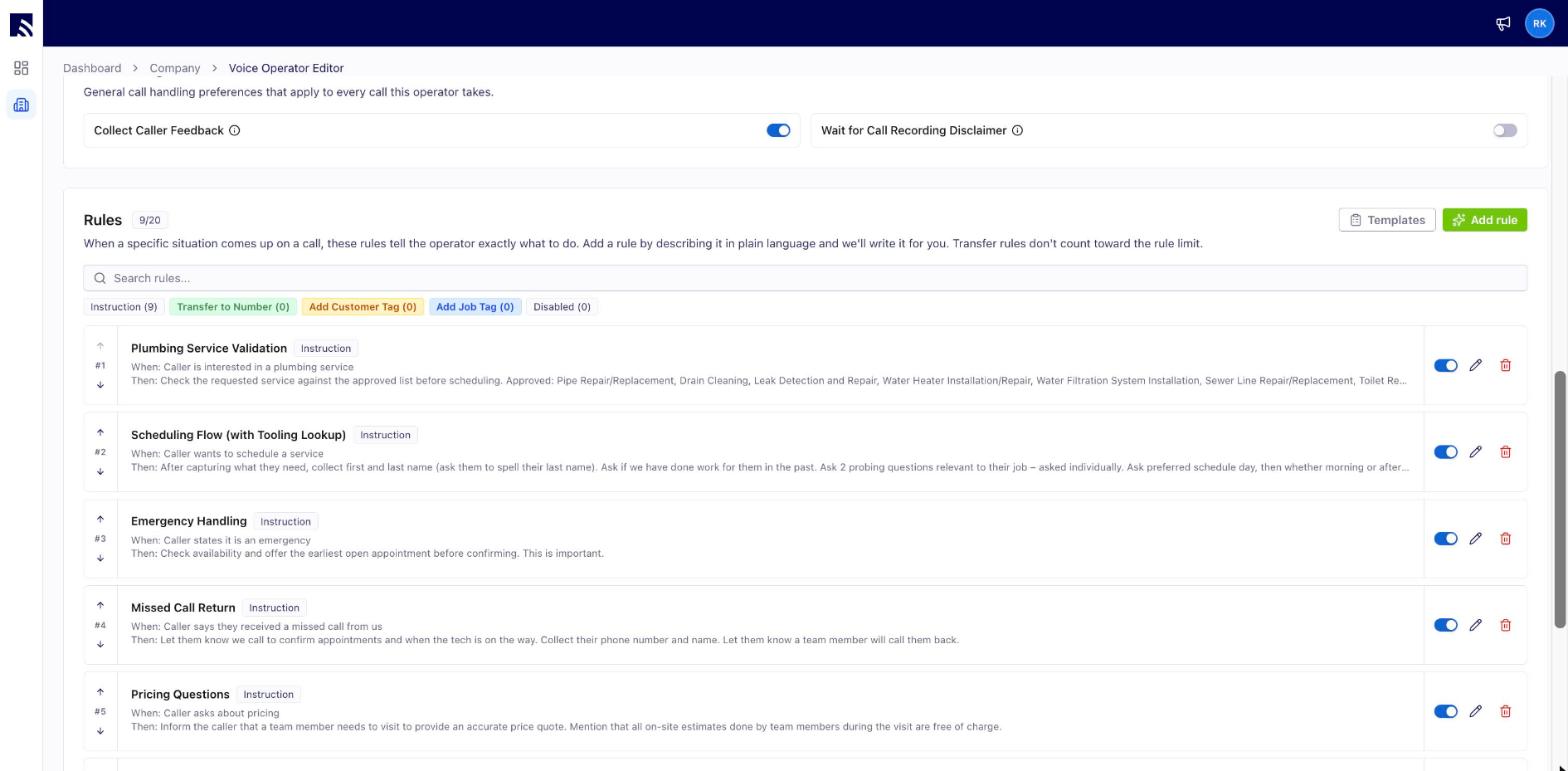
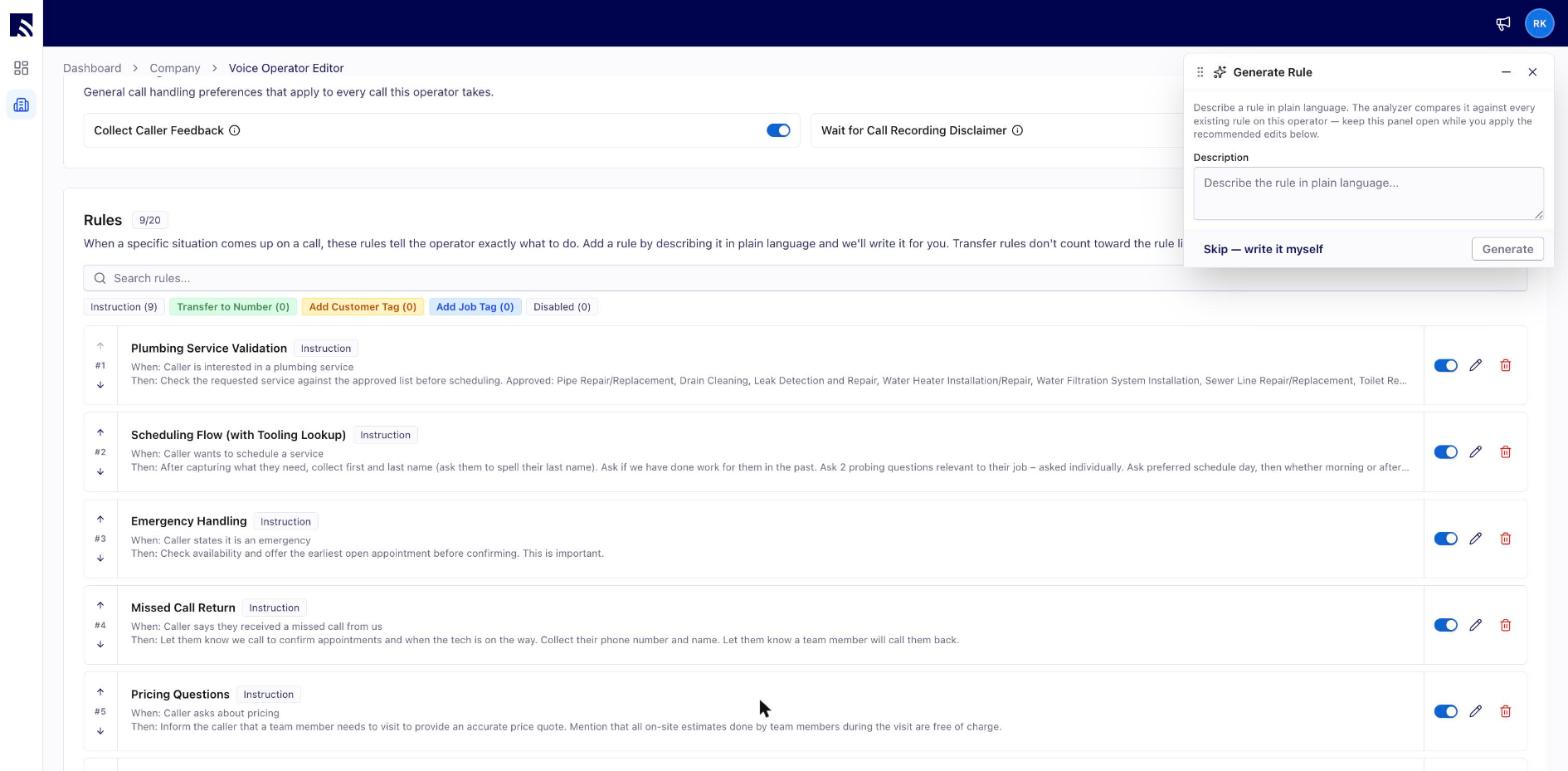
Rules extend or override Operator AI’s default behavior. Each rule fires when its condition is met during a call. You configure rules in the voice operator editor.Rules always win. A rule you configure takes precedence over the default onboarding flow, so if a rule conflicts with the default behavior, your rule is what the operator follows.Each operator supports up to 20 rules. Instruction and tag rules count toward that limit; Transfer to Number rules do not. See Rule types in the Settings reference for what each type does.
- “Always confirm the service area zip code before collecting any other intake information.”
- “If it’s an emergency service, double-confirm and quote the $300 emergency fee.”
Personality and tone
Set your agent’s Personality and Tone in two dedicated fields. Choose from five presets to start from — Friendly & Warm, Professional & Efficient, Calm & Reassuring, Down-to-Earth, and Energetic & Upbeat — or write your own. The operator applies this personality and tone across the whole conversation.Personality and Tone only affect how the operator sounds and talks. Booking behavior, hours, and rules are configured separately.
5. Forward your Engage calls to Operator AI
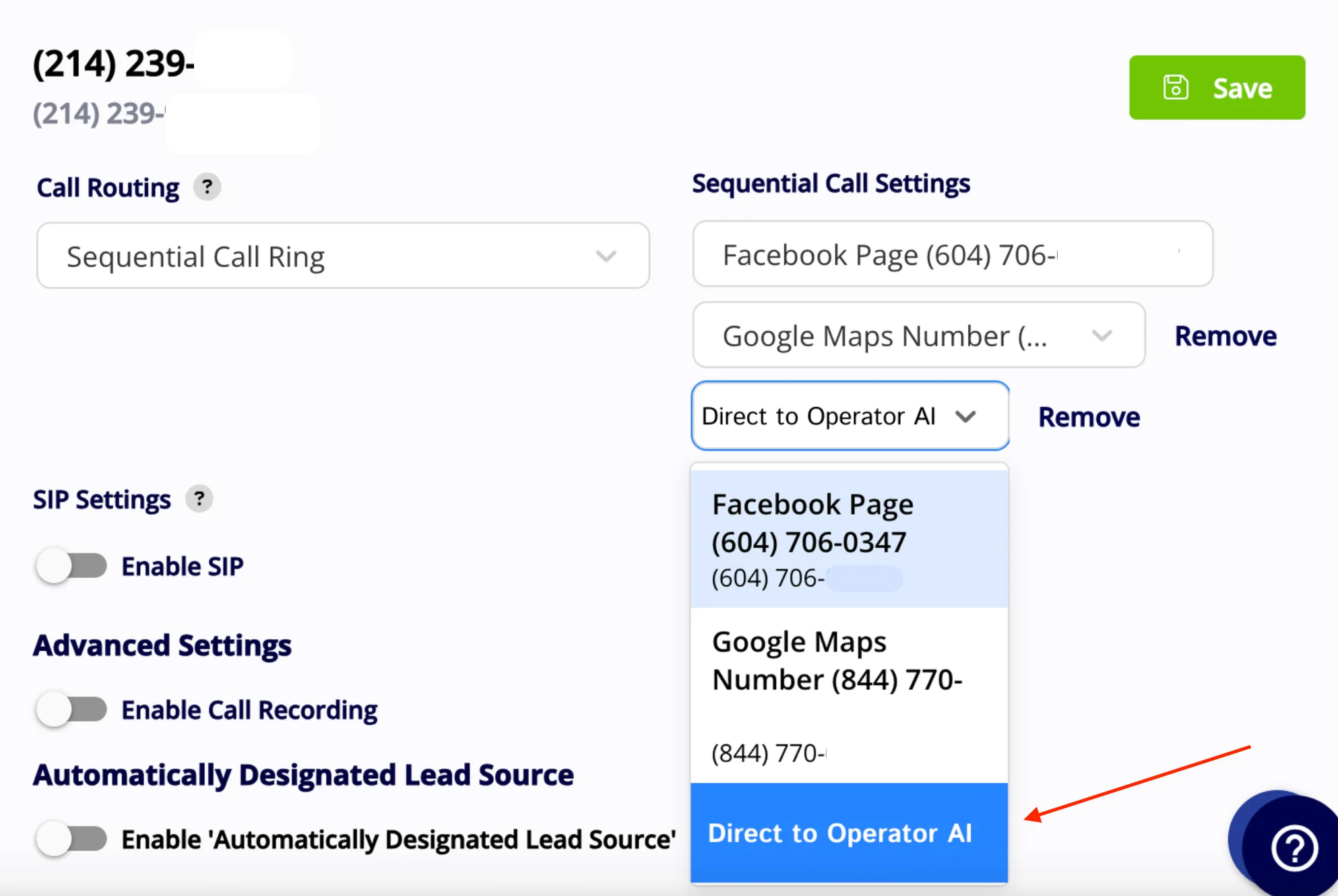
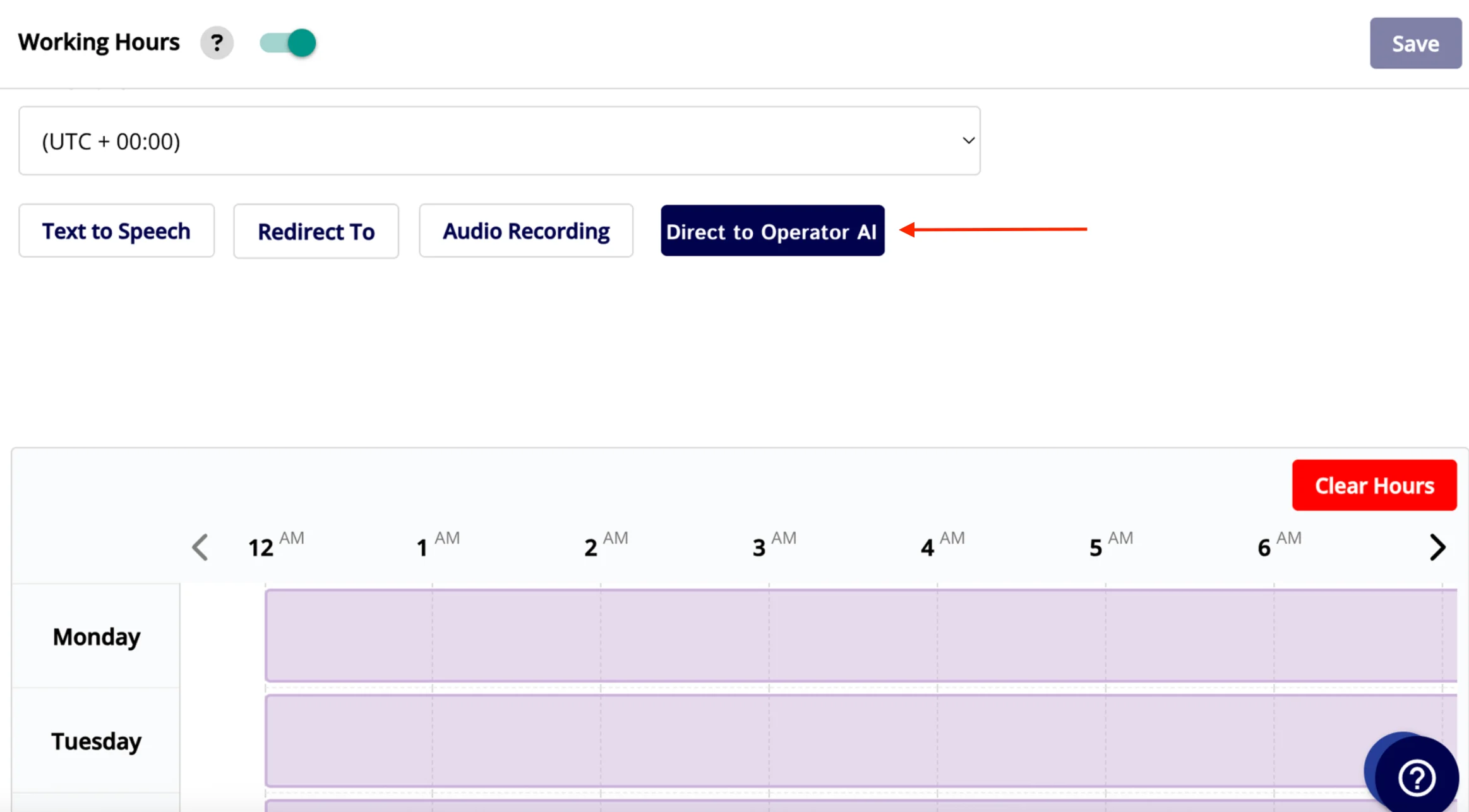
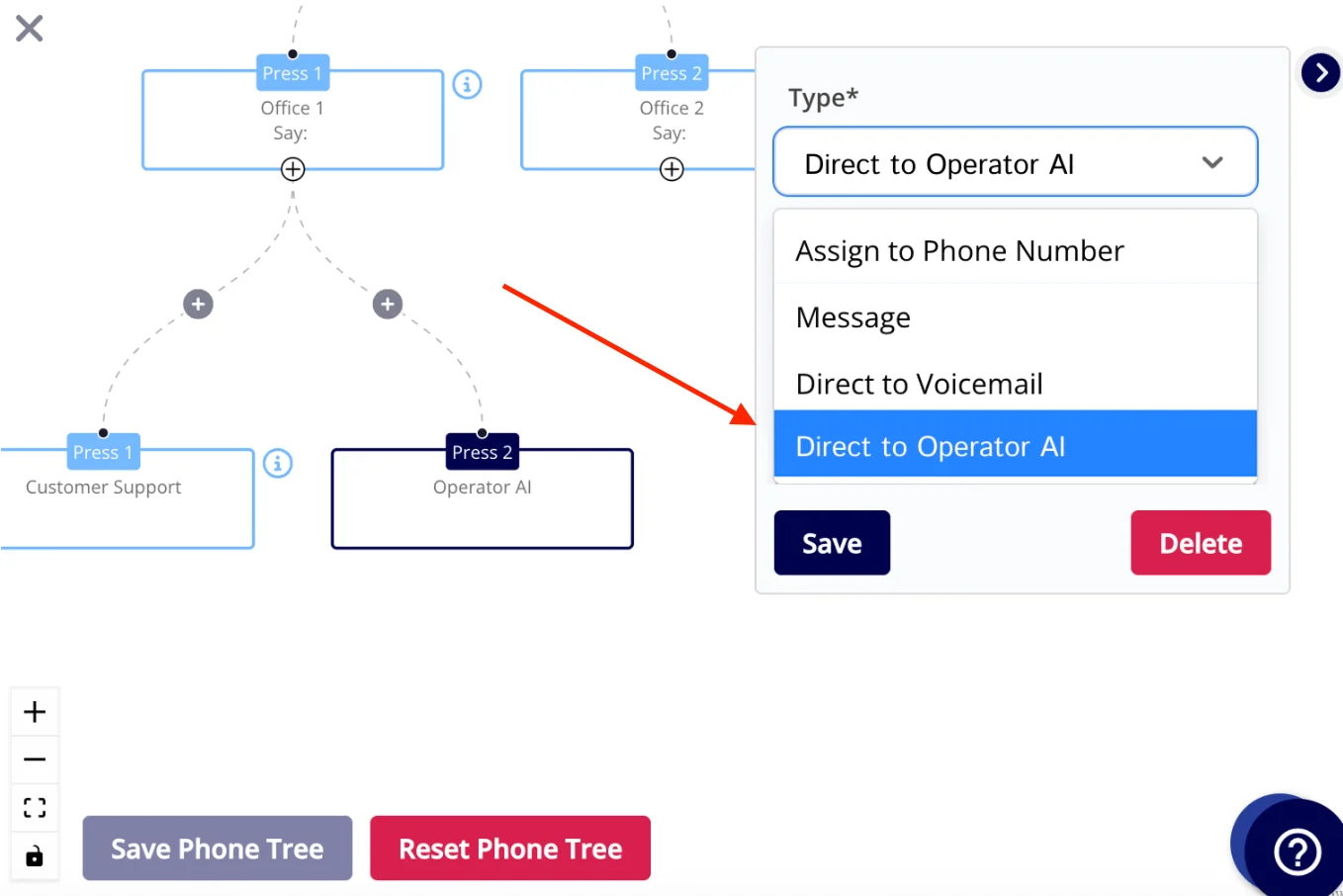
Once the agent knows your business, send it the calls you would otherwise miss. In Engage, configure your working hours and one of the call routing options — phone tree, sequential call ring, or direct call forwarding per line — to forward potentially missed calls to Operator AI.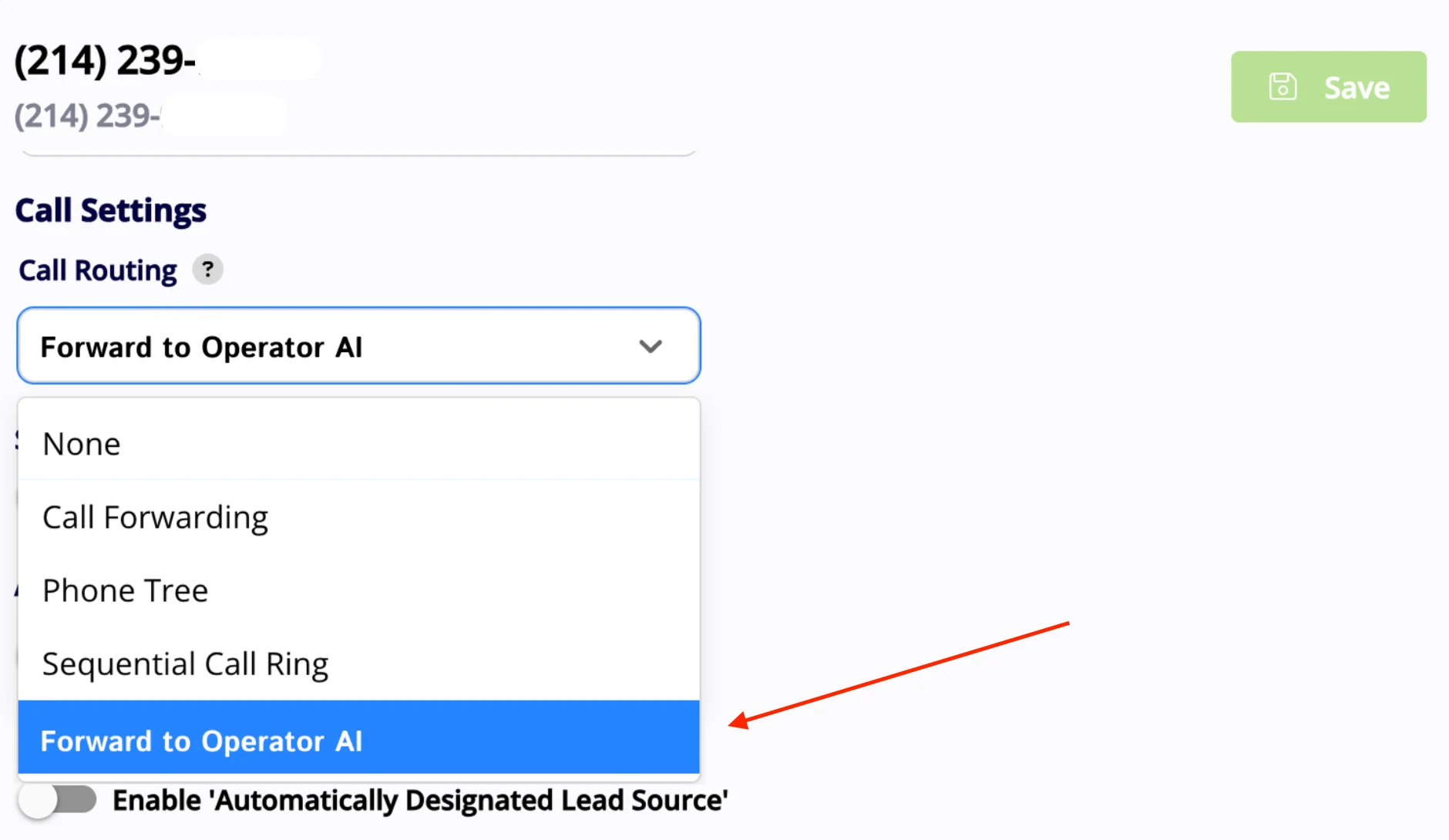
What Operator AI creates in FieldPulse
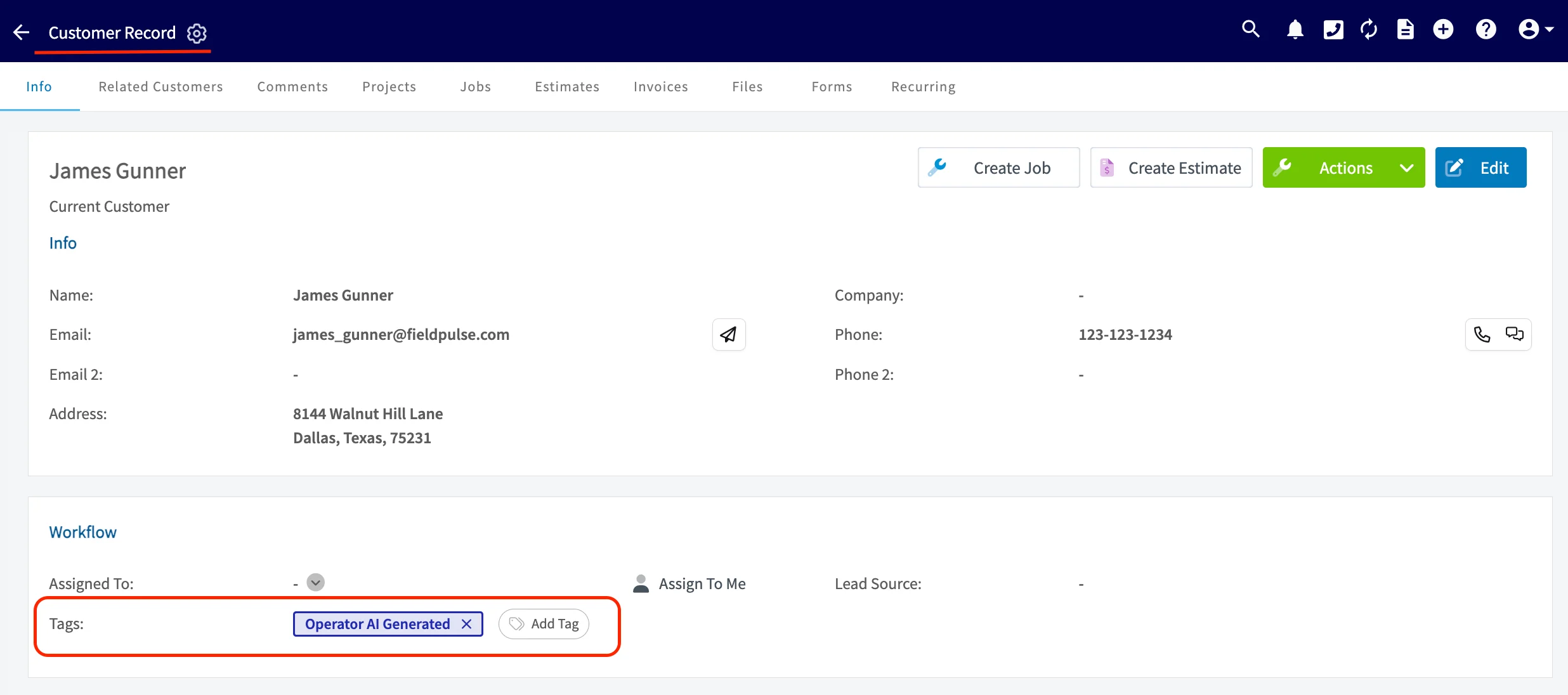
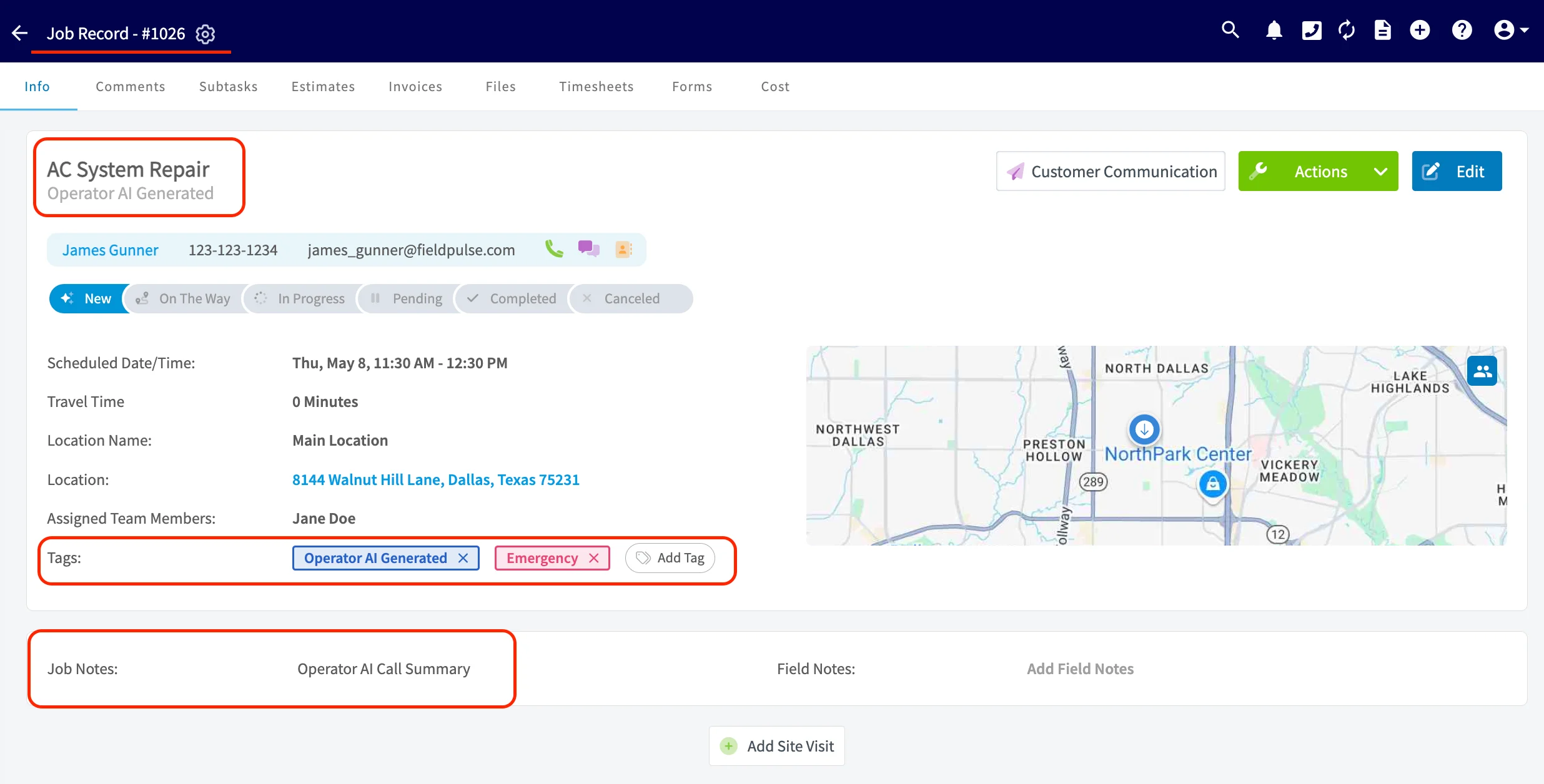
When a call is forwarded from Engage to Operator AI, the operator conducts the call and collects the details it needs — the requested service and the customer’s availability. During the call, Operator AI pulls your company’s list of available services from your booking portal, matches the closest service to what the caller is asking for, then references Booking Portal Find Availability for that service to find a time that fits the caller. You can create custom configurations for skill sets, team sizes, and available hours for each service you offer — see Setting Up the Booking Portal. Operator AI then writes the results into FieldPulse so your team has everything without re-entering it:
If Auto-Insert Call Summary in Customer Comments is turned on in your Engage settings, the same call summary is also added as a comment on the customer’s record, in addition to the Job Notes entry.
Reviewing calls and feedback
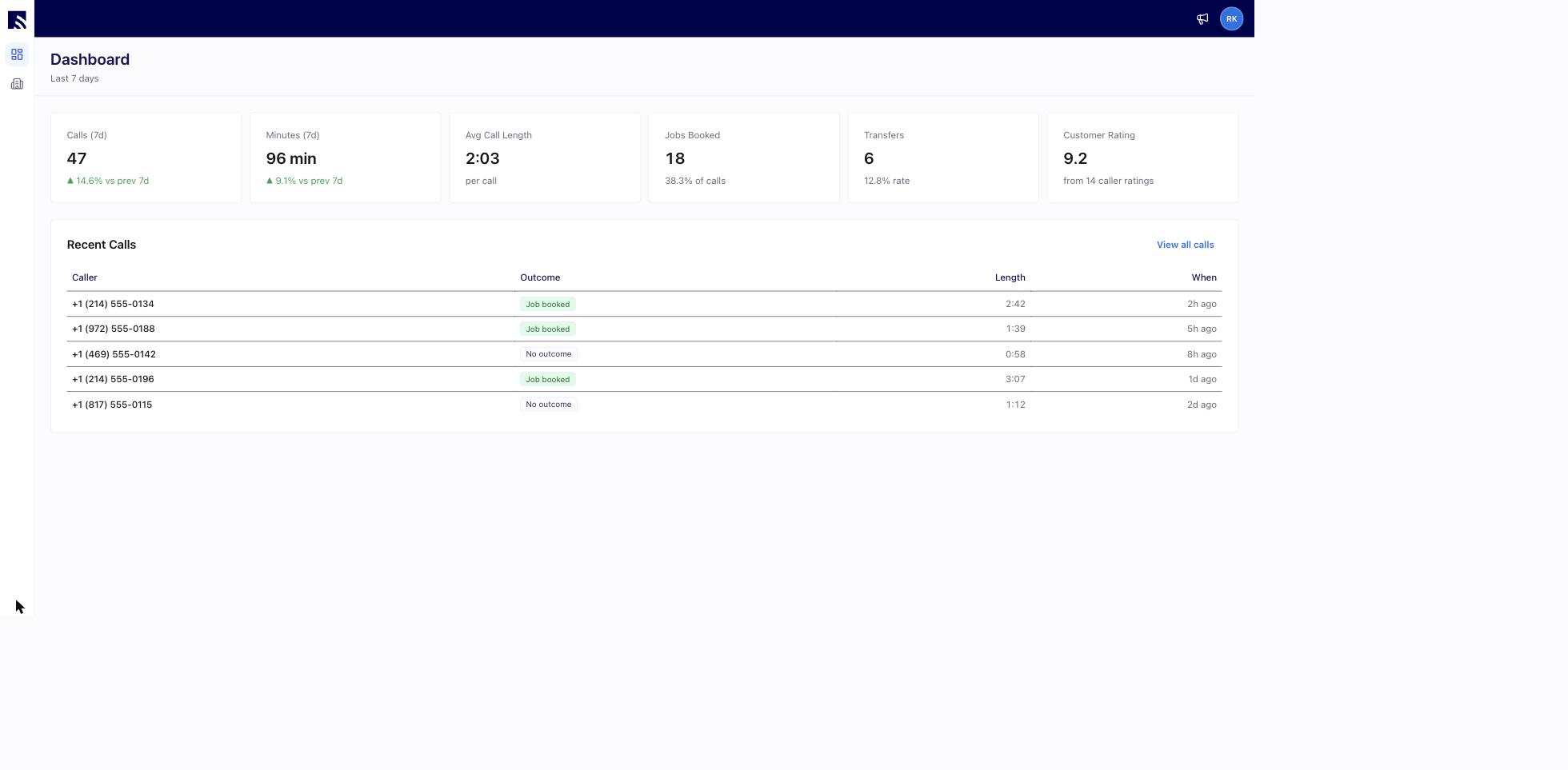
The Operator AI Portal Dashboard gives you a real-time summary of the last 7 days:
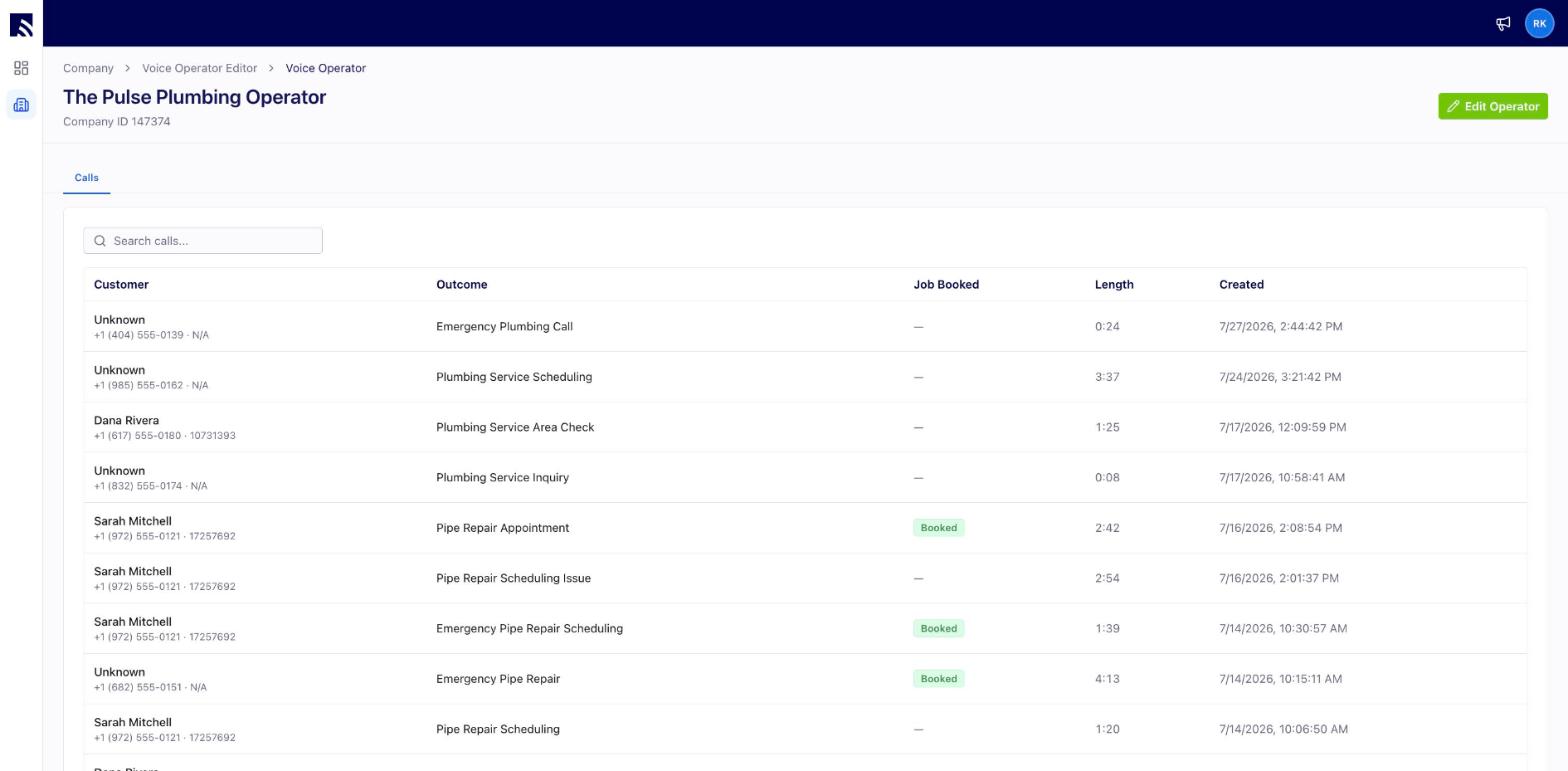
Below the cards, the Recent Calls log shows each caller, the call outcome, the length, and when it happened.
-
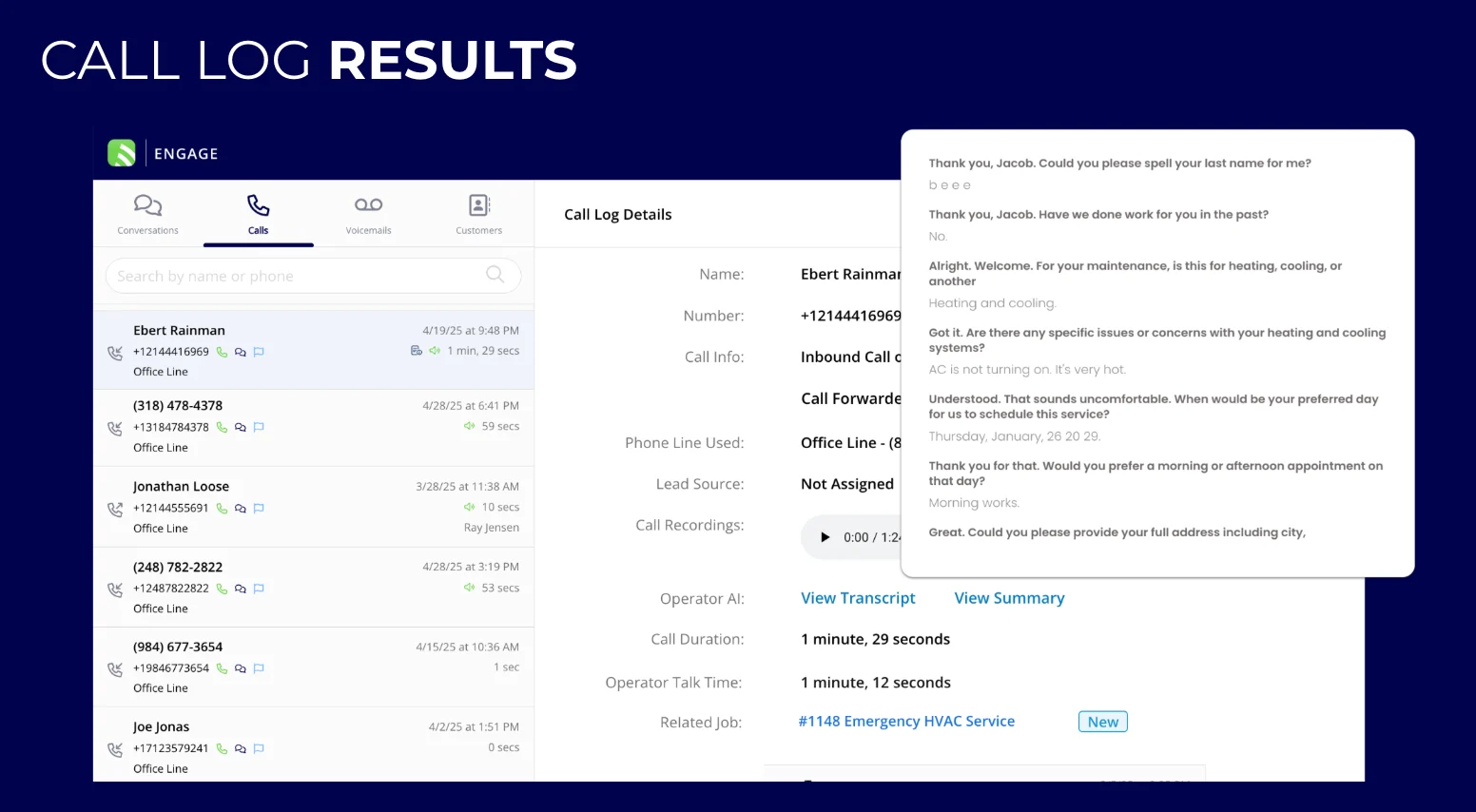
Select any call in the Recent Calls log, or select View All Calls and use the search bar to find the call you want. The call log shows the customer’s name and ID, an auto-generated outcome summary, whether a job was booked, the length, and the time.
-
Open the Call tab for a plain-English summary of the call, the caller’s details, and Created This Call — a direct link to the job created in FieldPulse. Tools Called lists every action the operator took during the call, such as service lookup, availability checks, and job creation.
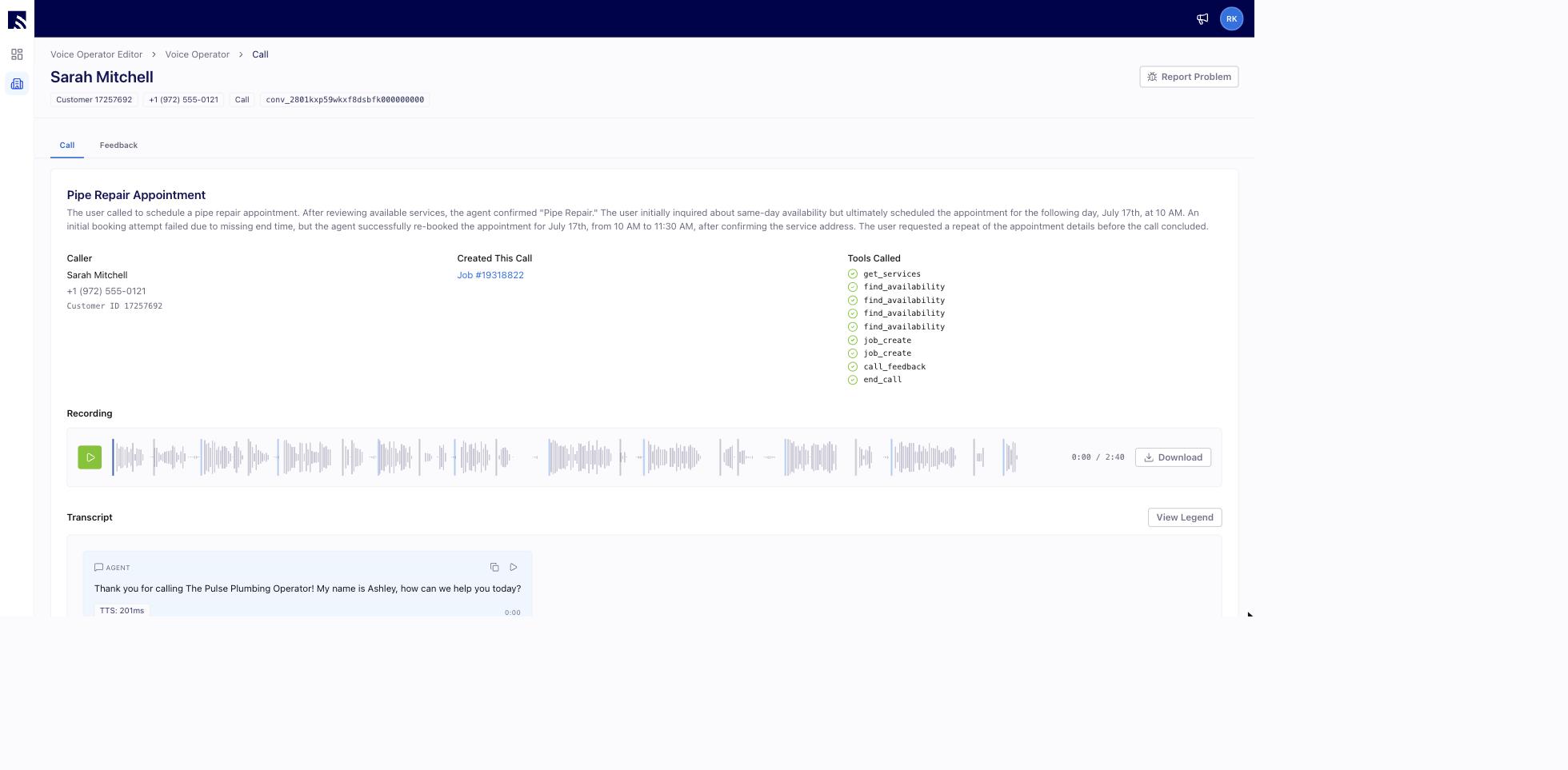
- Listen to or download the call recording, and read the full transcript of the conversation between the operator and your customer.
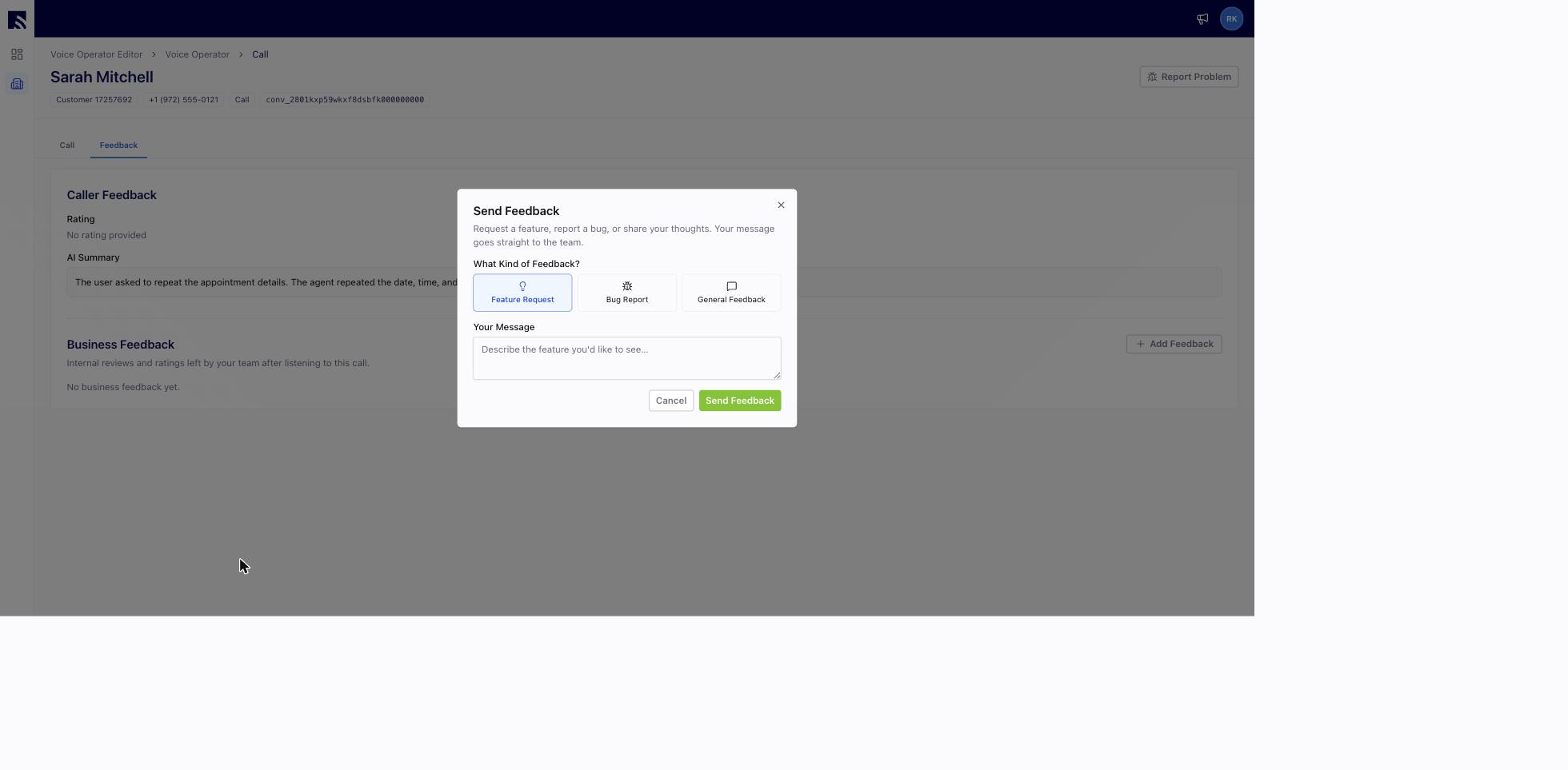
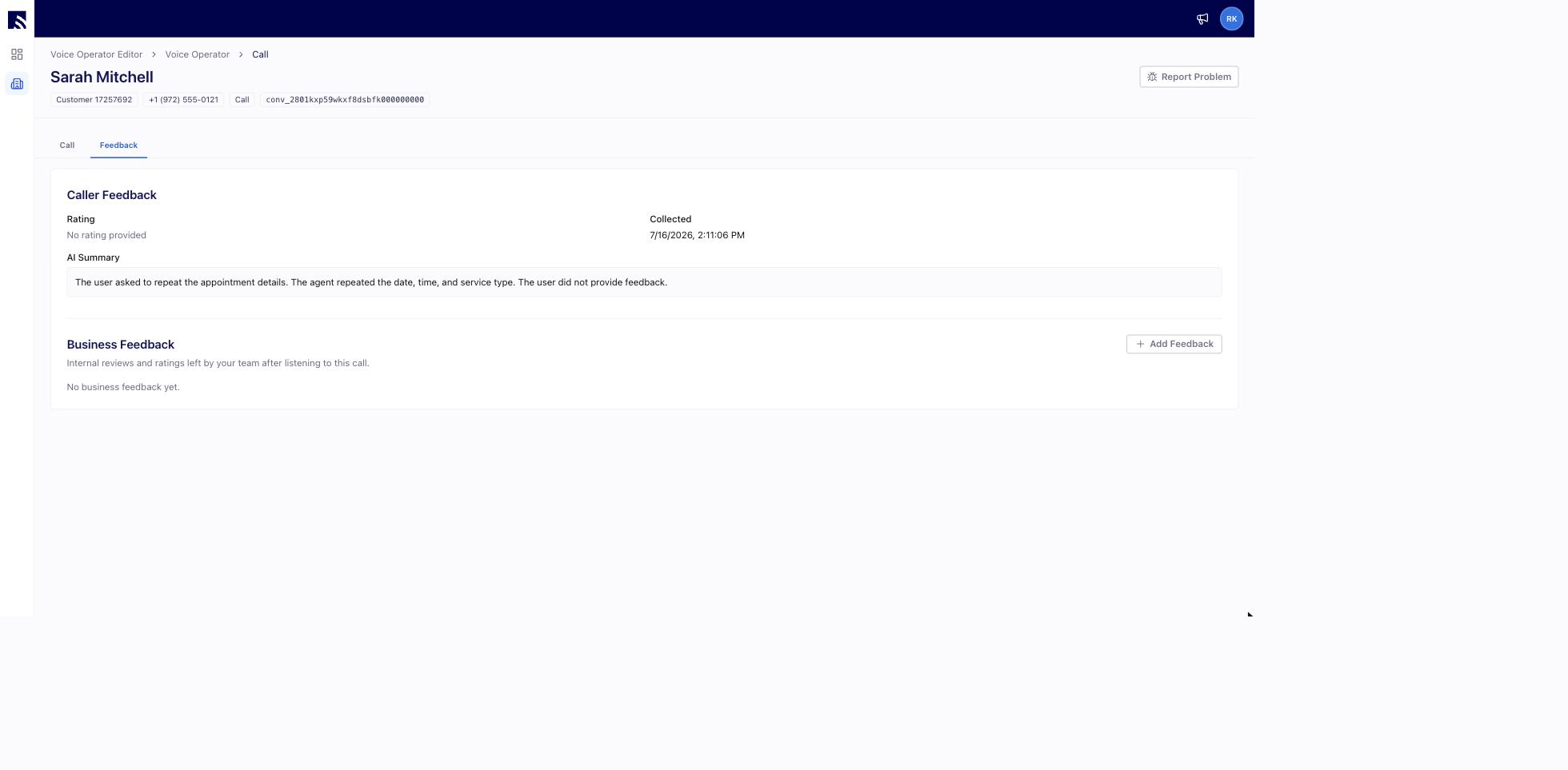
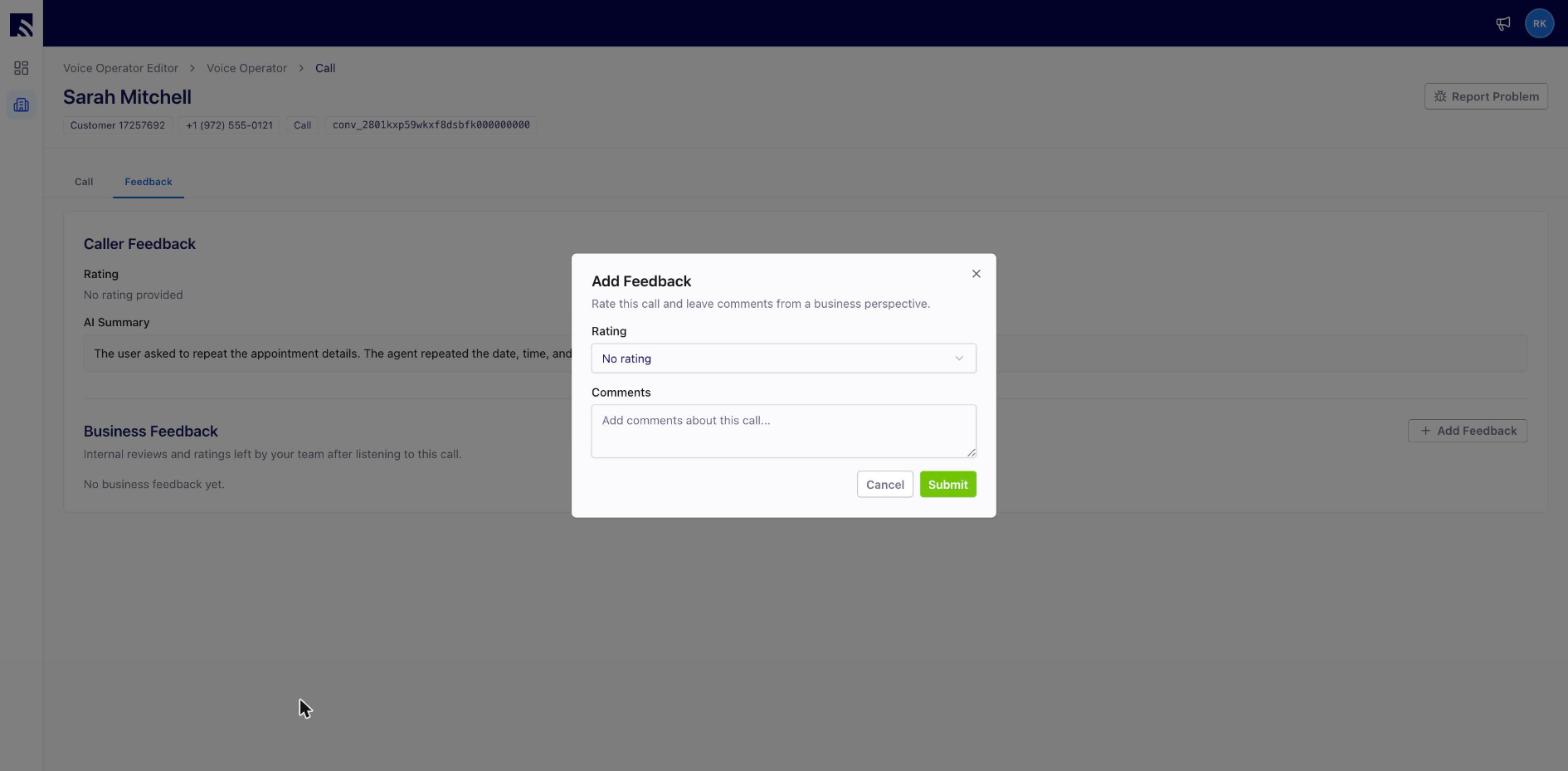
- Open the Feedback tab to see the caller’s rating and any comments captured at call end, plus Business Feedback — the internal reviews and ratings your team leaves after listening to the call. Select Add Feedback to rate the call from a business perspective, for example where the script needs clarity or what you want the operator to do differently. Feedback left on a call helps your operator improve over time.
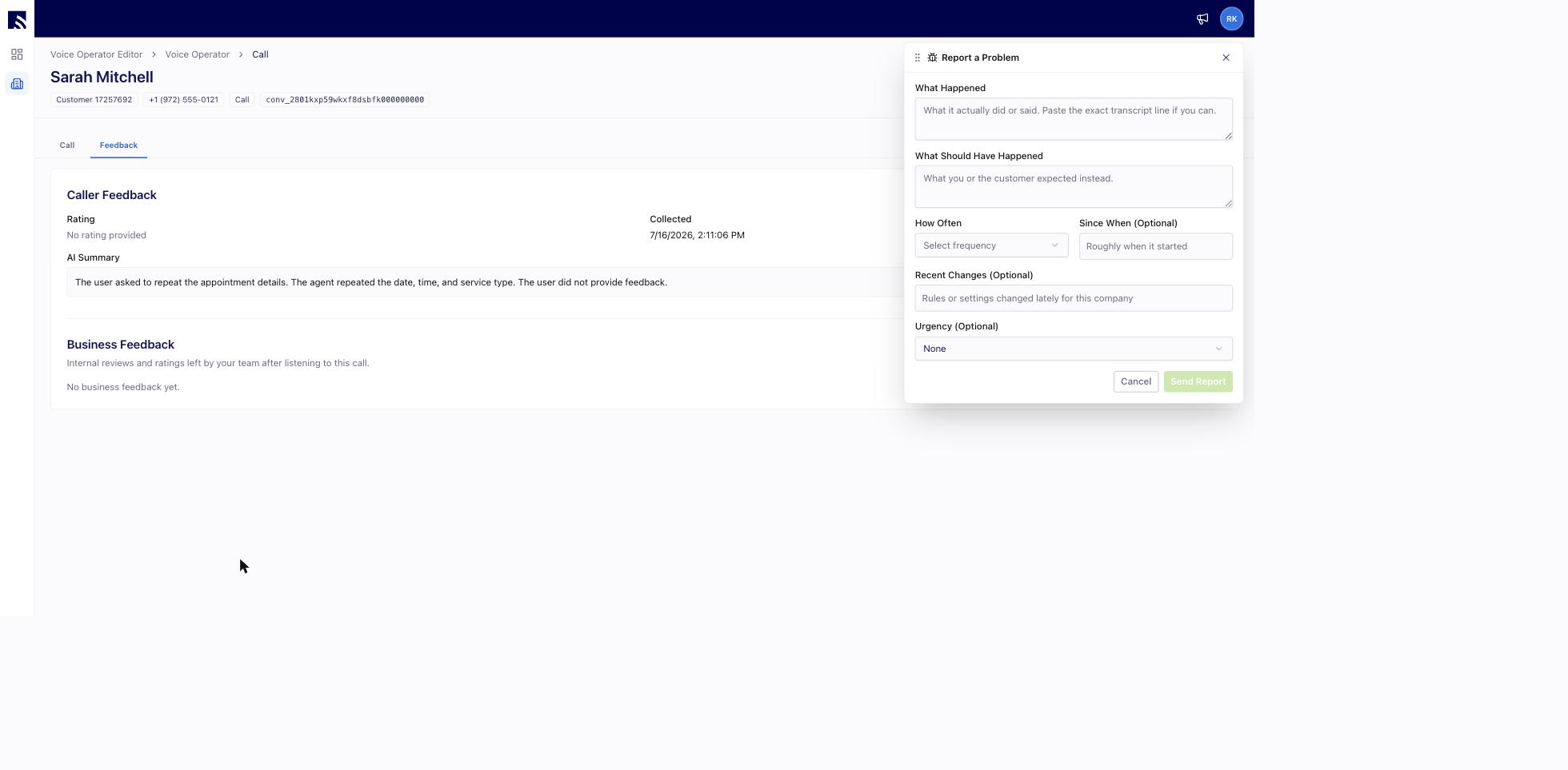
Report a problem with a call
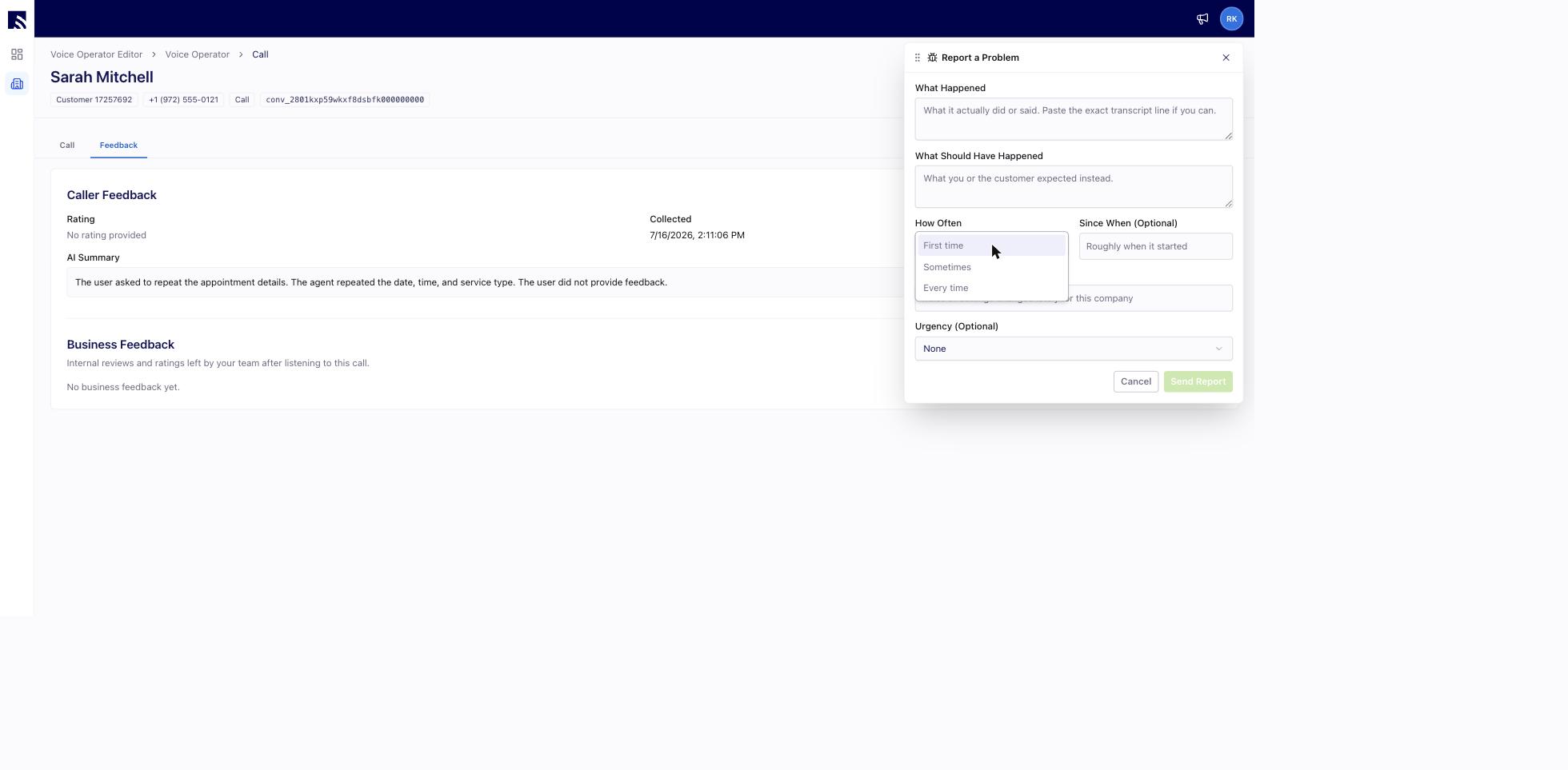
If something went wrong on a specific call, select Report Problem at the top of the call detail page and describe what happened, what should have happened, and how often you see it. The call’s details are attached automatically, which is exactly what the FieldPulse team needs to fix it quickly.