
Common Uses Cases for Comments
- Streamlined Office and Technician Communication: The Comments feature enables technicians to quickly communicate with office staff, whether for requesting additional resources, scheduling changes, or clarifying instructions. Office personnel can promptly address these comments, ensuring technicians have all necessary details before heading to the job site.
- Internal Communication Between Technicians: Technicians can leave comments on job records to share updates or ask questions about ongoing tasks. For instance, if a technician encounters an unexpected issue while on-site, they can comment to inform internal staff about the problem and seek advice or solutions.
- Customer Communication via the Customer Portal: Technicians can utilize comments to provide updates directly to customers through the Customer Portal. By leaving comments throughout the job or project for example, technicians give customers visibility into the work being completed. Customers can respond to these comments with questions or feedback, fostering a two-way dialogue that enhances customer satisfaction.
- Sharing Best Practices: Team Managers can use the commenting feature to discuss successful strategies they’ve employed in similar jobs. This allows for knowledge sharing across the team and can help all technicians learn from practical experiences.
Where to Leave Comments in FieldPulse
You can leave comments on the following records in FieldPulse:- Customer
- Job
- Project
- Subtask
- Estimate
- Invoice
- Material List
- Purchase Order
- Customer Portal (see more information below)
Admin users are able to comment on all the records listed above. However, if you are a team manager or service agent, your ability to comment will depend on the user feature permissions established by the founding FieldPulse user.
Customer Portal Comments
Comments left on Job and Project records can also be sent to the Customer Portal, making them viewable by your customers. This allows you to use the Customer Portal as a communication medium while automatically documenting these communications within the related Job and Projects in FieldPulse.This functionality is currently only available on our web app.
Here are the specifics:
-
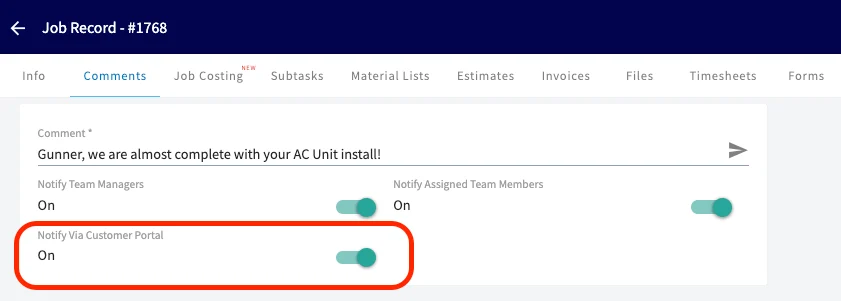
Notify via Customer Portal Toggle: When leaving comments on Jobs and Projects, you will see a toggle labeled Notify via Customer Portal. When this is activated, the comment will cascade to the related Job or Project in the Customer Portal, ensuring that your customers have visibility into the updates/comments being left.
-
Customer Email Notifications: Your customers will also receive an email notification whenever a comment is left. This email will allow them to review the comment directly as it provides a quick link for accessing the comment in the Customer Portal.

-
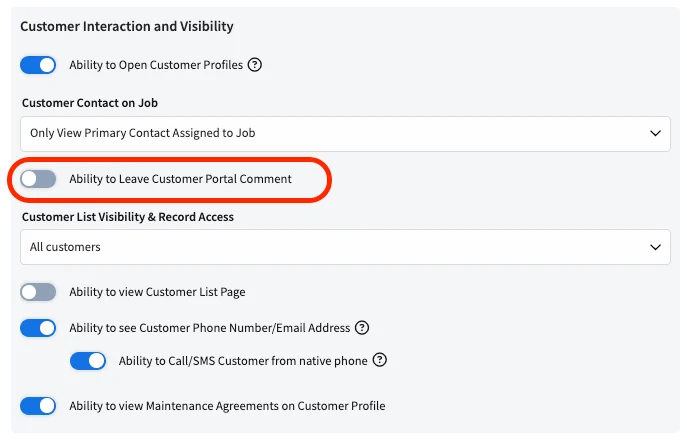
User Feature Permissions: A user permission called Ability to leave Customer Portal Comment has been added specifically for Service Agents. This feature enables you to control whether a Service Agent can send communications to customers via comments, ensuring that only team members authorized by you can engage in this manner.
- Admins and Team Managers: Have full access to send comments to the Customer Portal.
-
Service Agents: Toggle on or off to give this user permission to send comments to the Customer Portal.
-
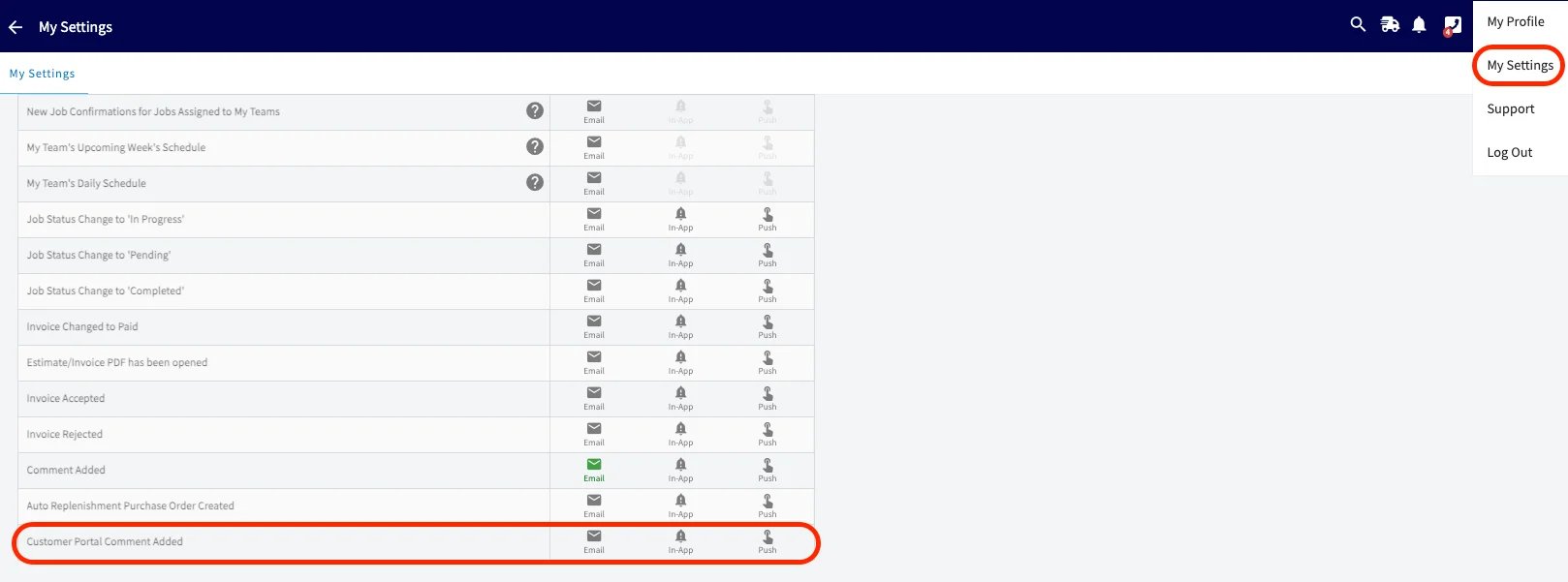
Internal Team Notification Settings: As a Admin, Team Manager, or Service Agent user within FieldPulse, you can decide how you would like to be notified when your customer adds a comment to the Customer Portal. You have the option to choose one or more of the following notification methods: Email, In-app notifications, or Push notifications.
Have additional questions? Contact us at support@fieldpulse.com or use the chat feature in the bottom right corner of your screen.