
Overview
If you lose internet connection while out in the field, you can continue creating and editing Material Lists using FieldPulse’s Offline Mode. The app will automatically switch to Offline Mode when your connection becomes unstable. Once you reconnect, any changes made offline will sync automatically with the rest of your FieldPulse data.Prerequisites
Before your technicians can use Material Lists in Offline Mode make sure the following are in place:- Material Lists are enabled in your account
- The FieldPulse mobile app is installed and up to date
What Gets Cached
Here’s what’s available offline:
- Up to 300 Material List records, prioritized by most recently used and linked to the Customers, Jobs, and Projects on your schedule for the week
- Up to 10,000 line items from your Item List, based on what’s been used most recently across Material Lists, Estimates, and Invoices
- Up to 100 Bundle items
On Mobile: Field Experience
Lost your signal mid-Material List? No problem. FieldPulse detects when you go offline and prompts you to switch to Offline Mode. Here’s exactly what to do:Step 1:
Tap to switch to Offline Mode when the prompt appears. If you were already working on a Material List, your draft carries over automatically — nothing lost.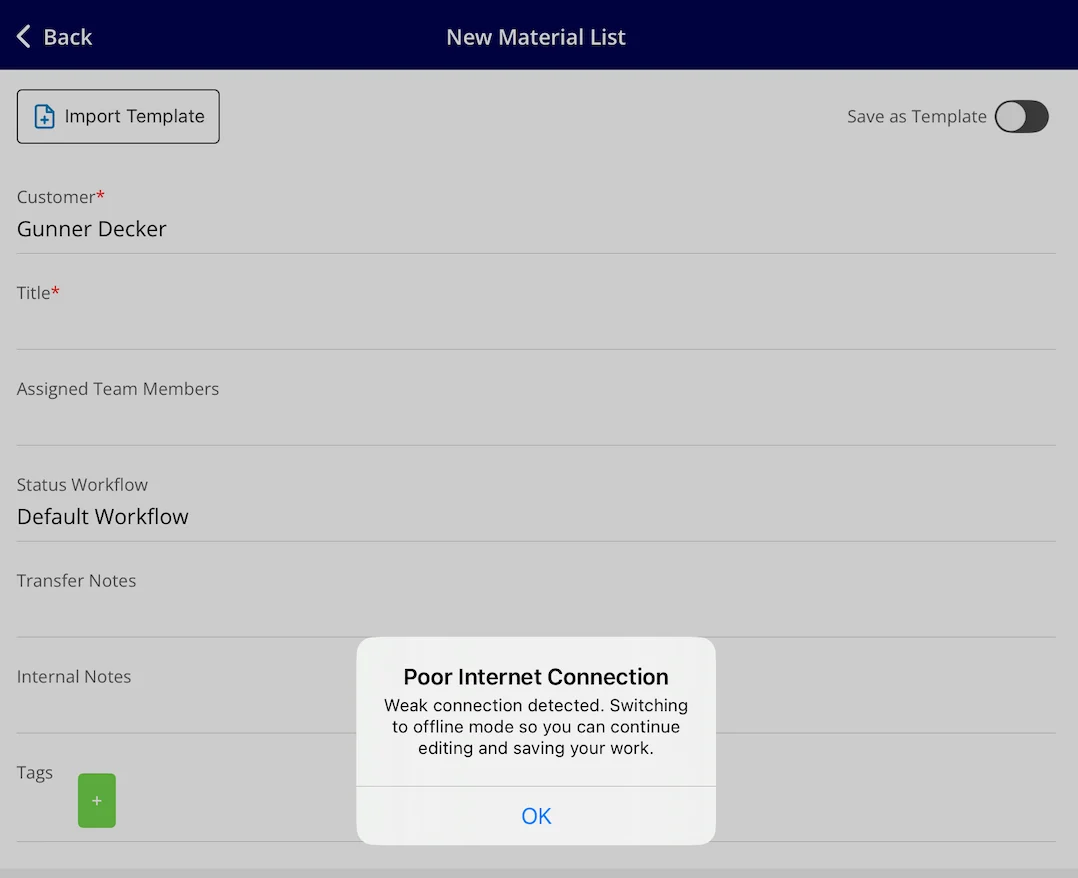
Step 2:
Keep working as normal — add line items, update details, make changes.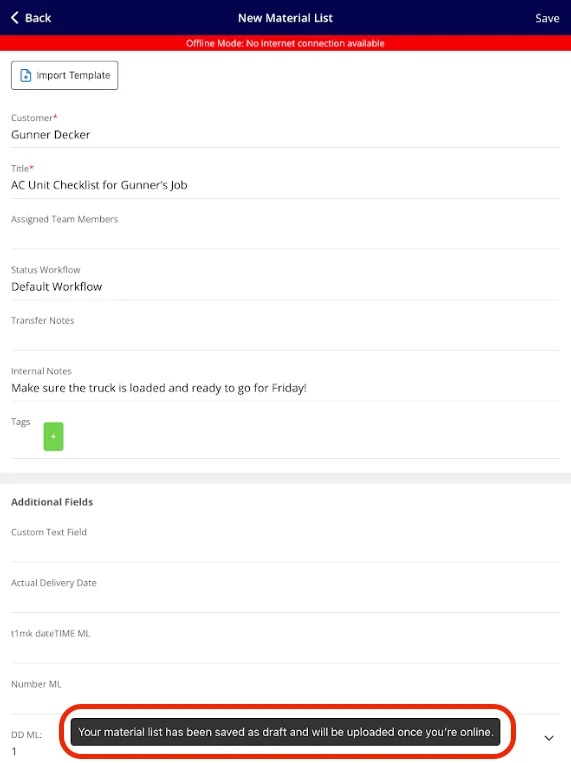
Step 3:
Need to pull up an existing record? Use the search bar in the list view to find it by title, ID, or customer name.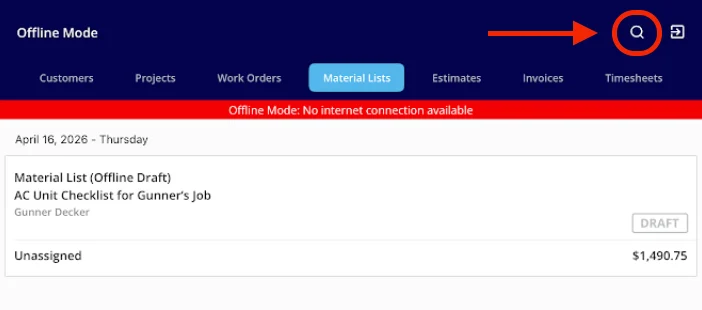
Step 4:
Add Material List items to a new or existing Estimate or Invoice record.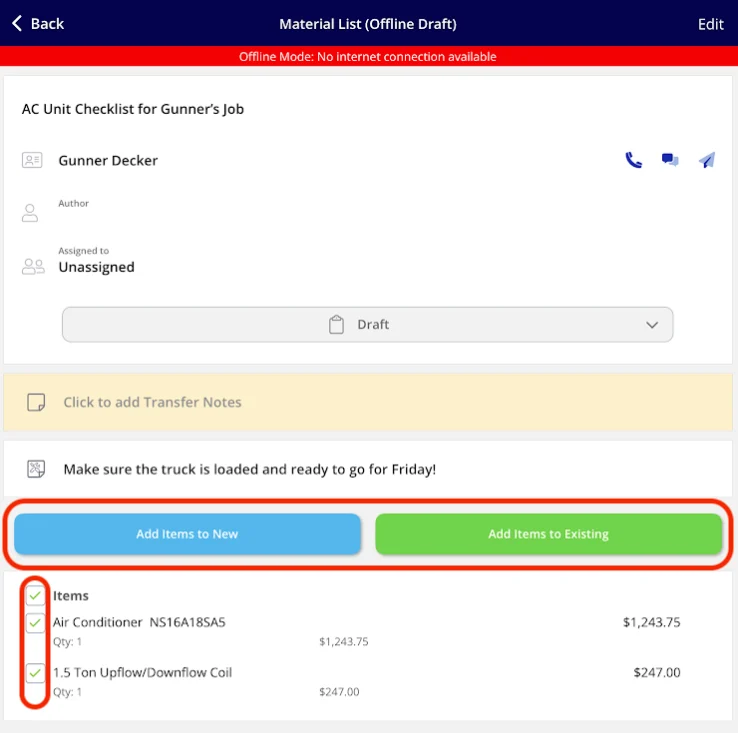
Here’s what you can do offline:
- Create new Material Lists linked to cached Customers, Jobs, or Projects
- Edit 300 existing cached Material Lists
- Search records by title, ID, or customer name
- Ability to insert Transfer Notes and Internal Notes
- Add Tags to Material Lists
- Access up to 10,000 cached line items to build out your Material Lists
- Access up to 100 cached Bundles
- Create Groupings
- Ability to import all of your Material List templates
- Update statuses on Material Lists
Video Tutorial
Troubleshooting
| Issue | Likely Cause | Fix |
|---|---|---|
| Can’t find an item when adding line items | Item isn’t in the 10,000 cached items | The cache pulls from recently used items. Make sure the item has been used on a recent Material List, Estimate, or Invoice |
| Offline Draft badge not clearing after reconnecting | Record hasn’t finished syncing | Ensure a stable connection and allow time for the sync to complete |
| Changes not showing in FieldPulse after returning online | Sync still in progress | Wait for the sync to complete and avoid editing the record again until the Offline Draft badge clears |
Have additional questions? Contact us at support@fieldpulse.com or use the chat feature in the bottom right corner of your screen.