We’ve had customers ask about creating barcodes that the FieldPulse mobile app can scan. While the FieldPulse platform does not provide the ability to generate custom barcodes, we recommend using this free online tool to create your own. You can then efficiently track your items, inventory, or assets within FieldPulse using our barcode scanner. Note: FieldPulse is compatible with the Code-128 format.

How to Generate Custom Barcodes

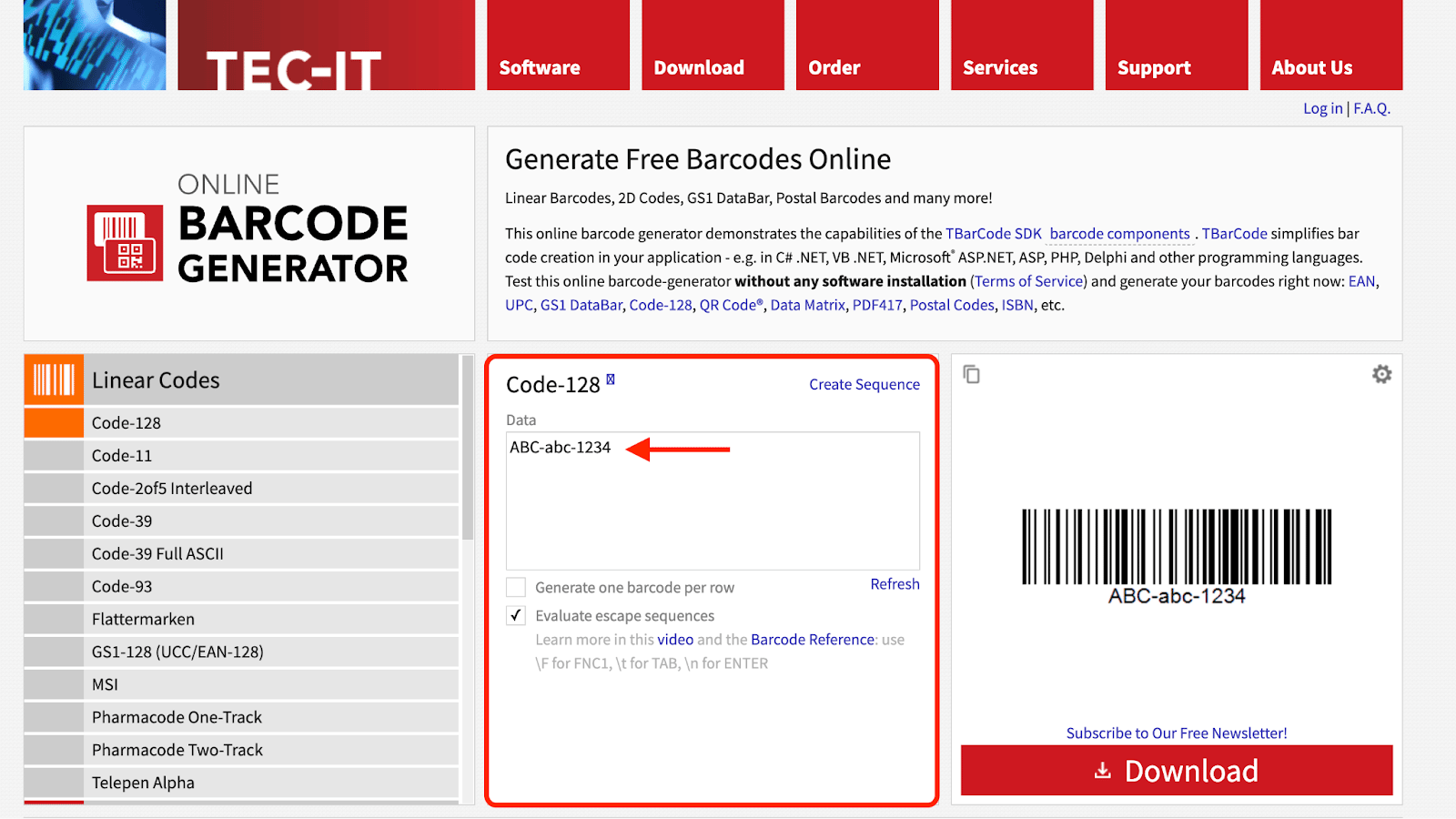
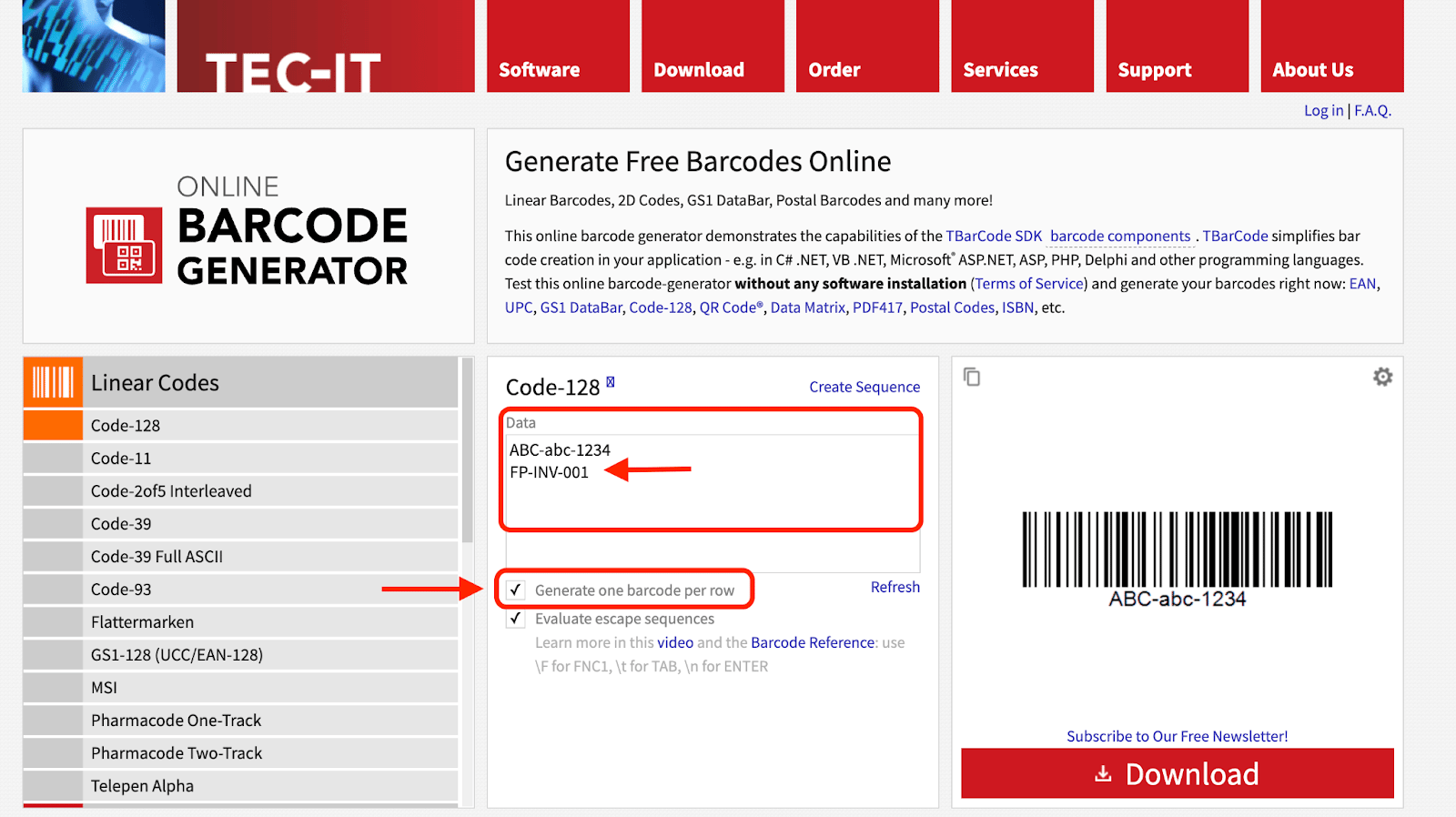
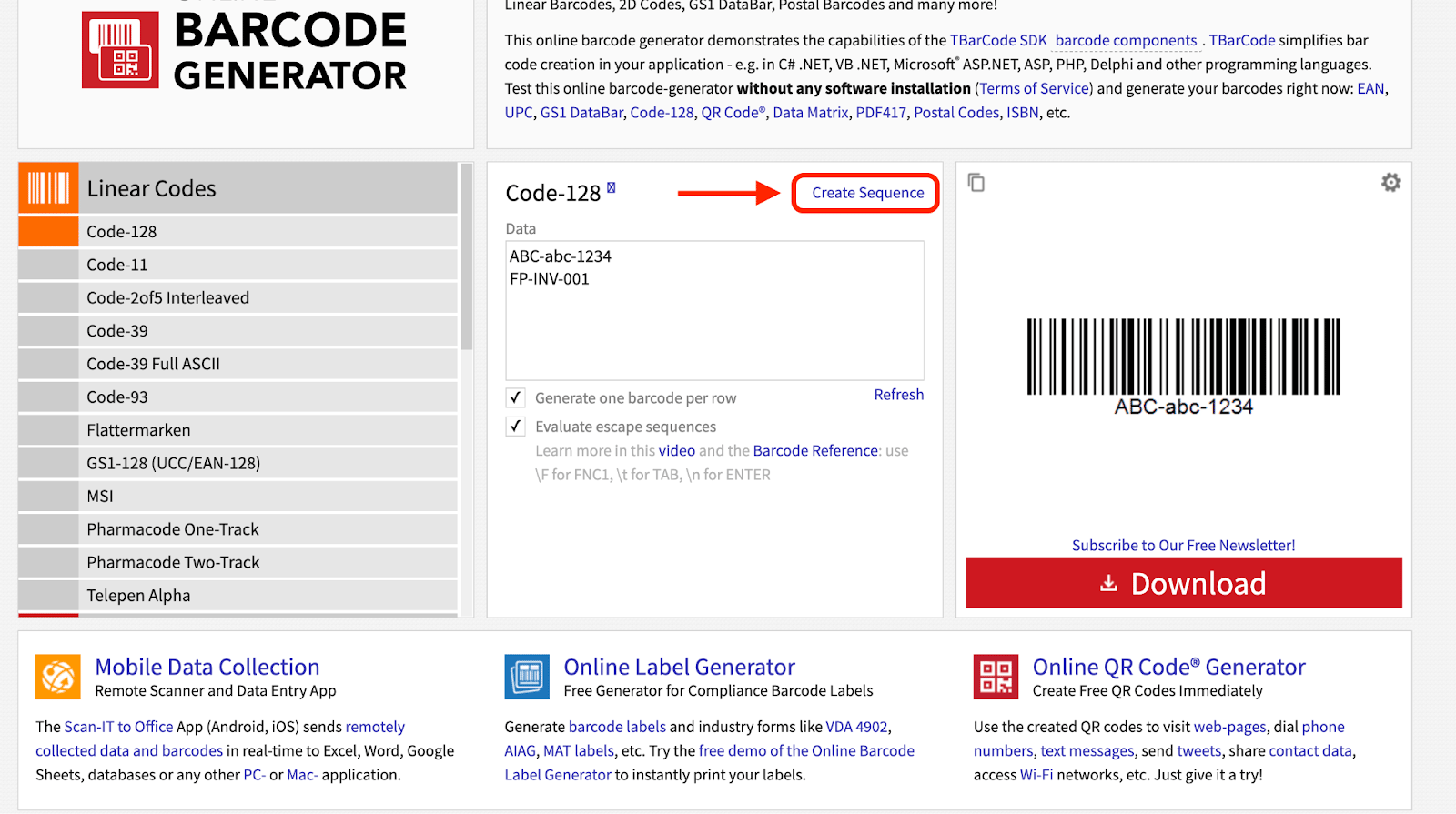
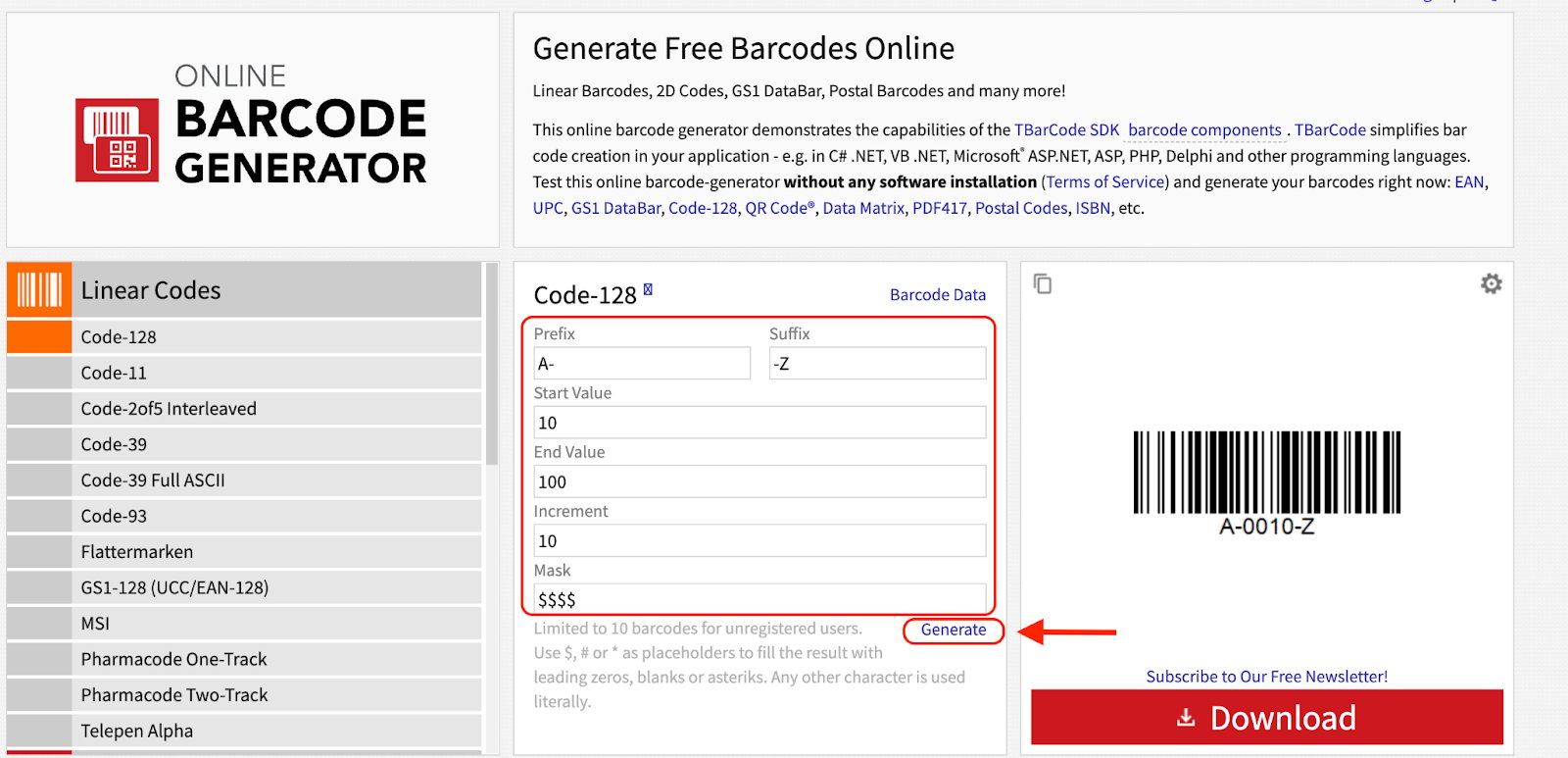
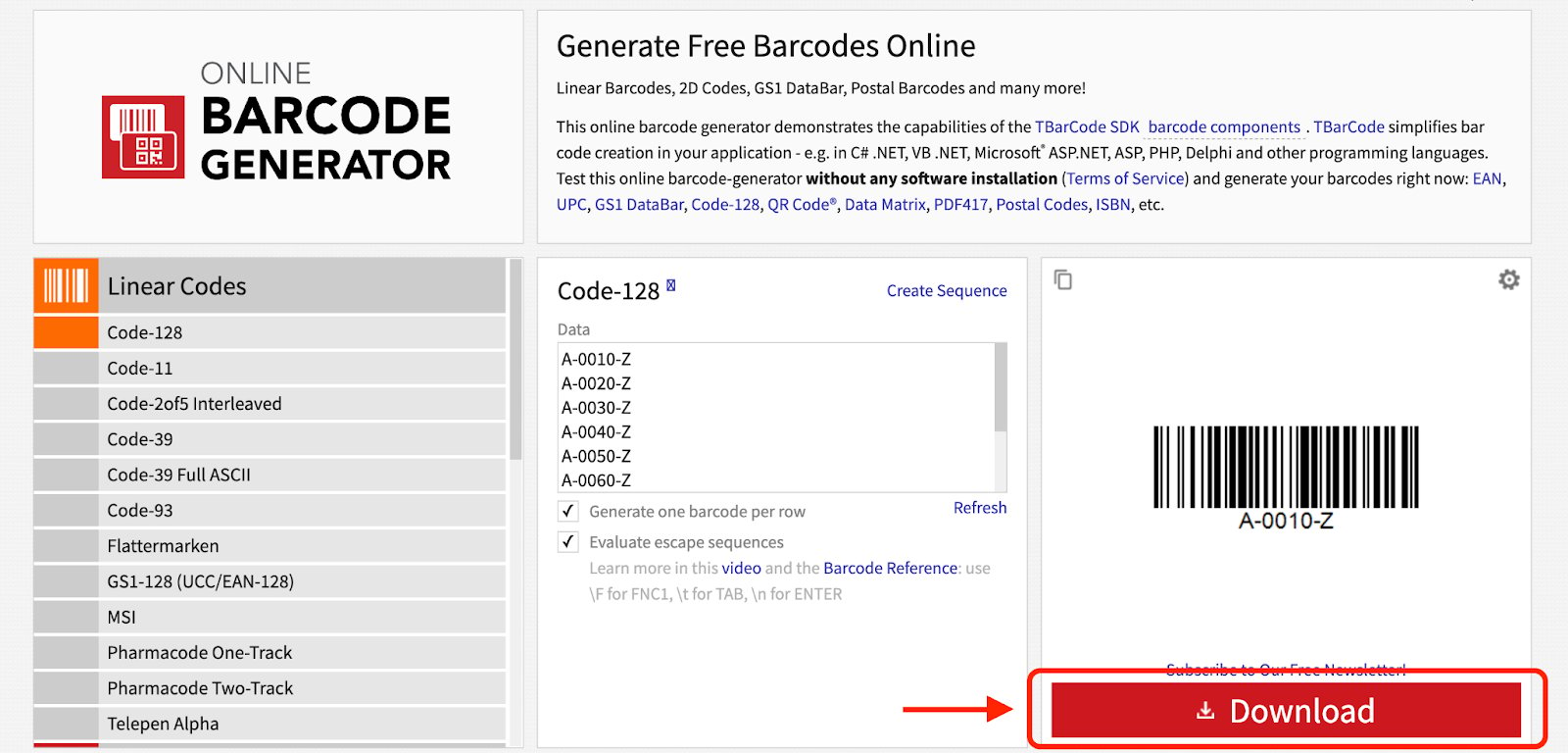
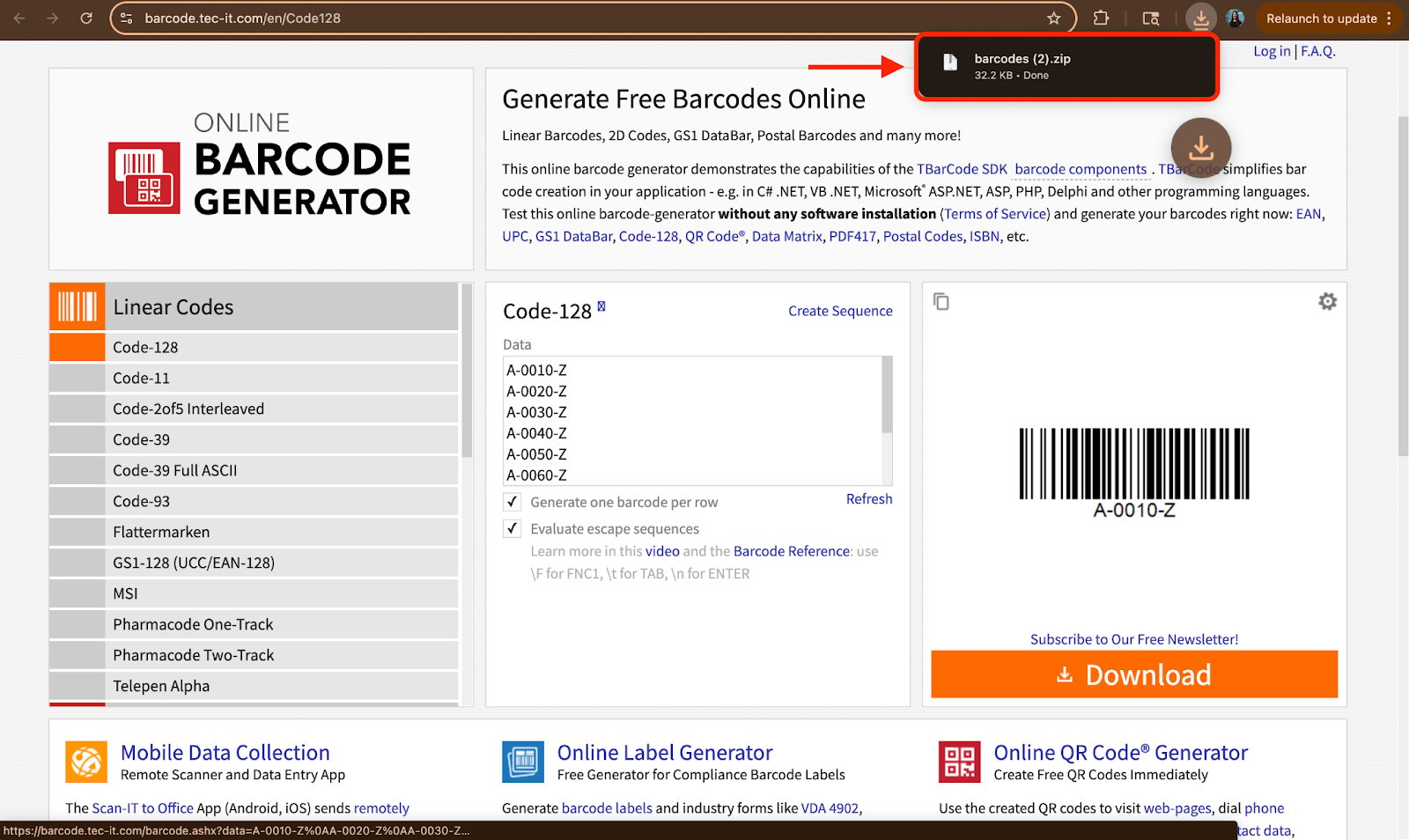
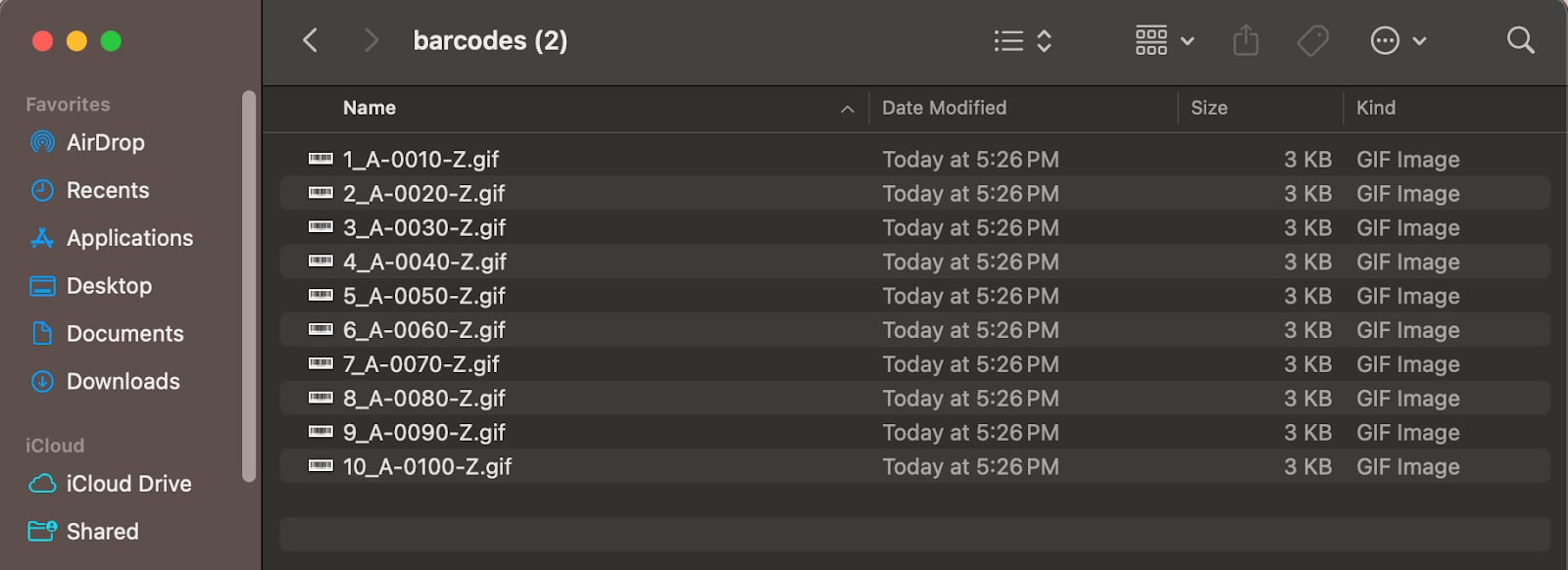
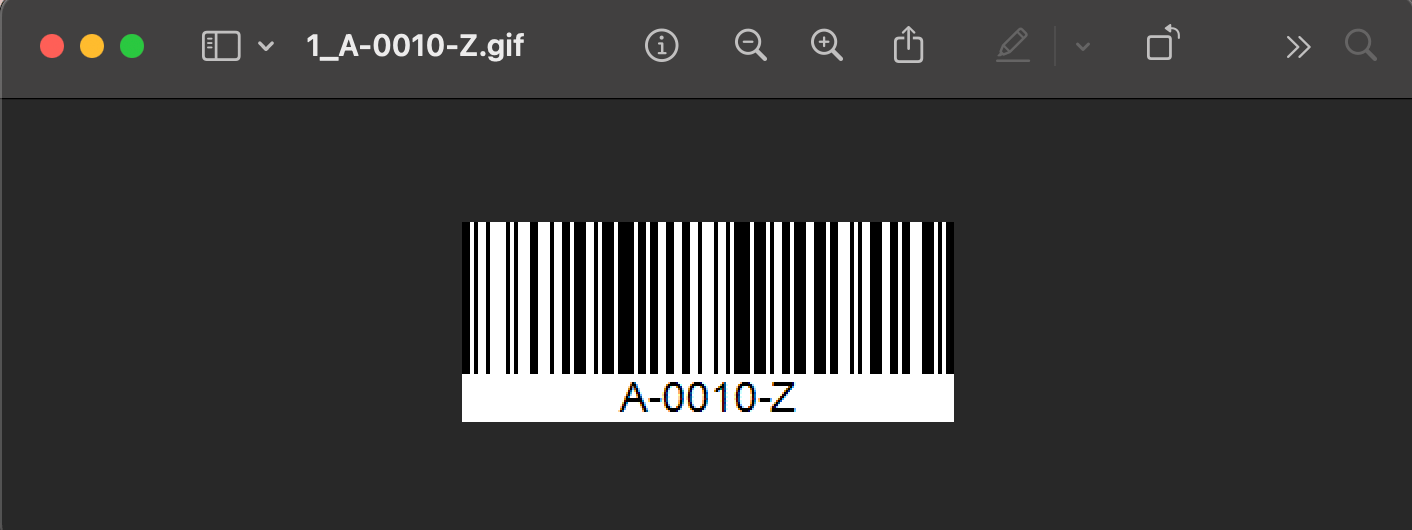
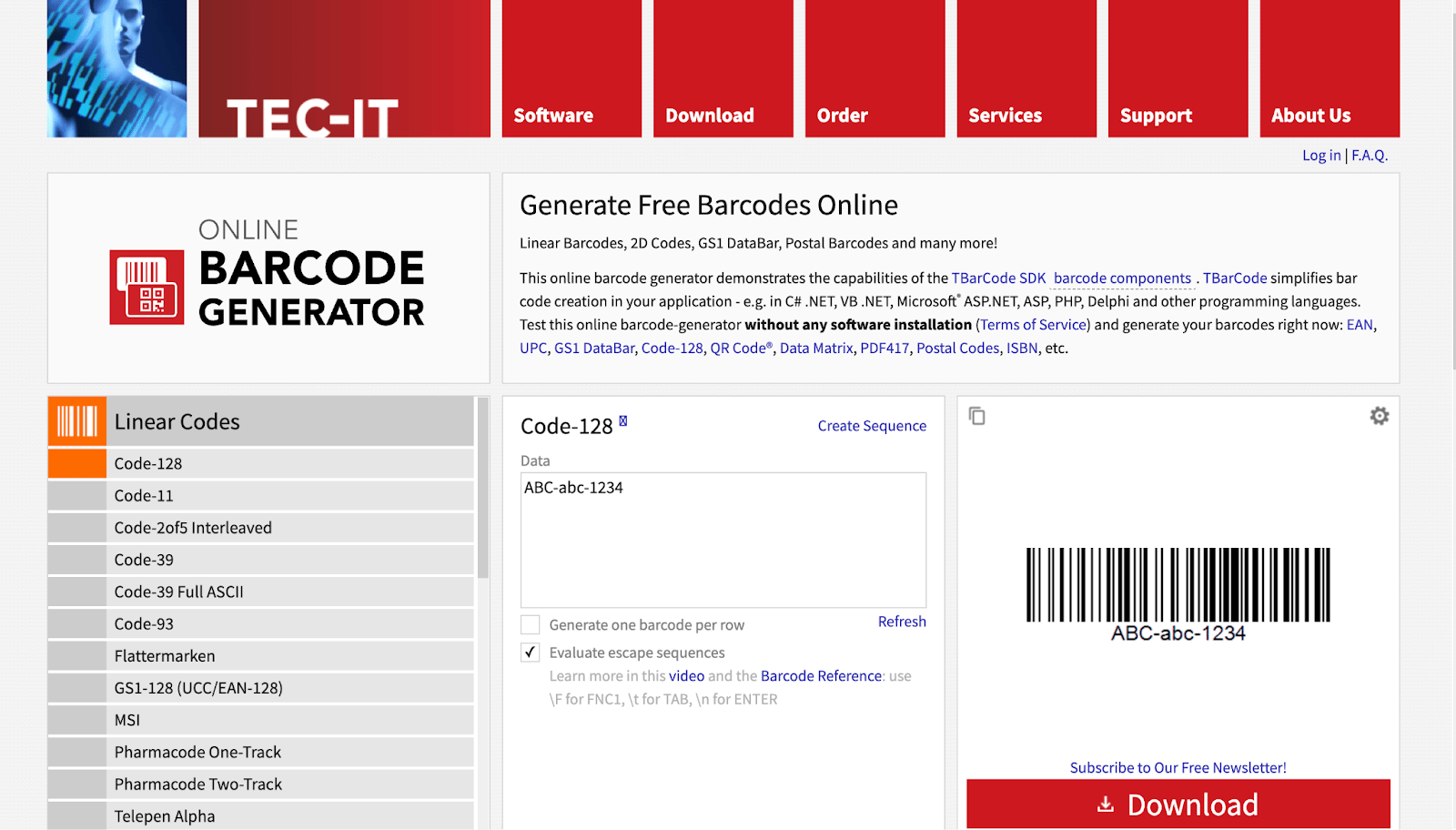
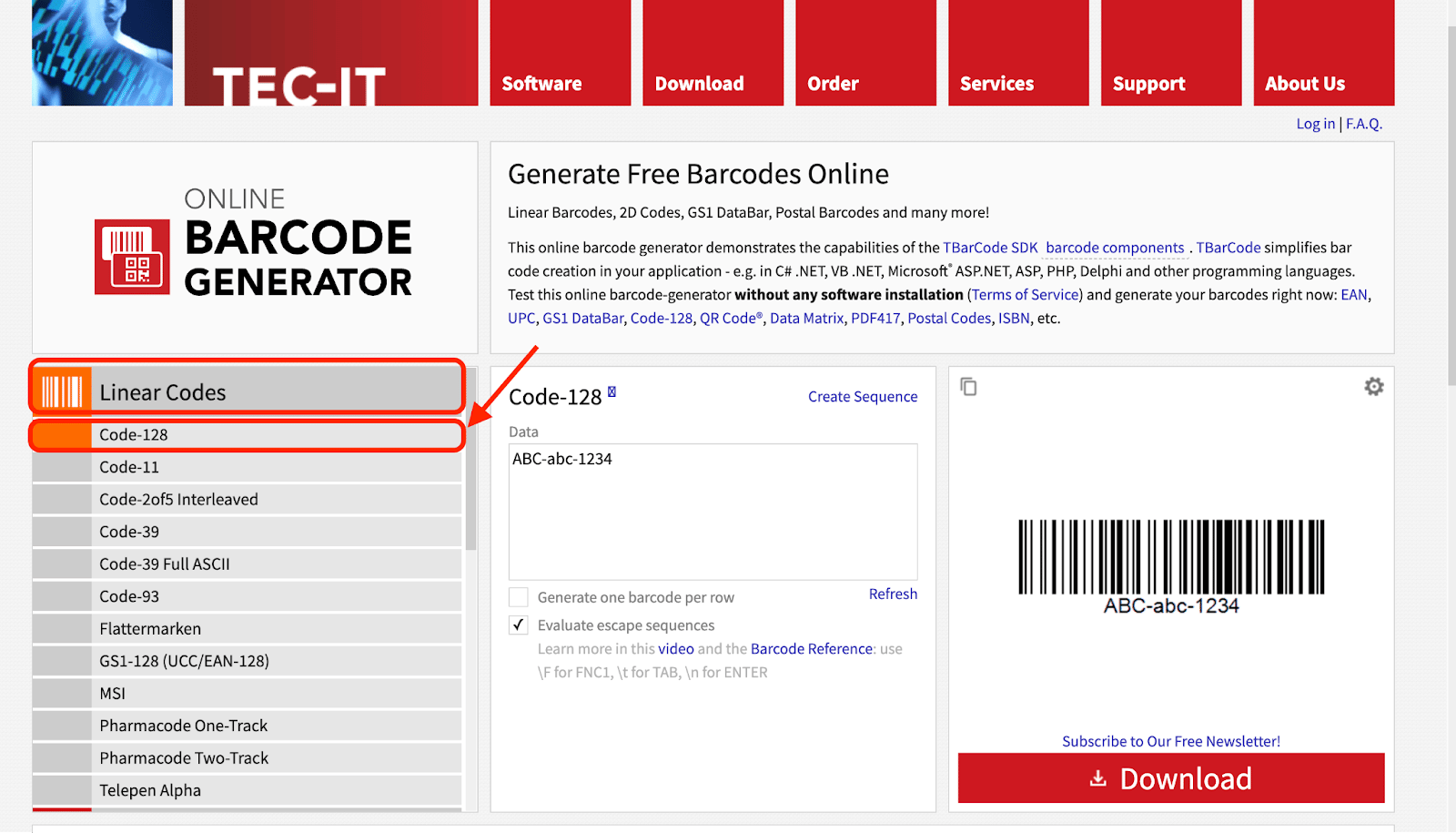
Navigate to the specified online barcode generator tool: https://barcode.tec-it.com/en/Code128 TEC-IT online barcode generator homepage Locate the Linear Codes section and select Code-128 as the barcode type. Linear Codes section with Code-128 barcode type selected In the middle of the page, you’ll find the Bar Code Data input area. This is where you enter the information you want encoded in your barcodes. Bar Code Data input area on the barcode generator To create multiple barcodes at once, first click the Generate one barcode per row checkbox. Then, list each desired barcode number (such as SKU numbers or asset IDs) on a new line. Generate one barcode per row checkbox with multiple numbers entered You can also click Create Sequence to automatically create 10 barcodes within a sequence. Once you have input all information, click Generate. Entering multiple barcode numbers on separate rows Create Sequence option generating a series of barcode numbers Once you have entered your data, click the Download button. This button processes each line of data and creates a separate barcode image for each entry. Download button on the barcode generator A ZIP file containing each of your barcode numbers saved as separate image files (e.g., .png or .jpg) will be generated and downloaded. ZIP file of generated barcode images downloaded to the device Locate the downloaded files on your device, print your barcode images, and then apply them to your inventory or assets. These labels are now ready to be scanned directly within the FieldPulse mobile app. Downloaded barcode image files ready to print Printed barcode labels applied to inventory or assets
Have additional questions? Contact us at support@fieldpulse.com or use the chat feature in the bottom right corner of your screen.