
Overview
Running a service business means juggling jobs, customers, and paperwork. The last thing your team needs is to chase customers for a card or bank account every time you bill them. With Saved Payment Methods, you can securely store a customer’s credit card or ACH account on file, then charge it for a one-off invoice or set it as the automatic payment for recurring billing. Every saved payment method is tokenized, so card numbers and bank account numbers stay protected. And we’ve cleaned up the experience: cards and bank accounts now show up together in a single, scannable list with the brand or bank icon, the last 4 digits, and either an expiry date (cards) or account type — checking or savings (ACH).Prerequisites
Before you start, make sure:- FieldPulse Payments is enabled in your account.
- For ACH on file, ACH must be enabled by a FieldPulse team member. Reach out to us via chat support or contact your Customer Success Manager directly if you have Premium Support. If ACH is turned off, only credit card options will appear when saving a payment method.
- Recommended: If you enable Next‑Business‑Day Funding, Plaid will be used for the fastest deposits. ACH transfers that are validated settle in 1 business day; unvalidated ACH transfers take about 4 business days.
Video Tutorial
On Web: Admin Experience
Saving payment methods on file is included with FieldPulse Payments. Let’s discuss how to add, manage, and use saved payment methods on the web app.Add a payment method to a customer record
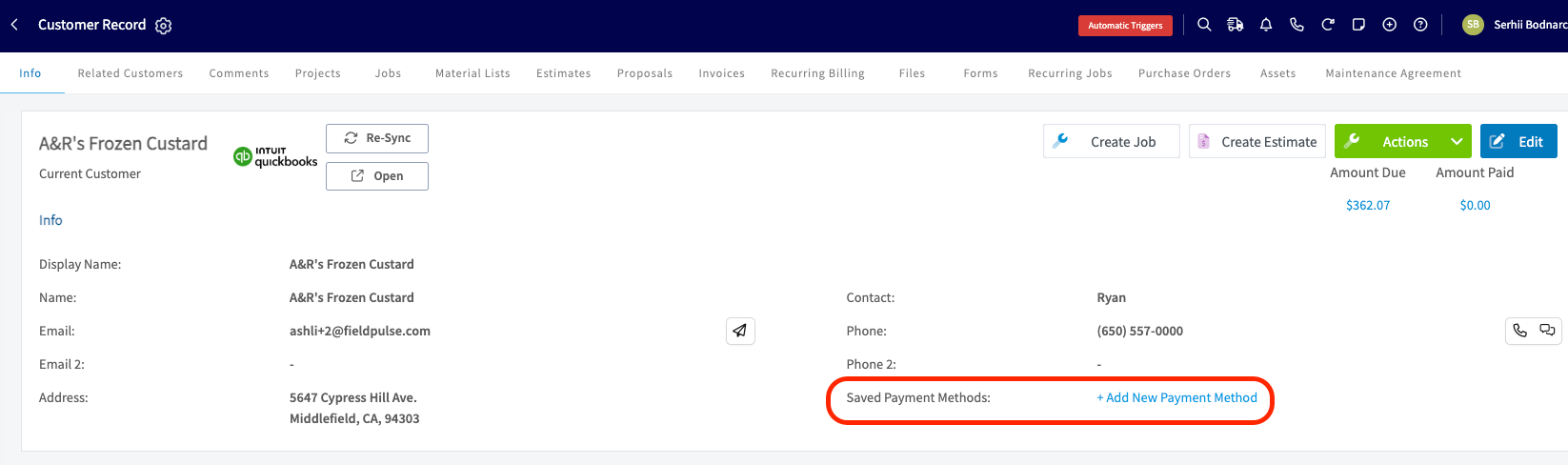
Here’s how to add a card or bank account directly to a customer’s profile: Option 1: No payment methods have been saved to this Customer record.- Open the Customer record.
- In the Saved Payment Methods field, click + Add New Payment Method.
- Choose card or bank account, enter the details, and check the consent box: I confirm that I have obtained consent to store this payment information for future transactions.
- Click Save Payment Method. FieldPulse tokenizes the details and will store the method on the customer’s record.
- Open the customer record.
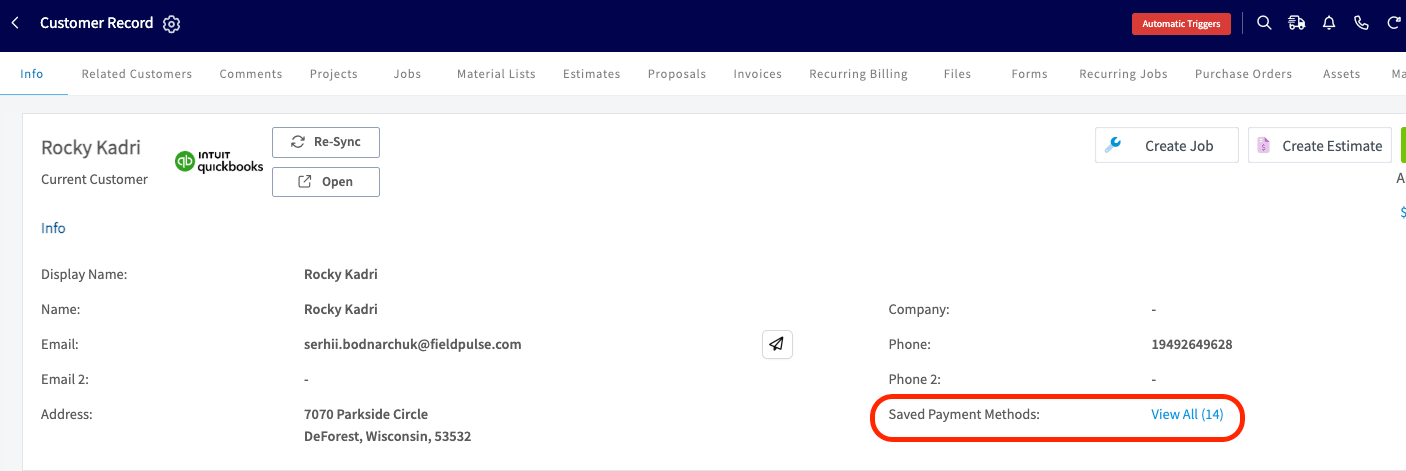
- In the Saved Payment Methods field, click the payment method numbers or View All (if more than one payment method stored)
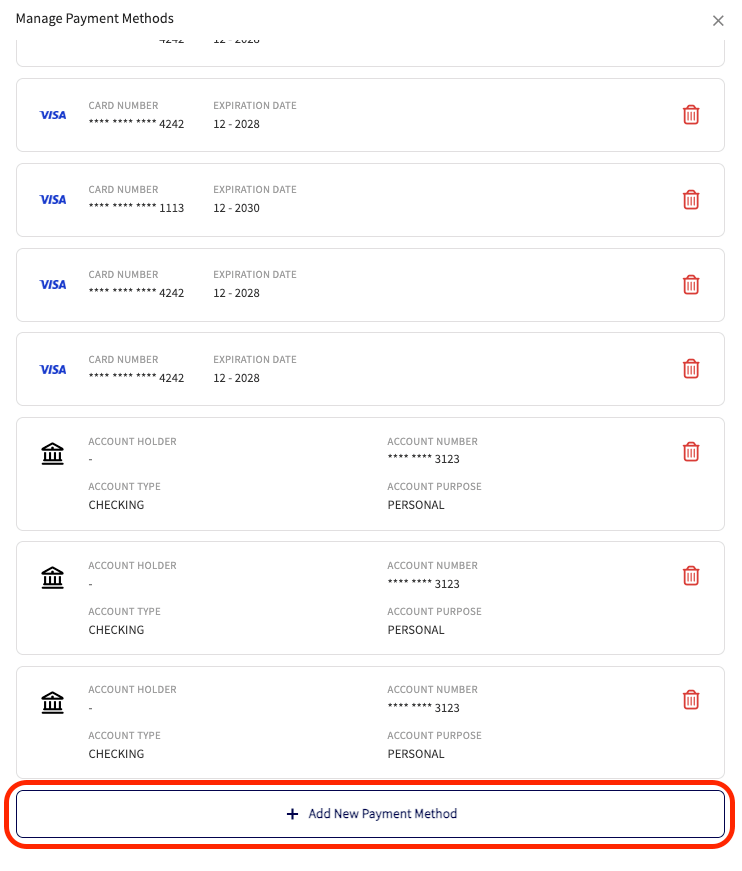
- In the Manage Payment Methods drawer, click + Add New Payment Method.
- Choose card or bank account, enter the details, and check the consent box: I confirm that I have obtained consent to store this payment information for future transactions.
- Click Save Payment Method. FieldPulse tokenizes the details and will store the method on the customer’s record.
Add a payment method while collecting a payment
You can also save a method as part of a transaction:- On an invoice, click Payment → Take Payment tab.
- Enter the card or bank details, then toggle on Save Payment Method on File and check the consent box.
- Click Charge Payment Method. The transaction processes and the method is saved to the customer’s record for next time.
Charge a saved payment method
- On an invoice, click Payment → Take Payment tab.
- Click Use Saved Payment Method. Select the card or bank account from the list. Each one shows its brand or bank icon, the last 4 digits, and either expiry or account type.
- Click Charge Payment Method to run the transaction.
View and remove saved payment methods from the Customer record
- Each saved method appears as its own card in the Manage Payment Methods drawer. To remove one, click the trash icon and confirm in the popup.
- Saved payment methods cannot be edited. To change a card or bank account, delete it and add it again.
- Expired cards show a red expiry date with an error icon so you can spot them at a glance.
- If you disable ACH later, any saved ACH methods are hidden from view. Re-enable ACH with the support of our team and they’ll reappear.
Use a saved payment method for recurring billing
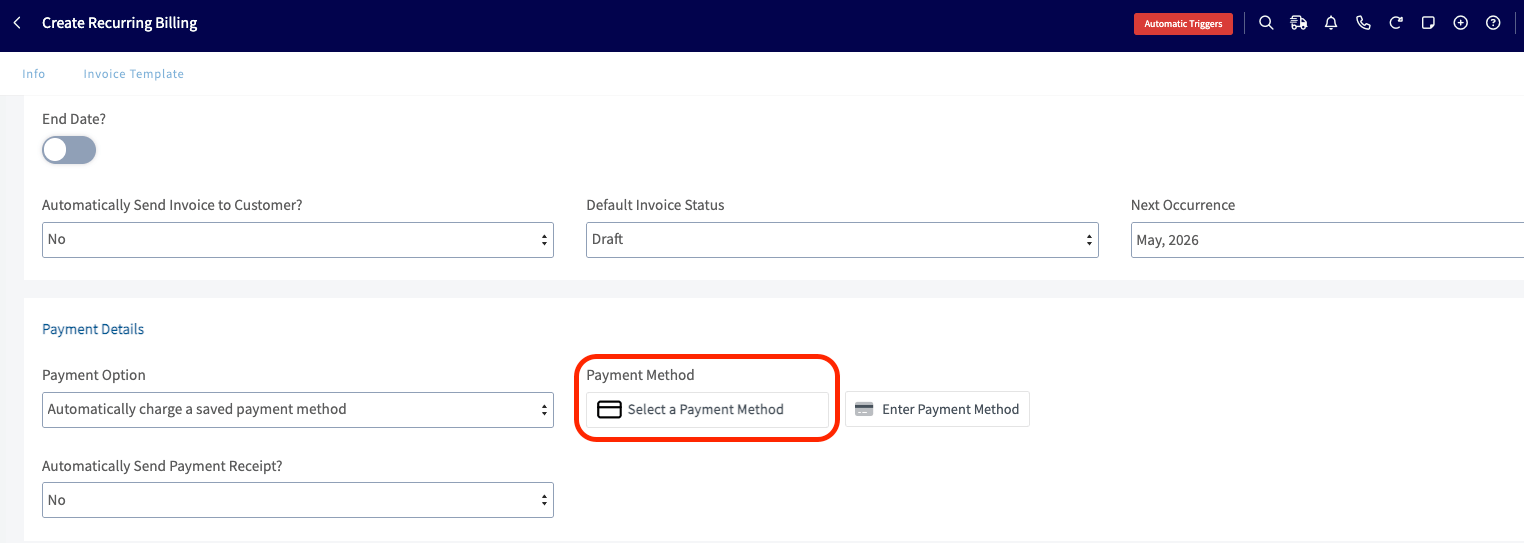
Saved payment methods power recurring billing too — including ACH. When you create or edit a recurring billing record:- Under Payment Options, choose Automatically charge a saved payment method.
- Select from the Payment Method dropdown. If your customer has only one method on file, it auto-fills. If they have multiple, pick the one you want to charge.
- Need to add a new method on the spot? Click Enter Payment Method to enter a card or bank account. Whatever you save here also lands in the customer’s Saved Payment Methods for future use.
- Save the Recurring Billing record. FieldPulse will run the payment on your schedule, against the method you selected, until the end date or until you remove it.
Recurring Billing setup is web app only.
On Mobile: Field Experience
When you’re collecting payment on a job, the flow is straightforward — there are just more options to choose from now. Try this on your next invoice:- Tap Payment on the invoice and choose Use saved payment method.
- Pick the card or bank account you want to charge from the list. Each one shows its brand or bank icon, the last 4 digits, and either expiry or account type. This way you can confirm with your customer at a glance.
- Tap Charge Payment Method to run the transaction.
Adding a new payment method while you’re on the job
- Tap Add New Payment Method and enter the card or bank details.
- To save the method for next time, toggle on Save Payment Method on File and check the consent box: “I confirm that I have obtained consent to store this payment information for future transactions.”
- Tap Charge Payment Method to complete the transaction. The method is now saved to the customer’s record — ready to use the next time you bill them.
Troubleshooting & FAQs
Run into a snag? Here are the most common questions and fixes:| Issue | Likely cause | Fix |
|---|---|---|
| I don’t see ACH when adding a payment method. | ACH is disabled or your processor doesn’t support it. | Reach out to us via chat support or contact your Customer Success Manager directly if you have Premium Support. |
| A saved ACH method disappeared from the customer record. | ACH was disabled in Master Settings after the method was saved. | Re-enable ACH in Master Settings. Saved bank accounts will reappear. |
| A card on file shows a red expiry date. | The card has expired. | Delete the card from Saved Payment Methods and ask the customer for an updated one. |
| A recurring billing payment didn’t run. | No Payment Method is selected on the record, or the saved method was deleted. | Open the recurring billing record, confirm or re-select a Payment Method, then save. |
| Recurring billing keeps charging after the method was deleted from the customer record. | Removing a method on the customer record doesn’t remove it from existing recurring invoices. | Open the recurring billing record and either remove the payment method or end the recurring schedule. |
FAQs
Can saved payment methods be edited? No, saved methods can’t be edited. Delete the method and add it again with the updated details. How do I delete a saved payment method? Open the customer record → Saved Payment Methods → click the trash icon on the method → confirm. How do I stop automatic recurring payments? Open the Recurring Billing record and either remove the saved payment method or end the recurring schedule. Removing the method on the customer record doesn’t automatically remove it from existing recurring invoices.Have additional questions? Contact us at support@fieldpulse.com or use the chat feature in the bottom right corner of your screen.