
Who uses this: Admins and Team Managers hold the Create & send Estimates/Invoices permission by default, and an Admin can enable it for a Service Agent. Availability: All regions.Once you have built an estimate or invoice template, start every repeat job from it. Importing the template pulls its saved line items, quantities, prices, notes, files, and any attached contract into a new estimate or invoice, so no one on your team retypes the same document from scratch. You then change only the details this particular job needs. To build a template first, see Setting Up Estimate & Invoice Templates.
Overview
Importing a template drops its saved details into a new estimate or invoice as a starting point. From there, you modify line items, change quantities and prices, and add customer-specific notes so the document matches the job in front of you. If you use QuickBooks, the QuickBooks Class saved on the template comes in with it. The steps below import an invoice template. The estimate template process is identical — start under the Estimates tab instead of Invoices.Video walkthrough
This video covers building an estimate or invoice template and importing it into a new document.Watch the estimate & invoice templates walkthrough
Before you begin
- Confirm the template already exists. If you have not built one yet, see Setting Up Estimate & Invoice Templates.
- Confirm your role can create estimates and invoices. Admins and Team Managers have the Create & send Estimates/Invoices permission by default, and an Admin can enable it for a Service Agent — see User Roles and Permissions Details.
Import a template into a new estimate or invoice
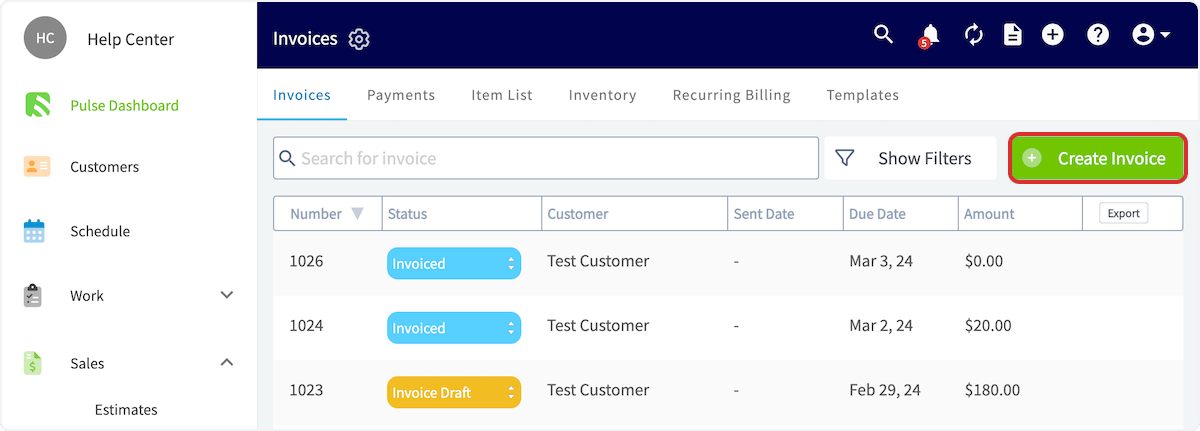
- Go to Invoices in the left-side menu.
-
Select Create Invoice.
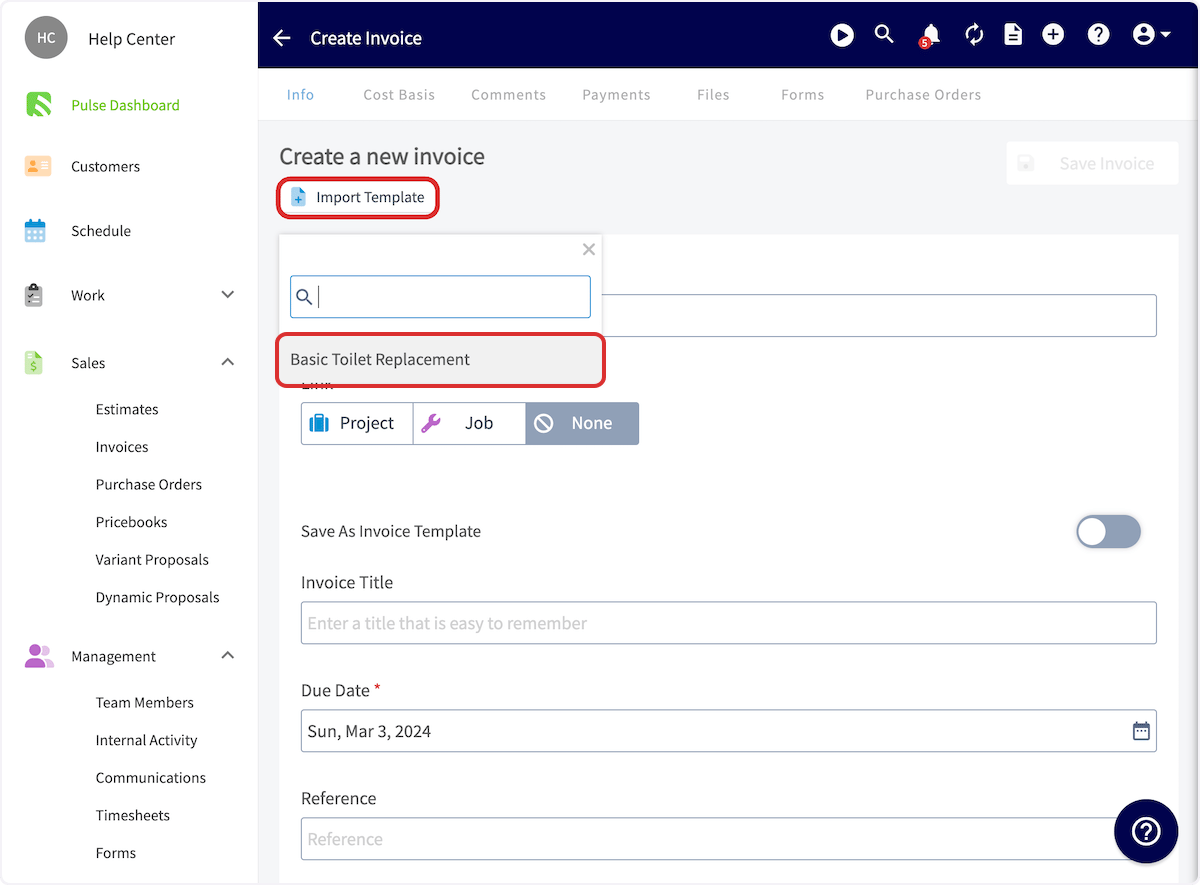
- Before you enter any details, select Import Template.
-
Select the template you want to use.
- Confirm every detail you saved on the template auto-populated — the line items and their groupings, quantities, prices, tags, custom fields, notes, files, any attached contract, and the QuickBooks Class.
- Adjust the line items, quantities, and prices for this job.
- Add any notes specific to this customer.
- Select Save.