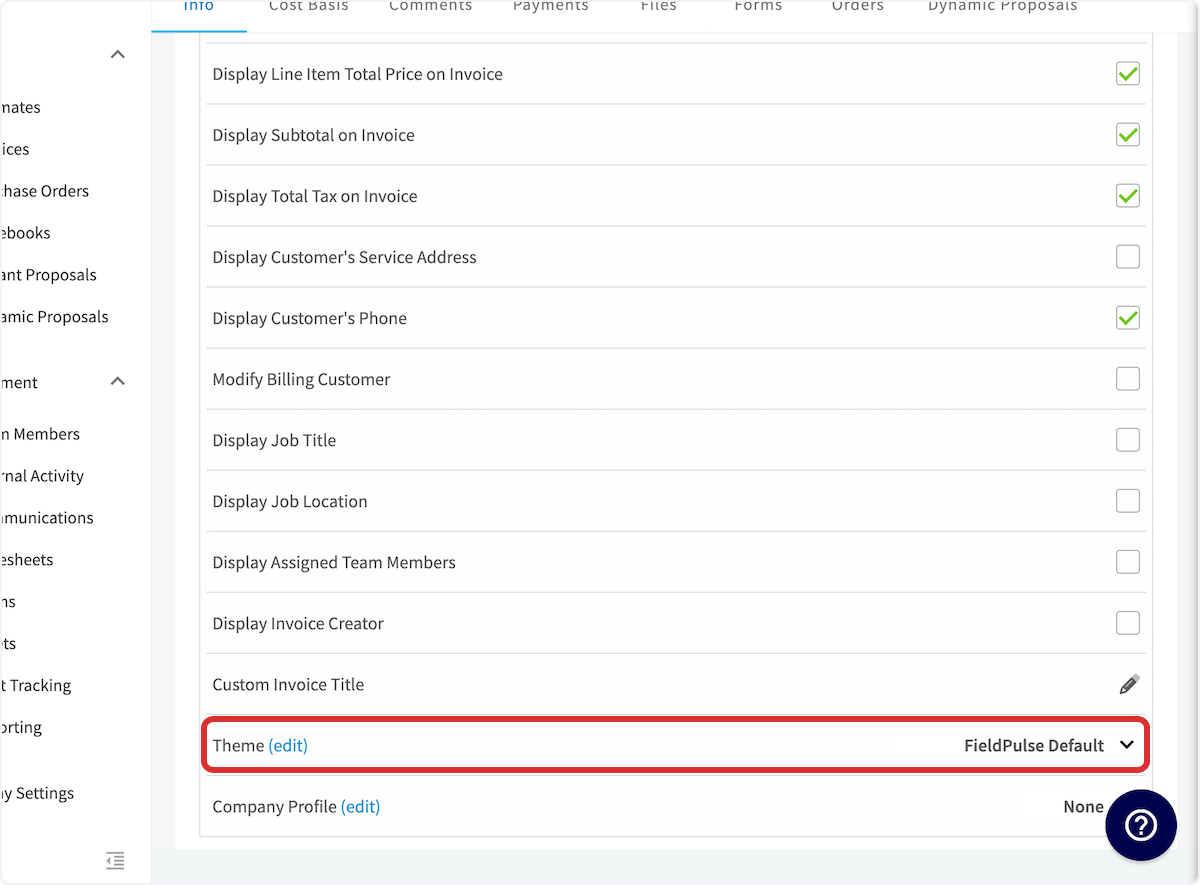
Who uses this: Admins — themes live in Company Settings, which only the Admin role can view. Anyone who can open an estimate or invoice record can switch that single document to another saved theme. Availability: All regions, all plans. Themes are created on the web app.A theme controls the colors on the estimates and invoices your customers receive. Build a theme once with your brand colors, set it as your default, and every estimate and invoice you send carries those colors without anyone styling a document by hand.
Overview
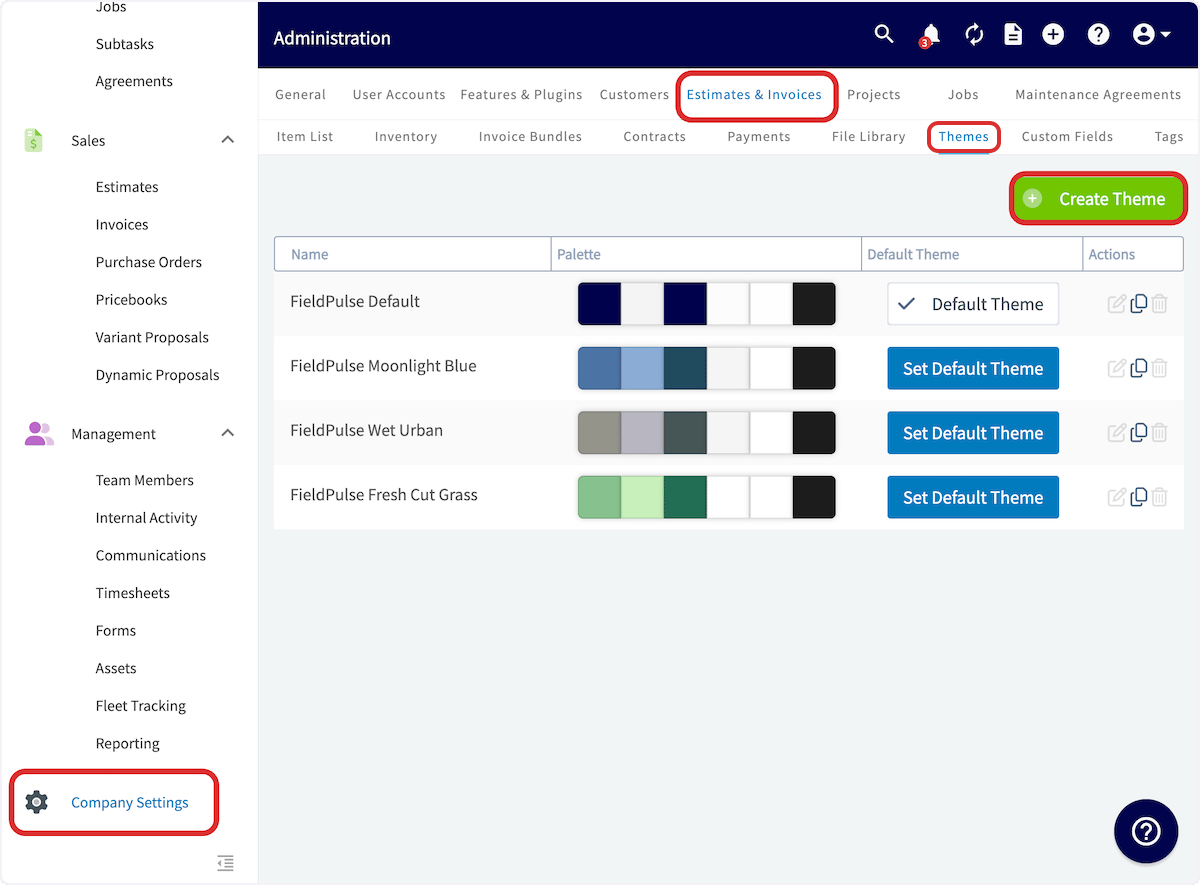
A theme is a saved set of colors made up of one main branding color plus five sub-colors. You can let FieldPulse generate the five sub-colors from the main branding color, or set each sub-color yourself with a color picker or a color code. FieldPulse ships with four built-in themes — FieldPulse Default, FieldPulse Moonlight Blue, FieldPulse Wet Urban, and FieldPulse Fresh Cut Grass. Creating your own theme adds it to that same list, where you can set it as the default for every new estimate and invoice. A single estimate or invoice can also be switched to a different theme from its preview settings, without changing the account default. You create and manage themes in Company Settings under Estimates & Invoices.Video walkthrough
Watch the custom estimate and invoice themes walkthrough for a full run-through. The written steps below stand on their own.Before you begin
- Confirm your user role is Admin. Only Admins can view Company Settings, which is where themes are created and edited.
- Have your brand color codes ready, or know the specific colors you want to use. Each color can be picked visually or entered as a color code.
- Decide whether you want FieldPulse to generate your sub-colors from the main branding color, or to set all six colors yourself.
Step-by-step setup
1. Create the theme
- Go to Company Settings, then select Estimates & Invoices.
- Select Themes in the sub-header.
-
Select Create Theme.
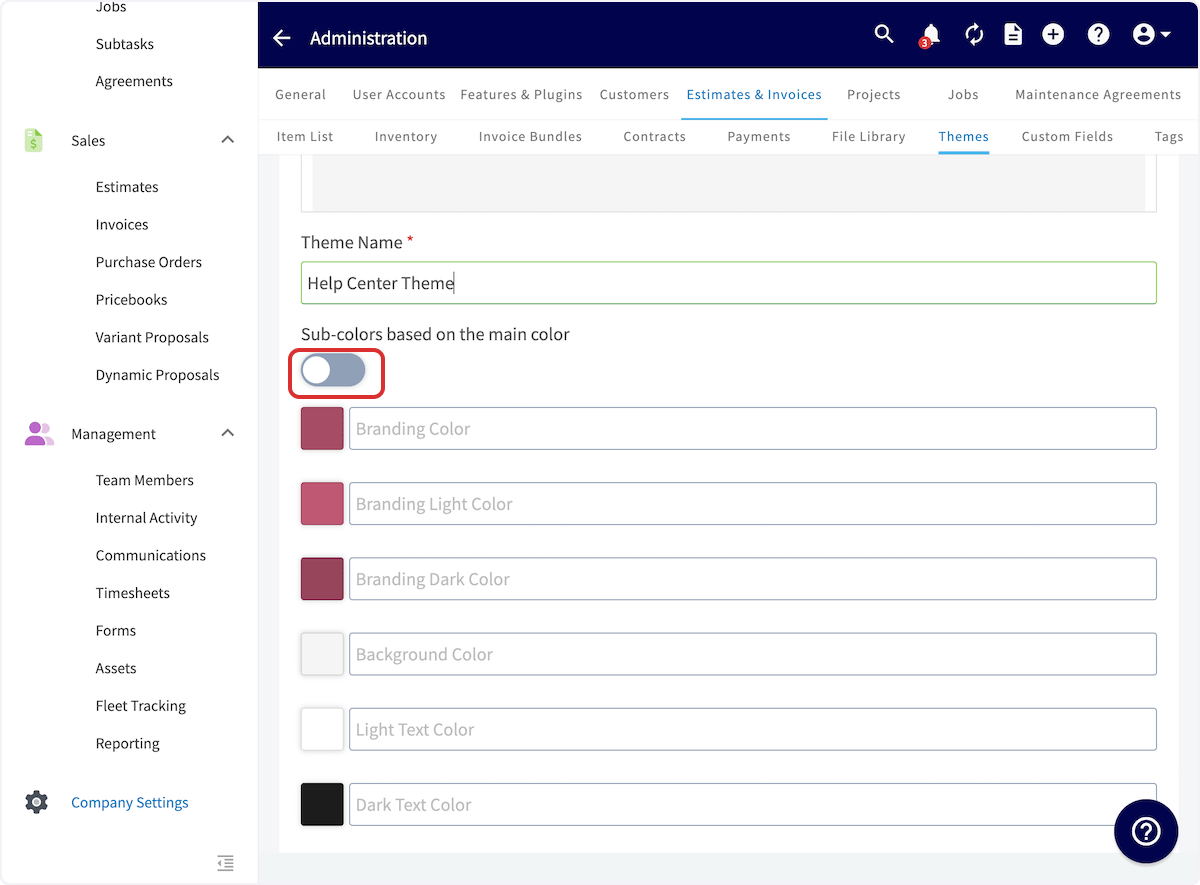
- Enter a Theme Name. The name is required and is how the theme appears in the themes list.
- Select a main Branding Color.
- Turn Sub-colors based on the main color on to have FieldPulse generate the five sub-colors from your branding color, or turn it off to set each sub-color yourself.
-
With the toggle off, select each color box to adjust the color or enter a color code. See the Settings reference below for what each color field controls.
- Select Save.
2. Set the default theme
The default theme applies to every new estimate and invoice in the account. To change it, select Set Default Theme on the row of the theme you want to use. The theme currently in use shows a check mark and reads Default Theme instead.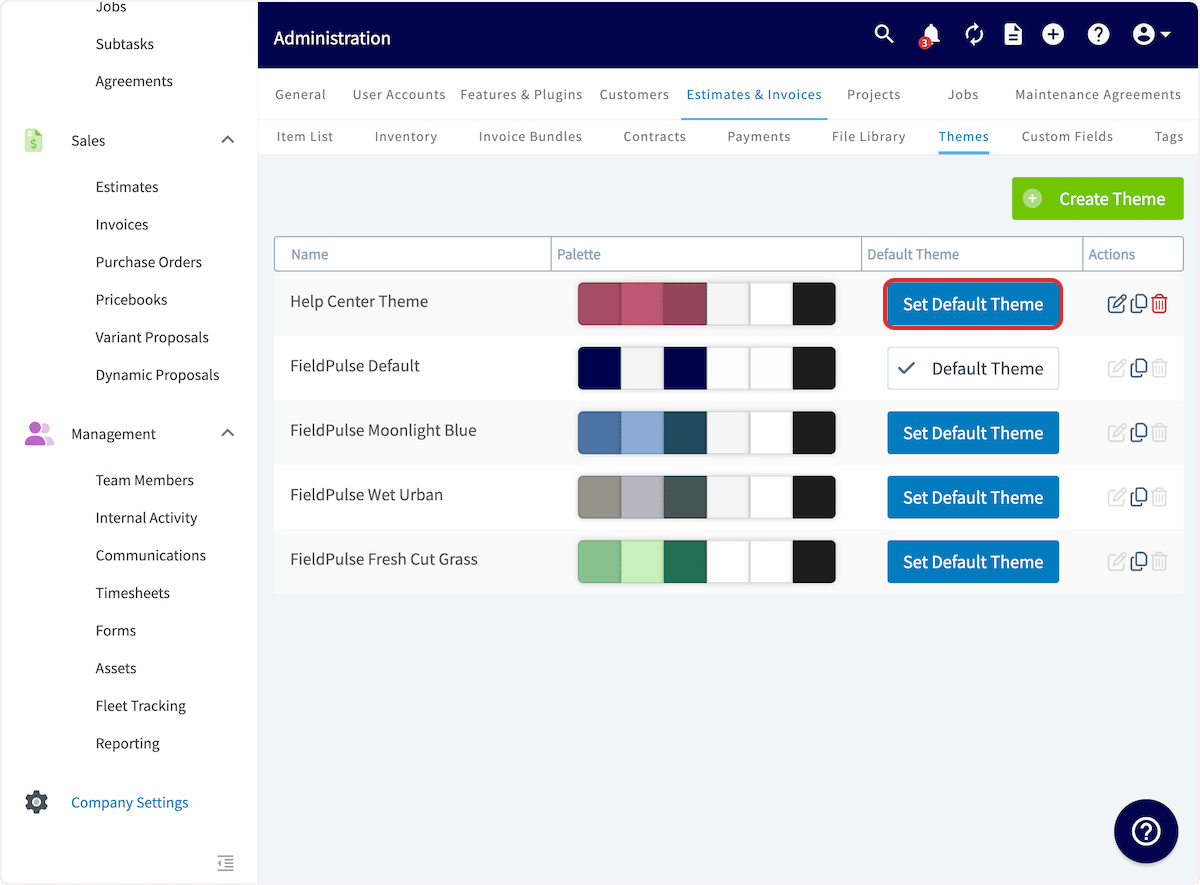
3. Change the theme on a single estimate or invoice
Use a different theme on one document without changing your account default:-
Open the estimate or invoice record and select Preview.
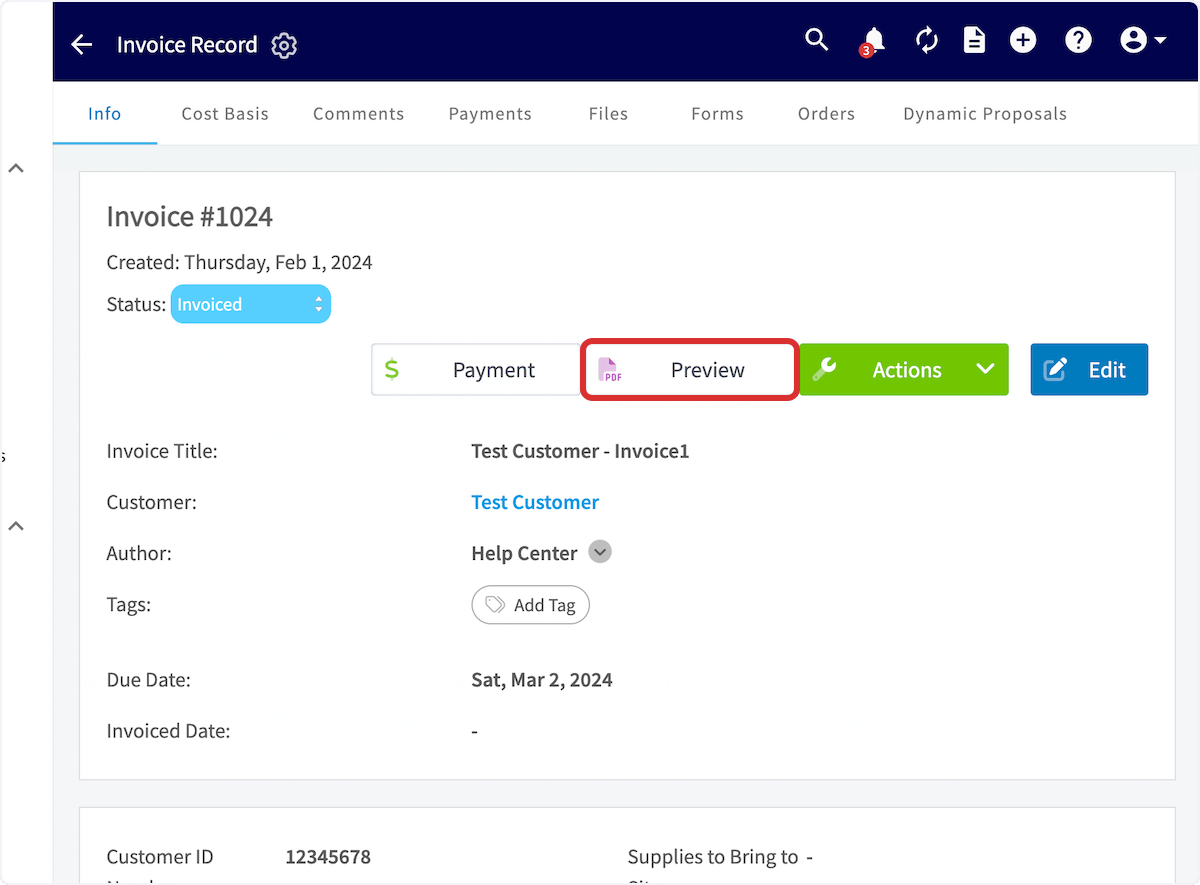
- Scroll down through the settings on the right side of the preview until you reach Theme.
- Select the theme you want to use for this estimate or invoice. The selection applies to that document only.