
Who uses this: Admins configure Company Settings — only admin users can open it. Every user sets their own My Settings preferences. Availability: All regions.Setting up your FieldPulse account means configuring the basics from Company Settings: your company info and logo, your users and teams, the features you want turned on, and core defaults like your timezone and workweek. Getting these right first means the rest of your setup — scheduling, jobs, automated customer messages — builds on solid basics.
Overview
Your FieldPulse account has two setup areas. Company Settings holds the account-wide basics an admin configures once — company details, user accounts, and features. My Settings holds the per-user preferences each person sets for themselves, mainly how and when they get notified. This page walks through both, in the order most accounts follow on day one.Before you begin
- You need an admin account. Only admin users can open Company Settings.
- Have your company details ready: company name, contact information, and a logo file in JPG, PNG, or BMP format under 3 MB.
- Know who’s on your team and what each person should be able to do, so you can assign the right roles as you add them.
Step-by-step setup
1. Add your company info and logo
-
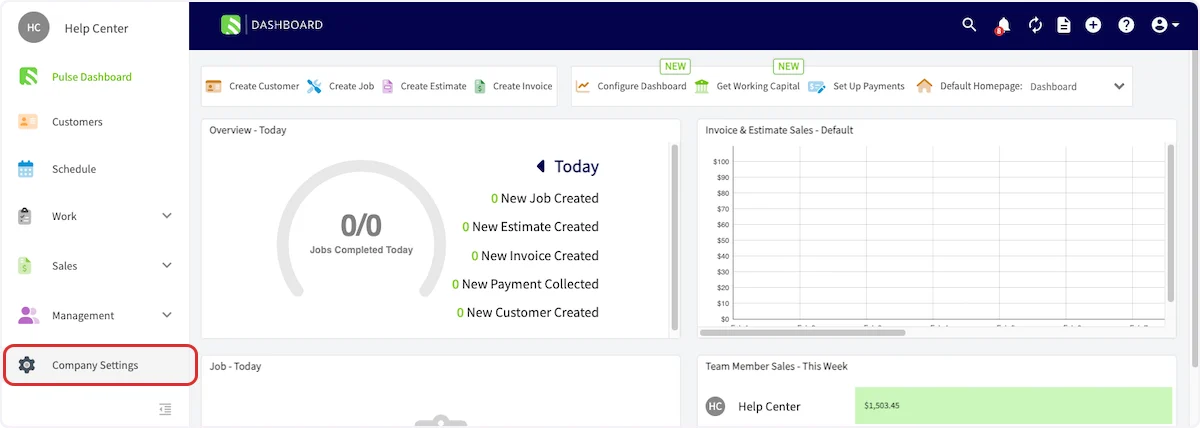
In the left-side menu, select Company Settings.
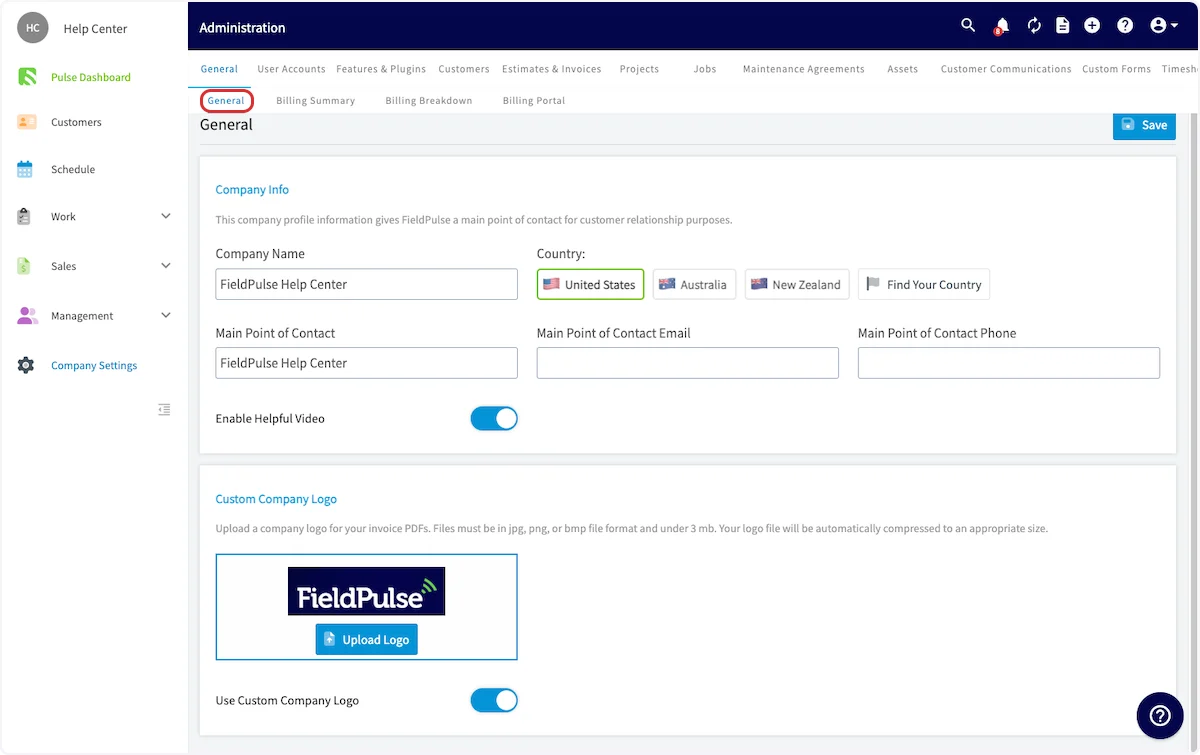
- Open the General tab.
- Add or edit your company name, contact information, and company logo. The logo you upload appears on your invoice PDFs.
2. Build your team in User Accounts
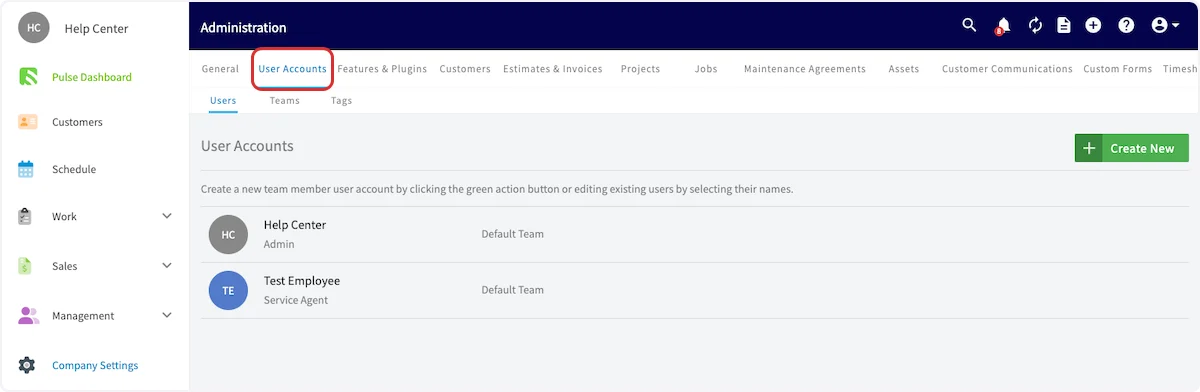
- Open the User Accounts tab.
- Add each team member as a user account and assign their role. See How to Add New Users and User Roles and Permissions Details.
- Group your users into teams. See How to Create a Team.
3. Enable your features
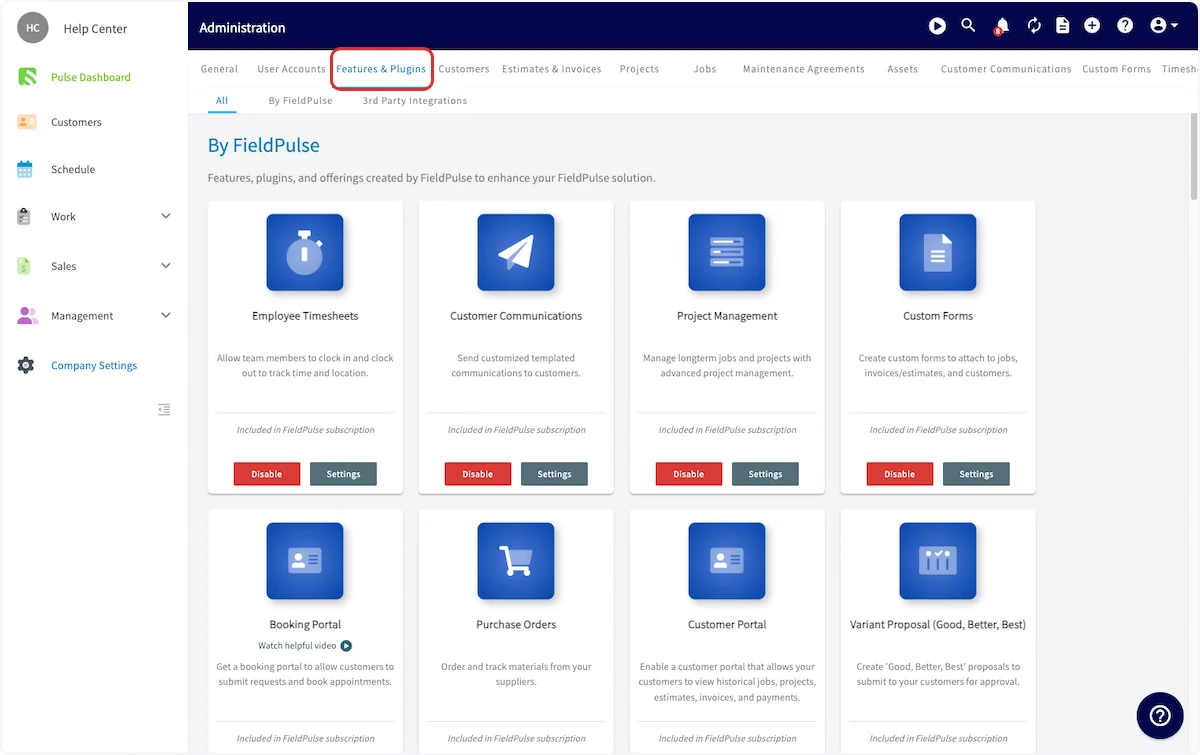
- Open the Features & Plugins tab.
- Select Enable under each feature you want to turn on for your business. See the Features & Plugins color coding reference below for what the colors mean.
4. Set your personal preferences in My Settings
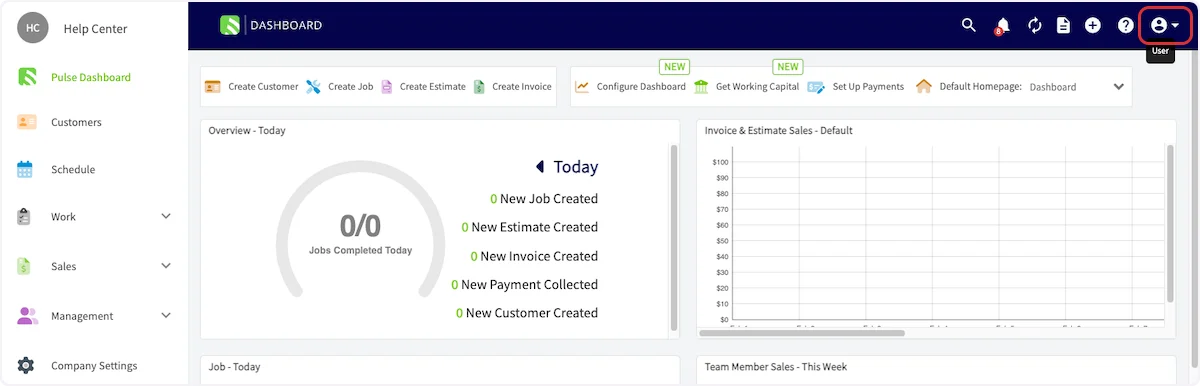
- Select the account icon in the top-right corner of the web app.
-
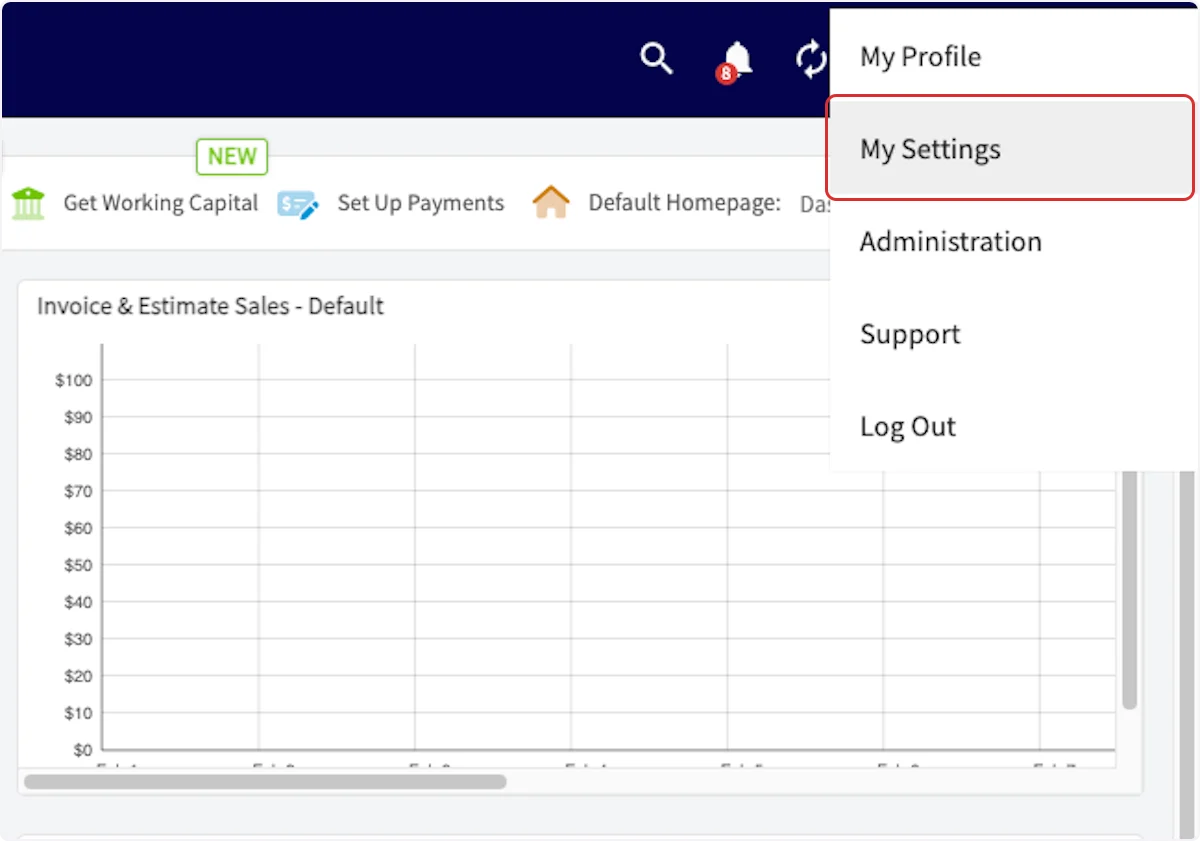
Select My Settings.
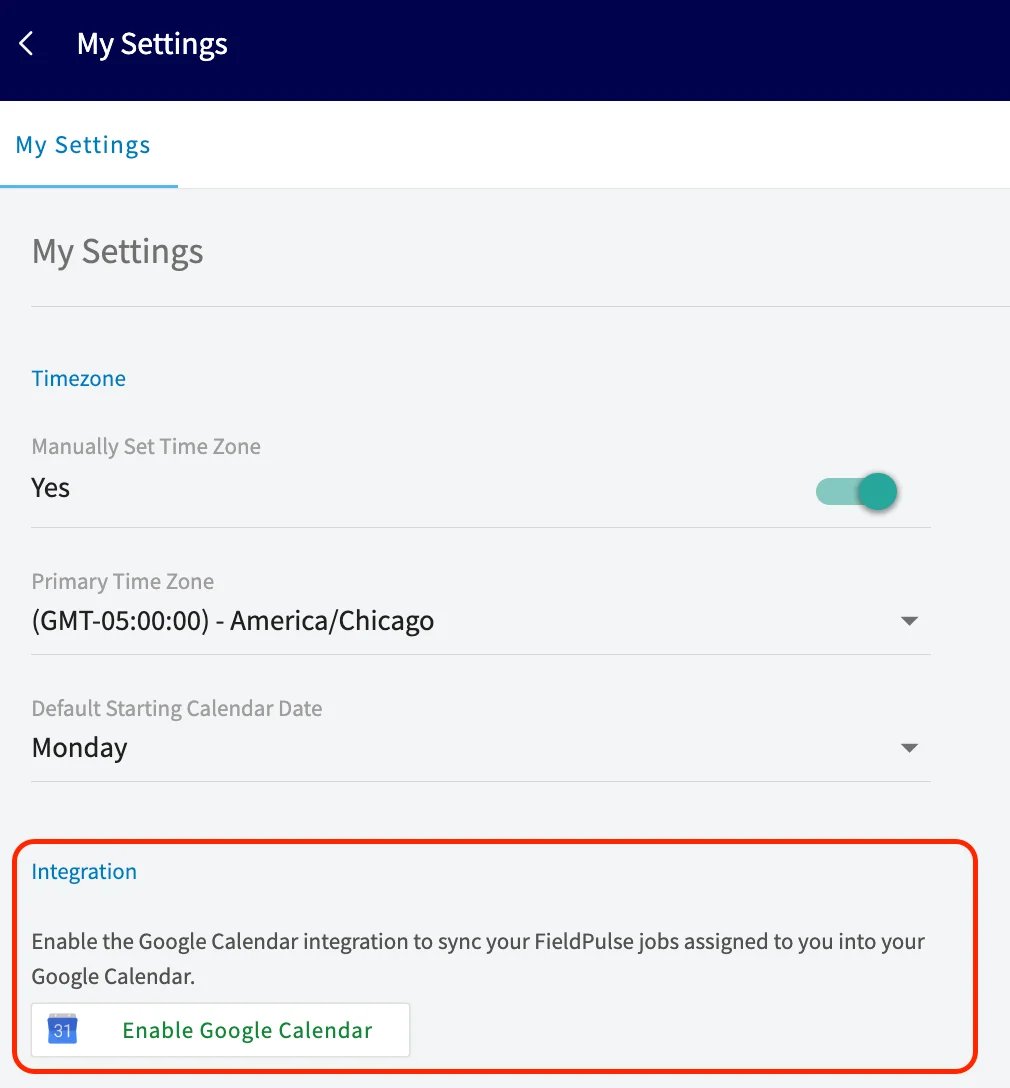
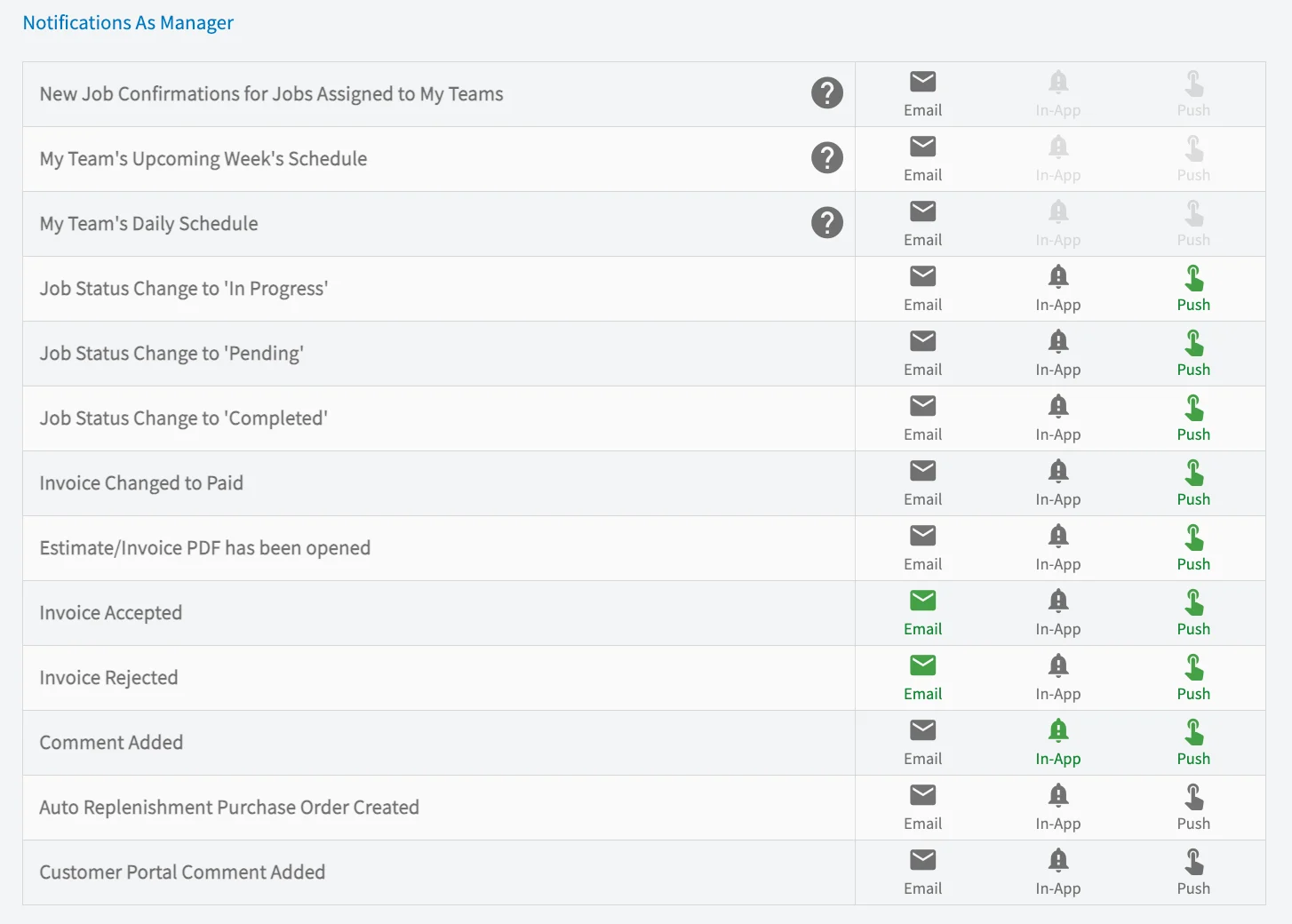
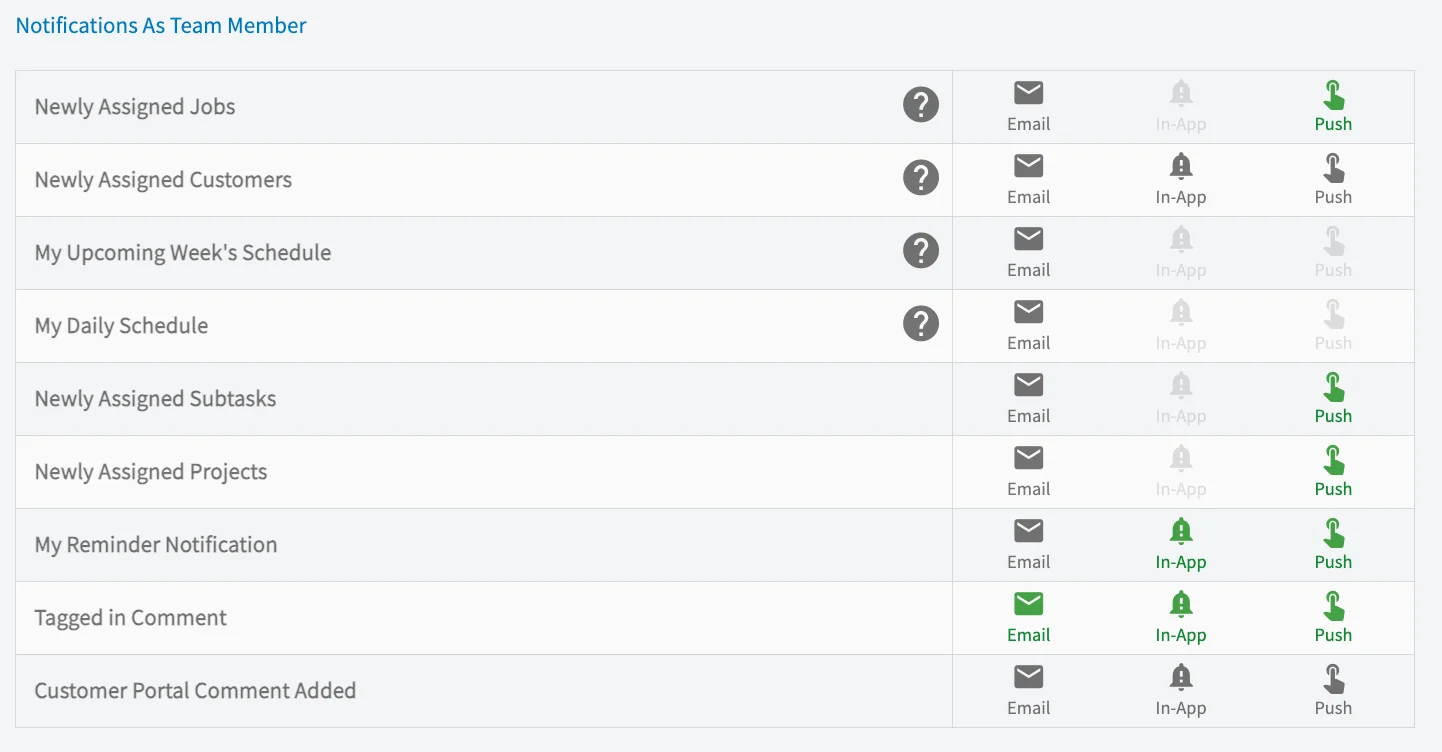
- Set the preferences described in the My Settings preferences reference below — your timezone, calendar start date, the Google Calendar integration, and your notifications.
Settings reference
Features & Plugins color coding
Features and plugins are color-coded so you can tell at a glance what’s included and what’s an add-on:
To decide what to turn on, see the Features & Plugins Overview.
My Settings preferences
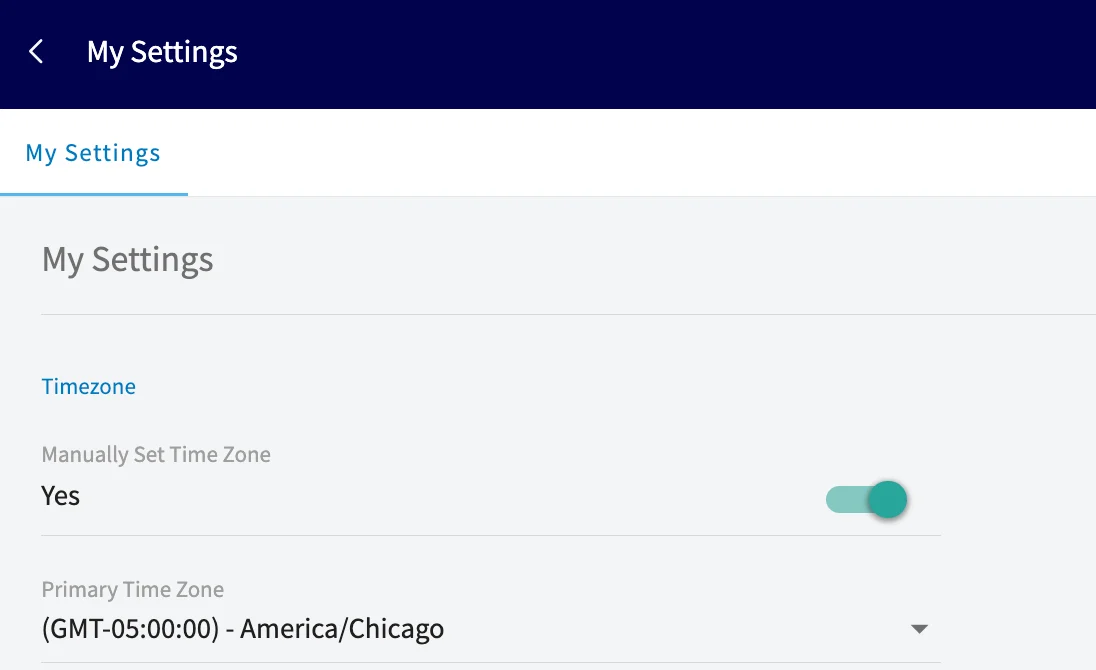
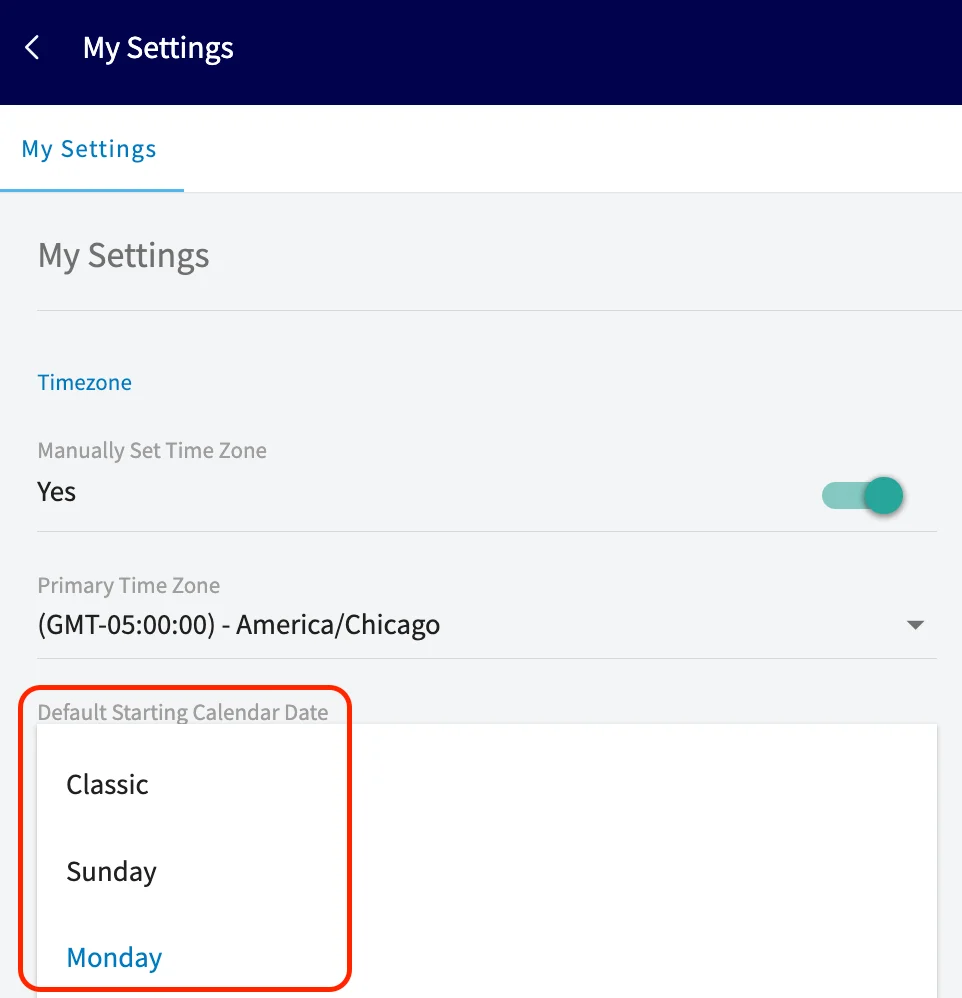
Set these per-user preferences so FieldPulse schedules and notifies you the way you expect:
The Timezone and Default Starting Calendar Date settings sit at the top of the My Settings page:
Daily emails are sent at 6am in your timezone.